
xP&A Operational Workforce Planning - Add a new Plan Level
This tutorial provides information about how to add a new Plan Level.
Overview
You will learn
- The meaning of the term Plan Level in the context of the xP&A Operational Workforce Planning Content Package for SAP Analytics Cloud
- Which steps are required in order to add a new Plan Level
- This includes… -modifying dimensions in the data model -adjusting all affected Data Actions -maintaining cost parameters for the new Plan Level


Prerequisites
Prerequisites
- You are familiar with the You are familiar with the xP&A - Operational Workforce Planning content from the xP&A Business Content Suite. Reference: Getting Started tutorial
- You have installed the You are familiar with the xP&A - Operational Workforce Planning content in an SAP Analytics Cloud tenant. Reference: Business Content Installation Guide, Content Package User Guide
Steps
Intro
In this tutorial you will learn how to create and add a new Plan Level.
In case you have any questions or require further support, please use the SAP Question Form.
If you have a specific request to our team in regards to the business content, you may also submit a request using the SAP Influence Platform.
If you are interested in more xP&A topics, related business content packages, or videos showing the content in action, feel free to check out our community page Extended Planning & Analysis Business Content.
In the scope of the xP&A - Operational Workforce Planning Content Package for SAP Analytics Cloud, the term Plan Level describes the high level point of view which is used by the planner for the planning activities.
Per default, the content package comes with five pre-defined Plan Levels.
- The pre-defined Plan Level PL1 enables the planner to perform planning activities on a
Company Code + Business Unitaggregation level for instance. - The pre-defined Plan Level PL2 enables the planner to perform planning activities on a
Company Code + Business Unit + Divisionaggregation level. - The pre-defined Plan Levels PL3 and PL4 enable the planner to perform planning activities on a
Company Code + Cost Centeraggregation level. While Plan Level PL3 and Plan Level PL4 provide the same point of view, PL3 is used for the aggregated planning scenario while PL4 is used for the detailed planning scenario. - The pre-defined Plan Level PL5 enables the planner to perform planning activities on a
Company Code + Business Unit + Job Familyaggregation level.
If you wish to define a different point of view, you can do so by adding a new Plan Level member to the plan level dimension.
In this specific tutorial, you will learn how to create a new Plan Level which enables planners to perform planning activities on a Company Code + Job Family level.
In the first step, it is necessary to add a new member to the Plan_Level dimension.
In the SAP Analytics Cloud Menu, navigate to the Files section.
Search for the
SAP__HR_BPL_IM_WORKFORCEdata model and open it.
Data_Model Open the dimension
Plan_Level.
Select_Plan_Level_Dim Add a new member to the Plan Level dimension.
In this example, the Plan Level
PL6representing aCompany Code + Job Familyaggregation level is added.- Make sure to active grid mode (you can find the button on the top right corner)
- Add the according attributes to the new Element-ID as shown in the below table or screenshot
Column Value Comment Member ID PL6Mandatory ID field Description CompanyCode, JobFamilyDescription of the new Plan Level member Planning Direction AggregatedMandatory field. Shows whether this Plan Level is applied to the aggregated or detailed planning scenario¹ Plan Dimensions jobFunctionMandatory field. Ensure that the spelling of the dimension matches with the spelling maintained in the whitelist² 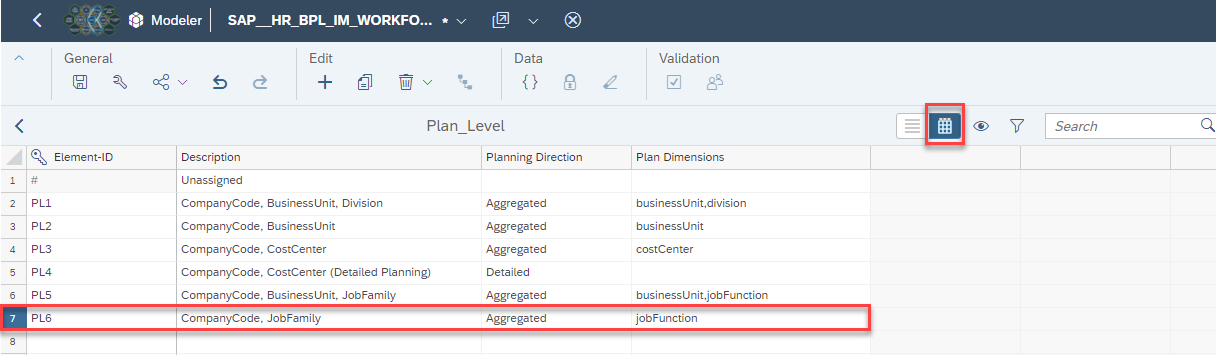
Add_New_Member ¹Allowed entries for the Planning Direction column are only the values
AggregatedorDetailed. Other keywords will not be recognized by the planning applications.²Allowed entries for the Plan Dimensions column are only values which are maintained in the dimension whitelist.
This whitelist can be found in every single planning application of this content package and also must be maintained in each application of this content package in case of changes.
In order to check the whitelist, open any planning story in edit mode and enter the
onInitializationscript.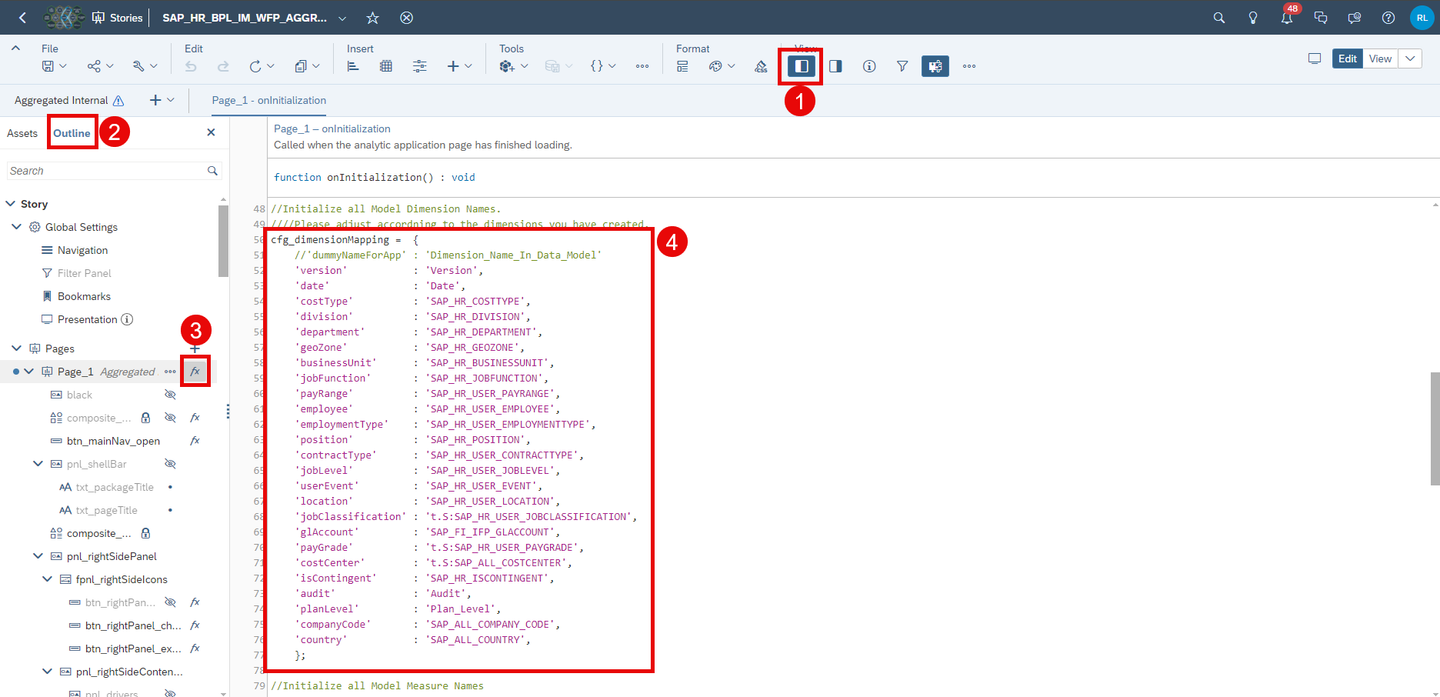
Whitelist The dictionary
cfg_dimensionMappingcontains a mapping between the technical name of all dimensions of the data model and its written name (maintained in camel case naming convention).The column Plan Dimensions must be populated with one of these dimensions under consideration of the spelling (except for the
companyCodedimension, as it is part of each Plan Level per default).In case your Plan Level contains more than one additional dimension apart from the Company Code dimension, you may enter multiple dimensions. Make sure to separate them with a comma without any spaces as it is the case for Plan Level PL1 or PL5.
Save your changes.
In the next step, you will set the new Plan Level PL6 as the default aggregation level for the Aggregated_Plan version.
In order to do so, the properties of the Version dimension need to be modified.
By doing this, your planning applications will automatically initialize all planning grids according to the definition of your new Plan Level. That means that all planning grids will initialize with a structure which enable you to make your entries on a Company Code + Job Family level.
Navigate back to the Model Structure workspace by hitting the back button on the top left corner and click on the dimension
Version.Change the value of the attribute
Plan Levelfor thepublic.Aggregated_Planversion toPL6in order for the planning applications to initialize accordingly.
Modify_Version_Dim Save your changes.
In the next step, all affected Data Actions must be adjusted in order to make calculations for the new Plan Level PL6work.
Navigate to the Data Action folder and open the Data Action
SAP__HR_BPL_IM_INITIALIZE_PLAN_WITH_AGGREGATION.
Data_Action_Menu Click on the second Data Action step Seeding Internal and complement the code with the following statement by adding these lines at the very end of the Data Action step:
CodeELSEIF @PlanLevelNumeric = 6 THEN //Aggregate all data from the specified ReferencePeriod of the Actual Version to CompanyCode/JobFunction (PL6) level and copy these values to the dates of the planning horizon (specified in Memberset) //Hint: Specify all dimensions except for CompanyCode/JobFunction DATA([d/Plan_Level] = "PL6", [d/SAP_HR_ISCONTINGENT] = "false", [d/Audit] = "INIT", [d/SAP_HR_USER_EMPLOYEE] = "#", [d/SAP_HR_POSITION] = "#", // [d/SAP_ALL_COMPANY_CODE] = "#", [d/SAP_HR_BUSINESSUNIT] = "#", [d/SAP_HR_DIVISION] = "#", [d/t.S:SAP_ALL_COSTCENTER] = "#", [d/t.S:SAP_HR_USER_PAYGRADE] = "#", [d/t.S:SAP_HR_USER_JOBCLASSIFICATION] = "#", [d/SAP_HR_DEPARTMENT] = "#", [d/SAP_HR_USER_LOCATION] = "#", [d/SAP_HR_USER_EVENT] = "#", [d/SAP_HR_USER_EMPLOYMENTTYPE] = "#", [d/SAP_HR_USER_JOBLEVEL] = "#", [d/SAP_HR_USER_CONTRACTTYPE] = "#", [d/SAP_HR_GEOZONE] = "#", [d/SAP_HR_USER_PAYRANGE] = "#", // [d/SAP_HR_JOBFUNCTION] = "#", [d/SAP_FI_IFP_GLACCOUNT] = "#" ) = RESULTLOOKUP([d/Version] = "public.Actual", [d/Date] = [d/Version].[p/ReferencePeriod]) ENDIFYour result should look like this:
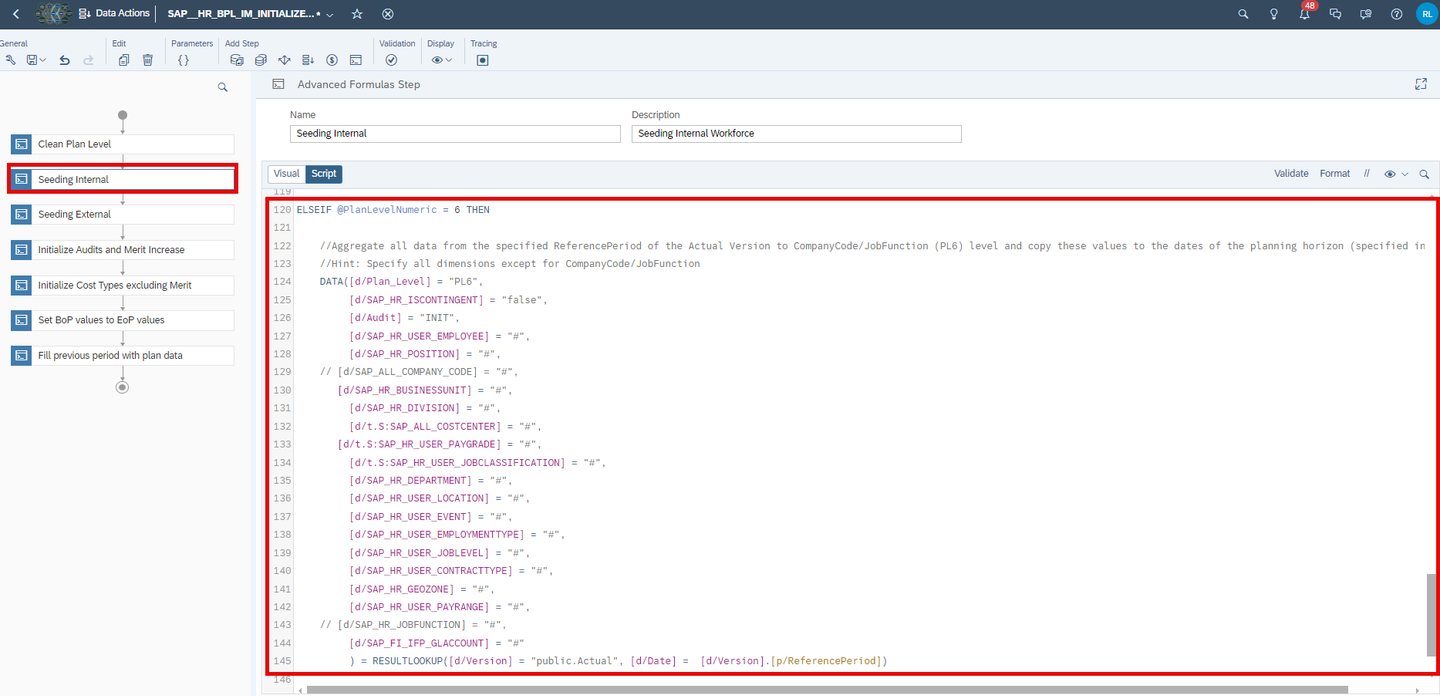
Data_Action_Seeding EXPLANATION:
- In order to make cost calculations for Plan Level
PL6work, add a new ELSEIF statement as shown in the image above. - For simplification reasons, you can copy one code block from any other Plan Level and paste it at the bottom of the Data Action step.
- If you do this, make sure to change the commented header accordingly so the description matches to the new code.
- Ensure that you adjust the ELSEIF condition as well and check for
PlanLevelNumeric=6. The number6represents the Plan LevelPL6. Accordingly, the number1would represent the Plan LevelPL1, number2the Plan LevelPL2etc. - In this example, the dimensions
[d/SAP_ALL_COMPANY_CODE]and[d/SAP_HR_JOBFUNCTION]must be excluded from the code as they are part of the definition of Plan LevelPL6. You can exclude dimensions by putting them into a comment as shown in the image. - In order for the calculation to work correctly, you must always exclude those dimensions (i.e by putting them into a comment) that are part of your Plan Level definition, which in the case of Plan Level
PL6are[d/SAP_ALL_COMPANY_CODE]and[d/SAP_HR_JOBFUNCTION].
- In order to make cost calculations for Plan Level
Repeat the same activity for the third Data Action step Seeding External.
CodeELSEIF @PlanLevelNumeric = 6 THEN //Aggregate all data from the specified ReferencePeriod of the Actual Version to CompanyCode/JobFunction (PL6) level and copy these values to the dates of the planning horizon (specified in Memberset) //Hint: Specify all dimensions except for CompanyCode/JobFunction DATA([d/Plan_Level] = "PL6", [d/SAP_HR_ISCONTINGENT] = "true", [d/Audit] = "INIT", [d/SAP_HR_USER_EMPLOYEE] = "#", [d/SAP_HR_POSITION] = "#", //[d/SAP_ALL_COMPANY_CODE] = "#", [d/SAP_HR_BUSINESSUNIT] = "#", [d/SAP_HR_DIVISION] = "#", [d/t.S:SAP_ALL_COSTCENTER] = "#", [d/t.S:SAP_HR_USER_PAYGRADE] = "#", [d/t.S:SAP_HR_USER_JOBCLASSIFICATION] = "#", [d/SAP_HR_DEPARTMENT] = "#", //[d/SAP_HR_USER_LOCATION] = "#", [d/SAP_HR_USER_EVENT] = "#", [d/SAP_HR_USER_EMPLOYMENTTYPE] = "#", [d/SAP_HR_USER_JOBLEVEL] = "#", [d/SAP_HR_USER_CONTRACTTYPE] = "#", [d/SAP_HR_GEOZONE] = "#", [d/SAP_HR_USER_PAYRANGE] = "#", //[d/SAP_HR_JOBFUNCTION] = "#", [d/SAP_FI_IFP_GLACCOUNT] = "#" ) = RESULTLOOKUP([d/Version] = "public.Actual", [d/Date] = [d/Version].[p/ReferencePeriod]) ENDIF
Data_Action_Seeding Save your Data Action.
Lastly you need to maintain Central Assumptions for the Plan Level PL6.
Here you can access the tutorial xP&A Operational Workforce Planning - Create and Upload Central Assumptions in order to learn how to upload and maintain Central Assumptions.
Congratulations! You have now added a new planning point of view to your workforce planning solution by extending the Plan Level dimension.
If you want to learn more about the SAP xP&A Operational Workforce Planning content package, customize the content and adjust it according to your own business requirements, the following resources might be helpful:
- xP&A Operational Workforce Planning - Get to know the Operational Workforce Planning Content
- xP&A Operational Workforce Planning - Create and Upload Central Assumptions
- xP&A Operational Workforce Planning - Add a new Plan Level
- xP&A Operational Workforce Planning - Add a new Cost Type
- xP&A Operational Workforce Planning - Add a new Version
- xP&A Operational Workforce Planning - Create Predictive Scenario
- xP&A Operational Workforce Planning - Write back plan positions to SAP SuccessFactors
If you want to get an overview of the entire xP&A Operational Workforce Planning content package, make sure to check out the Mission.
Interested in more xP&A topics and related business content packages? Visit our community page Extended Planning & Analysis Business Content.
Resources
Discussion
Share feedback on this tutorial or join the conversation in SAP Community.