
Overview
You will learn
- How to translate a properties file using SAP Translation Hub


Prerequisites
Prerequisites
- IMPORTANT: This tutorial cannot be completed on a trial account.
Steps
In your SAP BTP account, choose Services in the navigation area on the left.
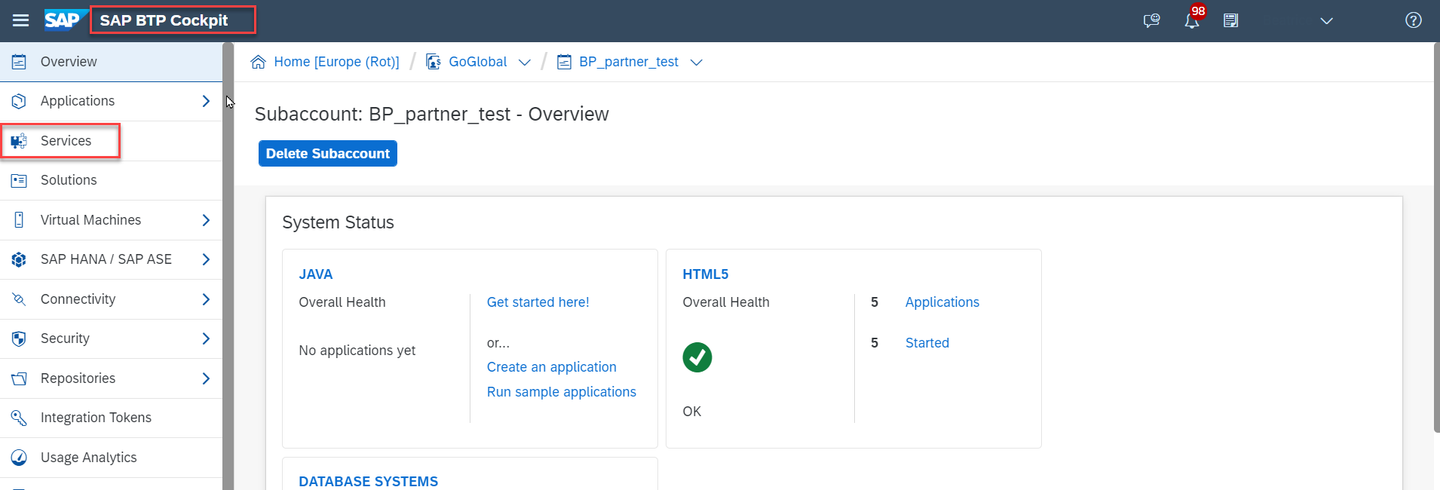
Locate the SAP Translation Hub tile by searching for tran. Then choose the tile.

In the service description for SAP Translation Hub, choose Go to UI for Translation Workflow.
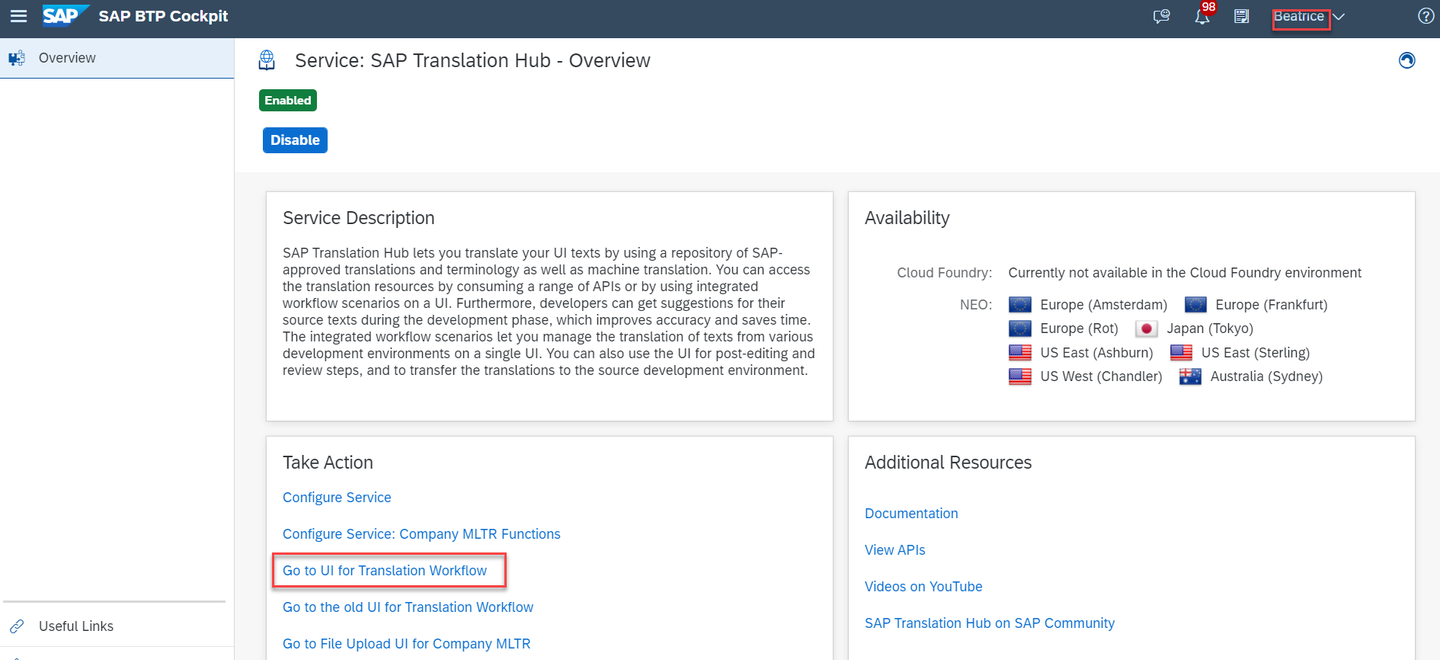
First, you’ll need to create a translation project.
Choose + Add New Project and then File Project.

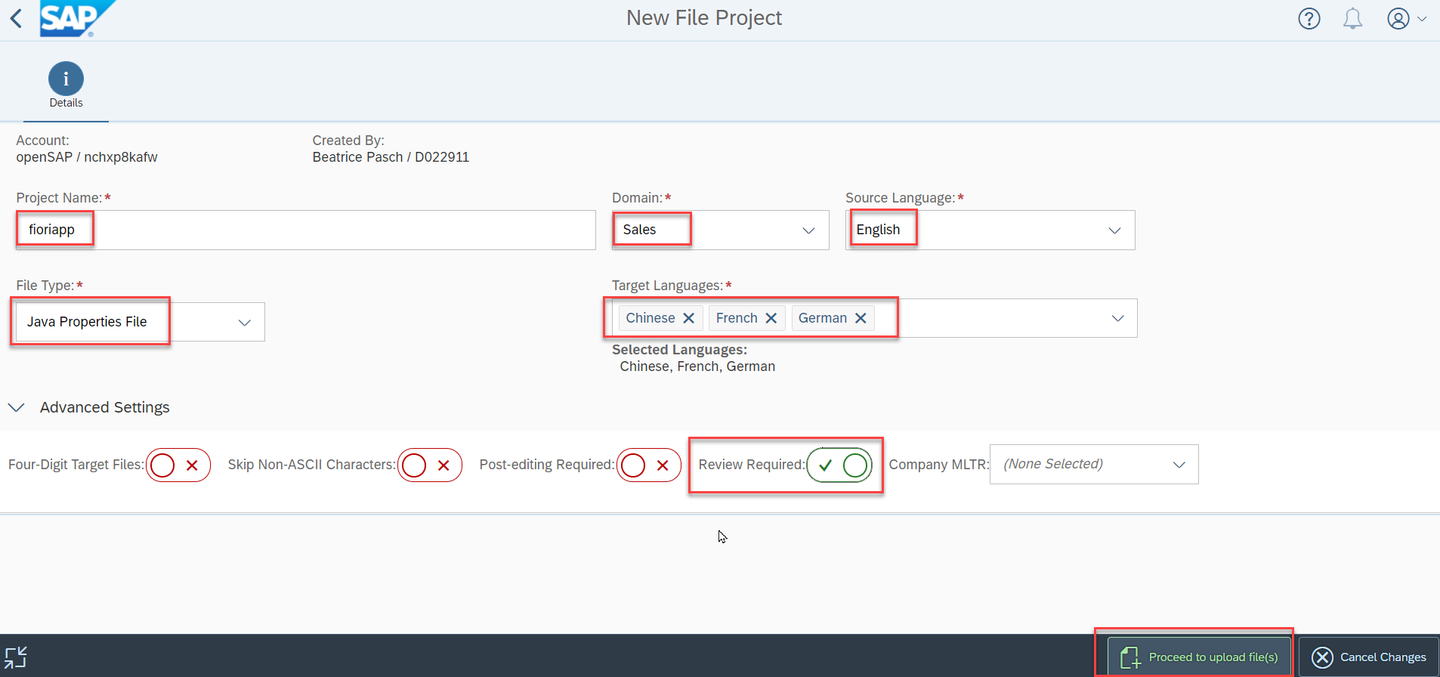
Now you need to enter the following details about your project on the Details tab:
| Field Name | Value |
|---|---|
| Project Name | fioriapp |
| Domain | Sales |
| Source Language | English |
| File Type | Java Properties File |
| Target Languages | Chinese, French, and German |
In the Advanced Settings you can specify if you want to use a company MLTR or a review process.
To simplify the tutorial only select YES for Review Required. Leave all other fields and selection options as they are and click on Proceed to upload file(s).
Drag your source file to anywhere in the project or click on the + icon to upload your .properties file.
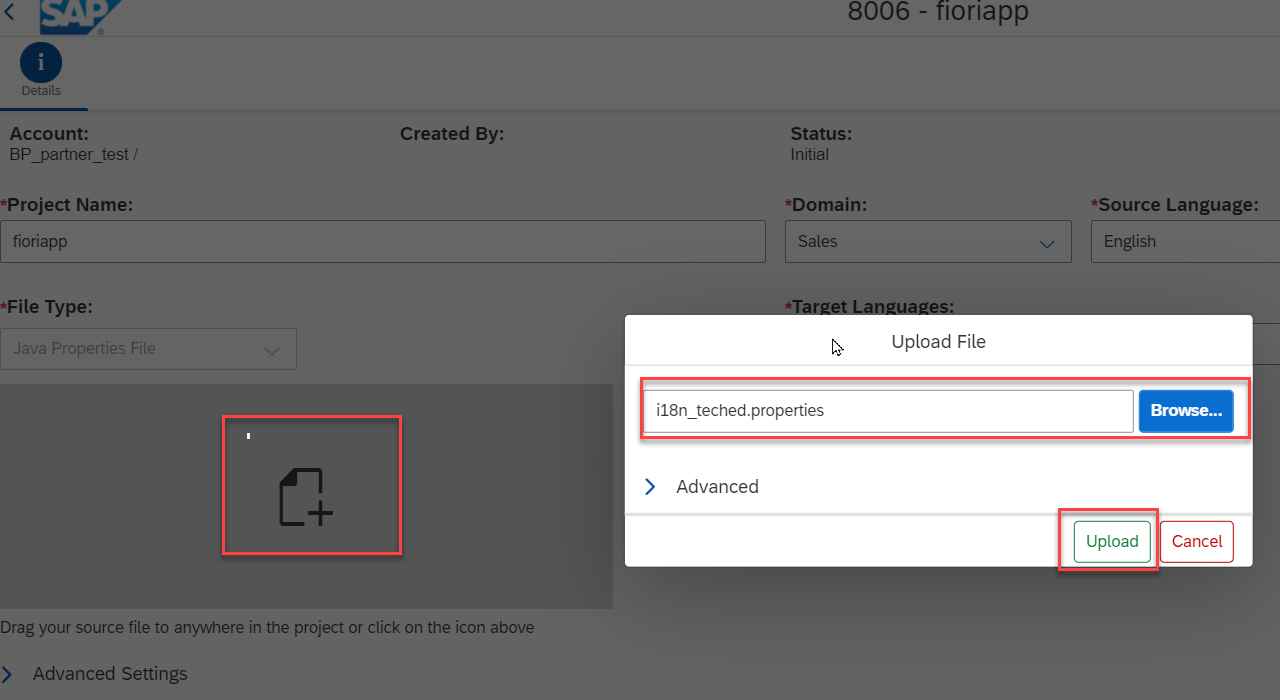
If everything works as expected, you see the following status:
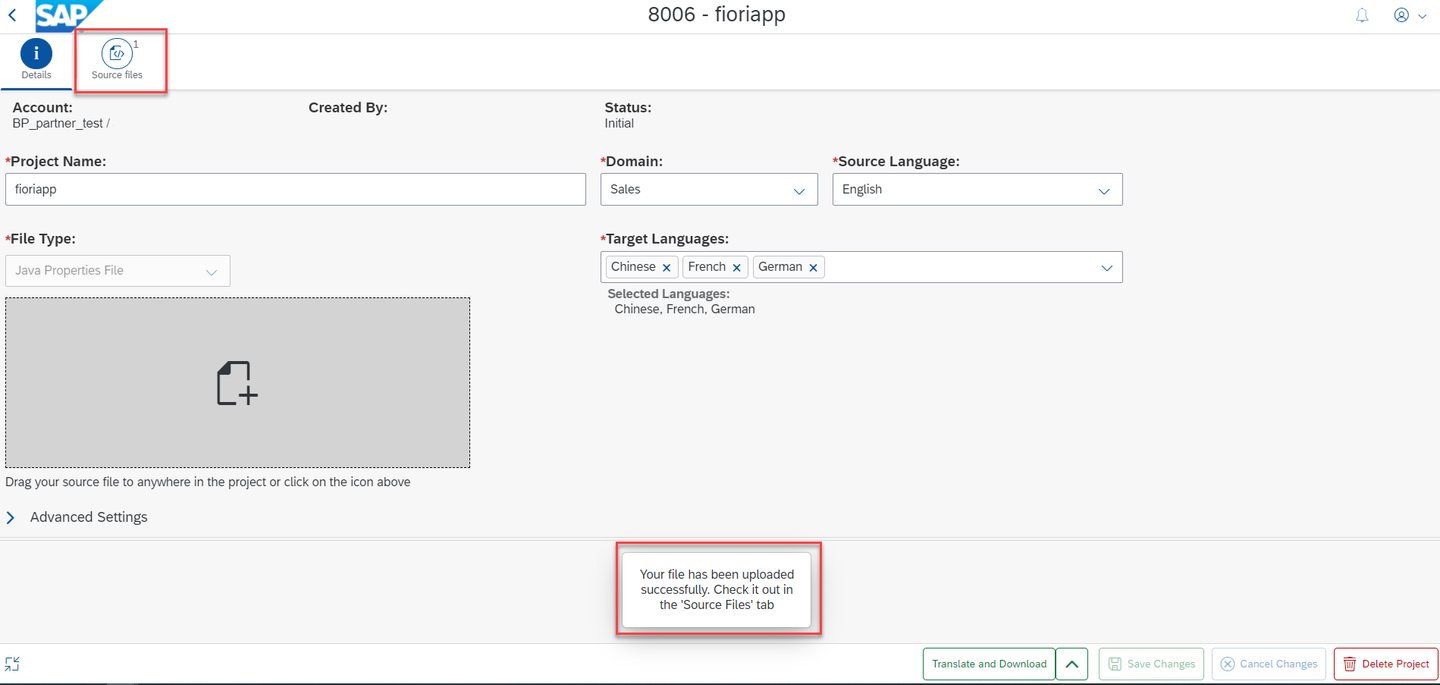
SAP Translation Hub shows an overview of your translation project. To start the translation process choose the red marked icon and Translate without Download in the bottom right of the screen.

If everything works as expected, you see the following status:
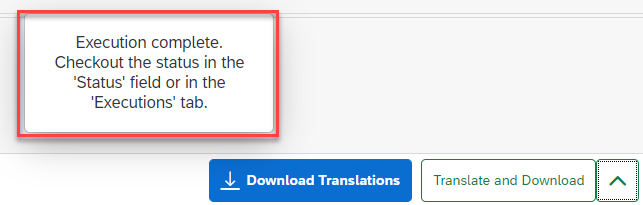
The translation is now complete, but you might want to review the translations. To do that, choose Translations:

This is where you can switch between the target languages and, in the columns to the right, see the translation provider and a quality status. The higher the number on a scale from 0-100, the better the quality.
For translations provided by SAP machine translation (SAP MT), the quality index is always 25.

If you want to change any of the translations, simply make your changes directly in the Translated Text column. When you’re done, choose Save Project. As a final step, download your translations with the button Download Translations.

A zip file is downloaded to your local drive. It contains a separate .properties file for each target language.
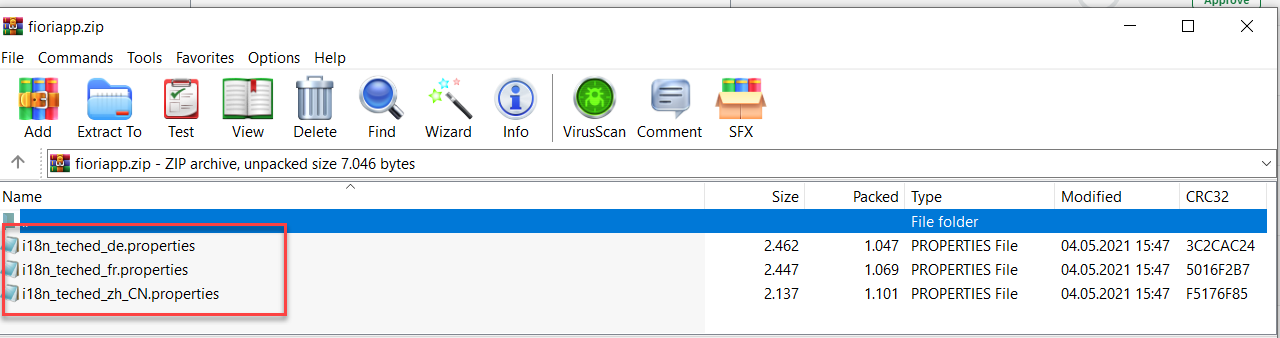
Resources
Discussion
Share feedback on this tutorial or join the conversation in SAP Community.