
Overview
You will learn
- How to integrate your SAP UI5 Approval Form in an SAP Build Process Automation project.


Prerequisites
Prerequisites
- Complete Create an SAP UI5 Task in for a Business Process tutorial
- Complete Subscribe to SAP Build Process Automation tutorial
- Complete Build Your First Business Process with SAP Build Process Automation mission
Steps
Open your Sales Order Management project you created as a prerequisite.
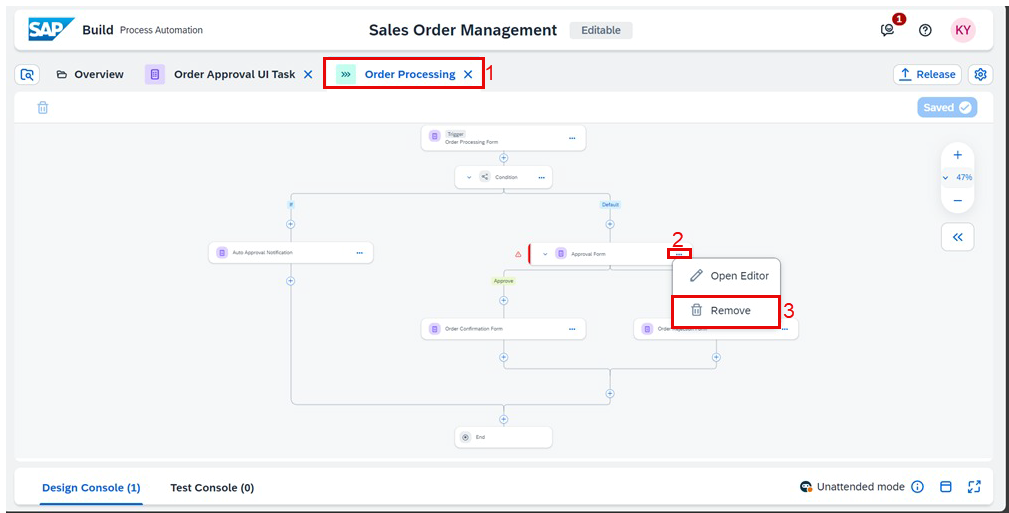
CAUTION: If you are using a SAP BTP Free Trial account, you are limited to a quota of 5 forms within your project. Please delete the Approval Form before you import your SAP UI5 form.

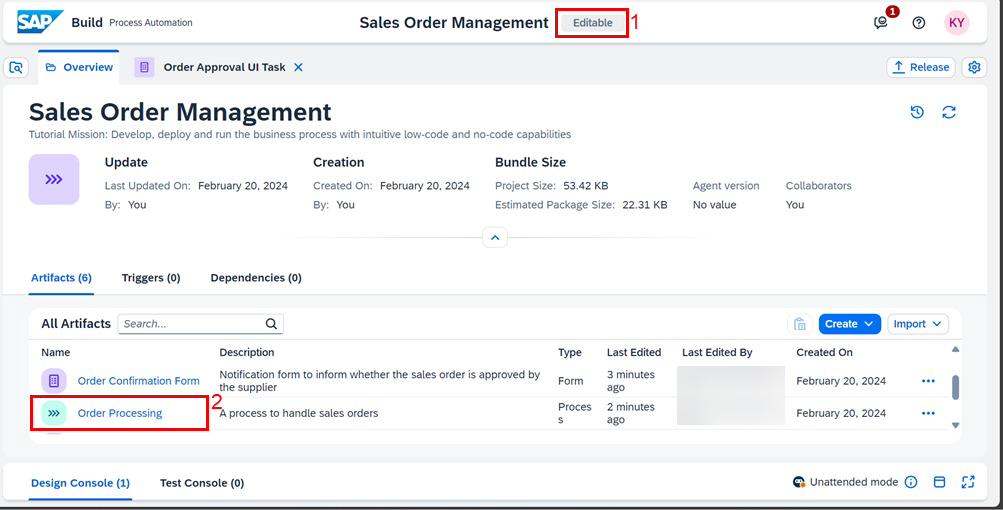
Process Perform the following steps:
- under the Editable version of your project
- choose the Import button
- select Form from the contextual menu

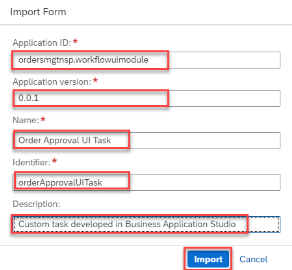
Process Fill the Import Form details:
- set the Application ID, the name of your SAP UI5 application you get from the manifest.json file
- set the Version, the application version you get from the manifest.json file
- provide a Name, an identifier and a description for your approval form
- choose the Import button
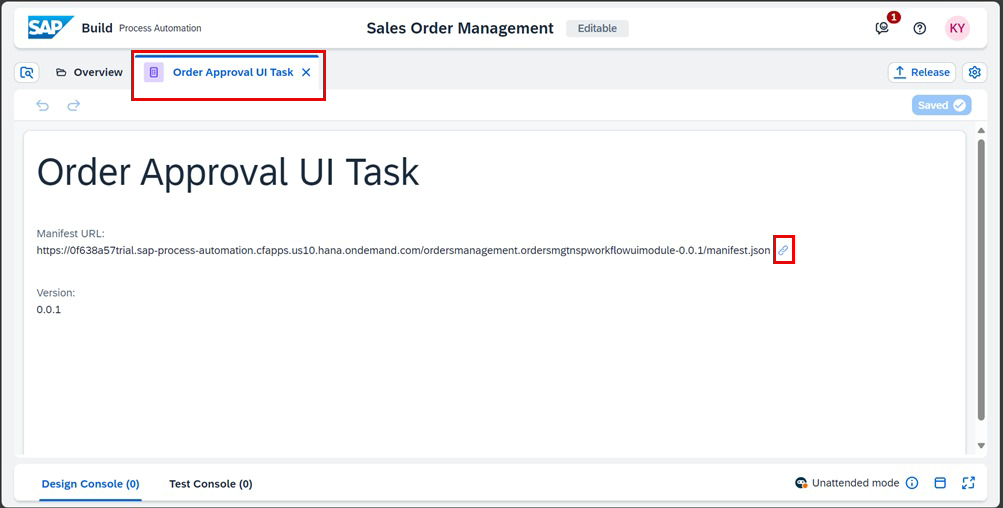
Process The form should open in the Forms Editor:
- if you want to open the manifest.json, choose the hyper link button
- close the Forms Editor
Process
Open your Order Processing business process.
Process Remove the current Approval Form designed by with Forms Builder.
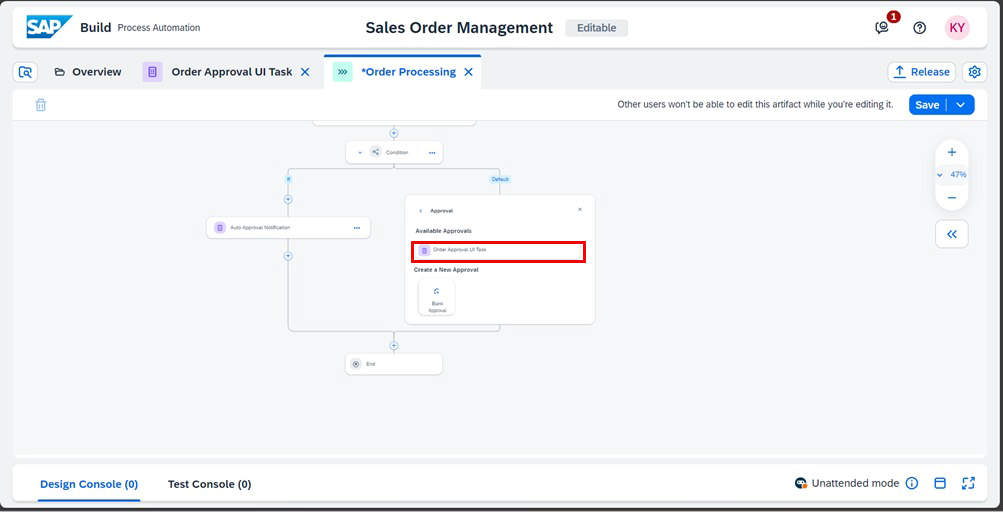
Process Add your imported Order Approval UI Task as approval into your business process.
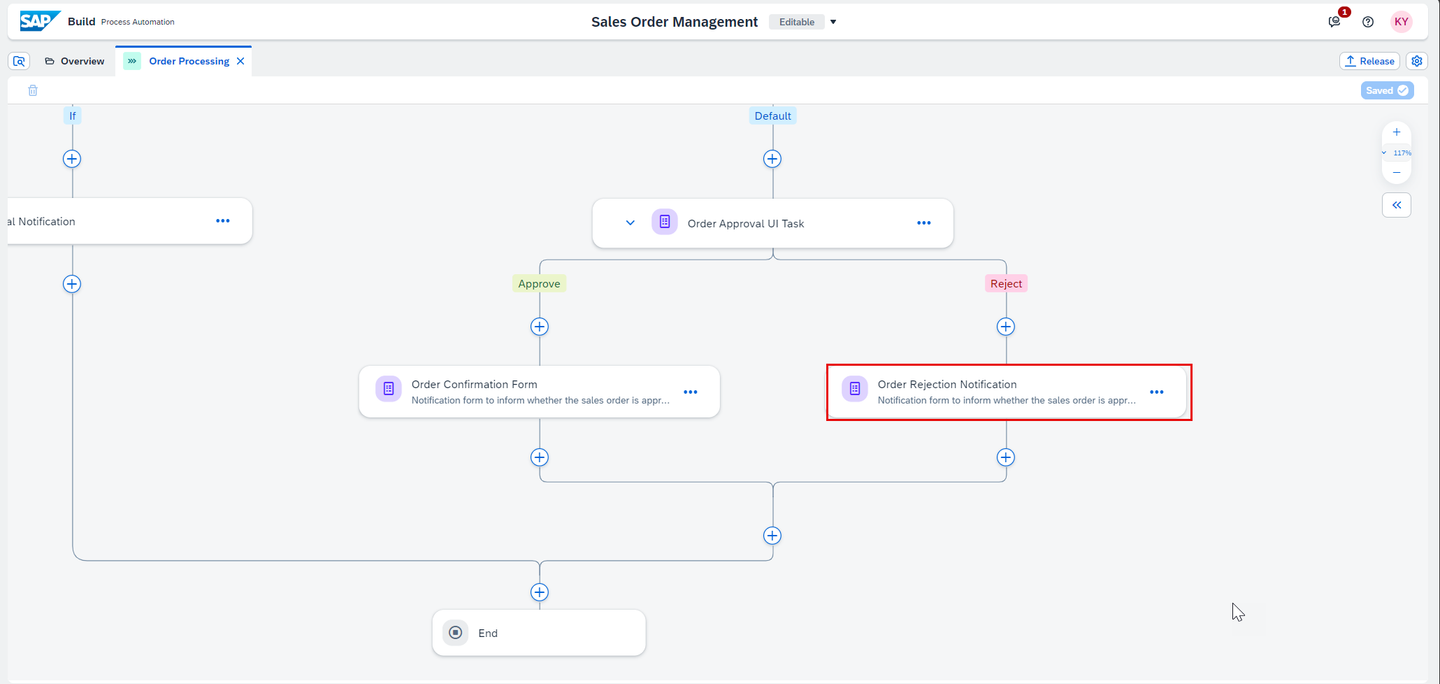
Process Connect the reject branch into the Order Rejection Notification form.
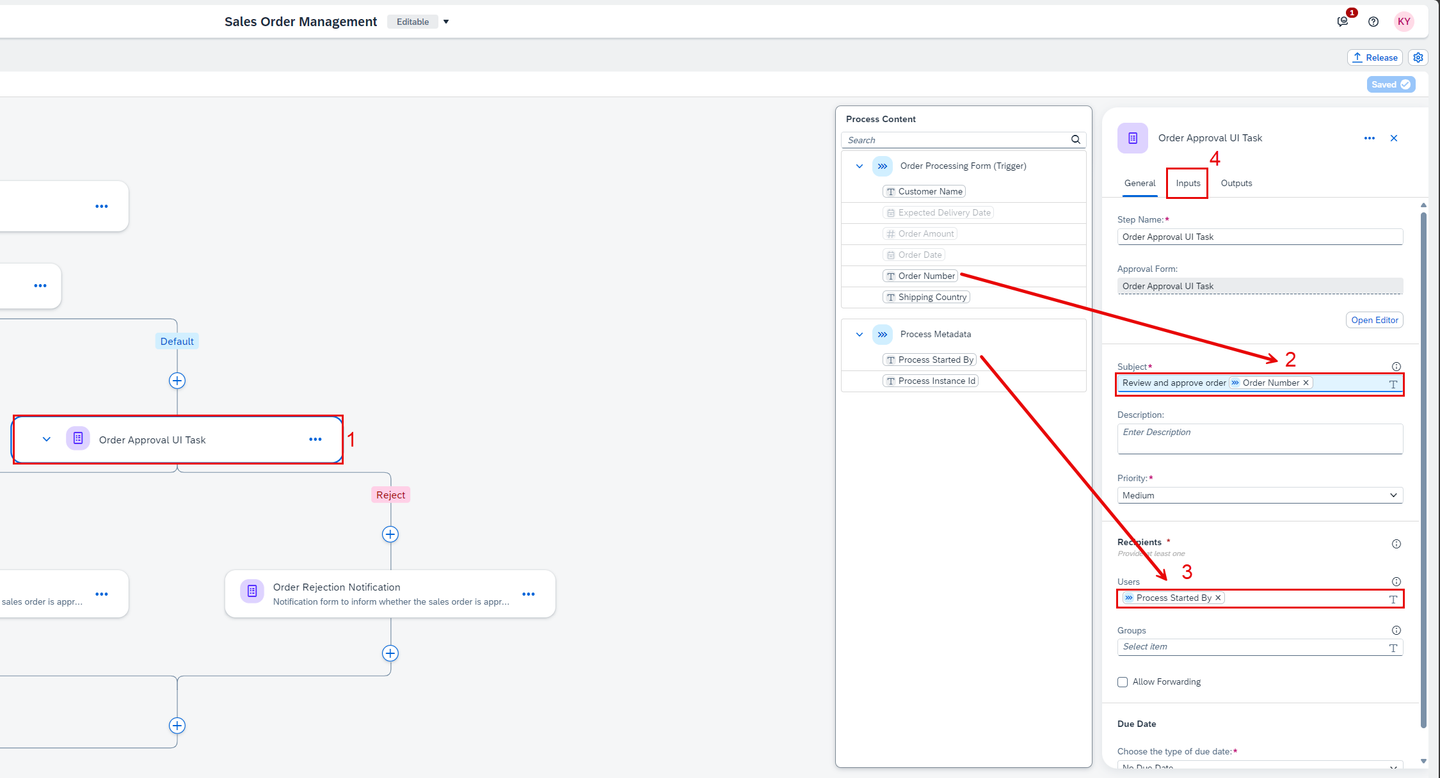
Process Select the Order Approval UI Task, fill and map the required fields:
- in the Subject field, enter Review and approve order, select Order Number from Order Processing Form, enter and, select Ship To Party from Order Processing Form
- set the Users under Recipients with Process Started By from Process Metadata
- choose the Inputs tab
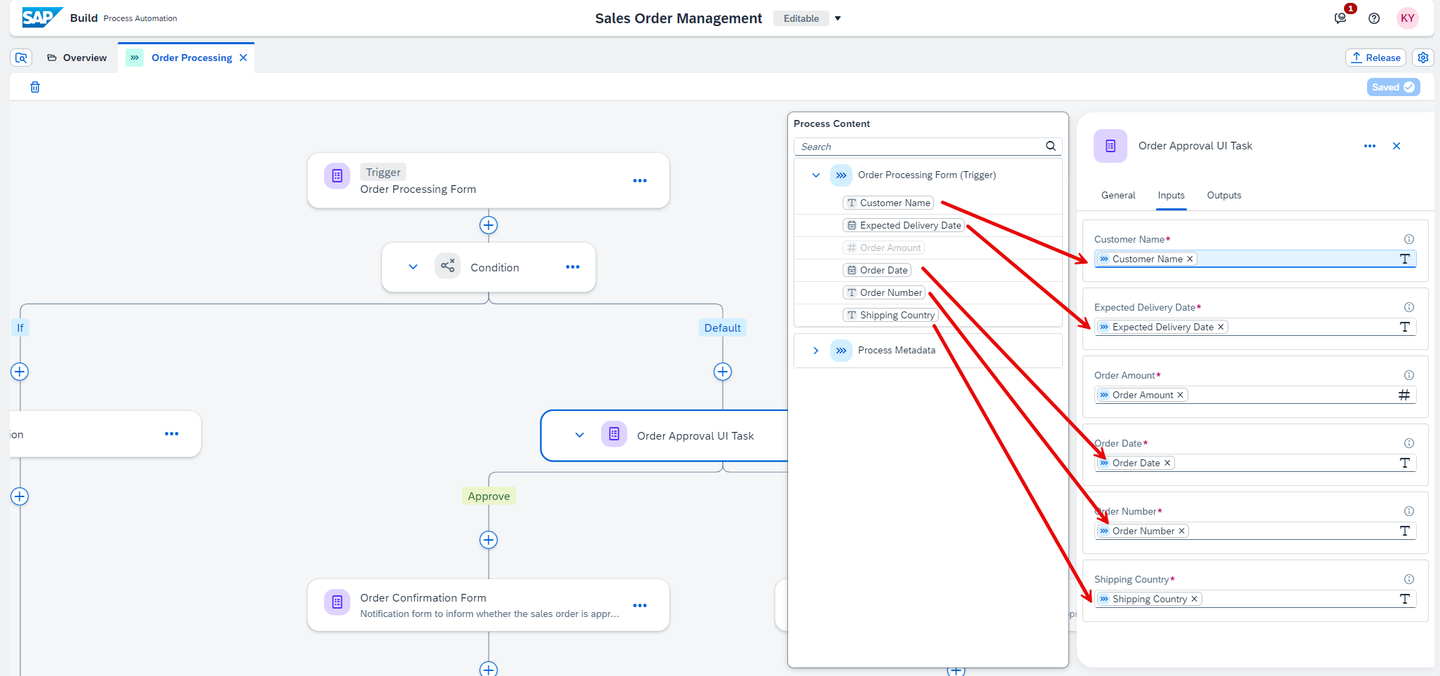
Process Map the required form Inputs accordingly.
Process Select the Order Confirmation Form and map the required missing input accordingly.

Process Select the Order Rejection Notification form.
- map the required missing input accordingly
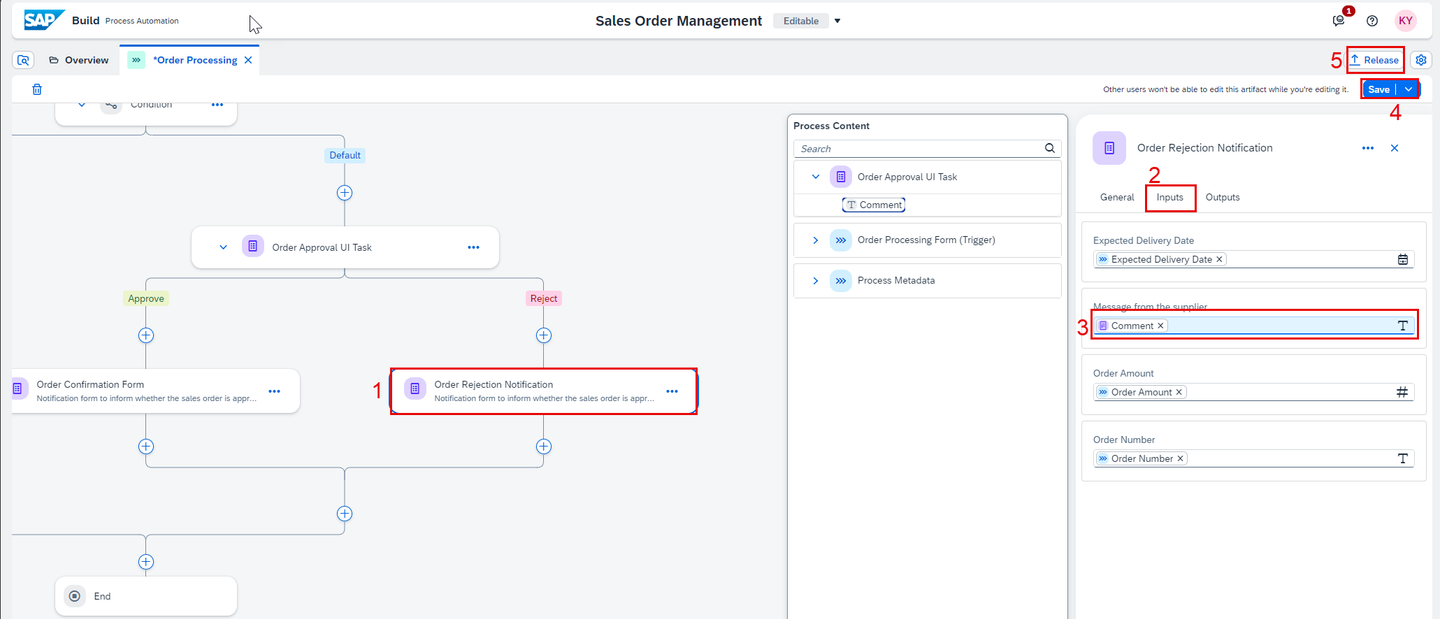
Process Save your project.
Release your project.
Deploy your Project and retrieve the Form Trigger link for testing.

Process Provide Sales Order data and test your process going through the approval process branch.
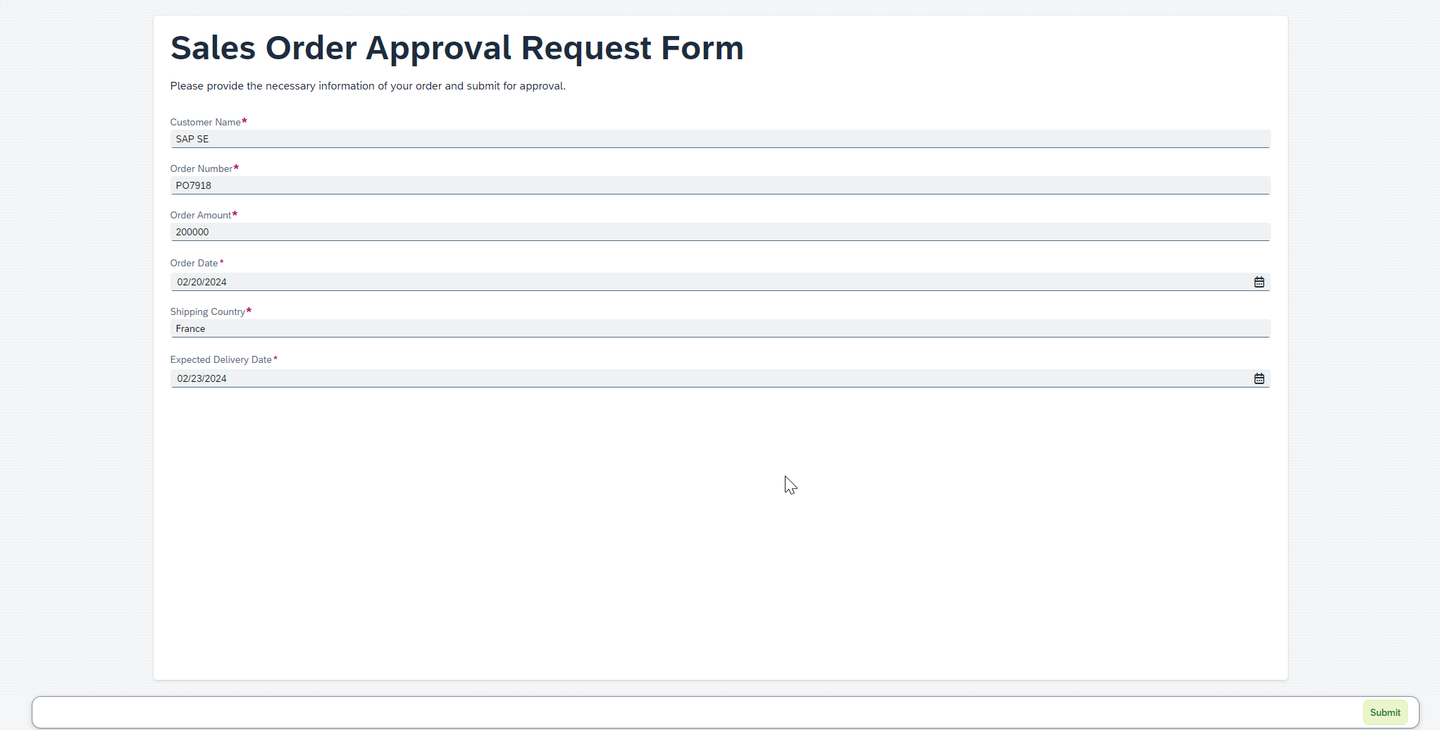
Process
Open your Inbox.

Process Review your approval task and take a decision.

Process Complete your process:
- Refresh your tasks
- Check that the decision is reflected with the right notification task

Process
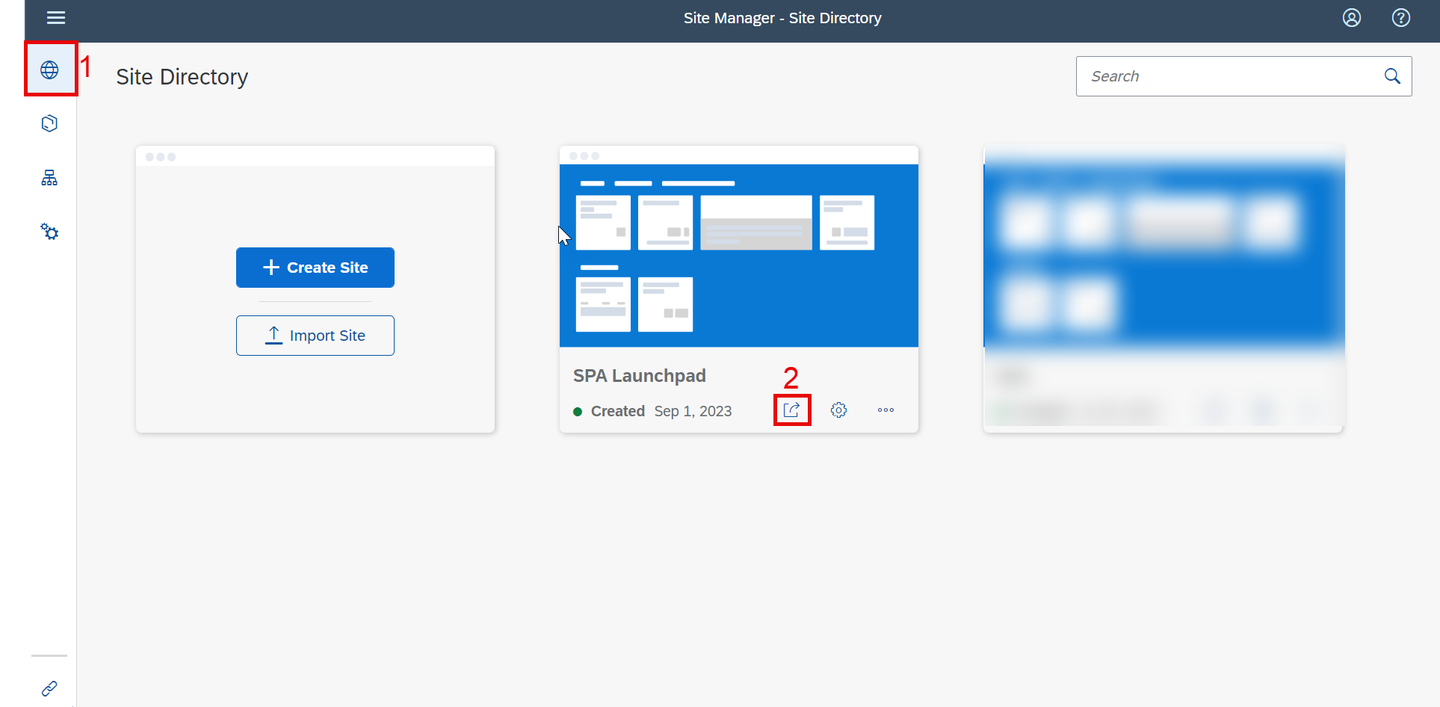
Pre-requisite: Complete Configure SAP Build Work Zone, Standard Edition tutorial
Once you have subscribed to SAP Build Work Zone, Standard Edition navigate to Site Directory and go to the site.
Process Choose the Inbox tile.
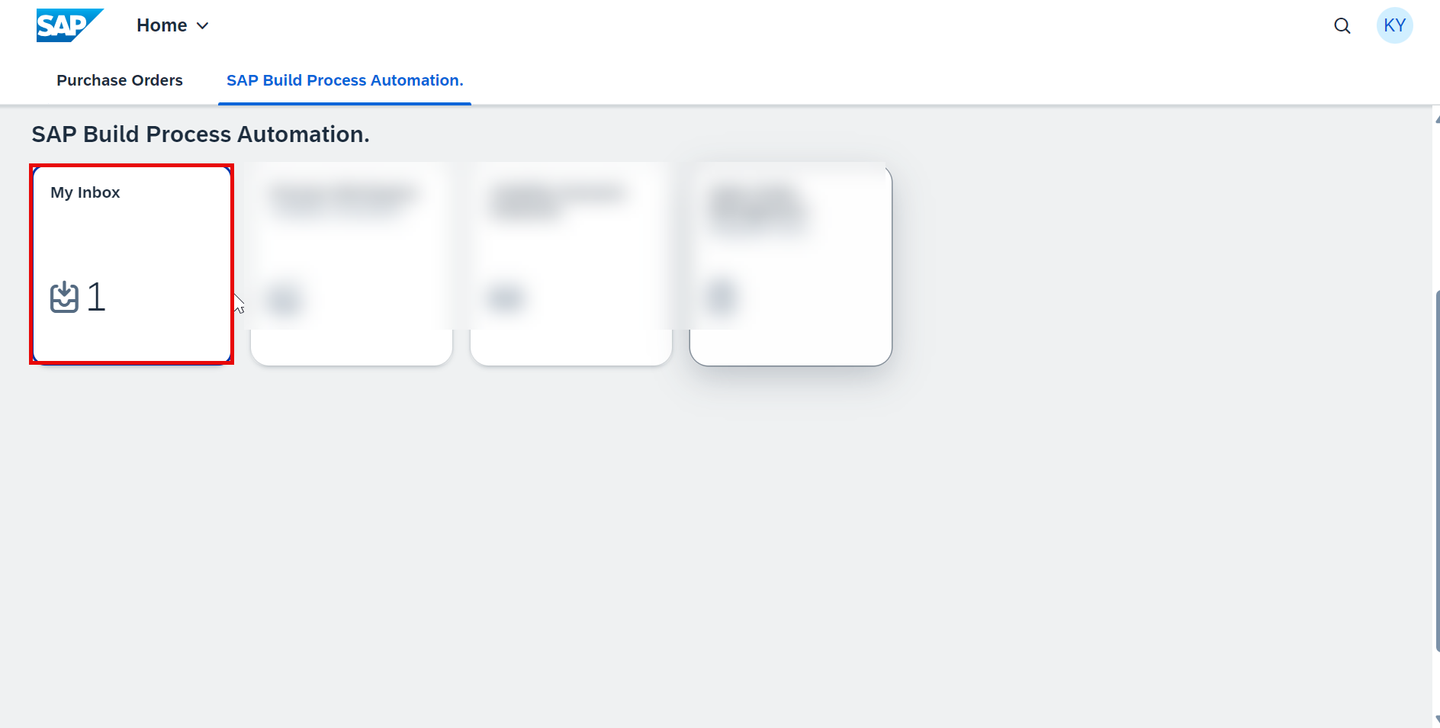
Process Review your approval task and take a decision.
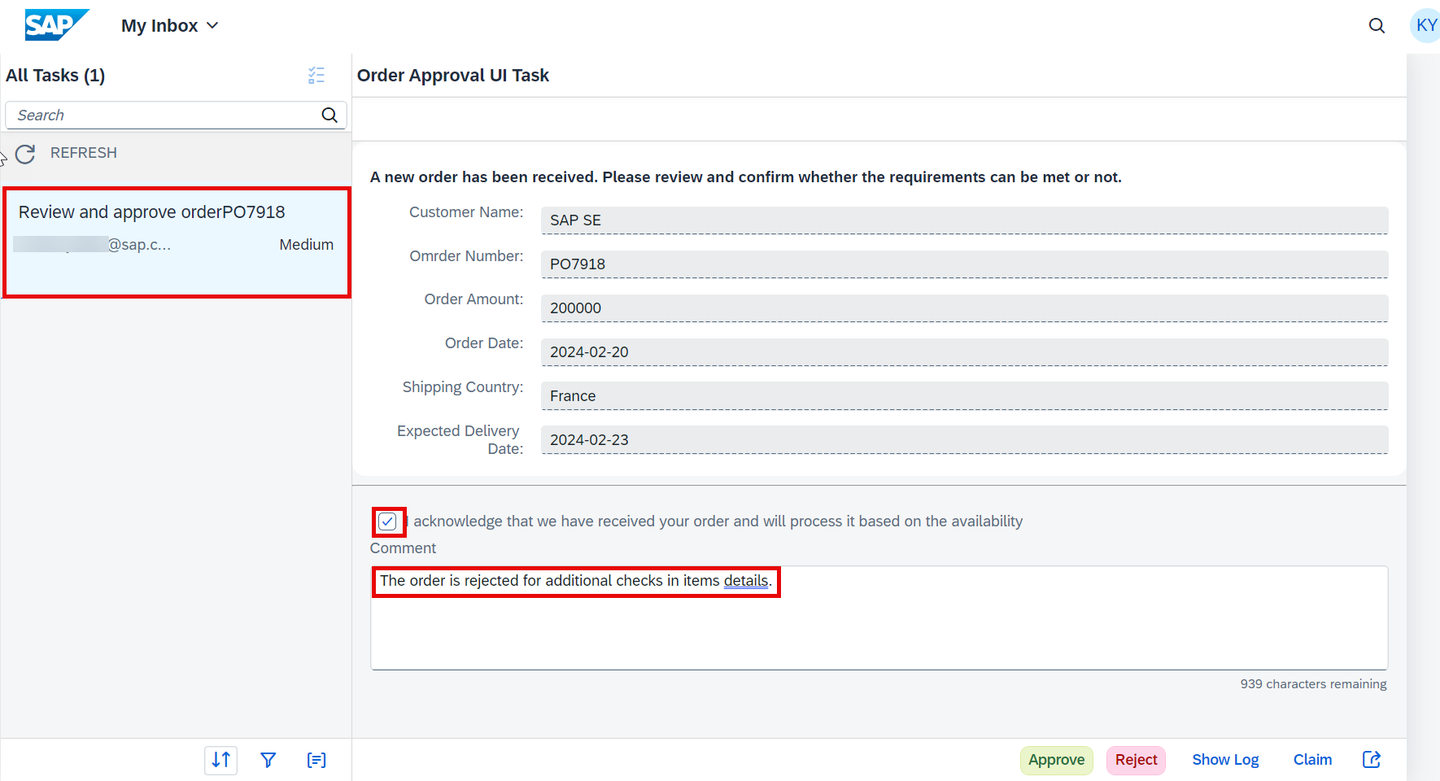
Process Complete your process:
- Refresh your tasks
- Check that the decision is reflected with the right notification task

Process
- Monitor the business process.

You have successfully completed the tutorial, integrating an SAP UI5 application in the order approval business process.
The entire project is available in the SAP Build Store as a sample and you can follow the below steps to retrieve the project and use it for reference.
To retrieve this sample, please follow these steps:
From the SAP Build Lobby, navigate to Store.
Search for the sample project: Sales Order Management (MI08).
Choose Create from Template to retrieve the sample and save it as a new project in your lobby.
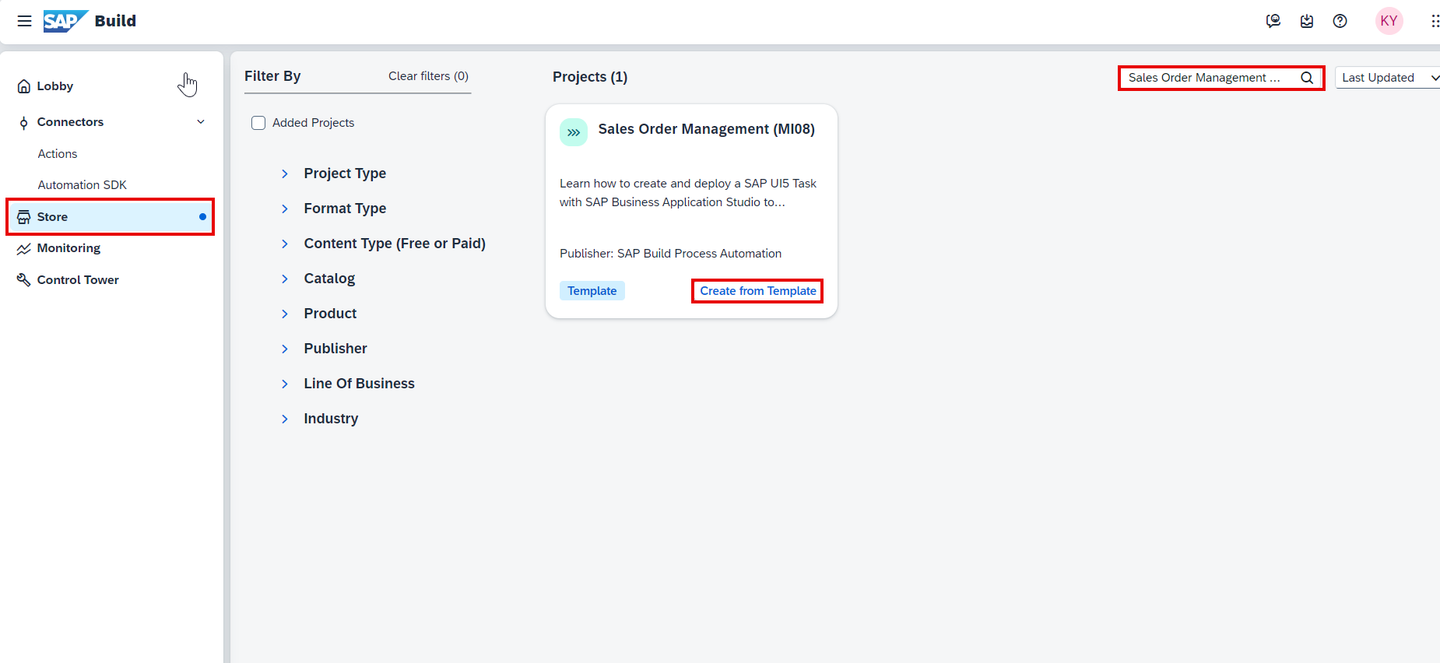
Office Choose Create.

Office Your project gets created in editable version. You may release and deploy it and run the project.
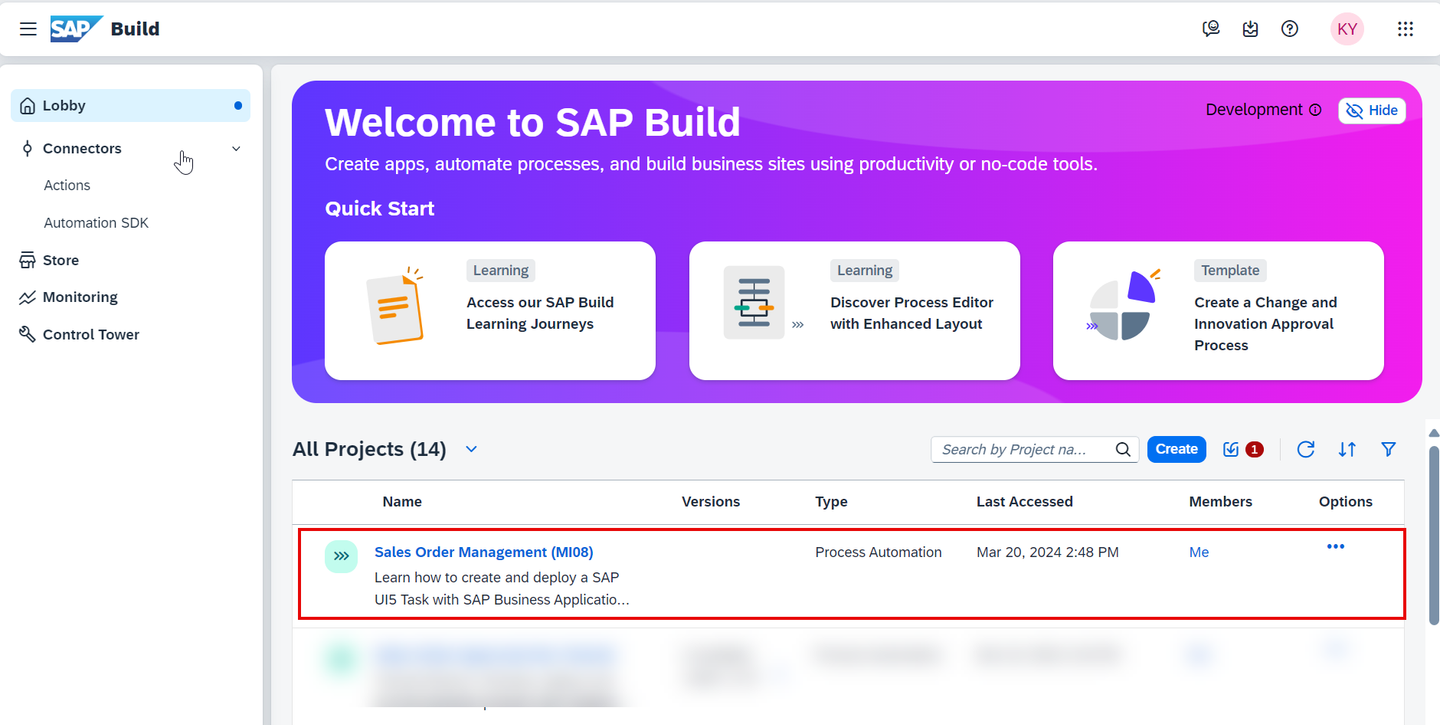
Navigate back to the lobby by clicking on the SAP logo.

Office You can see your project is available in the lobby.
Office
Resources
Discussion
Share feedback on this tutorial or join the conversation in SAP Community.