
Overview
You will learn
- How to extract data using Document Extraction Template
- How to bind parameters between process and automation


Prerequisites
Prerequisites
- Complete the tutorial on creating an Invoice Approval Process
- Install and Setup the Desktop Agent
- Download the Invoice Document to your local machine
Steps
In the process Get Invoice Details, choose +.

Automation Select Automation.

Automation Click on Blank Automation.

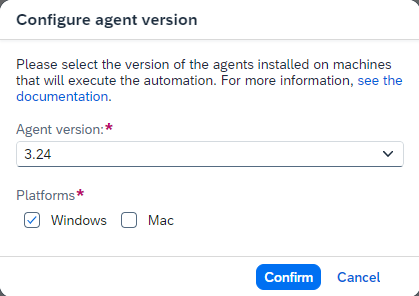
Automation A pop up will appear to configure the Desktop Agent version. Do the following in the pop up:
- From the dropdown, select the version of the Desktop Agent installed on your machine.
- Under Platforms, choose Windows or Mac depending on the Platforms you are working on.
- Choose Confirm.
The version of the Desktop Agent would be with suffix as Registered.
Automation A new pop-up will appear to create the automation. Do the following in the pop-up:
- Enter Name of the automation: Extract Invoice Data,
- Enter Description of your choice,
- Choose Create.

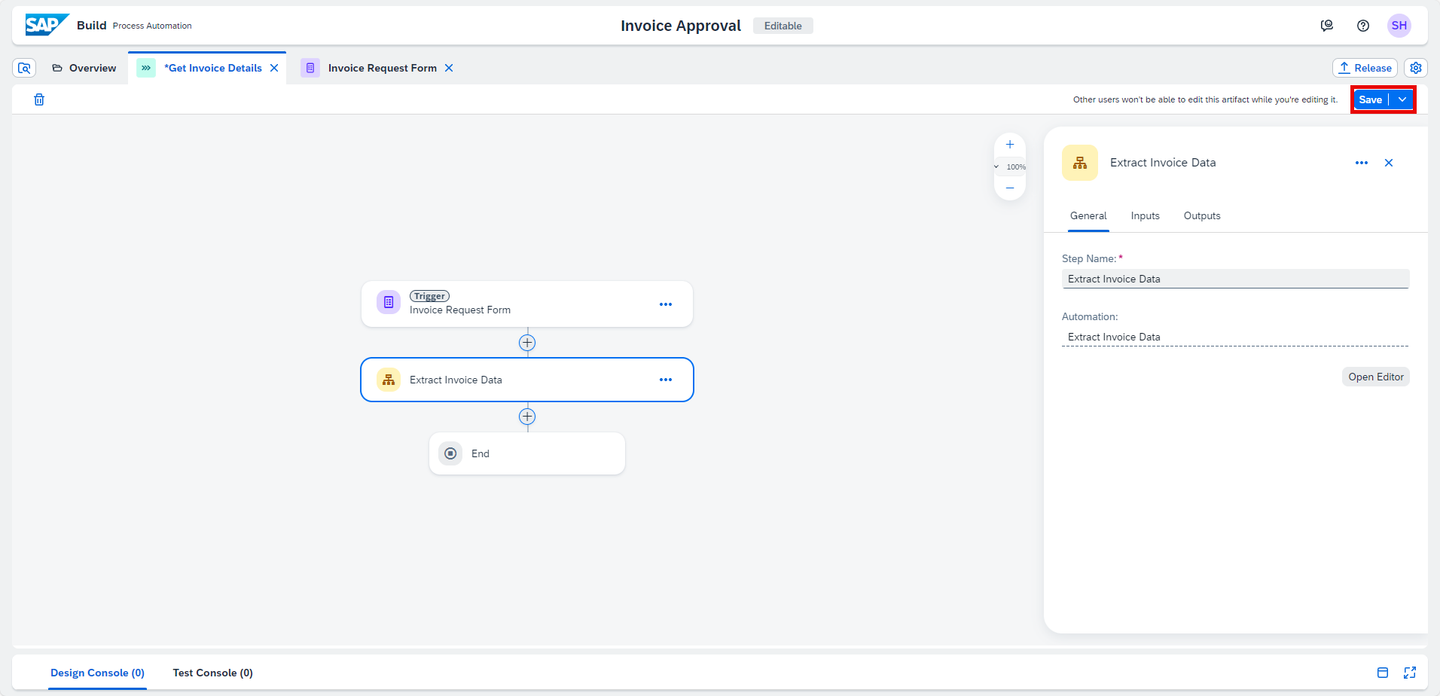
Automation An automation Extract Invoice Data will be created successfully.
Choose Save.
Automation
Go to the Overview Tab. Choose the Create button. Create an artifact of the type Data Type.

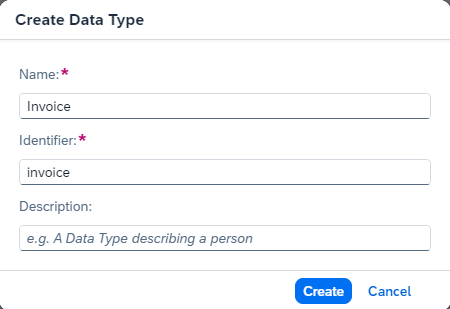
Automation A new pop-up will appear:
- Enter Name of the data type: Invoice,
- Enter Description of your choice,
- Choose Create.
Automation In the Data Type Invoice add new fields as following:
Field Name Type DocumentNumberString GrossAmountNumber SenderNameString 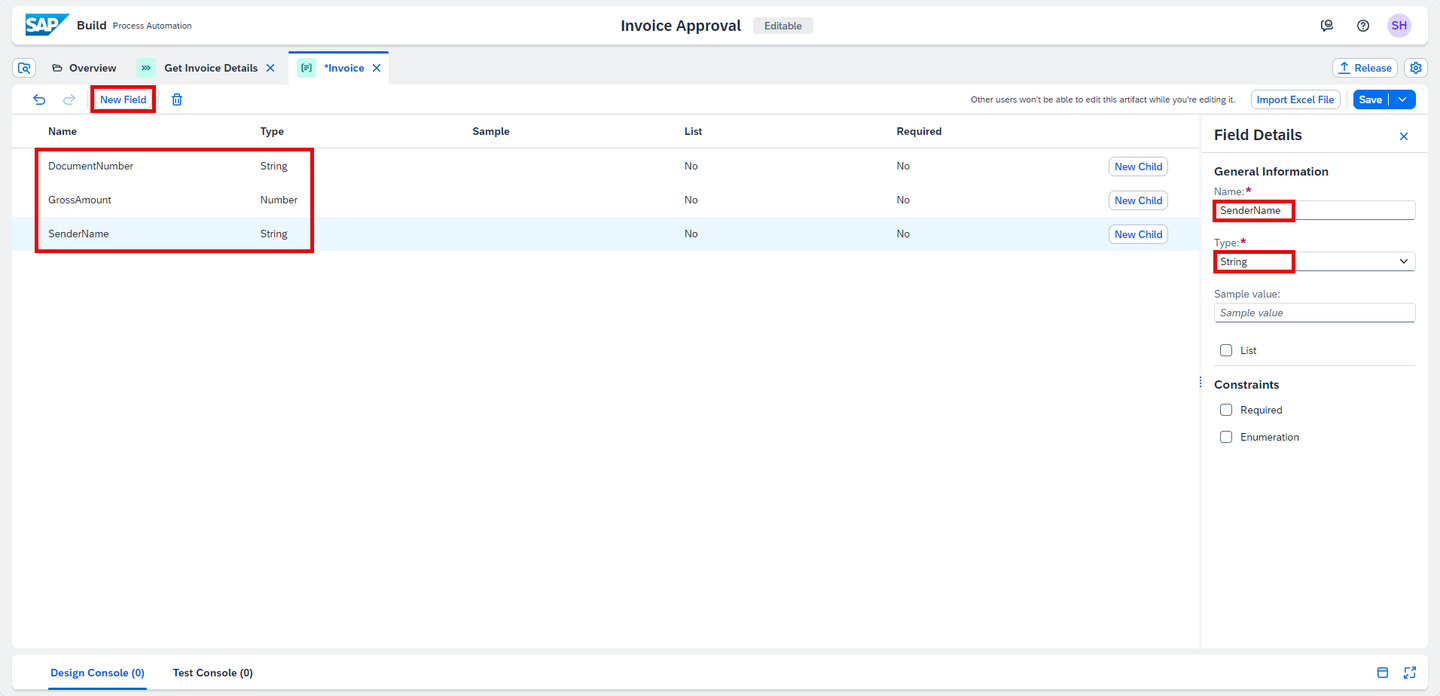
Automation Choose Save.
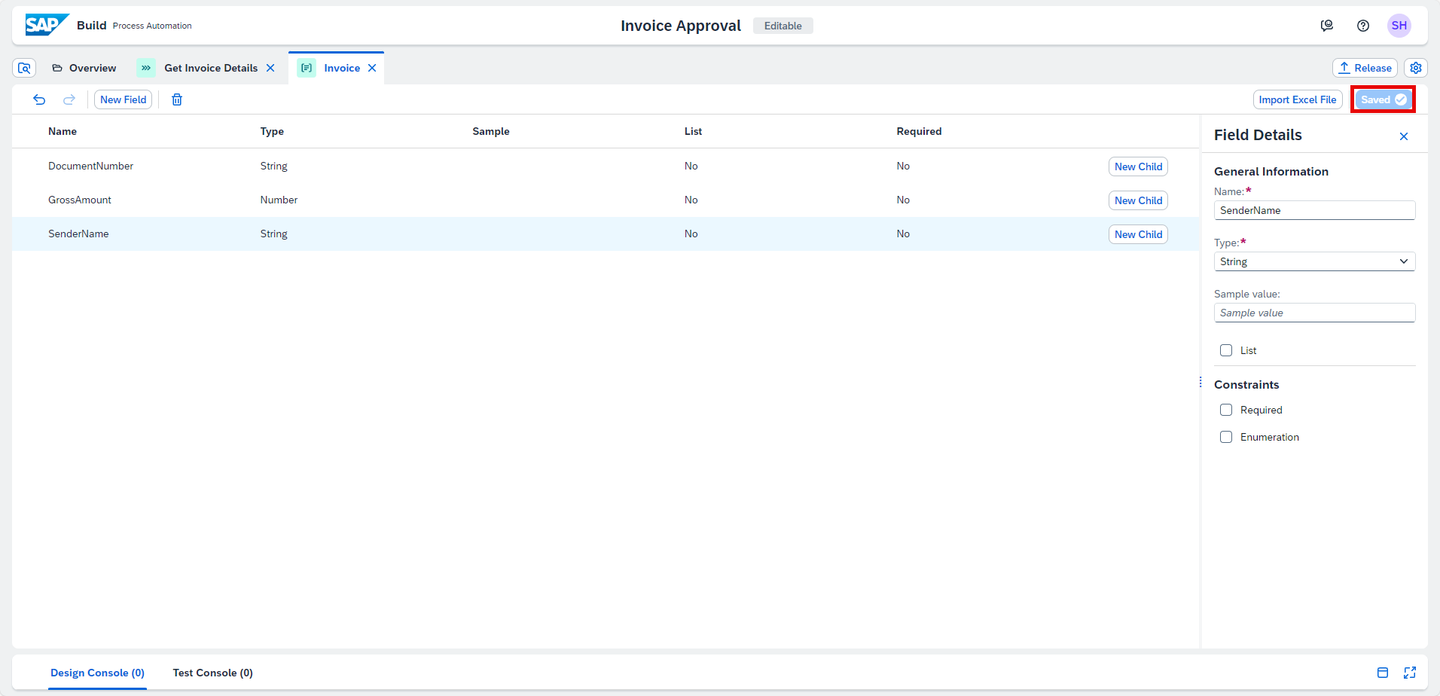
Automation
Input and output parameters allow you to exchange data in the workflow of your automation between activities, screens, and scripts.
Go to the Overview tab. Open Extract Invoice Data Automation.
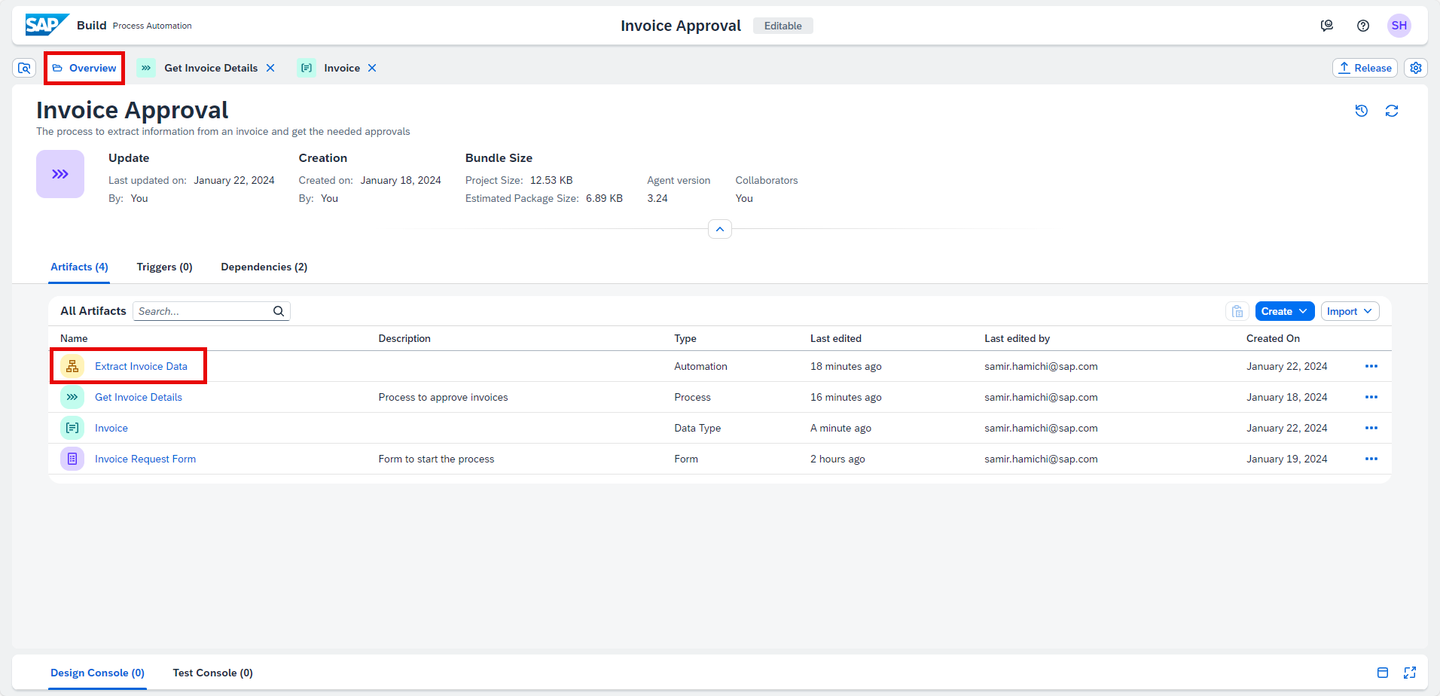
Automation In Automation Details, select the Input/Output section.
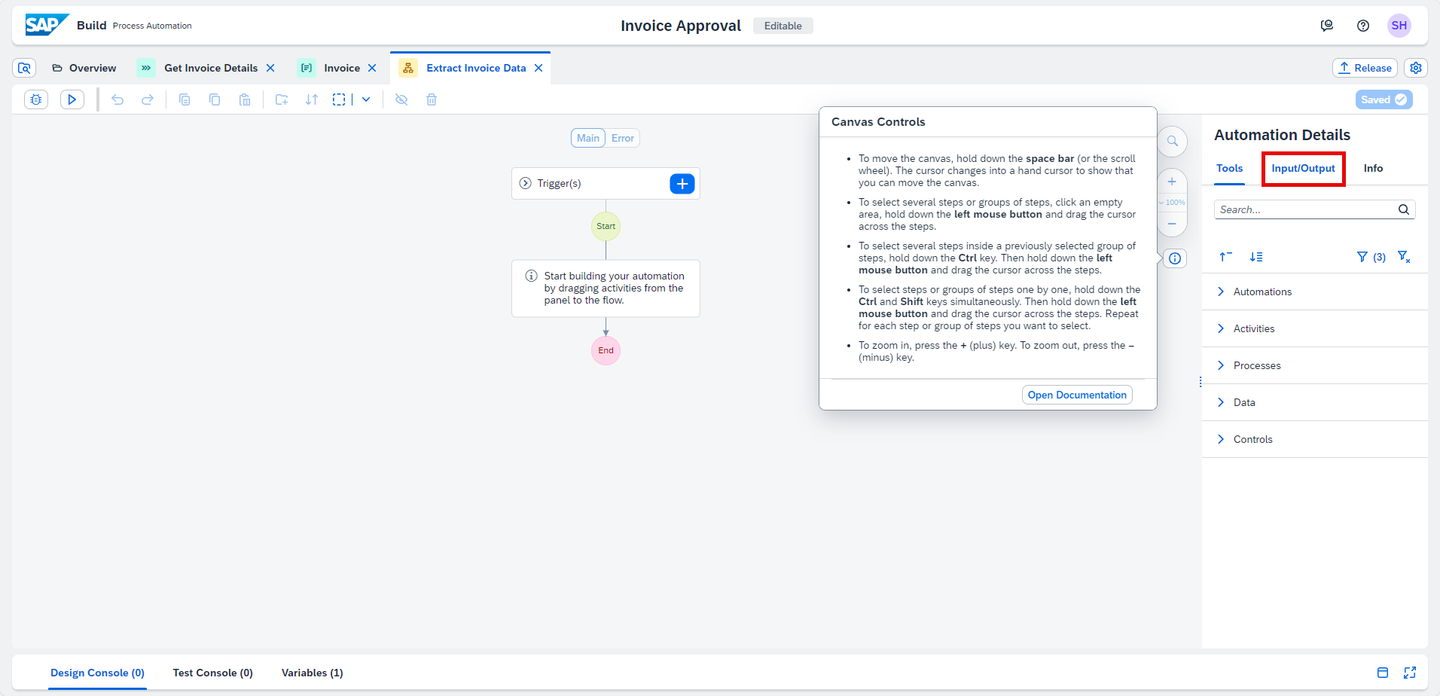
Automation Add Input and Output parameters.
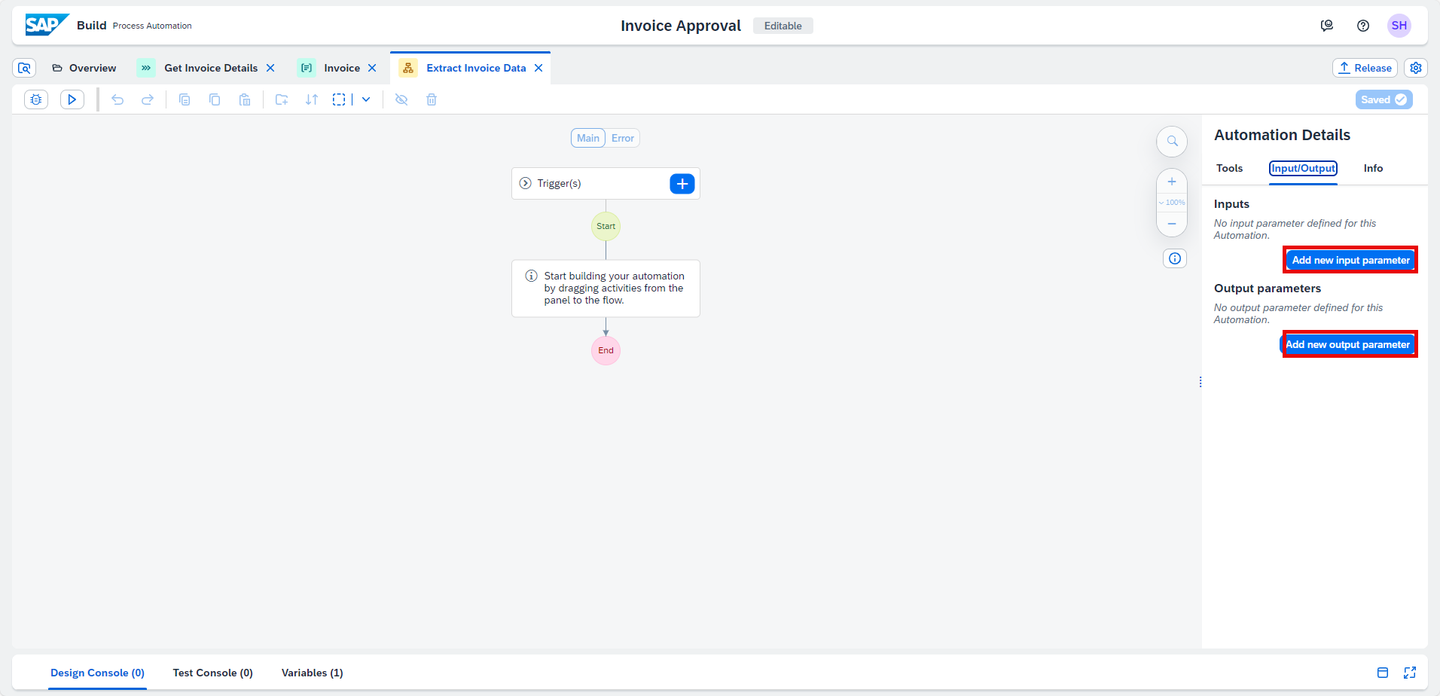
Automation Edit Input and Output parameters as follows:
Parameter Name Data type Parameter Type Description FilePathString Input Please provide the full qualified path to the PDF file containing the invoice InvoiceDetailsInvoice Output Extracted Invoice Details 
Automation Choose Save.
Go the Overview Tab. Choose Create and Document Template.
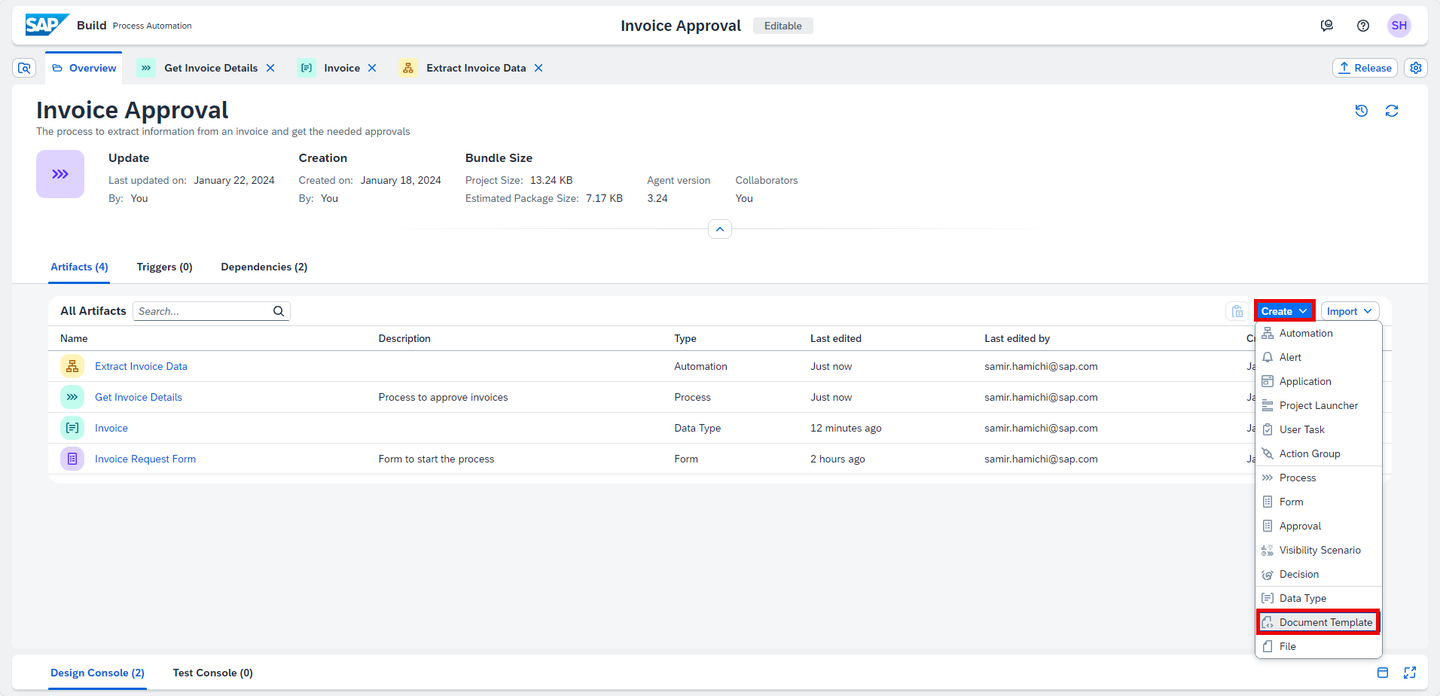
Automation In the Add a Document Template window, under Start:
- Choose Create a New Template,
- Choose Next.

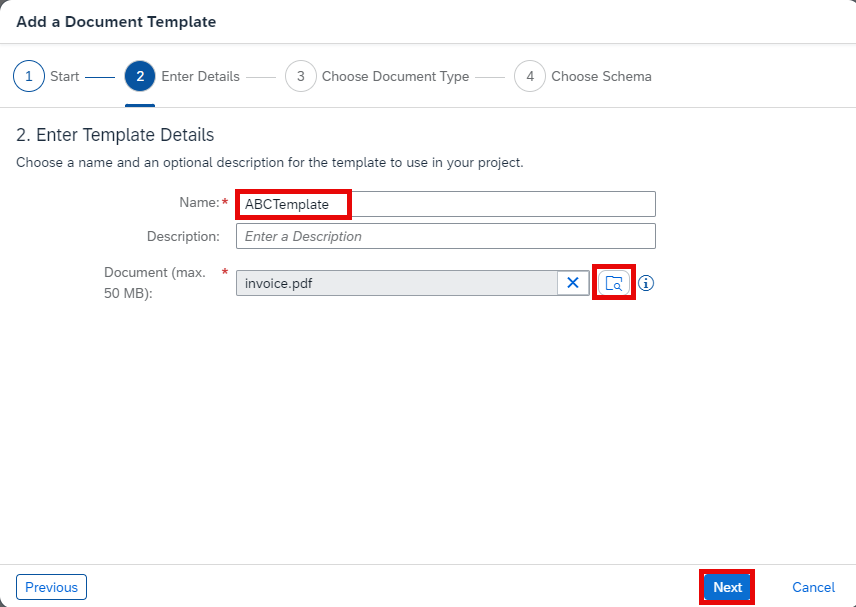
Automation Under Enter Details:
- Enter the Name of the template,
- Upload the invoice document which you have downloaded from prerequisites,
- Choose Next.
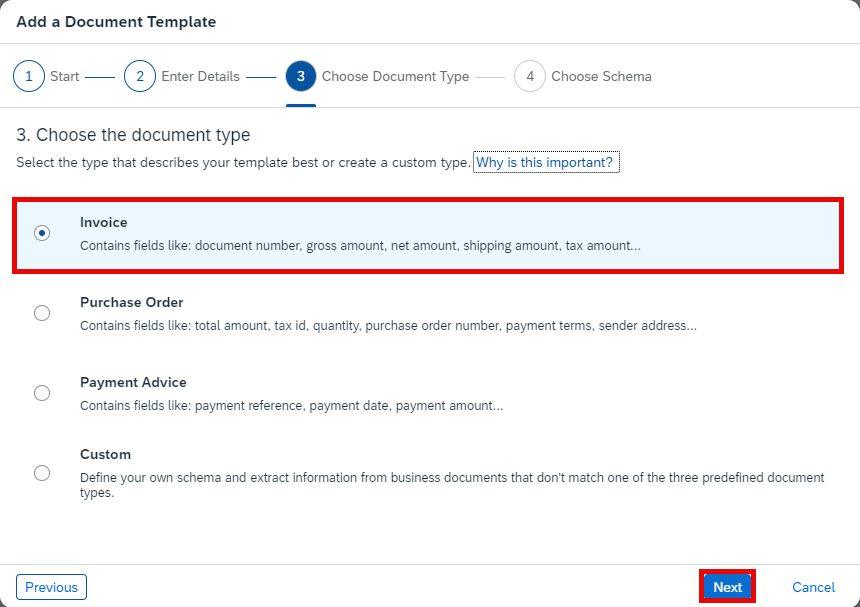
Automation Select Invoice as the document type of your template and choose Next.
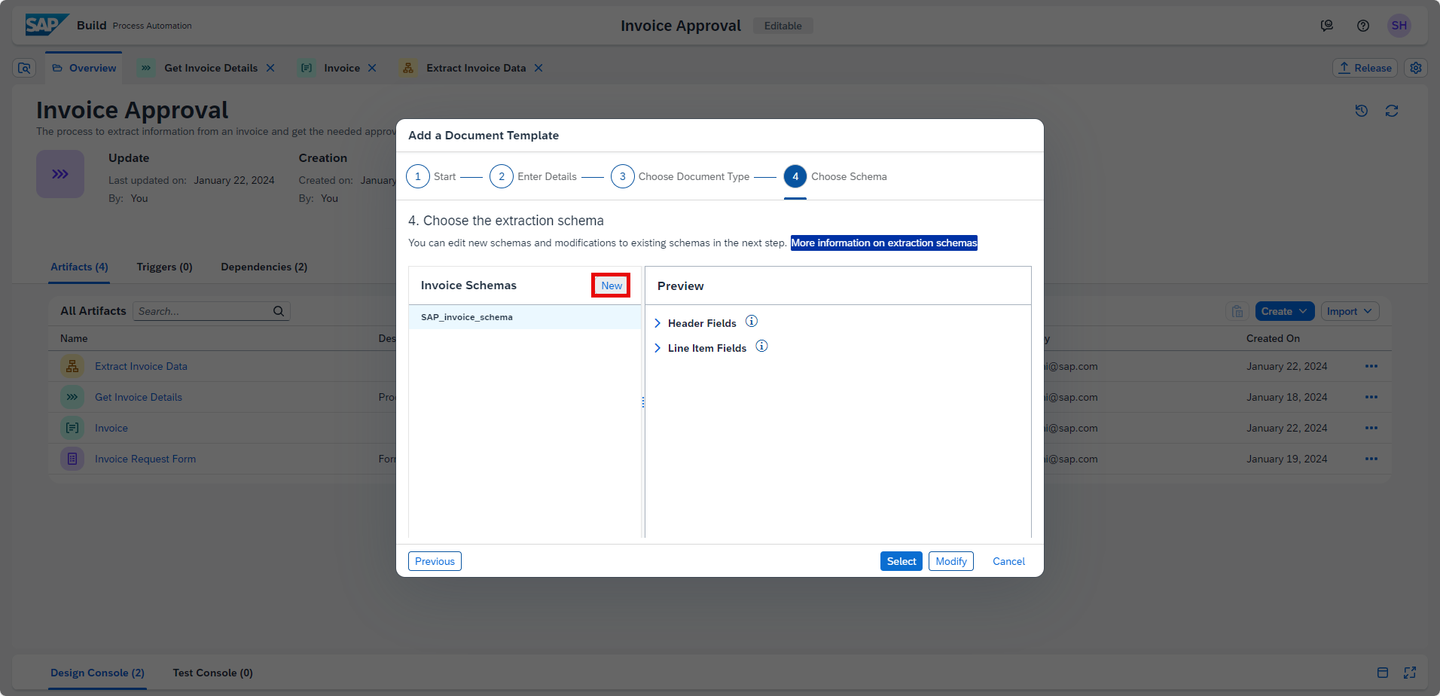
Automation Under Choose Schema:
- Choose New.
Automation Under Create New Schema:
- Enter Invoice Schema Name such as
ABCSchema. - Choose Next.

Automation - Enter Invoice Schema Name such as
Under Define information:
- Select the Add option to add Header Fields. For this scenario you will be adding
documentNumberof Type String,grossAmountof Type Number andsenderNameof Type String.

Automation - Choose Next.
- Select the Add option to add Header Fields. For this scenario you will be adding
Under Summary:
- SAP Build provides the summary of all the details related to the schema to be created,
- Choose Add.
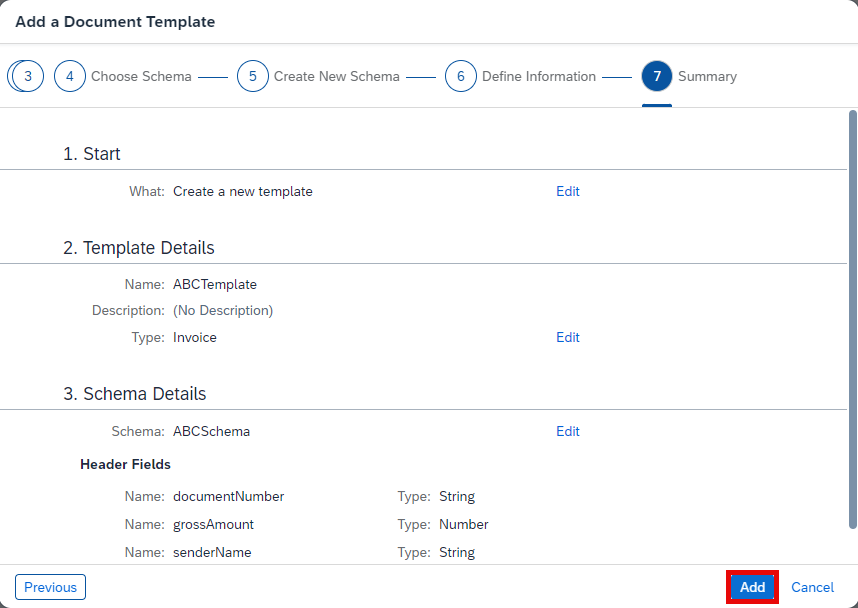
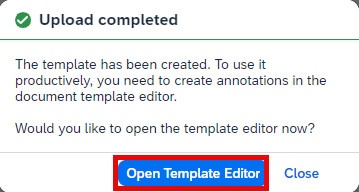
Automation Document Information Extraction SDK would be added as dependency to your project. The schema and template are created successfully.
Once Upload will be completed, choose Open Template Editor.
Automation
Choose Refresh
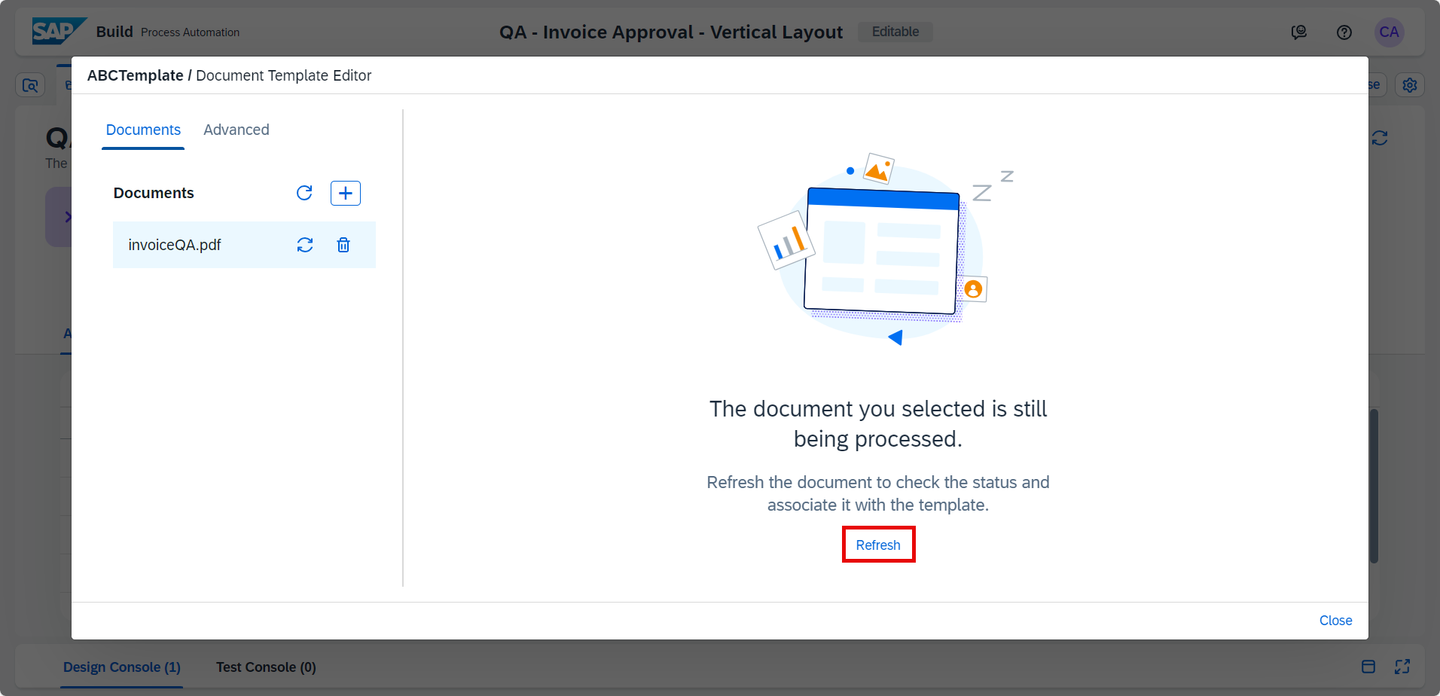
Automation Choose Edit.

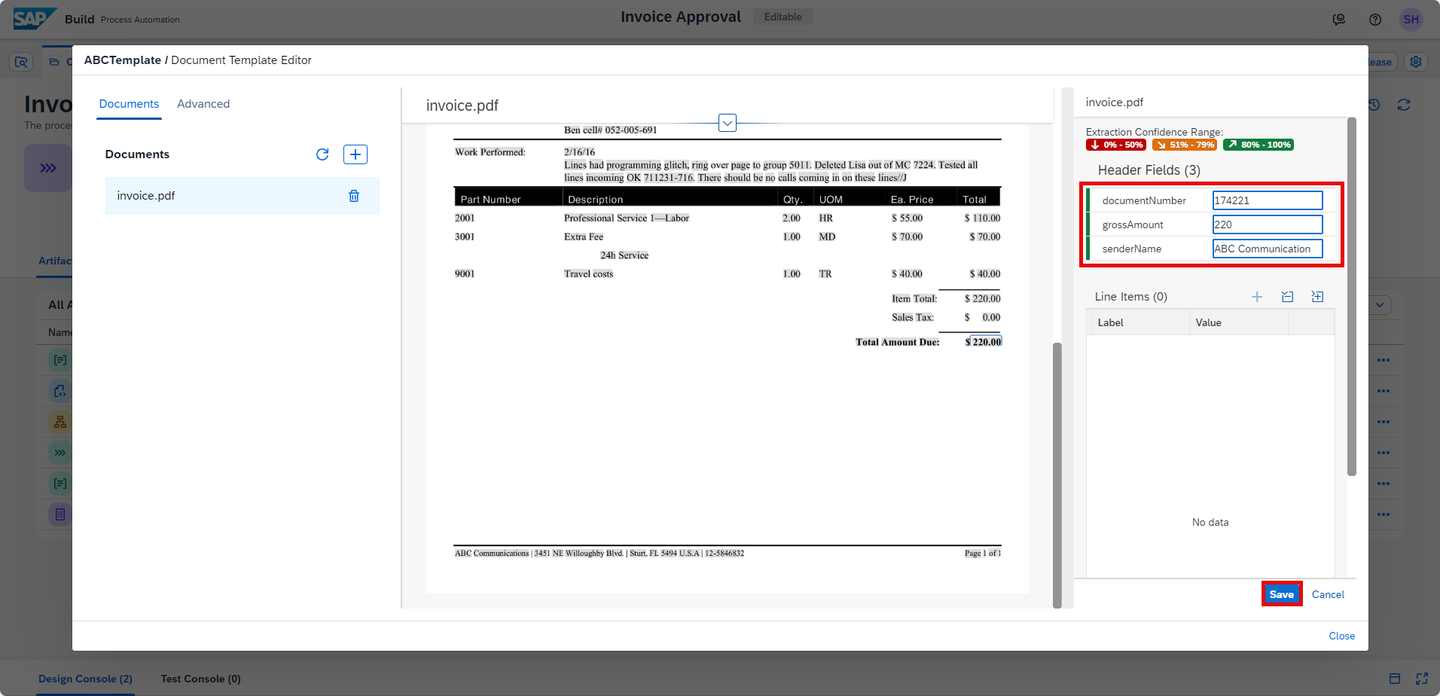
Automation Select the data in your invoice document which you would like to extract the information. In this scenario, you will read the Document Number, Gross Amount and Sender Name.
Select the value 174221 in the document and map to the field
documentNumber. Choose Apply.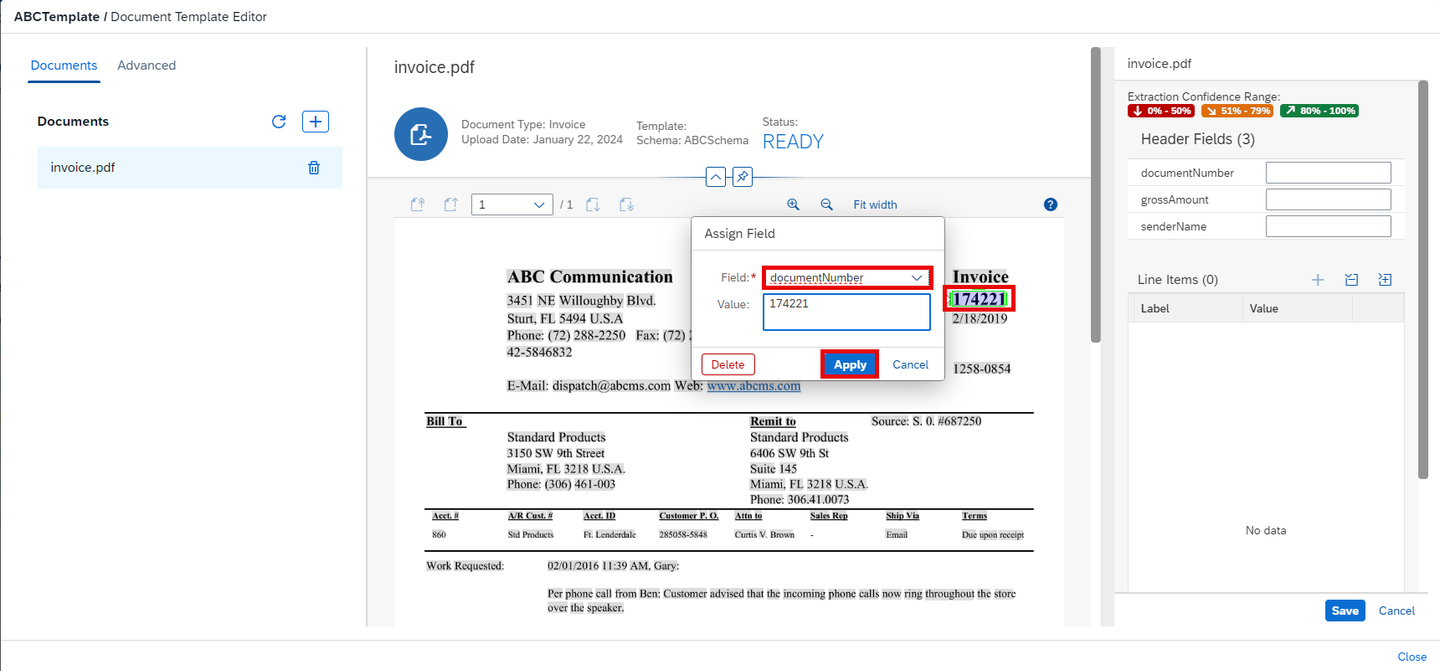
Automation Select the value ABC Communication in the document and map to the field
senderName. Choose Apply.
Automation Select the value 220.00 in the document and map to the field
grossAmount. Choose Apply.
Automation
Once mapping is done. Choose Save and Close the template.
Automation
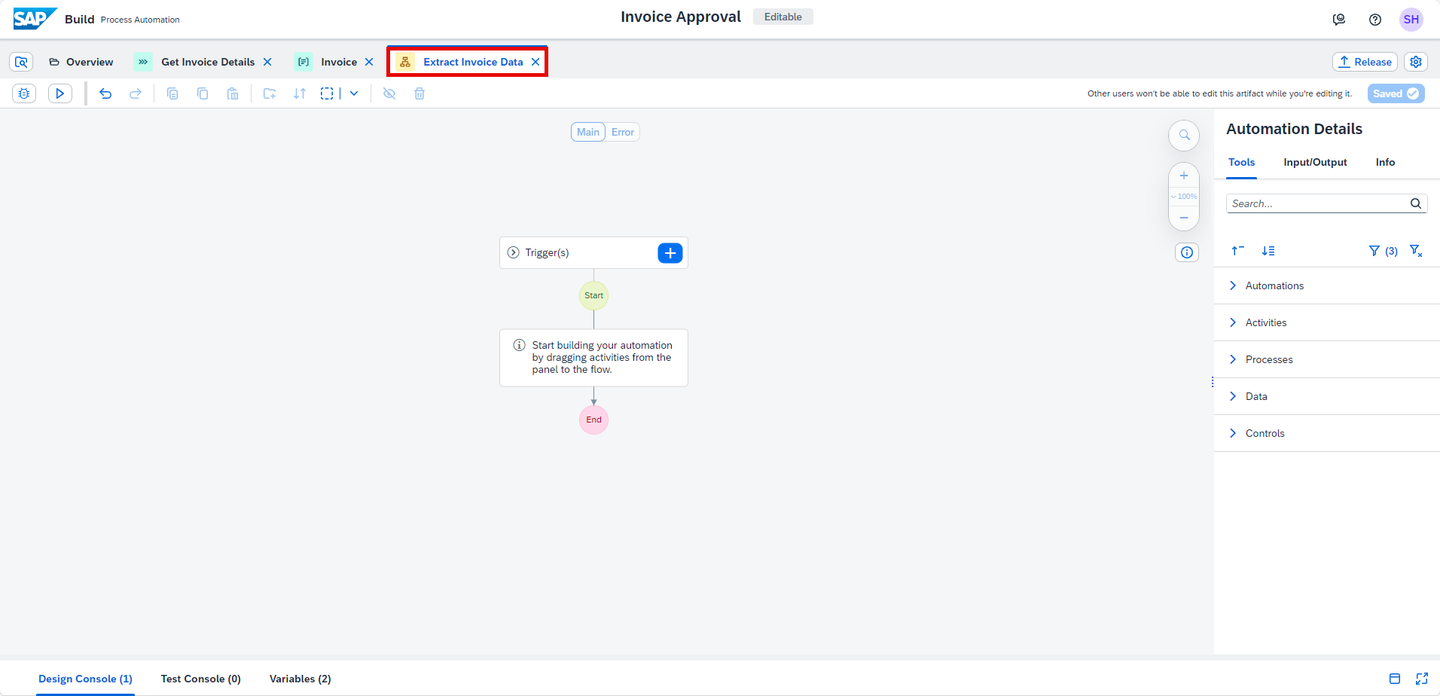
Navigate back to Build Process Automation and select Extract Invoice Data automation tab.
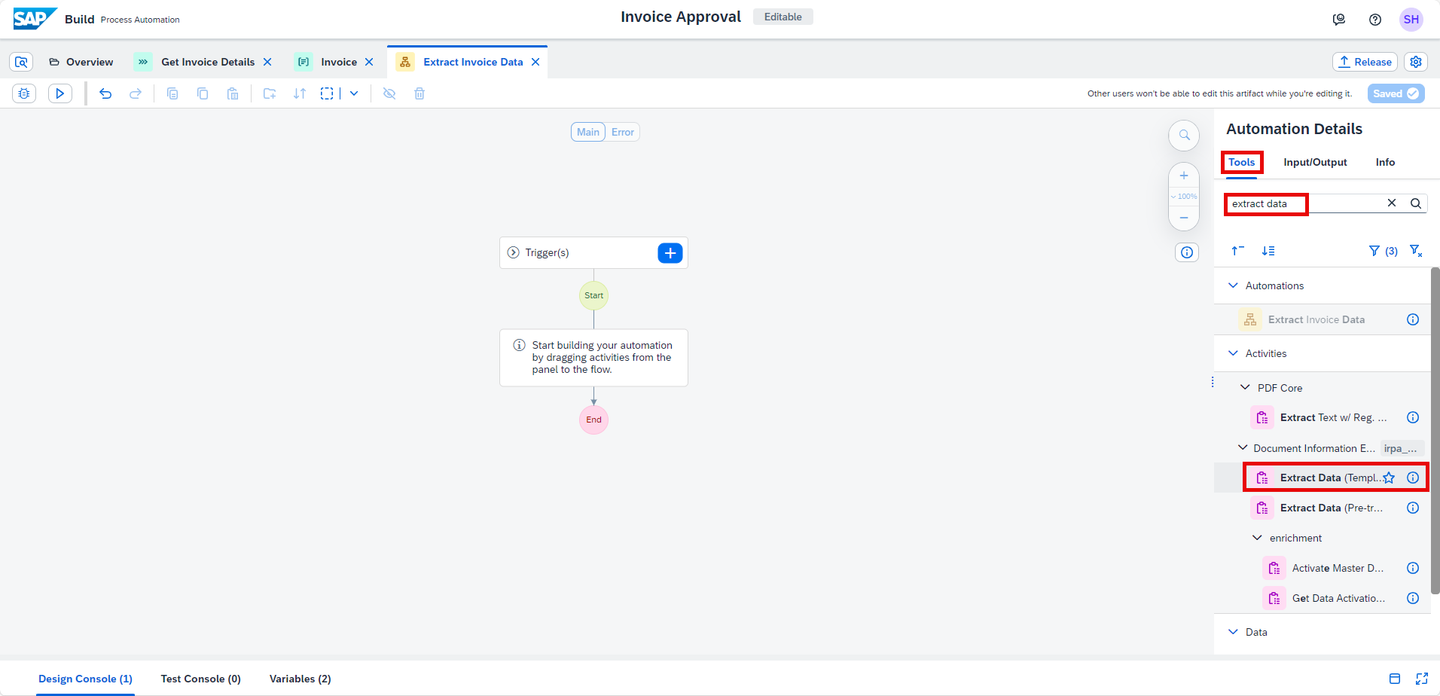
Automation In Automation Details, under Tools, in search field, search for Extract data (Template) activity.
You can extract data with Document Information Extraction using the chosen document template and given PDF file.
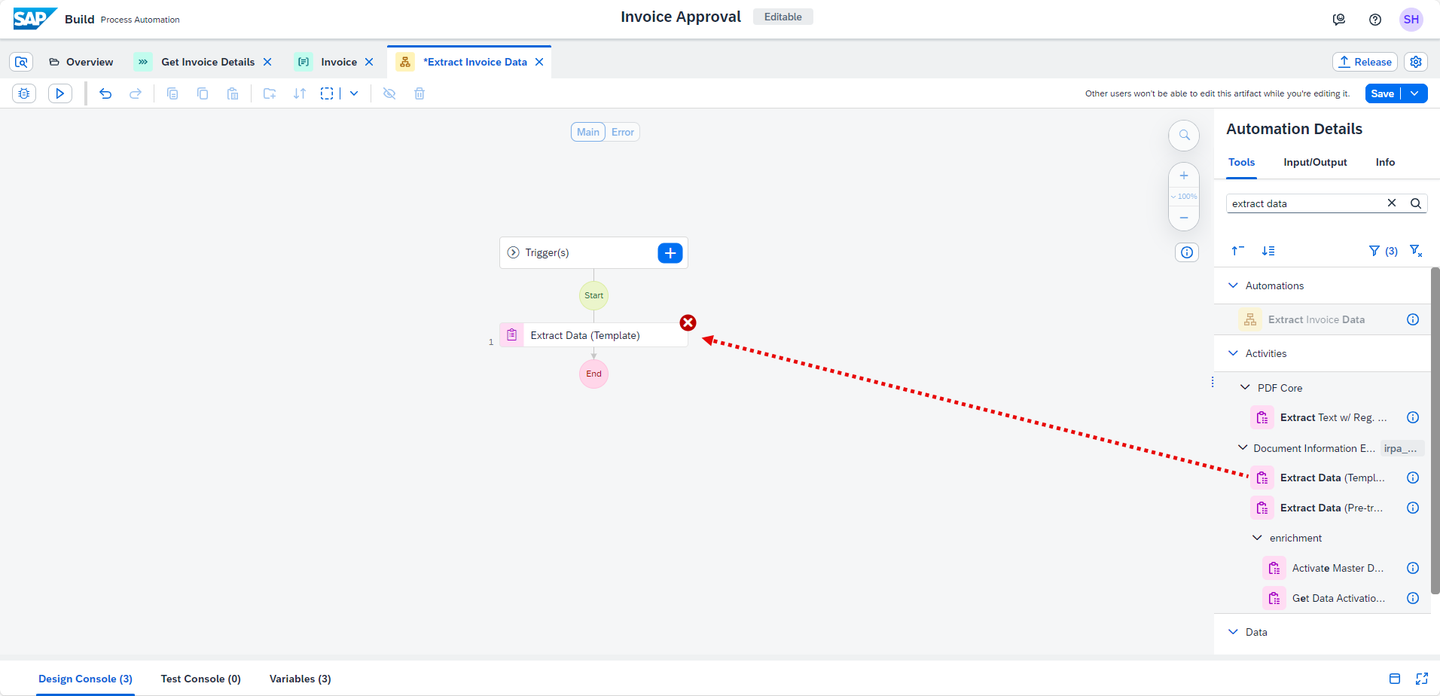
Automation Drag and drop the activity Extract Data (Template) into the automation flow.
Automation Select the activity. Choose Add Document Template

Automation In the Add a Document Template window:
- Select Choose a template from the current project,
- Choose Next.

Automation Under Select Template:
- Choose the
ABCSchematemplate, you created in the previous steps, - Choose Next.
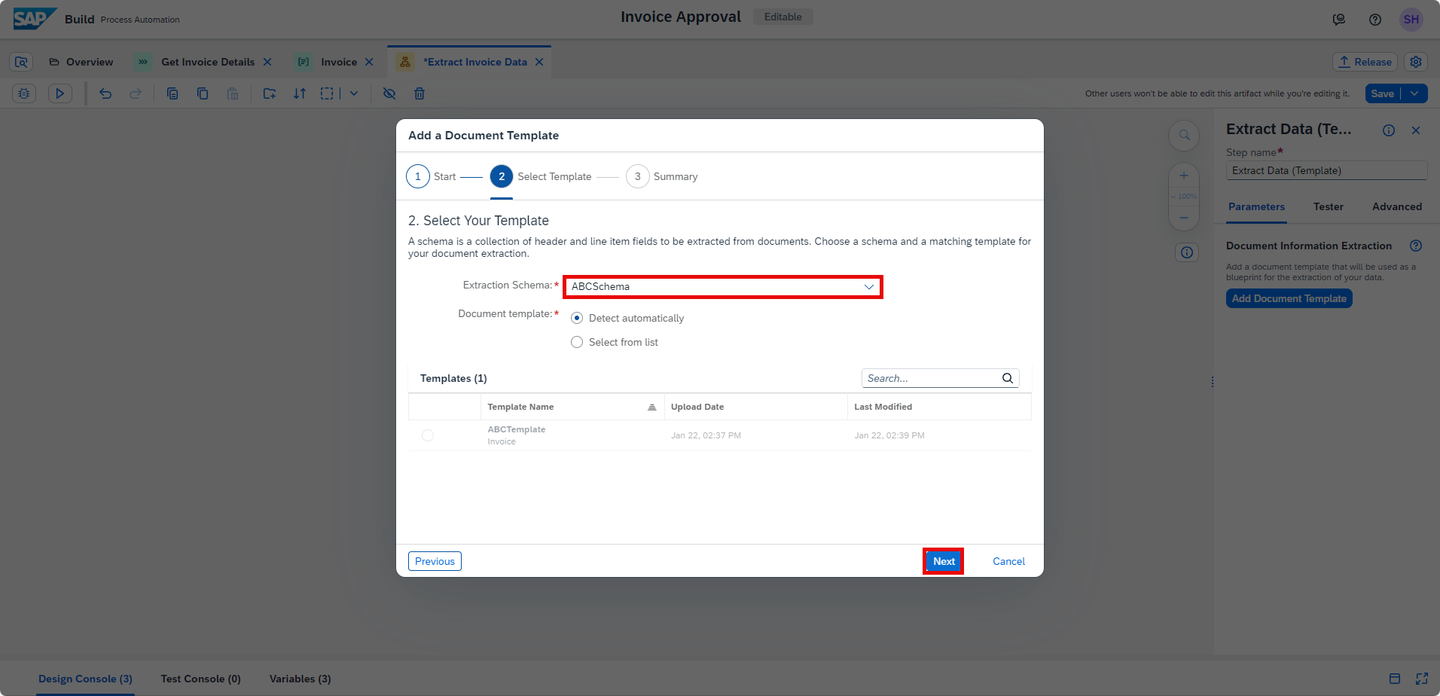
Automation - Choose the
Under Summary, choose Add.

Automation Select the activity. Maintain the parameters for the activity as follows:
- Under
documentPath: chooseFilePath

Automation - Under
You have already created the data type Invoice in Step 2. Now, you will create a variable of type Invoice.
Click on the canvas. Search for the datatype Invoice, located under the Data Types section.

Automation Drag and drop the data type Invoice into the automation flow.
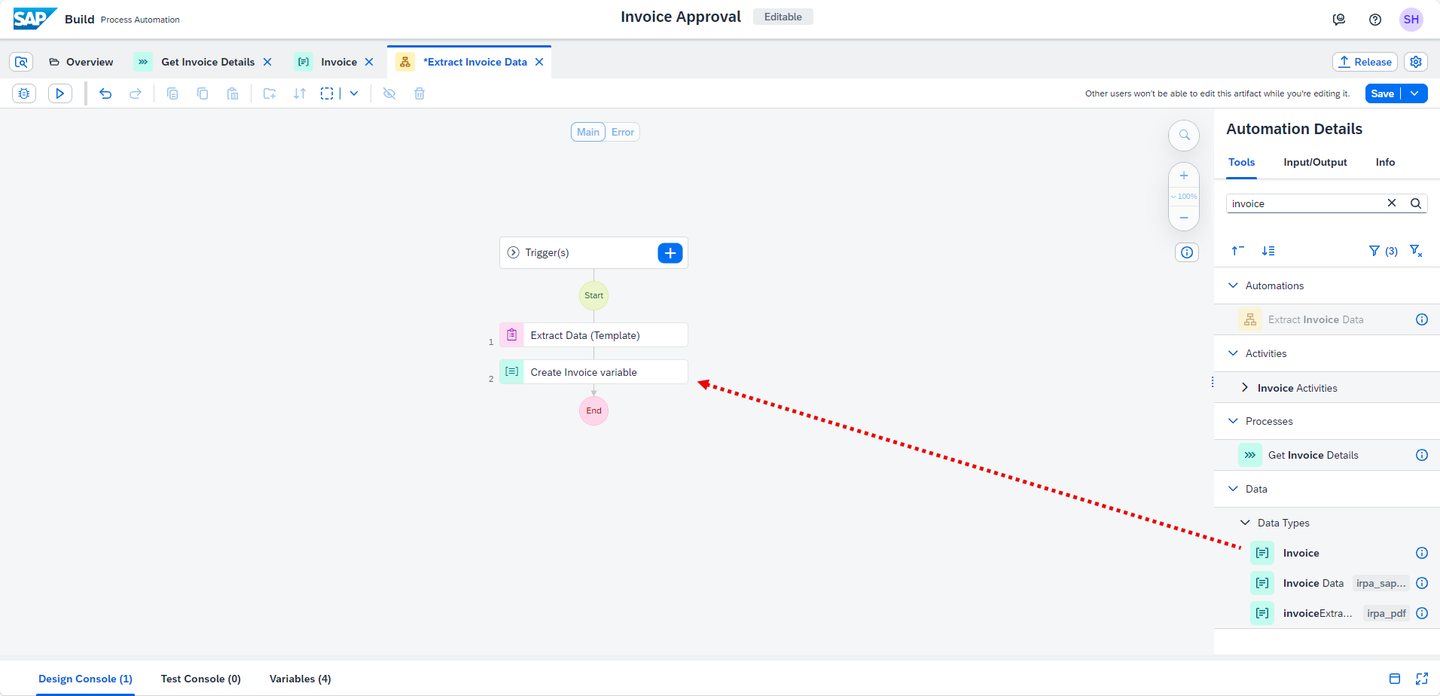
Automation Select Create Invoice variable. In the Input Parameters, under value, choose Create Custom Data.

Automation Choose the Edit button to map the parameters:
DocumentNumberto the extracted invoice data from the activity Extract Data (template),- Repeat the same for
GrossAmountandSenderNameand map it to the corresponding fields ofextractedData.

Automation Rename the output parameter to
myInvoiceData.The final input and output parameters of Create Invoice Variable looks as below.

Automation Print the invoice data using the activity Log message.
With this activity you generate a log message within the tester and the trace file, which is useful for setting up an automation. By default, a log will be “Information”.
Click on the canvas, search for Log Message activity and drag and drop it into the automation flow.

Automation Select Log Message activity. In Input Parameters under message add
myInvoiceDatavalue.
Automation Select Save.
Select the End. Pass the variable
myInvoiceDatato the output parameterInvoiceDetails, which you have created in Step 2.
Automation Save the automation.
Navigate to the Get Invoice Details process and select the automation Extract Invoice Data. Map the input parameter of the automation to the form parameter
FilePath.
Mapping Select Save.
Navigate to the Extract Invoice Data automation.
Select Test button and enter the
Filepathwhere the invoice document is stored locally on your machine.
Test The automation opens the Invoice Document, extracts data and prints the details i.e Document number, Gross amount and Sender name.

Test Your automation is built successfully.
Once this tutorial is completed, the process will look like this:

Mapping
Resources
Discussion
Share feedback on this tutorial or join the conversation in SAP Community.