
Overview
You will learn
- to modify the generated OpenAPI specification of a CAP Service
- to create an action project based on the API specification
- to test API using a BTP destination
- to release and publish the action project to be consumed in a process of SAP Build Process Automation


Prerequisites
Prerequisites
- Access to a SAP BTP tenant with SAP Build Process Automation
Steps
You will generate the openAPI specification for the service used to create the Action project in SAP Build.
Navigate back to the Business Application Studio. Open your CAP project and run the following command in the Terminal window:
Shellcds compile srv --service all -o docs --to openapiIn the subfolder
docsfolder, open the filesap_build_cap_sample_library.openapi3.json.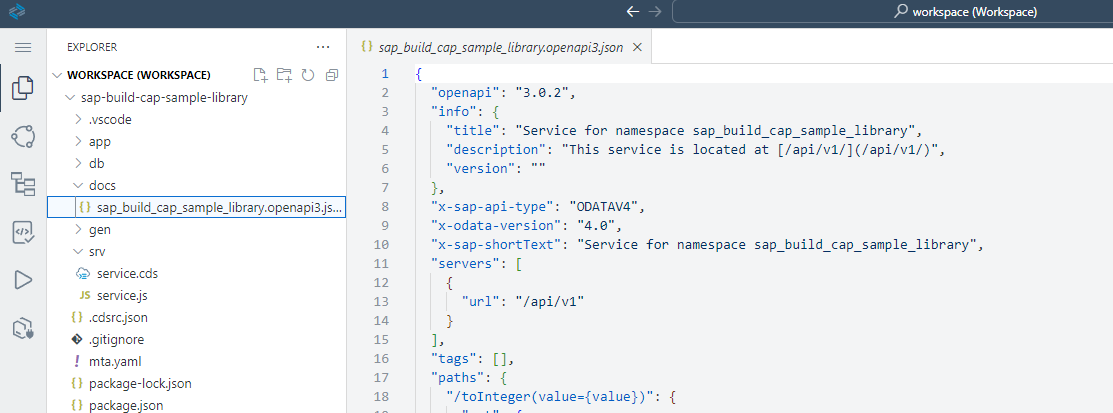
api spec
The generated OpenAPI specification needs some manual changes.
Update the following paths definitions (just replace the lines in the generated file):
JSON"/addQuotes(value='{value}')": { "get": { "summary": "addQuotes", "tags": [ "Service Operations" ], "parameters": [ { "required": true, "in": "path", "name": "value", "description": "String value needs to be enclosed in single quotes", "schema": { "type": "string", "default": "" } } ], "responses": {JSON"/getListOfTodos()": {JSON"/toInteger(value='{value}')": { "get": { "summary": "toInteger", "tags": [ "Service Operations" ], "parameters": [ { "required": true, "in": "path", "name": "value", "description": "String value needs to be enclosed in single quotes", "schema": { "type": "string", "default": "" } } ], "responses": {JSON"/toNumber(value='{value}')": { "get": { "summary": "toNumber", "tags": [ "Service Operations" ], "parameters": [ { "required": true, "in": "path", "name": "value", "description": "String value needs to be enclosed in single quotes", "schema": { "type": "string", "default": "" } } ], "responses": {JSON"/toStr(value={value})": { "get": { "summary": "toString", "tags": [ "Service Operations" ], "parameters": [ { "required": true, "in": "path", "name": "value", "schema": { "anyOf": [ { "type": "number", "format": "double,null" }, { "type": "string" } ], "example": 3.14, "nullable": true, "default": "" } } ], "responses": {Add required: true for components/schemas schema definition of DataListArray.
JSON"sap_build_cap_sample_library.DataListArray": { "title": "DataListArray", "type": "object", "properties": { "responseArray": { "type": "array", "required": true, "items": { "$ref": "#/components/schemas/sap_build_cap_sample_library.DataList" }Select the file content Ctrl-a in the editor and copy to your clipboard Ctrl-c.
Create a new file called demo.json in a local folder of your desktop.
Open the file, paste the content and save the file. You will use the file later to create the Action Project.
Here below, a screenshot with parts how the file will look like:

api spec
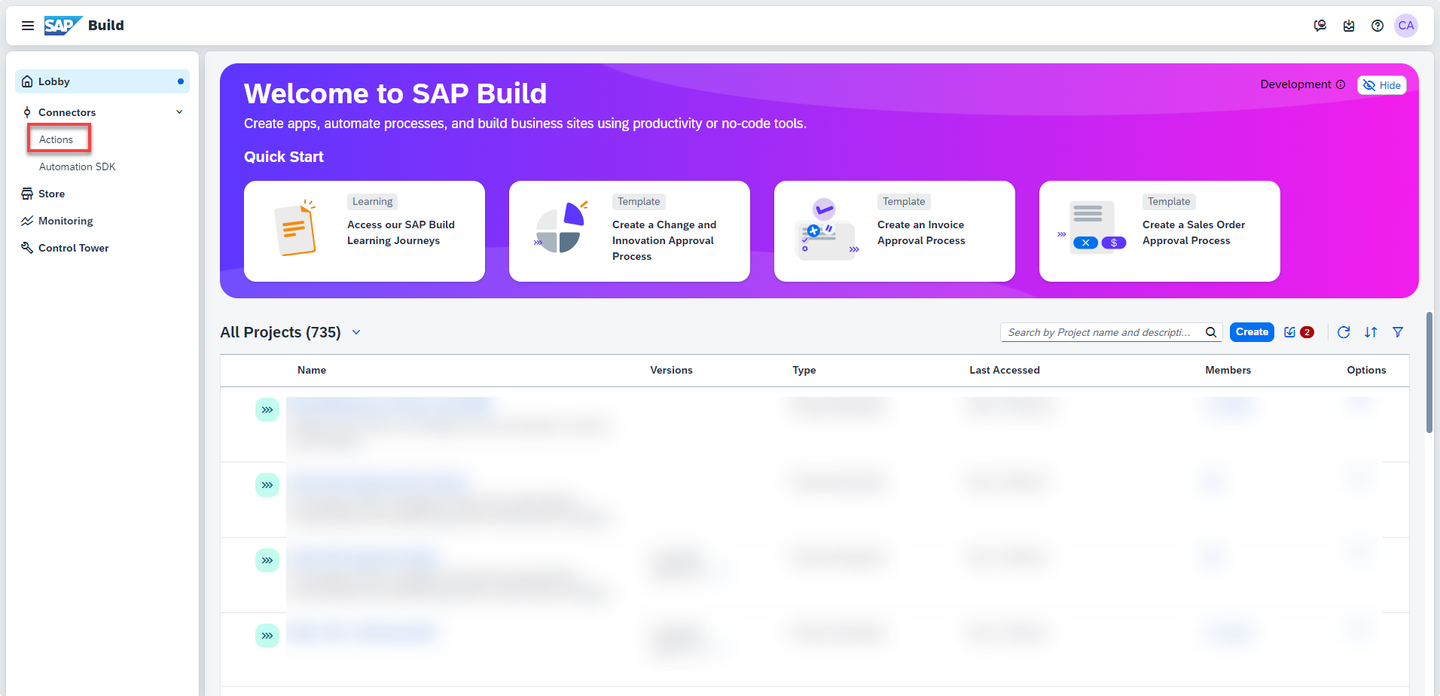
Open SAP Build Lobby, under Connectors, select Actions.
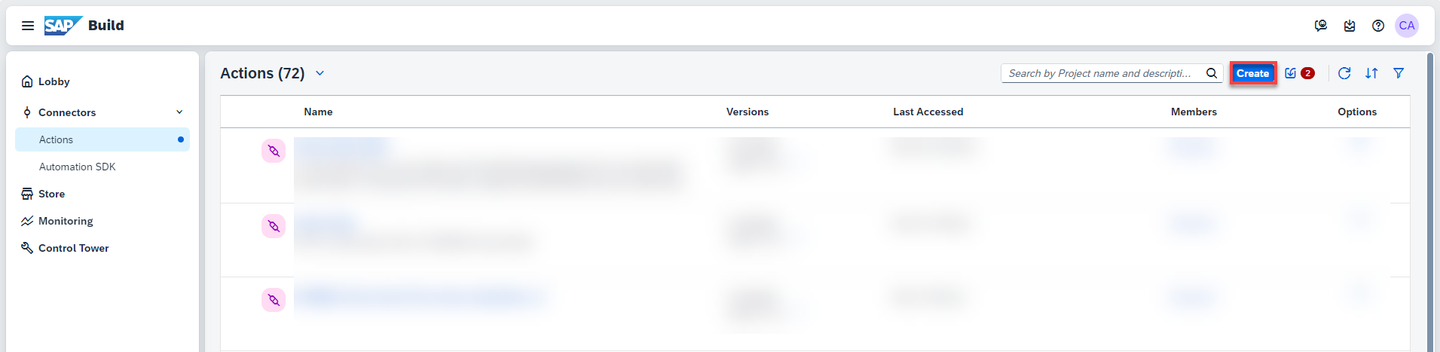
create Choose Create.
createActions In the Choose an API Source popup, under API Specification, select Upload API Specification.

createActions Drag and drop or click Browse Files to upload open specification file downloaded in step above.
Choose Next.

createActions In the Create an Action project popup:
- Specify the name
CAP Sample Actions - Click Create
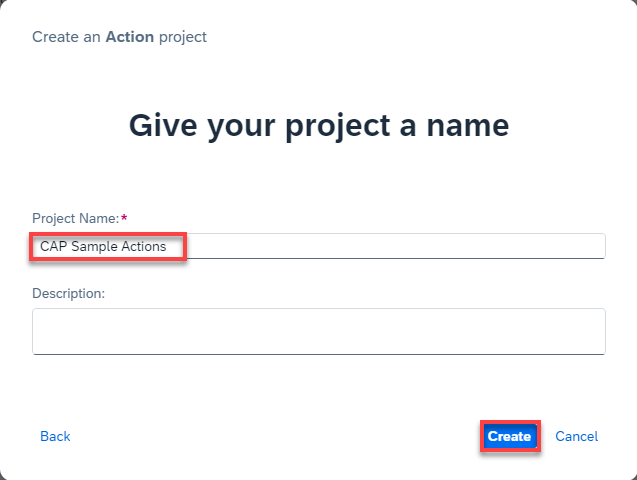
createActionProject - Specify the name
Once the action project is created, the action editor will automatically open. In the popup select all actions from the list, click Add.
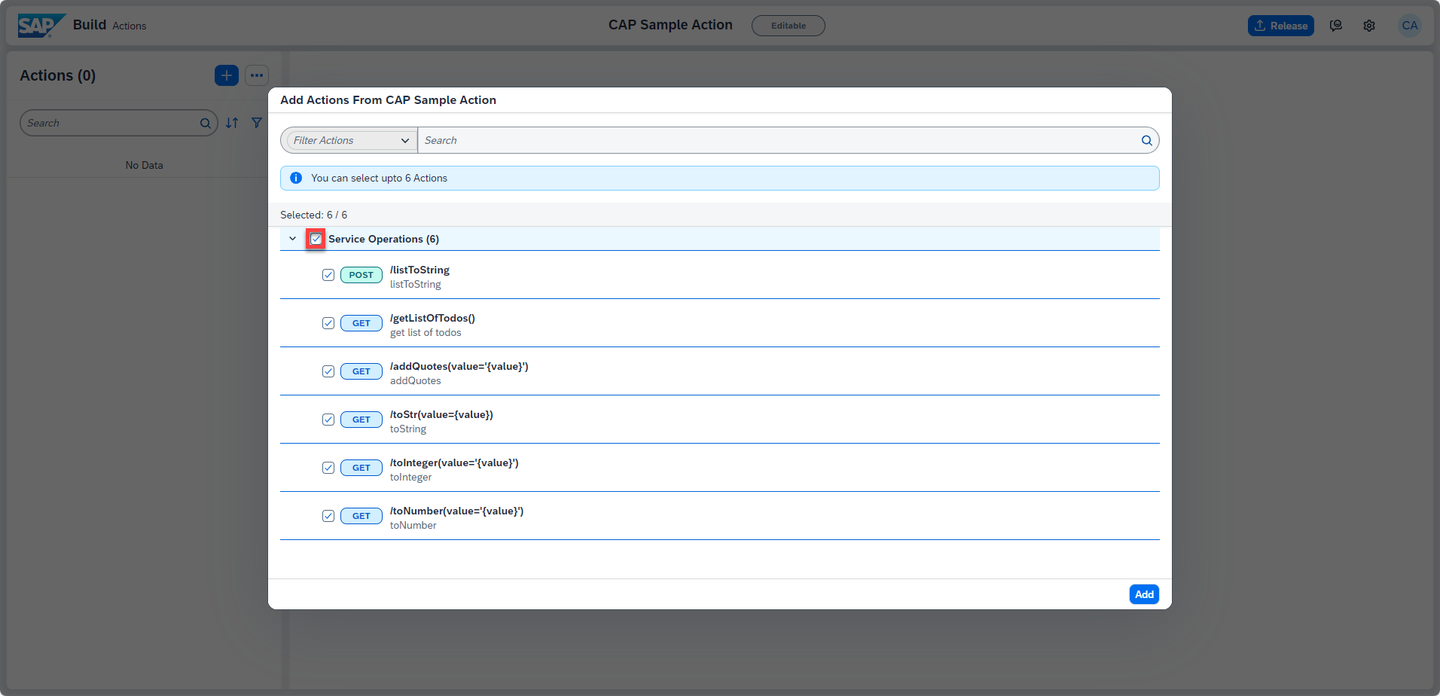
add actions Your Action Project will contain the actions for the CAP service.
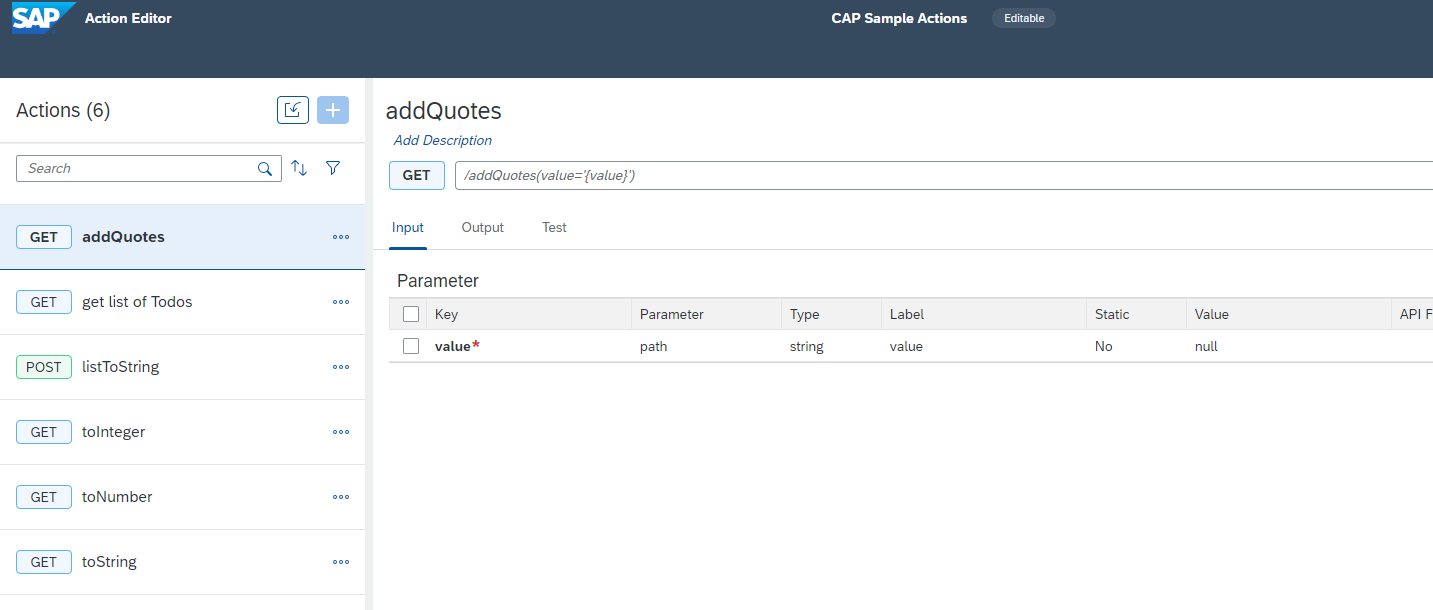
final project
You can test the execution of your action in the Action Editor.
Select
listToStringfrom the list, the action has input parametersSelect Tab Test
- Choose Destination **Demo_CAP_Sample_Library**

- enter **id** **`1`**

- enter **title** **`task1`**

- enter **field** **`id`**

- Click **Test**
test action In the Test you can specify only one value for a list. In the Response View you can see that the values are converted to a string (with more than one value they will be comma separated). You can also try title as field and check the result.
Select
get list of Todosfrom the list, click Output tab to check that the array is marked as required withred asterix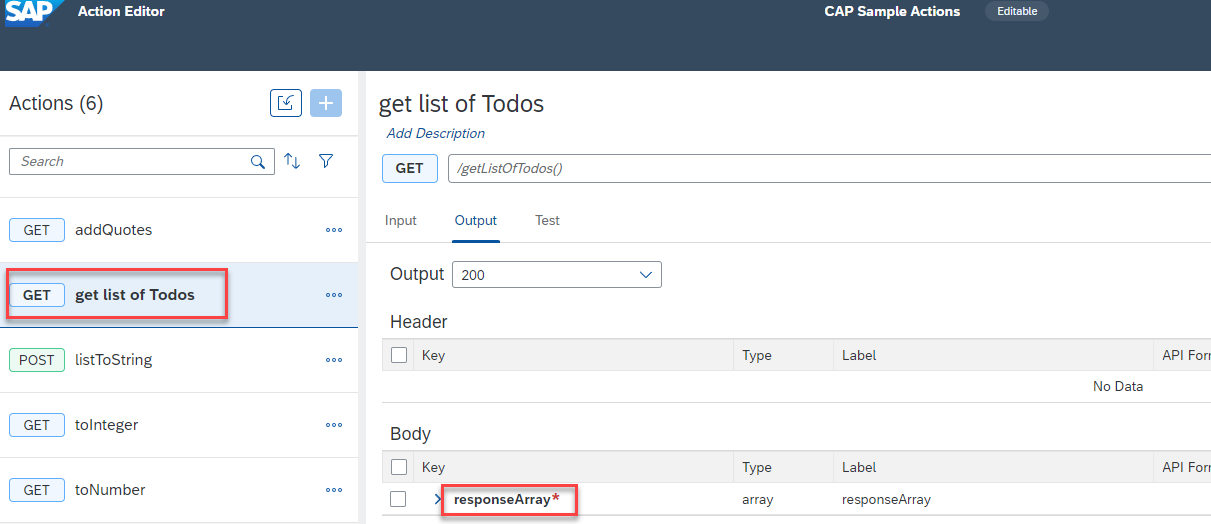
output getListOfTodos Select Test tab and click Test
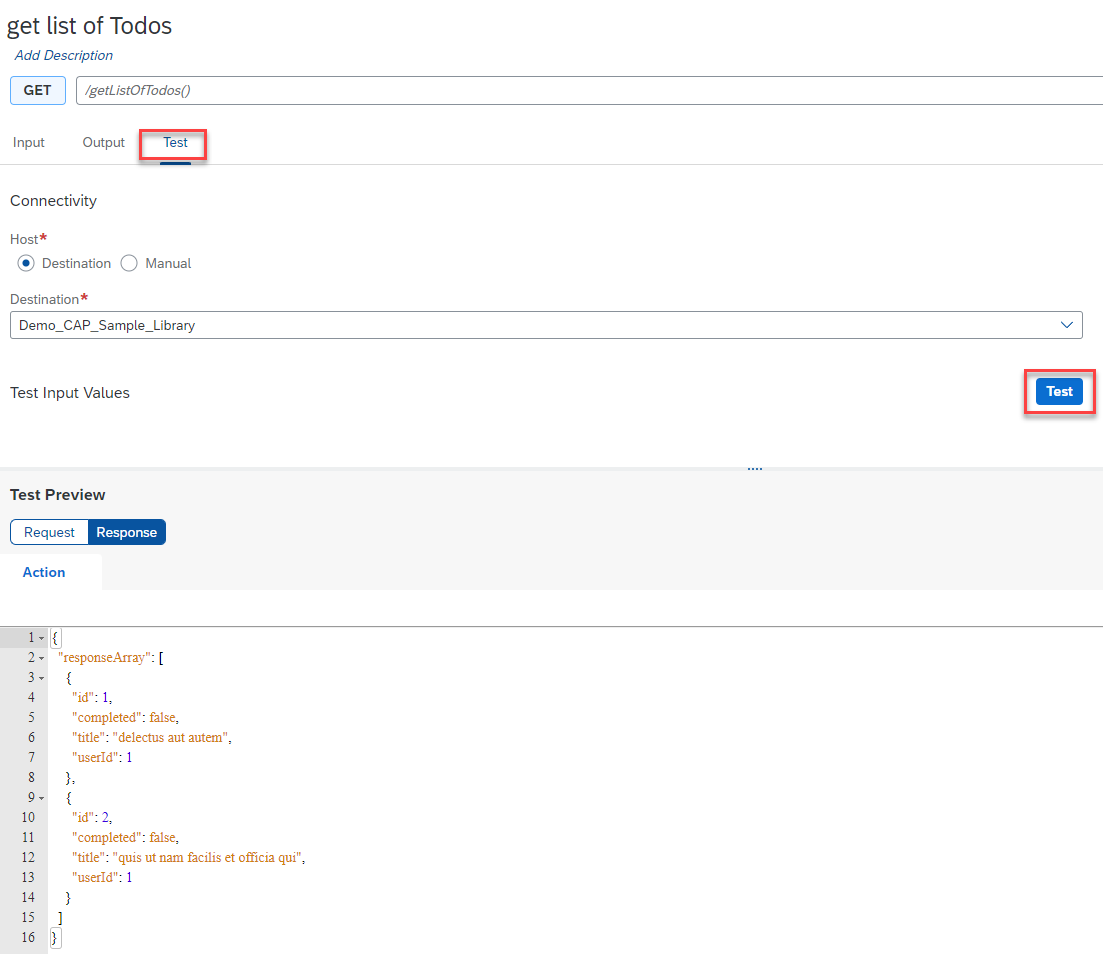
test getListOfTodos You can test the other actions (optional)
- Select **toInteger** from the list, enter value **`10`** and click **Test**

- Select **toNumber** from the list, enter value **`10.9`** and click **Test**

- Select **addQuotes** from the list, enter value **`abc`** and click **Test**
To be able to use the Actions in a Process, you have to release and publish the Action Project.
Click Release

release Enter release information, click Release
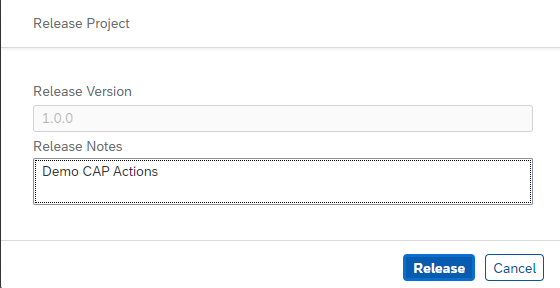
releaseInfo Click Publish to Library

publish
Resources
Discussion
Share feedback on this tutorial or join the conversation in SAP Community.