
Overview
You will learn
- How to use the authorization mechanisms supported by the Google Authorization SDK


Prerequisites
Prerequisites
- Access to a SAP BTP tenant with SAP Build Process Automation
- Configure Service Account in Google Cloud Platform
- Install and set up the Desktop Agent 3 to run the automation
Steps
Intro
SAP Build Process Automation enables users to automate Google Workspace products such as Gmail, Google Drive, Google Sheets, Google Docs, Google Calendar and other services such as Google Cloud Storage, Document AI and Vision AI. Any company which is using Google Workspace instead of MS Office products, can use the Google Workspace SDK to automate the workspace products. In order to automate Google workspace products, you have to be authorized. There are three authorization mechanisms that Google supports:
- Service Account
oAuth- Workflow Identity Federation
SAP Build Process Automation supports Service Account and oAuth. In this tutorial, you will authorize using Service Account.
What is a Service Account ?
Service account differs from user accounts and it will be used by a software application to make authorized API calls. The service account can also be authorized to access data on behalf of users in a domain without their consent by enabling Domain-wide delegation. The service accounts should be created and configured through Google Cloud Console before using the activity in SAP Build Process Automation. Refer to pre-requisites to Setup Service Account.
Before you can authorize Google applications, you will need to create an automation.
From the Lobby, choose Create.
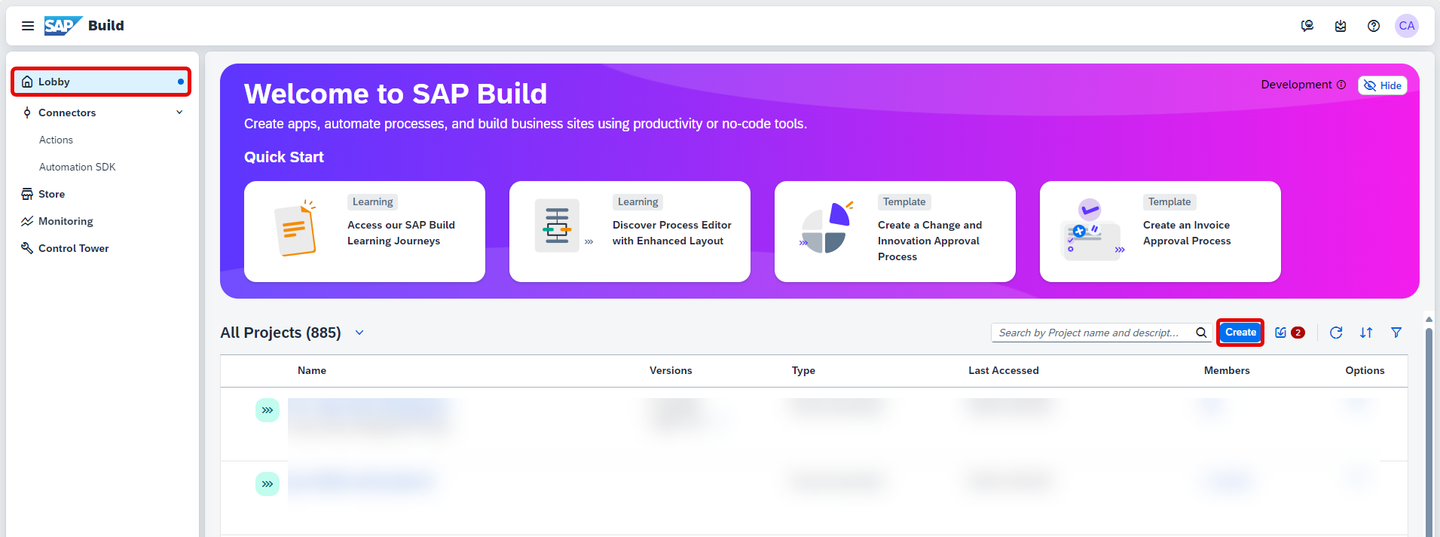
Create In the pop-up, select Build an Automated Process.

Automated Process Select Task Automation.

Task Automation In the Create a Task Automation project window, enter the project name: Google Workspace and as a description: A demo to automate Google Applications using Google SDK.
Choose Create.

Automated Process You will be asked to configure your agent version.
Select the agent version that is registered on your system.

Configure Agent Version A pop-up window will prompt you to create an automation.
In the name field enter Google Authorization.
In the description field enter An automation to authorize Google.
Choose Create.

Create automation A new automation named Google Authorization will be successfully created. You will be navigated to the automation editor where you can start building your automation.

Create automation
Environment Variables allow you to reuse certain information for a given environment. You use environment variables to pass parameters to automations. In this case, you will need to maintain two environment variables that will contain the file full path of the service account key file as well as the user email used in the automation.
Select Settings.

Settings In the Project Properties window, select Environment Variables, then + Create.

Create Environment Variable In the create an environment variable screen:
- Under Identifier enter:
serviceAccountKeyPath, - Under description: Fully-qualified path of the downloaded JSON file,
- Under Type select String,
- Choose the Create button.

Create - Under Identifier enter:
In the same way, you will create a second variable named
userEmailalso of type String. Choose + Create.
Create User Email After the Environment Variables are created successfully, close the project properties window.

Close
The Google Authorization SDK is a collection of activities allowing you to acquire authorization with Google to perform activities in the Google Workspace and the Google Document AI SDK. It is mandatory for authorizing SAP Build Process Automation to Google Applications. It contains activities to support authorization mechanisms such as Service Account and oAuth. The Authorize activity must be used before any Google SDK Activity and the Disconnect activity must be used at the end of the automation.
Select Settings.

Settings In the Project Properties window, select Dependencies.
In the Manage Dependencies section, you can see that the Core and Excel SDK were added automatically when the automation was created.
Choose Add Dependency and select Add a Business Process project dependency.

Add Dependency Under Package, select Google Authorization SDK and choose a version.
Choose Add.

Google Authorization SDK The Google Authorization SDK has been added successfully.
You may close the Project Properties window.

Google Authorization SDK In the Automation Details panel, under Tools, search for Google.
The Google Authorization activities will be displayed.

Google Authorization SDK
After successful completion of setting the Service Account as mentioned in the pre-requisites, you would have downloaded the Service Account Key in JSON format and saved it safely on your local machine to avoid credential leakage, which is a major risk when using the service account approach.
The Authorize Google (Service Account) activity is used to authorize using service account and the same activity is supported on Desktop Agent 2.0 and Desktop Agent 3.0. Once the activity executes successfully, the bot is authorized to execute any subsequent Google activities.
The Bot using Service Account Authorization doesn’t require any human intervention such as providing the user consent or credentials. Hence this will be a suitable choice for unattended scenarios.
To perform actions on behalf of the user, Domain Wide Delegation must be enabled for the service account, and the user’s email address is mandatory. For instance, the user’s email is required in order to send emails or schedule events on the Google calendar. However, neither the user’s email address nor Domain Wide Delegation are required for services like Google Document AI and Vision AI.
In the Automation Details panel, under Tools, search for Authorize Google (Service Account).
Drag and drop the activity into the workflow.
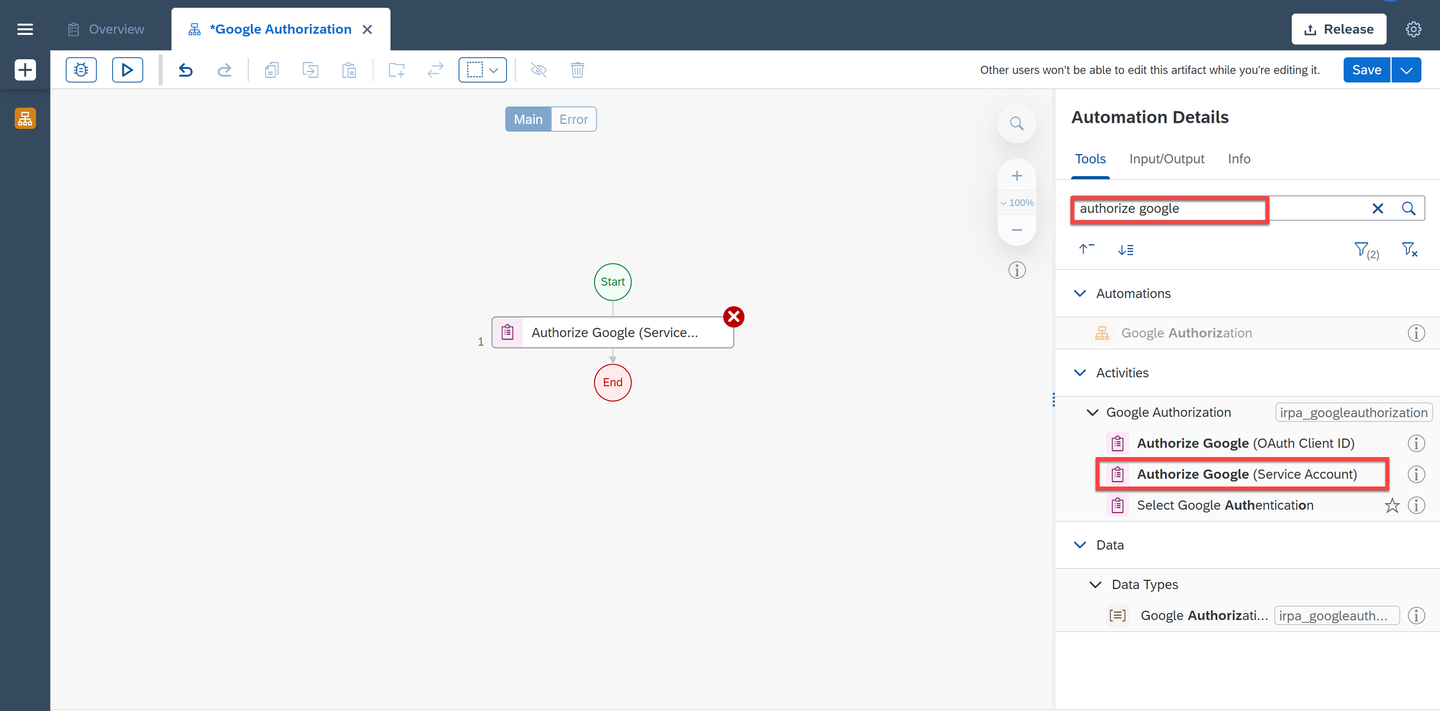
Authorize Google Choose the activity.
Under Input Parameters, for
serviceAccountKeyPathfield enter the environment variableE serviceAccountKeyPathpreviously created.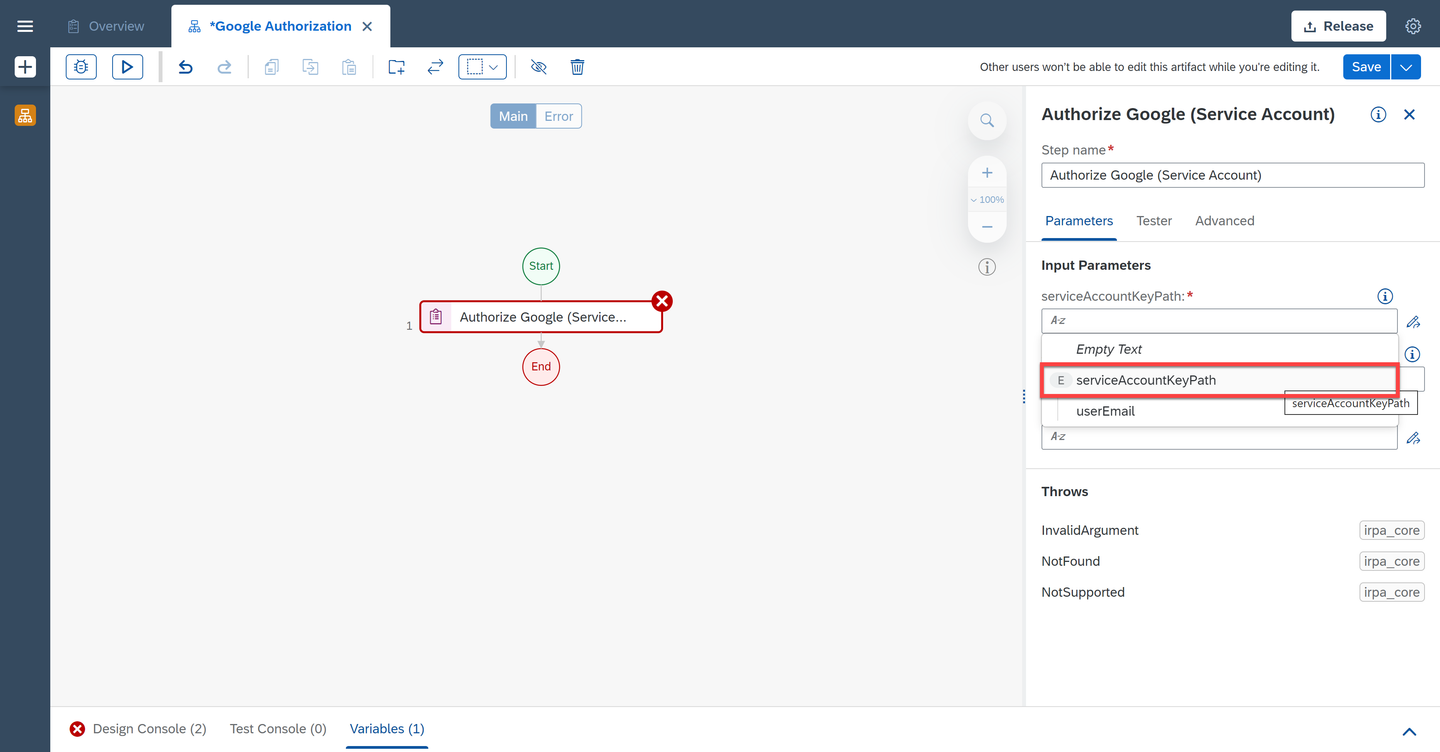
Service Account Key Path Choose the field of the input parameter Scopes and select Create Custom Data.

Create Custom Data Select
GmailScopeandGoogleDriveScopeif the automation contains Gmail and Drive Activities for instance.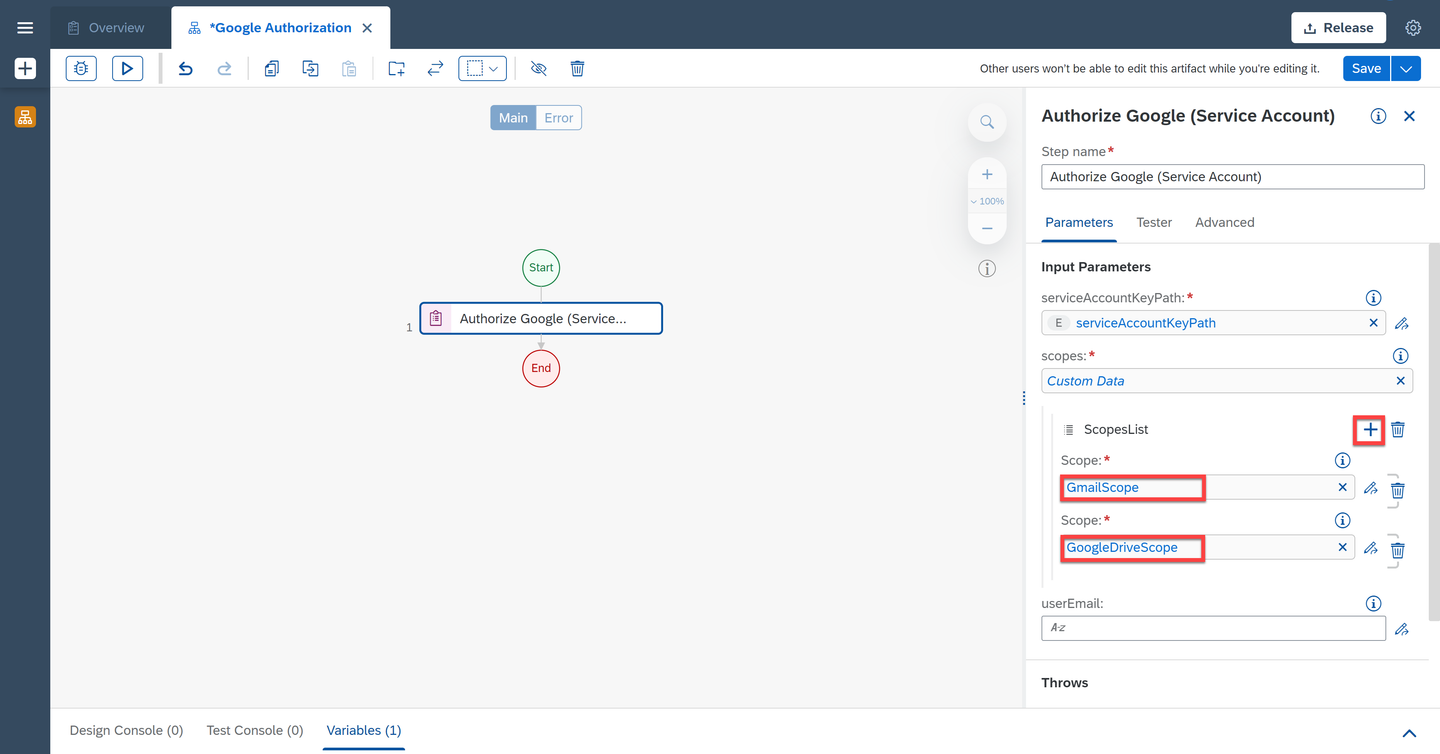
Scopes userEmailis the user’s email address to perform actions on behalf of them. Domain-wide delegation is mandatory if user’s email is provided.For
userEmailfield enter the environment variableuserEmailpreviously created.Choose Save.
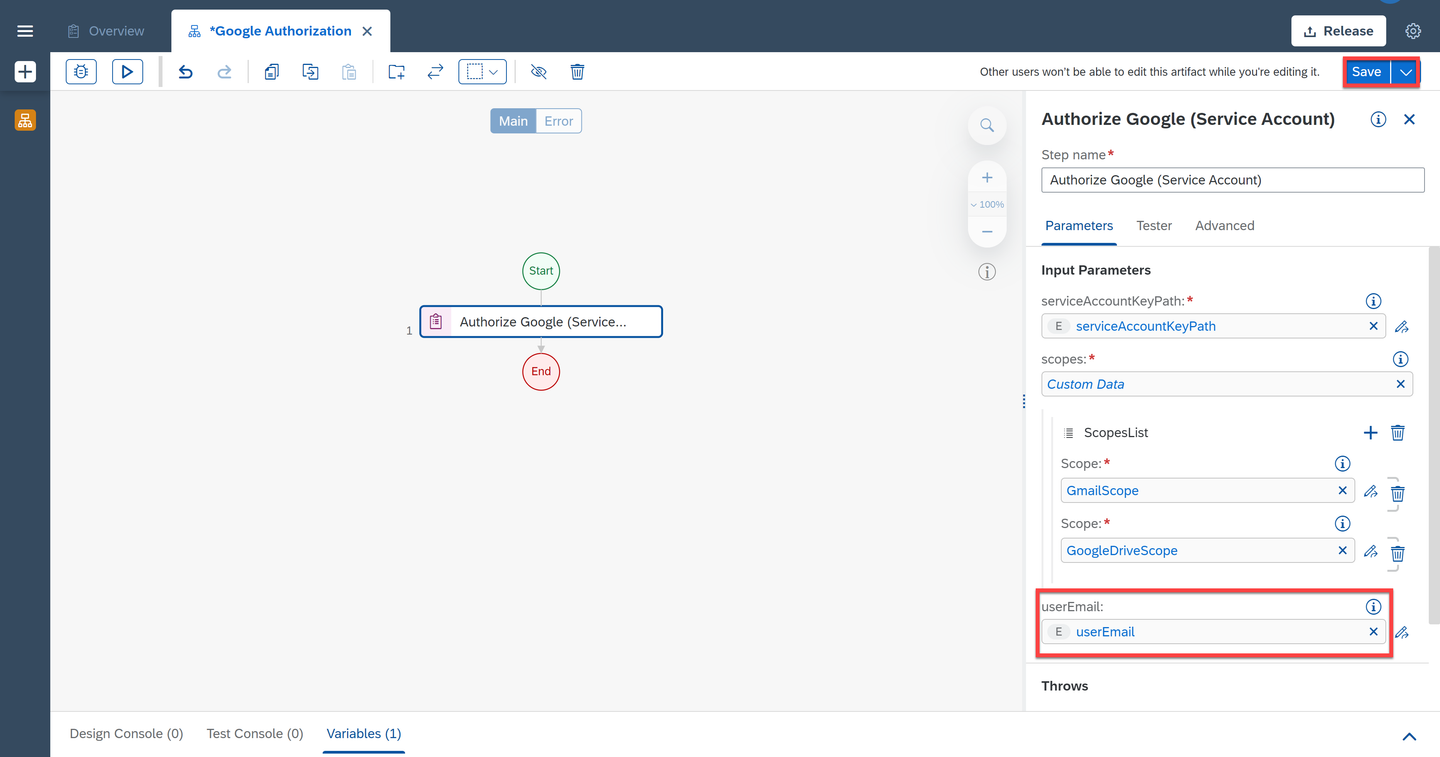
User Email
You can test if the Google Authorization has been set up correctly.
Choose Test.
Fill in the Environment Variables:
- For
userEmail: your user email - For
serviceAccountKeyPath: the full path to the json file
- For
Choose Test.

Test The testing was successful.
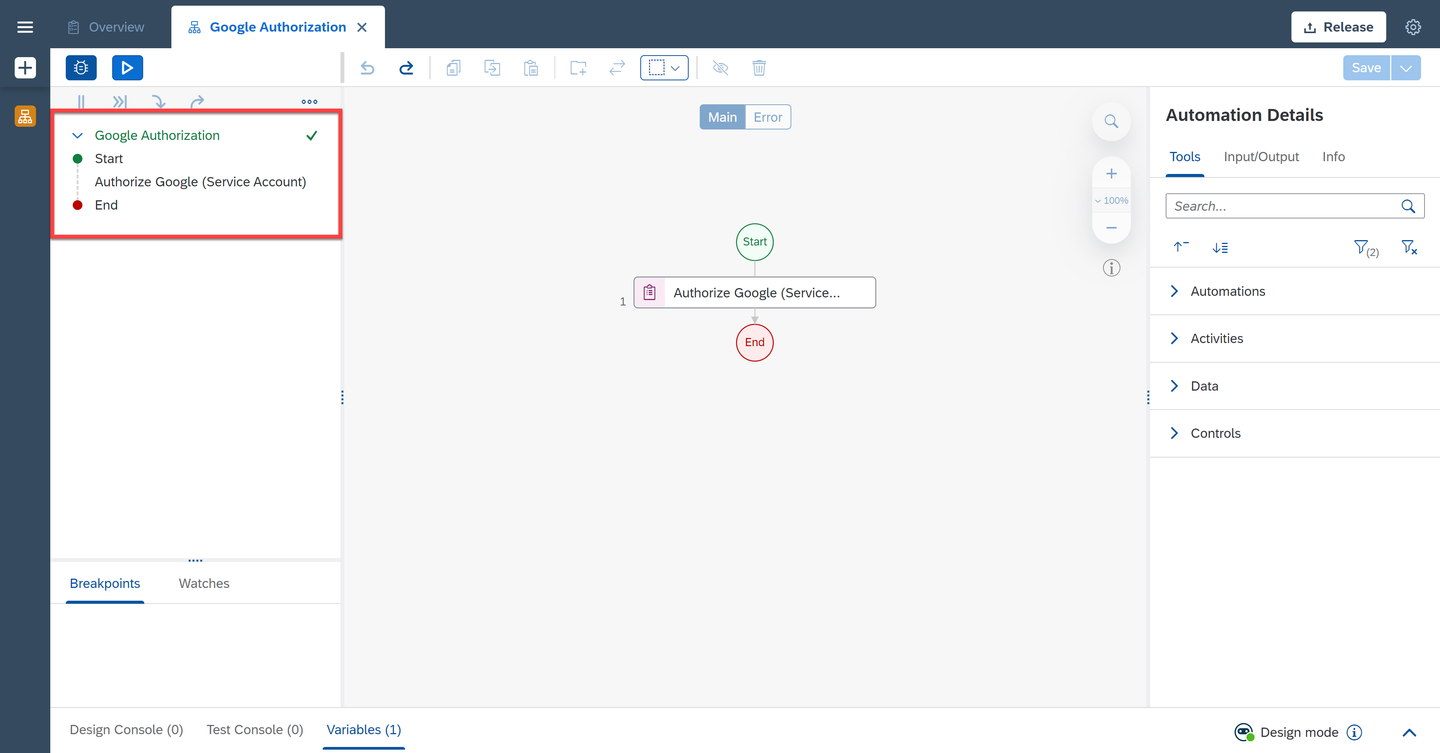
Test result Now that you have set the Authorize activity, you may add Google Workspace SDK to automate Google applications such as Google Drive, Gmail, Google Docs, Google Sheets and Google Slides. Once you are done building your automation, you may use the Disconnect activity at the end of the automation.
Please note that all the Google Workspace activities also work with Agent 2.0.
Resources
Discussion
Share feedback on this tutorial or join the conversation in SAP Community.