
Overview
You will learn
- How to release and deploy the process.
- How to view the Triggers.
- How to trigger the process with API Trigger.
- How to access the tasks in Inbox of SAP Build Lobby.
- How to retrieve the sample project from the Store.


Prerequisites
Prerequisites
- Complete Create Sales Order Business Process tutorial
Steps
To run the process you have to first release and then deploy the business process project.
Releasing a project creates a version or snapshot of the changes and deploying the project makes it available in runtime to be consumed. You can only deploy a released version of the project, and at a given time there can be multiple deployed versions of the same project.
In the Process Builder, to release a project, click Release button on the top-right corner of the screen and provide a description in the popup dialog.
Versions have x.y.z format where x is a major version number, y is minor and z is the patch number. Every time you release, a new version will be created. The version is incremented automatically based on how you want to store the changes in the repository like major or minor update or just as a patch.
If you are releasing for the first time, then the version will start with 1.0.0. Next time you release, the version numbers will be automatically updated.
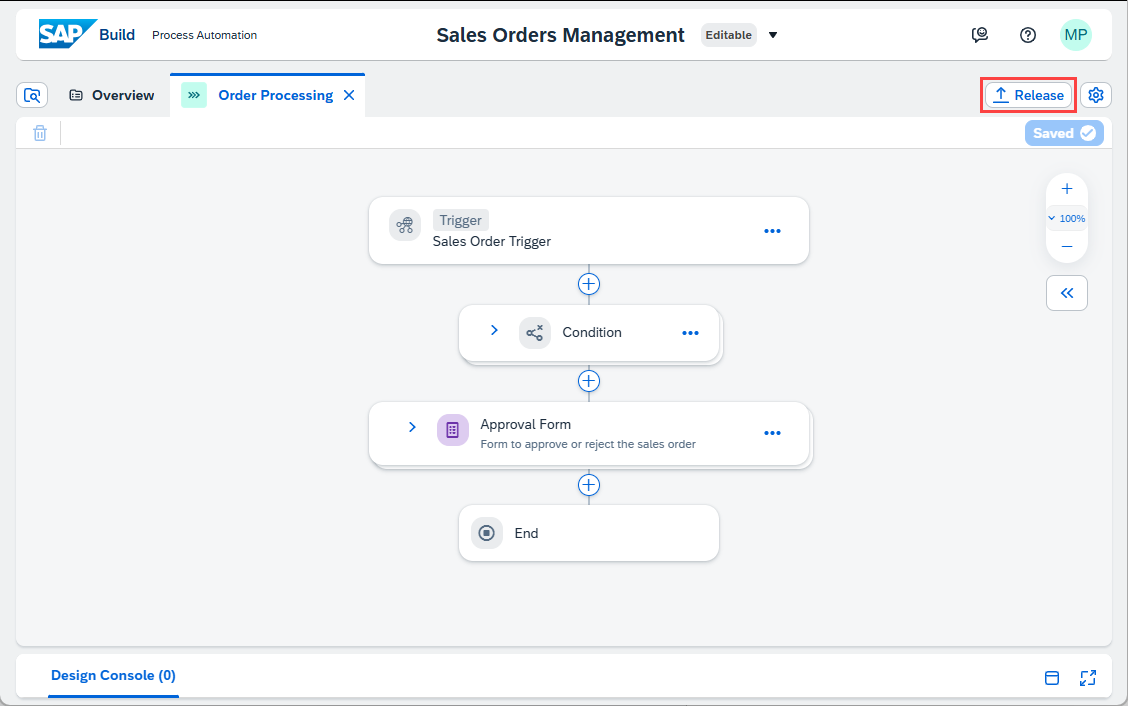
Release Click Release.
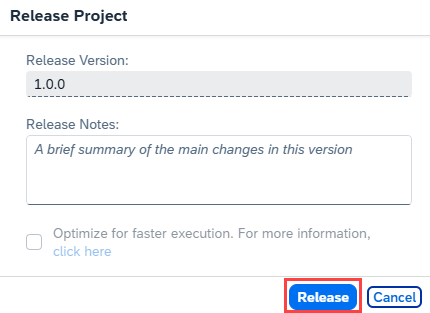
Release
If you do not have an environment already, go to Control Tower -> Environments and create one.
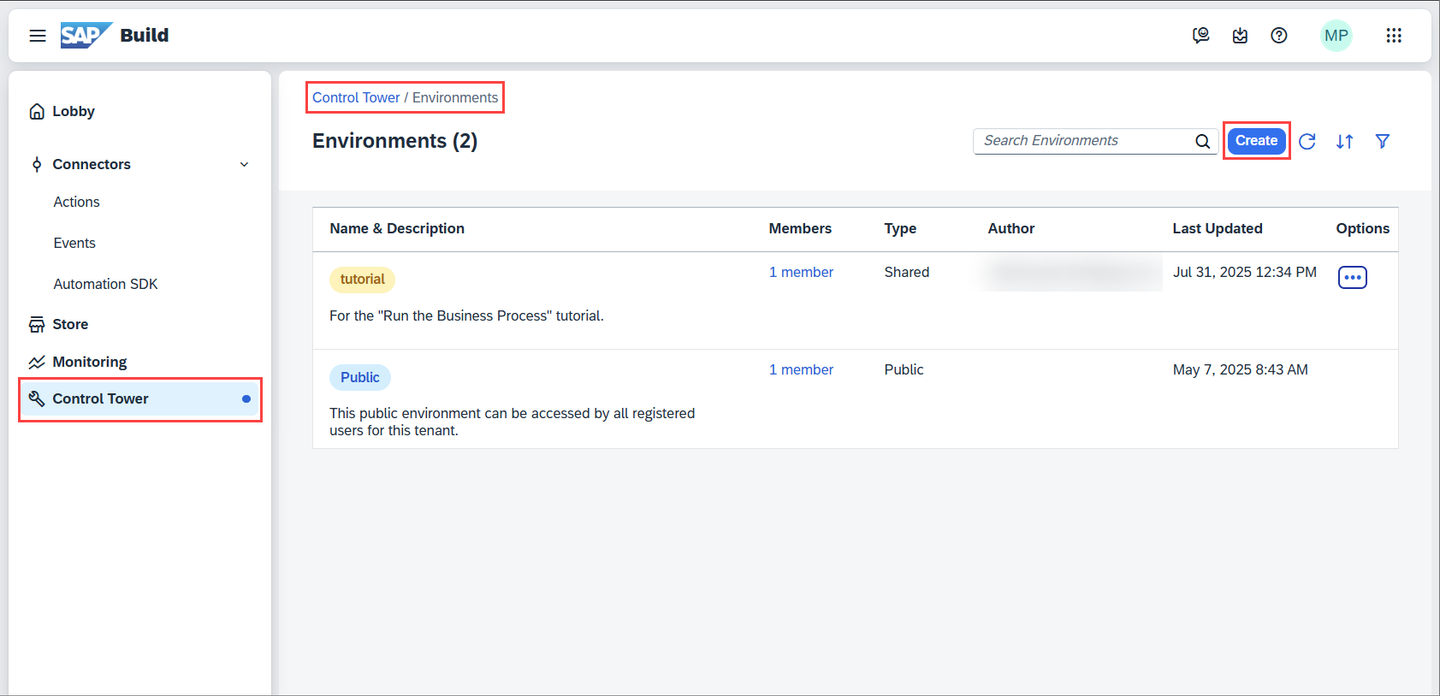
Run Once the project is released successfully, change to the released version and choose Deploy in the top-right corner of the screen.
Choose the environment and select Deploy.
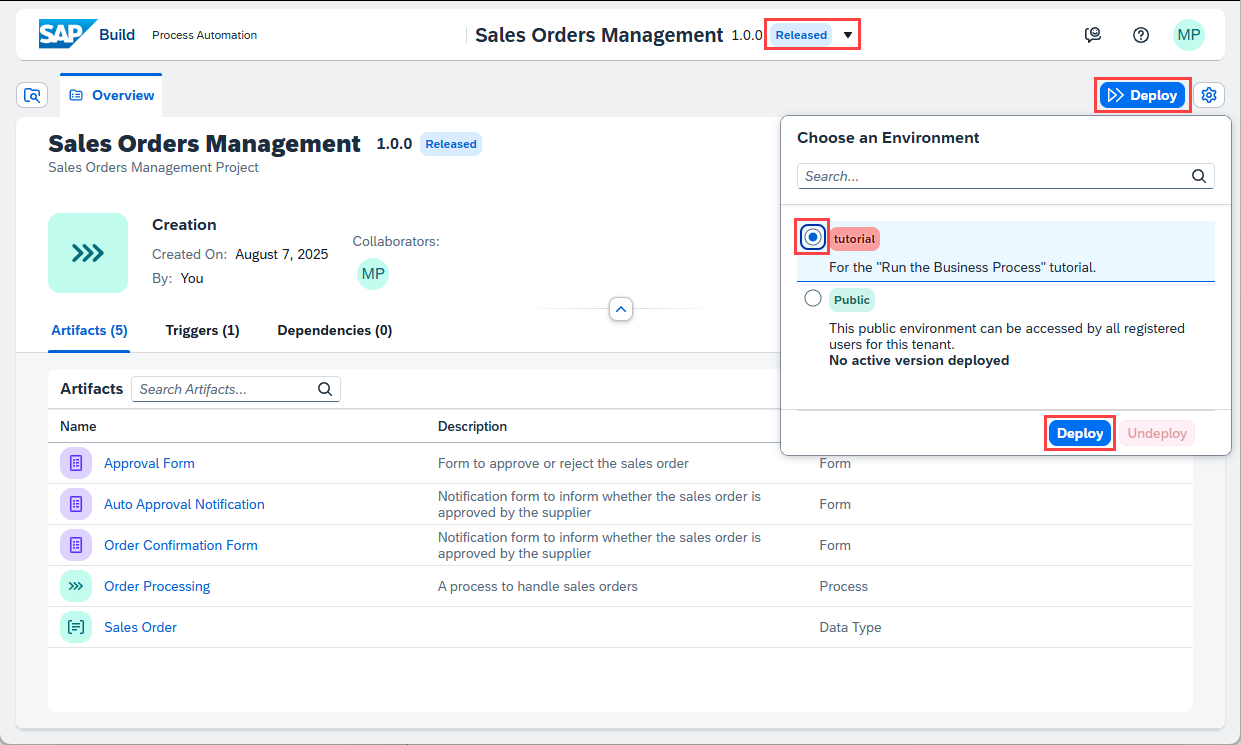
Deploy Since you have created an API trigger in your process, you can see Sales Order Trigger in the list of triggers.
Click Deploy.
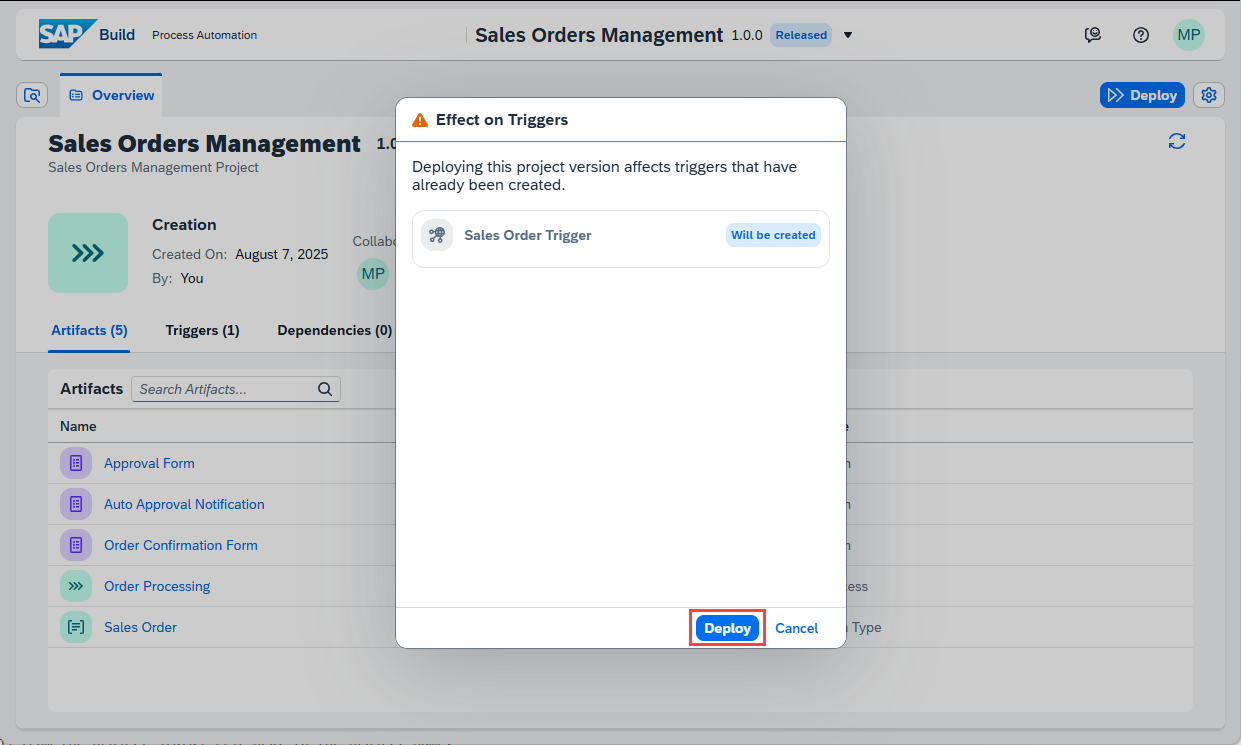
Deploy Deployment will take a couple of seconds/minutes depending upon how big your project is and how many different artifacts it has. Any errors during the deployment will be shown in the Design Console at the bottom of the screen.
Once the deployment is successful, you will see a changed status. You can also see all your deployed and/or released project versions from the project status list next to the project name.
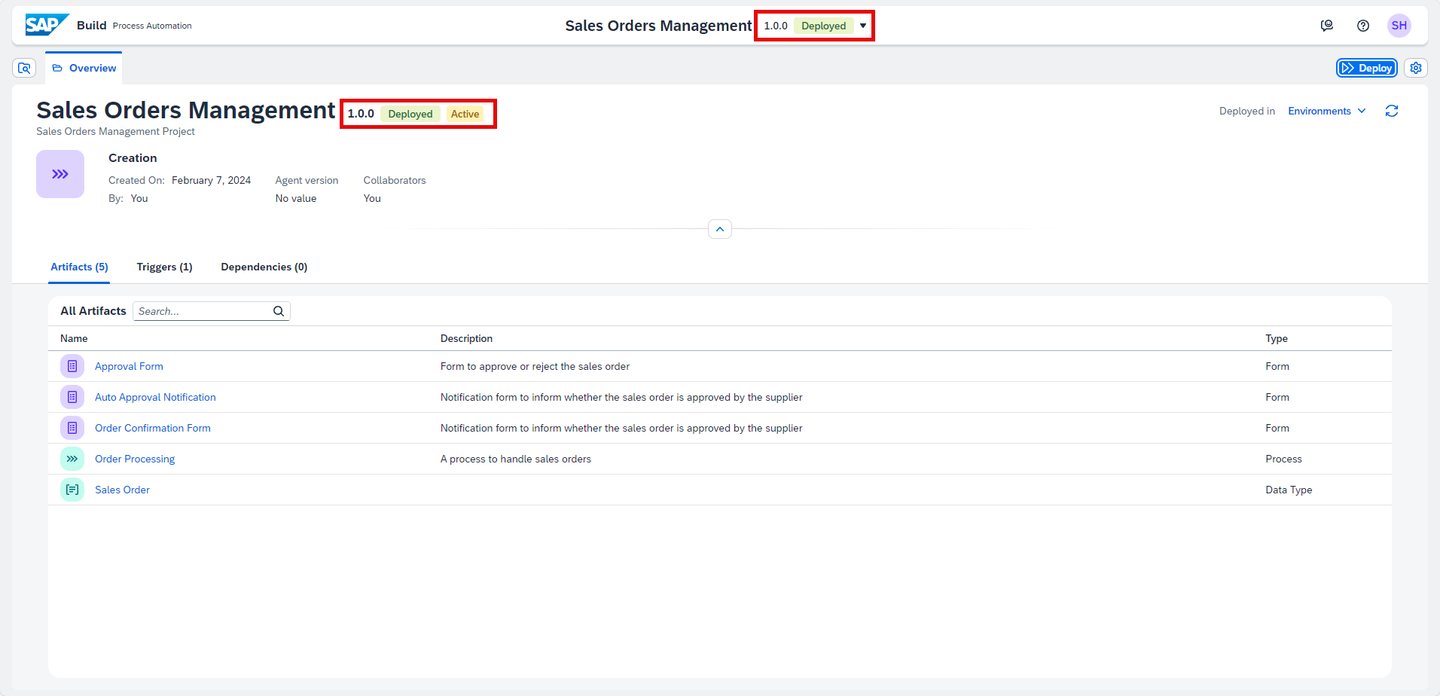
Deploy You cannot edit released or deployed projects. To continue working on your project, you need to select the Editable version of your project (at the top of the page).
You have successfully deployed your project. It is time to run the process and see the results.
Once you have successfully deployed the business process with an API trigger, you can view the API trigger.
Open the environment where you deployed.
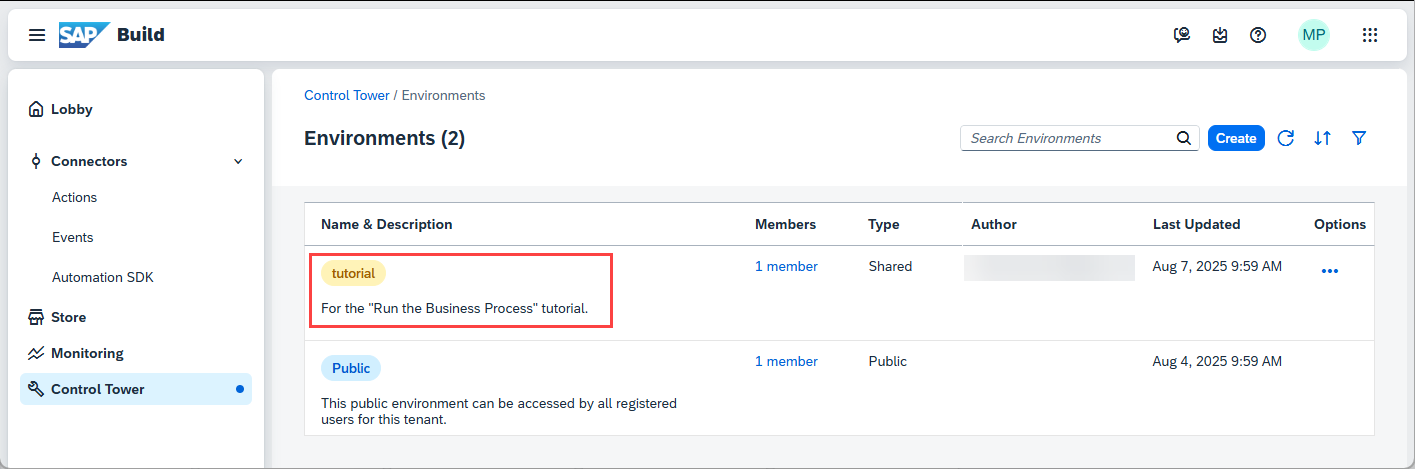
Triggers On the Triggers tab, open the trigger View.
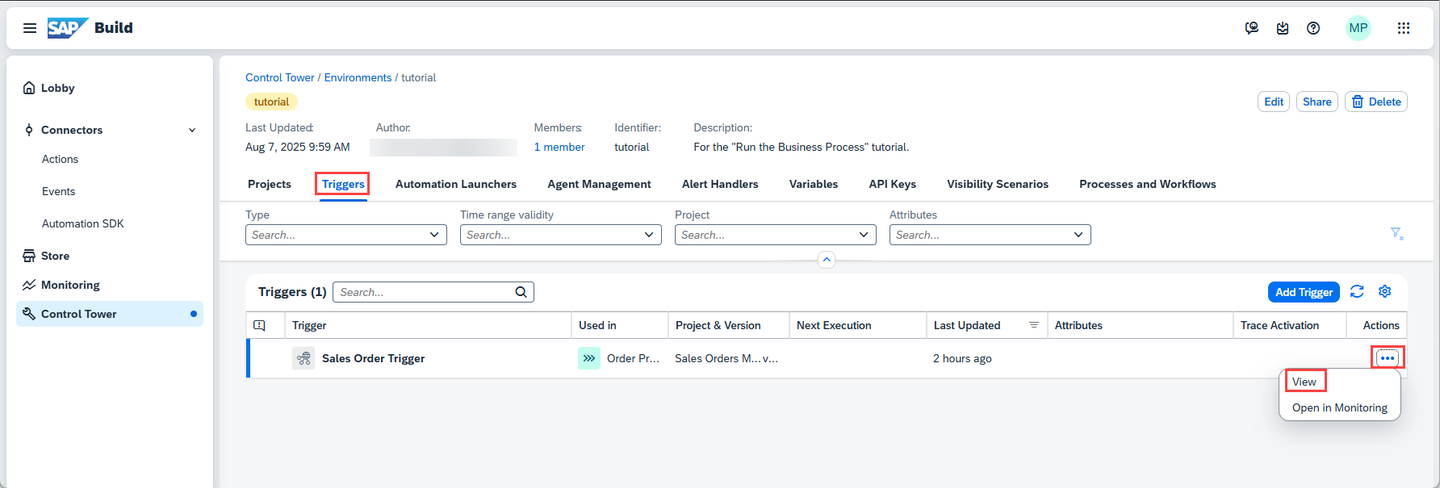
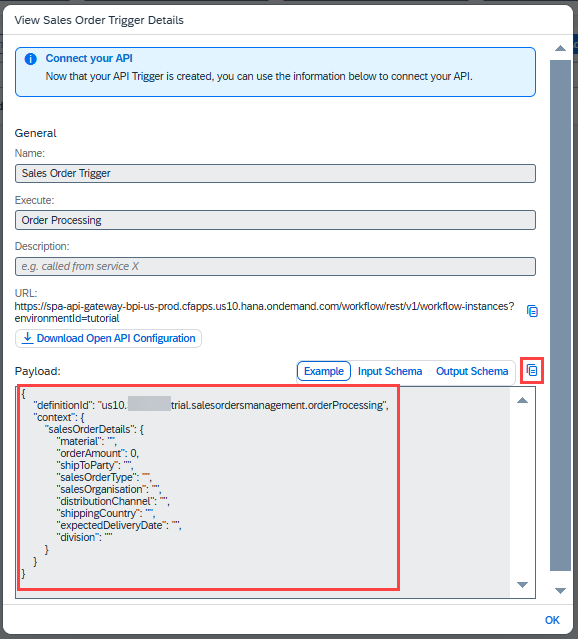
Triggers You can view the API URL and the payload that must be sent to start the process. Copy the payload, which will be used in later steps. If you go into the deployed view of the process, you can see the API details of how you can call the API Trigger:
- The API triggers can be called via the public REST API and are available in SAP Business Accelerator Hub.
- The URL shown in the screenshot below is the complete API URL where:
https://spa-api-gateway-bpi-eu-prod.cfapps.eu10.hana.ondemand.comis the host URL and will change depending upon the system you have deployed the process./workflow/rest/v1/workflow-instancesis the relative URL to start the workflow and remains static.
- Method: POST
- The payload in the screenshot is the body of the POST API call.
The API documentation to initiate the workflow/process can be found in SAP Business Accelerator Hub.
Details of the payload:
Name Details definitionIdID of the process after it is deployed contextThe data to be sent to the process. In yours, you defined the salesorderdetailsand all its fields.Copy-paste the payload to Notepad or some other editor for future use, by clicking the Copy button.
Run Since you have created an API Trigger for the Business process, let’s test the process with API Trigger in Monitoring section before you start the process from SAP Build Apps.
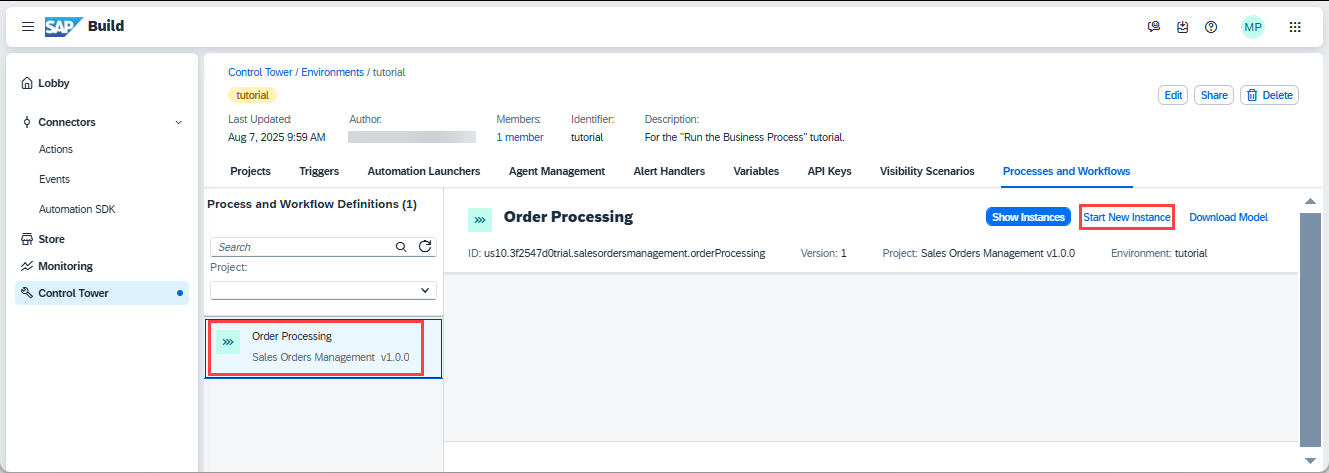
definitionIdof the process can be seen in Monitoring section or in the API trigger section as shown in the above step.- From your environment, choose the Processes and Workflows tab.
- Search for the project
Sales Order Management_<your unique identifier>that you have created in previous tutorial. - Click on Start New Instance.
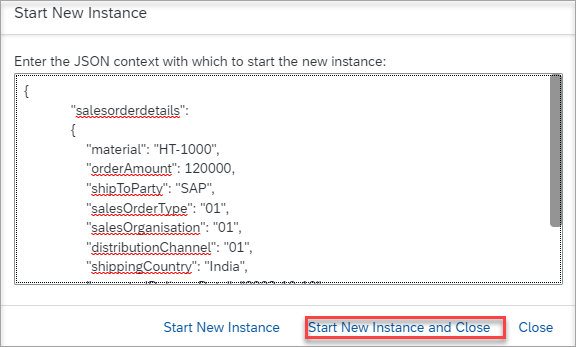
Run Remove the example payload in the dialog. You need to add the payload you saved earlier, but only part of the payload.
Remove the definition ID and context (since here these are understood) and leave just a JSON object that contains the
salesorderdetailsfields.Provide values to the fields as shown below (you can even take the JSON below for yourself). Your text should look something like this.
{
        "salesOrderDetails":
        {
            "material": "HT-1000",
            "orderAmount": 120000,
            "shipToParty": "SAP",
            "salesOrderType": "01",
            "salesOrganisation": "01",
            "distributionChannel": "01",
            "shippingCountry": "India",
            "expectedDeliveryDate": "2025-10-10",
            "division": "01"
        }
 }
Common issues when you are unable to start the instance:
- SAP Build Process Automation supports the ISO 8601 format for date and time: YYYY-MM-DD (2023-03-16) and hh:mm:ss (15:33:16). Hence make sure to enter
expectedDeliveryDatein the supported format as shown above.- Mismatch in the field names.
- Data type mismatch. For example, if you enter order amount as a string instead of a number (“orderAmount”:“120000”).
Click Start New Instance and Close.
Run Don’t modify the payload when you integrate with SAP Build Apps.
Monitoring business process is one of the key aspect of the automated processes. Technical monitoring is an administrator job where a process admin proactively and consistently monitors the process performance, identifies any issues in the process and takes necessary actions to ensure business process continuity.
SAP Build provides different applications to monitor and manage different process artifacts.
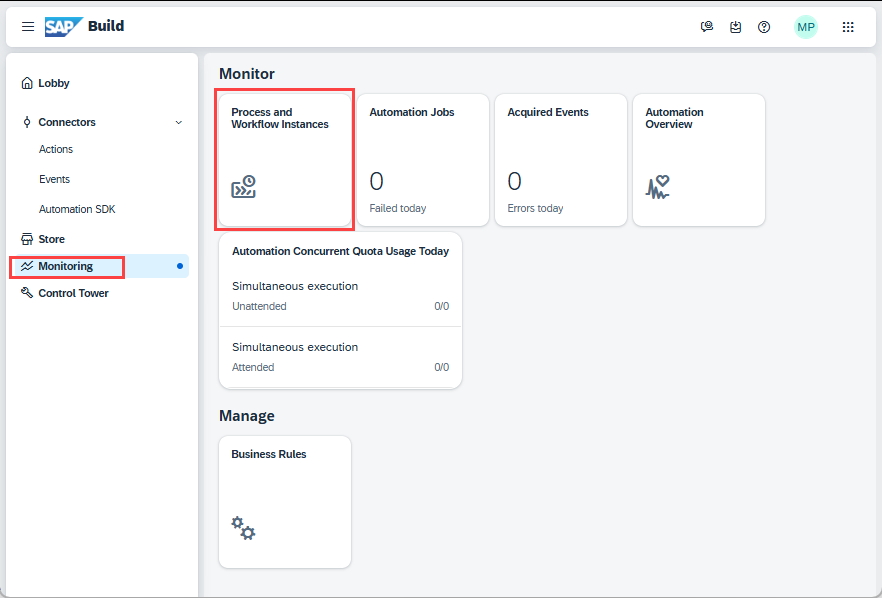
In the lobby, go to Monitoring -> Process and Workflow Instances.
Run 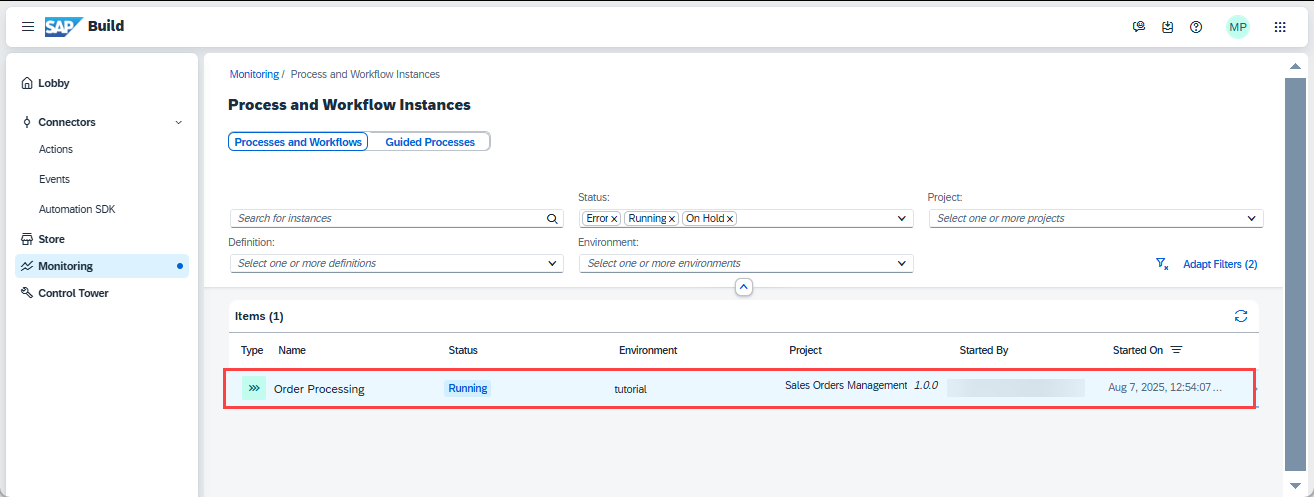
Run In there, you will see all the running, erroneous and suspended process instances. Use the filter bar to get a more customized view of the process instances based on different statutes like running, completed, suspended, terminated and so forth.
The best way to find your process is to search for your user number or initials, depending on how you named it.
Choose your process instance that was just triggered above.
Explore different process monitoring options. Observe the process instance information, process context which is the actual process data flowing across different activities in the process and the execution logs where you can see entire trace of how the process has been progressing with some basic runtime information of each activity.
Since the order amount is greater 100000, the process requires an approval.
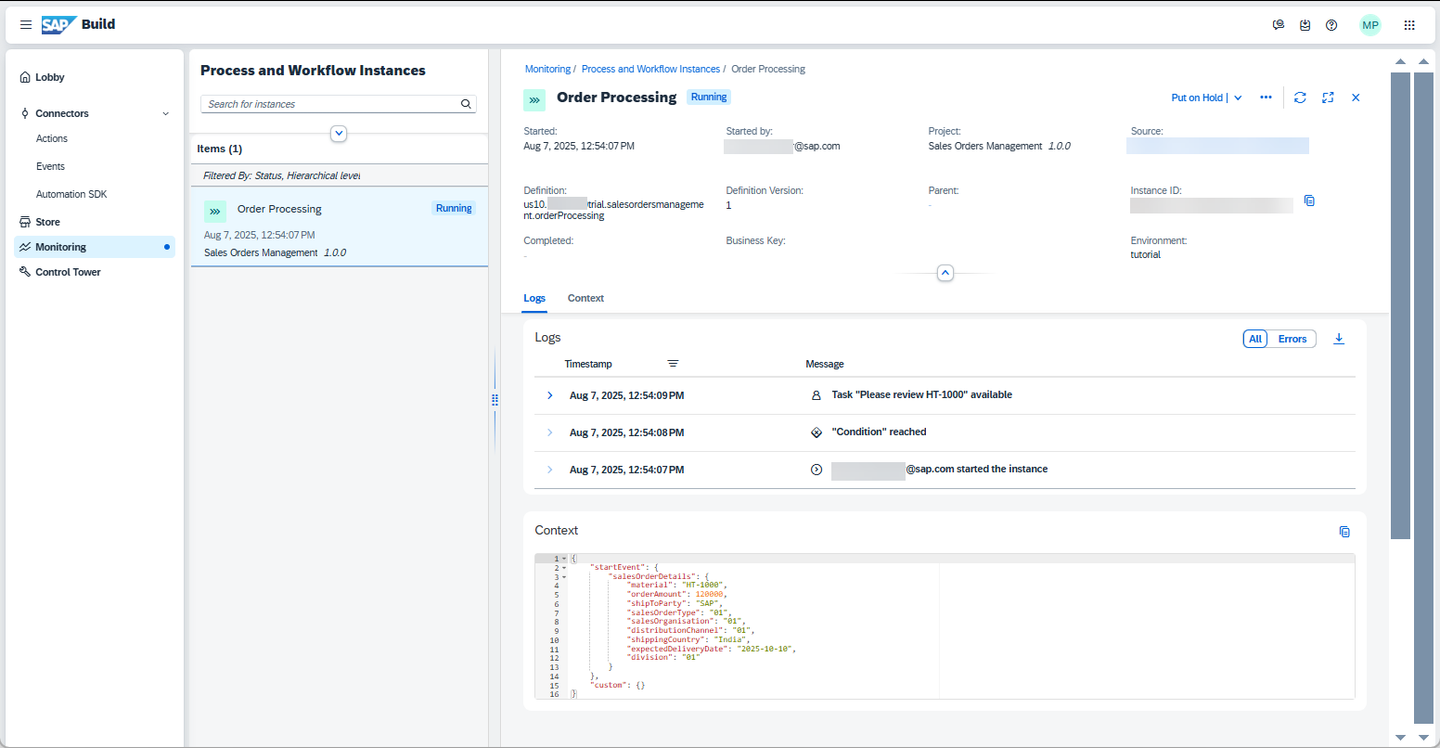
Run As you can see the process is waiting for the task to be completed. These tasks are generated from the forms that are added in the process and can be accessed via the My Inbox application.

Run In the Logs section, expand the top activity. Notice the Recipients list. This is the same as configured in the General section of the Approval Form. The task will go into the inboxes of all the recipients.
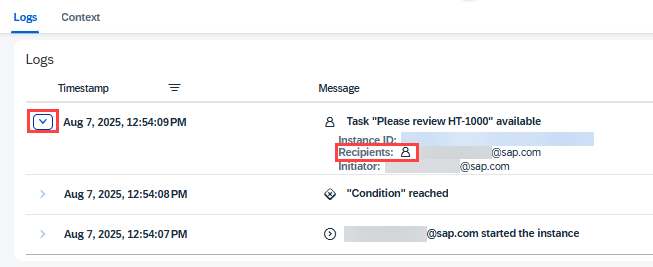
Recipients You will open the My Inbox in the next step.
Tasks are the request for the users to participate in an approval or review process. These tasks appear in the My Inbox application shipped with SAP Build. Users can claim, approve and reject the task from their inbox.
Access the My Inbox by going to the SAP Build lobby, and clicking the icon in the upper right.
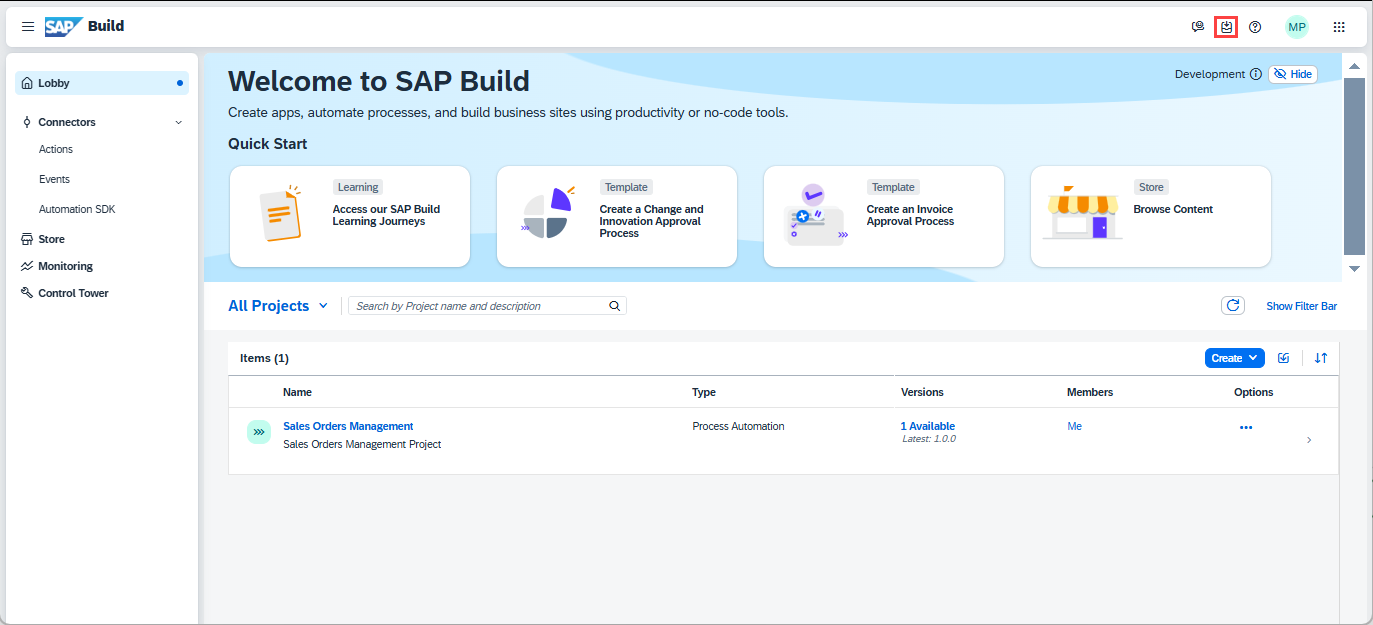
My Inbox Open the My Inbox, and find the task for the process you just triggered.
Click Approve.
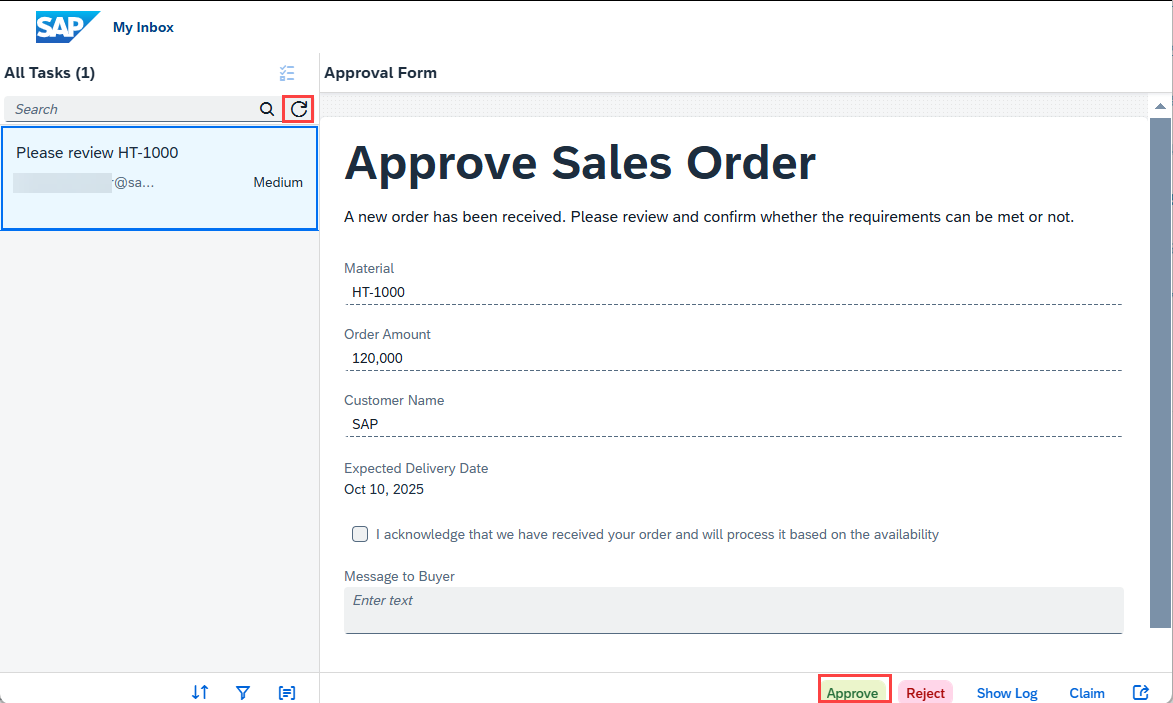
Inbox Once you approve/reject the approval task, refresh the inbox again to get the final notification based on action taken.
Click on Submit to complete the process.
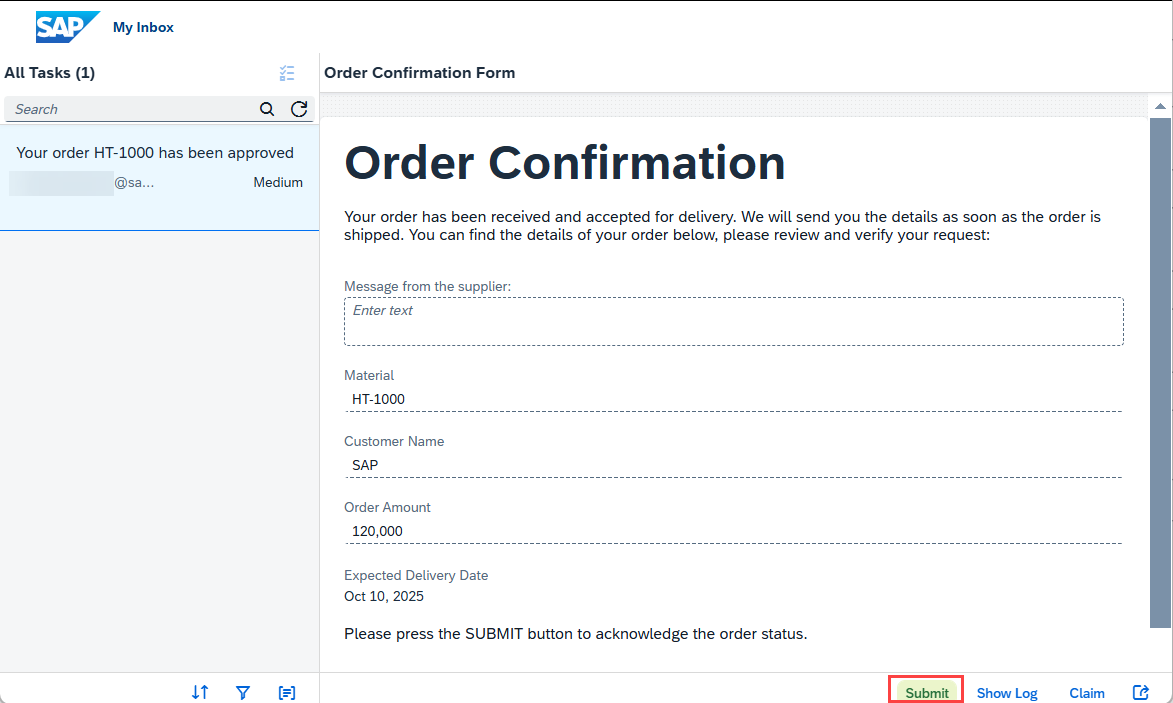
Run Once you acknowledge the notification sent via the approval process, the process will be completed.
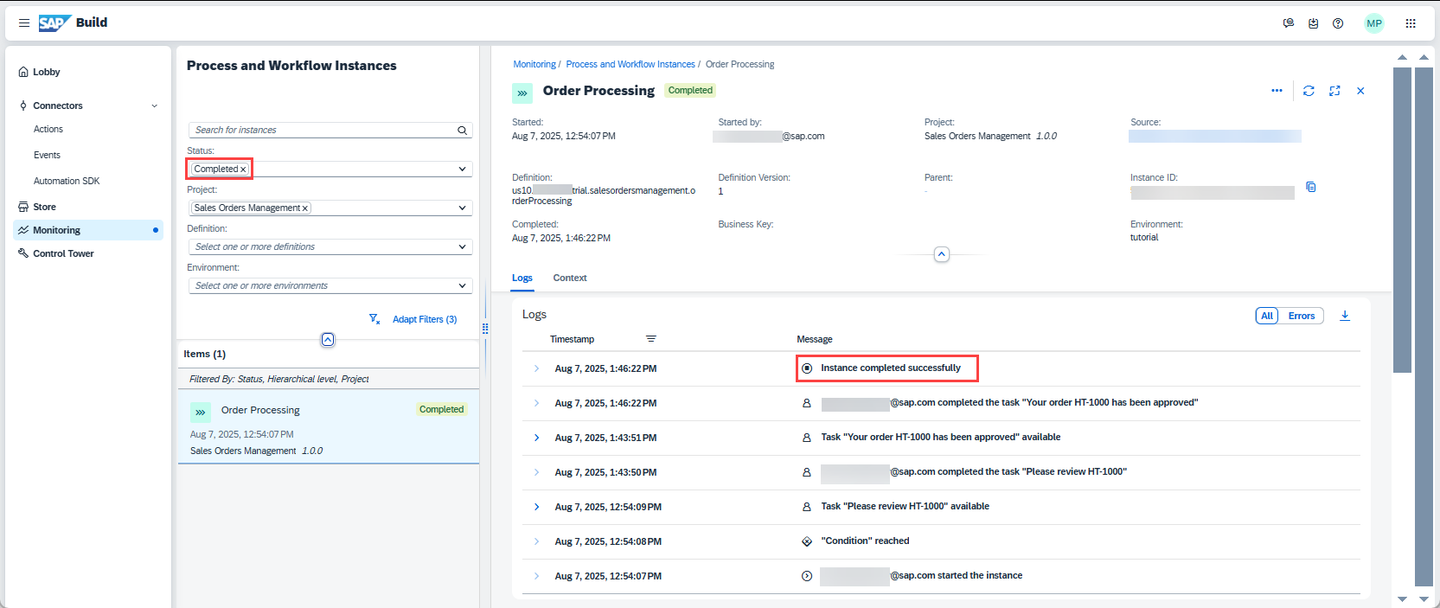
Run Repeat the testing above twice more:
- Amount above 100000 and reject the request. You should get an email.
- Amount below 100000. This should send the auto-approval form to the My Inbox.
You have successfully built Sales order Approval Business process and is now ready to integrate with SAP Build Apps.
In order to trigger a process from SAP Build Apps, you must first publish the process – which makes the process discoverable from an SAP Build Apps project.
Open the SAP Build lobby.
Select the project row, go to the Versions tab, choose … beside the deployed version and choose Publish to Library.
A dialog lets you specify the version and other parameters. No need to change anything.
Click Publish.
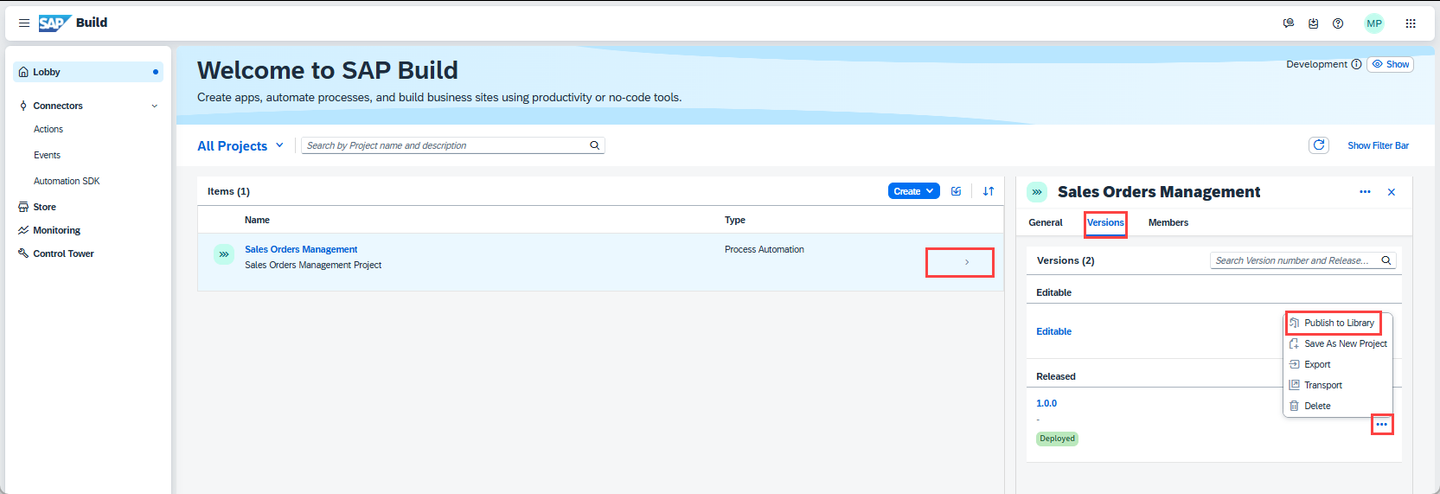
Publish to Library You should see that the version was published.
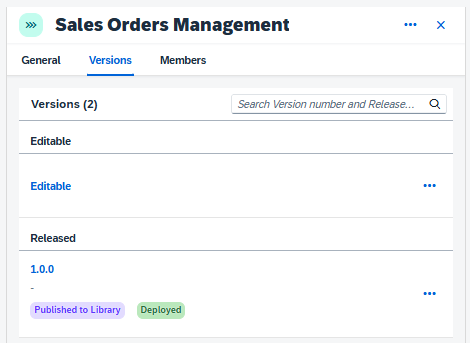
Publish to Library
The entire project is available in the SAP Build Store as a sample and you can follow the below steps to retrieve the project and use it for reference.
This sample project can be downloaded from the SAP Build Store.
To retrieve this sample, please follow these steps:
From the SAP Build Lobby, navigate to Store.
Search for the sample project: Sales Order Management (MI04).
Choose Create from Template to retrieve the sample and save it as a new project in your lobby.
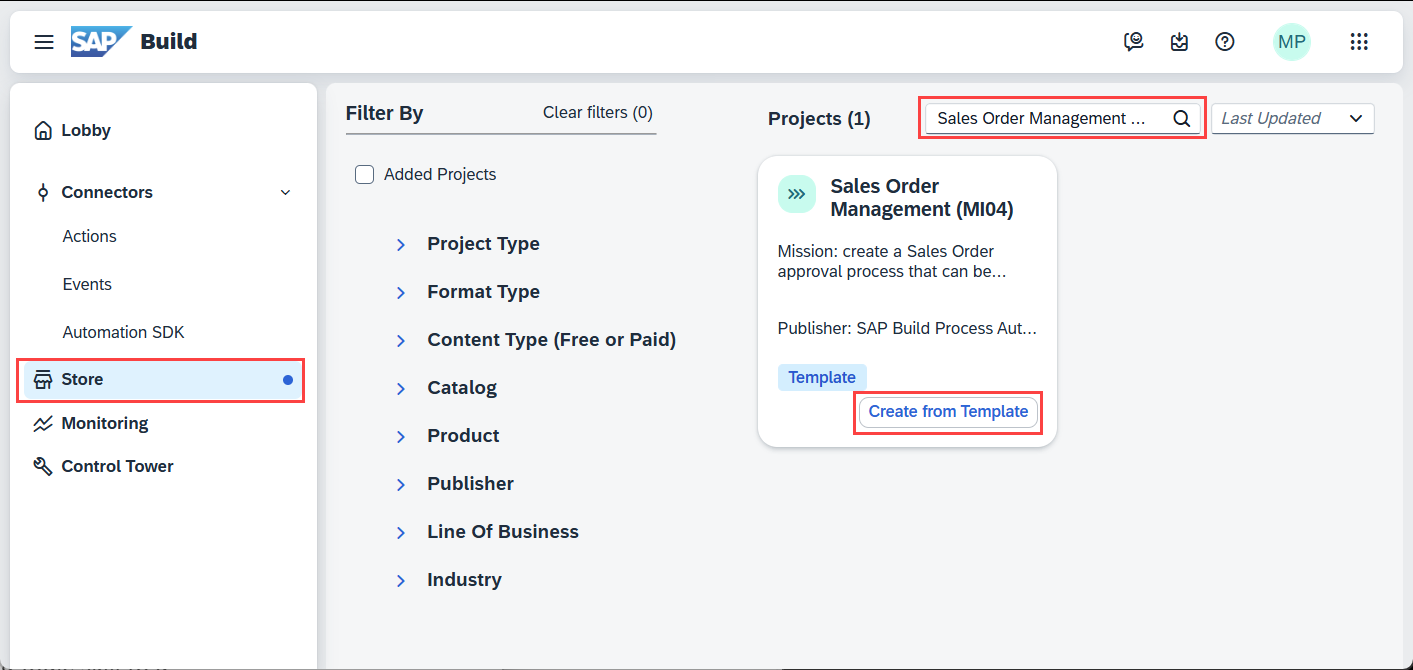
Store Choose Create.
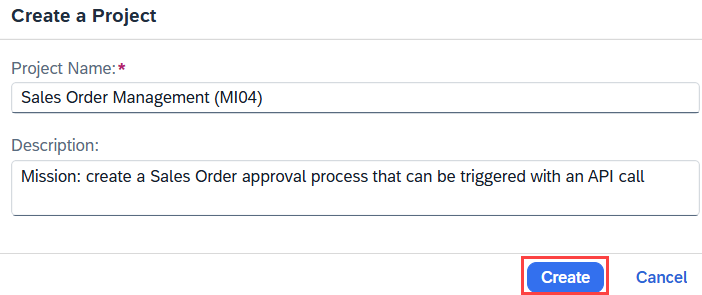
Create Your project gets created in editable version. You may release and deploy it and run the project.
Navigate back to the lobby by clicking on the SAP logo.
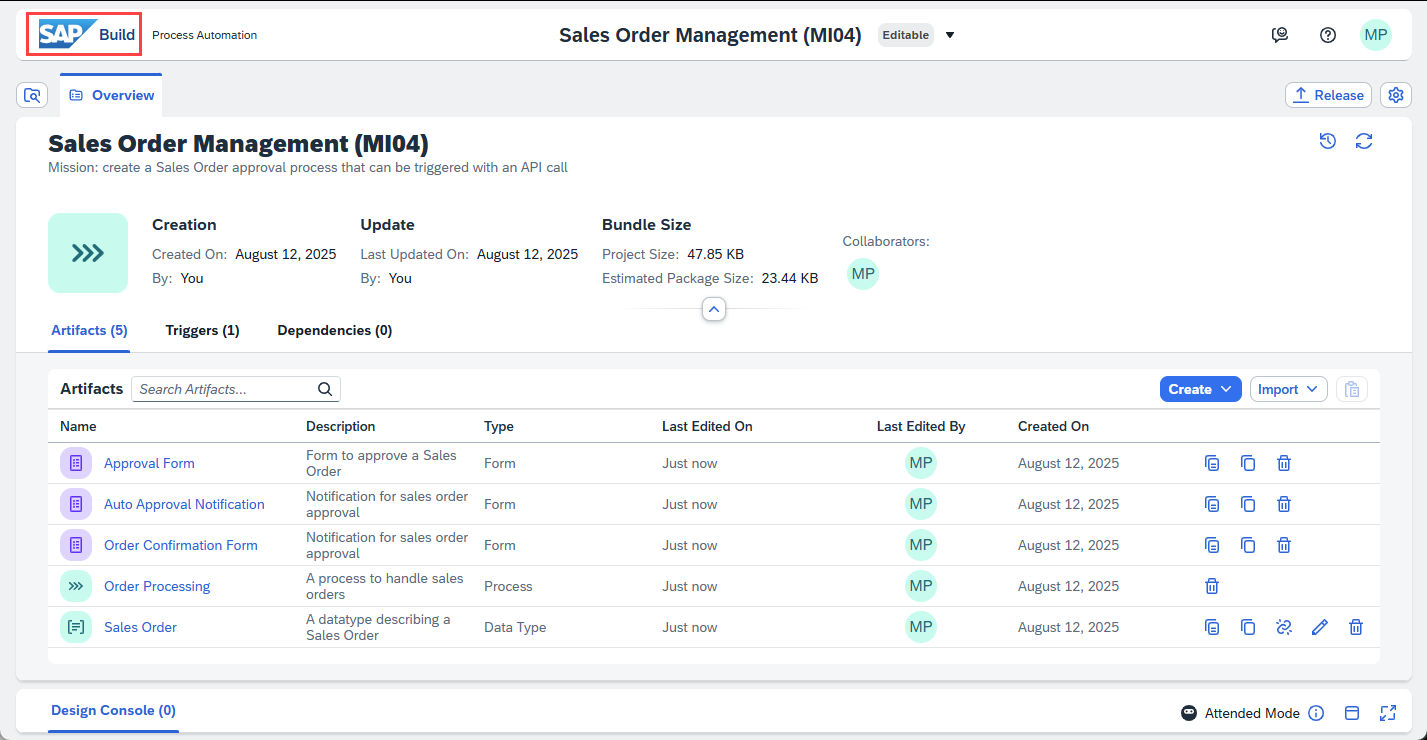
Project You can see your project is available in the lobby.
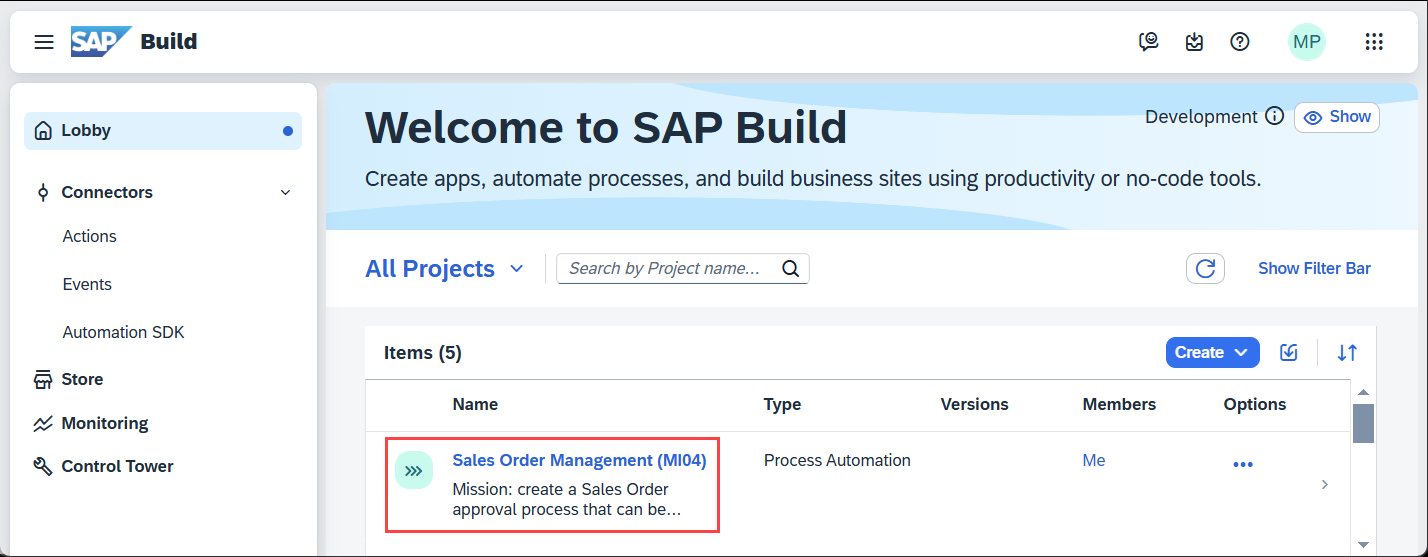
Lobby
Resources
Discussion
Share feedback on this tutorial or join the conversation in SAP Community.