
Overview
You will learn
- How to initialize a repository in SAP Business Application Studio.
- How to set up your CI/CD pipeline.


Prerequisites
Prerequisites
- You’ve prepared your application for deployment in SAP BTP, Cloud Foundry runtime. Follow the steps in the Deploy in SAP BTP, Cloud Foundry Runtime tutorial that is part of the Deploy a Full-Stack CAP Application in SAP BTP, Cloud Foundry Runtime Following SAP BTP Developer’s Guide tutorial group.
- You have an enterprise global account in SAP BTP. To use services for free, you can sign up for an SAP BTPEA (SAP BTP Enterprise Agreement) or a Pay-As-You-Go for SAP BTP global account and use the free tier services only. See Using Free Service Plans.
- You have a platform user. See User and Member Management.
- You’re an administrator of the global account in SAP BTP.
- You have a subaccount in SAP BTP to deploy the services and applications.
- You have one of the following browsers that are supported for working in SAP Business Application Studio:
- Mozilla Firefox
- Google Chrome
- Microsoft Edge
OUT OF MAINTENANCE
This tutorial is no longer maintained. For an up-to-date version and support with any issues, refer to the Develop a Full-Stack CAP Application Following the SAP BTP Developer’s Guide mission in the SAP Discovery Center.
Steps
To be able to perform the steps for setting up a CI/CD pipeline, you need a public repository. Currently, SAP Continuous Integration and Delivery supports GitHub and Bitbucket repositories.
For real application development, you need to consider the right place for your repository.
In this example, we’re creating a repository on GitHub. You need a GitHub account for this step. Go ahead and create one if you don’t have it yet.
Create a new GitHub repository in your GitHub account.
Under Repository name, enter incident-management.
Choose Create repository.

Create repository You’re directed to the Quick Setup page of your new repository. Make sure to copy the URL of the repository as you’ll need it in the next steps.

Quick Setup
In SAP Business Application Studio, navigate to Source Control and choose Initialize Repository.

Initialize repository In the dropdown Pick workspace folder to initialize git repo in, choose the incident-management folder.

Pick workspace folder Open the three dots menu next to Source Control and choose Remote → Add Remote….
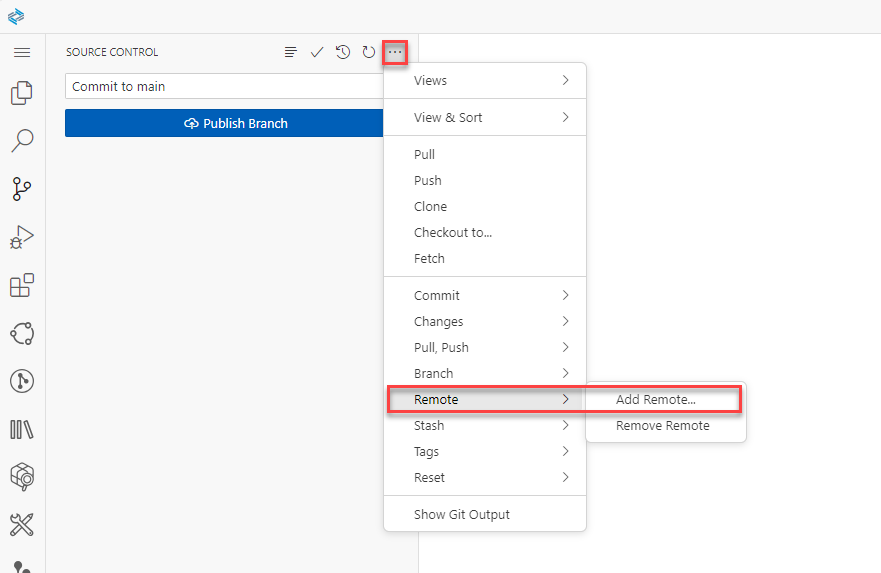
Add remote Paste the URL of your repository in the Provide repository URL field and press Enter.

Provide repo URL Provide a remote name and press Enter.

Provide remote name Stage your changes, add a commit message, and choose Publish Branch.
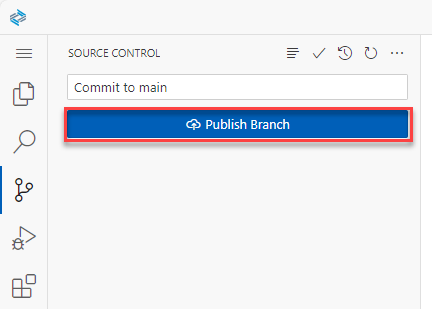
Publish branch Provide your GitHub username and password when prompted. When the changes are pushed, you see your project in your GitHub repository.
Navigate to your subaccount and choose Services → Service Marketplace on the left.
Type Continuous Integration & Delivery in the search box and choose Create.

Continuous Integration and Delivery create service Choose Create in the New Instance or Subscription popup without changing any values.
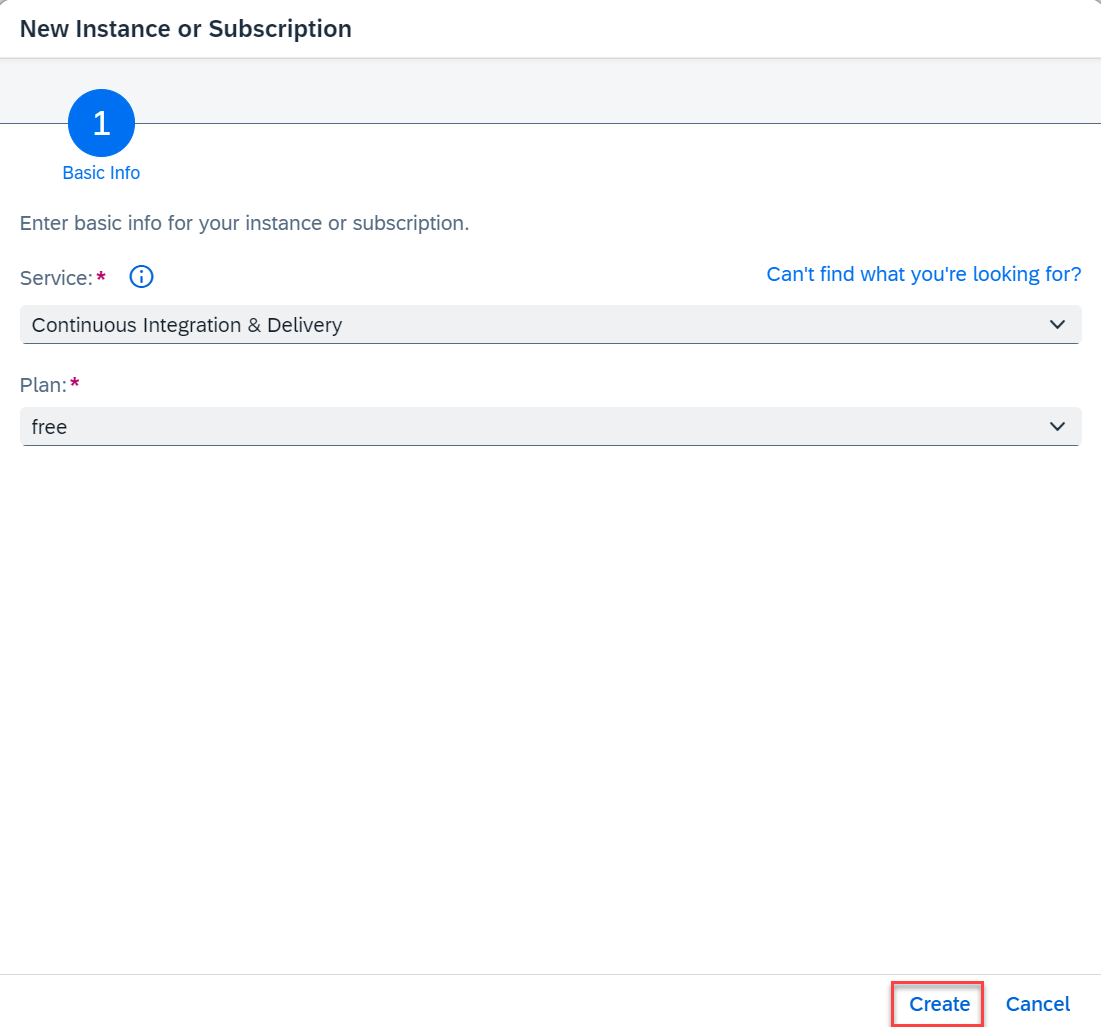
New Instance or Subscription popup Choose View Subscription and wait until the status changes to Subscribed.

View subscription 
Status subscribed In your SAP BTP subaccount, choose Security → Role Collections in the left-hand pane.
Choose role collection CICD Service Administrator.
Choose Edit.

Edit role In the Users section, enter your user and select the icon to add the user.

Add user Keep the setting
Default Identity Providerunless you have a custom identity provider configured.Choose Save.
You’ve assigned the CICD Service Administrator role collection to your user.
Log out and log back in to make sure your new role collection is considered.
See Initial Setup for more details on how to enable the service.
In your SAP BTP subaccount, navigate to Services → Instances and Subscriptions in the left-hand pane.
Choose Continuous Integration & Delivery.
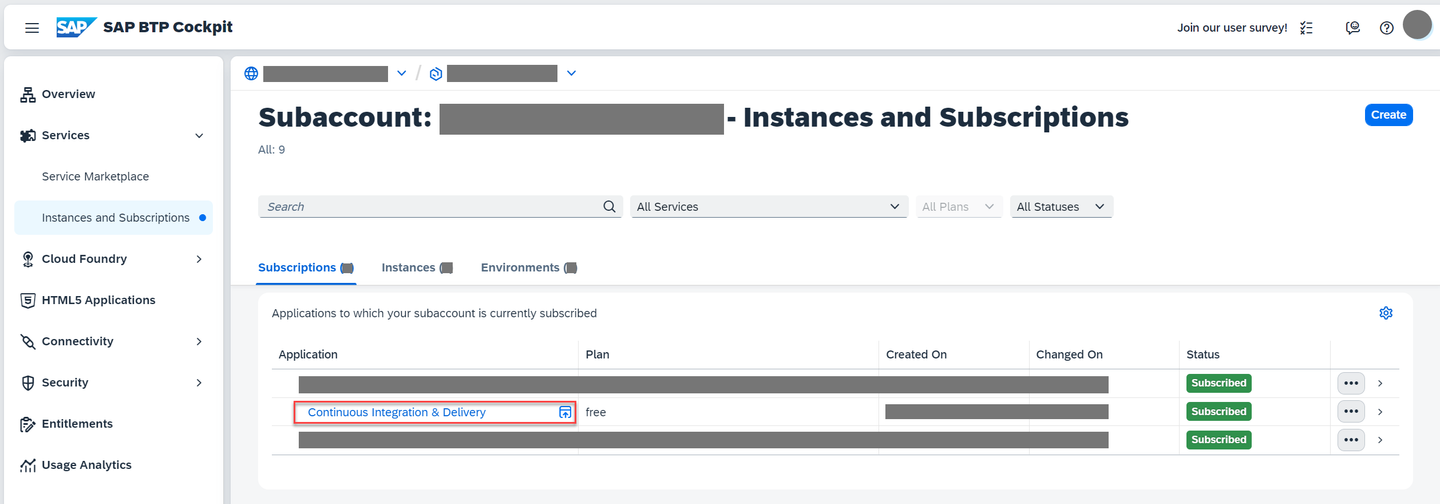
CI/CD Go to application Use your SAP BTP global user name and global password to log in to the application.
Choose the Credentials tab and choose the icon to add a new credential.

Add new credential Under Create Credentials on the right:
- Enter github in the Credential Name field.
- Choose Basic Authentication from the dropdown in the Type field.
- Enter your GitHub user name in the Username field.
- Enter your GitHub personal access token in the Password field.
- Choose Create.
See Create a Credential for a Private GitHub Repository for instructions on how to create a GitHub personal access token if you don’t have one.
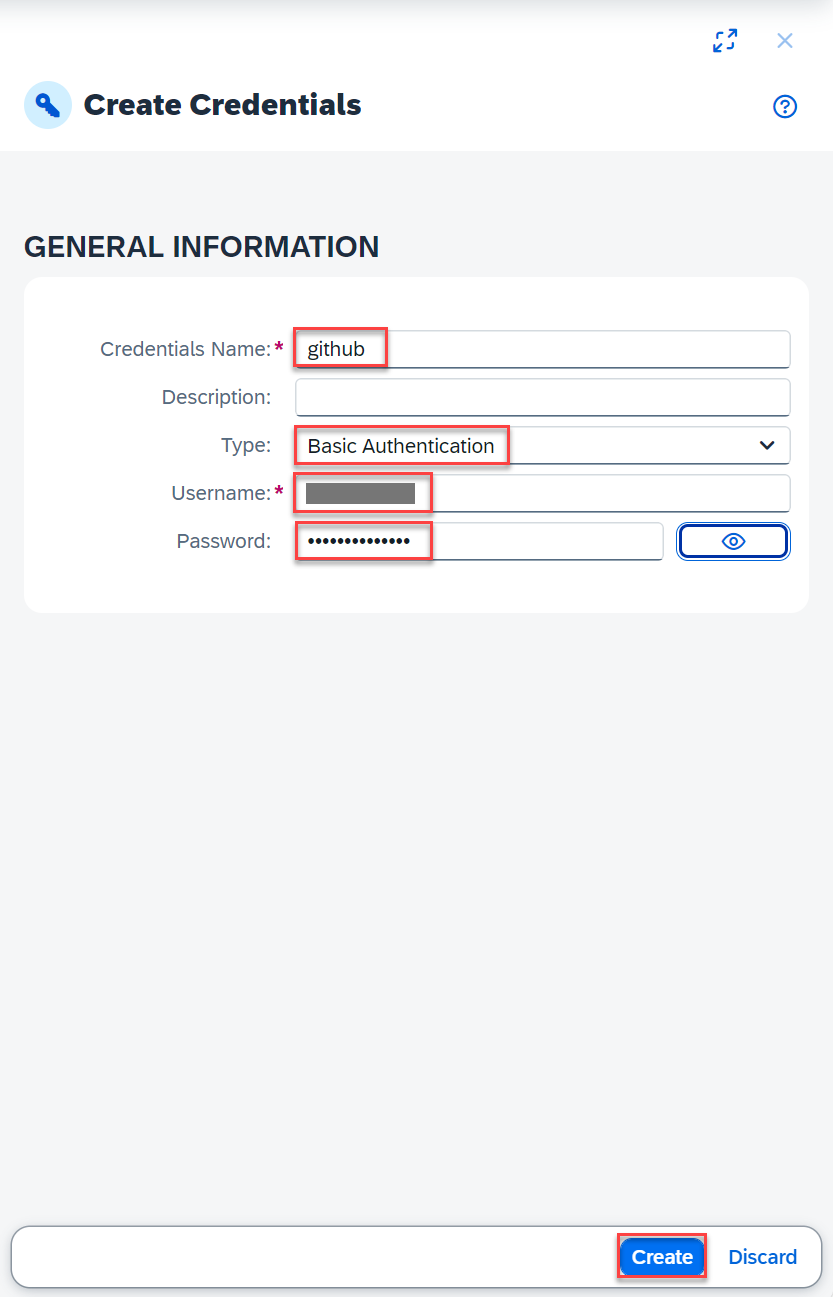
Create GitHub credential Choose the icon to add a new credential again and create a credential for Cloud Foundry:
- Enter cf in the Credential Name field.
- Choose Basic Authentication from the dropdown in the Type field.
- Enter your SAP BTP global user name in the Username field.
- Enter your SAP BTP global password in the Password field.
- Choose Create.

configure pipeline
Navigate to the Jobs tab and choose the icon to add a new job.

Add new job Enter Incident-Management in the Job Name field.
Add repository
Open the value help for the Repository field.

Add job name In the Select Repository popup, choose Add Repository. A popup opens.

Select Repository popup In the Add Repository popup, enter details for the repository you created in Step 1: Create a repository:
- Enter incident-management in the Name field.
- Enter your repository’s URL in the Clone URL field.
- Open the value help in the Credentials field and choose the credential github that you created in Step 5: Add credentials.
- Select GitHub from the dropdown in the Type field.

Add Repository popup
Create credentials
Open the value help in the Webhook Credential field.

Create Webhook value help In the Select Credentials popup, choose Create Credentials.
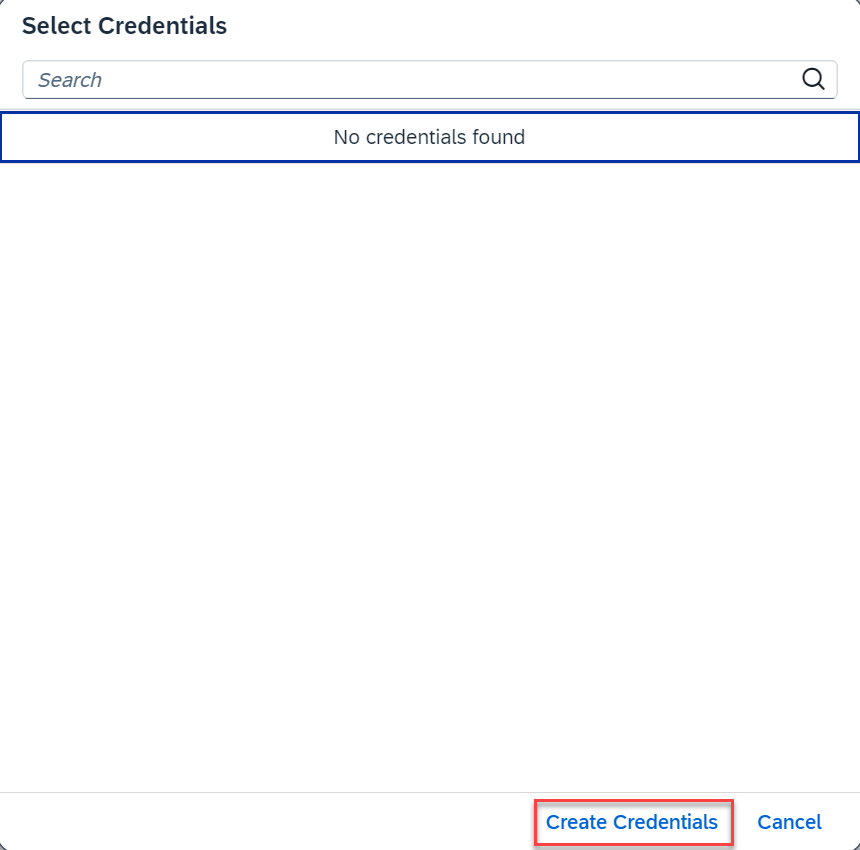
Select Credentials popup In the Create Credentials popup:
- Enter webhook in the Credentials Name field.
- Click Generate next to the Secret field to create a secret.
- Copy the generated secret from the Secret field and save it. You need it in Step 7: Create a GitHub webhook.
- Choose Create.

Create webhook Go back in the Add Repository popup and choose Add to complete the addition of a repository.
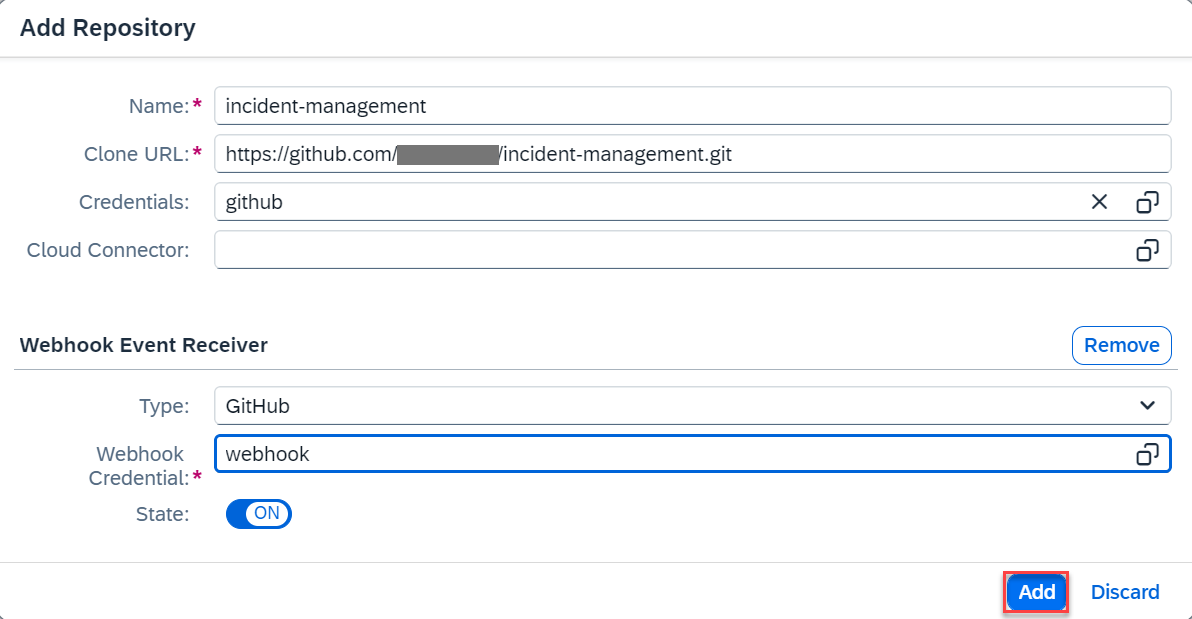
Complete repo addition
Configure pipeline and stages
Back in the General Information tab, enter main in the Branch field.
Select Cloud Foundry Environment from the dropdown in the Pipeline field.
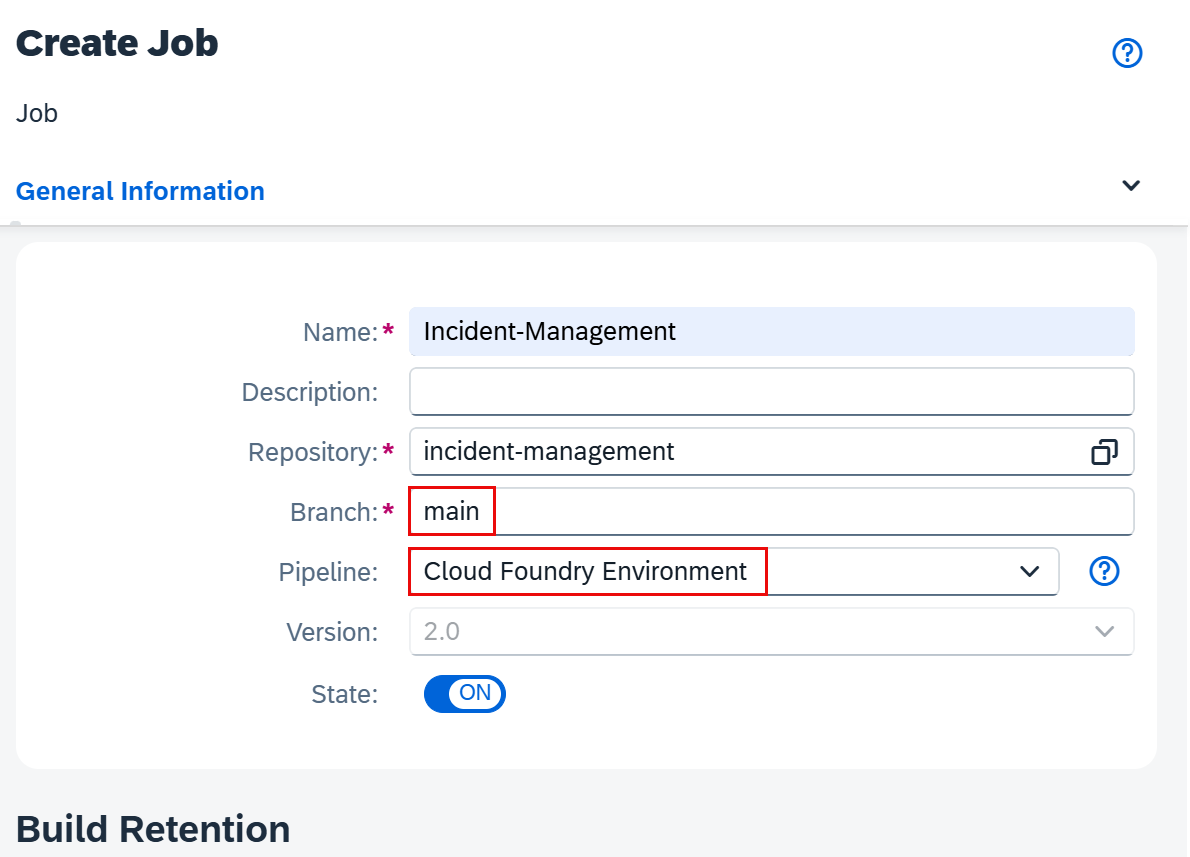
Configure pipeline In the Stages section, select mta from the dropdown in the Build Tool field.
Select the latest Java and Node version from the dropdown in the Build Tool Version field.

Configure stages
Add unit tests and configure release
In the Additional Unit Tests section, switch the toggle button to ON.
Enter test in the npm Script field.
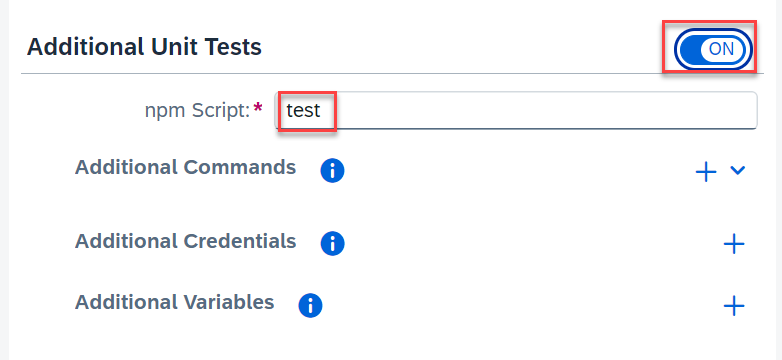
Add unit tests In the Release section, switch the toggle Deploy to Cloud Foundry Space to ON.
Provide the required information for your account and complete the job creation:
Enter the URL of your API endpoint in the API Endpoint field.
Enter the name of your Cloud Foundry organisation in the Org Name field.
Enter the name of your development space in the Space field.
You can get the values from your subaccount’s Overview page in the SAP BTP cockpit.
Select standard from the dropdown in the Deploy Type field.
Open the value help in the Credentials field and choose the credential cf that you created in Step 5: Add credentials.
Choose Create.

Configure release
Back in the General Information tab, enter main in the Branch field.
Select Cloud Foundry Environment from the dropdown in the Pipeline field.
Configure pipeline In the Stages section, select mta from the dropdown in the Build Tool field.
Select the latest Java and Node version from the dropdown in the Build Tool Version field.

Configure stages
Configure release
In the Release section, switch the toggle Deploy to Cloud Foundry Space to ON.
Provide the required information for your account and complete the job creation:
Enter the URL of your API endpoint in the API Endpoint field.
Enter the name of your Cloud Foundry organisation in the Org Name field.
Enter the name of your development space in the Space field.
You can get the values from your subaccount’s Overview page in the SAP BTP cockpit.
Select standard from the dropdown in the Deploy Type field.
Open the value help in the Credentials field and choose the credential cf that you created in Step 5: Add credentials.
Choose Create.
Configure release
Navigate to the Repositories tab and choose the incident-management repository that you created. Under the Webhook Event Receiver tab, choose Webhook Data.

Incident-Management repo In the Webhook Creation popup, find the Payload URL field and copy its value.
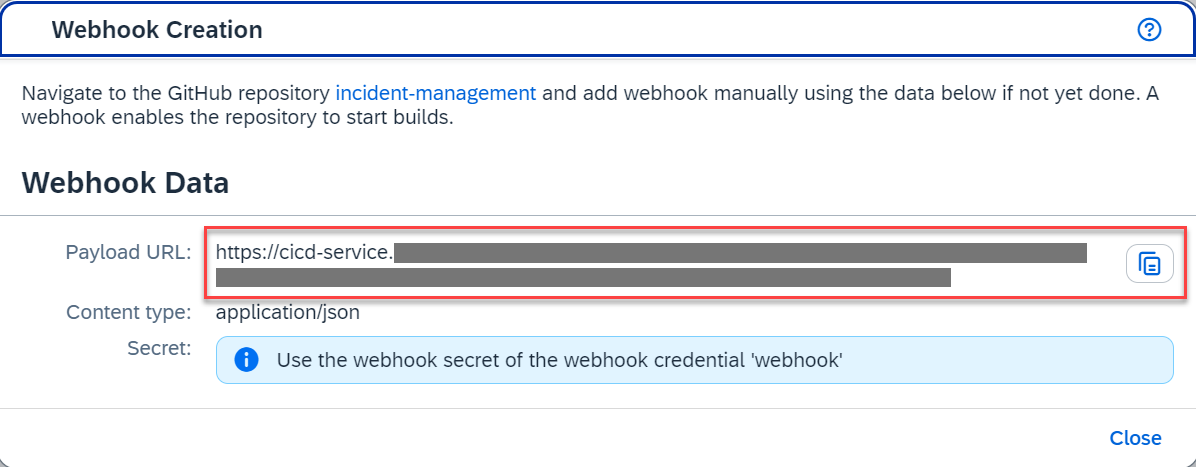
Webhook Data popup Go to your repository on GitHub and open the Settings tab.
From the navigation pane on the left, choose Webhooks → Add webhook.

Add webhook Insert the data for your webhook:
- Paste the incident-management repository’s payload URL that you copied from the Webhook Creation popup in the Payload URL field.
- Select application/json from the dropdown in the Content type field.
- Paste the secret that you created in Step 6: Add a CI/CD job in the Secret field.
- Under Which events would you like to trigger this webhook, select Just the push event.
- Choose Add webhook.
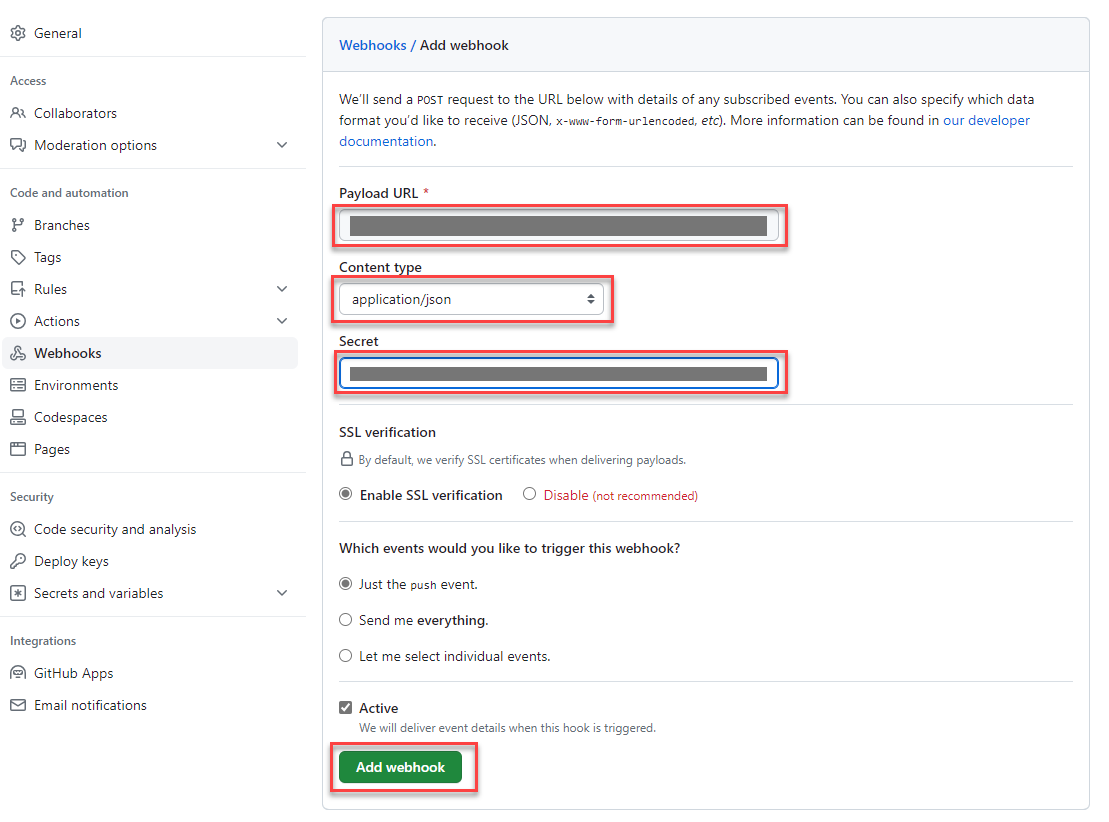
Configure webhook
You have to trigger your job manually the first time after creation. Go back to the SAP Continuous Integration and Delivery application and navigate to the Jobs tab.
Choose the Incident-Management job and choose Run.

Run job Verify that a new tile appears in the Builds view. This tile is marked as running.

Build running Wait until the job has finished and verify that the build tile is marked as successful.

Build successful
Resources
Discussion
Share feedback on this tutorial or join the conversation in SAP Community.