
Overview
You will learn
- How to subscribe to SAP Business Application Studio.
- How to launch SAP Business Application Studio.


Prerequisites
Prerequisites
- You have an enterprise global account in SAP BTP. To use services for free, you can sign up for an SAP BTPEA (SAP BTP Enterprise Agreement) or a Pay-As-You-Go for SAP BTP global account and use the free tier services only. See Using Free Service Plans.
- You have a platform user. See User and Member Management.
- You’re an administrator of the global account in SAP BTP.
- You have a subaccount in SAP BTP to deploy the services and applications.
- You have one of the following browsers that are supported for working in SAP Business Application Studio:
- Mozilla Firefox
- Google Chrome
- Microsoft Edge
OUT OF MAINTENANCE
This tutorial is no longer maintained. For an up-to-date version and support with any issues, refer to the Develop a Full-Stack CAP Application Following the SAP BTP Developer’s Guide mission in the SAP Discovery Center.
Steps
This task is done by the administrator of the global account in SAP BTP. Developers then need to create their personal development space by following the instructions in Step 4: Launch SAP Business Application Studio.
In the SAP BTP cockpit, choose Entitlements → Entity Assignments.
In the Subaccounts/Directories field, select the subaccount you have already created.
Choose Edit and then choose Add Service Plans.
In the Add Service Plans dialog, search for SAP Business Application Studio and select plan free (Application).
The plan free (Application) has the following restrictions:
- A user can only have up to 2 dev spaces.
- A user can only have 1 dev space in the RUNNING state at a time.
- When working in the Full-Stack Application Using Productivity Tools dev space, a user can deploy a maximum of 2 times.
- The maximum size limit of a dev space is 4 GB.
Choose Add 1 Service Plan.

Screenshot showing the SAP BTP Cockpit logged in, with the entitlements entry highlighted on the left sidebar indicating it’s selected, the “Add Service Plans” highlighted in the entitlements section on the right indicating it’s clicked, a popover is visible in which you can find and add entitlements, the entry for “SAP Business Application Studio” is selected and the plan “free (Application) is checked finally the “Add 1 Service Plan” button is highlighted. Choose Save.
This task is done by the administrator of the global account in SAP BTP. Developers then need to create their personal development space by following the instructions in Step 4: Launch SAP Business Application Studio.
Navigate to your subaccount and choose Services → Service Marketplace.
Search for the SAP Business Application Studio tile and choose Create.
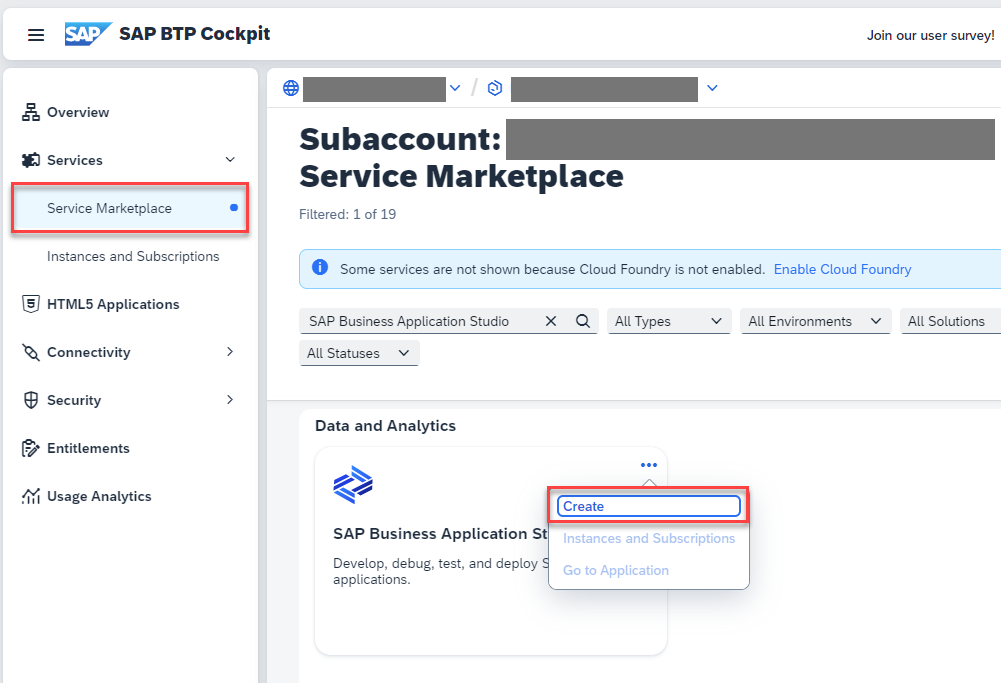
screenshot showing the “three dots menu” for SAP Business Application Studio in the Service Marketplace. after opening the menu an option to create an SAP Business Application Studio Instance is seen. In the New Instance or Subscription popup, select free from the dropdown in the Plan field and choose Create.

SAP Business Application Studio, create free plan instance Creating your new subscription takes some minutes. You can check the current status of the submission on the Service Instances and Subscriptions page.
This task is done by the administrator of the global account in SAP BTP. Developers then need to create their personal development space by following the instructions in Step 4: Launch SAP Business Application Studio.
Navigate to your subaccount and choose Security → Users.
Select your user from the list and choose Assign Role Collection.
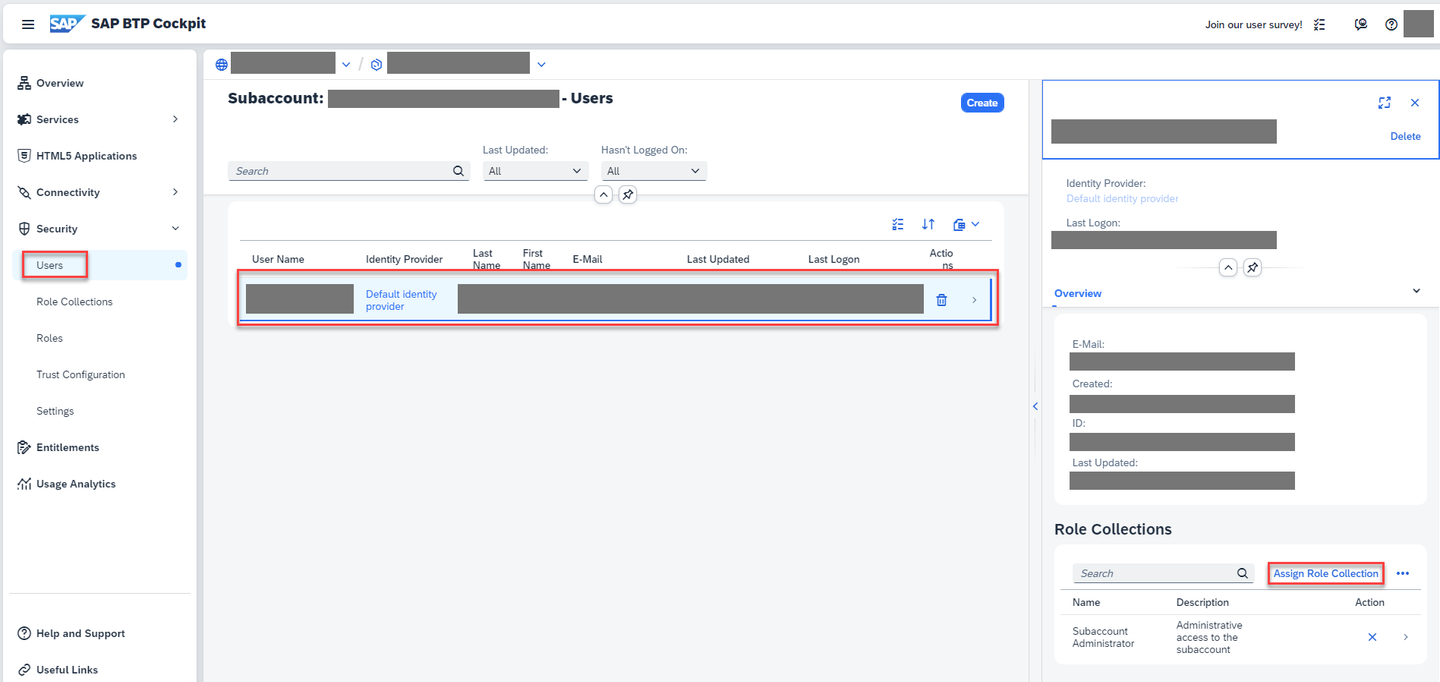
SAP Business Application Studio: Assign Role Collection In the Assign Role Collection popup, select the Business_Application_Studio_Developer role collection and choose Assign Role Collection.
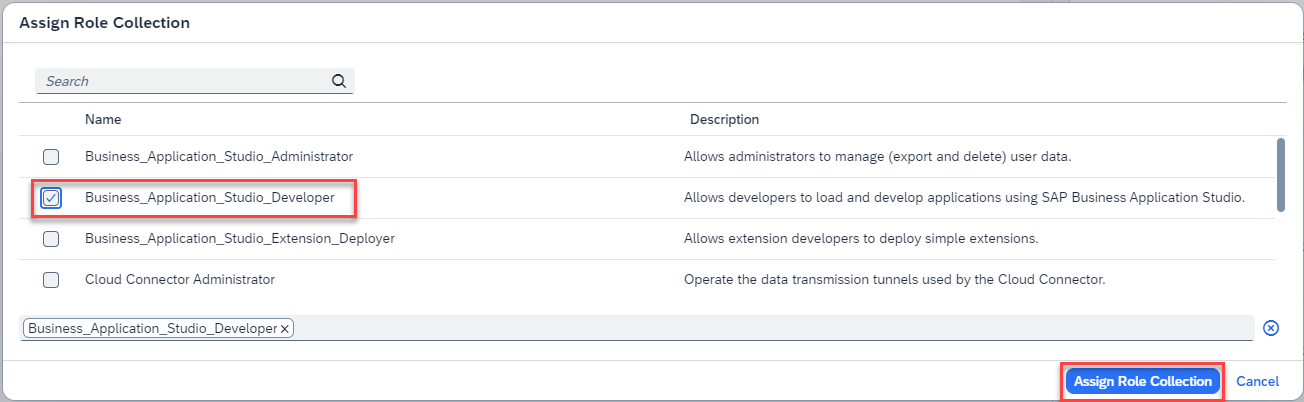
Assign Rol Collection popup You can find an overview about the role collections in Manage Role Collections on the SAP Help Portal.
Navigate to your subaccount and choose Services → Instances and Subscriptions.
Choose the SAP Business Application Studio subscription. SAP Business Application Studio opens in a new tab of the browser.
Choose Create Dev Space.
If you haven’t created a dev space, the welcome page for SAP Business Application Studio loads.

SAP Business Application Studio welcome If you have already created another dev space, the dev space manager for SAP Business Application Studio loads.

SAP Business Application Studio welcome If you create a bookmark to this page, it’s easy to get back to SAP Business Application Studio later.
Enter a Dev Space Name. For example, IncidentManagement.
Choose the Full Stack Cloud Application template and then choose Create Dev Space.

SAP Business Application Studio Create Dev Space Creating your dev space takes some minutes.
As soon as your dev space is in status Running, you can click its name to open it.

SAP Business Application Studio Create Dev Space
You’ve successfully completed the setup of SAP Business Application Studio.
Resources
Discussion
Share feedback on this tutorial or join the conversation in SAP Community.