
Overview
You will learn
- Connecting to a SAP HANA system.
- Setting up the SAP HANA Streaming Development and Run perspective.
- Connecting to a streaming server in SAP HANA Studio.
- Adding and configuring a SAP HANA data service.


Prerequisites
Prerequisites
- System: You must have an SAP HANA SPS10 system or higher with smart data streaming installed that you can connect to and use.
- Integrated Development Environment: You must have SAP HANA Studio 2 installed with the streaming plug-in installed and configured.
- This tutorial assumes you will be using the HANA SYSTEM user to connect to your HANA system and will refer to it as “SYSTEM”.
Steps
Open HANA Studio. In the SAP HANA Administration Console perspective, right click in the white space within the Systems view. Next select the Add System… menu item to execute it. You can also press s.

Add System Enter the Host Name and the Instance Number of the HANA server you will connect to.

Hana Server Info Click Next. You can also press Alt+n.

Click Next Enter
SYSTEMas the User Name and enter your password.
Username and Password Click the Store user name and password in secure storage checkbox so you won’t have to re-enter your credentials when re-connecting to the system. Next click Finish or press Alt+f.

Click Finish
Go to Windows > Perspective > Open Perspective and click the Other… menu item to execute it. You can also press o.
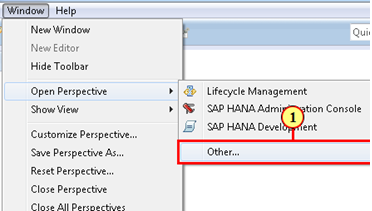
Open Perspective Select the SAP HANA Streaming Development entry by clicking it.

Select Streaming Dev Click OK.
Repeat for the SAP HANA Streaming Run-Test perspective entry.

Select Streaming Run-Test
Go to the SAP HANA Streaming Run-Test perspective.

Open Streaming Perspective In the Server view, select the New Server URL tool.

Add Server Now you will connect to the streaming server (Not the HANA database server). Enter the host name in the Host Name field. The Port number has the format
3XX26(XX = Instance Number. e.g. If your Instance Number is “10” then you would enter “31026” for port). Obtain these from your system administrator.
Server Info NOTE: This is the host name and port for the streaming server, not the HANA database server. Make sure to check the SSL checkbox as the server uses SSL for encryption.
You should now see the streaming server listed in the Server view. Right click it and select Change User Name and Password.

Change Username and Password Enter the streaming server’s credentials and check Use Secure Storage for Streaming Credentials. Press OK to continue.

Enter Username and Password Right click your streaming server listed in the Server view again. Then select Connect Server.
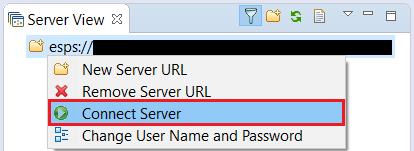
Connect Server Now go to HANA Studio’s Preferences under the Windows menu. Then go to the SAP HANA Smart Data Streaming tab.
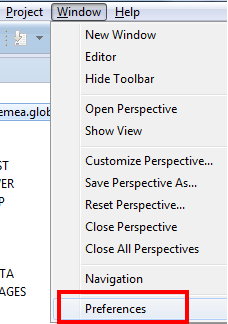
Preferences Set the Default Server URL to your server
<server.address>:<port>. The server address is the Smart Data Streaming server node, not the HANA server node. The port number should be in the format of “3XX26”, where XX is the Instance Number.
Default Server
Click SAP HANA Streaming Development tab to open this perspective.

Dev perspective Click the Data Services tab to open this view. This is normally tucked behind the Projects view.
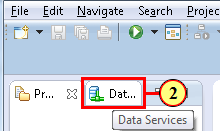
Data Services Go to your connected streaming host by double clicking it and right click on your Server-wide folder.
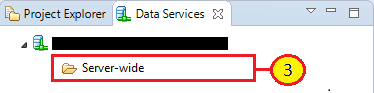
Server Wide Click the Add HANA Service menu item to execute it.

Add HANA Service Click on
newservice1to select it.
New Service Go to the Properties view, which should be located on the bottom half of the studio by default. Enter the username and password corresponding to the HANA database you wish to connect to and check Use Default HANA Server.

Service Info Rename the service. Right click on
newservice1in the Data Services view and select Rename Service. Change the name tofreezermon_service.
rename Service To verify that the service is properly configured, right click again on the
freezermon_serviceservice, and select Discover. When the service is correctly configured, executing the Discover operation will display the database schema that is accessible through the service.
Discover Schema
Resources
Discussion
Share feedback on this tutorial or join the conversation in SAP Community.