
Overview
You will learn
- How to increase your development speed by running and testing your implementation in a local environment.
- How to set up and use a local mock server for running your development tests for the extended Incident Management application.


Prerequisites
Prerequisites
- You’ve got the Business Partner API from SAP S/4HANA Cloud and have extended the functionality of the Incident Management application. Follow the steps in the Get the Business Partner API and Extend the Incident Management Application tutorial.
OUT OF MAINTENANCE
This tutorial is no longer maintained. For an up-to-date version and support with any issues, refer to the Develop a Side-by-Side CAP-Based Extension Application Following the SAP BTP Developer’s Guide mission in the SAP Discovery Center.
Steps
Since you already have a SQLite in-memory database that was automatically created in the previous step, let’s now fill it in with some test data.
Navigate to the Incident Management application project and create a new folder data in the srv/external folder.
In the data folder, create a new file API_BUSINESS_PARTNER-A_BusinessPartner.csv and add the following data to it:
CSVBusinessPartner;FirstName;LastName;BusinessPartnerName;BusinessPartnerIsBlocked; 1004155;Daniel;Watts;Daniel Watts;false 1004161;Stormy;Weathers;Stormy Weathers;false 1004100;Sunny;Sunshine;Sunny Sunshine;trueIn the data folder, create a new file API_BUSINESS_PARTNER-A_BusinessPartnerAddress.csv and add the following data to it:
CSVBusinessPartner;AddressID; 1004155;123 1004161;345 1004100;456In the data folder, create a new file API_BUSINESS_PARTNER-A_AddressEmailAddress.csv and add the following data to it:
CSVAddressID;EmailAddress;Person;OrdinalNumber 123;test@demo.com;Williams;123 345;testjohn@demo.com;Smith;222 456;testhencry@demo.com;johnson;333In the data folder, create a new file API_BUSINESS_PARTNER-A_AddressPhoneNumber.csv and add the following data to it:
CSVAddressID;PhoneNumber;Person;OrdinalNumber 123;+44-555-123;Daniel;123 345;+01-555-688;Stormy;222 456;+01-555-789;Sunny;333
Install dependencies.
Shellnpm iRun the mock server locally.
Shellcds mock API_BUSINESS_PARTNERIn the terminal, you see the following output:
CDS[cds] - connect using bindings from: { registry: '~/.cds-services.json' } [cds] - connect to db > sqlite { url: ':memory:' } > init from db/data/sap.capire.incidents-Urgency.csv > init from db/data/sap.capire.incidents-Status.csv > init from db/data/sap.capire.incidents-Incidents.csv > init from db/data/sap.capire.incidents-Customers.csv > init from db/data/sap.capire.incidents-Conversations.csv > init from srv/external/data/API_BUSINESS_PARTNER-A_BusinessPartnerAddress.csv > init from srv/external/data/API_BUSINESS_PARTNER-A_BusinessPartner.csv > init from srv/external/data/API_BUSINESS_PARTNER-A_AddressPhoneNumber.csv > init from srv/external/data/API_BUSINESS_PARTNER-A_AddressEmailAddress.csvIf the API_BUSINESS_PARTNER doesn’t show up, remove the .cds-services.json file that resides in the user root folder, for example, /home/user/.cds-services.json.
Open a new terminal and run
cds watch. This command starts the application connected to the running mock server.Open a browser and open the server URL:
http://localhost:4004.Choose /launchpage.html under Web Applications.
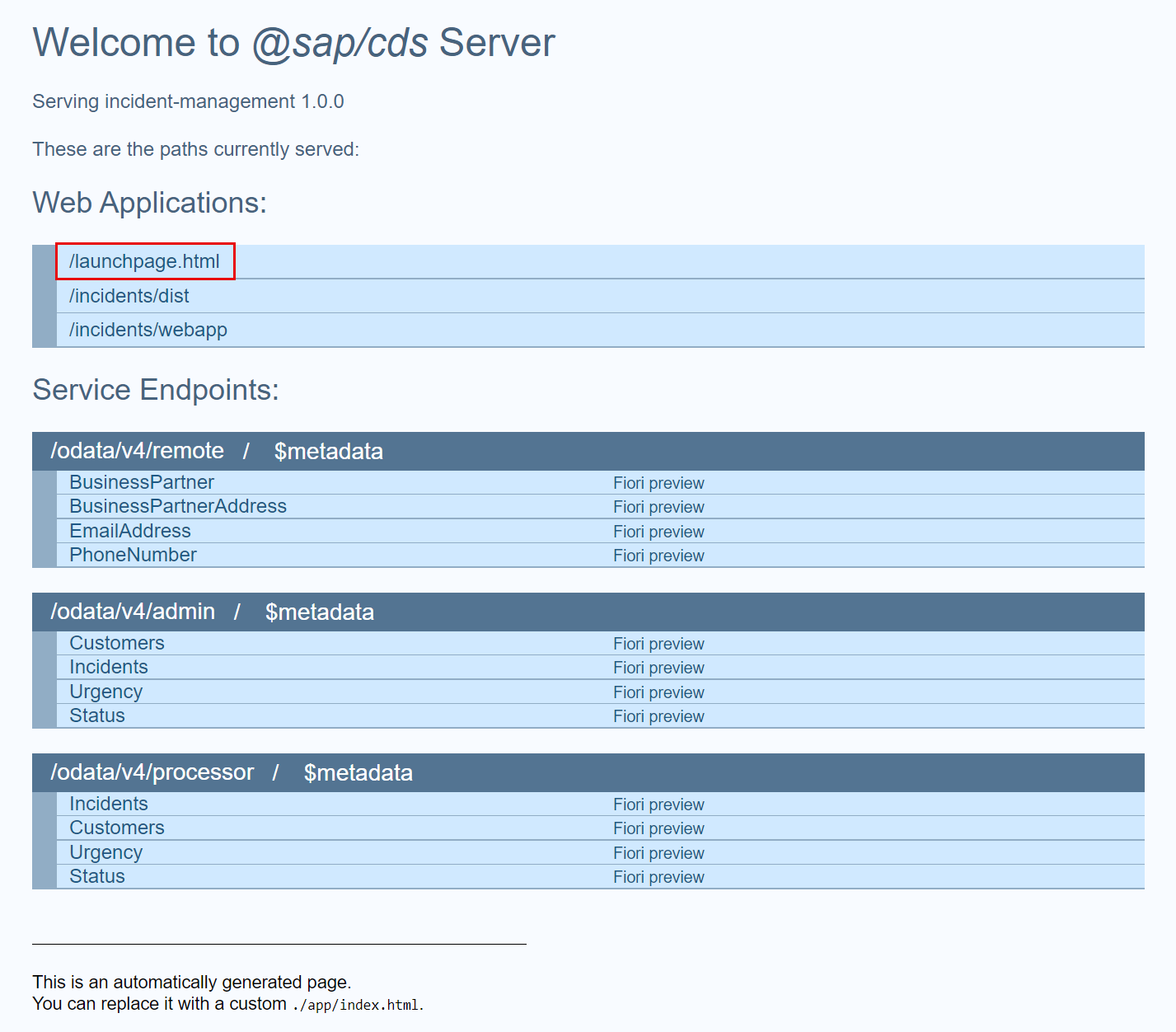
CAP index page /launchpage.html uses a local launchpage, while /incidents/webapp/index.html uses the index.html from ui5 app.
Choose the Incident Management tile.
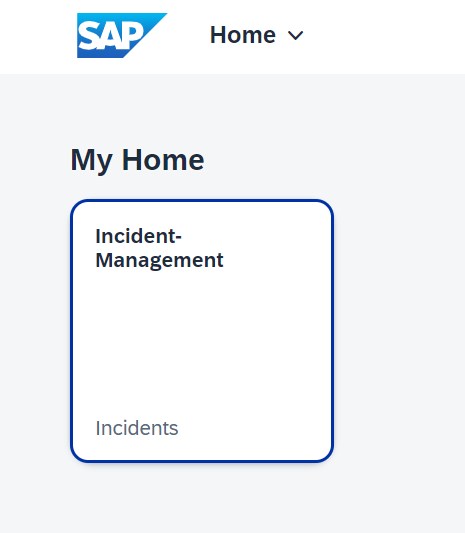
Incident Management tile on the launchpage When you’re prompted to authenticate, use the following credentials:
- Username:
alice - Password: Empty / No Password

Log in You find the user settings in the .cdsrc.json file.
- Username:
Choose Create to start creating a new incident.

Create a new incident Open the value help for the Customer field.

Value help for Customer field Verify that customer data is fetched from the mock server.

Data in value help To test the scenario, the value help for customers loads data from the mock server while creating a new incident.
By using a local mock server, you can easily test your implementation in a local environment. Find more details at Local Mocking in the CAP documentation.
Resources
Discussion
Share feedback on this tutorial or join the conversation in SAP Community.