
Overview
You will learn
- How to acquire an SAP BTP integration token.
- How to add integration token to SAP S/4HANA Cloud system.
- How to set up entitlements for your SAP BTP subaccount.


Prerequisites
Prerequisites
- You’ve tested the extended Incident Management application with the Business Partner API. Follow the steps in the Test the Extended Incident Management Application with the Business Partner API tutorial that is part of the Consume Remote Services from SAP S/4HANA Cloud in Your Full-Stack CAP Application Following the SAP BTP Developer’s Guide and Deploy in SAP BTP, Cloud Foundry Runtime tutorial group.
- On SAP BTP side:
- You have an enterprise global account in SAP BTP. To use services for free, you can sign up for an SAP BTPEA (SAP BTP Enterprise Agreement) or a Pay-As-You-Go for SAP BTP global account and use the free tier services only. See Using Free Service Plans.
- You have a platform user. See User and Member Management.
- You must be an administrator of the SAP BTP global account where you want to register your SAP S/4HANA Cloud system.
- You have a subaccount in SAP BTP to deploy the services and applications.
- On SAP S/4HANA Cloud side:
- You have a dedicated SAP S/4HANA Cloud tenant.
- You must be an administrator of the SAP S/4HANA Cloud system.
- You need to connect this system to your SAP BTP global account, if you want to build extension applications for your SAP S/4HANA Cloud system.
OUT OF MAINTENANCE
This tutorial is no longer maintained. For an up-to-date version and support with any issues, refer to the Develop a Side-by-Side CAP-Based Extension Application Following the SAP BTP Developer’s Guide mission in the SAP Discovery Center.
Steps
In the SAP BTP cockpit, open your global account and choose System Landscape.
In the System Landscape screen, choose Systems and then Add System.

Add system In the Add System dialog box, enter a name for the SAP S/4HANA Cloud system you want to connect.
Use a name that uniquely identifies this system. For example, use the name SAP S/4HANA DEV System.
Select SAP S/4HANA Cloud from the dropdown in the Type field and choose Add.

Add System dialog In the Get Token for System “S/4HANA DEV System”, select All Communication Scenarios from the dropdown in the Communication Scenario Groups field and choose Get Token.

Get token SAP BTP generates an integration token so the SAP S/4HANA Cloud system administrator can configure integration with SAP BTP from your SAP S/4HANA Cloud system.
Copy the generated token and close the dialog box. You need the token in the following procedure.

Copy token
Log on to your SAP S/4HANA Cloud tenant.
Choose Administration → Communication Management and choose the tile Maintain Extensions on SAP BTP.

Communication Management On the Maintain Extensions on SAP BTP screen in the Extensions section, choose New.

New extension In the Integration Token field, paste the integration token you previously generated.
Enter a Description for your system integration token and choose Create.
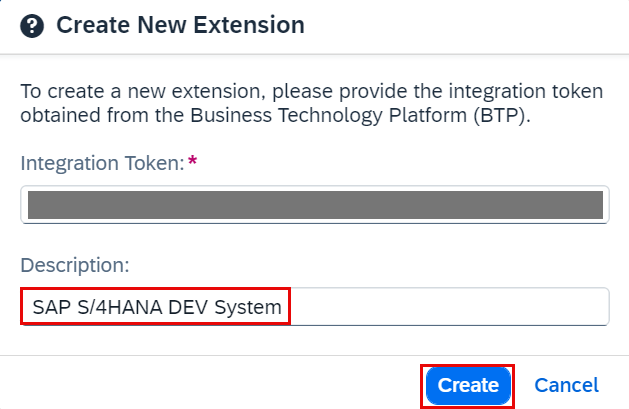
Paste integration token Use the same name that you entered in the SAP BTP cockpit when you generated the token. For example, use the name SAP S/4HANA DEV System.
Choose Yes to approve the creation, and wait until the status displayed for your newly registered system switches to Enabled. Refresh your page.

Extension enabled At the same time, you see the system status updated to Registered on the SAP BTP side. Refresh the page for the status to be updated.

System registered
For more details about registering an SAP S/4HANA Cloud system, see Register an SAP S/4HANA Cloud System in a Global Account in SAP BTP on the SAP Help Portal.
You’ve connected the SAP S/4HANA Cloud system to SAP BTP (with status Enabled in your SAP S/4HANA Cloud tenant). You need to configure entitlements to make this system accessible in the SAP BTP subaccount in which you want to build your extension application. You configure the entitlements and assign the corresponding quota and service plans to the subaccount in which the extension application resides.
Enter your Global Account.
Choose Entitlements → Entity Assignments.
Select your subaccount from the value help in the Subaccounts/Directories field.
Choose Edit → Add Service Plans.

Edit service plans In the Subaccount
<your-subaccount-name>: Add Service Plans dialog box, select the service SAP S/4HANA Cloud Extensibility.In the Service Details: SAP S/4HANA Cloud Extensibility screen area, select your newly registered system name from the dropdown help to list the Available Plans.
messaging – to consume SAP S/4HANA Cloud events and create event-based extensions using the event bus from SAP Event Mesh Integration
api-access – for generic access for SAP S/4HANA Cloud APIs
Select api-access service plan.
Choose Add 1 Service Plans to add the service plan of the SAP S/4HANA Cloud Extensibility service.

Add SAP S/4HANA Cloud Extensibility service plan Choose Save.
Resources
Discussion
Share feedback on this tutorial or join the conversation in SAP Community.