
Overview
You will learn
- How to use the Coupon Management service of SAP Omnichannel Promotion Pricing in your trial environment on SAP BTP
- How to create and read coupon codes with the Coupon Management service that can be used by marketing channels to drive promotional campaigns
- How to upload a promotional rule containing a multi-code coupon to SAP Omnichannel Promotion Pricing with the Data Upload service


Prerequisites
Prerequisites
- You have registered for a trial account on SAP BTP in the Singapore - Azure region.
- You should be familiar with the SAP BTP trial landscape and terminology (see Take a Tour of SAP BTP Trial).
- You have a subaccount in the Cloud Foundry environment, with Microsoft Azure as provider and the Singapore region (AP21).
- You have set up SAP Omnichannel Promotion Pricing as described in Set Up SAP Omnichannel Promotion Pricing.
Steps
Get to know the business scenario
- Business goal: You are a promotion planner working for a coffee machine vendor. As sales has slowed down, you plan a promotional campaign to increase revenue and reduce stock. Therefore, you create a promotional campaign for your target group coffee lovers in the Heidelberg store. You plan to send a coupon to this target group that gives a 50 EUR discount on the purchase of coffee machines.
- In the Coupon Management service, you create a multi-code coupon with the ID COFFEE LOVER. The coupon is valid from October 1, 2026 until December 31, 2026.
- As the target group coffee lovers in the Heidelberg region consists of 100 contacts, you create 100 unique coupon codes for those customers, each of which can be redeemed only once by a customer. Once the unique coupon codes are created, your marketing system can read and distribute them to the customers that are part of the promotional campaign.
- You create the following promotion for your Heidelberg store (business unit ID:
FC01): Buy a coffee machine and show the coupon COFFEE LOVER to get 50 EUR off. - Your promotion is valid from October 1, 2026 until December 31, 2026.
In order to continue with the next steps, you need to have already set up your trial environments for the Coupon Management service, Data Upload service, and Data Access service in the SAP Business Accelerator Hub. If you need guidance, have a look at step 2 of the tutorial Apply a Simple Promotion with SAP Omnichannel Promotion Pricing. The same is applicable for the Coupon Management service too.
You can now create a multi-code coupon object with the Coupon Management service.
Navigate to the Coupon Management service of SAP Omnichannel Promotion Pricing on SAP Business Accelerator Hub. Log on with the same login information that you use for your SAP BTP account.
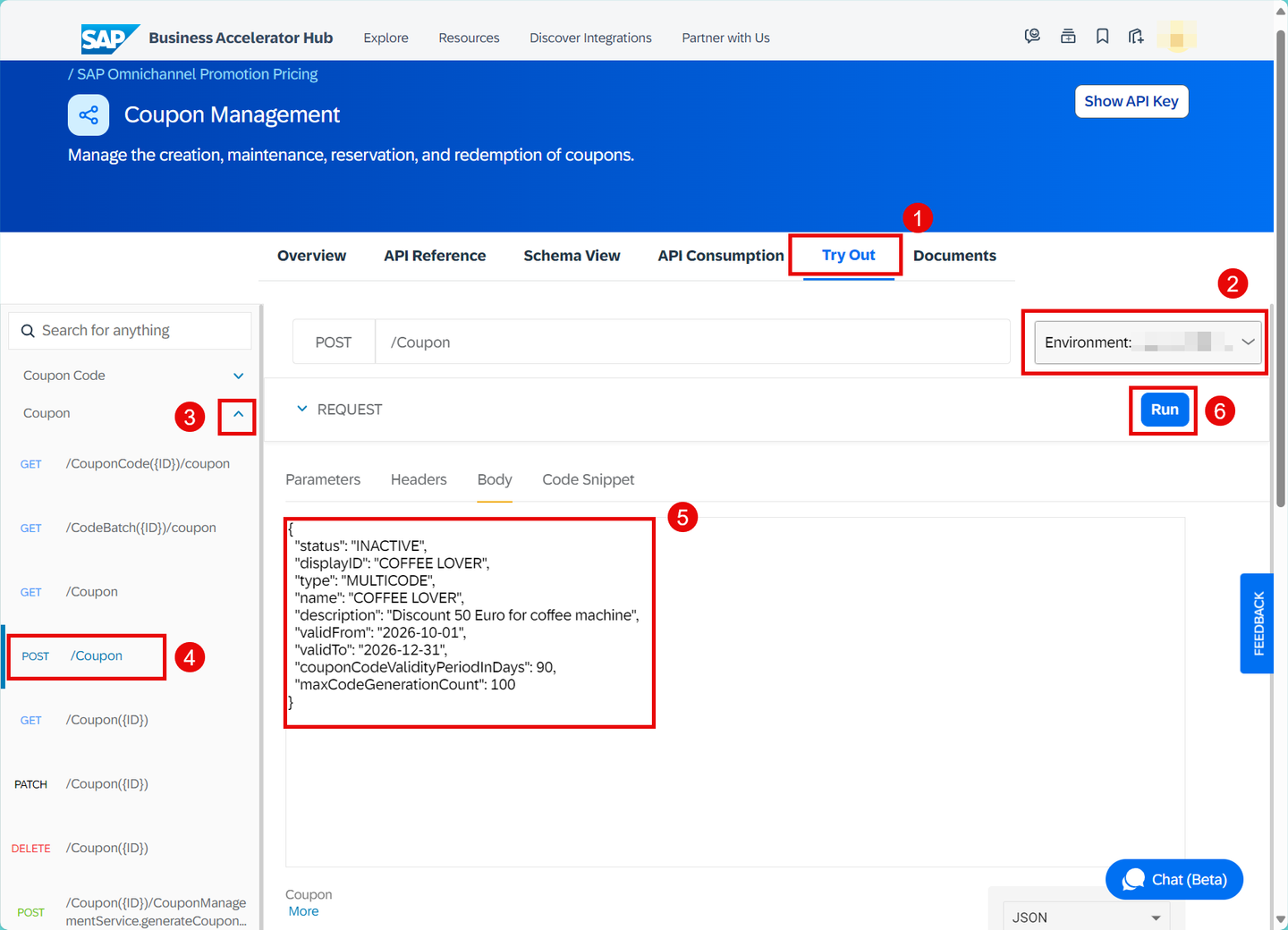
- Navigate to the Try Out section.
- On the right-hand side, select the trial environment you have created for the Coupon Management service.
- On the left-hand side, choose Coupon.
- Open the POST request
/Coupon. - Copy the following raw data and paste it into the body:
{
  "status": "INACTIVE",
  "displayID": "COFFEE LOVER",
  "type": "MULTICODE",
  "name": "COFFEE LOVER",
  "description": "Discount 50 Euro for coffee machine",
  "validFrom": "2026-10-01",
  "validTo": "2026-12-31",
  "couponCodeValidityPeriodInDays": 90,
  "maxCodeGenerationCount": 100
}- Choose Run.
- Make sure you get the HTTP response 201.
- From the response, note down the technical coupon ID (
ID) as you will need it later.
The response should look like this:
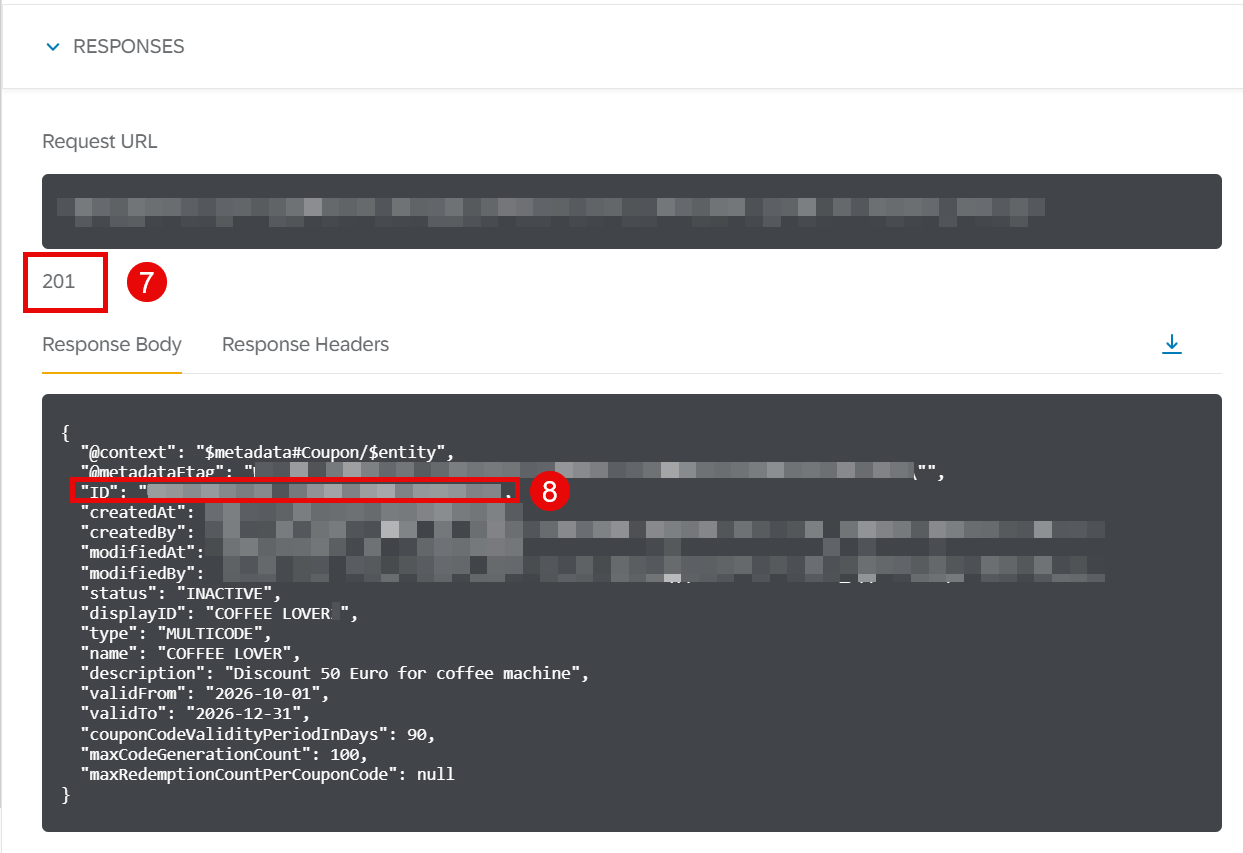
With this, you have created a multi-code coupon with the ID COFFEE LOVER and a validity period from October 1, 2026 to December 31, 2026.
Optional: If you want to check whether you have successfully created the multi-code coupon COFFEE LOVER, you can proceed with the following steps:

- On the left-hand side, choose Coupon.
- Open the GET request
/Coupon. - Choose Run.
- Make sure you get the HTTP response 200.
- In the response body, you should see the coupon that you have created.
When creating the coupon, the status of the coupon is set as inactive because it cannot be created in active status. To generate the coupon codes, you must first change the status of the coupon object from INACTIVE to ACTIVE.

- On the left-hand side, choose Coupon.
- Open the PATCH request
/Coupon({ID}). - Choose Parameters.
- For ID, enter the technical coupon ID (
ID) from the coupon object you have just created. - Copy the following raw data and paste it into the body.
{
  "status": "ACTIVE"
}- Choose Run.
- Make sure you get the HTTP response 200.

You have now successfully changed the status of the coupon.
Now that you have created the multi-code coupon object and set it to active, you can generate a batch of 100 coupon codes to be used in the promotional campaign.
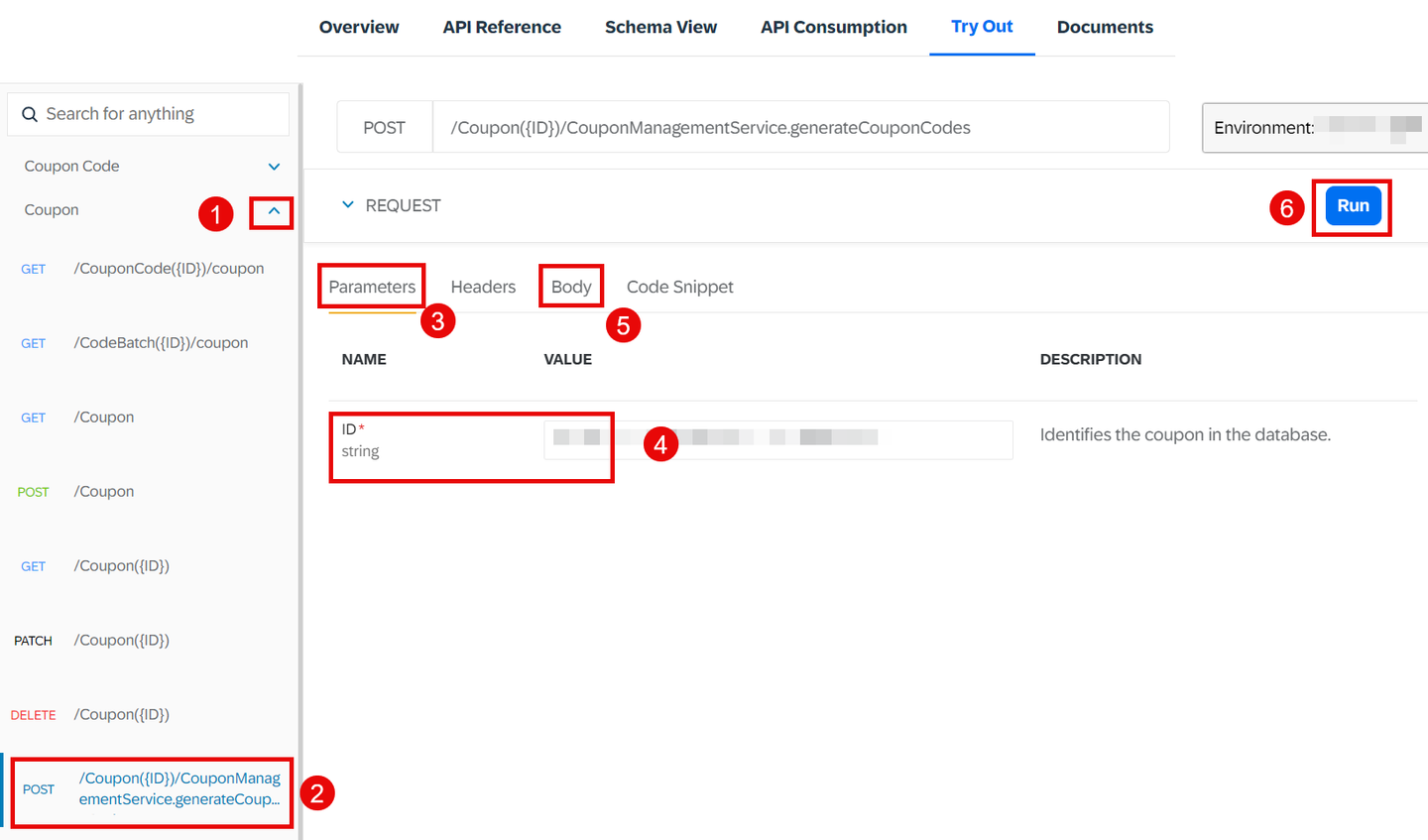
- On the left-hand side, choose Coupon.
- Open the POST request
/Coupon({ID})/CouponManagementService.generateCouponCodes. - Choose Parameters.
- For ID, enter the technical coupon ID from the coupon object you have just created.
- Copy the following raw data and paste it into the body:
{
"generatedCodeCount": 100,
"validFrom": "2026-10-01"
}- Choose Run.
- Make sure you get the HTTP response 200.
- From the response, note down the
batchIDas you will need it later to read the coupon codes.
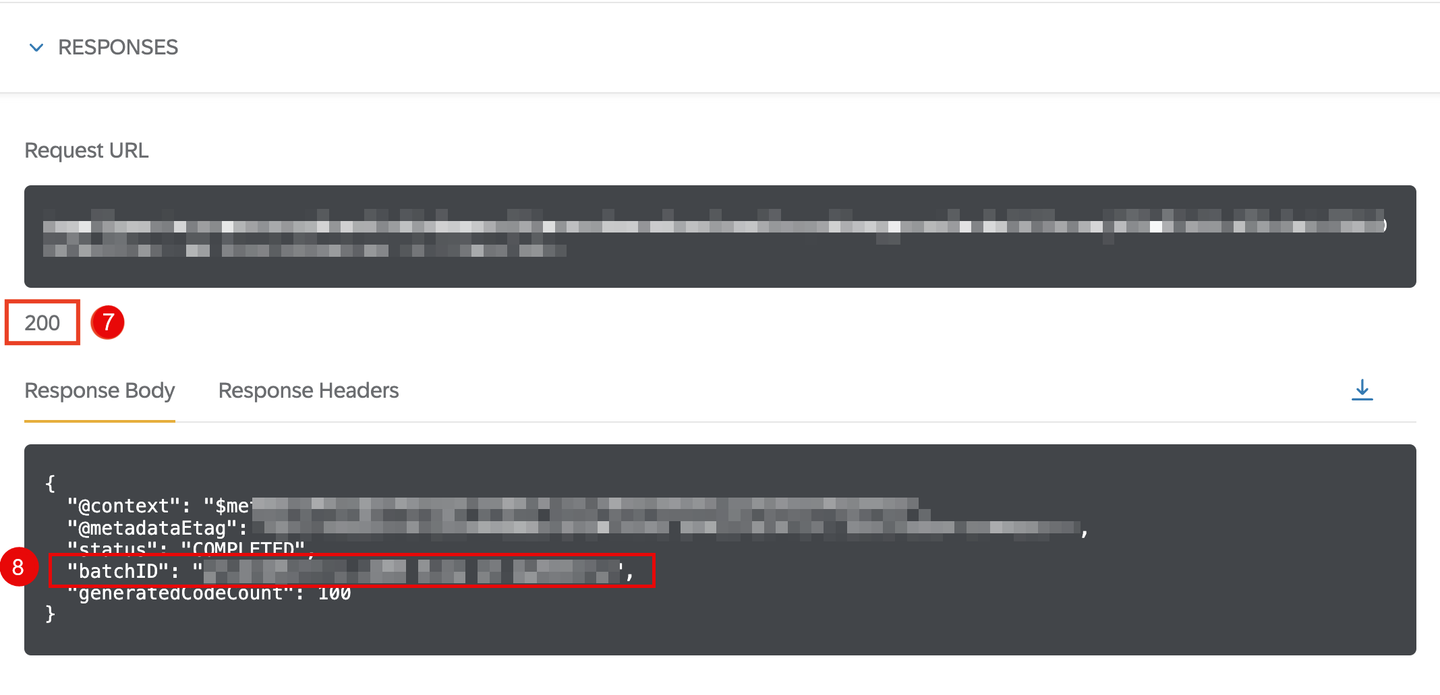
With this, you have now created a batch of 100 unique coupon codes for the coupon COFFEE LOVER.
You can now read the coupon codes created using the Coupon Management service to circulate the coupon information to the target group as part of your promotional campaign.
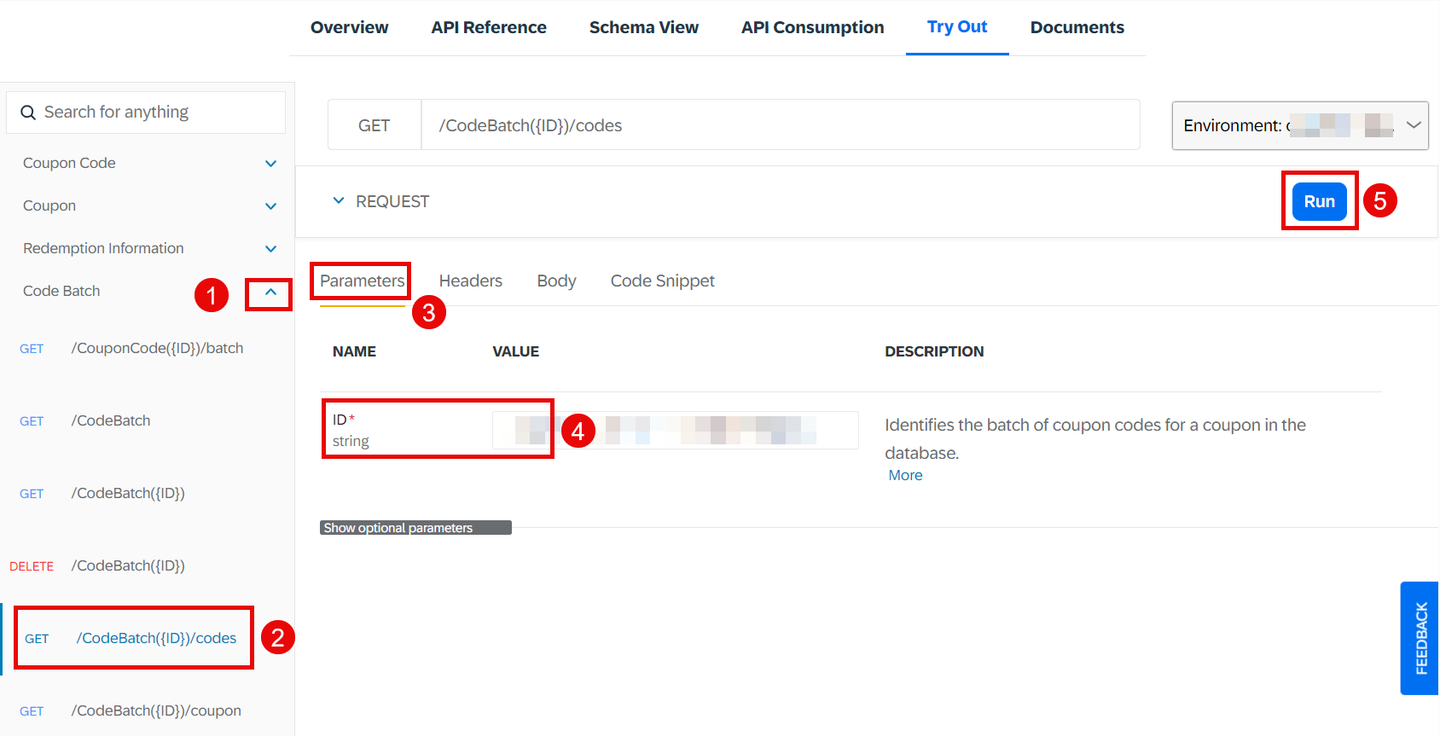
- On the left-hand side, choose Code Batch.
- Open the GET request
/CodeBatch({ID})/codes. - Choose Parameters.
- For ID, enter the
batchIDyou noted down when generating the coupon codes. - Choose Run.
- Make sure you get the HTTP response 200.
- From the response, note down any coupon
codeValueas you will need it in the next tutorial when redeeming the coupon.

With this, you can read the coupon codes generated for the multi-code coupon COFFEE LOVER. This is the coupon code value to be communicated to the target group members as part of your promotional campaign.
To finalize your promotional campaign, you want to set up the following promotion for your Heidelberg store (business unit ID FC01): “Buy a coffee machine and show the coupon COFFEE LOVER to get 50 Euro off”. The promotion is valid from October 1st, 2026 to December 31st, 2026. You can do so either by using the Maintain Promotions app or the Data Upload service. In this tutorial, we will use the Data Upload service.
Navigate to the Data Upload service of SAP Omnichannel Promotion Pricing on SAP Business Accelerator Hub. Log on with the same login information that you use for your SAP BTP account.

- Navigate to the Try Out section.
- On the right-hand side, select the trial environment you have created for the Data Upload service.
- On the left-hand side, choose Upload Promotions using OAuth2.
- Open the POST request
/idocinbound. - Copy the following raw data and paste it into the body. Select the content type XML.
<?xml version="1.0" encoding="UTF-8"?>
<_-ROP_-PROMOTION02>
<IDOC BEGIN="1">
<EDI_DC40 SEGMENT="1">
<IDOCTYP>/ROP/PROMOTION02</IDOCTYP>
</EDI_DC40>
<_-ROP_-E1_PROMOTION>
<PROMOTION_ID>2401</PROMOTION_ID>
<OFFER_ID>27DB2B4C00F61EEF9CB76E606FF07D88</OFFER_ID>
<EXTERN_PROMO_ID>000000000000000000000000000000000821</EXTERN_PROMO_ID>
<EFFECTIVE_DATE>20261001000000</EFFECTIVE_DATE>
<EXPIRY_DATE>20261231235959</EXPIRY_DATE>
<CHANGED_ON>20250913103445</CHANGED_ON>
<STATUS_TCD>AC</STATUS_TCD>
<CHANGE_INDICATOR>I</CHANGE_INDICATOR>
<LOGSYS>RS9CLNT990</LOGSYS>
<ORIGIN>01</ORIGIN>
<MIN_PPS_RELEASE>0</MIN_PPS_RELEASE>
<CREATED_ON>20250913103431</CREATED_ON >
<PROMOTION_NAME> Coffee lover special </PROMOTION_NAME>
<_-ROP_-E1_PROMOTION_BU>
<BU_ID>FC01</BU_ID>
<BU_TYPE>1040</BU_TYPE>
</_-ROP_-E1_PROMOTION_BU>
<_-ROP_-E1_PROMOTION_BU>
<BU_ID>1000202</BU_ID>
<BU_TYPE>1040</BU_TYPE>
</_-ROP_-E1_PROMOTION_BU>
<_-ROP_-E1_PROMOTION_RULE>
<PROMO_RULE_ID>2402</PROMO_RULE_ID>
<PRICE_RULE_ID>2402</PRICE_RULE_ID>
<ELIGIBILITY_ID>2402</ELIGIBILITY_ID>
<SEQUENCE>2402</SEQUENCE>
<RESOLUTION>0</RESOLUTION>
<SALE_RETURN_TCD>00</SALE_RETURN_TCD>
<ONLY_BASKET_MODE>X</ONLY_BASKET_MODE>
<PROMO_REC_THRES_PERC>0</PROMO_REC_THRES_PERC>
<_-ROP_-E1_PRICE_RULE>
<PRICE_RULE_ID>2402</PRICE_RULE_ID>
<TYPE_CODE>RB</TYPE_CODE>
<PRICE_MODIF_CODE>RT</PRICE_MODIF_CODE>
<PRICE_MODIF_AMT>50.00000</PRICE_MODIF_AMT>
<PRICE_MODIF_PERC>0.000</PRICE_MODIF_PERC>
<NEW_PRICE_AMT>0.00000</NEW_PRICE_AMT>
<CURRENCY_ISO_CODE>EUR</CURRENCY_ISO_CODE>
<MAM_LIMIT_CNT>0.000</MAM_LIMIT_CNT>
<NEW_SET_PRCE_AMT>0.00000</NEW_SET_PRCE_AMT>
<STATUS_TCD>AC</STATUS_TCD>
<EX_PRICE_RULE_ID>0000000000000000000</EX_PRICE_RULE_ID>
<COUPON_VALIDITY>0</COUPON_VALIDITY>
<RULE_CTRL_CODE>PO</RULE_CTRL_CODE>
<ROUND_DECIMALS>2</ROUND_DECIMALS>
<ROUNDING_METHOD>00</ROUNDING_METHOD>
<ROUND_DESTINATION>1</ROUND_DESTINATION>
<ITEM_METHOD>00</ITEM_METHOD>
<CALCULATION_BASE>00</CALCULATION_BASE>
<DISC_METHOD_TCD>00</DISC_METHOD_TCD>
<CONSIDER_PREVIOUS_RULES>X</CONSIDER_PREVIOUS_RULES>
<CALC_BASE_SEQUENCE>1-</CALC_BASE_SEQUENCE>
<SUBSEQ_PRICE_MODIF_AMT>0.00000</SUBSEQ_PRICE_MODIF_AMT>
<SUBSEQ_PRICE_MODIF_PERC>0.000</SUBSEQ_PRICE_MODIF_PERC>
<SUBSEQ_NEW_PRICE_AMT>0.00000</SUBSEQ_NEW_PRICE_AMT>
<TO_BE_DISCOUNTED_QTY>0.000</TO_BE_DISCOUNTED_QTY>
<PRORATION_MODE>0</PRORATION_MODE>
</_-ROP_-E1_PRICE_RULE>
<_-ROP_-E1_ELIGIBILITY>
<ELIGIBILITY_ID>2402</ELIGIBILITY_ID>
<TYPE_CODE>COMB</TYPE_CODE>
<ROOT_ELIGIB_ID>2402</ROOT_ELIGIB_ID>
<PARENT_ELIGIB_ID>2402</PARENT_ELIGIB_ID>
<THRESHOLD_QTY>0.000</THRESHOLD_QTY>
<THRESHOLD_AMT>0.00000</THRESHOLD_AMT>
<COMBINATION_CODE>&&</COMBINATION_CODE>
<PROMO_RULE_ID>2402</PROMO_RULE_ID>
<TRANS_TOTAL_AMT>0.00000</TRANS_TOTAL_AMT>
<EFFECTIVE_DATE>20261001000000</EFFECTIVE_DATE>
<EXPIRY_DATE>20261231235959</EXPIRY_DATE>
<STATUS_TCD>AC</STATUS_TCD>
<LIMIT_QTY>0.000</LIMIT_QTY>
<LIMIT_AMT>0.00000</LIMIT_AMT>
<INTERVAL_QTY>0.000</INTERVAL_QTY>
<INTERVAL_AMT>0.00000</INTERVAL_AMT>
<MERCH_SET_ID>0</MERCH_SET_ID>
</_-ROP_-E1_ELIGIBILITY>
<_-ROP_-E1_ELIGIBILITY>
<ELIGIBILITY_ID>2403</ELIGIBILITY_ID>
<TYPE_CODE>COUP</TYPE_CODE>
<ROOT_ELIGIB_ID>2402</ROOT_ELIGIB_ID>
<PARENT_ELIGIB_ID>2402</PARENT_ELIGIB_ID>
<THRESHOLD_QTY>0.000</THRESHOLD_QTY>
<THRESHOLD_AMT>0.00000</THRESHOLD_AMT>
<COUPON_NUMBER>COFFEE LOVER</COUPON_NUMBER>
<CONSUMPTION_TCD>00</CONSUMPTION_TCD>
<PROMO_RULE_ID>2402</PROMO_RULE_ID>
<TRANS_TOTAL_AMT>0.00000</TRANS_TOTAL_AMT>
<EFFECTIVE_DATE>20261001000000</EFFECTIVE_DATE>
<EXPIRY_DATE>20261231235959</EXPIRY_DATE>
<STATUS_TCD>AC</STATUS_TCD>
<LIMIT_QTY>0.000</LIMIT_QTY>
<LIMIT_AMT>0.00000</LIMIT_AMT>
<INTERVAL_QTY>0.000</INTERVAL_QTY>
<INTERVAL_AMT>0.00000</INTERVAL_AMT>
<MERCH_SET_ID>0</MERCH_SET_ID>
</_-ROP_-E1_ELIGIBILITY>
<_-ROP_-E1_ELIGIBILITY>
<ELIGIBILITY_ID>2404</ELIGIBILITY_ID>
<TYPE_CODE>MSTR</TYPE_CODE>
<ROOT_ELIGIB_ID>2402</ROOT_ELIGIB_ID>
<PARENT_ELIGIB_ID>2402</PARENT_ELIGIB_ID>
<THRESHOLD_TCD>QUTI</THRESHOLD_TCD>
<THRESHOLD_QTY>1.000</THRESHOLD_QTY>
<THRESHOLD_AMT>0.00000</THRESHOLD_AMT>
<NODE_ID>COFFEEMACHINES</NODE_ID>
<HIER_ID_QLF>R3</HIER_ID_QLF>
<PROMO_RULE_ID>2402</PROMO_RULE_ID>
<TRANS_TOTAL_AMT>0.00000</TRANS_TOTAL_AMT>
<EFFECTIVE_DATE>20261001000000</EFFECTIVE_DATE>
<EXPIRY_DATE>20261231235959</EXPIRY_DATE>
<STATUS_TCD>AC</STATUS_TCD>
<UOM_ISO_CODE>EA</UOM_ISO_CODE>
<LIMIT_QTY>9999999999.000</LIMIT_QTY>
<LIMIT_AMT>0.00000</LIMIT_AMT>
<INTERVAL_QTY>1.000</INTERVAL_QTY>
<INTERVAL_AMT>0.00000</INTERVAL_AMT>
<MERCH_SET_ID>0</MERCH_SET_ID>
</_-ROP_-E1_ELIGIBILITY>
</_-ROP_-E1_PROMOTION_RULE>
<_-ROP_-E1_PROMOTION_TEXT>
<SPRAS_ISO>EN</SPRAS_ISO>
<DESCRIPTION>Buy a coffee machine and show coupon COFFEE LOVER and get 50 Euro discount.</DESCRIPTION>
<NAME>Coffee lover special</NAME>
</_-ROP_-E1_PROMOTION_TEXT>
</_-ROP_-E1_PROMOTION>
</IDOC>
</_-ROP_-PROMOTION02> - Choose Run.
- Make sure you get the HTTP response 200.

With this, you uploaded the promotional rule “Buy a coffee machine and show coupon COFFEE LOVER to get Euro 50 off” for the Heidelberg store (business unit ID: FC01) and the validity period October 1st, 2026 to December 31st, 2026.
You can use the Data Access service for checking your uploaded data. If you need guidance, have a look at step 5 of the tutorial Apply a Simple Promotion with SAP Omnichannel Promotion Pricing.
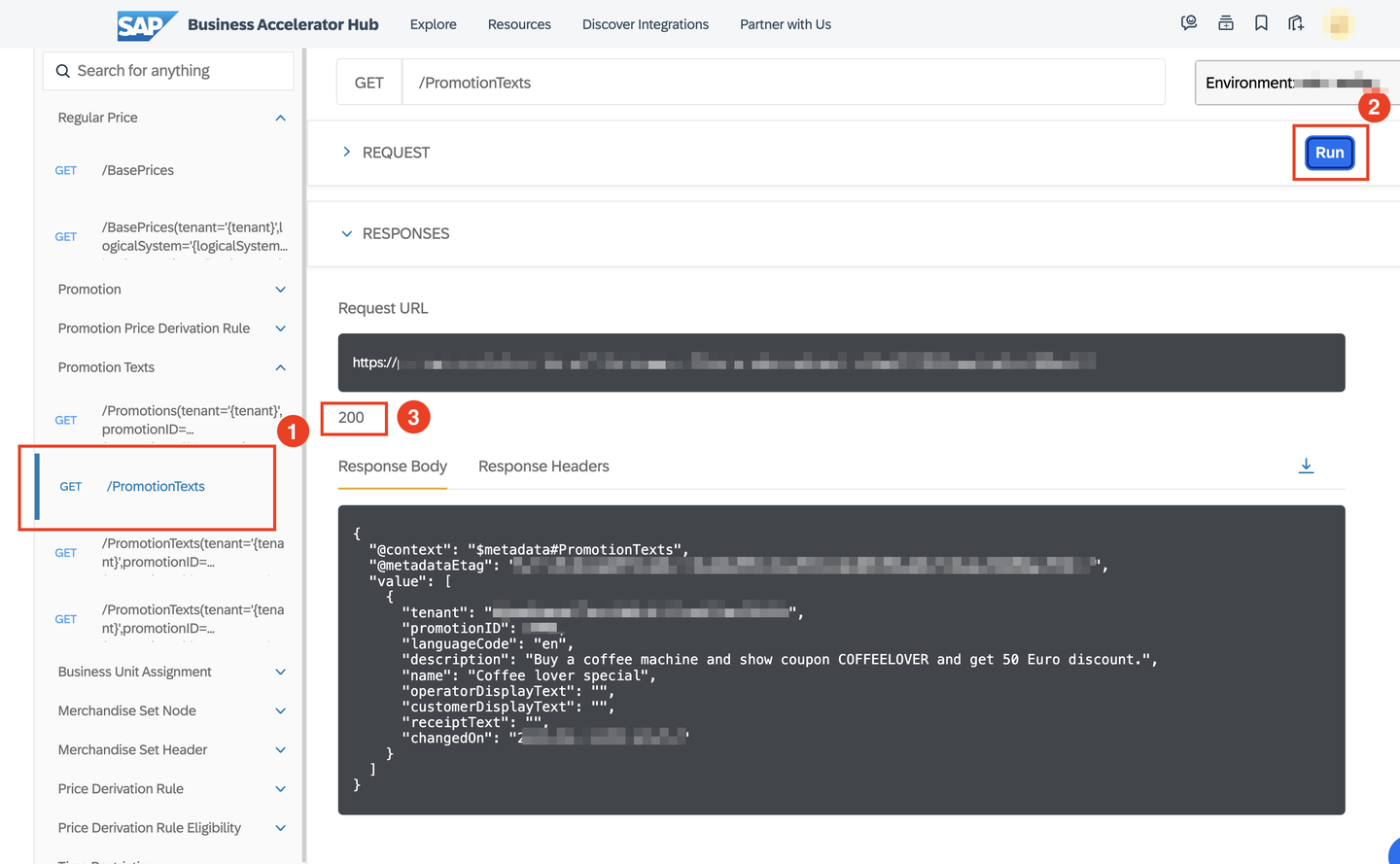
With this, you are all set to launch your promotional campaign.
You can now continue with the next tutorial Reserve and Redeem a Multi-Code Coupon with SAP Omnichannel Promotion Pricing.
Resources
Discussion
Share feedback on this tutorial or join the conversation in SAP Community.