
Overview
You will learn
- How to use the SAP Omnichannel Promotion Pricing services and apps on SAP BTP trial
- How to maintain a line item-related generic attribute in the Configure Generic Attributes app
- How to create a promotion that includes a single-code coupon, a promotion recommendation, and a generic attribute in the Maintain Promotions app


Prerequisites
Prerequisites
- You have registered for a trial account on SAP BTP in the Singapore - Azure region.
- You should be familiar with the SAP BTP trial landscape and terminology (see Take a Tour of SAP BTP Trial).
- You have a subaccount in the Cloud Foundry environment, with Microsoft Azure as provider and the Singapore region (AP21).
- You have set up SAP Omnichannel Promotion Pricing as described in Set Up SAP Omnichannel Promotion Pricing.
- You have set up your trial environments for the Coupon Management service, Data Upload service, Data Access service, and Calculation service as described in step 2 in Apply a Simple Promotion with SAP Omnichannel Promotion Pricing.
- You have completed the tutorial Create a Single-Code Coupon with SAP Omnichannel Promotion Pricing. With this, you have already created a single-code coupon that will be used in a promotion in this tutorial.
Steps
Get to know the business scenario (repeated)
- Business goal: You are a promotion planner. You are launching a promotional campaign for your customers to celebrate your company’s 25th anniversary. As part of the promotional campaign, you want to offer the single-code coupon
ANNIVERSARY25to your customers. The coupon is valid from January 1, 2026 to December 31, 2026. - You distribute the coupon
ANNIVERSARY25to your target customers. - You create a promotion: Show coupon ANNIVERSARY25 and get 25% off.
- Because of the great collaboration between your company and SAP in the last years, you want to include SAP in your promotional campaign to celebrate together. So, you create another promotion: Buy one or more products of brand SAP and spend more than EUR 100 to get 10% off. For this promotion, you enable promotion recommendations.
- Both promotions are valid in your web shop (business unit:
ONLINE) from January 1, 2026 to December 31, 2026. - A few days after your promotional campaign launched, a customer that received the coupon
ANNIVERSARY25browses through your web shop. Your customer selects a hoodie of brand SAP. The regular sales price for the hoodie is EUR 80. The customer enters the couponANNIVERSARY25when checking out and gets 25% off. - Since the shopping cart value is just under EUR 100, a promotion recommendation is displayed to the customer saying that if they add another product of brand SAP so that the shopping cart value is over EUR 100, they get an additional 10% off.
- To think about this, the customer takes a short coffee break and afterwards browses through the web shop again. Since this took a few minutes, the coupon reservation needed to be extended.
- The customer adds another hoodie of brand SAP to the shopping cart. Since the shopping cart value is now over EUR 100, they get an additional 10% discount. They proceed to check out and finalize the payment of EUR 108. The coupon code is redeemed in the background.
You now make configuration settings that are required for using the SAP Omnichannel Promotion Pricing apps. Note that we will not go into detail but simply use default configuration values.
Log on to the SAP BTP cockpit of your trial.
In the navigation pane, choose Services > Instances and Subscriptions.
Under Application, next to SAP Omnichannel Promotion Pricing, choose the three dot symbol °°° and Go to Application.
Choose the Configure Omnichannel Promotion Pricing app.
On the Configurations tab, create a new configuration.
Use
Jan 1, 2026as the valid-from date. Leave all other fields empty. The default values are drawn automatically.Navigate back to the Number Ranges tab.
Create a new number range for the Promotions entity. Use a start range of
1and end range of1,000,000.Create a number range with the same start and end range for all remaining entity names. Your number ranges should look like this:

Number ranges Navigate back to the home screen by choosing the SAP logo.
You now want to maintain the first promotion Show coupon ANNIVERSARY25 and get 25% off using the app.
Choose the Maintain Promotions app.
Create a new promotion with the following information:

Create first promotion Field Name Value Promotion Name Show Coupon ANNIVERSARY25 and get 25% offStart Date Jan 1, 2026End Date Dec 31, 2026All Day Enable this option. Master Data Source System ABC123Create a promotional rule. Enter a rule name, for example
Show coupon ANNIVERSARY25 and get 25%. You can skip the advanced rule settings. The default values are drawn automatically.Edit the rule you have just created.
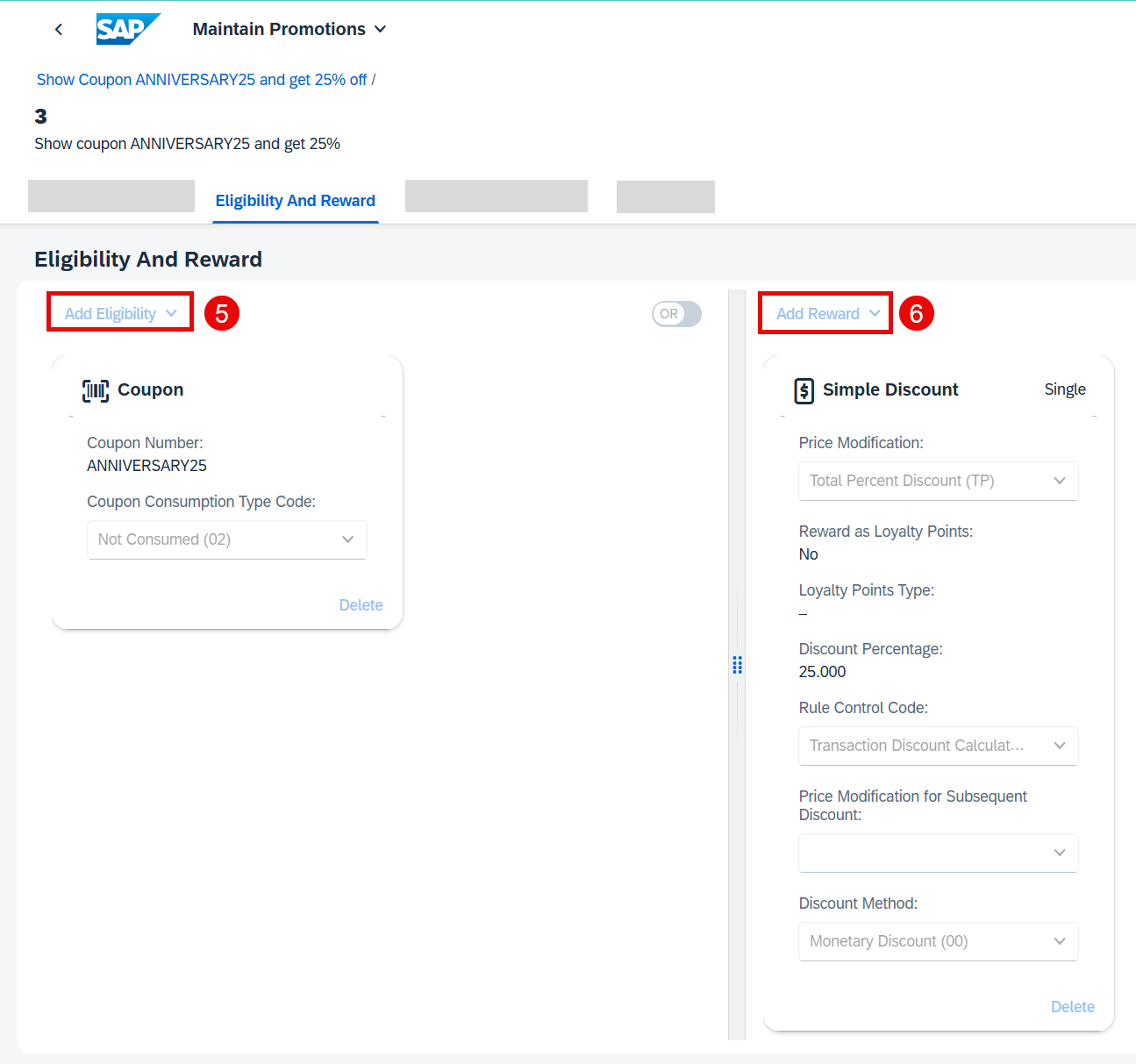
Create first promotional rule On the Eligibility side, add a Coupon with the following values:
Field Name Value Coupon Number ANNIVERSARY25Coupon Consumption Type Code Not Consumed (02)On the Reward side, add a single reward of type Simple Discount with the following values. You can leave out the other options.
Field Name Value Price Modification Total Percent Discount (TP)Discount Percentage 25Rule Control Code Transaction Discount Calculated After Subtotal (SU)Discount Method Monetary Discount (00)Save your changes.
Navigate back to the promotion.
On the Business Units tab, create a business unit with the following values:
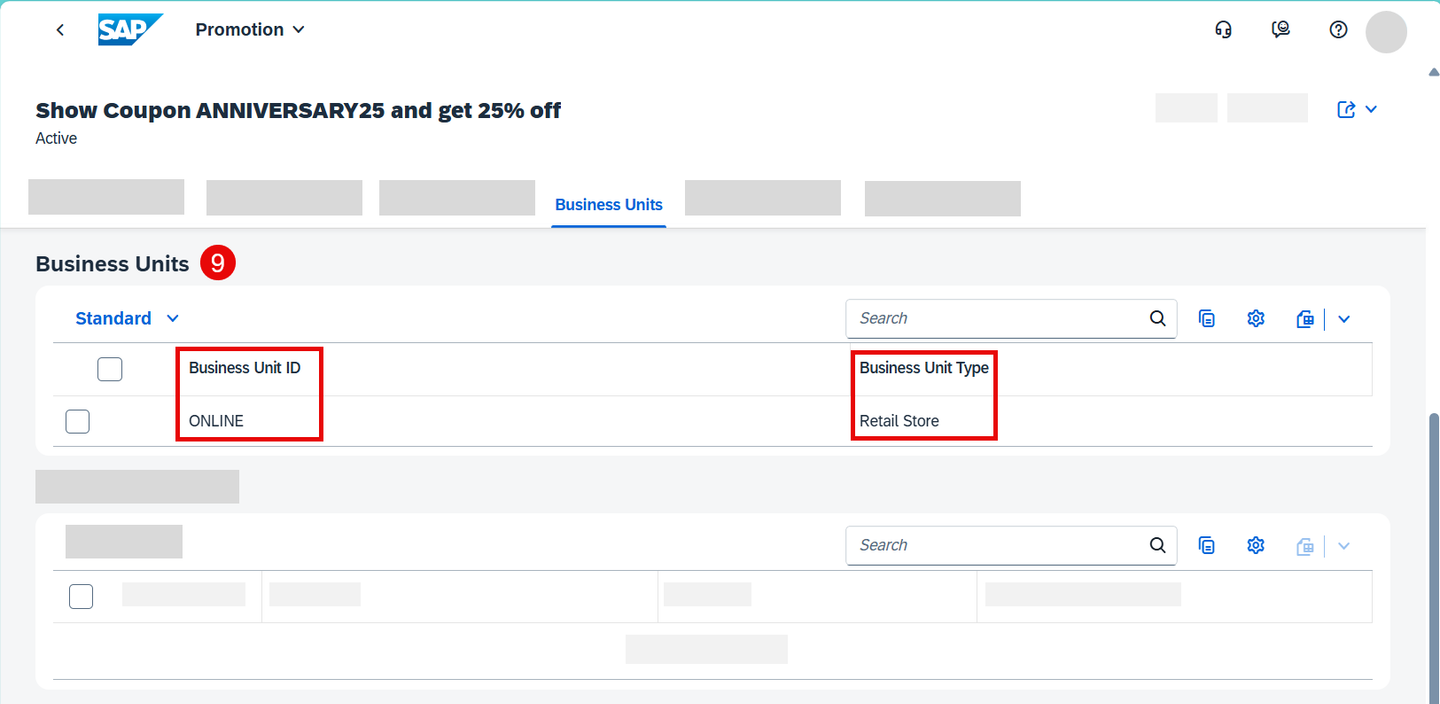
Business unit Field Name Value Business Unit Type Retail StoreBusiness Unit ID ONLINENavigate back to the promotion and activate your promotion.
Navigate back to the home screen by choosing the SAP logo.
You now maintain a line item-related generic attribute that can be used in your promotions in order to offer discounts on all products of brand SAP.
Choose the Configure Generic Attributes app.
Create a new generic attribute with the following information:
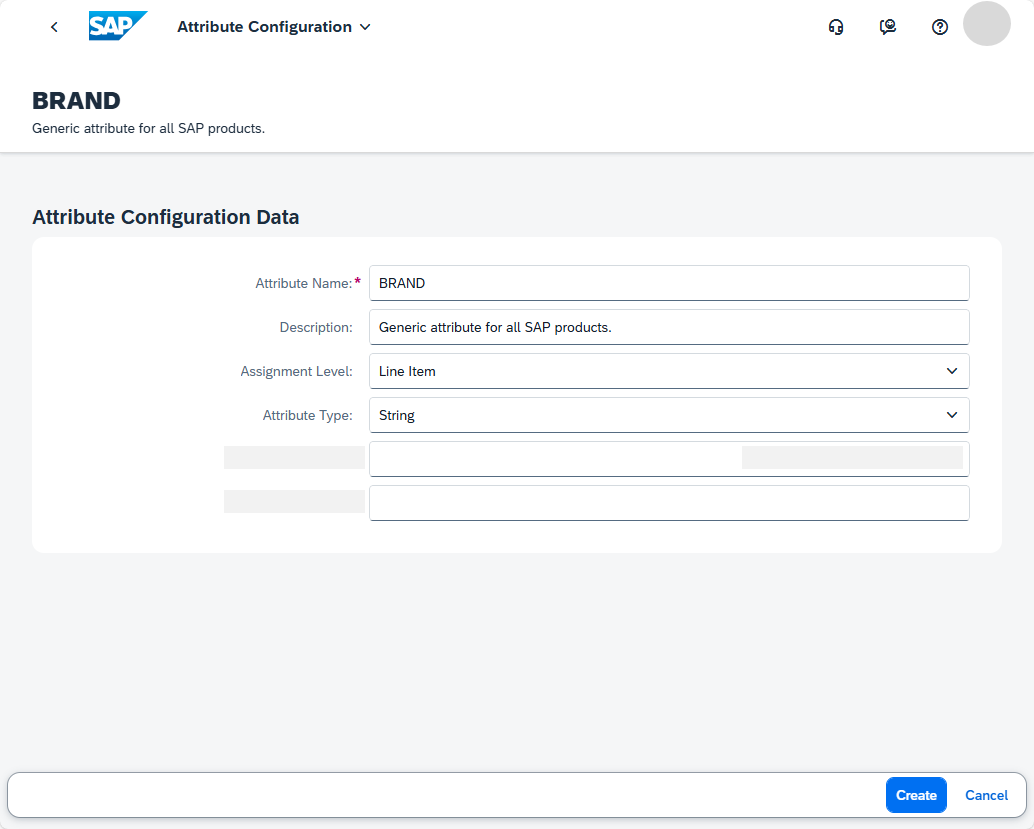
Maintain generic attribute Field Name Value Attribute Name BRANDDescription Generic attribute for all SAP products.Assignment Level Line ItemAttribute Type StringMaximum Length Skip this option. Regular Expression Skip this option. Save your changes.
Navigate back to the home screen by choosing the SAP logo.
You now want to maintain the second promotion Buy one or more products of brand SAP and spend more than EUR 100 to get 10% off that includes the line item-related generic attribute.
Choose the Maintain Promotions app.
Create a new promotion with the following information:
Field Name Value Promotion Name Buy brand SAP and spend more than EUR 100 for 10%Start Date Jan 1, 2026End Date Dec 31, 2026All Day Enable this option. Master Data Source System ABC123Skip the Promotional Rules tab for now and directly go to the Merchandise Sets tab.
Create a new merchandise set. The merchandise set will be used for the line item-related generic attribute
BRAND. On the Inclusion side of the merchandise set, add a generic attribute with the following values:
Create merchandise set Field Name Value Name Use the search help and select the attribute name BRAND that you have created previously. Type StringValue SAPNote down the merchandise set ID.
Navigate back to the promotion.
On the Business Units tab, create a business unit with the following values:
Field Name Value Business Unit Type Retail StoreBusiness Unit ID ONLINENow, on the Promotional Rules tab, create a promotional rule with the following information. Enter a rule name, for example
Product brand SAP and spend more than 100.You can skip the advanced rule settings. The default values are drawn automatically.Edit the rule you have just created.
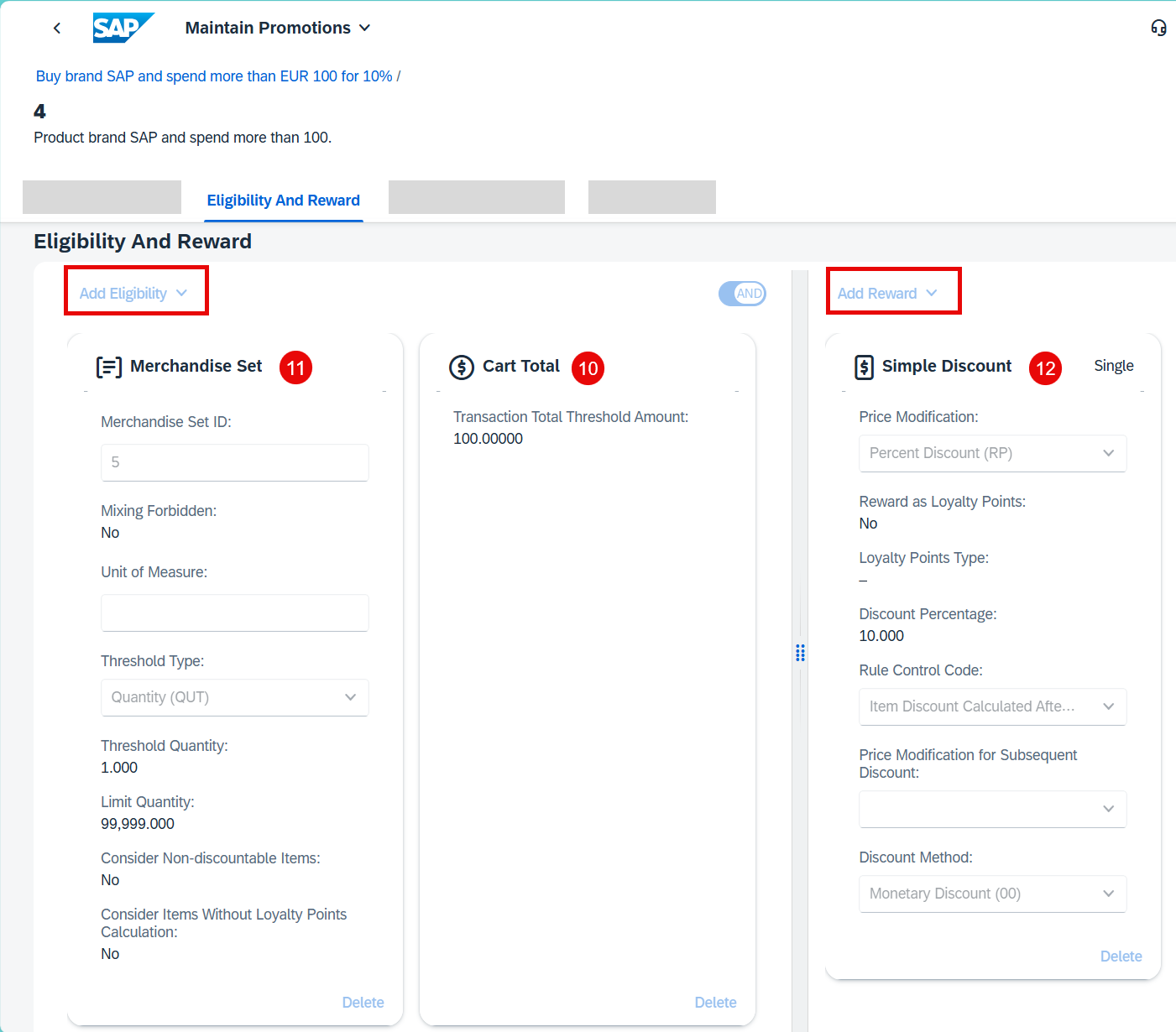
Create second promotional rule On the Eligibility side, add a Cart Total with a Transaction Total Threshold Amount of
100.Also on the Eligibility side, add the merchandise set ID that you have created previously. Use the search help. The values are drawn automatically.
On the Reward side, add a single reward of type Simple Discount with the following values. You can leave out the other options.
Field Name Value Price Modification Percent Discount (RP)Discount Percentage 10Rule Control Code Item Discount Calculated After Subtotal (PC)Discount Method Monetary DiscountScroll down to the Advanced Rule Settings tab, enable the Available for Promotion Recommendations option. Enter a Threshold Percentage for Promotion Recommendations of
50. This means that if 50% of the respective eligibility is fulfilled, a promotion recommendation is given.
Advanced settings Save your changes.
Navigate back to the promotion and activate your promotion.
With this, you have maintained all promotions and you can start your promotional campaign by circulating the coupon ANNIVERSARY25 to your target customers.
You can use the Data Access service for checking your data stored in the database. If you need guidance, have a look at step 5 of the tutorial Apply a Simple Promotion with SAP Omnichannel Promotion Pricing.

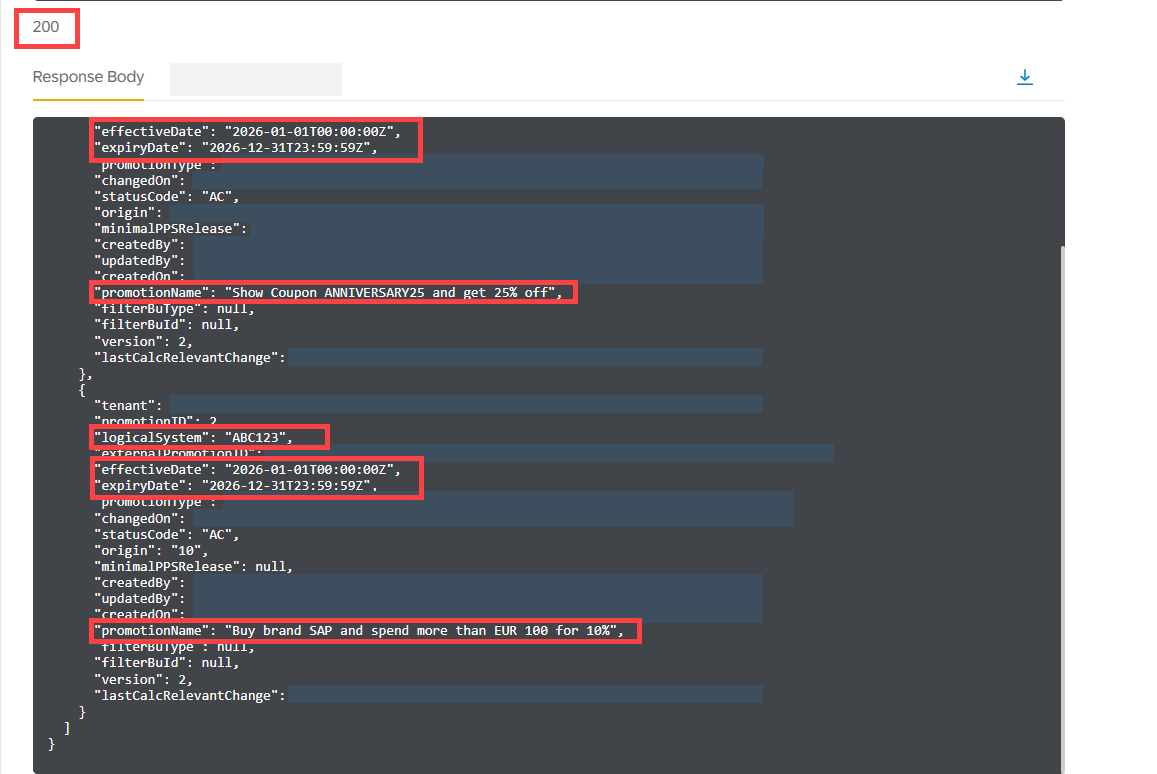
With this, you are all set to launch your promotional campaign.
You can now continue with the next tutorial Reserve, Extend, and Redeem a Single-Code Coupon with SAP Omnichannel Promotion Pricing where you will use the SAP Omnichannel Promotion Pricing service to reserve, extend, and redeem a coupon code with the Coupon Management service and calculate the effective sales price.
Resources
Discussion
Share feedback on this tutorial or join the conversation in SAP Community.