
Overview
You will learn
- Generate SOAP Web Services from RFC Function Modules
- Test your Consumer Proxy internally in ABAP backend system. Important: When modernizing, be aware that RFC calls silently truncate values that exceed fixed-length ABAP fields (40 Characters), but SOAP and OData will reject them outright with length errors. To prevent integration failures, ensure you explicitly validate or truncate these fields in your integration flow, or adjust the backend lengths accordingly. On this Tutorial, we won’t cover:
- The development of the integration flow on SAP Cloud Integration.
- ABAP techniques and best practices.


Prerequisites
Prerequisites
- ABAP backend system access with developer permissions
- Package to include the generated Web Service objects
- Integration flow with the migrated SAP Process Orchestration RFC interface.
Steps
Besides leveraging more modern monitoring capabilities, it allows you an easier migration of your scenarios from SAP Process Orchestration to SAP Integration Suite.
In this tutorial, we will simulate the process of replacing RFC Receiver communication after an interface migration from SAP Process Orchestration to Cloud Integration. For more information refer to the Modernization Recommendations on the Migration Guide for SAP Process Orchestration.
A Service Provider is created when your requirement is to expose a Web Service implementation from a source system to ABAP backend system. In this tutorial example, it is when you have an RFC Receiver integration via SAP Process Orchestration, and after the migration to Cloud Integration, you want to switch this RFC Receiver communication to the SOAP Receiver protocol.
Access the transaction SE80 and create an
Enterprise Serviceobject.
Image Select object type
Service ProviderselectContinueto proceed.
Image There are different ways of generating the Service Provider. In this tutorial, we will use the option
Existing ABAP Object (Inside Out)which allow us to refer directly the Function Module.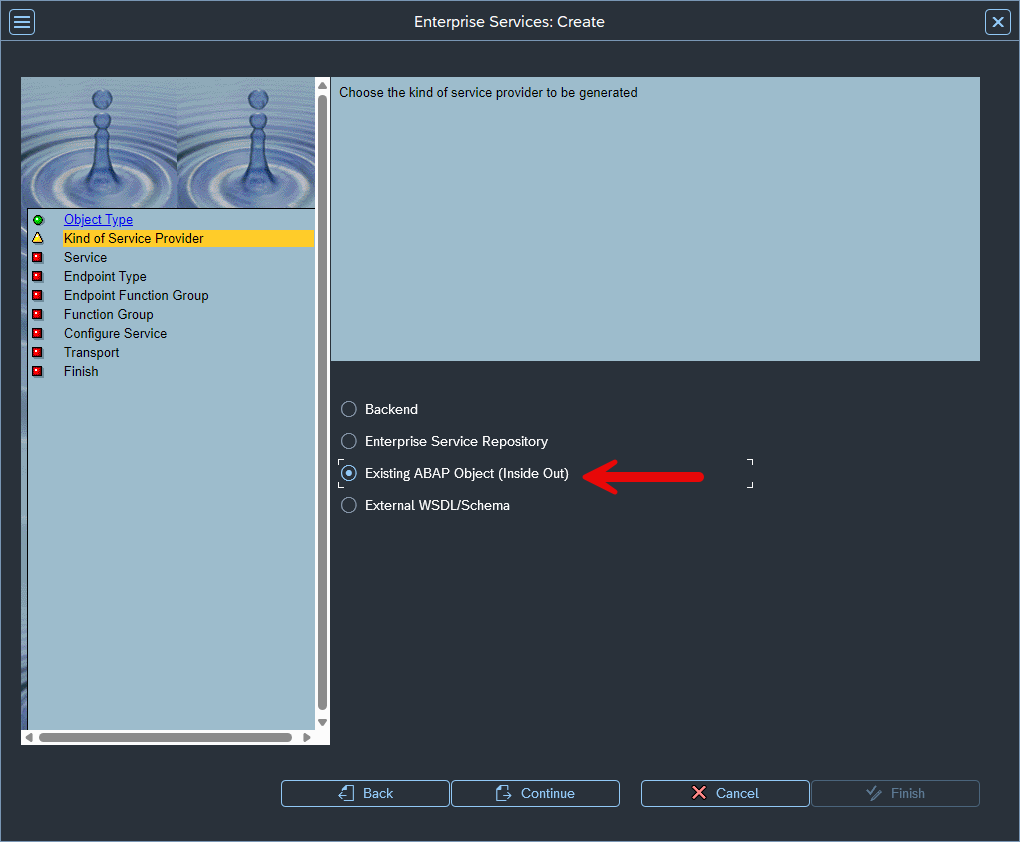
Image Give a name and description to your Service Definition and select
Continueto proceed.
Image Select the option Function Module and select
Continueto proceed.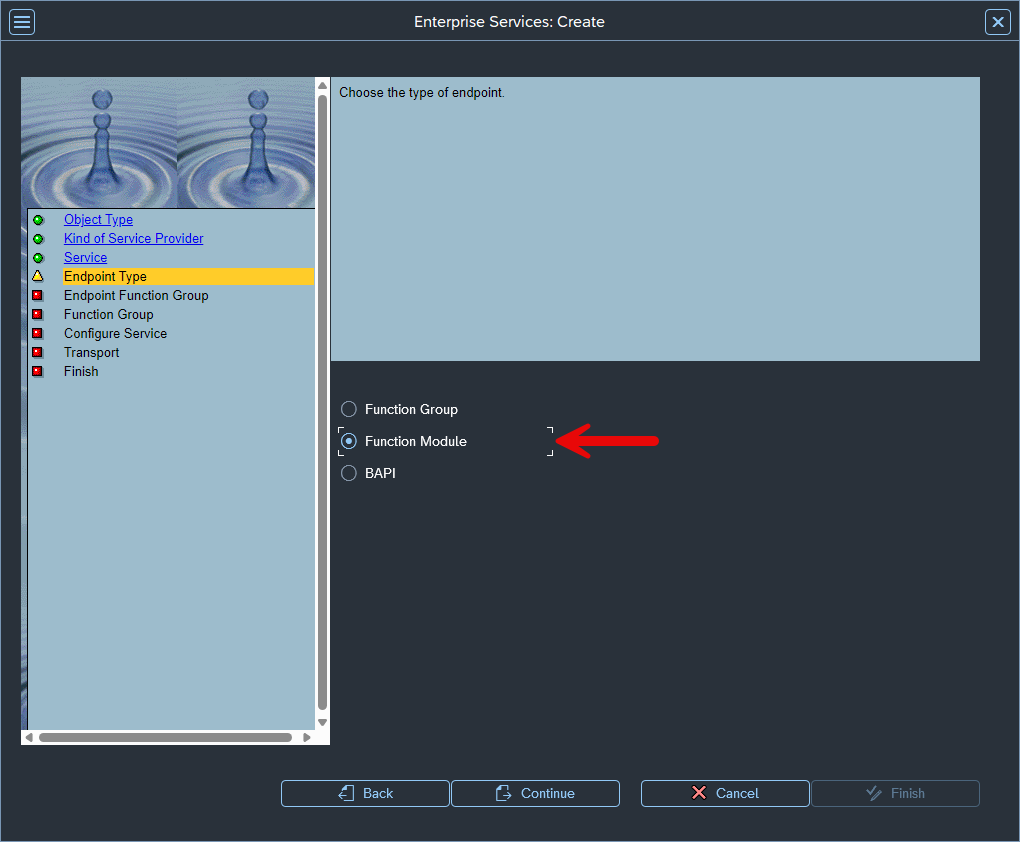
Image Put the name of the Function Module and check the option
Map Name. In this tutorial, we will use the Function ModuleFLIGHT_LIST.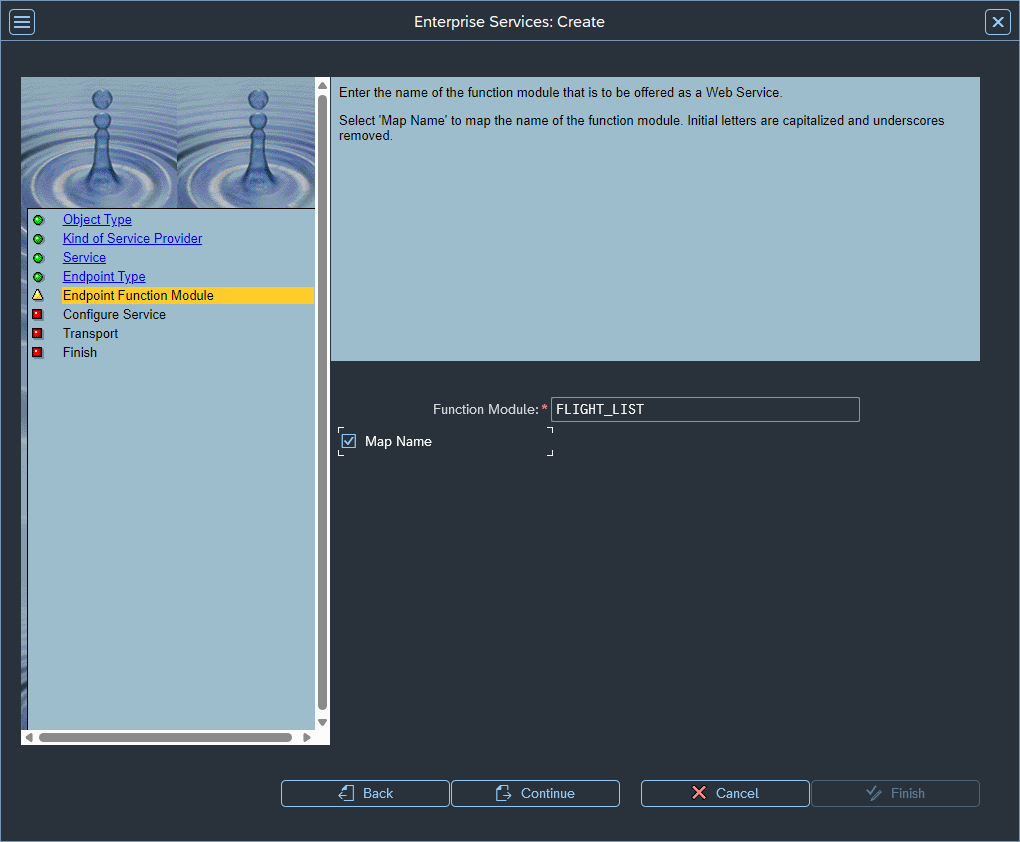
Image Select the security profile as per your requirements. In this tutorial, we will use basic authentication.
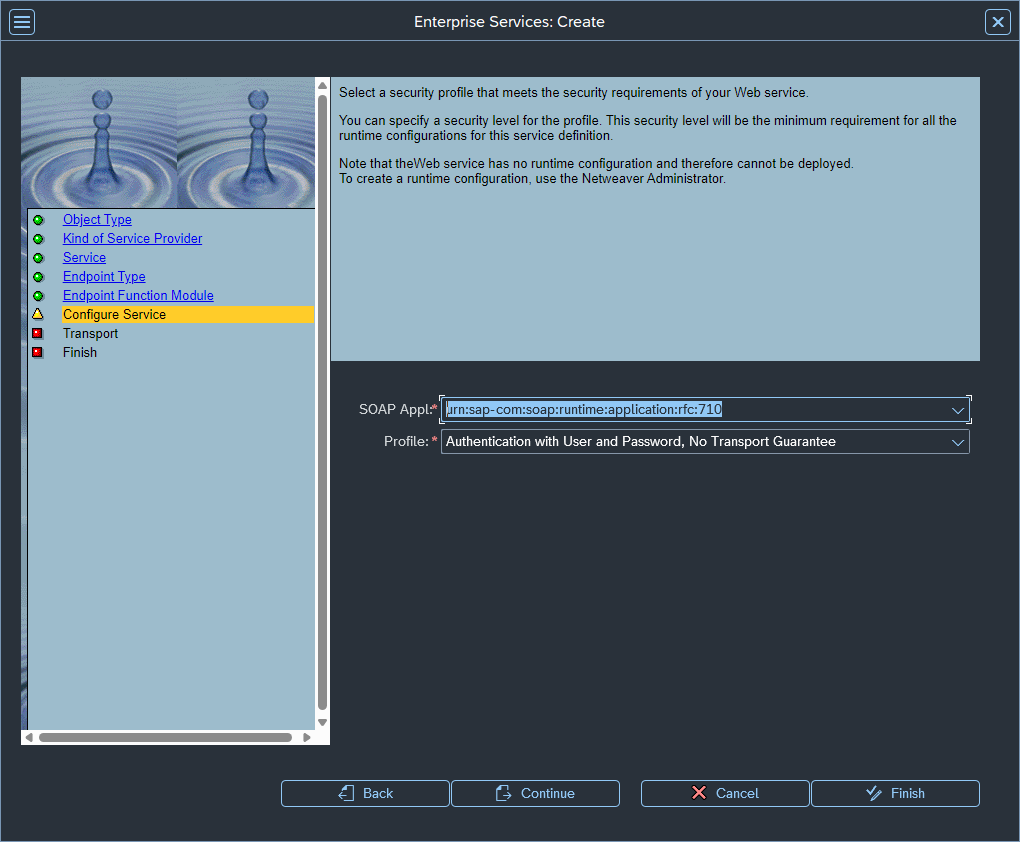
Image Select the Package, Request/Task, and Prefix. Please create a Request/task if this is not created yet.
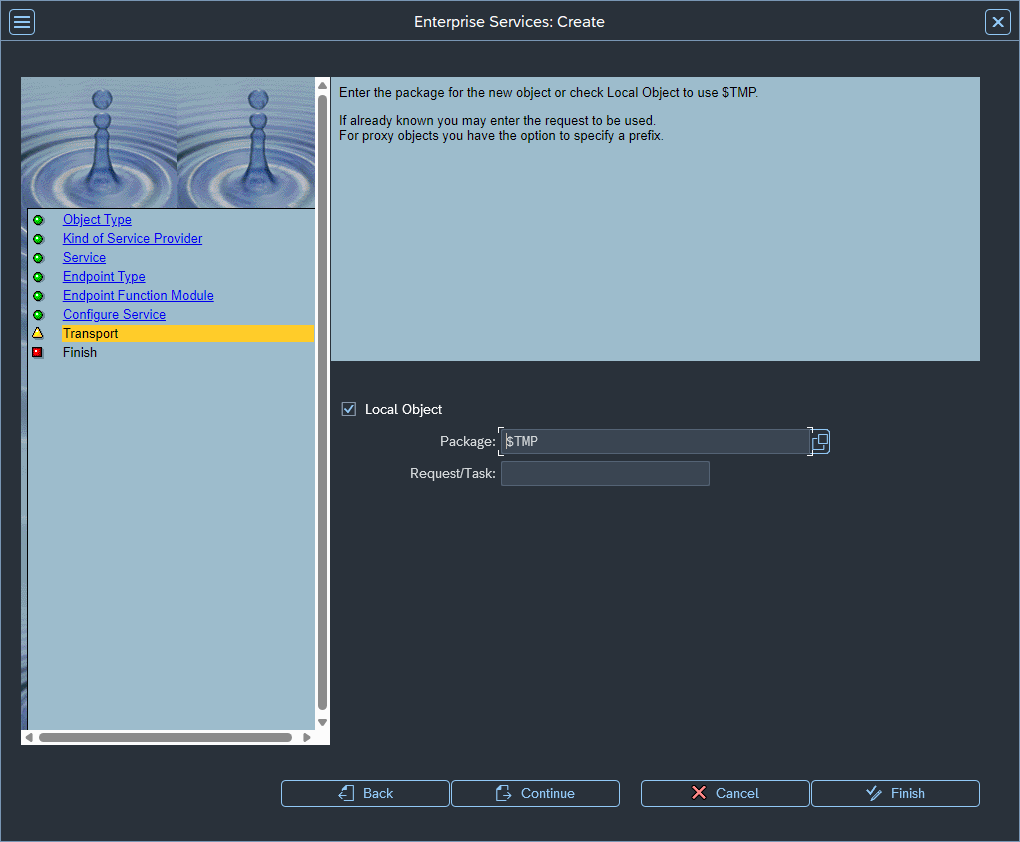
Image Select
Completeto proceed.
Image Activate the created object.

Image Please note that by doing this, you don’t have to re-implement your code on the new service or similar. The new Web Service will wrap the existing Function Module code.
To use the newly created Service Provider as a SOAP Receiver message to be consumed afterwards by Cloud Integration, for instance, proceed to the transaction SOAMANAGER.

Image Go to the
Simplified Web Service ConfigurationPage.
Image Search by the Service Provider created, mark the option
User Name/Password (Basic)and click onSave.
Image Click on the display button to get the details of the access endpoint.

Image The Access URL is the endpoint that you want to use on your Cloud Integration when configuring the SOAP Receiver adapter.

Image Additionally, click on the following endpoint to access the WSDL file. Save the file in your local PC. You need to import it later on your integration flow.

Image 
Image
With the service binding created, go back to the created object, and navigate to
Proxy > Testmenu.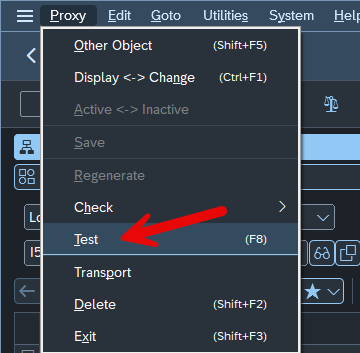
Image Click on
executeto proceed.
Image On the next screen, you can edit the test request payload, and after executing the interface, you should get the response message as below.

Image 
Image
With the WSDL file from your service binding, you should import it into your integration flow.
To do this, download the WSDL file using the URL previously used to generate the Service Consumer (i.e.,
http://demosystem.sap:8000/sap/bc/soap/wsdl11?services=FLIGHT_LIST) and import the WSDL into the resources tab.
Image Select the WSDL as described below.

Image
If you need to update the structures of your Web Service, proceed as described below.
Update your Function Module structures as your requirement.
Navigate to the Service Provider object in edit mode, and navigate to
Service Definition > Check > Syntaxmenu.
Image Confirm the operation and activate the object.

Image
Resources
Discussion
Share feedback on this tutorial or join the conversation in SAP Community.