
Overview
You will learn
- How to use predictive analytics with a pre-written SQL script


Prerequisites
Steps
Intro
This tutorial describes one of many SAP HANA Academy Predictive Analysis Library tutorials. For more tutorials on using Predictive Analysis Library, see the SAP HANA Academy YouTube Playlist.
Before running the script on your VM installation, you will need to clean up the memory processes.
Open a command line to your VM and run the following commands:
hdbcons "resman shrink"hdbcons "mm gc -f"hdbcons -e hdbnameserver "resman shrink"hdbcons -e hdbnameserver "mm gc -f"Go to the SAP HANA Academy GitHub site. Click on the PAL repository. From there, navigate to Code Snippets -> PAL 110 Time Series - Auto ARIMA Model.sql.

Click on Raw.

Use the keys Ctrl + a to select all, and Ctrl + c to copy the script.
Open an SQL command line to your tenant database through your new user. Paste the script and click the Execute icon
Note: This script assumes the user name is DEVUSER. If you created a user with a different name, you will need to modify the script by replacing the instances of DEVUSER with your user’s name.

Note: The first time you run this script, you may receive the errors Could not execute ‘DROP TYPE …’ and the error Could not execute ‘DROP TABLE “#PARAMS”’. This is expected behavior as these elements are created in the script. The errors will not affect output.
This builds the model used for predictive analysis.
Go back to the SAP HANA Academy GitHub site. Click on the PAL repository. From there, navigate to Code Snippets -> PAL 111 Time Series - Auto ARIMA Predict.sql.

Click on Raw.

Use the keys Ctrl + a to select all, and Ctrl + c to copy the code.
Back in your command line, paste the script and click the Execute icon
Note: This script assumes the user name is DEVUSER. If you created a user with a different name, you will need to modify the script by replacing the instances of DEVUSER with your user’s name.
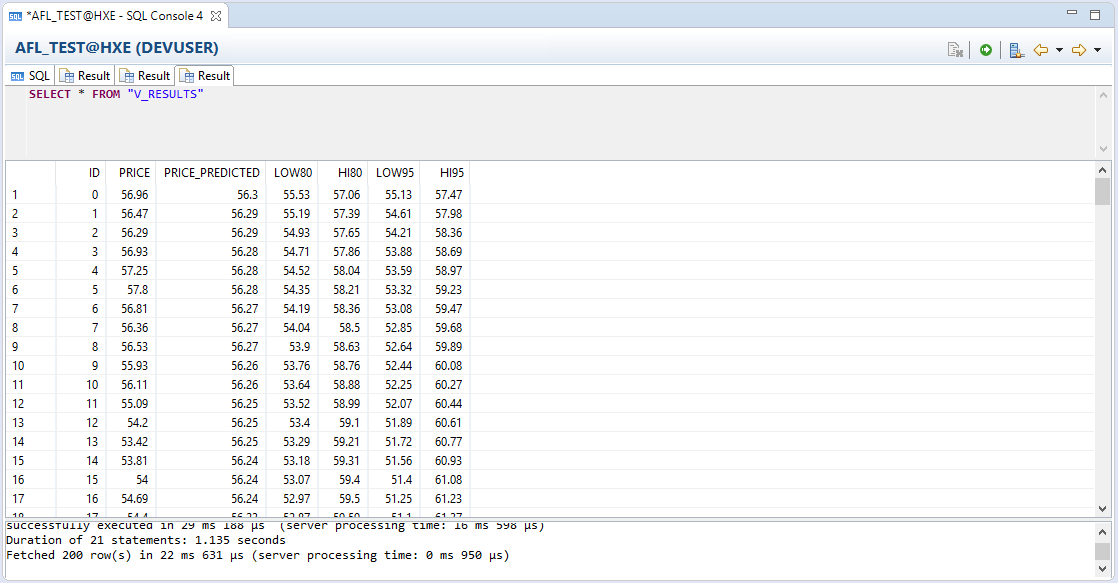
To preview the data, go to your user login to your tenant database and cascade down to Catalog -> USER -> Views. Right-click on V_Results and click Open Data Preview.

From there, you can view the raw data or create charts under the Analysis tab.

For more information about the scripts, watch the SAP HANA Academy videos PAL: 110. Time Series - Auto ARIMA Model and PAL: 111. Time Series - Auto ARIMA Predict.
Resources
Discussion
Share feedback on this tutorial or join the conversation in SAP Community.