
Create a Tenant Database
Learn how to complete common tasks when setting up a new database. In this tutorial, you will create a tenant database using either HANA cockpit or an SQL command line.
Overview
You will learn
- How to create a tenant database using either HANA Cockpit or an SQL command line


Prerequisites
Prerequisites
Steps
Next Steps
Intro
When creating a tenant database, expect your system to use more memory. Ensure your system has enough memory to run an additional database.
Note: This option requires a SAP HANA, express edition Server + Applications installation.
Open SAP HANA Cockpit and log in using
XSA_ADMIN.Open your system database in the Resource Directory window.
Under Tenant Monitoring and Administration, click System Running in the Overall Tenant Statuses tab to open the Manage Databases page.
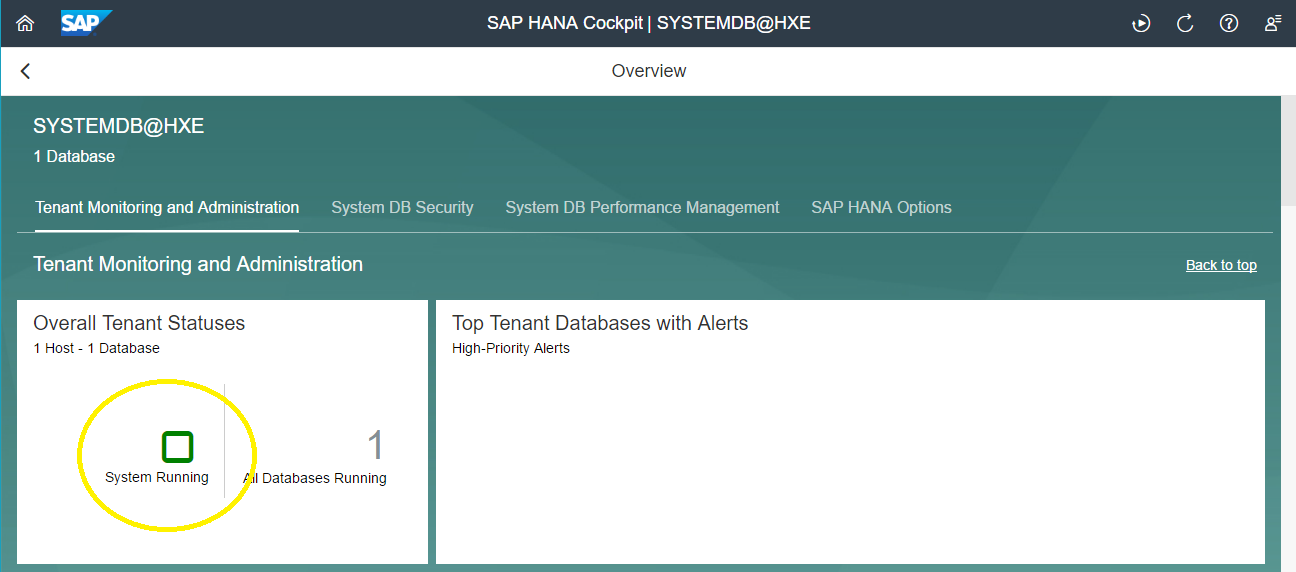
Overall Tenant Statuses On the bottom right of the page, click … then Create Tenant Database.

Manage Databases Page Give your tenant database a name and its SYSTEM user a secure password.
Click Create Tenant Database when you are done.
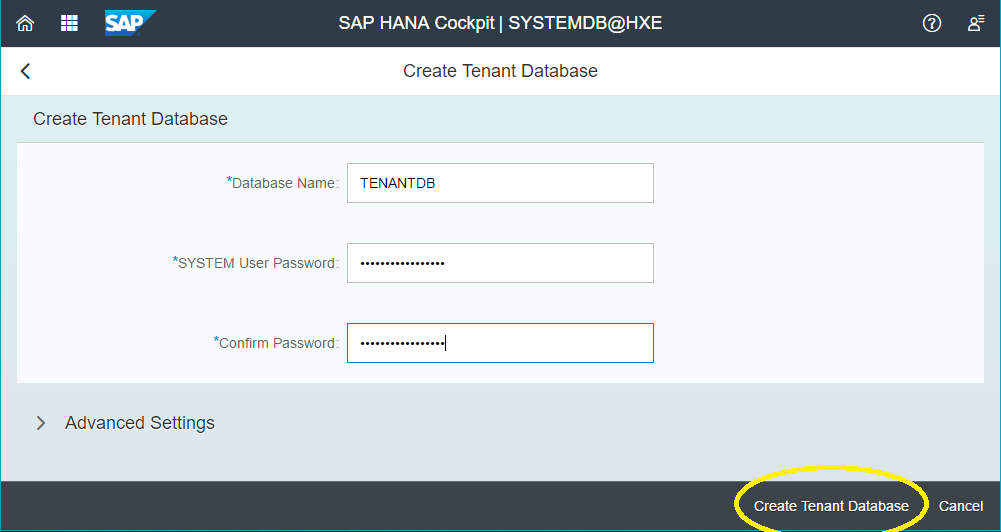
Create Tenant Database A message will display that you have successfully created a new tenant database.
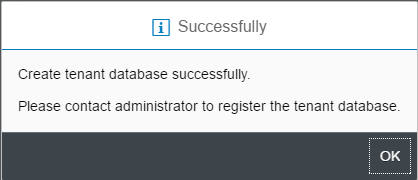
Successfully Created Tenant Database
Using SAP HANA studio or another connected SQL console, execute the following command to create a tenant database:
CREATE DATABASE <database_name> SYSTEM USER PASSWORD <SYSTEM_user_password>Example:
CREATE DATABASE TENANTDB SYSTEM USER PASSWORD Password1This creates the tenant database “TENANTDB” with the SYSTEM user password “Password1”.
Resources
Discussion
Share feedback on this tutorial or join the conversation in SAP Community.