
Overview
You will learn
- How to create a small procedure
get_po_header_datawith two implicit SELECT queries


Prerequisites
Prerequisites
- This tutorial is designed for SAP HANA Cloud. It is not designed for SAP HANA on premise or SAP HANA, express edition.
- You have created a BTP, SAP HANA Cloud instance. Deploy SAP HANA Cloud trial
- You have setup SAP Business Application Studio for development: Set Up SAP Business Application Studio for Development
Steps
If you have not done so yet, create a new HANA Database Project in the SAP Business Application Studio. For more information about how to do this, complete step 1 from the Create an SAP HANA Database Project tutorial.
Next, download the data.zip file from here. We will use predefined tables with sample data for all of the SQLScript tutorials in this group.
Right click on the
srcand choose Import Project, choose the data.zip file that you have downloaded.
Data.zip The imported files should now show in the newly created data folder.

Imported Files In the SAP HANA Projects section, click the Deploy button.

Deploy You will then see the deployment log.

Deployment Log Next, open the Database Connections folder, and click the Open HDI Container button.

Open HDI Container The SAP HANA Database Explorer will be opened, click on the Tables folder, and view the database tables that have been created.

Tables
Right click on the
srcfolder and choose New Folder.
New Folder Enter the name of the folder as
proceduresand click OK.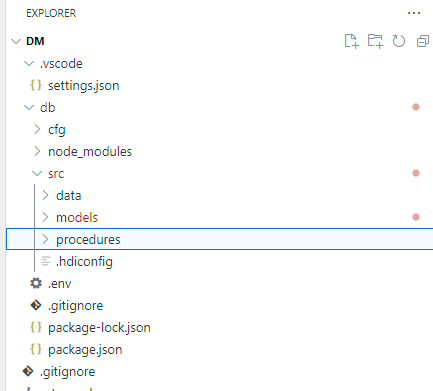
Create Folder Click View then Command Pallette.
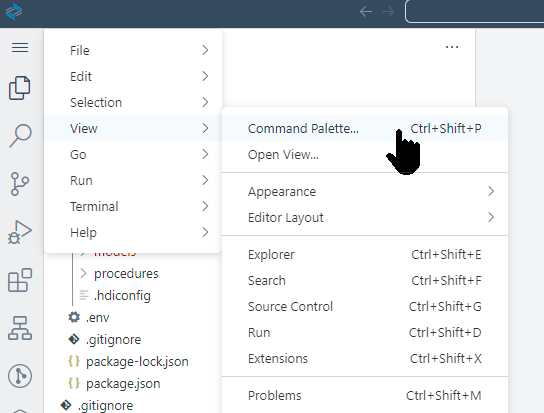
Find Command Enter
hanaas the search term, then click on SAP HANA: Create SAP HANA Database Artifact
HANA Artifact Click the Browse icon.

Browse Select the
proceduresfolder that you created earlier, then click Open.
Select Procedure Use the dropdown, and select Procedure as the Artifact Type.
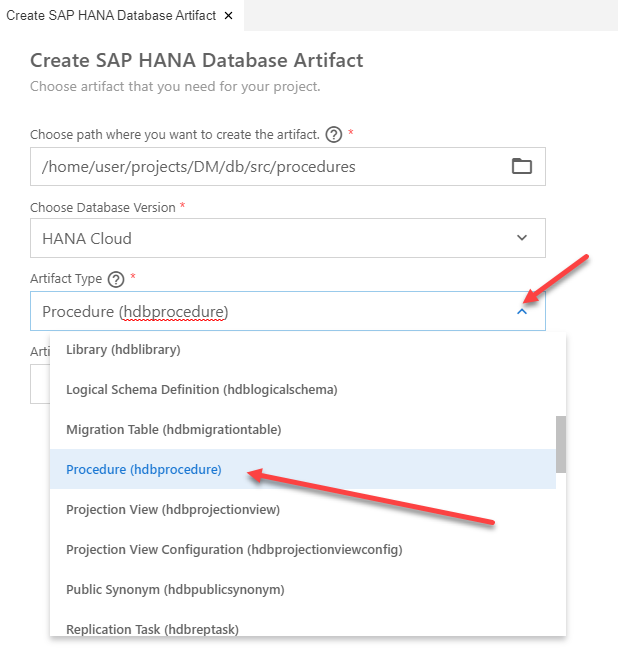
Artifact Type Give the name of the artifact as
get_po_header_data, then click Create.
Procedure Name You will see a message saying that the new artifact as been created.

Message From the procedures folder, click on your new procedure. The SQLScript procedure editor will then be opened with the shell of your procedure code.

Editor
Between the BEGIN and END statements, insert the SELECT statements as shown. These are implicit select statements whose results sets are passed to the caller.
SQLScriptSELECT COUNT(*) AS CREATE_CNT, "CREATEDBY" FROM "OPENSAP_PURCHASEORDER_HEADERS" WHERE ID IN ( SELECT "POHEADER_ID" FROM "OPENSAP_PURCHASEORDER_ITEMS" WHERE "PRODUCT_PRODUCTID" IS NOT NULL) GROUP BY "CREATEDBY"; SELECT COUNT(*) AS CHANGE_CNT, "MODIFIEDBY" FROM "OPENSAP_PURCHASEORDER_HEADERS" WHERE ID IN ( SELECT "POHEADER_ID" FROM "OPENSAP_PURCHASEORDER_ITEMS" WHERE "PRODUCT_PRODUCTID" IS NOT NULL) GROUP BY "MODIFIEDBY";The completed code should look similar to this.
SQLScriptPROCEDURE "get_po_header_data"( ) LANGUAGE SQLSCRIPT SQL SECURITY INVOKER --DEFAULT SCHEMA <default_schema_name> READS SQL DATA AS BEGIN SELECT COUNT(*) AS CREATE_CNT, "CREATEDBY" FROM "OPENSAP_PURCHASEORDER_HEADERS" WHERE ID IN ( SELECT "POHEADER_ID" FROM "OPENSAP_PURCHASEORDER_ITEMS" WHERE "PRODUCT_PRODUCTID" IS NOT NULL) GROUP BY "CREATEDBY"; SELECT COUNT(*) AS CHANGE_CNT, "MODIFIEDBY" FROM "OPENSAP_PURCHASEORDER_HEADERS" WHERE ID IN ( SELECT "POHEADER_ID" FROM "OPENSAP_PURCHASEORDER_ITEMS" WHERE "PRODUCT_PRODUCTID" IS NOT NULL) GROUP BY "MODIFIEDBY"; ENDOnce again, click Deploy.

Save
Switch over to the Database Explorer page and click on the
Proceduresfolder. Right-click on the procedure and choose Generate Call Statement.
DBX A new SQL tab will be opened with the CALL statement inserted. Click the Run button.

Run The two results are then shown in another tab.

Results Note the execution time on the Messages tab.

Execution time
Resources
Discussion
Share feedback on this tutorial or join the conversation in SAP Community.