
Create a User Interface with CAP (SAP HANA Cloud)
Use services based on SAP Cloud Application Programming Model Node.js and use an SAP Fiori wizard to create a user interface.
Overview
You will learn
- How to create an SAP Fiori freestyle web interface
- How to configure the
approuter


Prerequisites
Prerequisites
- This tutorial is designed for SAP HANA Cloud. It is not designed for SAP HANA on premise or SAP HANA, express edition.
- You have created database artifacts and loaded data as explained in the previous tutorial.
Steps
From the previous tutorial we have a
.envfile in the/dbfolder. This file contains the connection details to the SAP HANA Cloud instance and it was created when we performed the bind operation from the SAP HANA Projects view.
.env file We can use this same configuration information from Cloud Foundry to start the CAP service layer and connect it to SAP HANA as well. Use the command
cds bind -2 MyHANAApp-dev:SharedDevKeyto tell CAP to bind to this same HANA Cloud HDI service instance that we bound to earlier in the SAP HANA Projects view.
cds bind to db service Run the command
npm installto install any Node.js dependent modules needed by the Cloud Application Programming Model.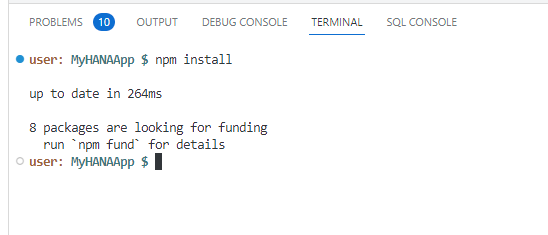
npm install Our project is setup for real XSUAA security and we will use that later in this tutorial. But for now we want to test without configuration of the necessary authentication and authorization setup. To do so, open the package.json file in the root of your project. Change the
cds.requires.authproperty fromxsuaatomockedso we can test with mock authentication.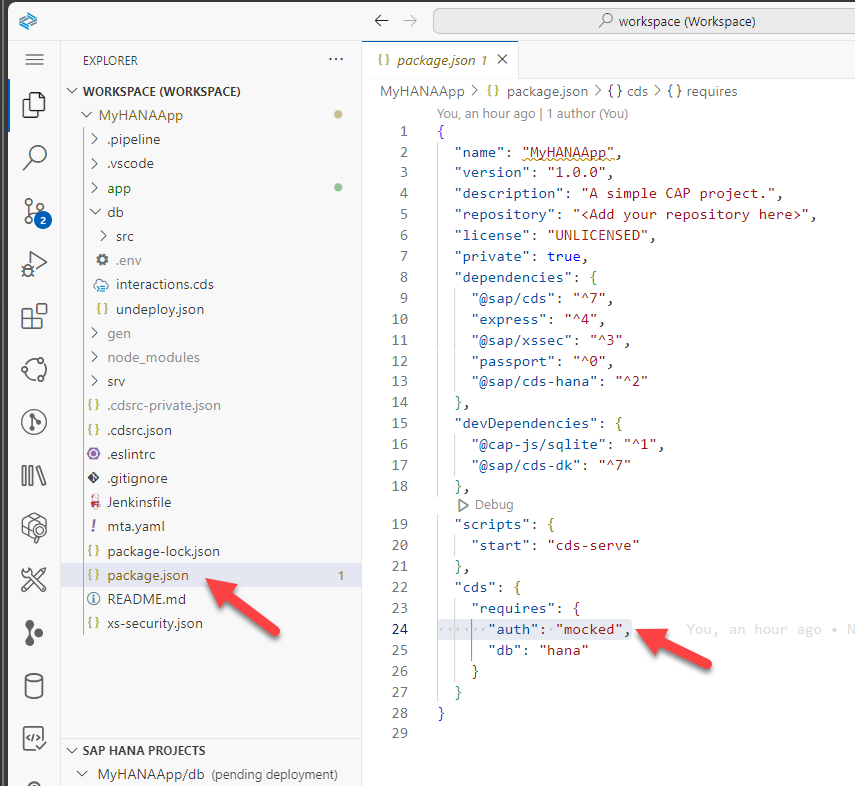
Mocked Authentication Now issue the command
cds watch --profile hybrid. This will start the CAP service locally and use the binding configuration to connect to our remote HANA database instance. Once started you will see a dialog with a button that says Open in New Tab. Press this button to test the CAP service in a new browser tab.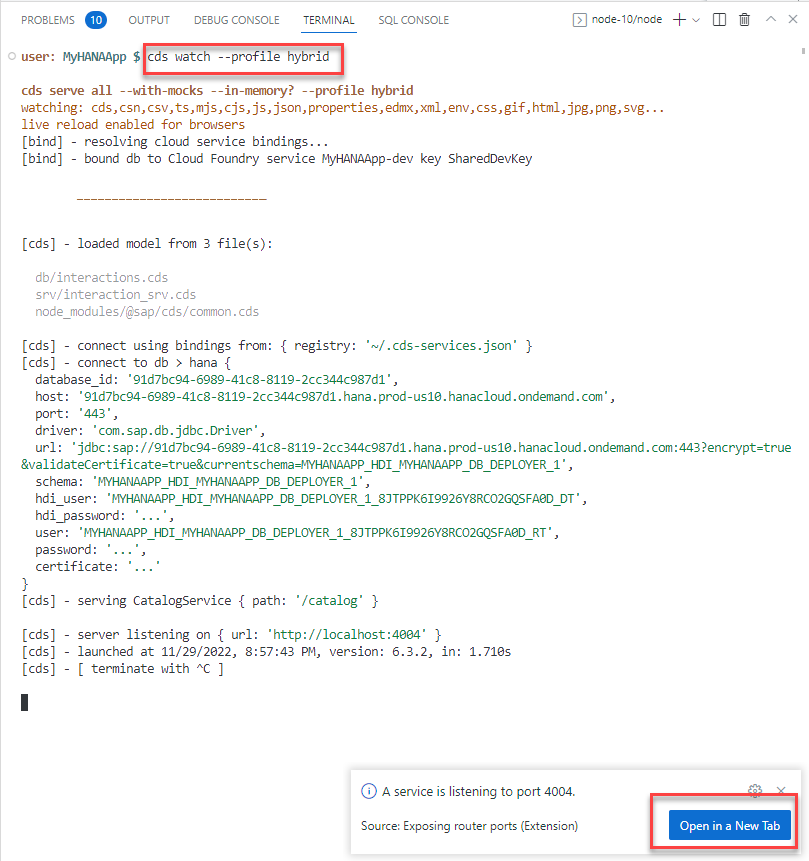
npm start If you accidentally close this dialog, you can always open the running services via View > Command Pallette and then choosing Ports: Preview and choosing the running service from the list
You should see the list of entities you exposed.
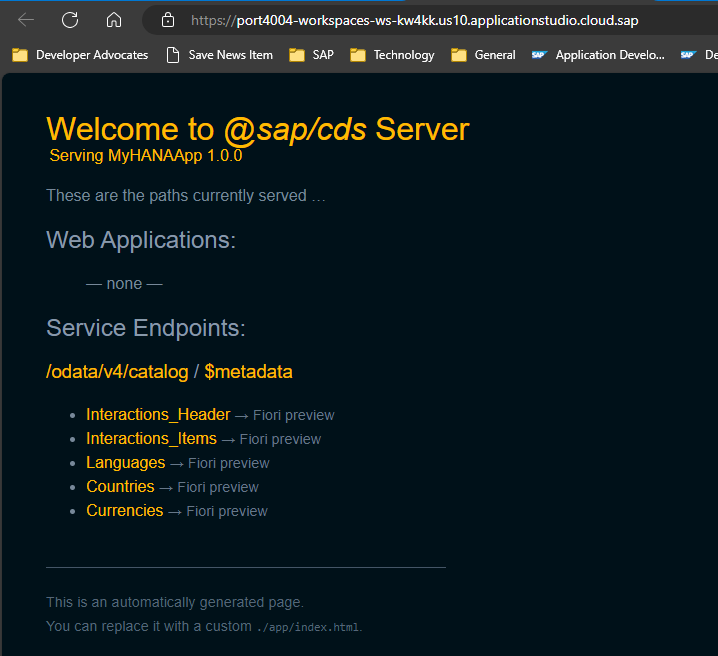
Welcome Page You can click on the entities to see the values in a JSON format being served from the SAP HANA Cloud database.

Service Test
Choose the
$metadataoption from the Welcome page and you can see a technical description of the service
metadata document You can use different methods in the OData v4 services you have created. Go back to the welcome page for the service and click
Interactions_Items. Different versions of the Cloud Application Programming Model preview page do different things at this point. Some add a $top limit to the generated URL for `Interactions_Items` automatically. Other and perhaps newer versions do not. Have a look at the end of the URL when it opens. If it ends in `?$top=11` then add the following to the URL:URL&$search=DEOtherwise add the following to the URL:
URL?$search=DE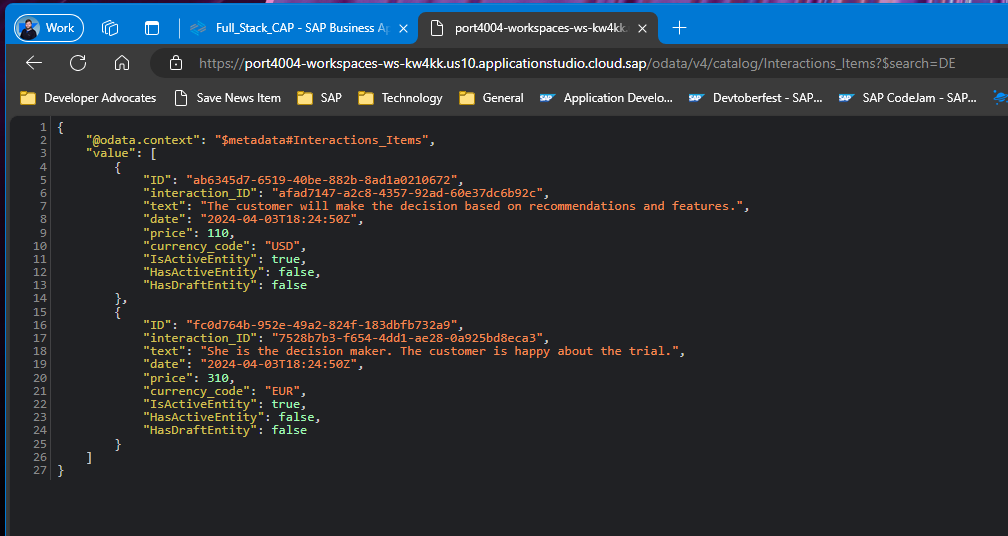
Play with the OData Service You can find out more about OData V4 at the OData organization and the documentation for SAPUI5.
You will use an Application Router module. This was generated into a project using the initial wizard. This module is very important as it will become the entry point for your application. Every request coming to this module will be routed into the different backend services.
You should see a folder named
app/routerin the root of your project.
New folder for App Router Since the web module will be receiving the requests and routing them into the proper processing backend services, such as the OData service you have just tested, it will also be responsible for enforcing authentication.
These routing logic is done by an application called
approuter. You can see the Node.js module being called as the starting script for the web module as defined in the filepackage.json.
package.json for app router We need to install the approuter dependency now as well. From the terminal change to the
app/routerfolder and issue the commandnpm install
app router npm install The
approuterwill scan the filexs-app.jsonto route patterns in the request to the right destinations. The xs-app.json that was generated by the wizard is ready to use real security settings, but our project isn’t that far along yet. Therefore, let’s change the configuration to temporarily disable the security checks.Replace the content of
xs-app.jsonwith the following contentJSON{ "authenticationMethod": "none", "routes": [ { "source": "^/app/(.*)$", "target": "$1", "localDir": ".", "cacheControl": "no-cache, no-store, must-revalidate" }, { "source": "^/appconfig/", "localDir": ".", "cacheControl": "no-cache, no-store, must-revalidate" }, { "source": "^/(.*)$", "target": "$1", "destination": "srv-api", "csrfProtection": true } ] }
xs-app.json Among other information, this configuration is declaring that requests containing the pattern
^/(.*)$are routed to a destination calledsrv-api. This destination was defined by the wizard in themta.yamlfile and points the service layer of our CAP application.
We want to create a Fiori UI for our CAP service. We will use the wizards to generate most of the UI.
From the top menu select View -> Command Pallette. Then type
fioriinto the search box. Select Fiori Open Application Generator.
Fiori Application Generator Select Worklist Page as the template and press Next

Fiori Application Type At the Data Source and Service Selection screen, choose Use a Local CAP Project. Select your project as the Choose your CAP project. Select
CatalogService (Node.js)as your OData service. Press Next
Data Source and Service Selection Choose
Interactions_Headeras the main entity,ITEMSfor the Navigation entity, leave theYESvalue for the “Automatically add table columns to the list page and a section to the object page if none already exists?” option and press Next
Entity Selection In the Project Attributes screen, match to the values shown in the following screenshot and press Finish

Project Attributes The new project structure and content should look like This

New Project Structure From the terminal you should still have your
cds watch --profile hybridstill running (if not restart it). This command watches for changes so your application is already to test with the new UI. Open the browser tab where you were testing it previously.The CAP test page now has a link to the newly generated application.

CAP Test Page Link Clicking that link will launch the generated Fiori UI for the CAP service.

Test UI If you wish you can open another terminal instance and change to the Application Router folder (
cd app/router/). Then run the commandnpm start. This will run the Application Router which you can test from its own port (5000). Nothing will really look different at this point, but you are passing all requests through the Application Router now. This will become important once we add security to our service and want to test it locally using the Application Router.
The Fiori application template wizard already created an annotations.cds file with some basic annotation entries for your application. This is how the preview that we used in the last step already had
partnerandcountry_codefields in the output.
annotations.cds Let’s now extend the wizard generated annotations to include more fields in our application. With a few lines of annotations we can reshape the entire UI.
Replace the
annotations.cdswith the following content:CDSusing CatalogService as service from '../../srv/interaction_srv'; annotate service.Interactions_Header with @( UI.HeaderInfo : { Title : { $Type: 'UI.DataField', Value: partner, }, TypeName : 'Incident', TypeNamePlural: 'Incidens', Description : {Value: country.descr} }, UI.HeaderFacets : [{ $Type : 'UI.ReferenceFacet', Target : '@UI.FieldGroup#Admin' }], UI.FieldGroup #GeneratedGroup: { $Type: 'UI.FieldGroupType', Data : [ { $Type: 'UI.DataField', Label: 'Partner', Value: partner, }, { $Type: 'UI.DataField', Label: 'Country', Value: country_code, }, { $Type : 'UI.DataField', Label : 'Country', ![@Common.FieldControl]: #ReadOnly, Value : country.descr, }, ] }, UI.FieldGroup #Admin : {Data : [ { $Type : 'UI.DataField', Value : createdBy }, { $Type : 'UI.DataField', Value : modifiedBy }, { $Type : 'UI.DataField', Value : createdAt }, { $Type : 'UI.DataField', Value : modifiedAt } ] }, UI.Facets : [ { $Type : 'UI.ReferenceFacet', ID : 'GeneratedFacet1', Label : 'General Information', Target: '@UI.FieldGroup#GeneratedGroup', }, { $Type : 'UI.ReferenceFacet', Label : 'Interaction Items', Target: 'items/@UI.LineItem' } ], UI.LineItem : [ { $Type: 'UI.DataField', Label: 'Partner', Value: partner, }, { $Type : 'UI.DataField', Label : 'Country', ![@Common.FieldControl]: #ReadOnly, Value : country.name, }, ] ); annotate service.Interactions_Items with @( UI.HeaderInfo : { Title : { $Type: 'UI.DataField', Value: text, }, TypeName : 'Interaction Item', TypeNamePlural: 'Interaction Items' }, UI.FieldGroup #GeneratedGroup: { $Type: 'UI.FieldGroupType', Data : [ { $Type: 'UI.DataField', Label: 'Text', Value: text, }, { $Type: 'UI.DataField', Label: 'Date', Value: date, }, { $Type: 'UI.DataField', Label: 'Price', Value: price, }, { $Type: 'UI.DataField', Label: 'Currency', Value: currency_code, } ] }, UI.Facets : [ { $Type : 'UI.ReferenceFacet', ID : 'GeneratedFacet1', Label : 'General Information', Target: '@UI.FieldGroup#GeneratedGroup', }, { $Type : 'UI.ReferenceFacet', Label : 'Item Translations', Target: 'texts/@UI.LineItem' } ], UI.LineItem : [ { $Type: 'UI.DataField', Label: 'Text', Value: text, }, { $Type: 'UI.DataField', Label: 'Date', Value: date, }, { $Type: 'UI.DataField', Label: 'Price', Value: price, }, { $Type: 'UI.DataField', Label: 'Currency', Value: currency_code, } ] ); annotate service.Interactions_Items.texts with @(UI: { Identification : [{Value: text}], SelectionFields: [ locale, text ], LineItem : [ { Value: locale, Label: 'Locale' }, {Value: text} ] }); annotate service.Interactions_Items.texts with { ID @UI.Hidden; }; // Add Value Help for Locales annotate service.Interactions_Items.texts { locale @( ValueList.entity: 'Languages', Common.ValueListWithFixedValues, ) }Run the application again and you will new functionality including value help for country and currency as well as the ability to see and maintain the translatable text element.
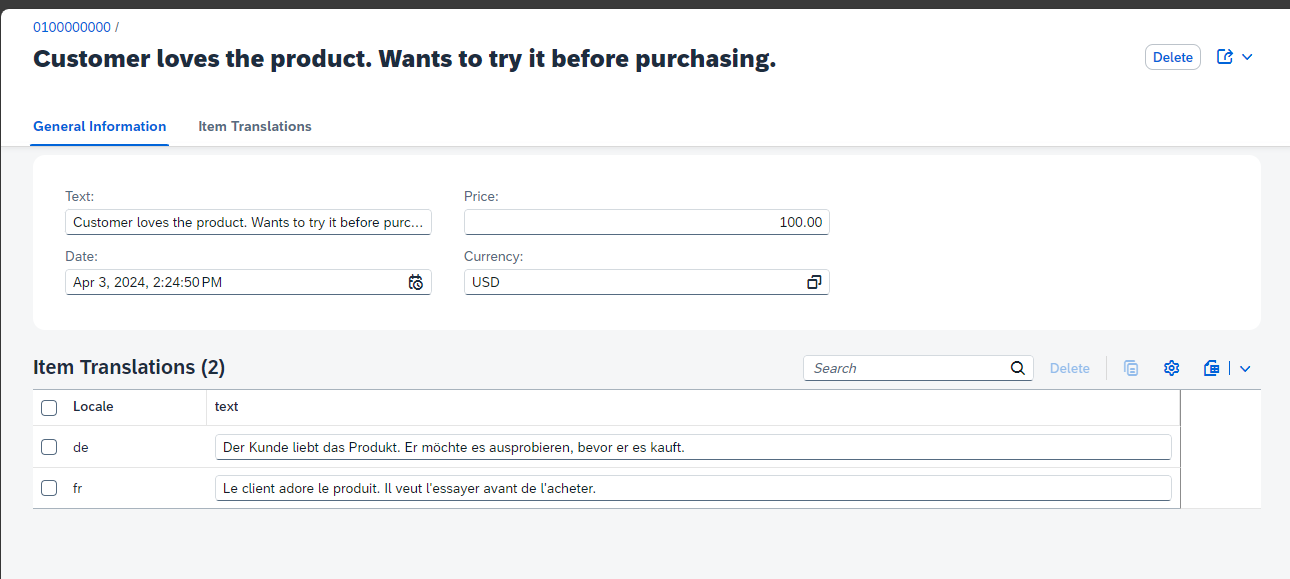
annotations example
Congratulations! You have created your first, full application.
Now it is a good time to commit your application into the local or remote Git.
Resources
Discussion
Share feedback on this tutorial or join the conversation in SAP Community.