
Configure Object Pages Using SAP Fiori Tools
Configure the object pages that can be accessed from your app using the various extensions available in SAP Fiori tools.
Overview
You will learn
- How to configure an object page using annotations
- How to add a new object page to your project


Prerequisites
Prerequisites
- You should have a preview of your app running with either real or mock data. Your list report should be configured as instructed in Configure a List Report Page using SAP Fiori Tools.
Steps
Intro
Now that you have created a list report page featuring a list of items, your end users need to be able to drill down for more information on a single item.
In this tutorial, you are going to add a supplemental data to the object page that accompanies your list report. This way your users can learn more about an item in the list. The object page contains some preconfigured annotations that you will modify to meet your end users’ needs. These modifications include adding a section for technical data, as well as a chart and a table. After that, you will add another object page so that your end-users can drill down for even more information pertaining to the sale of the item.
To begin, you need to create a FieldGroup for the technical information that will be displayed on the first object page. To do this, you are going to use the SAP Fiori tools Service Modeler to see whether the backend developer has already added the annotation term UI.FieldGroup to the target so that it can be re-used for editing locally.
Launch the Visual Studio Code Command Palette by pressing CMD/Ctrl + Shift + P, typing
Service Modeler, and then selecting Fiori: Open Service Modeler with your mouse or the Enter key once it appears.If you have more than one project in your workspace, you will have to select the project you have created for this tutorial.
A list of projections will open in a new tab. Select the projection
SEPMRA_PROD_MAN.SEPMRA_C_PD_ProductTypeand Click the@icon to view the annotations for this target.Under the
SEPMRA_PROD_MAN_ANNO_MDL.xmlbackend source, look forUI.FieldGroup#TechnicalData. This is theFieldGroupyou need to add to your page.Click the Copy button next to it. You will notice a new entry has been created under
annotation.xmland the entry underSEPMRA_PROD_MAN_ANNO_MDL.xmlhas been formatted with a strike through.A tab with your local annotation file will open. The annotation term
UI.FieldGroup#TechnicalDatawill be copied and highlighted inside it. It is currently missing the field Dimensions Unit. Since a measurement is not as helpful without a unit, you will add this new data field now.To add a new data field, create a new line after the following section.
XML<Record Type="UI.DataField"> <PropertyValue Property="Value" Path="Weight"/> <Annotation Term="UI.Importance" EnumMember="UI.ImportanceType/Medium"/> </Record>Use the Code Complete feature: Press CMD/Ctrl + Space and then choose
<Record "DataField">. Press CMD/Ctrl + Space again to choosePath=''. Lastly, for providing value for Path, press CMD/Ctrl + Space to selectDimensionUnit. Your added code should look like below:XML<Record Type="UI.DataField"> <PropertyValue Property="Value" Path="DimensionUnit"/> </Record>
Now that you have edited the FieldGroup, you need to reference it to display it in a section. To do so, you can use the SAP Fiori tools - XML Annotation Language Server to add the new annotation term UI.Facets.
In your local annotation file
annotation.xml, for the targetSAP.SEPMRA_C_PD_ProductType, insert a new line after the end of the</Annotation>tag of the annotation termUI.SelectionFields.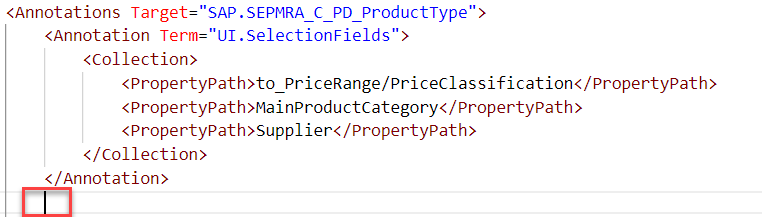
UI Facet To accelerate the coding required here, use the Code Complete feature: Press CMD/Ctrl + Space and then choose
UI.Facets.Hint: After pressing CMD/Ctrl + Space, you can also search for your desired element, rather than scrolling through the entire list. For example, type
Fac(as in,UI.Facets) and this will narrow down the list of items for you.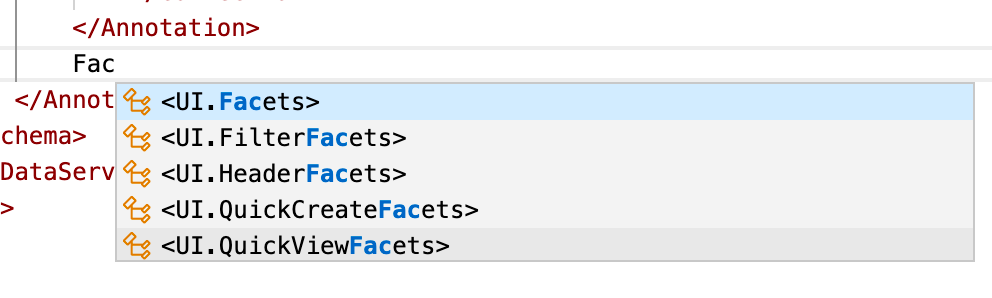
Code Complete At this point, you have inserted the
Annotationtag and it already contains theCollectiontag. Your cursor should be within<Annotation Term="UI.Facets" >. Press Tab to move your cursor under the<Collection>tag.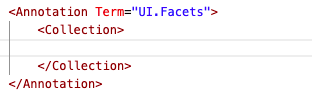
Select Collection Tab Hint: Take advantage of this procedure: pressing CMD/Ctrl + Space, making your selection, and then using the Tab key. This can help minimize the time you spend adding/editing annotations in the code editor.
You need to refer to the
UI.FieldGroup#TechnicalDatathat you copied from the backend in the previous step in theUI.Facetyou have created here. To do that, you will create a new record type calledUI.ReferenceFacet.Ensure your cursor is between the lines of the
<Collection>and</Collection>tags. Press CMD/Ctrl + Space and then selectRecord (full) "ReferenceFacet".You need to assign the target of this
ReferenceFacet. Press CMD/Ctrl + Space again and select@UI.FieldGroup#TechnicalData.Press Tab to jump to the Property label. Enter the string
Technical Data.Press Tab again to jump to the Property id. Enter the string
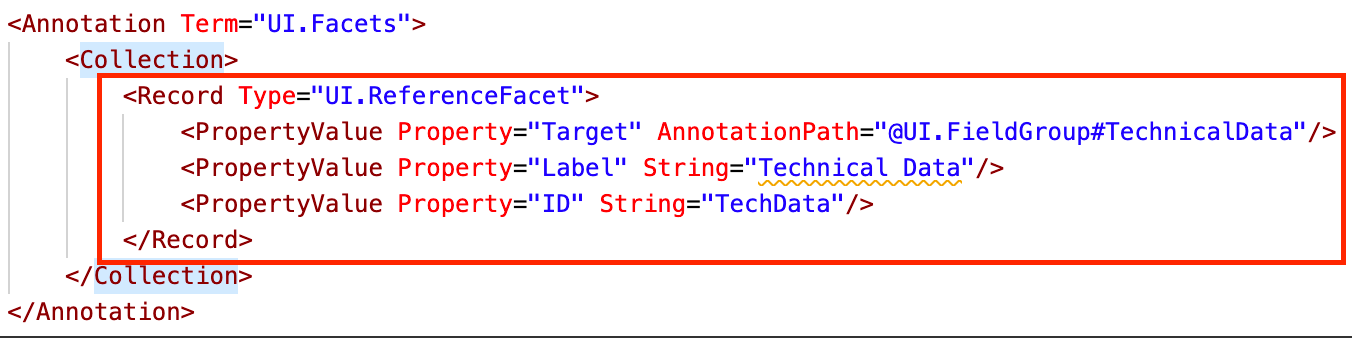
TechData.Your annotation file should look like the image below:
Enter Technical Data Save
annotation.xmland take a look at your running app. Select a row in the list to open the object page. You should see a new section in the object page showing the technical data of the selected product.
Next, you are going to add a chart to this object page to show users the monthly revenue of their selected product.
Within the code block of the annotation term
UI.Facetsfor the targetSAP.SEPMRA_C_PD_ProductType, find the end tag</Record>ofUI.ReferenceFacetand hitEnter.You need to insert a new
UI.ReferenceFacetto include theUI.Chartannotation term ofto_productSalesData.Just as you did in the previous step, use CMD/Ctrl + Space and select ``. Your cursor will be in the
AnnotationPath.Use CMD/Ctrl + Space and select
to_productSalesData, then enter/and select@UI.Chart.Press Tab to jump to the property label. Enter the string
Monthly Revenue.Press Tab again to jump to the property id. Enter the string
MonthRev.Your annotation file should look like the image below:

Add chart Save the file
annotation.xmland take a look at your running app. You should see a new section in the object page showing the monthly revenue chart of the product.
If your current product does not show any data, refresh the page. If data is still not displayed, go back to the list report page and select a different product.
Next, you are going to add a section to your object page that shows the sales history of an item. This step involves the setup in adding UI.LineItem. In the next step, you will add the UI.Facet that makes it visible.
Insert a new line after the end tag
</Annotations>for the targetSAP.SEPMRA_C_PD_ProductType. The line looks like so:XML<Annotations Target="SAP.SEPMRA_C_PD_ProductType"> ..... </Annotations>Add a new
<Annotations>tag for the targetSAP.SEPMRA_C_PD_ProductSalesDataType. You can use CMD/Ctrl + Space and select<Annotations>.
Add new target In the next step, you will refer to this
UI.LineItemfrom the earlier created Facet for the current object pageAdd the annotation term
UI.LineItemusing CMD/Ctrl + Space. Press Tab to move your cursor to the line below<Collection>. Then, using CMD/Ctrl + Space again, add a column to the table (Record "DataField").Press CMD/Ctrl + Space and add a
Path. EnterIDfor thisPath.Insert a new line after the end of
<PropertyValue Property="Value" Path="ID"/>Use CMD/Ctrl + Space to add a Label property. Enter
Sales IDfor the String.Now you are going to add another column.
Navigate to the line below the
</Record>you just created. Again, use CMD/Ctrl + Space and selectRecord "DataField"and add one property – Value (using CMD/Ctrl + Space). Assign the Path asDeliveryCalendarMonthT.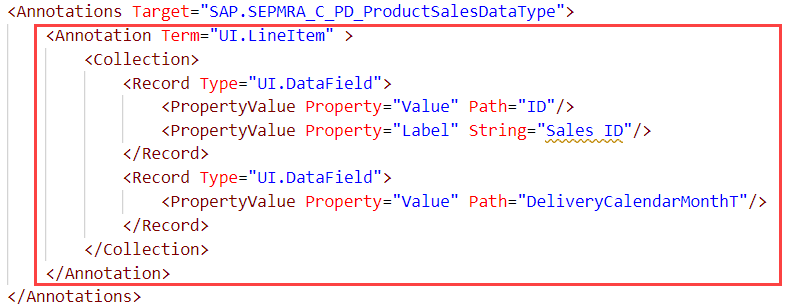
Add column Save the file
anootation.xml.
Now you are going to add the actual section that displays the table of sales data to your object page. This will allow users to see instances of when their selected item has sold.
Within the code block of the annotation term
UI.Facetsof the targetSAP.SEPMRA_C_PD_ProductType, find the end tag</Record>of typeUI.ReferenceFacetand hit Enter.You need to insert a new
UI.ReferenceFacetto include theUI.LineItemannotation term ofto_productSalesDatafrom the previous step.In the new line, use CMD/Ctrl + Space and select ``. Your cursor will move to
AnnotationPath. Use CMD/Ctrl + Space and selectto_productSalesData, then enter/and select@UI.LineItem.Press Tab to go to the property label. Press CMD/Ctrl + Space and select String, then enter the string
Sales Data.Press Tab to go to the property id. Press CMD/Ctrl + Space and select String, then enter the string
SalesData.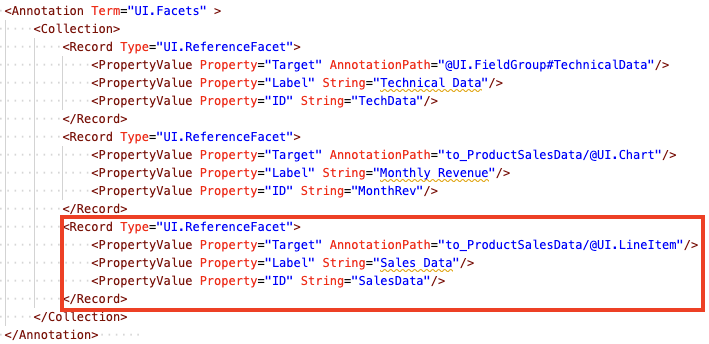
Add New Reference Facet Save the file
annotation.xmland check your running app. You should see a table with line items indicating when the selected item has sold.
If your current product does not show any data, refresh the page. If data is still not displayed, go back to the list report page and select a different product.
Next, you are going to create a second object page for your users that opens when an entry from the Sales Data list is clicked. To do this, you are going to use the Page Map . It provides a visual representation of an application’s pages, navigations, and service entities that it uses. You can use it to add new navigations and pages, delete pages, and navigate to corresponding editing tools.
Like the other tools, you access it through the Command Palette.
Press CMD/CTRL + Shift + P and type
Page Mapand select Fiori: Show Page Map.
Open Page Map This opens the visual representation of your application pages. To add a new object page, click on the + on the first object page.
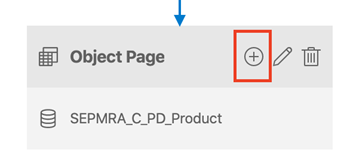
Add New Page From the Navigation dropdown, select the
to_ProductSalesData (SEPMRA_C_PD_ProductSalesData)entry and click Add.
Switch back to your running application. Once your app has refreshed, click on the arrow next to an entry in the Sales Data table, you will be taken a new object page.
In this final step, you are going to add a header and a new section to your second object page so that your users can continue to drill down and see more information about the sales data of their product.
This will be done by annotating SAP.SEPMRA_C_PD_ProductSalesDataType to populate the page. This is handled using the same tools featured in the previous steps and tutorials, so the code you need to populate page is included below to save time.
If you would like to try it yourself, feel free to take advantage of the tools shown in the previous tutorials and compare your code to the snippet below.
In your local annotation file annotation.xml, for the target SAP.SEPMRA_C_PD_ProductSalesDataType, you have to add 3 new annotation terms after the UI.LineItem annotation term. Insert a new line after the following annotation term block:
<Annotation Term="UI.LineItem" >
.......
</Annotation>Copy and paste the following code in the new line you inserted above.
<Annotation Term="UI.HeaderInfo" >
<Record Type="UI.HeaderInfoType">
<PropertyValue Property="TypeName" String="Sales Order" />
<PropertyValue Property="TypeNamePlural" String="Sales Orders"/>
<PropertyValue Property="Title">
<Record Type="UI.DataField">
<PropertyValue Property="Value" Path="Product"/>
</Record>
</PropertyValue>
</Record>
</Annotation>
<Annotation Term="UI.FieldGroup" >
<Record Type="UI.FieldGroupType">
<PropertyValue Property="Data">
<Collection>
<Record Type="UI.DataField">
<PropertyValue Property="Value" Path="DeliveryCalendarDate"/>
</Record>
<Record Type="UI.DataField">
<PropertyValue Property="Value" Path="DeliveryCalendarMonth"/>
</Record>
<Record Type="UI.DataField">
<PropertyValue Property="Value" Path="DeliveryCalendarMonthT"/>
</Record>
</Collection>
</PropertyValue>
</Record>
</Annotation>
<Annotation Term="UI.Facets" >
<Collection>
<Record Type="UI.ReferenceFacet">
<PropertyValue Property="Target" AnnotationPath="@UI.FieldGroup"/>
<PropertyValue Property="Label" String="Sales Information"/>
</Record>
</Collection>
</Annotation>Save your file annotation.xml.
Between the <Schema> and </Schema> tags, your code should look like the following snippet. Once you have checked that your code is the same, save and a take a look at your second object page. It should now feature a header with the Sales Data name and more information about the product’s sale.
<Annotations Target="SAP.SEPMRA_C_PD_ProductType">
<Annotation Term="UI.SelectionFields">
<Collection>
<PropertyPath>to_PriceRange/PriceClassification</PropertyPath>
<PropertyPath>to_ProductCategory/MainProductCategory</PropertyPath>
<PropertyPath>Supplier</PropertyPath>
</Collection>
</Annotation>
<Annotation Term="UI.FieldGroup" Qualifier="TechnicalData">
<Record>
<PropertyValue Property="Data">
<Collection>
<Record Type="UI.DataField">
<PropertyValue Property="Value" Path="ProductBaseUnit"/>
<Annotation Term="UI.Importance" EnumMember="UI.ImportanceType/High"/>
</Record>
<Record Type="UI.DataField">
<PropertyValue Property="Value" Path="Height"/>
<Annotation Term="UI.Importance" EnumMember="UI.ImportanceType/Medium"/>
</Record>
<Record Type="UI.DataField">
<PropertyValue Property="Value" Path="Width"/>
<Annotation Term="UI.Importance" EnumMember="UI.ImportanceType/Medium"/>
</Record>
<Record Type="UI.DataField">
<PropertyValue Property="Value" Path="Depth"/>
<Annotation Term="UI.Importance" EnumMember="UI.ImportanceType/Medium"/>
</Record>
<Record Type="UI.DataField">
  <PropertyValue Property="Value" Path="Weight"/>
  <Annotation Term="UI.Importance" EnumMember="UI.ImportanceType/Medium"/>
</Record>
<Record Type="UI.DataField">
  <PropertyValue Property="Value" Path="DimensionUnit"/>
</Record>
</Collection>
</PropertyValue>
<PropertyValue Property="Label" String="Technical Data"/>
</Record>
</Annotation>
<Annotation Term="UI.Facets" >
<Collection>
<Record Type="UI.ReferenceFacet">
<PropertyValue Property="Target" AnnotationPath="@UI.FieldGroup#TechnicalData"/>
<PropertyValue Property="Label" String="Technical Data"/>
<PropertyValue Property="ID" String="TechData"/>
</Record>
<Record Type="UI.ReferenceFacet">
<PropertyValue Property="Target" AnnotationPath="to_ProductSalesData/@UI.Chart"/>
<PropertyValue Property="Label" String="Monthly Revenue"/>
<PropertyValue Property="ID" String="MonthRev"/>
</Record>
<Record Type="UI.ReferenceFacet">
<PropertyValue Property="Target" AnnotationPath="to_ProductSalesData/@UI.LineItem"/>
<PropertyValue Property="Label" String="Sales Data"/>
<PropertyValue Property="ID" String="SalesData"/>
</Record>
</Collection>
</Annotation>
</Annotations>
<Annotations Target="SAP.SEPMRA_C_PD_ProductSalesDataType">
<Annotation Term="UI.LineItem" >
<Collection>
<Record Type="UI.DataField">
<PropertyValue Property="Value" Path="ID"/>
<PropertyValue Property="Label" String="Sales ID"/>
</Record>
<Record Type="UI.DataField">
<PropertyValue Property="Value" Path="DeliveryCalendarMonthT"/>
</Record>
</Collection>
</Annotation>
<Annotation Term="UI.HeaderInfo" >
    <Record Type="UI.HeaderInfoType">
        <PropertyValue Property="TypeName" String="Sales Order" />
        <PropertyValue Property="TypeNamePlural" String="Sales Orders"/>
        <PropertyValue Property="Title">
            <Record Type="UI.DataField">
                <PropertyValue Property="Value" Path="Product"/>
            </Record>
        </PropertyValue>
    </Record>
</Annotation>
<Annotation Term="UI.FieldGroup" >
    <Record Type="UI.FieldGroupType">
        <PropertyValue Property="Data">
            <Collection>
                <Record Type="UI.DataField">
                    <PropertyValue Property="Value" Path="DeliveryCalendarDate"/>
                </Record>
                <Record Type="UI.DataField">
                    <PropertyValue Property="Value" Path="DeliveryCalendarMonth"/>
                </Record>
                <Record Type="UI.DataField">
                    <PropertyValue Property="Value" Path="DeliveryCalendarMonthT"/>
                </Record>
            </Collection>
        </PropertyValue>
    </Record>
</Annotation>
<Annotation Term="UI.Facets" >
    <Collection>
        <Record Type="UI.ReferenceFacet">
            <PropertyValue Property="Target" AnnotationPath="@UI.FieldGroup"/>
            <PropertyValue Property="Label" String="Sales Information"/>
        </Record>
    </Collection>
</Annotation>
</Annotations>At this point, your List Report Object Page app is complete.
Congratulations! Over the past four tutorials, you have used SAP Fiori tools to simplify the development of this application. You’ve seen how:
The Application Generator provides a wizard-style approach to generating projects based on SAP Fiori elements page types.
Guided Development walks you through adding new features.
Service Modeler enables you to visualize the backend service and its associated annotations.
XML Annotation Language Server helps you add and edit local annotations in code editor directly.
Page Map visualizes the structure of the pages in your app, as well as allows you easily create additional pages.
All of these tools can be used with any of the available SAP Fiori elements page types. Good luck with your future projects!
Resources
Discussion
Share feedback on this tutorial or join the conversation in SAP Community.