
Overview
You will learn
- How to configure the connectivity between SAP Integration Suite, advanced event mesh and SAP Cloud Application Event Hub


Prerequisites
Prerequisites
- You’ve completed the previous tutorial: Set up SAP Cloud Application Event Hub.
- You are familiar with the concepts explained in the SAP Cloud Application Event Hub - Basic Concepts tutorial.
- The publisher system is already configured in your system landscape and it is part of the formation used to enable eventing between SAP cloud systems.
- You have access to an SAP Integration Suite, advanced event mesh (AEM) instance and an instance of SAP Cloud Application Event Hub in your SAP BTP account.
Steps
Intro
This tutorial describes how we can configure the connectivity between SAP Integration Suite, advanced event mesh (AEM) and SAP Cloud Application Event Hub. For this, we will generate a self-signed certificate that will be used to authenticate the communication between SAP Cloud Application Event Hub and AEM. We will then configure certificate based authentication in AEM and finalise by adding some integration dependencies in AEM so that events can start flowing from a publisher system via SAP Cloud Application Event Hub to AEM.
To secure the communication between SAP Cloud Application Event Hub and AEM, we need to set up and configure certificate authentication. For this, we will first create a self-signed certificate, which will need to include the details (subaccount domain) of the SAP Cloud Application Event Hub instance.
For simplicity purpose, we will use the sample script that’s included with this tutorial (generate-cert-key-for-event-hub.sh) to generate the self-signed certificate and private key required.
Download the script and open it in a text editor.
Shell#!/bin/bash # The script below works on a Mac with OpenSSL installed # # Replace the value of CERT_NAME with the subaccount subdomain. # You can find this value by navigation to the subaccount > Overview page. # In the General section there is a field called Subdomain CERT_NAME="my-subaccount-plw8f86u" openssl req -x509 -out ${CERT_NAME}.crt -keyout ${CERT_NAME}.key \ -newkey rsa:2048 -nodes -sha256 \ -subj "/CN=${CERT_NAME}" -extensions EXT -config <( \ printf "[dn]\nCN=${CERT_NAME}\n[req]\ndistinguished_name = dn\n[EXT]\nsubjectAltName=DNS:${CERT_NAME}\nkeyUsage=digitalSignature\nextendedKeyUsage=serverAuth") awk 'NF {sub(/\r/, ""); printf "%s\\n",$0;}' ${CERT_NAME}.crt > ${CERT_NAME}-single-line.crt awk 'NF {sub(/\r/, ""); printf "%s\\n",$0;}' ${CERT_NAME}.key > ${CERT_NAME}-single-line.keyReplace the value of the
CERT_NAMEvariable with the subaccount subdomain where the SAP Cloud Application Event Hub instance is located. You can find this value by navigation to the SAP BTP subaccount > Overview page. In the General section there is a field calledSubdomain.Run the script in your terminal, e.g.
./generate-cert-key-for-event-hub.sh. This will generate four files:<subaccount-subdomain>.crt: Self-signed certificate<subaccount-subdomain>.key: Private key<subaccount-subdomain>-single-line.crt: Self-signed certificate in a single line<subaccount-subdomain>-single-line.key: Private key in a single line
The self-signed certificate will be imported in the AEM instance in a future step, while the certificate and private key will be used to create a service binding in the SAP Cloud Application Event Hub event-connectivity instance that we will create later.
Go to the the SAP Integration Suite, advanced event mesh system in the BTP global account System Landscape > Systems page.
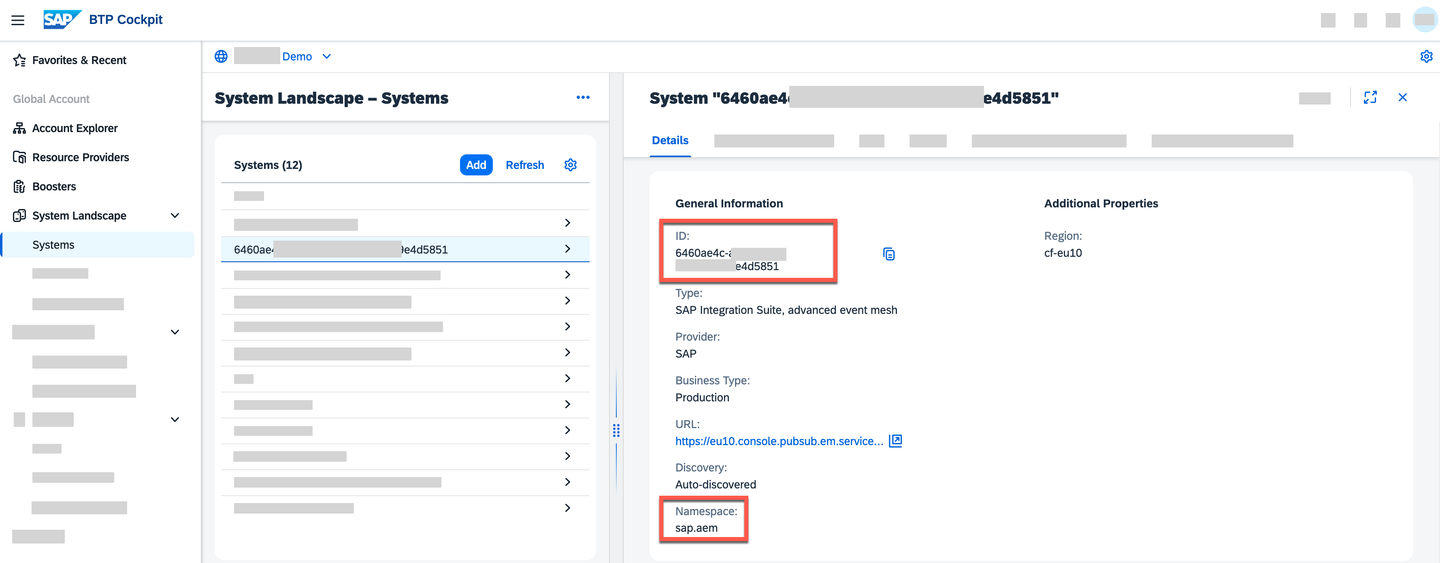
Select the SAP Integration Suite, advanced event mesh instance and copy the values for the fields below included in the Details tab:
IDNamespace
These AEM instance details will be required when creating the SAP Cloud Application Event Hub event-connectivity instance in a future step.
Apart from the AEM instance details that we can find in the SAP BTP cockpit, we also need to gather the event broker details from AEM. For this, we need to access the AEM:
Navigate to the SAP BTP subaccount where the SAP Integration Suite, advanced event mesh instance lives. Go to Services > Instances and Subscriptions and click on the
SAP Integration Suite, advanced event meshinstance.In the AEM UI, go to Cluster Manager and select the event broker service that will be receiving the events from SAP Cloud Application Event Hub.

AEM broker services In the event broker service details page, go to the Connect tab and expand one of the connect options. In it, select an item where the protocol used is
REST. This will show you the connection details required to connect to the event broker via REST. Copy theSecured REST URIvalue as it will be required in a future step.
REST protocol URI
Before we import the self-signed certificate created previously in AEM, we first need to check that certificate based authentication is enabled in the event broker.
In the AEM UI, go to the Cluster Manager, choose the … button in the event broker tile and select the Open Broker Manager option.

Open Broker manager option In the Broker Manager UI, navigate to Messaging > Access Control > Client Authentication and ensure that the Client Certificate Authentication toggle is enabled.

Client Certificate Authentication
Now that we have confirmed that client certificate authentication is enabled, we can proceed to import the self-signed certificate in AEM.
Navigate to the event broker service details page in the AEM UI and go to the Manage tab. Here, select the Certificate Authorities tile within Authentication and Security.

Certificate Authorities tile In the Client Certificate Authorities tab, choose the Add Client Certificate Authority button.
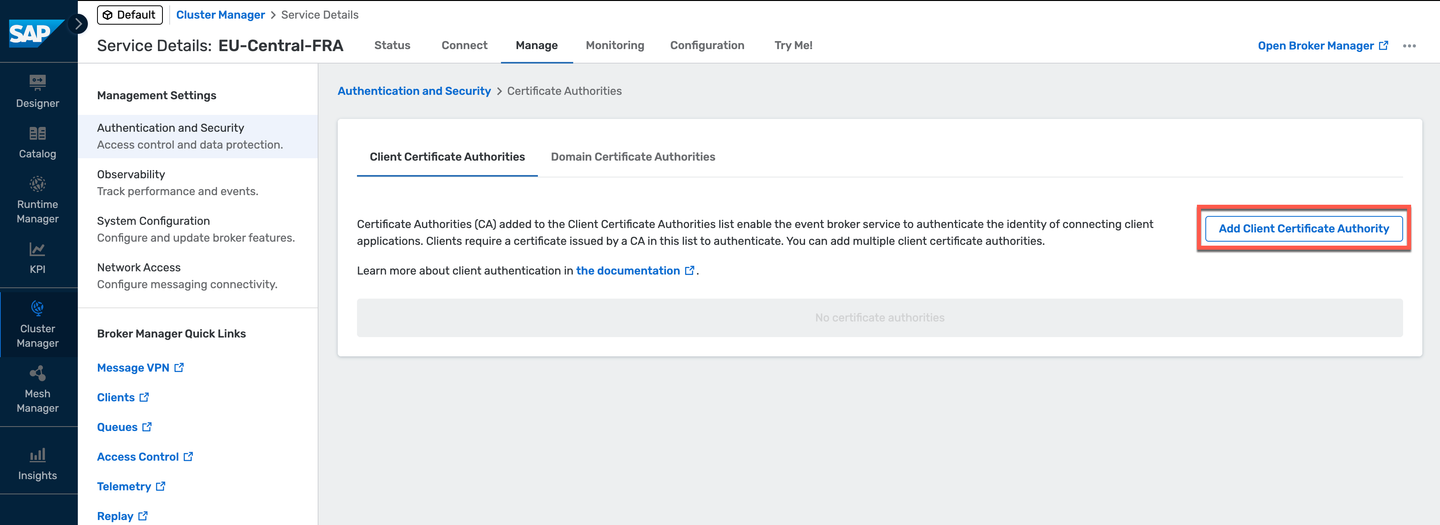
Add Client Certificate Authority button In the popup, provide a meaningful name for the certificate authority, e.g. based on the Event Hub subdomain, and copy the content of the self-signed certificate file created previously. Then, choose the Save button.
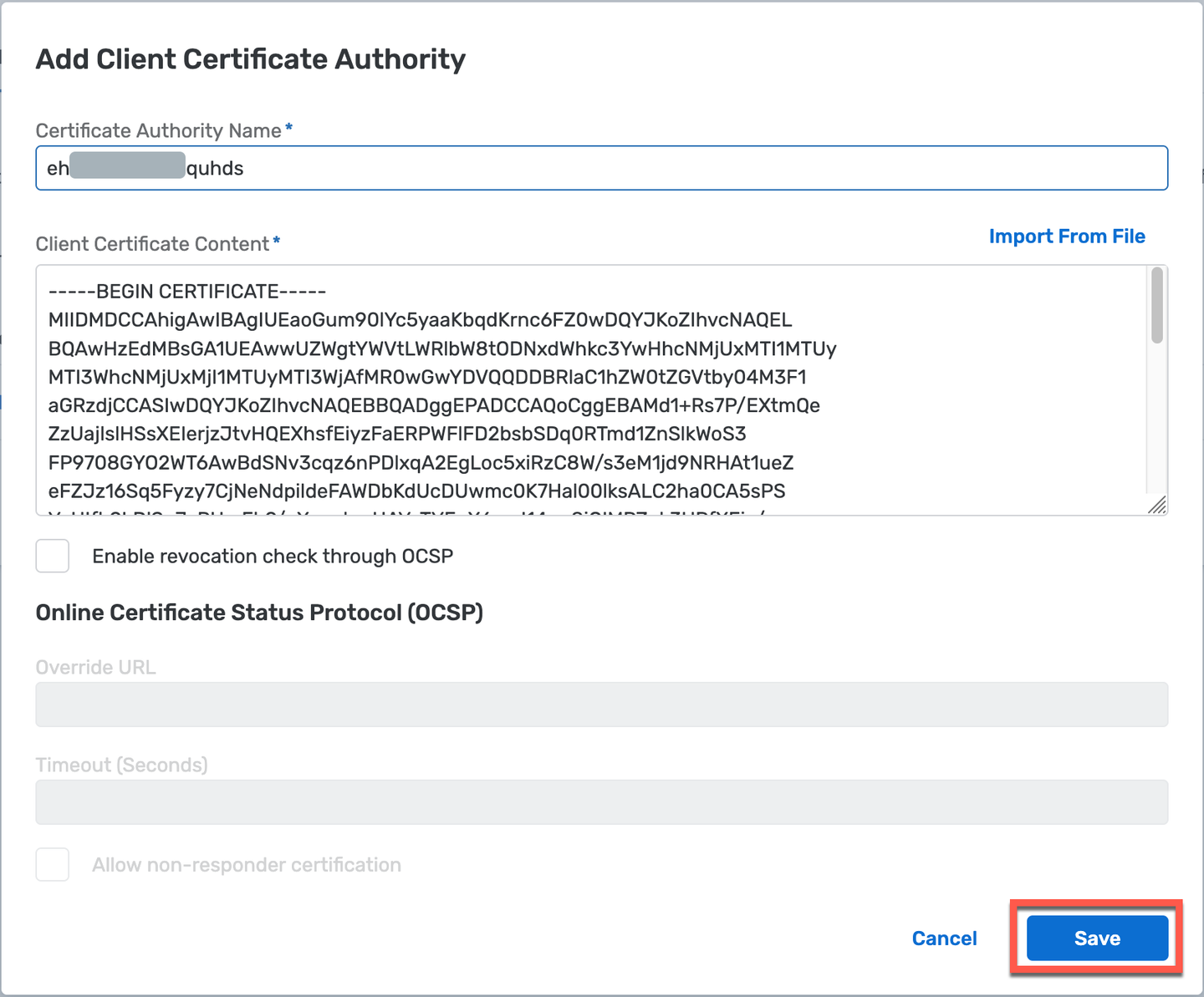
Add Client Certificate
The self-signed certificate is now imported in AEM and ready to be used for authentication.
The last step required in AEM is to create a user that will be used by SAP Cloud Application Event Hub. The name for the user created here will need to match the value provided when generating the self-signed certification in the previous step (subaccount domain).
Navigate to the broker manager UI and go to Messaging > Access Control > Client Username. Choose the + Client Username button.
In the popup, enter the same name as the one provided in the self-signed certificate (subaccount domain). Then, choose the Create button.
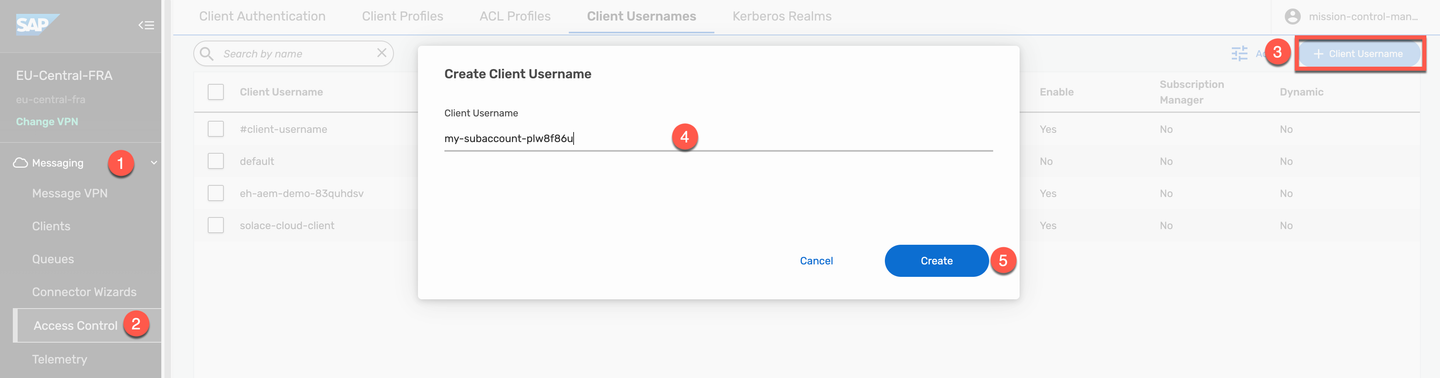
AEM Users section Once the user is created, enable it by toggling the Enabled button and choose the Apply button.
With this last step, we have finished all the configuration required in AEM.
To configure the connectivity between SAP Cloud Application Event Hub and SAP Integration Suite, advanced event mesh, we need to create an instance of the event-connectivity service in the SAP BTP subaccount where the SAP Cloud Application Event Hub instance is located.
In the SAP BTP subaccount, navigate to Services > Instances and Subscriptions and choose the Create button.
In the dialog, select the
SAP Cloud Application Event Hubservice andevent-connectivityplan. Enter a meaningful name for the instance and choose the Next button.
AEM Connectivity Instance In the parameters section, provide the following payload, replacing the values of
webhookUrlandsystemIdwith the values gathered in the previous steps.JSON{ "systemNamespace": "sap.aem", "webhookUrl": "https://mr-connection-yj7whkyb4f5.messaging.solace.cloud:9443", "systemId":"6820ed1a-b18c-5fb4-hb88-231b0b1a7687" }
Event Hub AEM instance parameters Finish the instance creation by choosing the Create button.
Now that we’ve shared the AEM instance details with SAP Cloud Application Event Hub, we need to create a service binding to share the certificate and private key created previously.
If you used the script provided in the assets folder, it would have generated a couple of files with the suffix ‘-single-line’. These files contain that values of the certificate and private key in a single line. Copy the values in the files and replace the values of the respective fields (certificate and key) in the payload below.
{
  "authentication-type": "X509_PROVIDED",
  "x509": {
    "outbound": {
        "certificate": "-----BEGIN CERTIFICATE-----\nMIIFuTCCA...vD4uOWDqNcaug=\n-----END CERTIFICATE-----",
        "key": "-----BEGIN PRIVATE KEY-----\nMIIEvAIBA...Yj6ZLnghA==\n-----END PRIVATE KEY-----"
    }
  }
}- In the SAP BTP subaccount, select the service instance created in the previous step and choose the Create button in the Service Bindings section.
- Enter a meaningful name for the service binding and provide the updated payload above in the Configure Binding Parameters text area. Then, choose the Create button.
The service binding will be created and the certificate and private key will be used to authenticate the connection between SAP Cloud Application Event Hub and AEM.
The formation will need to be of type Eventing between SAP cloud systems to enable the event exchange.
In the SAP BTP cockpit, navigate to the Formations section, choose the Include Systems button in the formation.

Include systems in formation In the pop-up, select the AEM system. Then, choose the Next Steps button.
Once the formation finishes synchronizing, the SAP Integration Suite, advanced event mesh system will be part of the formation and we will be able to configure integration dependencies so that events start flowing to SAP Build Process Automation.

The connectivity set up is now complete. We can proceed to add integration dependencies to start receiving events from a publisher system.
To validate the connectivity between SAP Cloud Application Event Hub and SAP Integration Suite, advanced event mesh, we need to define an integration dependency for the AEM system and then enable the subscription in Event Hub.
In the SAP BTP cockpit - Systems page, select the SAP Build Process Automation system and then choose the Add button in the Integration Dependencies section.

Add new integration dependency In the popup, we will select the Simplified Business Eventing Template, then choose the Next Step button.
Now, as we define the integration dependency, we specify the following information:
Name: Enter a meaningful name for the integration dependency.Description: A description of the integration dependency.Publishing System Namespace: The namespace of the system that will be producing the events. We can find the namespace of a system by navigating to the System Landscape, selecting the system, and then going to the Details tab.Event Types: The types of events that the consuming system is interested in.

Example integration dependency details Once we’ve defined all the event types that the consuming system is interested in, we can choose the Review button and then choose Add to save the integration dependency.
Navigate to the SAP Cloud Application Event Hub UI and enable the subscription for the newly created integration dependency. The new subscription will be listed in the Available Subscriptions section. Select the subscription and toggle the Enable button.
In AEM, go to the event broker where the events are expected to arrive, connect to it via the Try Me! tool and subscribe to the topic where the events are being published.
Assuming an event Publisher with the following attributes:
Region: XGH
System Namespace: sap.sf
System ID: 123
which publishes an Event Type:
sap.sf.onboarding.journey.reviewNewHireData.created.v1. Then that event will be received by AEM on the topic:XGH/sap.sf/123/ce/sap/sf/onboarding/journey/reviewNewHireData/Created/v1You can find these details in System Landscape > Systems under Details.
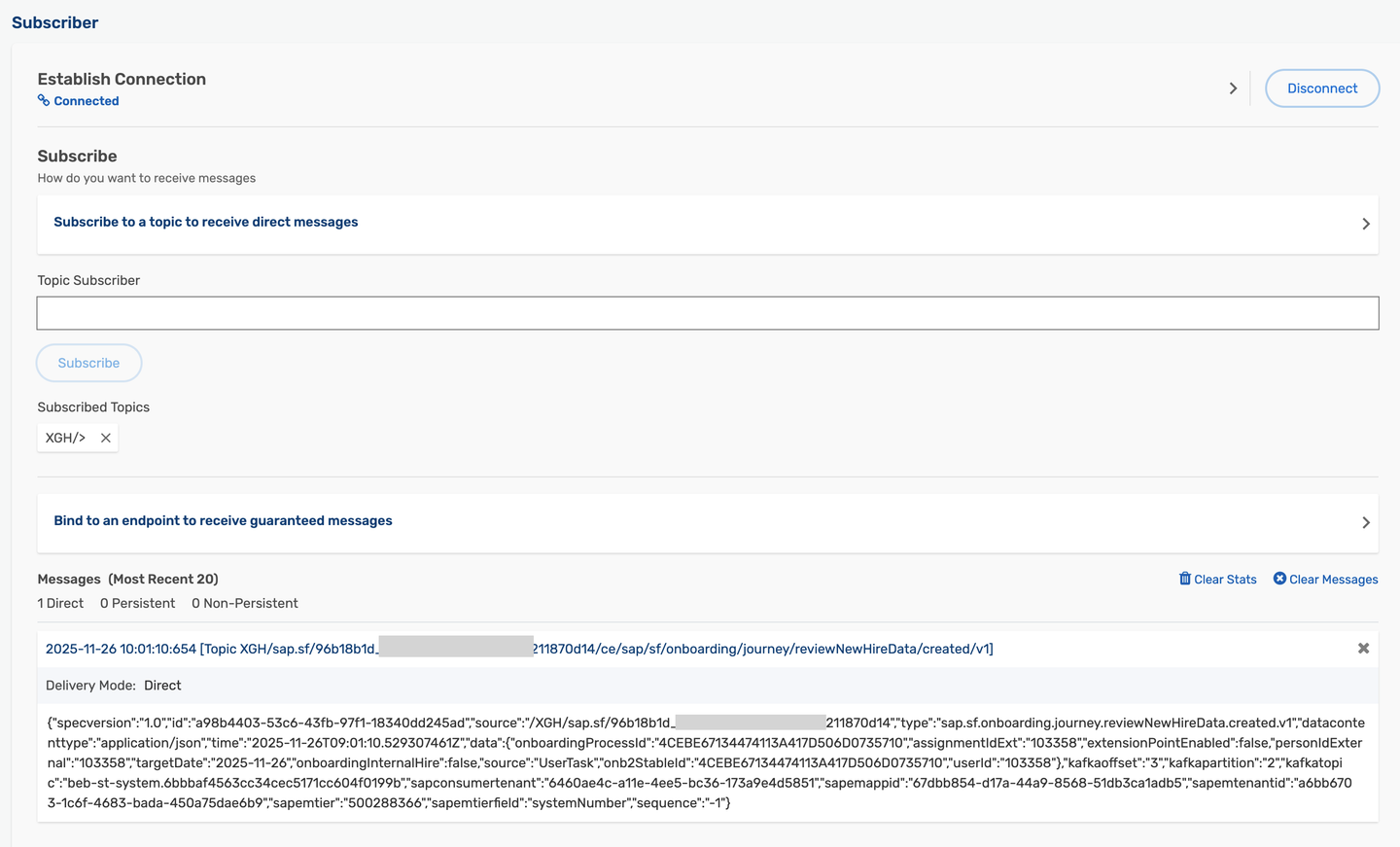
alt text In the screenshot above, we can see that an event has been successfully received from SAP SuccessFactors via SAP Cloud Application Event Hub.
- SAP Help documentation on setting up SAP Integration Suite, Advanced Event Mesh as a Consumer in SAP Cloud Application Event Hub.
- Get started with SAP Integration Suite, advanced event mesh tutorial.
Resources
Discussion
Share feedback on this tutorial or join the conversation in SAP Community.