
Overview
You will learn
- How to generate a
SQLSelect Statement for a Calculation View - How to Visualize Queries


Prerequisites
Prerequisites
- Tutorials: “Adding Our Union Calculation View into the Converted Data Model” and “Migrate Records in Related Tables Using Stored Procedure”
Steps
We will now generate a SQL select statement for our AV_ORDERS calculation view. It will be editted to query all rows between 6 months and 18 months ago. Since ORDERS_CS contains all data from the current year and ORDERS_DT contains all data older than a year, the result set will span both the in-memory table instance and the extended table instance.
We will then visualize the plan, and show again that data is being queried from both in-memory and extended storage.
Before we begin, open a SQL console, and run our Migrate_Aged_Orders() function created from our previous tutorial, Migrate Records in Related Tables Using Stored Procedure. This will ensure that all data older than one year is moved from ORDERS_CS into ORDERS_DT.
Click execute, to run the statement.
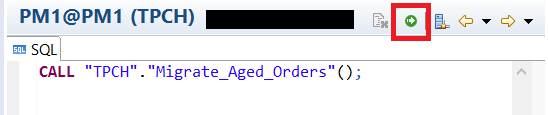
CALL "TPCH"."Migrate_Aged_Orders"();Now, right click on the calculation view AV_ORDERS and click Generate Select SQL.

The result:

We will add a WHERE statement, so the query only returns results between 6 to 18 months ago. This is done to ensure that it is collecting data from both ORDERS_CS and ORDERS_DT. Add the following between the FROM and GROUP BY lines:

WHERE "O_ORDERDATE"
	BETWEEN ADD_YEARS(CURRENT_DATE, -1.5)
		AND ADD_YEARS(CURRENT_DATE, -0.5)
Click execute.

The results should look like the following image:

We can also visualize the query, by going back to the SQL tab, right clicking, and selecting Visualize Plan > Execute.

After it executes, navigate to the Executed Plan tab.

On the bottom panel, navigate to the Operator List tab, and search for the operator name ES.

Double click one of the results, and it will zoom into the selected operator. As you can see by the Remote Row Scan box, the query accessed the extended table.

Resources
Discussion
Share feedback on this tutorial or join the conversation in SAP Community.