
Overview
You will learn
- How to start the workflow from Monitor Workflow application
- How to track and view workflow progress from Process Visibility Workspace


Prerequisites
Steps
First, we will import sample events & data, process these events and view them in workspace using different process visibility applications. This is mainly done to give you a demo-ready workspace with pre-filled data. Later, you will run the employee onboarding workflow and see the process workspace being updated automatically in real time.
Download the events
Employee_OnboardingEvents.jsonfile from here.In the Workflow Management Launchpad, click the Event Acquisition tile.
You got the workflow management application link in the last step of the set up tutorial. The link would be like:
https://<subdomain>.cockpit.workflowmanagement.cfapps.<eu10 or us10>.hana.ondemand.com/cp.portal/site#Shell-home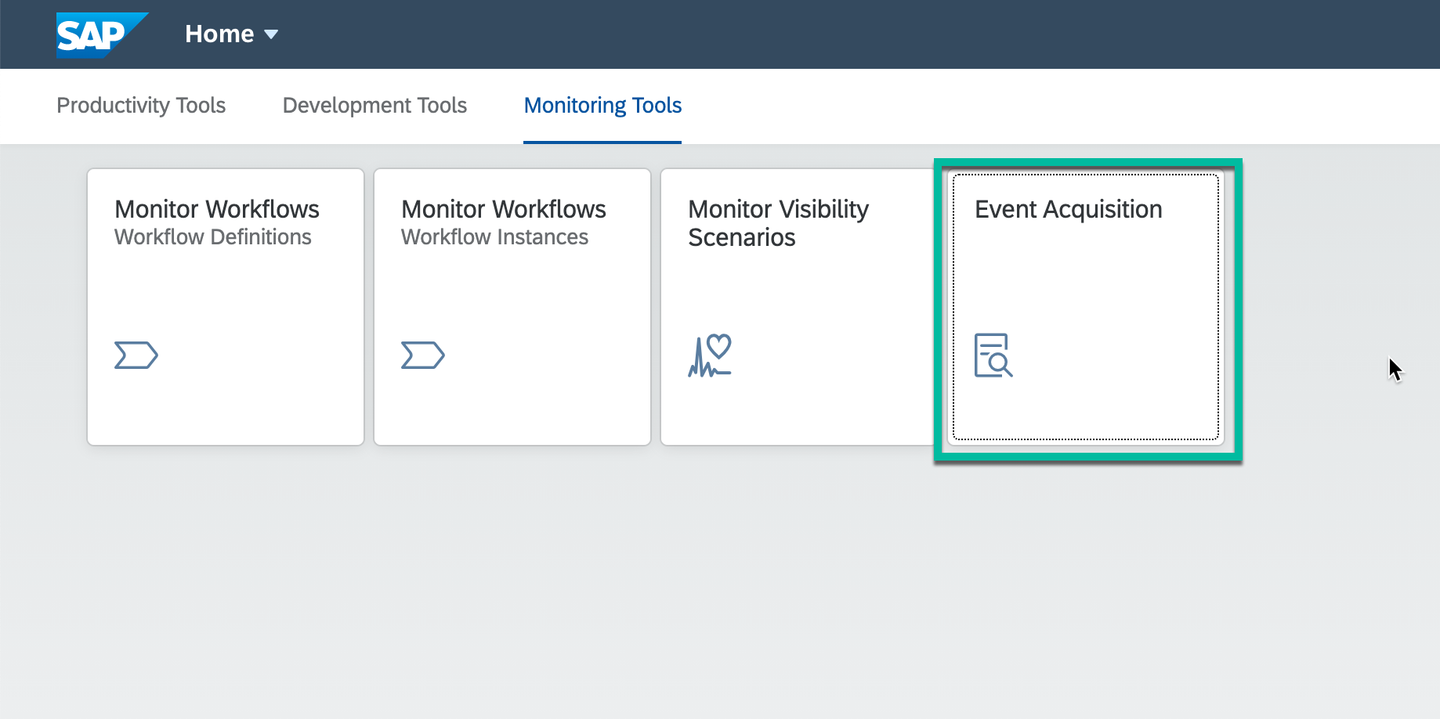
Import Events To import the sample events from the downloaded events file, choose Import.

Import Events Browse to the downloaded events file location, select the file and click Import

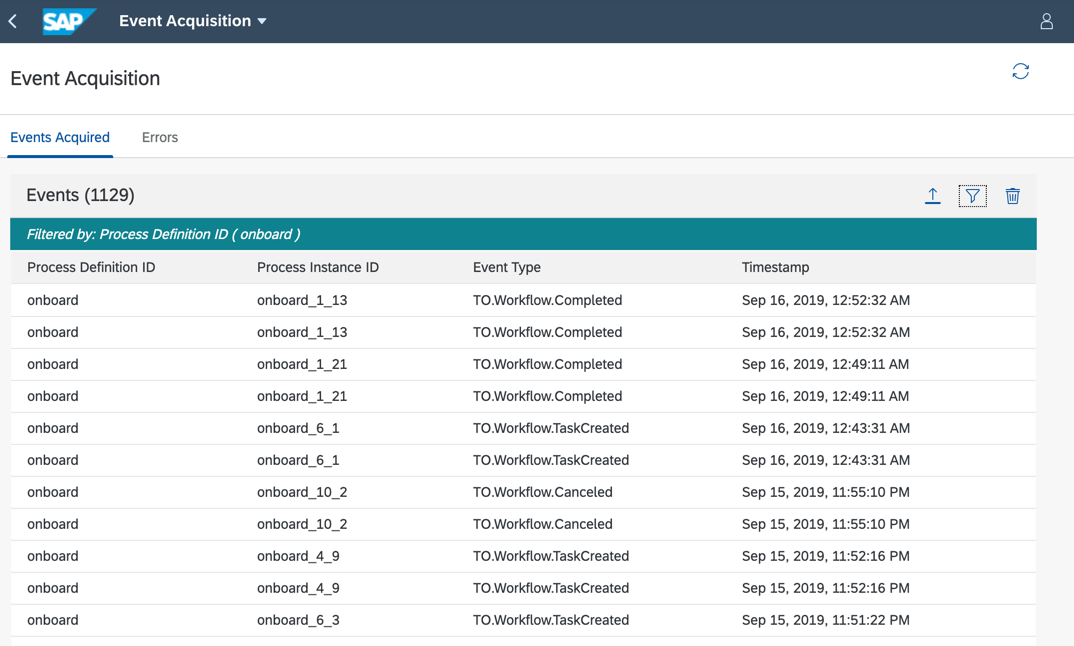
Import Events Once the events are imported successfully, choose Filter, select Process Definition ID and enter
onboardto see all the imported events.
See Events 
See Events All the sample events are displayed.
See Events
In the Workflow Management Launchpad, click the Monitor Visibility Scenarios tile.
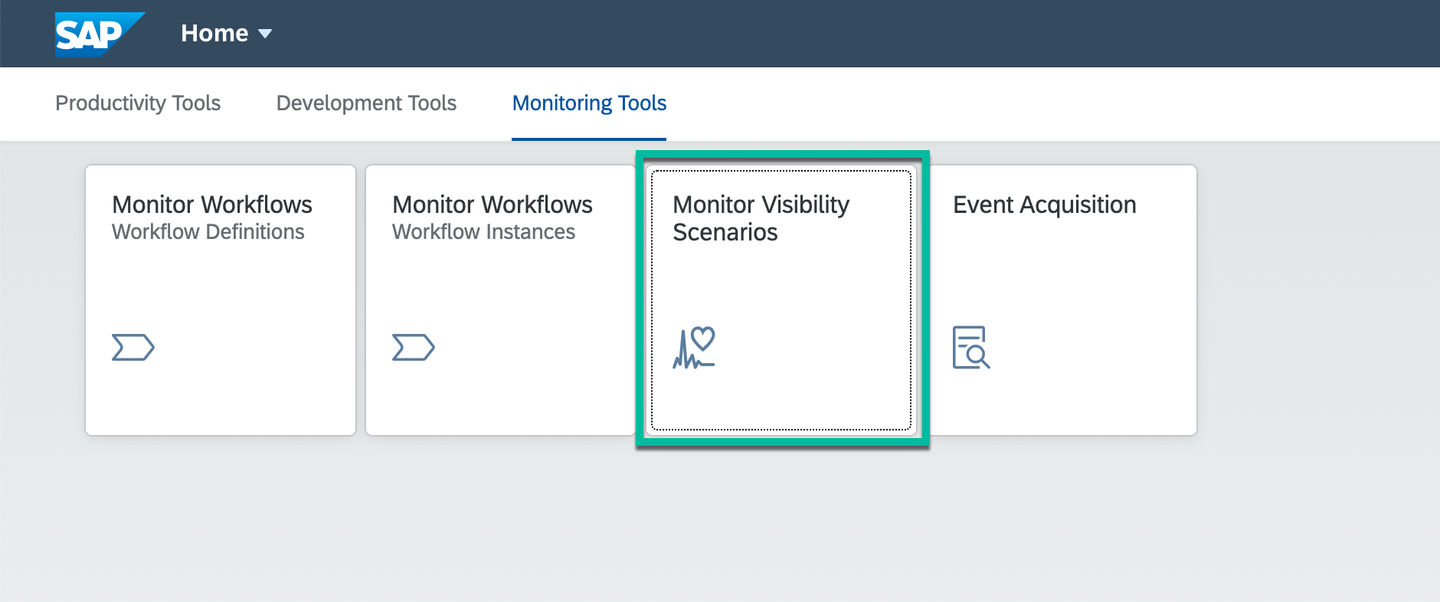
Open Monitor Scenario1 Select
Employee Onboardingscenario and click Process Data.
Process Events Data Refresh to see the processing details.
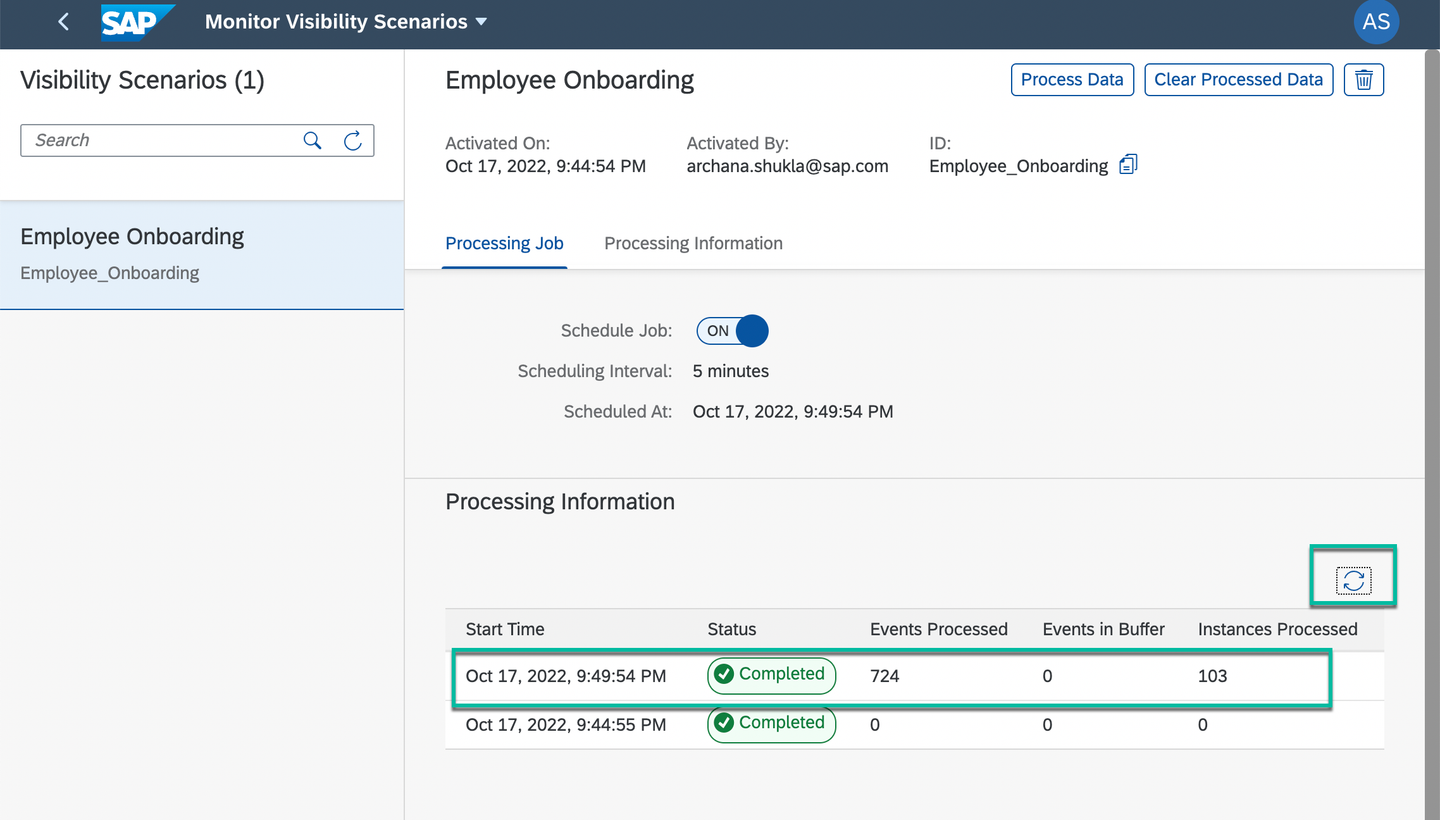
View Processed Data
In the Workflow Management Launchpad, click the Process Workspace tile.

View Scenario1 Click
Employee Onboardingscenario to open the process workspace.
Open Scenario The process visibility workspace for
Employee Onboardingscenario is displayed with sample data.
View Scenario2
Now, you will run the workflow and see how the new events and data are automatically processed and shown in process workspace in real time.
In the Workflow Management Launchpad, open the Monitor Workflow - Workflow Definitions tile to see all deployed workflow definitions.
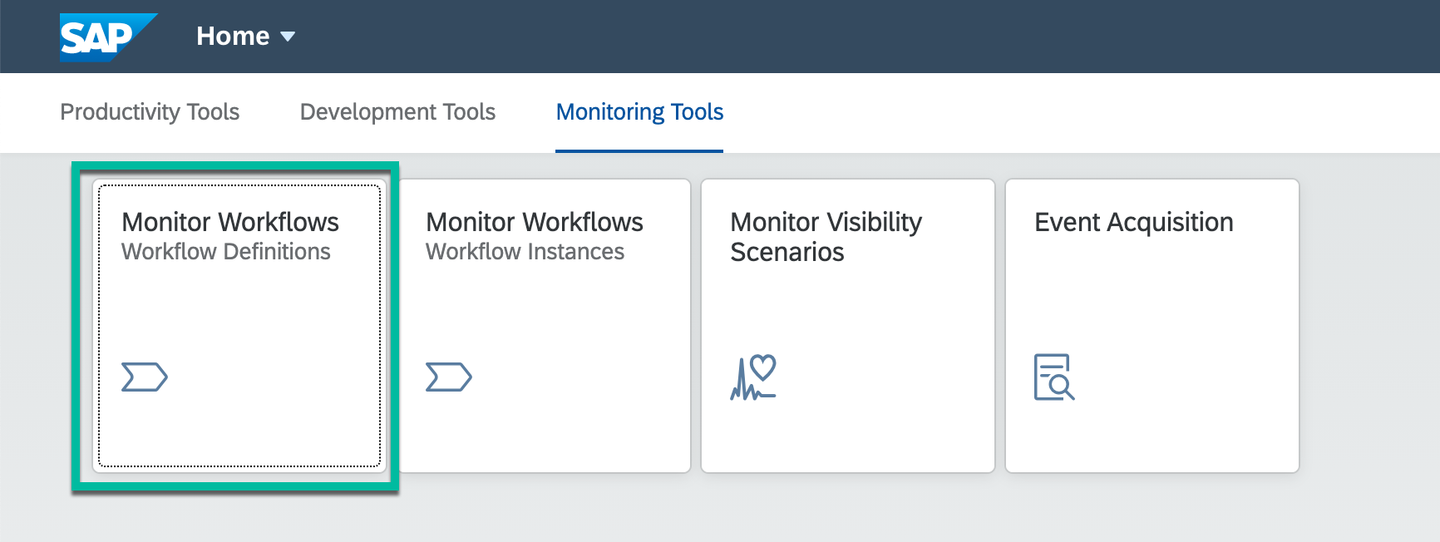
Open Monitor Workflows Select the
onboardworkflow, and choose Start New Instance.The start context is already filled. Choose Start New Instance and Close.

Start New Instance Choose Show Instances to see all workflow instances of the onboard workflow definition.

View Details of Instance Go back to the Workflow Management Launchpad homepage. The My Inbox tile shows one open task.

Open Task in My Inbox Click the My Inbox to display the
Confirm or Change Equipmentworkflow task.You can add or delete the equipment, by choosing the Add and Cross in Equipment Needed section.
To complete the task, choose Confirm. The task then disappears from the list.
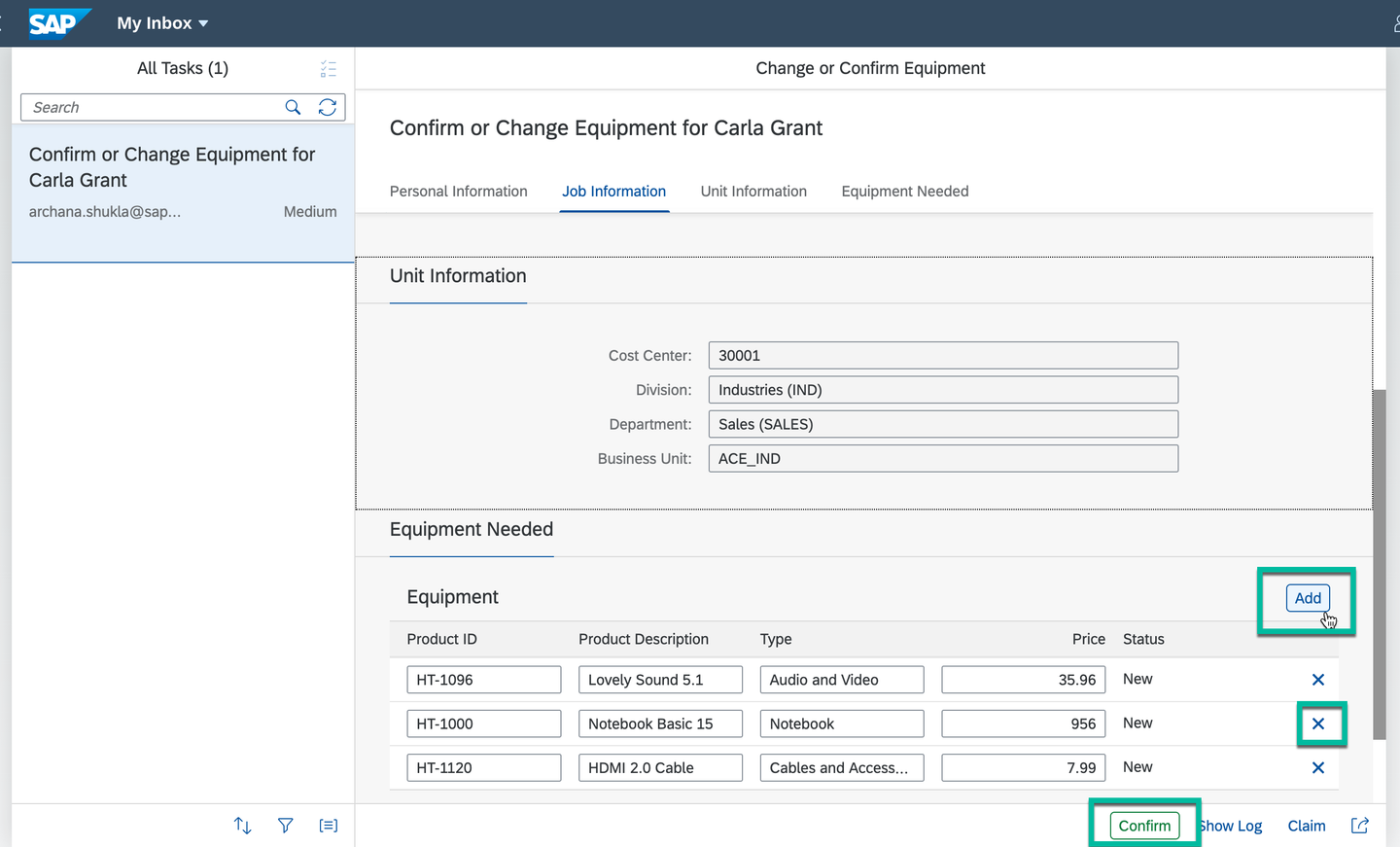
Confirm Task
In the Workflow Management Launchpad, open Monitor Visibility Scenarios application, click Process Data and Refresh to see the new batch of processed events.

New Workflow Event Processed If Schedule Job in ON then the events are automatically processed at an interval of 5 minutes.
Go back to Workflow Management Launchpad, choose the Process Workspace tile and open
Employee Onboardingscenario.You will notice that the Open Instances number has changed which means the workflow instance has been processed and its progress can be tracked from this process visibility workspace.

Process Workspace
Go back to My Inbox application, click Approve to approve the
Approve Equipmenttask:- If you do not see the task, refresh the My Inbox tile to see the
Approve Equipmenttask.
The
Approve Equipmenttask shows the equipment configured by the buddy. As a manager, you can either approve or reject the proposed equipment for the new hire. To complete the task, chooseApprove.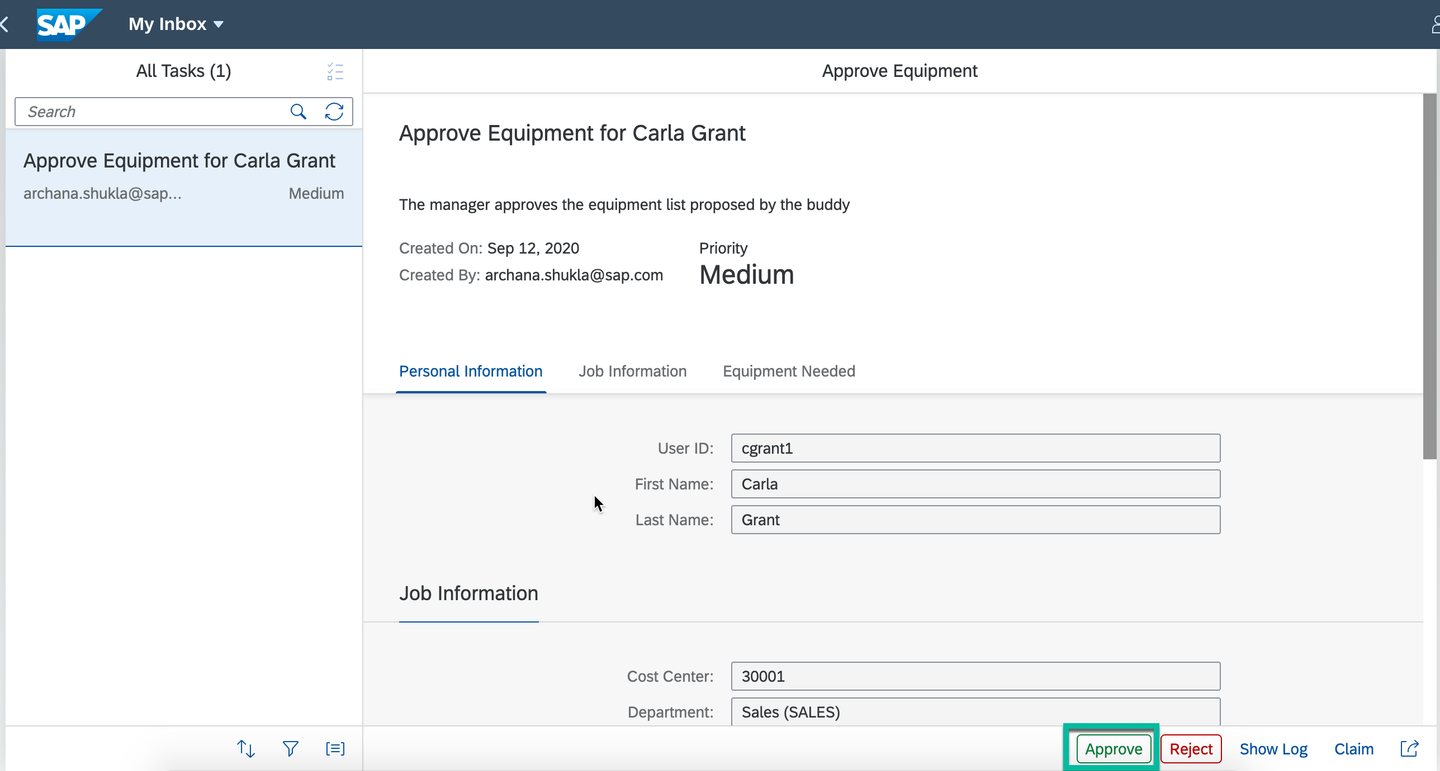
Approve Equipment - If you do not see the task, refresh the My Inbox tile to see the
Refresh the tasks list and execute the Accept Workplace task:
As a buddy, click the Accept Workplace to complete the task. The workflow status is set to Completed.

Accept Equipment In the Workflow Management Launchpad, open the Monitor Workflow - Workflow Instances tile, choose the filter button, select the Status option and choose the Completed status.

View Completed Workflow Instance Now, you see the completed workflow instance. You can choose to see the Execution Log.

View Details Completed Instance
In the Workflow Management Launchpad, choose Monitor Visibility Scenarios to process the new set of events.
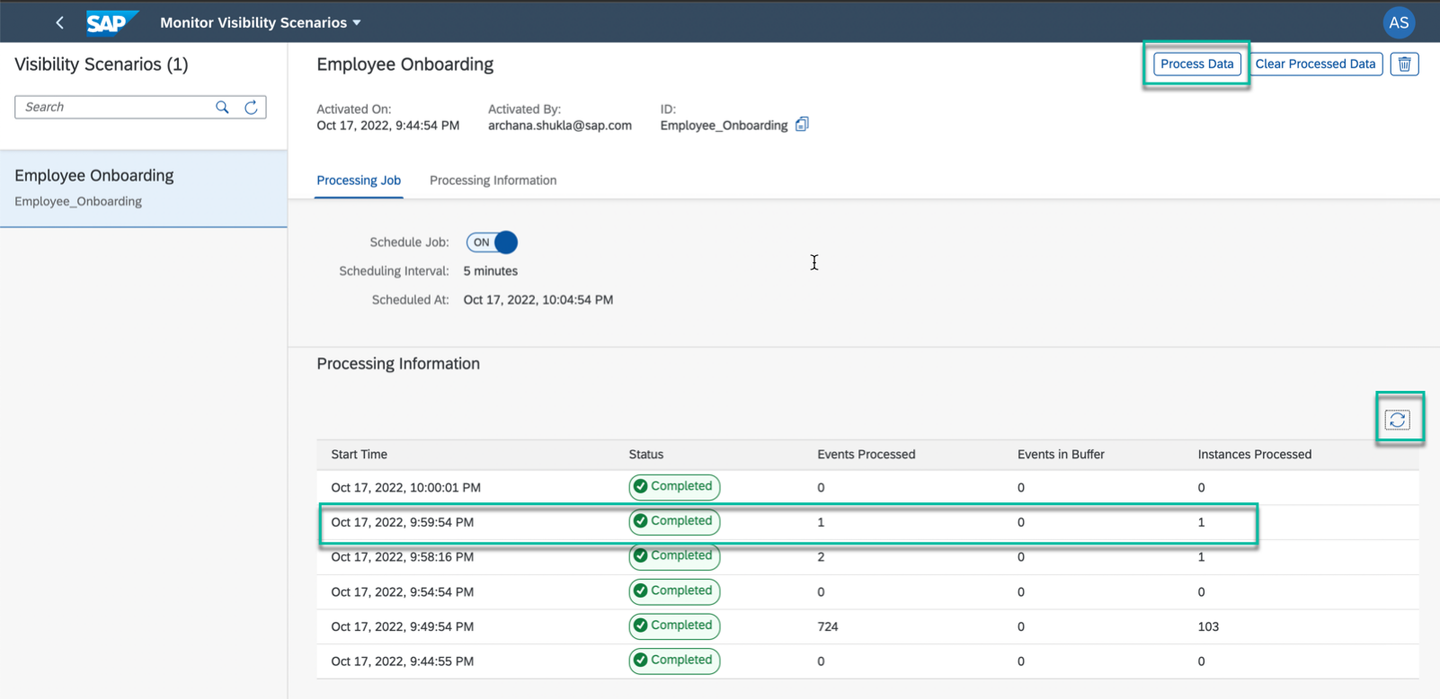
See Processed data Go back to the homepage, choose Process Workspace tile and open the
Employee Onboardingscenario.You will see that the Completed Instances and Cycle Time numbers have changed.
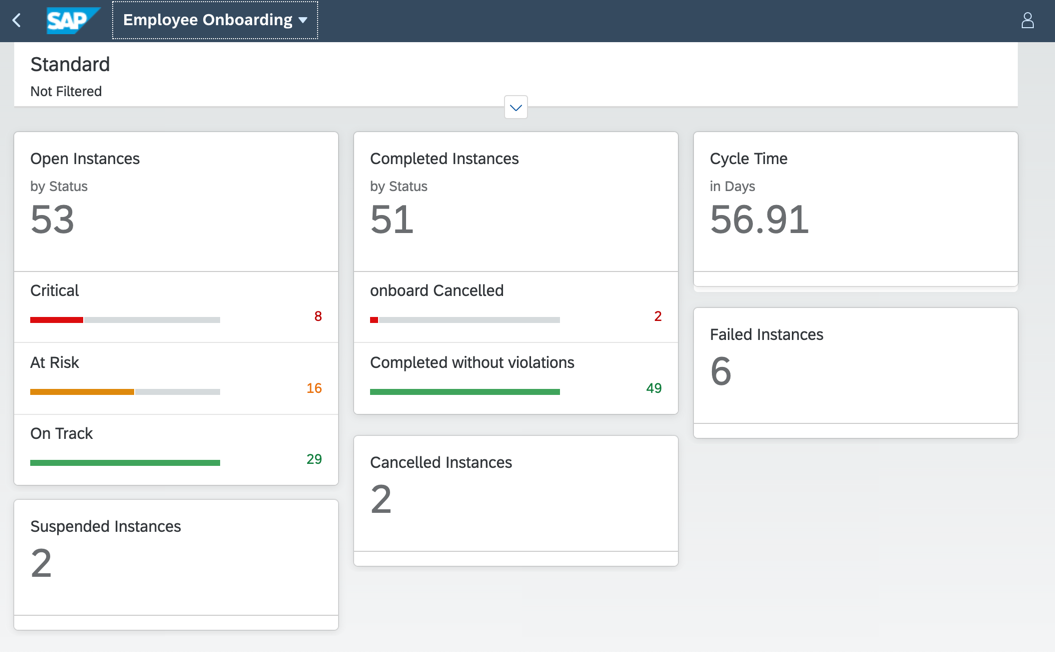
View Scenario4
Congratulations. With this, you have successfully completed the mission on Automating and Extending Employee Onboarding process using Workflow Management. In this mission, you learned about Workflow, Business Rules and Process Visibility capabilities of SAP Workflow Management and how they come together to help you automate processes and decisions, together with providing an out-of-box visibility into the workflows.
Resources
Discussion
Share feedback on this tutorial or join the conversation in SAP Community.