
Overview
You will learn
- How to create a mobile project in SAP Build Lobby
- How to configure the project using Storyboard in SAP Business Application Studio
- How to run it in mobile client


Prerequisites
Prerequisites
- Tutorial group: Set Up for the Mobile Development Kit
- Install SAP Mobile Services Client on your Android or iOS device
 Android |  iOS |
(If you are connecting to AliCloud accounts, you will need to brand your custom MDK client by allowing custom domains.)
Steps
This step includes creating a mobile project in SAP Build Lobby.
In the SAP Build Lobby, click Create > Create to start the creation process.

SAP Build Lobby Create Button Click the Application tile and choose Next.

Application Tile Selection Select the Mobile category and choose Next.

Mobile Category Selection Select the Mobile Application to develop your mobile project in SAP Business Application Studio and choose Next.

Mobile Application Type Selection Enter the project name
mdkapp(used for this tutorial), add a description (optional), and click Review.
Project Name And Description Entry SAP Build recommends the dev space it deems most suitable, and it will automatically create a new one for you if you don’t already have one. If you have other dev spaces of the Mobile Application type, you can select between them. If you want to create a different dev space, go to the Dev Space Manager. See Working in the Dev Space Manager.
Review the inputs under the Summary tab. If everything looks correct, click Create to proceed with creating your project.
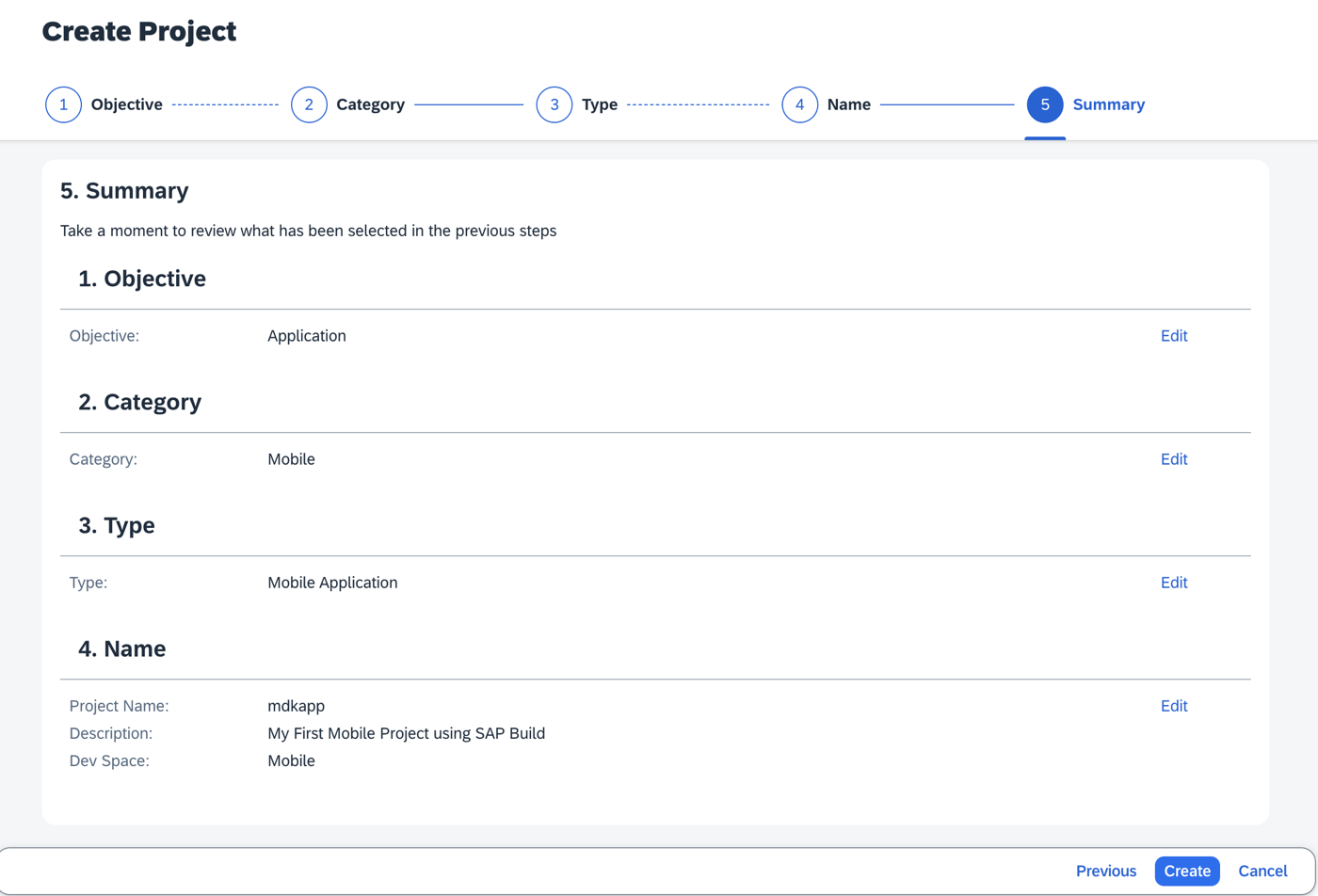
Project Summary Review Screen Your project is being created in the Project table of the lobby. The creation of the project may take a few moments. After the project has been created successfully, click the project to open it.

Project Created In Lobby Table The project opens in SAP Business Application Studio.

SAP BAS Workspace Opened When you open the SAP Business Application Studio for the first time, a consent window may appear asking for permission to track your usage. Please review and provide your consent accordingly before proceeding.

SAP BAS Usage Consent Dialog
The Storyboard provides a graphical view of the application’s runtime resources, external resources, UI of the application, and the connections between them. This allows for a quick understanding of the application’s structure and components.
- Runtime Resources: In the Runtime Resources section, you can see the mobile services application and mobile destination used in the project, with a dotted-line connected to the External Resources.
- External Resources: In the External Resources section, you can see the external services used in the project, with a dotted-line connection to the Runtime Resource or the UI app.
- UI Application: In the UI Applications section, you can see the mobile applications.
Click on + button in the Runtime Resources column to add a mobile services app to your project.

Storyboard Runtime Resources Add Button This screen will only show up when your CF login session has expired. Use either
CredentialsORSSO Passcodeoption for authentication. After successful signed in to Cloud Foundry, select your Cloud Foundry Organization and Space where you have set up the initial configuration for your MDK app and click Apply.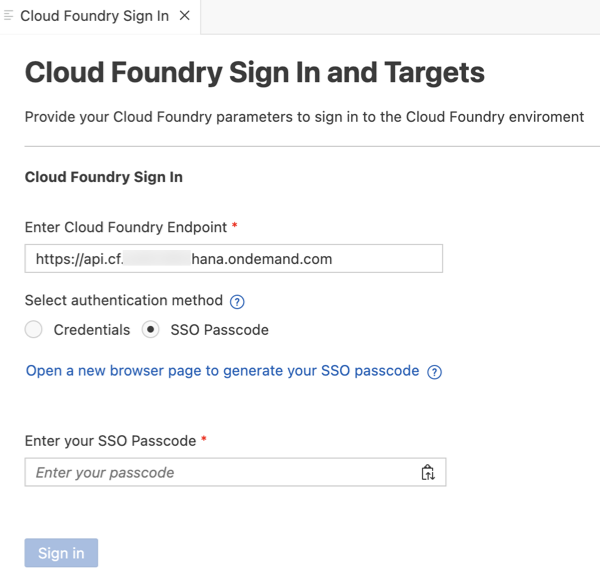
CF Login Credentials Dialog Choose
myapp.mdk.demofrom the applications list in the Mobile Application Services editor.
Mobile Application Services App Selection Select
com.sap.edm.sampleservice.v4from the destinations list and click Add App to Project.
Destination Selection Add App To Project You can access the mobile services admin UI by clicking on the Mobile Services option on the right hand side.
In the storyboard window, the app and mobile destination will be added under the Runtime Resources column. The mobile destination will also be added under the External Resources with a dotted-line connection to the Runtime Resource. The External Resource will be used to create the UI application.

Storyboard With Runtime And External Resources Click the + button in the UI application column header to add mobile UI for your project.

Storyboard UI Application Add Button In the Basic Information step, select the MDK Template Type as CRUD, leave the other options as they are. Since the option to Enable Auto-Deployment to Mobile Services After Project Creation is set to Yes, the MDK project will automatically be deployed to the Mobile Services after it is generated. Click Next to continue.

MDK Template CRUD Basic Information Step In the Data Collections step, provide the below information and click Finish. Data Collections step retrieves the entity sets information for the selected destination.
Field Value Enter a path to service (e.g. /sap/opu/odata/sap/SERVICE_NAME)Leave it as it is Select the Service TypeLeave the default value as ODataEnable OfflineIt’s enabled by default Select all data collectionsChoose Yes
Data Collections Step Configuration Regardless of whether you are creating an online or offline application, this step is needed for app to connect to an OData service. When building an MDK Mobile application, it assumes the OData service created and the destination that points to this service is set up in Mobile Services.
Since you have Enable Offline set to Yes, the generated application will be offline enabled in the MDK Mobile client.
After clicking Finish, the storyboard is updated displaying the UI component. The MDK project is generated in the project explorer and automatically deployed to the Mobile Services based on your selections. You will now see a QR code for onboarding the mobile app. Leave the Onboarding dialog box open for the next step.
Ensure that you have downloaded the SAP Mobile Services Client from the public store, as mentioned in the prerequisites. This client provides a demo mode with Demo App and Mentor App.
Demo App: The Demo app is intended for you to explore the MDK capabilities. This app connects to the same Mobile Services sample backend to which your MDK app is connected.
Mentor App: The MDK Mentor app is interactive documentation that helps designers and developers discover the capabilities of the mobile development kit. You can view live previews of the UI components and change parameters to see the effects immediately.
In both applications, the user popover menu provides an option to easily switch between the Demo and Mentor Apps. When you are done exploring, you can log out to return to the MDK Welcome screen, which resets any changes made and allows you to onboard to your backend application.
Ensure that you choose the correct device platform tab above.

Ensure that you choose the correct device platform tab above.

Ensure that you choose the correct device platform tab above. Once you have scanned and onboarded using the onboarding URL, it will be remembered. If you log out and onboard again, you will be prompted to either continue using the current application or scan a new QR code.
Follow these steps to successfully on-board the MDK client on your Android device.
After accepting the app update, you will see a list of entities on the Main page, along with a user menu that includes options such as syncing changes, accessing support, checking for updates, and resetting the app. An offline store will be initialized. By tapping any entity, you will navigate to a list page. If you select one of the items, the detail page will be displayed, allowing you to create, update, or delete the record. This record will be saved to the offline request queue database. You can navigate back to the main page and press the Sync Changes option in the user menu to upload any local changes to the backend. Once the upload is successful, the app will also download data from the backend to the offline store, ensuring both sides have the same dataset.

com_sap_edm_sampleservice_v4is the name of the service file generated in the project creation.
Additionally, you can search through all properties of the objects displayed in the section by entering them manually or using a barcode scanner. For instance, in the Products list, you can scan the barcode to search for products belonging to the MP3 Players category.

Ensure that you choose the correct device platform tab above. Once you have scanned and onboarded using the onboarding URL, it will be remembered. If you log out and onboard again, you will be prompted to either continue using the current application or scan a new QR code.
Follow these steps to successfully on-board the MDK client on your iOS device.
After accepting the app update, you will see a list of entities on the Main page, along with a user menu that includes options such as syncing changes, accessing support, checking for updates, and resetting the app. An offline store will be initialized. By tapping any entity, you will navigate to a list page. If you select one of the items, the detail page will be displayed, allowing you to create, update, or delete the record. This record will be saved to the offline request queue database. You can navigate back to the main page and press the Sync Changes option in the user menu to upload any local changes to the backend. Once the upload is successful, the app will also download data from the backend to the offline store, ensuring both sides have the same dataset.

com_sap_edm_sampleservice_v4is the name of the service file generated in the project creation.
Additionally, you can search through all properties of the objects displayed in the section by entering them manually or using a barcode scanner. For instance, in the Products list, you can scan the barcode to search for products belonging to the MP3 Players category.

Once you complete this tutorial, you can continue with these tutorials to create an MDK app from scratch.
This is how the project structure looks like within the workspace.

These are the metadata definitions available in the editor and the format in which these metadata definitions are stored in the editor. Just to brief on some of these:
InitializeOffline.action: For Mobile applications, this action binds the application to the Mobile Services Offline OData server and downloads the required data from the backend destinationcom.sap.edm.sampleservice.v4to the offline store on the mobile device.DownloadOffline.actionandUploadOffline.action: These actions are applicable to Mobile client only. Using Mobile app initialization, data is downloaded to the offline store. If you want to have the application download any updated data from the backend server or upload changed data to the backend destination (com.sap.edm.sampleservice.v4), these actions will be needed.Success & Failure Message action: Here are some messages showing up in the app on a successful or failure of data initialization, sync etc.Main.page: This is the first page of your MDK application that is shown. For this application you will use this as a launching page to get to application functionality.OnWillUpdate.js: MDK applications automatically download updates and apply them to the client without the end-user needing to take any action. TheOnWillUpdaterule empowers the user to run business logic before the new definitions are applied. This allows the app designer to include logic to prompt the user to accept or defer applying the new definitions based on their current activity. For example, if the end-user is currently adding new customer details or in the middle of a transaction, they will be able to defer the update. The app will prompt again the next time it checks for updates.Application.app: this is the main configuration file for your application from within SAP Business Application Studio. Here you define your start page (here in this tutorial, it is main.page), action settings for different stages of the application session lifecycle, push notifications, and more.
Resources
Discussion
Share feedback on this tutorial or join the conversation in SAP Community.