
Overview
You will learn
- How to reference the
NativeScriptGeolocation plugin from a rule - How to add a
NativeScriptplugin to your branded MDK client - How to build a Mobile development kit client for iOS & Android and connect to SAP Mobile application
- How to capture the device’s current location


Prerequisites
Prerequisites
- Tutorial: Set Up for the Mobile Development Kit (MDK)
- Tutorial: Build Your Mobile Development Kit Client Using MDK SDK (Steps 1 to 3)
Steps
Intro
You may clone an existing metadata project from GitHub repository and start directly with step 4 in this tutorial.
To extend the functionality, or customize the look and feel, and behavior of your client app, you can use the existing NativeScript plugins like nativescript-geolocation, nativescript-nfc etc. , add this to the client and reference it from a rule.
In this tutorial, you will use the existing NativeScript plugin nativescript-geolocation to capture the device location: latitude & longitude.
This step includes creating a mobile project in SAP Build Lobby.
In the SAP Build Lobby, click Create > Create to start the creation process.

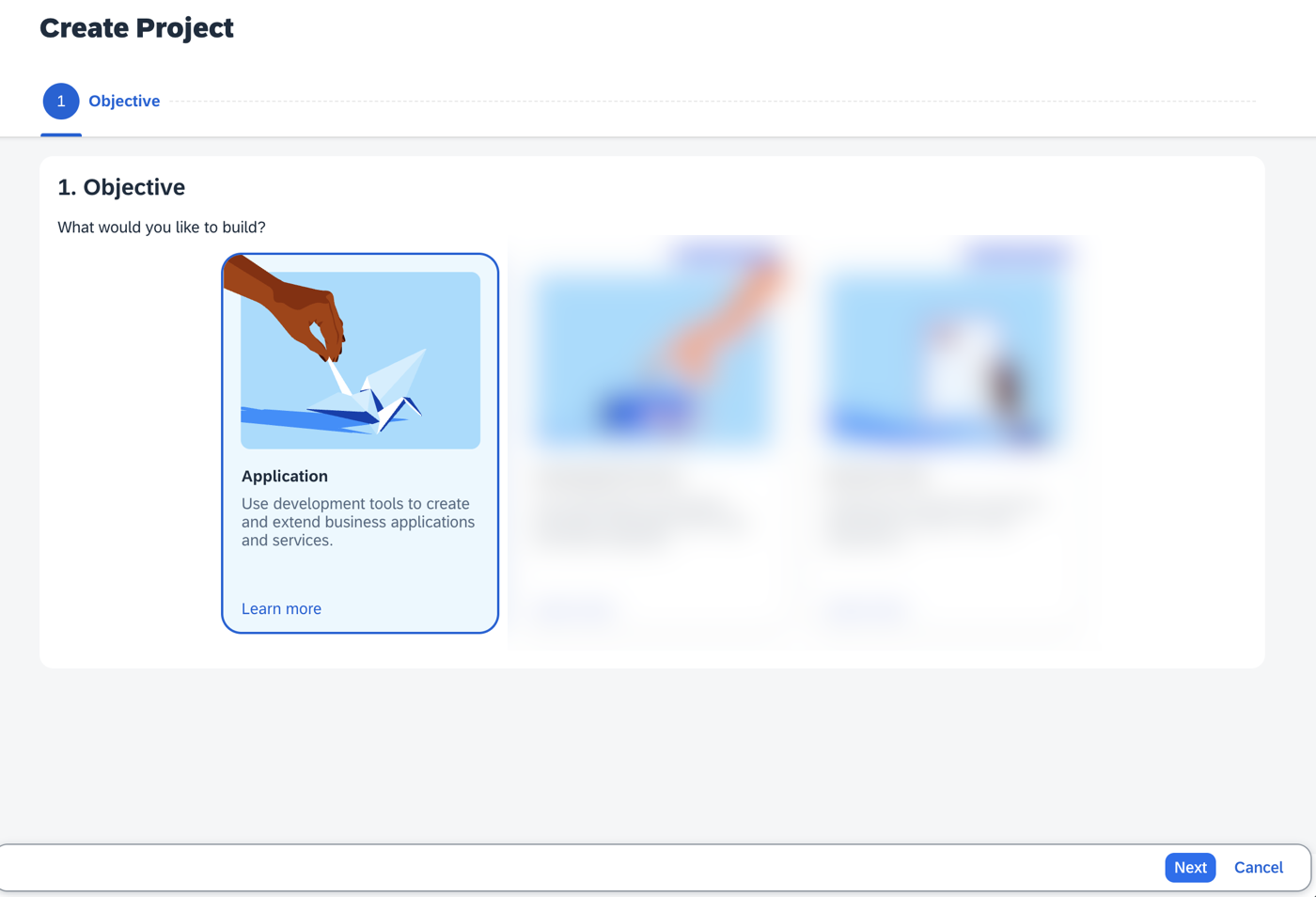
SAP Build Lobby Create Button Click the Application tile and choose Next.
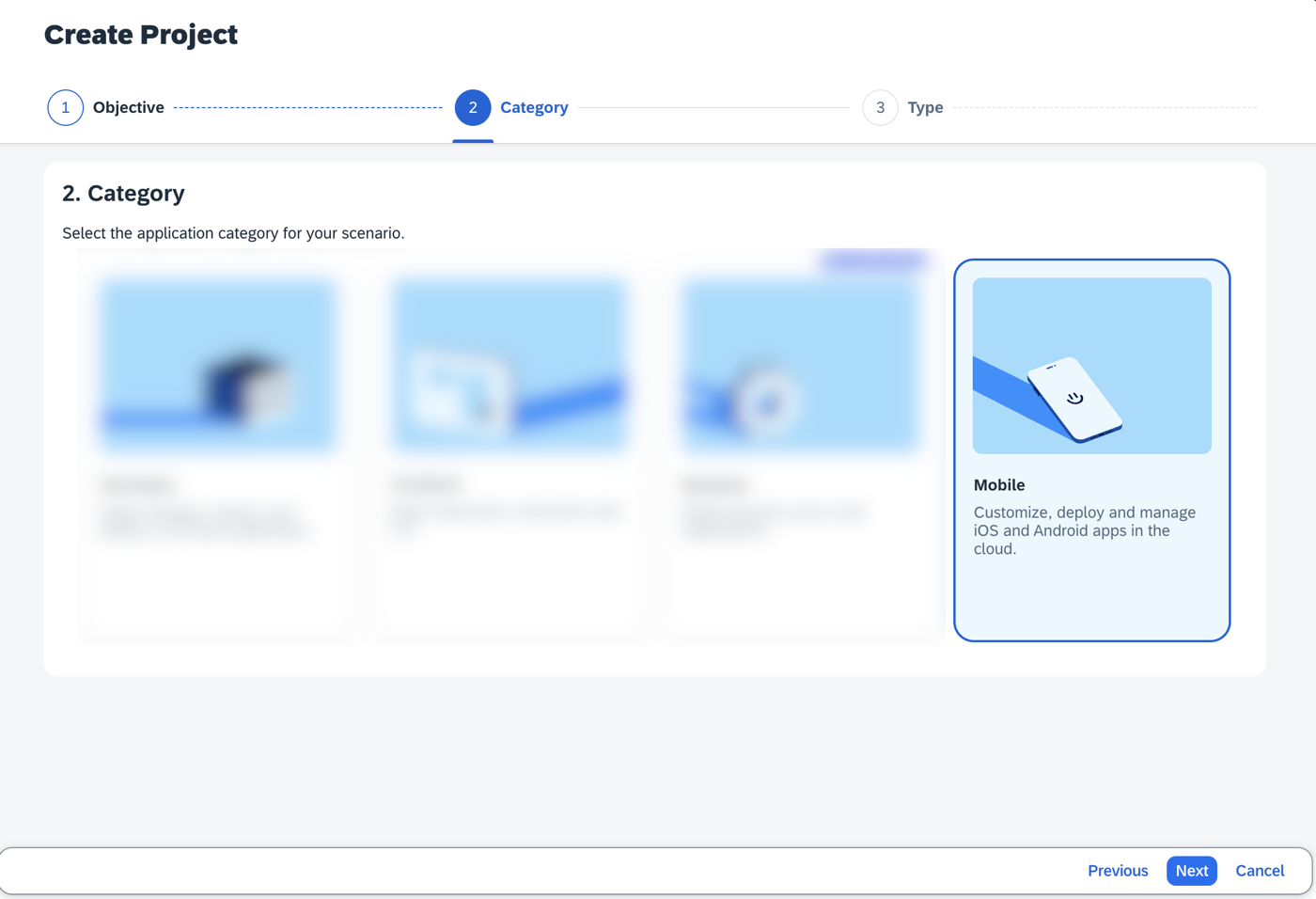
Application Tile Selection Select the Mobile category and choose Next.
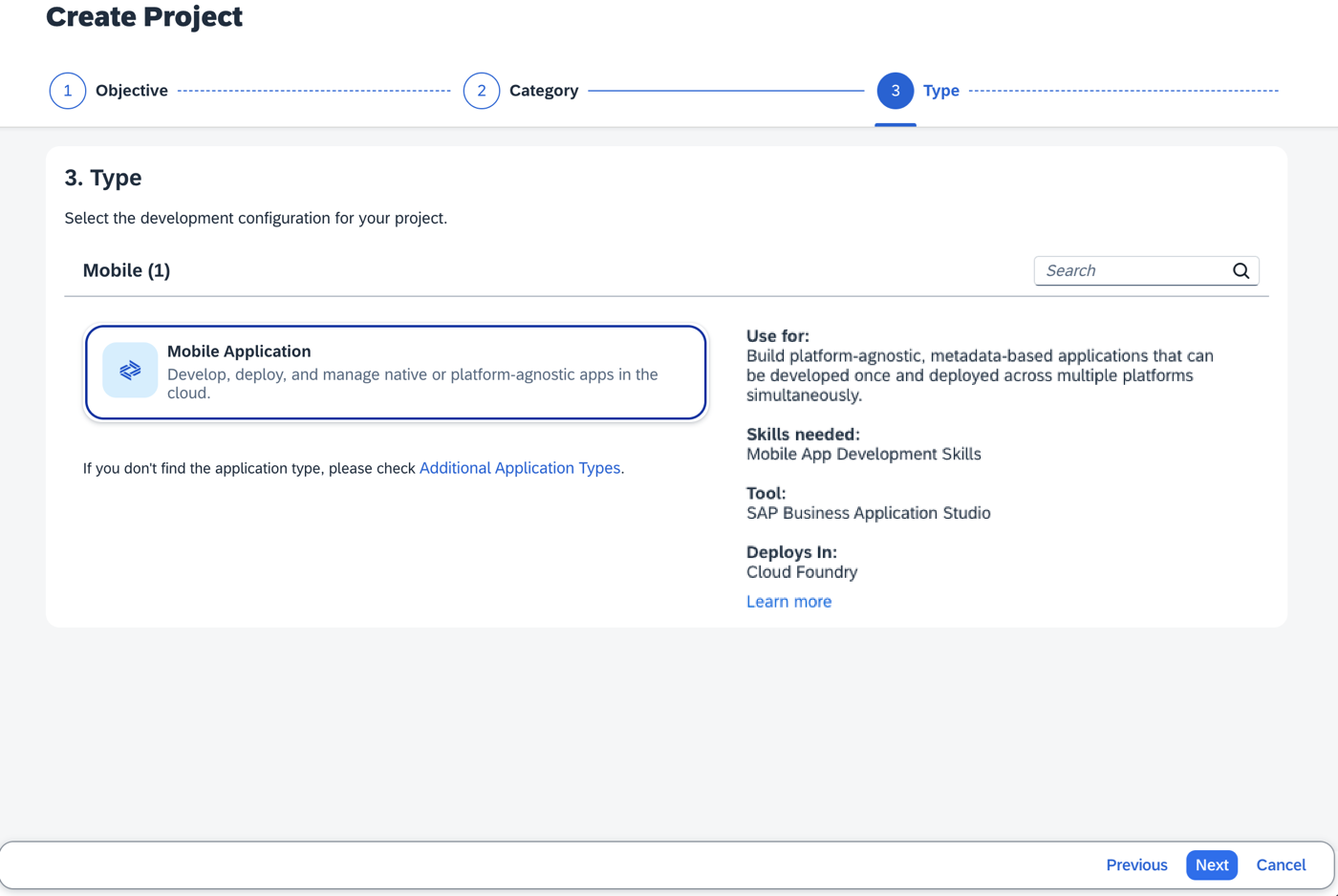
Mobile Category Selection Select the Mobile Application to develop your mobile project in SAP Business Application Studio and choose Next.
Mobile Application Option Selected Enter the project name
mdk_geolocation(used for this tutorial) , add a description (optional), and click Review.
Project Name Entry Form SAP Build recommends the dev space it deems most suitable, and it will automatically create a new one for you if you don’t already have one. If you have other dev spaces of the Mobile Application type, you can select between them. If you want to create a different dev space, go to the Dev Space Manager. See Working in the Dev Space Manager.
Review the inputs under the Summary tab. If everything looks correct, click Create to proceed with creating your project.

Project Summary Review Screen Your project is being created in the Project table of the lobby. The creation of the project may take a few moments. After the project has been created successfully, click the project to open it.

Project Created In Lobby Table The project opens in SAP Business Application Studio.
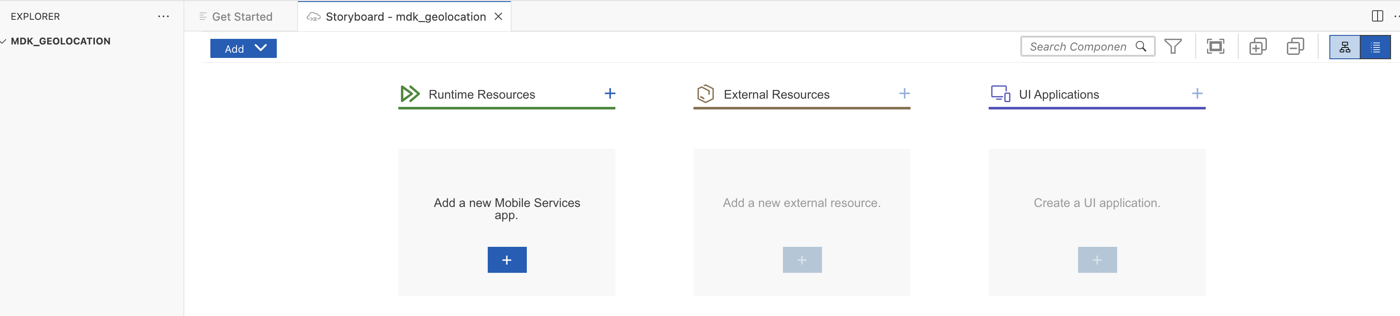
SAP BAS Workspace Opened When you open the SAP Business Application Studio for the first time, a consent window may appear asking for permission to track your usage. Please review and provide your consent accordingly before proceeding.

BAS Usage Consent Window
The Storyboard provides a graphical view of the application’s runtime resources, external resources, UI of the application, and the connections between them. This allows for a quick understanding of the application’s structure and components.
- Runtime Resources: In the Runtime Resources section, you can see the mobile services application and mobile destination used in the project, with a dotted-line connected to the External Resources.
- External Resources: In the External Resources section, you can see the external services used in the project, with a dotted-line connection to the Runtime Resource or the UI app.
- UI Application: In the UI Applications section, you can see the mobile applications.
Click on + button in the Runtime Resources column to add a mobile services app to your project.
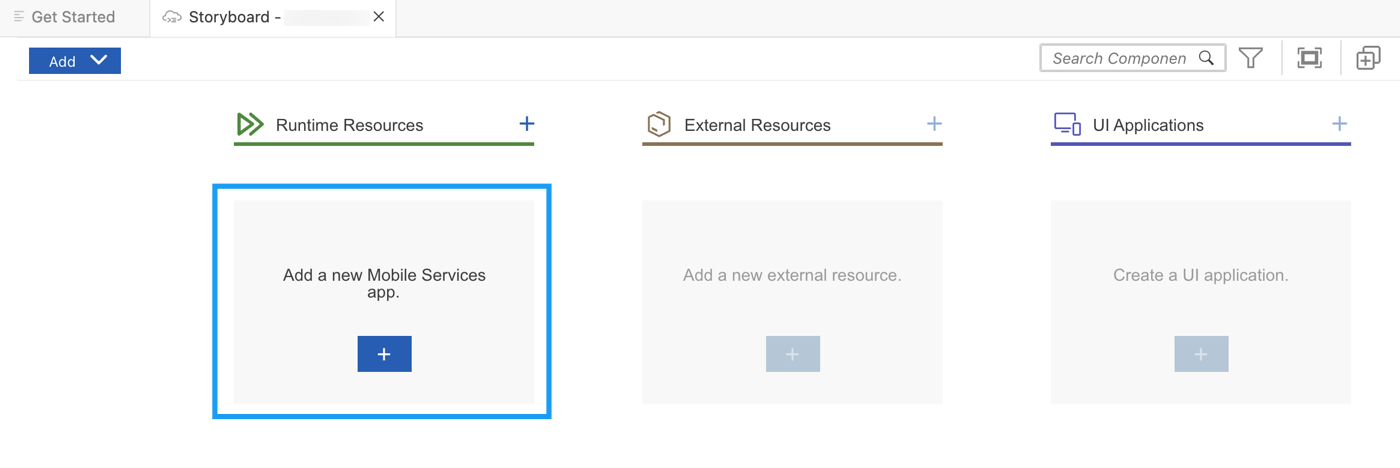
Runtime Resources Add Button This screen will only show up when your CF login session has expired. Use either
CredentialsORSSO Passcodeoption for authentication. After successful signed in to Cloud Foundry, select your Cloud Foundry Organization and Space where you have set up the initial configuration for your MDK app and click Apply.
CF Login Credentials Dialog Choose
myapp.mdk.demofrom the applications list in the Mobile Application Services editor and click Add App to Project. You do not require to add a destination for this tutorial.
Mobile Services App Selection You can access the mobile services admin UI by clicking on the Mobile Services option on the right hand side.
In the storyboard window, the app will be added under the Runtime Resources column.

App Added In Storyboard Click the + button in the UI application column header to add mobile UI for your project.

UI Application Add Button In the Basic Information step, select No for the Enable Auto-Deployment to Mobile Services After Project Creation property, and click Finish. You will modify the generated project in next step and will deploy it later.

Auto-Deployment Disabled Basic Info After clicking Finish, the storyboard is updated displaying the UI component. The MDK project is generated in the project explorer based on your selections.
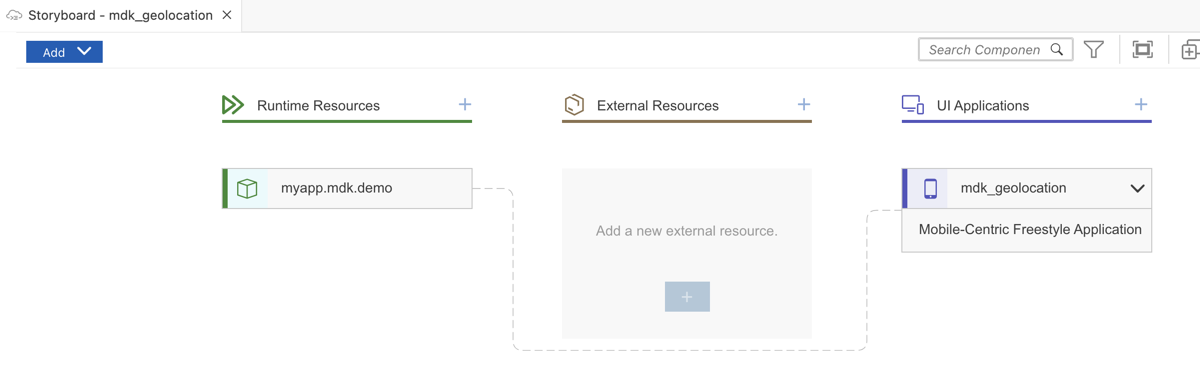
Storyboard With UI Component
Click the
Main.page, drag & drop Static Key Value container to the page area.
Static Key Value Container Drop In Properties | Layout, change
NumberOfColumnsto 1.

- Drag & drop Key Value Item to the container.

- Set
KeyNameasCoordinates. To bind it’s value property, click oncreate a rule. You will create a new JavaScript file to capture the device location: latitude & longitude.

- Keep the default selection for Object Type as Rule and Folders. Click OK.

You can find more details about writing a Rule.
- In the Base Information, enter the Rule name as
GetCoordinatesand click Finish.

- Replace the generated snippet with below code.
/**
* Describe this function...
* @param {IClientAPI} context
*/
import * as geolocation from "@nativescript/geolocation";
import { CoreTypes } from "@nativescript/core";
export default async function GetCoordinates(context) {
    var logger = context.getLogger();
    console.log("Current Log Level: " + logger.getLevel());
    // check if geolocation is not enabled
    var locationIsEnabled = await geolocation.isEnabled();
    if (!locationIsEnabled) {
        // request for the user to enable it
        await geolocation.enableLocationRequest();
    }
    // Get current location with high accuracy
    return geolocation.getCurrentLocation({
        desiredAccuracy: CoreTypes.Accuracy.high, //This will return the finest location available
        updateDistance: 5, //Update distance filter in meters.
        timeout: 11000 //How long to wait for a location in ms.
    }).then(function (loc) {
        if (loc) {
            console.log(loc);
            console.log('\nCurrent Location: (' + loc.latitude + ',' + loc.longitude + ')');
            logger.log(loc.toString());
            var locMessage = '(' + "Latitude:" + loc.latitude + ',' + "Longitude:" + loc.longitude + ')';
            logger.log('Current Location: ' + locMessage, 'INFO');
            return locMessage;
        }
    }, function (e) {
        logger.log(e.message, 'ERROR');
    });
}When the Main page loads, you can display a loading indicator informing about something is being processed before the data appears.
Enable the loading indicator at the Sectioned Table level by providing the following information:
| Property | Value |
|---|---|
Enabled | true |
Text | Enter Loading, please wait... |
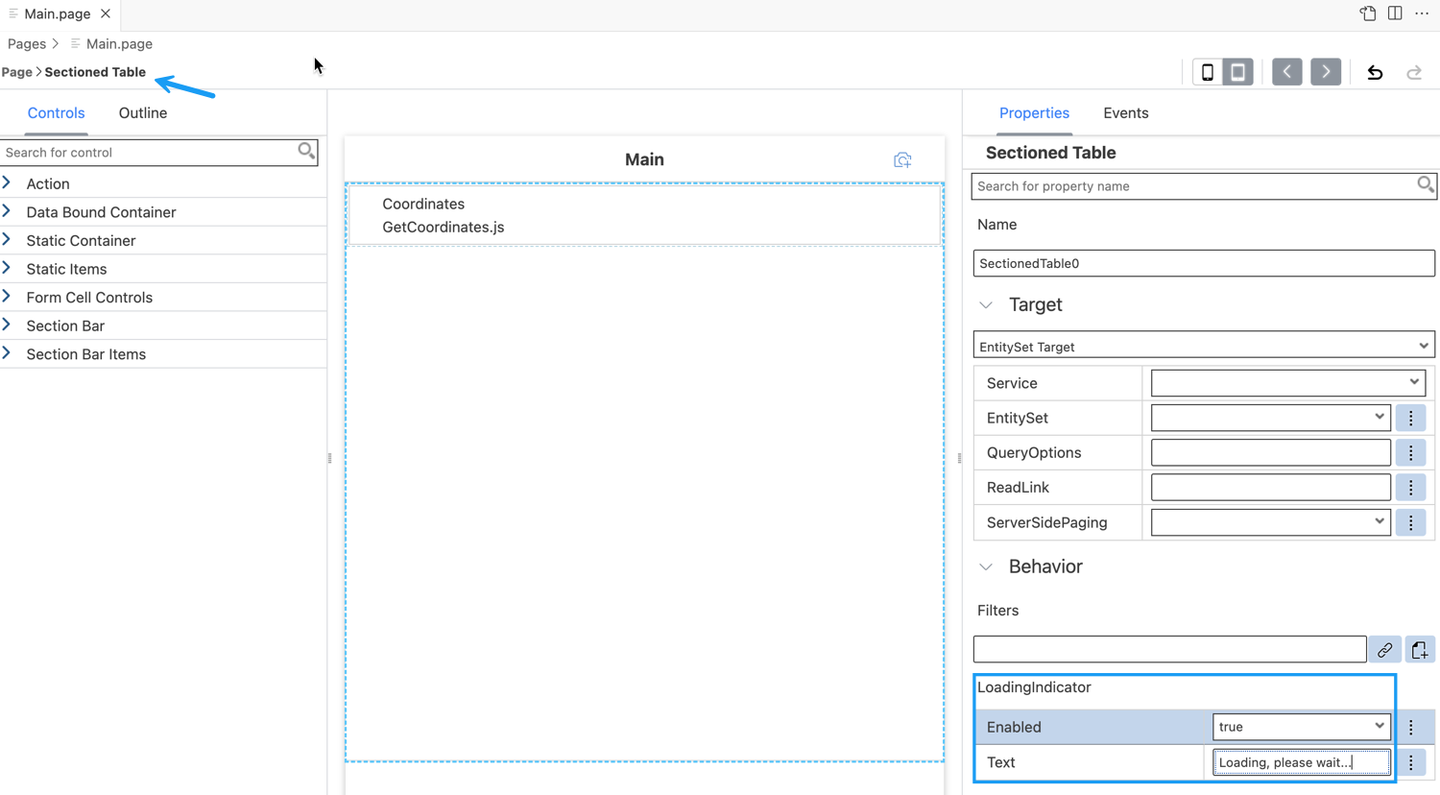
In GetCoordinates.js file, you referred @nativescript/geolocation plugin. You now need to list this module as external references in BAS configuration so when bundling, MDK editor knows not to worry about these references.
Click on the gear icon on the bottom left of the BAS window and select Settings.
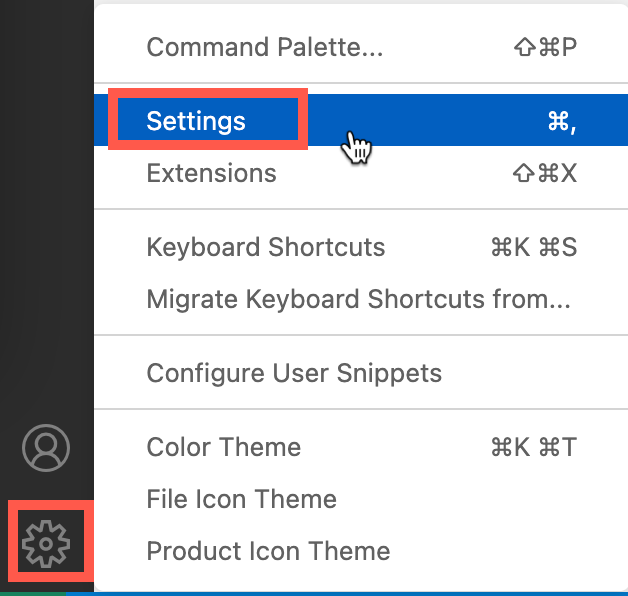
BAS Settings Gear Icon Switch to the Remote tab.

BAS Settings Remote Tab Search with
mdk, click Edit in settings.json.
MDK Settings JSON Edit Include below references in
mdk.bundlerExternals.JSON"@nativescript/geolocation"
MDK Bundler Externals Configuration
So far, you have learned how to build an MDK application in the SAP Business Application Studio editor. Now, you will Deploy the Project definitions to Mobile Services to use in the Mobile client.
Switch to the
Main.pagetab, click the Deploy option in the editor’s header area, and then choose the deployment target as Mobile Services.
Deploy Option In Editor Header Select deploy target as Mobile Services.

Mobile Services Deploy Target Select Mobile Services Landscape.

Mobile Services Landscape Selection If you want to enable source for debugging the deployed bundle, then choose Yes.

Enable Source Debugging Option You should see Deploy to Mobile Services successfully! message.

Deployment Success Message
In order to use the existing NativeScript plugin in MDK client, you will need to first add it in .mdkproject and then create your branded MDK client.
Make sure that you have already completed steps 1 to 3 from Build Your Mobile Development Kit Client Using MDK SDK tutorial.
Open
MDKProject.jsonfile and replace existing content with below. Provide an appropriate value to theBundleID, it should be a unique identifier for your application.JSON{ "AppDisplayName": "Geolocation", "AppName": "MDKGeolocation", "AppVersion": "1.0.0", "AndroidVersionCode": "Auto", "BundleID": "<Enter your bundle ID>", "Externals": ["@nativescript/geolocation"], "NSPlugins": ["@nativescript/geolocation"], "UrlScheme": "mdkgeolocation" }

With Google Play services, your app can take advantage of the latest, Google-powered features such as Maps, Google+, and more.
Add
app.gradleandAndroidManifest.xmlfiles as per below structure in yourDemoSampleApp.mdkproject.DemoSampleApp.mdkproject ├── App_Resources_Merge └── Android ├── app.gradle └── src └── main └── AndroidManifest.xml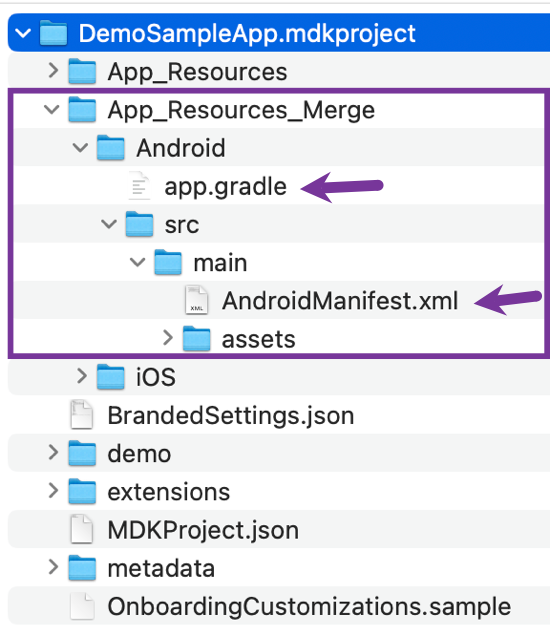
App Resources Merge Folder Structure Files specified in the
.mdkproject/App_Resources_Mergefolder override a part of the files in<generated-project>/app/App_Resources. You can find more details about it in help documentation.Provide below information in the
app.gradlefile. Save the changes.Java// add gradle dependencies here project.ext { googlePlayServicesVersion = "21.+" } dependencies { def googlePlayServicesVersion = project.googlePlayServicesVersion implementation "com.google.android.gms:play-services-location:$googlePlayServicesVersion" }Provide below information in the
AndroidManifest.xmlfile. Save the changes.XML<?xml version="1.0" encoding="utf-8"?> <manifest xmlns:android="http://schemas.android.com/apk/res/android"> <!-- Always include this permission --> <!-- This permission is for "approximate" location data --> <uses-permission android:name="android.permission.ACCESS_COARSE_LOCATION" /> <!-- Include only if your app benefits from precise location access. --> <!-- This permission is for "precise" location data --> <uses-permission android:name="android.permission.ACCESS_FINE_LOCATION" /> <!-- Required only when requesting background location access on Android 10 (API level 29) and higher. --> <uses-permission android:name="android.permission.ACCESS_BACKGROUND_LOCATION" /> </manifest>
Create your MDK client either using MDK SDK by following the steps 4 & 5 from Build Your Mobile Development Kit Client Using MDK SDK tutorial OR using SAP Mobile Services Cloud Build by following Build Your Mobile Development Kit Client Using Cloud Build Service tutorial and run it in your device.
After you have accepted the app update, allow your app to access your location.

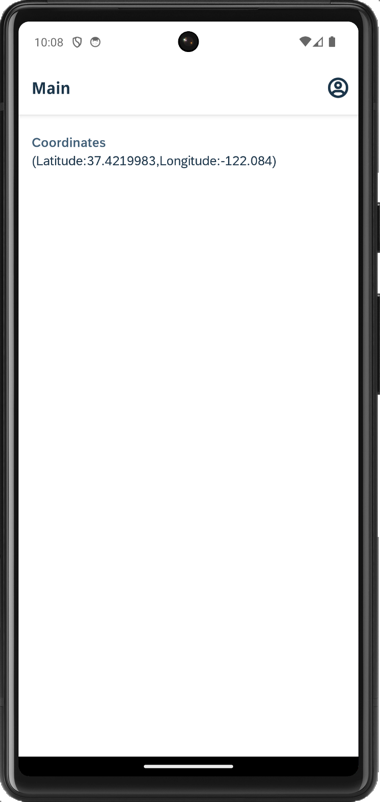
Android Location Permission Dialog In Main page, you will see device’s current location.
Android Main Page Location Display
Create your MDK client either using MDK SDK by following the steps 4 & 5 from Build Your Mobile Development Kit Client Using MDK SDK tutorial OR using SAP Mobile Services Cloud Build by following Build Your Mobile Development Kit Client Using Cloud Build Service tutorial.
After you have accepted the app update, allow your app to access your location.
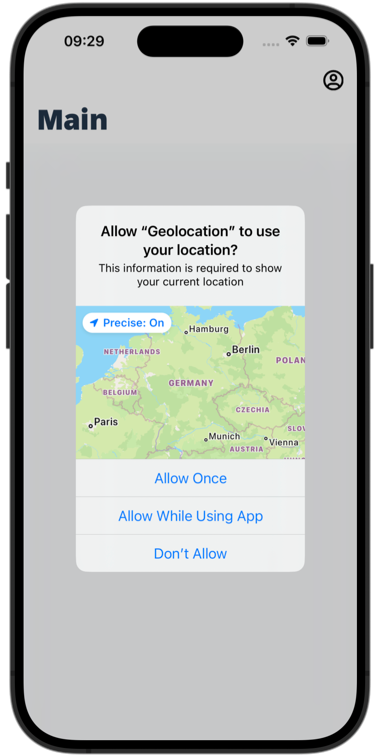
iOS Location Permission Dialog In Main page, you will see device’s current location.
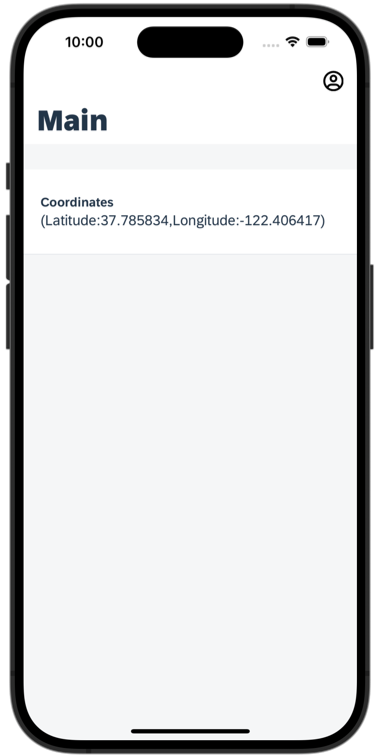
iOS Main Page Location Display
Resources
Discussion
Share feedback on this tutorial or join the conversation in SAP Community.