
Overview
You will learn
- How to create relationship between parent and child entities
- How to create a child entity to an existing parent entity
- How to create a parent entity first and then a child entity
- How to implement dynamic data subscription


Prerequisites
Steps
Intro
You may clone an existing metadata project from the MDK Tutorial GitHub repository to start with this tutorial.
For this tutorial, you will use Mobile Services sample backend (step 3) which has parent-child relationship setup among entities. For example, A customer can have n (>=0) number of sales orders.
To create an entity and then link it to another entity, you need to carry out the following tasks:
- Create a new page for creating an order
- Add an action bar item to the new page for cancelling the current activity
- Create a new
CreateRelatedEntityOData action to create a new sales order - Create a new message action for displaying failure message if order creation fails
- Create a navigation action to show order creation page from Customer detail page
- Implement data subscription to update count value when a new sales order is created

In this step, you will create a Section page with a Form Cell Section to contain the Form Cell controls. You will then add the fields that will be editable by the end-user.
Right-click the Pages folder | MDK: New Page | Section | Next.

Pages Folder New Section Page Menu In the Base Information step, enter the Page Name as
SalesOrderHeaders_Createand click Finish to complete the page creation process.
SalesOrderHeaders Create Page Base Information Once the page opens in the page editor, click on the white area to select it’s Action Bar, and set the Caption to Create Order.

Action Bar Caption Set To Create Order Now, you will add the fields (like Currency Code, Net Amount, Tax Amount, Gross Amount, Life cycle status, Life cycle status name and order creation date) for creating a new sales order record by the end-user. In the Layout Editor, expand the Static Container group. Drag and drop Form Cell section onto the Page area.

Form Cell Section Dragged To Page Area Form Cell section is used to contain Form Cell controls in a section page.
You will now add Form Cell controls in the Form Cell Section. Expand the Form Cell Controls group, drag and drop a Simple Property onto the Page area.
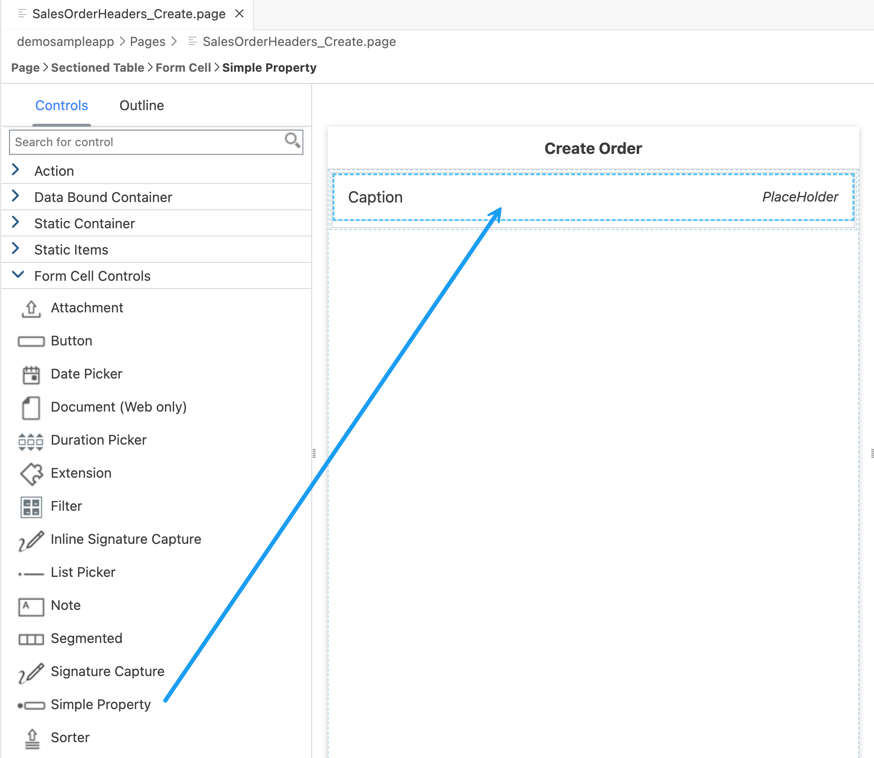
Simple Property Control Added To Form Cell Drag and drop five additional Simple Property controls and one Date Picker control onto the page so you have seven total controls.

Seven Form Controls Added To Page Select the first Simple Property control and provide the below information:
Property Value NameFCCreateCurrencyCodeCaptionCurrency CodeValueEUR
Currency Code Simple Property Control Properties Under Value property, you can set some default values.
Select the second Simple Property control and provide the below information:
Property Value NameFCCreateNetAmountCaptionNet AmountValue18.010
Net Amount Simple Property Control Properties Select the third Simple Property control and provide the below information:
Property Value NameFCCreateTaxAmountCaptionTax AmountValue108.010
Tax Amount Simple Property Control Properties Select the forth Simple Property control and provide the below information:
Property Value NameFCCreateGrossAmountCaptionGross AmountValue126.02
Gross Amount Simple Property Control Properties Select the fifth Simple Property control and provide the below information:
Property Value NameFCCreateLifeCycleStatusCaptionLifecycle StatusValueN
Lifecycle Status Simple Property Control Properties Select the sixth Simple Property control and provide the below information:
Property Value NameFCCreateLifeCycleStatusNameCaptionLifecycle Status NameValueNew
Lifecycle Status Name Simple Property Control Select the last control Date Picker and provide the below information:
Property Value NameFCCreatedateCaptionCreation DateModeSelect Datetimefrom the dropdown if not selected by default
Creation Date Date Picker Control Properties
Now, you will add a button on the Create Order page and set its onPress to CloseModalPage_Cancel.action.
Drag and drop an Action Bar Item to the upper left corner of the action bar.
Action Bar Item is a button that users can use to fire actions when pressed. You can add an Action Bar Item only to the Action Bar (at the top of the page).

Action Bar Item Dragged To Upper Left In the Properties pane, click the link icon to open the object browser for the System Item property.
Double click the Cancel type and click OK.

Cancel System Item Selected In Object Browser System Item are predefined system-supplied icon or text. Overwrites Text and Icon if specified.
Now, you will set the
onPressevent toCloseModalPage_Cancel.action.In Events tab, click the dotted icon for the
OnPressproperty to open the Object Browser.Double click the
CloseModalPage_Cancel.actionand click OK to set it as theOnPressAction.
CloseModalPage Cancel Action Set As OnPress
The next step is to store newly created record locally for an offline application or send the new record directly back to the backed for online applications.
- You will add an Action Bar item on the
SalesOrderHeaders_Create.pagethat will call an OData Create Entity action to save the record - You may want to close the page when the OData Create Entity action is successful
- You may want to show a failure message if the OData Create Entity action fails to save the changes
In
SalesOrderHeaders_Create.page, drag and drop an Action Bar Item to the upper right corner of the action bar.
Action Bar Item Added To Upper Right Click the link icon to open the object browser for the System Item property. Double-click the Save type and click OK.

Save System Item Selected In Object Browser Navigate to the Events tab. Click the dotted icon for the
OnPressproperty and select theCreate a rule/action.
OnPress Create Rule Action Selected Keep the default selection for the Object Type as Action and Folders path.

Object Type Action And Folders Default Selection In the Template Selection step, choose Data in Category | click OData | Next.

OData Template Category Selection In the Base Information step, provide the below information:
Property Value NameSalesOrderHeaders_CreateEntityTypeSelect CreateRelatedEntityfrom the dropdownServiceSelect com_sap_edm_sampleservice_v4.servicefrom the dropdownEntitySetSelect SalesOrderHeadersfrom the dropdown
CreateRelatedEntity Action Base Information CreateRelatedEntityaction creates the new entity against the navigation property of an existing entity with which the relationship is to be established. You can find more details about Create Related Entity Action.Click Next.
In Parent Link and Properties Selection step, provide the below information:
Property Value ParentLinkLinkItem ReferenceTarget EntitySetSelect Customersfrom the dropdownReadLinkclick link icon and double click readLinkPropertySelect SalesOrdersfrom the dropdown
Parent Link And Properties Selection Step In Mobile Services sample backend, click Metadata URL and you will find
SalesOrdersnavigation property forCustomersentity.Since in
SalesOrderHeaders_Create.page, we have defined seven properties (Currency Code, Net Amount, Tax Amount, Gross Amount, Life Cycle Status, Life Cycle Status Name and Creation Date) to be added, now in Properties section, you will bind them to respective UI Controls.Check the
CreatedAtproperty and click the link icon to open the object browser.Change the drop down in the object browser to
Controls & ClientData, click the Current Page radio button.In the search box start typing the control name
FCCreatedate. The list will filter down to show the matching values. Double click the Value (Value) entry under theFCCreatedatefield and click OK to set binding.
CreatedAt Property Bound To FCCreatedate Control Repeat the above step for remaining properties:
CurrencyCode,GrossAmount,LifeCycleStatus,LifeCycleStatusName,NetAmountandTaxAmount.
Remaining Properties Bound To Form Controls Click Finish to complete the action creation process. The action editor will open with the
SalesOrderHeaders_CreateEntity.actionloaded.When the above OData action is executed, you may want to display messages on its success and failure behavior. For example, on its success, you may want to close the page and allow any execution to continue. On its failure, you may want to display an error. In the
SalesOrderHeaders_CreateEntity.action, scroll down and expand the Common Action Properties section. Click the link icon to open the object browser for the Success Action and bind it toCloseModalPage_Complete.action.
Success Action Bound To CloseModalPage Complete Create a message action displaying error in case of the create failure.
The MDK template generates some generic actions, such as
GenericMessageBox.action, that can be reused at many places in your project and can be overridden with specific information. Of course, you can also create a new action, as you have done in previous tutorials.In the
SalesOrderHeaders_CreateEntity.action, click the link icon to open the object browser for theFailure Action.
Failure Action Object Browser Opened Bind it to
GenericMessageBox.actionand click OK.
GenericMessageBox Action Bound As Failure Action You will now override its properties. Click on the
Overrides Properties for selected actionicon.
Override Properties For Selected Action Icon In the Override Action Properties step, provide the below details and click OK.
Property Value MessageFailed to Create Sales Order record - {#ActionResults:SalesOrderHeaders_CreateEntity/error}TitleCreate Sales Order
Override Action Properties Message And Title SalesOrderHeaders_CreateEntityis the Action Result value of theSalesOrderHeaders_CreateEntity.action. This reference is used to pass the results to subsequent actions in the chain. These actions can reference the action result as needed. In this case if there is a failure, you access the error property of the action result to display the OData failure message.When the
SalesOrderHeaders_CreateEntity.actiongets executed successfully then theCloseModalPage_Complete.actionwill be triggered or ifSalesOrderHeaders_CreateEntity.actionfails then a failure message will be displayed with error information.
You will open the SalesOrderHeaders_Create.page from the Customer Detail page. For this, you will add a ToolBar item on the Customer Details page and will link it to a navigation action. When the ToolBar item is pressed by the end-user that will open the SalesOrderHeaders_Create.page.
In
Customers_Detail.page, drag and drop a Toolbar Item on the page area.
Toolbar Item Dragged To Customer Detail Page In the Properties pane, provide the below details.
Property Value ButtonTypePrimaryTitleCreate Order
Toolbar Item ButtonType And Title Properties Navigate to the Events tab. Click the dotted icon for the
OnPressproperty and select theObject Browser. Bind it to theGenericNavigation.action.
OnPress Bound To GenericNavigation Action You will now override the
GenericNavigation.actionproperties. Click the dotted icon for theOnPressproperty and selectOverrides.
GenericNavigation Action Overrides Selected In the Override Action Properties window, provide the below information and click OK to complete the action override process.
Property Value PageToOpenSelect SalesOrderHeaders_Create.pagefrom the dropdownModalPageSelect truefrom the dropdown
Override Navigation Action Page And Modal Properties
In Customers_Detail.page you added total number of order counts for a given customer. When a new SalesOrder is created, this count doesn’t get updated automatically unless you navigate back and forth to this page.
DataSubscriptions: it is a way to listen to data changes that when triggers should cause a UI element to redraw. If your control or section has a target, that target is automatically subscribed for data change events. Otherwise you can also explicitly subscribe toDataSubscriptionsby specifying an entity set name orreadLinkin an array. You can find more details here.
In Customers_Detail.page, select Customer Orders Object Table control. In Properties section, click + icon under Misc | DataSubscriptions and double click SalesOrderHeaders and click OK.

You will now deploy the updated project to your MDK client.
Click the Deploy option in the editor’s header area, and then choose the deployment target as Mobile Services .

Make sure you are choosing the right device platform tab above.
Tap Check for Updates in the user menu on the Main page, you will see a New Version Available pop-up, tap Now.

Android Check For Updates New Version Popup Tap Customers, tap one of the available customer record, you will then navigate to Customer detail page.
You will see the Create Order option in customer detail page. Tap it to create a new sales order.

Android Customer Detail Create Order Option As you provided default values to the properties, you may change it if required. Tap save icon.

Android New Sales Order Form With Save Now, you will notice that new record has been created and count value for See All is now increased by one.

Android New Record Created Count Updated Tap on Sync Changes in the user menu On Main page to send local changes to the backend, a successful message will be shown.

Android Sync Changes Success Message
Tap Check for Updates in the user menu on the Main page, you will see a New Version Available pop-up, tap Now.
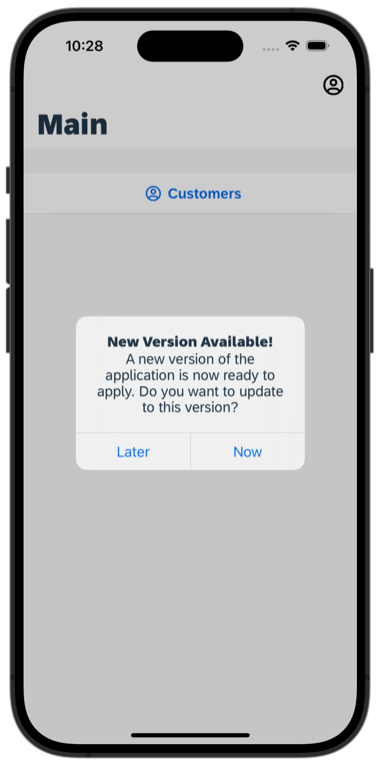
iOS Check For Updates New Version Popup Tap Customers, tap one of the available customer record, you will then navigate to Customer detail page.
You will see the Create Order option in customer detail page. Tap on it to create a new sales order.

iOS Customer Detail Create Order Option As you provided default values to the properties, you may change it if required. Tap Save.

iOS New Sales Order Form With Save Now, you will notice that new record has been created and count value for See All is increased by one.

iOS New Record Created Count Updated Tap on Sync Changes in the user menu On Main page to send local changes to the backend, a successful message will be shown.

iOS Sync Changes Success Message
Once you complete this tutorial, you can continue with Level Up with the Mobile Development Kit mission.
Resources
Discussion
Share feedback on this tutorial or join the conversation in SAP Community.