
Configure and Activate Visibility Scenario
Configure a visibility scenario and activate it.
Overview
You will learn
- How to view visibility scenarios for the capital expenditure process
- How to activate a visibility scenario


Prerequisites
Prerequisites
Steps
Intro
Visibility scenarios allow users to track the performance of end-to-end processes. You can create, edit, delete, and activate a visibility scenario using the Configure Visibility Scenarios application. For more information, see SAP Help Portal.
In this tutorial, you explore the application, modify a performance indicator, and activate the visibility scenario. You can choose to modify different entities of Configure Visibility Scenarios such as processes, phases, state, attributes and so on. For more information, see SAP Help Portal.
Choose Home to navigate to the home screen.

Home screen From the home screen navigate to the Process Flexibility Cockpit.

PFC In the Process Flexibility Cockpit, navigate to My Live Processes section and choose the Sample Capital Expenditure Approval Process tile.

CAPEX From the Visibility Scenarios tile, choose Sample Capital Expenditure Approval Dashboard.

Visibility Scenarios You are now in the Configure Visibility Scenarios view.

Configure Visibility Scenarios
Choose the Performance Indicators tab.

Performance Indicators Choose Approved Capital Expenditure Requests and change the Representation to Bar Chart. Once done, choose Save.
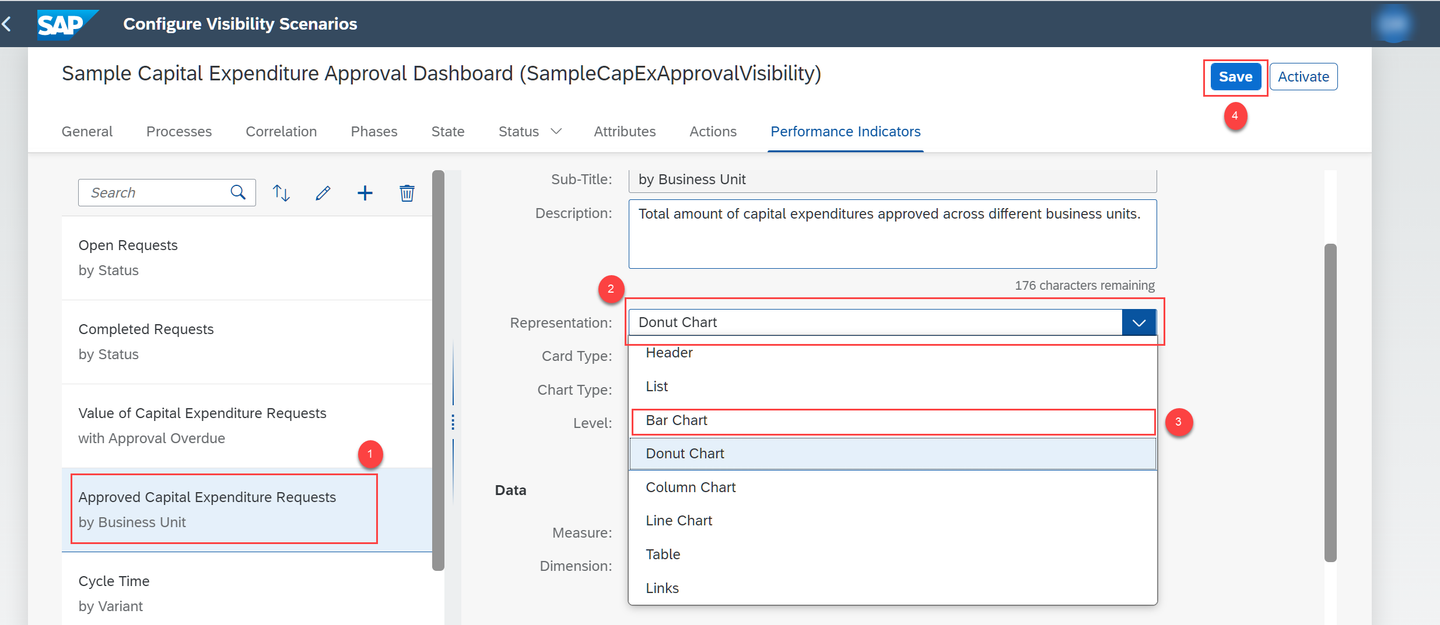
Edit Performance Indicators
Choose Activate.

The successful activation message appears.
Resources
Discussion
Share feedback on this tutorial or join the conversation in SAP Community.