
Overview
You will learn
- What is a capital expenditure process
- How to discover capital expenditure live process package and import it


Prerequisites
Prerequisites
Steps
Intro
SAP Workflow Management allows you to digitize workflows, manage decisions, gain end-to-end process visibility, and configure processes in a low-code approach.
The capital expenditure (CAPEX) process automates CAPEX request approvals in a transparent way and provides end-to-end visibility across all the steps. A workflow is triggered when the capital expenditure request is submitted by the user. This workflow calls business rules to determine number of approval steps based on the amount of investment and other related attributes of the request.
In this tutorial, you can import a sample package with different artifacts using the Process Flexibility Cockpit. For more information, see Discover and Import Packages.
WM_CF_SPACE_PROVIDER destination is used in to import live process packages from SAP API Business Hub. This destination is already created upon following the prerequisite, and now you should configure the destination with your trial password.
From your global account page, choose the trial tile to access your subaccount.
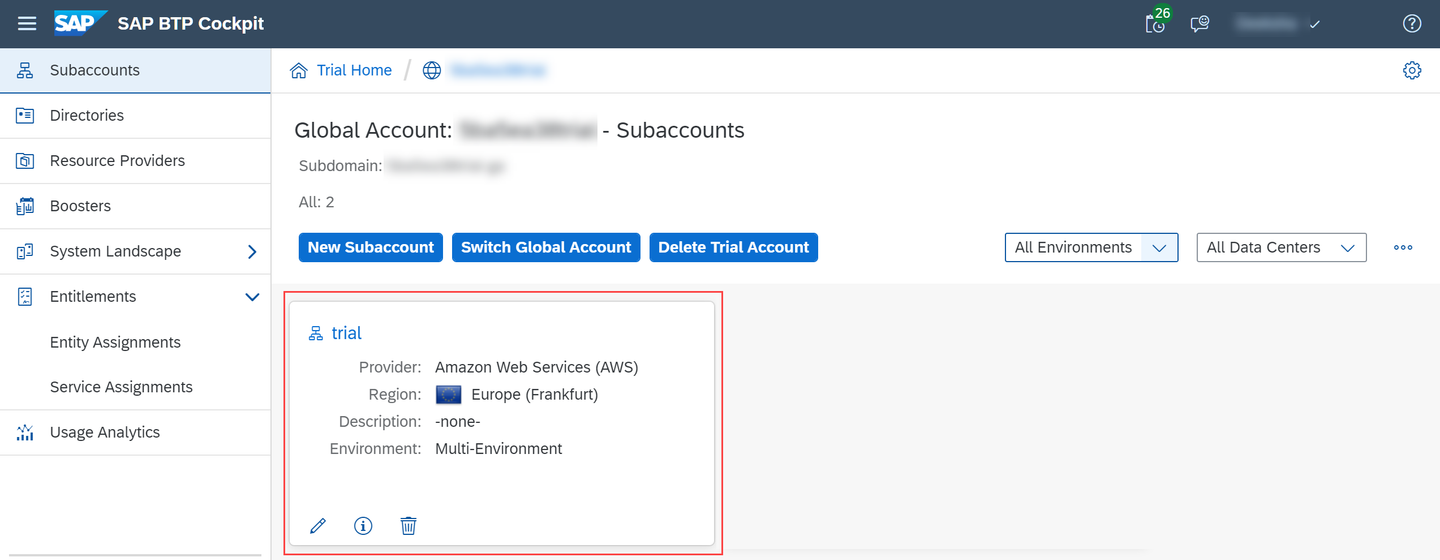
Trial Click Connectivity | Destinations from the left-hand navigation.

Destination screen Search for the
WM_CF_SPACE_PROVIDERdestination, then choose the edit icon. In the Destination Configuration section, enter your SAP BTP trial user password and save the changes.
Edit Destination 
Destination Password Ensure to replace the dummy password that is provided upon running the booster.
Ensure that the credentials of the trial user that are entered in the destination do not have Two Factor Authentication enabled.
Navigate to Services | Service Marketplace.

Subscriptions Search for the Workflow Management tile, and choose Go To Application to access the workflow management home screen.

Workflow App In the Workflow Management home screen, choose Process Flexibility Cockpit tile.

Workflow Management
Choose Discover Packages.

Discover Packages Choose the Sample Capital Expenditure Approval Process tile.

Process Hub
Choose Import.

Import In the confirmation dialog, choose Import.

import dialog The import operation takes a few minutes for the package to import. If the package import fails for any reason, then you can check the Import Logs to identify the cause. Fix the cause and try to import again.
Navigate to the My Live Processes section.

Breadcrumb You can view the imported Sample Capital Expenditure Approval Process package.

Live Processes
Resources
Discussion
Share feedback on this tutorial or join the conversation in SAP Community.