
Overview
You will learn
- You will learn how to create a process variant
- You will learn how to configure a process variant


Prerequisites
Prerequisites
Steps
Intro
A process variant consists of multiple process steps configured by a line-of-business expert. You can create multiple process variants depending on the number of approval steps to configure for the capital expenditure approval process.
In this tutorial, you can configure one such approval step and activate a process variant.
In the Process Flexibility Cockpit, navigate to My Live Processes section and choose Sample Capital Expenditure Approval Process tile.

CAPEX Choose the Process Variants tile.

Variants
Choose New Process Variant.

New Variant Provide High Value Investments as the Name. Then choose Create.

High Value Variant The Process dropdown is preselected as
Sample Capital Expenditure Approval Process. This process refers to the template from which the new variant will be created. A template contains the process steps that are used to configure the different process variants based on business needs.The new process variant is now created with the given name and default description. Choose the newly created High Value Investments process variant tile.

High Value Tile You are now in the Manage Process Variants view.
In the Manage Process Variants view, add a new approval step to the template by dragging the Approval tile from Available Steps and drop it after the Local Manager Approval step.

Variant Editor Choose the new approval step that opens the Step Properties
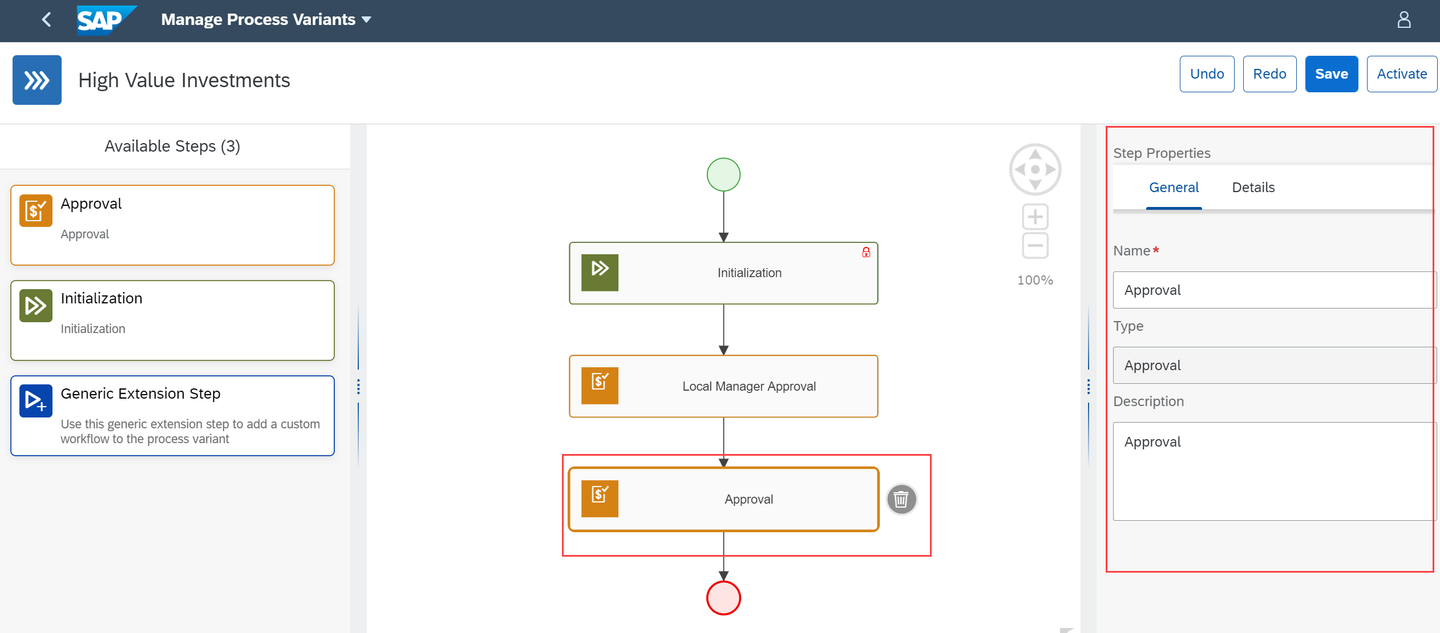
Variant Editor two In the Step Properties section, modify the name of the step to
CFO Approval.
Variant Editor two Choose the Details tab, then change the Role Name to
CFOand Approval Step toCFO.
Group Head Details In the Details section, you should provide information on the role of the persona that should perform the approval task.
Save and Activate the process variant.

Variant Activate Navigate to the Workflow Management home screen.

Home screen
Resources
Discussion
Share feedback on this tutorial or join the conversation in SAP Community.