
Overview
You will learn
- How to import a Design-to-Operate visibility scenario
- How to import the events for sample Design-to-Operate business process
- How to gain visibility on sample Design-to-Operate business process
- How to quickly get started with the process visibility capability using the sample Design-to-Operate business process


Prerequisites
Prerequisites
Steps
Intro
Design-to-Operate is a supply chain centric business process that enables companies to connect digitally to perfect reality across their product and asset lifecycle. This end-to-end business process consists of stages from design, planning, manufacturing, logistics, and operations.
In this tutorial, you can learn how to gain visibility on a sample Design-to-Operate business process using the process visibility capability. You are provided with a JSON file containing events and a zip file that contain the visibility scenario for Design-To-Operate business process using which you can easily try out the capabilities of process visibility.
In this step, you will download the sample Design-to-Operate visibility scenario and the respective events from GitHub to your local file system.
Use the following link to access GitHub.
Choose the
DesignToOperateEvents.jsonfile.
GitHub This downloads the
DesignToOperateEvents.jsonfile to your local system.Now, from the GitHub, choose the
DesigntoOperate.zipfile.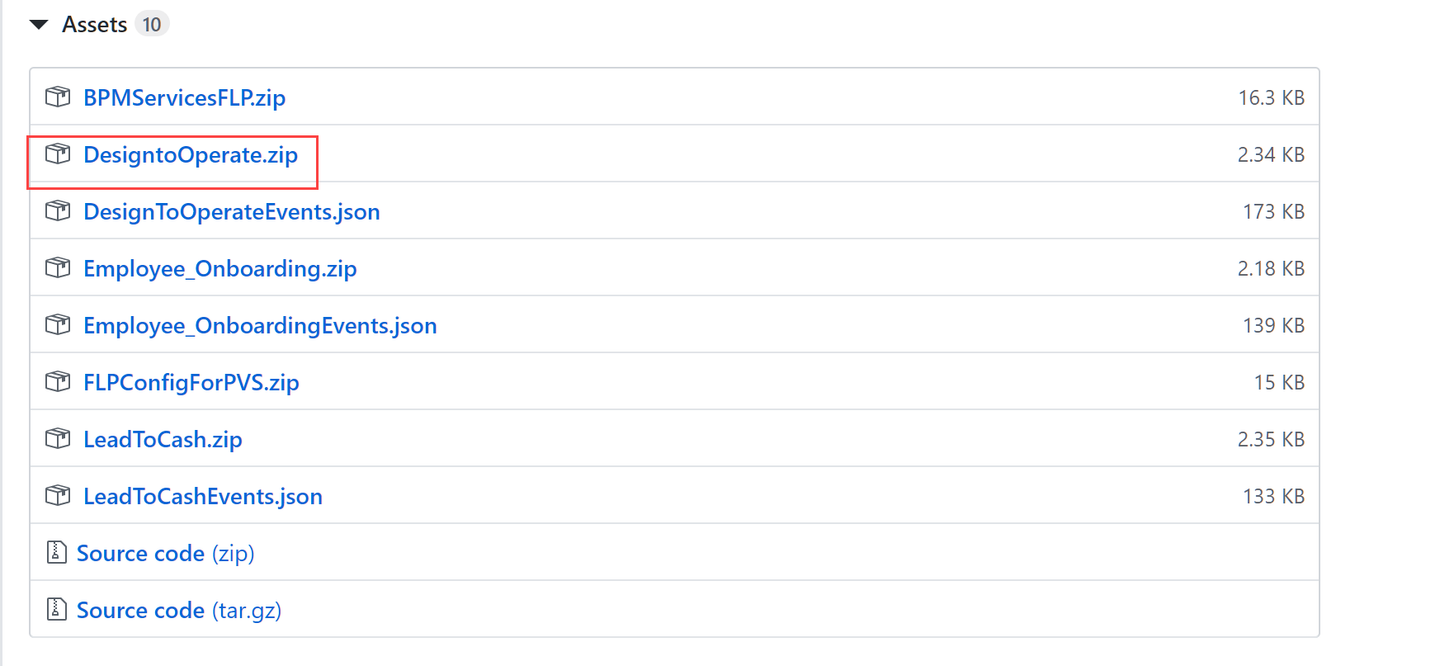
GitHub2 This downloads the
DesigntoOperate.zipfile to your local system.You now have the two downloaded files in your local system with events and a scenario relevant to Design-to-Operate business process.
In this step, you will import the DesignToOperateEvents.json to the Event Acquisition application.
Open the Event Acquisition tile from the Workflow Management dashboard.

Event Acquisition App Choose the Import icon.
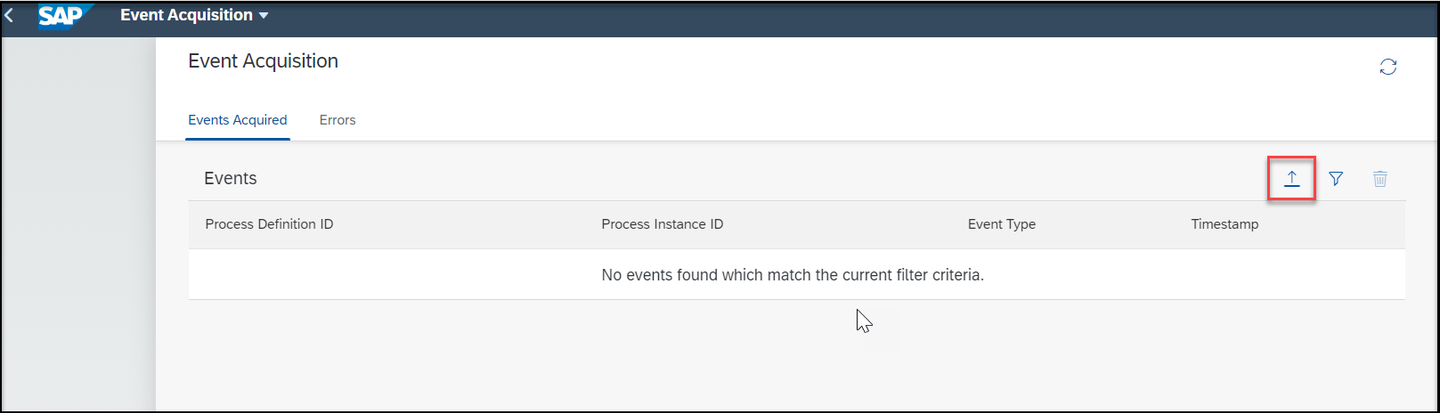
Import event In the Import From File dialog, browse for the
DesignToOperateEvents.jsonfile present in your local file system.
Import event Choose Import.
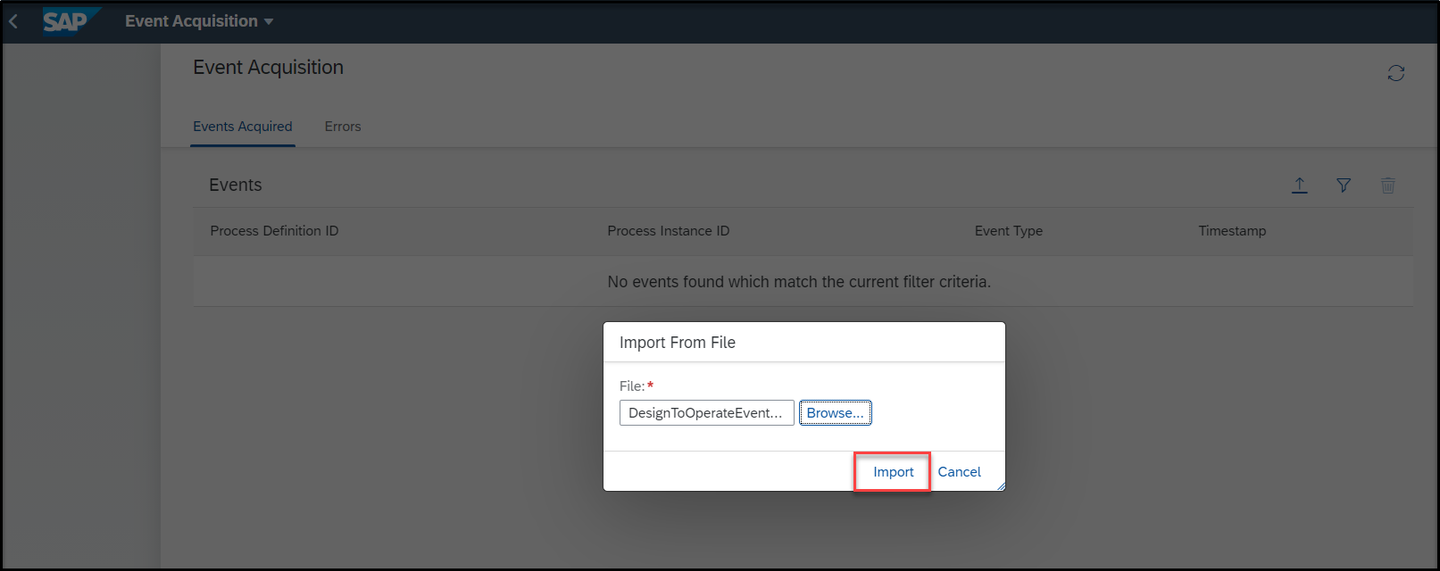
Import from tile Check if the events are imported successfully, by choosing the View Filter Settings icon.

View Filter Choose the Process Definition ID option. In this tutorial, for the Design-To-Operate business process, provide the value as
DESIGNand choose OK.
Process Definition ID You can view a list of events imported for this process definition ID.
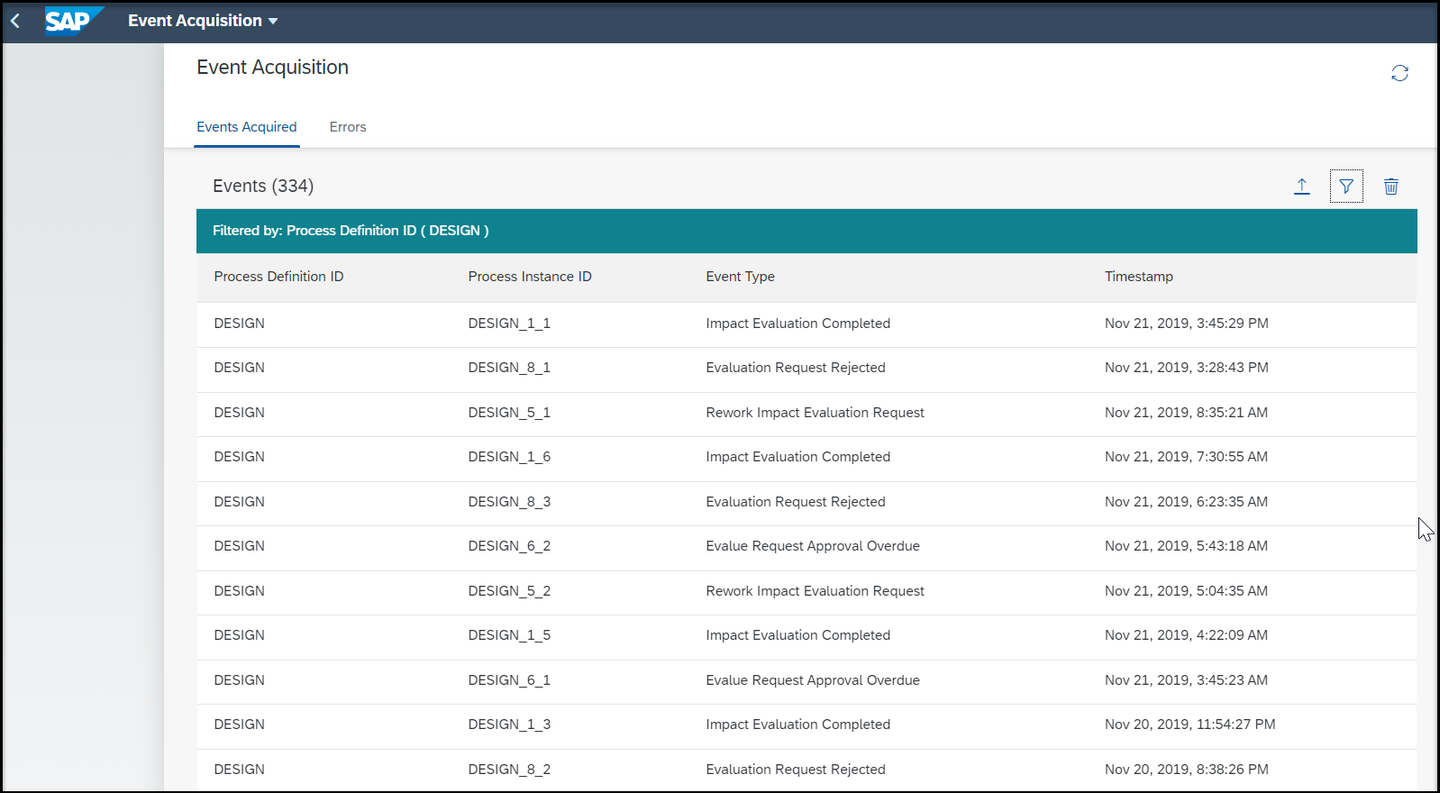
Process Definition ID Similarly, you can search for other process definition IDs such as
DELIVERandMANUFACTURE. You will be able to view the list of events imported for the respective process definition IDs.
In this step, you will import the DesigntoOperate.zip file to the Configure Visibility Scenarios application.
Open the Configure Visibility Scenarios tile from the Workflow Management dashboard.

config scenario Choose the Import Scenario icon.

import scenario In the Import Scenario dialog, browse for the
DesigntoOperate.zipfile from your local system and choose Import.
Browse screen You can now see the imported visibility scenario as shown.

imported scenario Choose the Design to Operate visibility scenario from the list and choose Activate.

Activate You will see a message upon successful activation of the scenario.
In this step, you can process the data of the activated visibility scenario using the Monitor Visibility Scenarios application.
Open the Monitor Visibility Scenarios tile from the Workflow Management dashboard.

monitor scenarios Choose the Design to Operate scenario definition, then choose Process Data.

Process Data On successful processing of data, choose the refresh icon to view the processing information listed out under Processing Information.
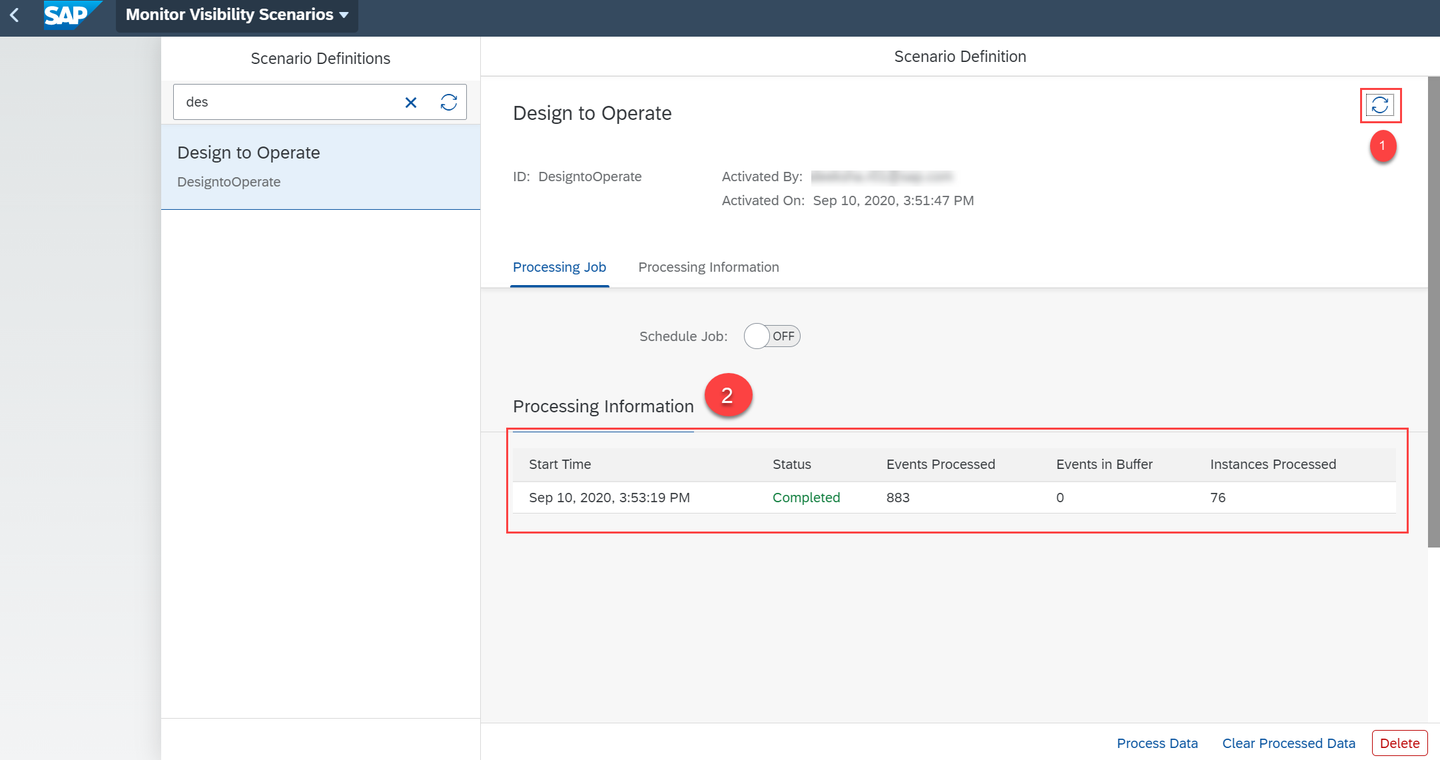
Refresh
In this step, you will be able to track the progress of the sample Design-To-Operate visibility scenario using the visual representation in the Process Workspace application.
Open the Process Workspace tile from the Workflow Management dashboard.
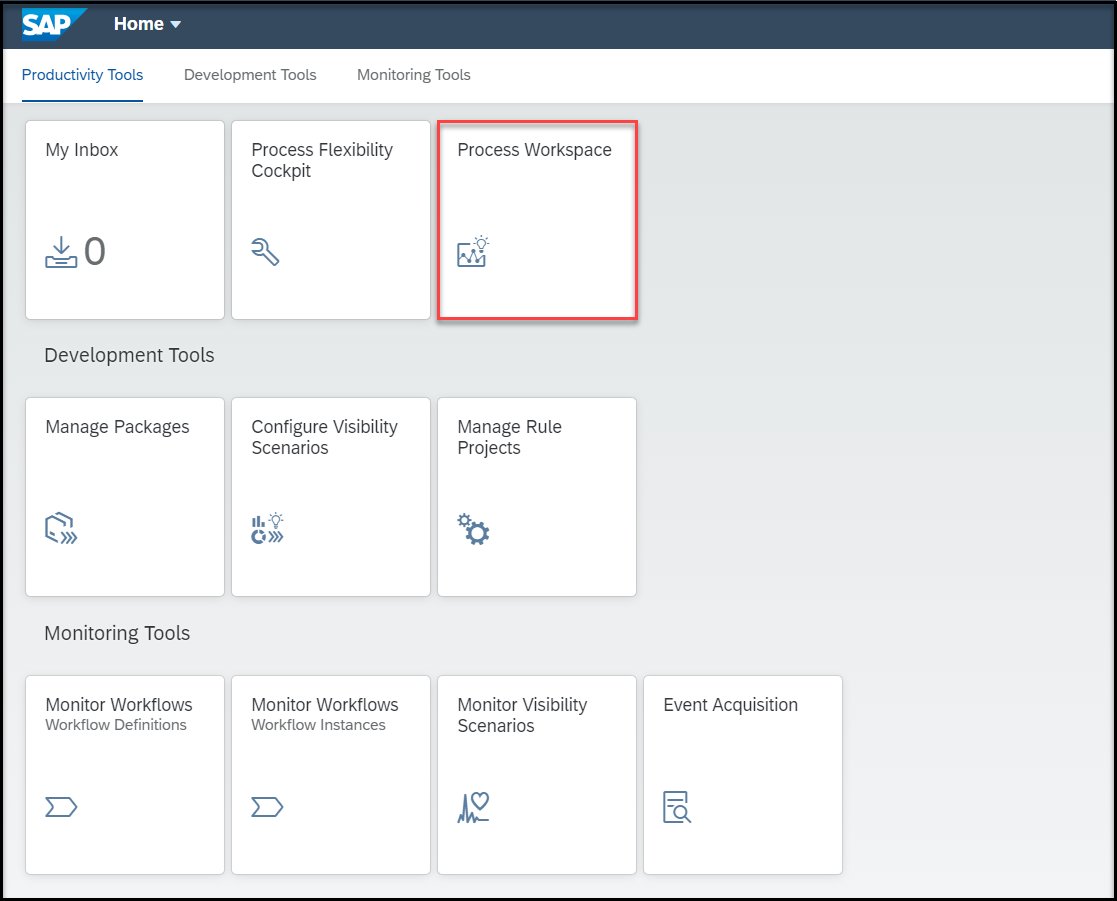
process workspace Choose the Design to Operate visibility scenario.
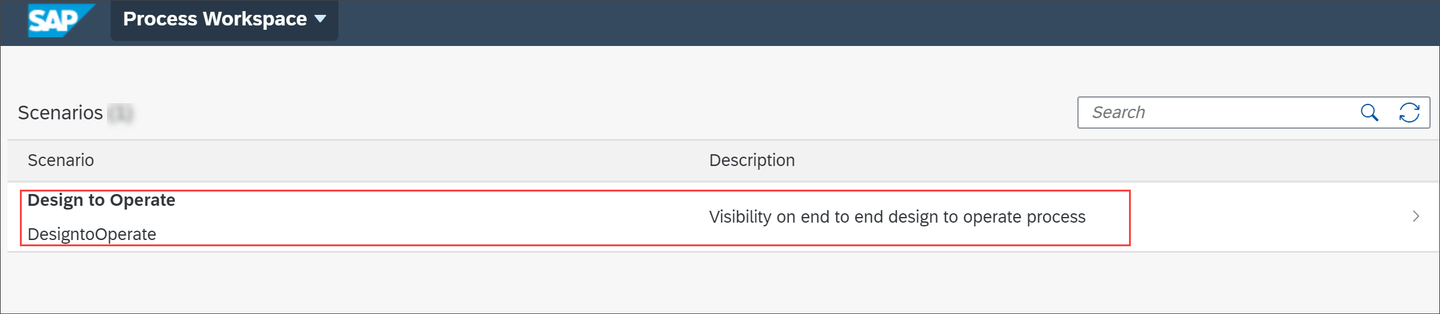
D2O You can view the overview page for the Design to Operate visibility scenario as shown below. You can view information such as open orders, cycle time, open orders by product category, and so on.

D2O You can customize the cards displayed on the overview page by modifying the visibility scenario in the Configure Visibility Scenarios application. For more information on creating and enhancing a scenario, see Create a Scenario documentation.
Resources
Discussion
Share feedback on this tutorial or join the conversation in SAP Community.