
Overview
You will learn
- How to create data objects for a scenario
- How to configure the value help for a data object Data objects are the building blocks of a project. They store the input as well as output data of a rule. Data objects consist of attributes that store the data within a data object. In this tutorial, we will create data objects which hold the employee details and the equipment details. We will also model value help for a data object attribute to choose the values while modeling rules.


Prerequisites
Steps
Choose
Data Objects>Local Data Objects.
create data object In the
Local Data Objectssection, choose +.
new data object In the
New Data Objectscreen, provide the following details for the output data object as shown:Name Label Description Type EquipmentInfoEquipmentInfoEquipment InformationStructureYou can leave the other fields as it is.

data object details Under
Attributestab, choose + in theSimple Attributestable to create a new attribute for the data objectEquipmentInfo.
Attributes for EquipmentInfo Enter the following details in the new row:
Name Label Description Business Data Type ProductDescProduct DescriptionProduct descriptionString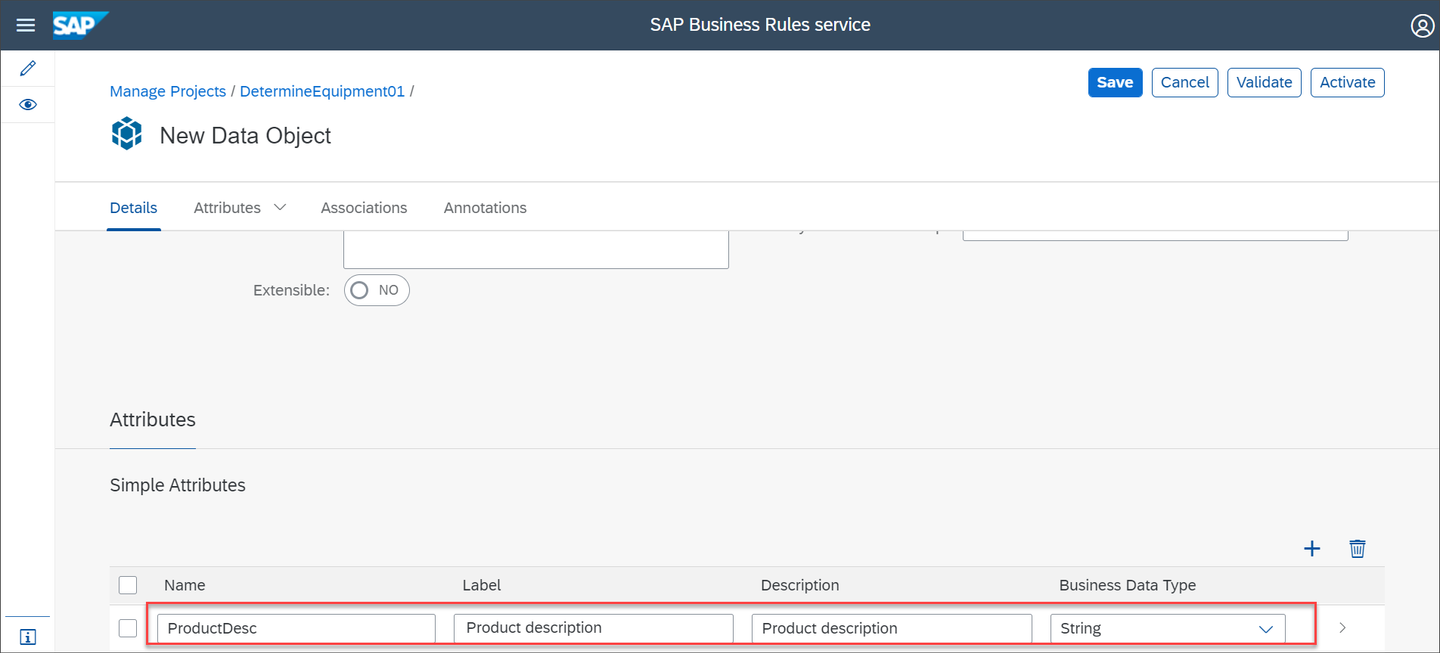
Attributes for EquipmentInfo Similarly, create five new attributes with the following values:
Name Label Description Business Data Type PricePricePrice of the equipmentNumberEquipmentTypeEquipment TypeType of equipmentStringProductIDProduct IDProduct IDStringCurrencyCurrencyCurrencyStringThen, choose
Activate.
Five new attributes Activating will also save and validate the data object.
Similarly, create and activate
EquipmentApprovaldata object and its attribute with the following values:Data Object:
Name Label Description Type EquipmentApprovalEquipmentApprovalApproval required for the equipment list selected for the new hire.StructureSimple Attributes:
Name Label Description Business Data Type ApprovalNeededApprovalNeededIs approval needed for the equipment?BooleanThen, choose Activate.

EquipmentApproval data object Similarly, create and activate Equipment data object and its attribute with the following values:
Data Object:
Name Label Description Type EquipmentEquipmentDetails of the equipment opted for the new hire.StructureSimple Attributes:
Name Label Description Business Data Type TotalAmountTotalAmountTotal amount of all the selected equipmentNumberThen, choose Activate.

Equipment data object Similarly, create and activate Employee data object and its attributes with the following values:
Data Object:
Name Label Description Type EmployeeEmployeeDetails of the employeeStructureSimple Attributes:
IsFullTimeEmployee:Name Label Description Business Data Type IsFullTimeEmployeeIsFullTimeEmployeeTrue if the employee works full time or else false.BooleancountryofCompany:Name Label Description Business Data Type countryofCompanyCountry or Region of CompanyCountry or Region of companyStringcompany:Name Label Description Business Data Type companycompanyCompany nameStringjobTitle:Name Label Description Business Data Type jobTitlejobTitleJob title of the recruitStringThen, choose Activate.

Employee data object Navigate to the Local Data Objects tab to view the list of data objects.

List of data objects
Choose Employee data object.

Create value help Choose Edit and then choose
countryofCompanyattribute.
countryofCompany attribute Choose Value Help tab and then choose Edit.

New value help Choose +.

Add value help Choose Value List from the dropdown list.

Create value list Select the newly created Value List.

Value list In the Details section, choose + to add a Value-Description pair and then provide the following values:
Value Description USAUnited StatesDEUGermanyINDIndiaAUSAustraliaThen, choose Save.
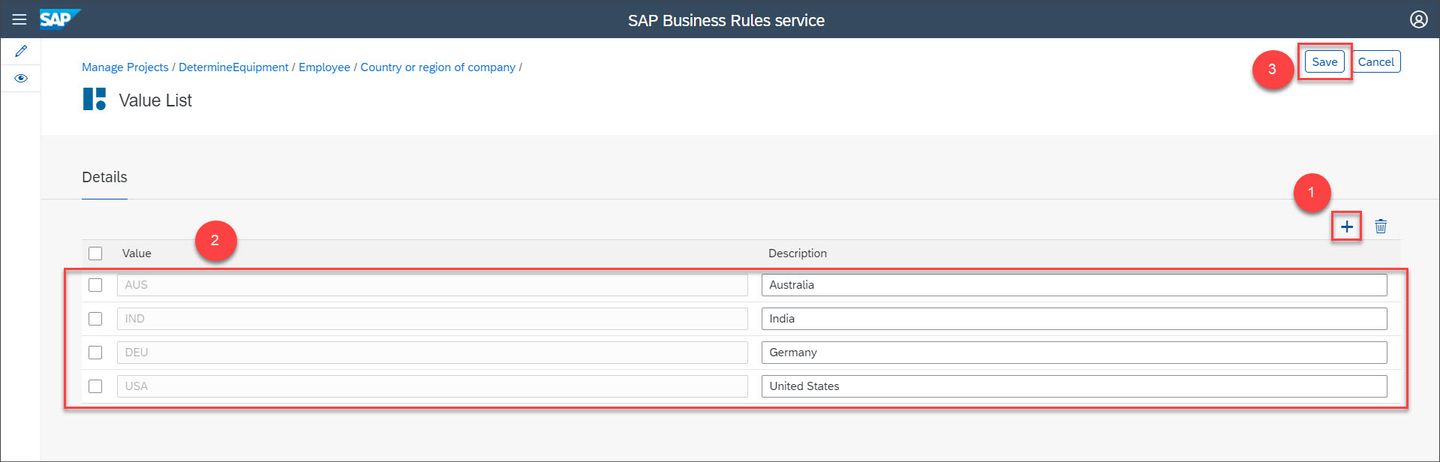
Save value help As you edited the data object to configure value help, the status will change to Inactive. To activate the data object, choose Employee in the breadcrumb navigation.

Activate Employee data object Choose Edit.

Choose Edit to activate Then, choose Activate.

Activate data object Choose DetermineEquipment01 in the breadcrumb navigation to navigate to the Data Objects tab.

Breadcrumb navigation
Resources
Discussion
Share feedback on this tutorial or join the conversation in SAP Community.