
Overview
You will learn
- How to call and test the Personalized Recommendation service
- How to access and use Swagger UI (User Interface)
- How to submit a training job and trigger model serving
- How to get recommendations based on users’ browsing history


Prerequisites
Prerequisites
- You have completed the tutorial: Get OAuth Access Token for Personalized Recommendation via Web Browser
Steps
Intro
In this tutorial, you will use your own dataset to train a machine learning model to get next-item recommendations.
You will use Swagger UI, via any web browser, to call the Personalized Recommendation service APIs. Swagger UI allows developers to effortlessly interact and try out every single operation an API exposes for easy consumption. For more information, see Swagger UI.
In the service key you created for Personalized Recommendation in the previous tutorial: Use the Free Tier Service Plan to Set Up Account for Personalized Recommendation and Get Service Key, you should find (outside the uaa section of the service key) an entry called url (as highlighted in the image below).
To access the Personalized Recommendation Swagger UI, add
/docto theurlvalue, paste it into any web browser and press Enter.
PRS To be able to use the Swagger UI endpoints, you need to authorize yourself. In the top right corner, click Authorize.

PRS Get the
access_tokenvalue created in the previous tutorial: Get OAuth Access Token for Personalized Recommendation via Web Browser, then add Bearer in front of it, and enter in the Value field.Codebearer <access_token>
PRS Click Authorize and then click Close.

PRS
The training endpoint can only receive an input in the form of a ZIP file. The ZIP file should contain two files: the Clickstream file and the Item Catalogue file. Here’s an overview of these files:
Clickstream file
Overview
Clickstream data is essential in understanding customer behavior based on the sequences of historical item interactions for each user. This data enables the model to do the following:
Learn relations between items that appear in the same context, for example, user session item.
Identify browsing patterns for each user, providing the basis for personalized recommendations, for example, for users with different histories interacting with the same item.
(If item catalogue is provided) learn relations between items and their attributes, for example, from consecutive items in the same session belonging to the same category or having a similar name.
(If user metadata is provided) learn relations between user’s attributes and item interaction sequences, for example, users with the same attribute values have different histories of item interactions.
To cover a wide range of recommendation domains or business scenarios, the clickstream schema detailed below is domain agnostic. Data size limits and content recommendations are provided in the subsequent sections.
Data schema
The clickstream is a CSV file with the following columns:
userId: raw user ID (string)itemId: raw item ID (string).timestamp: timestamp (float).
Each row represents an event defined by the tuple (user, item, time). Note the agnostic nature of the event definition: it may refer to any type of user-item interaction, for example, view, add to cart, subscribe, rate, and so on. When preparing the clickstream data to fit this format, it’s up to you to determine which type of events to export. All events are treated as one type by the model.
Click on data to download a sample clickstream file for your reference.
Item catalogue file
Overview
The item catalogue provides additional information on the items in the form of categorical and text features. This information can be used by the model in the following ways:
To improve the quality of the predictions: more item information results in more patterns in the clickstream data being identified and forecast.
To support item cold start: approximate item representations (for example, embeddings) based on attribute representations.
To give flexibility during inference: item attributes may be customized (modified attribute values and/or weights), influencing the recommendations.
To enable smart search: as the model learns to represent words and item attributes, it can take them as inputs to recommend relevant items.
To avoid ambiguity in interpreting the attributes and standardize the catalogue format, the data schema has been fixed, as described in the next section. Additional information on size limits and recommended content of the catalogue is provided in the subsequent sections.
Therefore, while not mandatory, it’s highly recommended to have the item catalogue together with the clickstream data and unlock the full potential of the recommendation engine.
Data Schema
The item catalogue is a JSON file with the following structure:
{
    raw item ID (string): {
        'categoricalFeatures': {
            categorical attribute (string): {
                'values': attribute values (list of strings),
                'weights' (optional): attribute weights (list of float)
            },
            ...
        },
        'textFeatures': {
            text attribute (string): attribute value (string),
            ...
        },
        'numericalFeatures': {
            numerical attribute (string): attribute value (float),
            ...
        },
        'unavailable' (optional): availability flag (boolean)
    }
}
Click on data to download a sample item catalogue file for your reference.
Use the POST /standard/rs/v1/tenants/{tenant}/jobs/file-upload endpoint to upload data and trigger the machine learning model training job.
Click the endpoint name to expand it.
Click Try it out.

PRS Enter tenant name. You must enter a name for the tenants, so please input a name of your choice.
Upload Data. Choose the ZIP file that contains the newly created training data.
Enter site name. A site name is also required, but if you leave this field blank, it is automatically filled with “default”.

PRS Set
serve_modeltotrue. Make this setting to automatically deploy the real-time model serving instance.
PRS Click the Execute button. Bear in mind that users with the free tier model for SAP BTP are limited to a total number of 2 trainings per month. When you call the third training API, you get a 403 response stating that you have exceeded your quota for the month.
After you trigger the training, there are two possible outcomes:
Still ongoing, where the status is “PENDING”, and code 200.

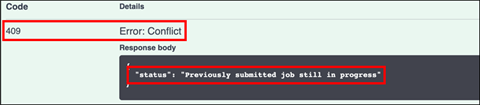
PRS Conflict, where the trigger clashed with the ongoing training from the previous trigger. The status is “Previously submitted job still in progress”, and the code is 409.
PRS
Use the GET /standard/rs/v1/tenants/{tenant}/jobs/latest endpoint to check the status of the ongoing training job.
Click the endpoint name to expand it.
Click Try it out.
Enter tenant name and site name (must be exactly the same as in the previous step). Click Execute.

There are three possible outcomes:
Job is still ongoing, with the status “SUBMITTED” and code 200. Please wait for around 5–10 minutes before rechecking the progress.

PRS The job is completed, with the status “SUCCEEDED” and code 200. You can now proceed to the next step.

PRS The job fails, with status “FAILED” and code 200. Please retrigger the training and make sure that you have entered all information correctly.

PRS
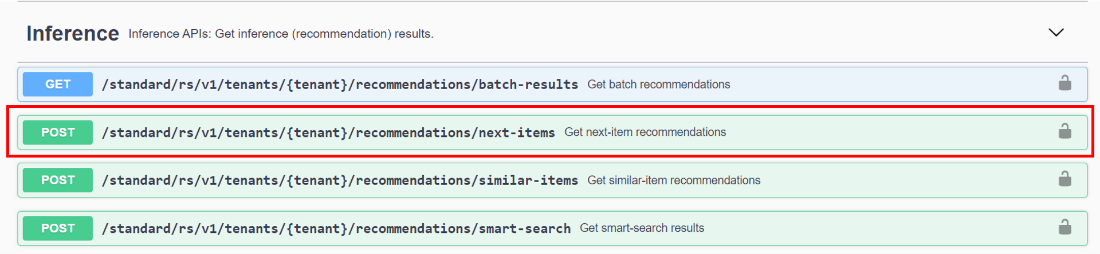
There are four different choices of inference calls as you can see in Inference Options. For this tutorial, we will use next-item recommendations.
Use the POST /standard/rs/v1/tenants/{tenant}/recommendations/next-items endpoint to get next-item recommendations.
Click the endpoint name to expand it.
PRS Click Try it out.
Insert payload.
Here, you provide all the relevant inference input data in the payload. Each of the different inference endpoints has different requirements: For
next_items, theitems_lsparameter is required while the other parameters are not required (but imputable). Theitems_lsparameter is a list ofitems_idrepresenting the past item interactions (clickstream) of the user to generate the recommendations.For this parameter to be valid, the input must meet the following requirements:
Correspond to an object entry in the
item_Cataloguetraining data used to train the model, orBe provided as an entry in the metadata parameter as a cold start item, or
Be provided as a cold start item via the ‘metadata update’ feature
Taking an example from our sample dataset, insert a payload with the following content:
JSON{ "items_ls":[ "2858" ] }For more details regarding the payload input, please refer to Next-Item Recommendations.
Enter tenant name and site name (must be exactly the same as in the previous steps). Click Execute.
You can expect the following responses:
The model is able to understand the request and successfully return a set of recommendations. This returns a 200 code, stating the recommended items with their respective confidence scores.

PRS The user entered an incorrect payload. This returns a 400 code, stating that the model doesn’t understand the payload request.

PRS Forbidden. The user has exceeded their inference quota for the month. A short message is displayed with code 403. Bear in mind that users with the free tier model for SAP BTP are limited to a total number of 1000 inference requests per month.

PRS The training process has not finished yet. This returns a 404 code, stating that no model instances were found.

PRS
You have now successfully used the Personalized Recommendation service and your own dataset to train a machine learning model and get recommendations based on users’ browsing history and/or item description.
Resources
Discussion
Share feedback on this tutorial or join the conversation in SAP Community.