
Overview
You will learn
- How to deploy a chatbot to Slack
- How to add app to channel
- How to talk directly with the app without a channel


Prerequisites
Prerequisites
- You have created a chatbot to deploy. This tutorial uses the bot created in the tutorial Consume API Services and Call Webhooks from Your Chatbot.
Steps
Go to the Connect tab.
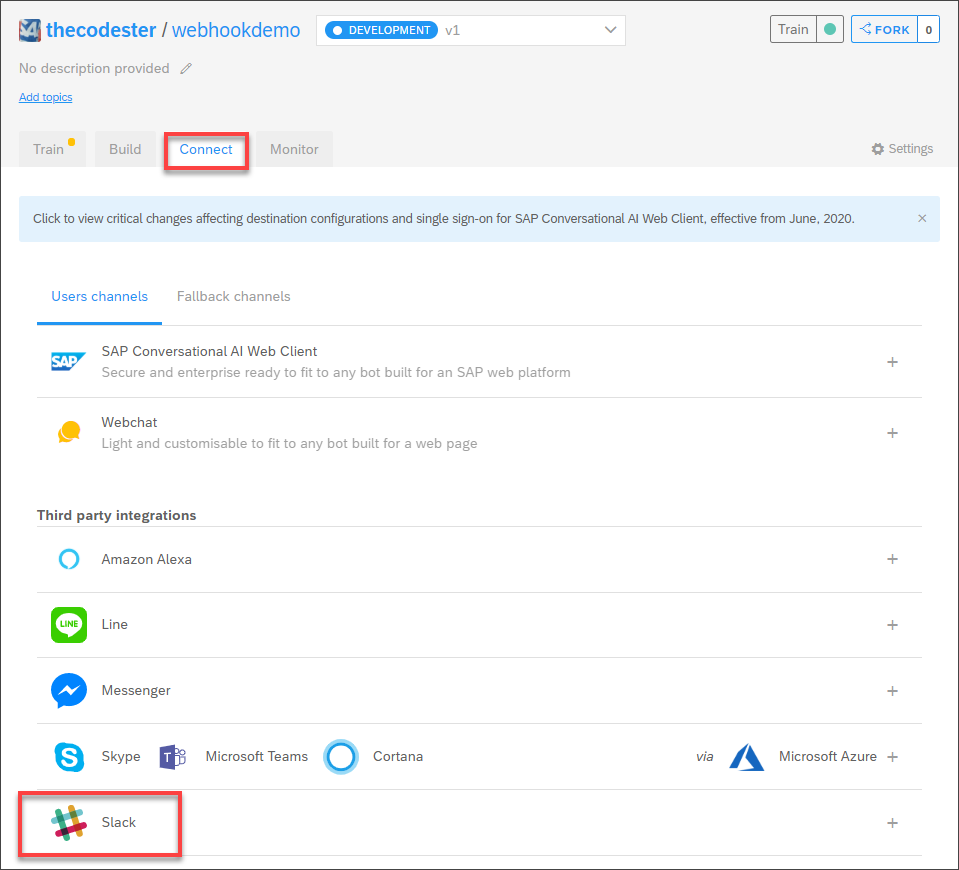
Connect tab Under Third party integrations, click Slack.
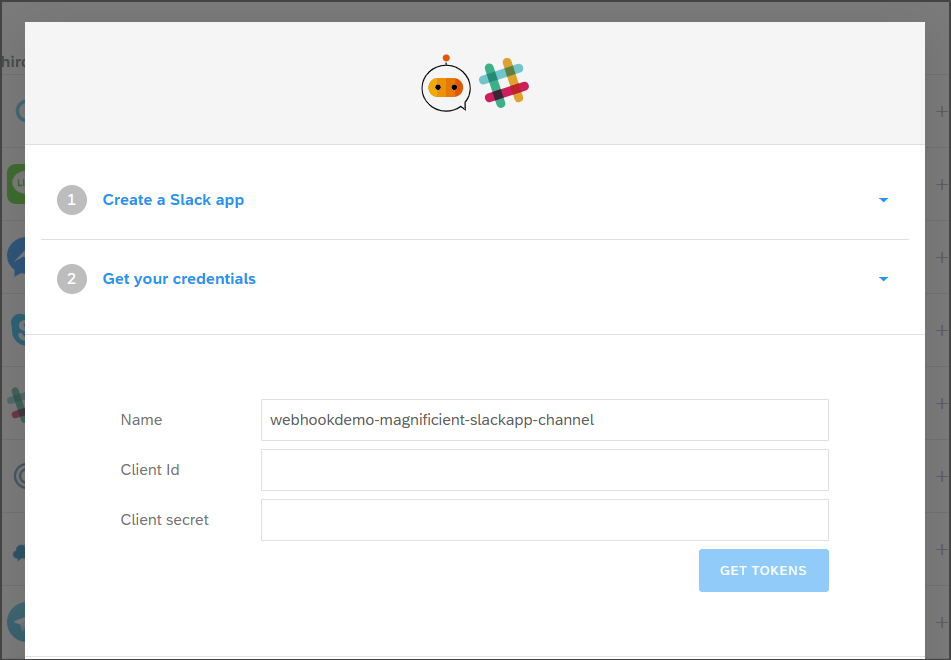
Open Slack
This will open a set of instructions for integrating with Slack, and a place to store tokens for connecting to Slack. But you can follow the instructions in this tutorial instead.
Go to https://api.slack.com/apps.
Click Create App.
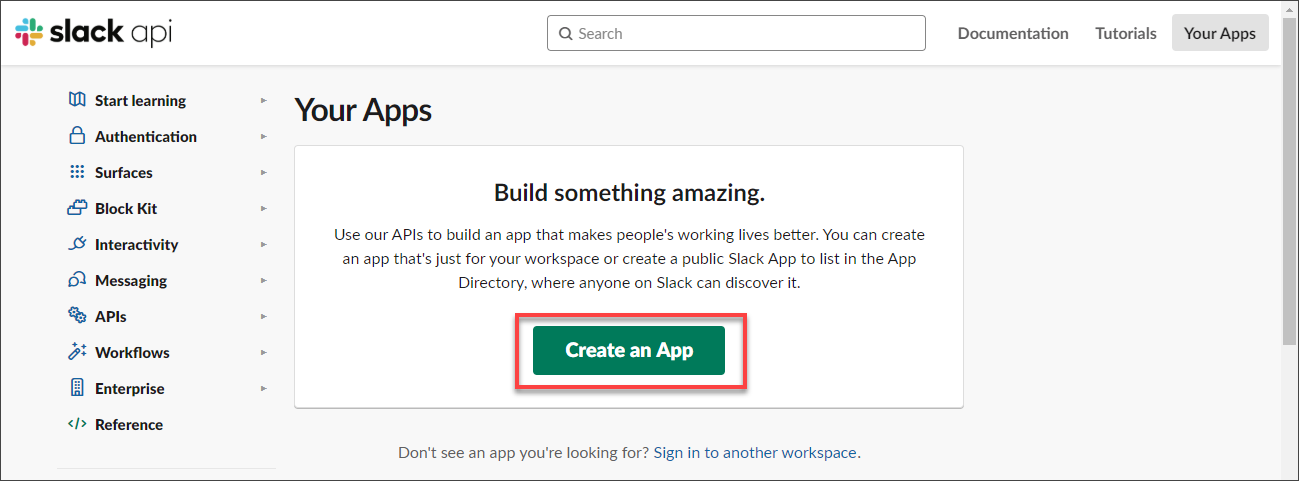
Create app Enter the following:
Field Name Value App Name Animal FactsDevelopment Slack Workspace Select your workspace Click Create App.
Your app is created.
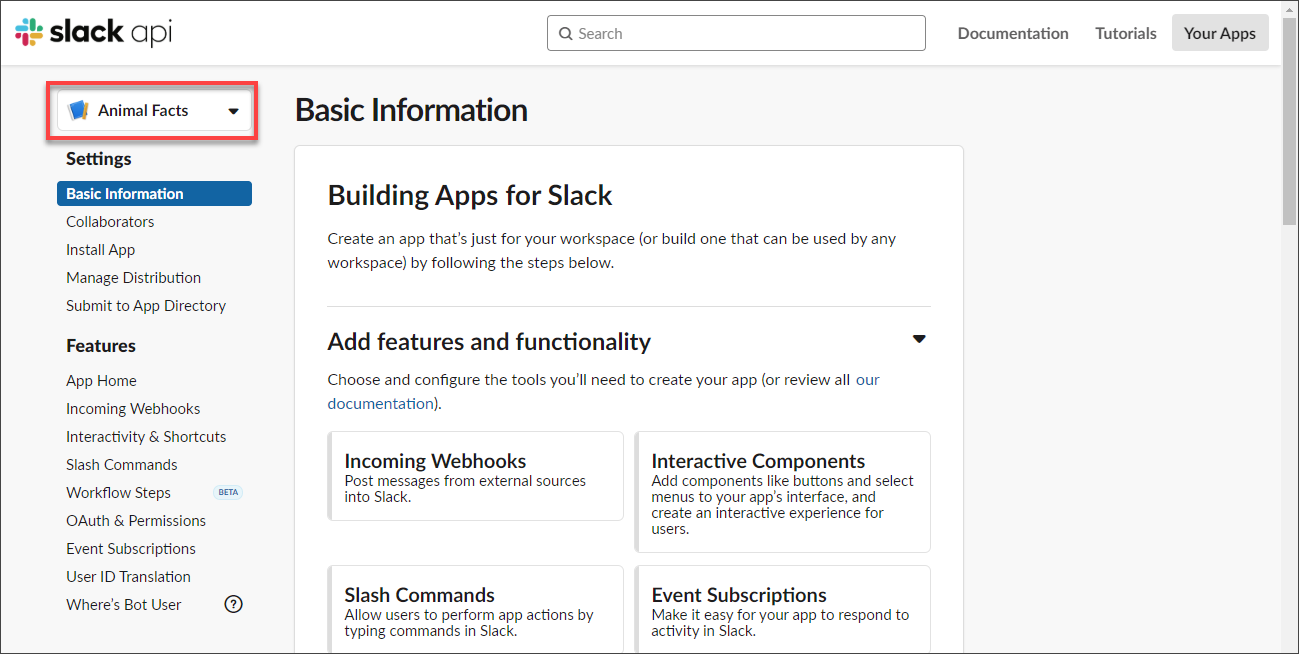
New app
In the Slack app page, in the Basic Information tab, scroll down to the App Credentials section.

Link text e.g., Destination screen Copy the Client ID and Client Secret from the Slack app page to the Slack panel in the Connect tab in SAP Conversational AI:

Link text e.g., Destination screen Click Get Tokens.
This will create OAuth and Event URLs.

Credentials results Hold onto to these URLs because you will need to enter them within your app on Slack.
In the Slack app page, go to OAuth & Permissions.
Click Add New Redirect URL.
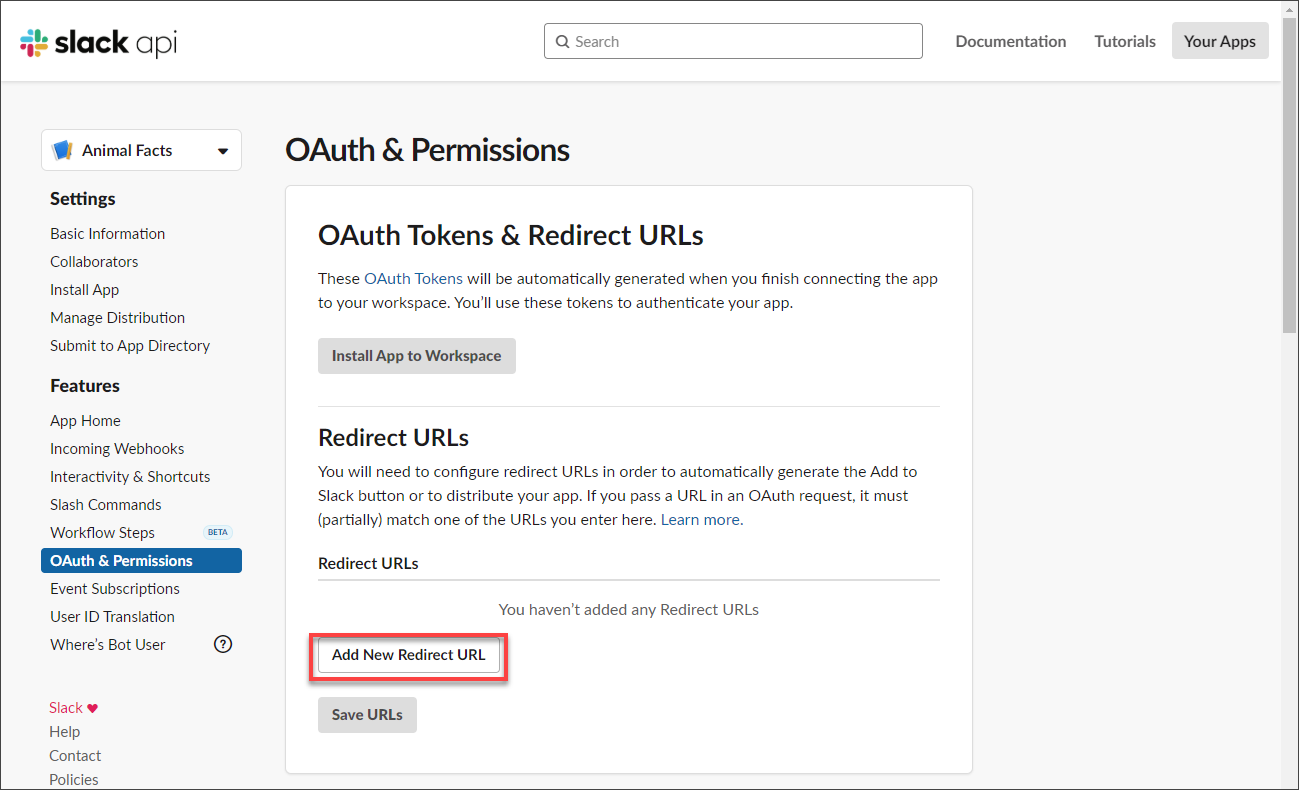
OAuth Enter the OAuth URL from SAP Conversational AI, click Add, then click Save URLs.
In the Slack app page, go to Interactivity & Shortcuts.

Interactivity Turn interactivity On.
Enter the events URL from SAP Conversational AI into the Request URL.

Add request URL Click Save Changes.
In the Slack app page, go to OAuth & Permissions, and scroll down to Scopes.

Scopes Click Add an OAuth Scope and add the following scopes:
Scope app_mentions:readchannels:historychat:writeim:historyusers:readThese give the app permission, for example, to read mentions entered into Slack or to post messages.
Scroll to the top and click Install App to Workspace, and then click Allow to give your app the needed permissions.
In the Slack app page, go to Event Subscriptions.

Events Turn events On.
Enter the events URL from SAP Conversational AI into Request URL.
Under Subscribe to bot events, and subscribe to events.
Click Add Bot User Event and add the following events:
Event app_mentionmessage.immessage.channelsClick Save Changes.
In the Slack panel in the Connect tab in SAP Conversational AI, go to step 8 (Add my bot to a slack channel).

Click the link.

Allow the permissions for the app by clicking Allow. You should get a success message.

In Slack, scroll down to Apps, click + and add the app to your Slack.

Add app Search for
Animal Factsand select the app.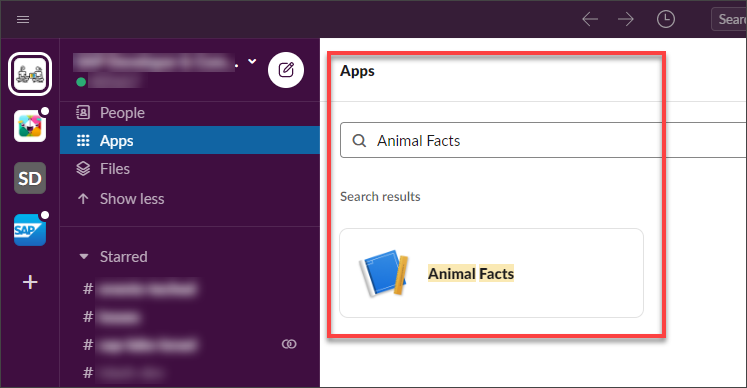
Find app After selecting, the Animal Facts is added to your apps in the Slack navigation panel. It’s message screen is also displayed.

App added Enter the word
cat, and the bot responds by making an API call to get a fact about cats, and displays in the Messages panel.
App test Cats can’t produce fat!?
You can also add the app to a channel, so when someone specifically sends a message to the app, the bot processes the message and returns the appropriate response.
Go to the channel and open the Details panel on the right.
I created a private channel called Test.
Click More > Add Apps, find your app, and to the right click Add.
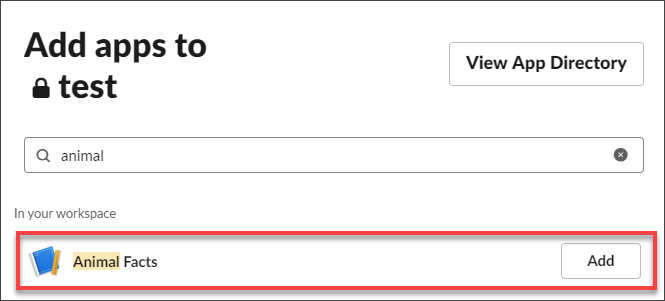
Add to channel Now you can speak to the bot via direct message.
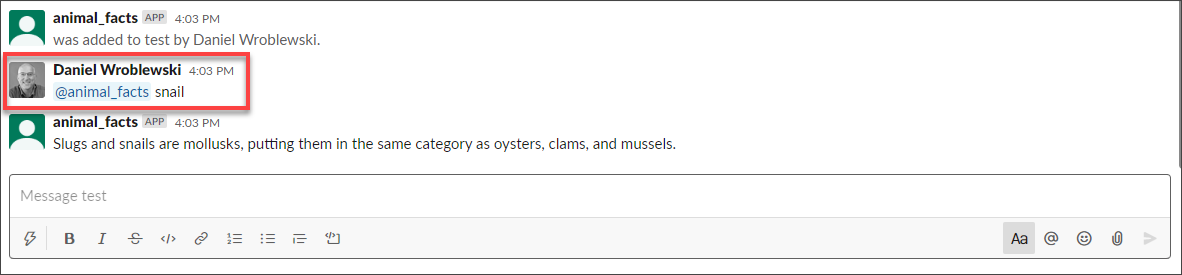
Test app in channel Did you know snails are closely related to oysters and clams?
Resources
Discussion
Share feedback on this tutorial or join the conversation in SAP Community.