
Overview
You will learn
- To leverage the SAP Build Code features.
- To navigate the SAP Build lobby.


Prerequisites
Prerequisites
- You have an SAP BTP Trial account (Get a Free Account on SAP BTP Trial).
- You have completed the Setup SAP Build Code tutorial.
Steps
Note This tutorial assumes that you are using an SAP BTP trial account. If you are using a different account, some steps might be different.
Navigate to the SAP Build lobby.
Click Create, and from the dropdown list, select Create.
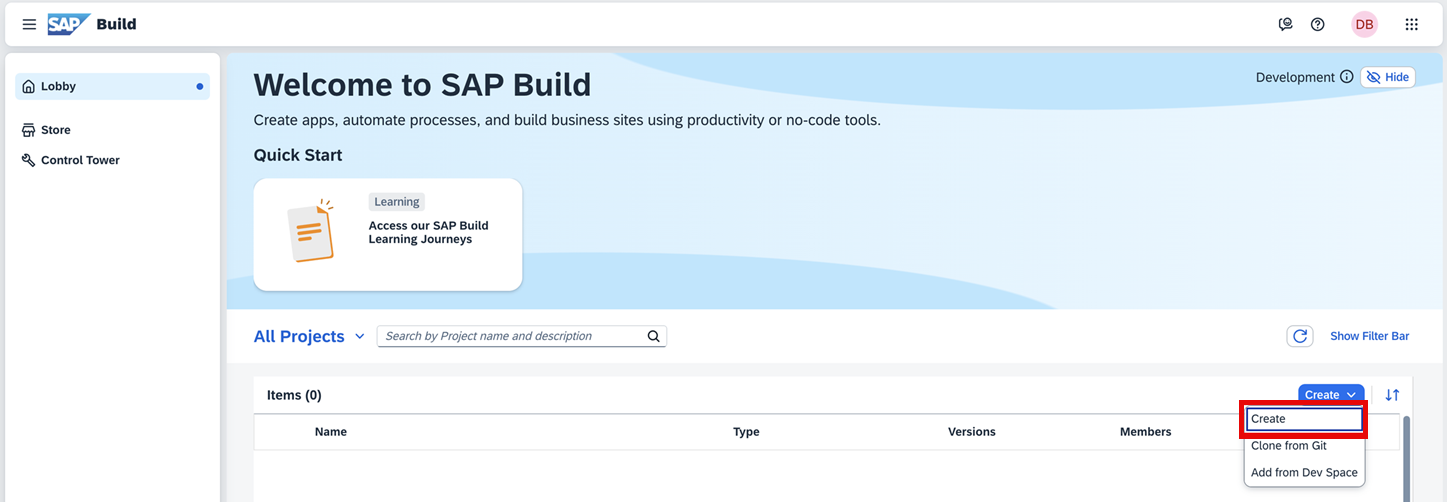
Under the Create option, you also add existing projects to your SAP Build workspace in the following ways:
Clone from Git: to clone an existing project from a Git repository.
Add from Dev Space: to add a project from an existing SAP Business Application studio dev space to your SAP Build Code tenant.
Click the Application tile.

Build an Application Select the type of application you want to create.

Select application type - Select Full-Stack to develop, extend, and deploy full-stack applications of type Full Stack with Productivity Tools.
- Select Frontend to build responsive, interactive web UIs.
- Secelct Backend to build server-side applications.
- Select Mobile to customize, deploy, and manage your customized iOS and Android apps in the cloud.
If you selected a Full Stack application, select Full-Stack Node.JS, Full-Stack Java, or Full-Stack ABAP as your development stack.

Select development stack Provide a name for your project.
Select the dev space where you want the project to reside.
SAP Build Code recommends the dev space it deems most suitable, and it will automatically create a new one for you if you don’t already have one. If you have other dev spaces of the same type (for example, Full-Stack), you can select between them. If you want to create a different dev space, or a dev space or another type, go to the Dev Space Manager. See Working in the Dev Space Manager.

Select dev space Click Review.
A summary of your selections is displayed.

Select development stack Click Create.
You can see the project being created in the Project table of the lobby.
The creation of the project may take a few moments.
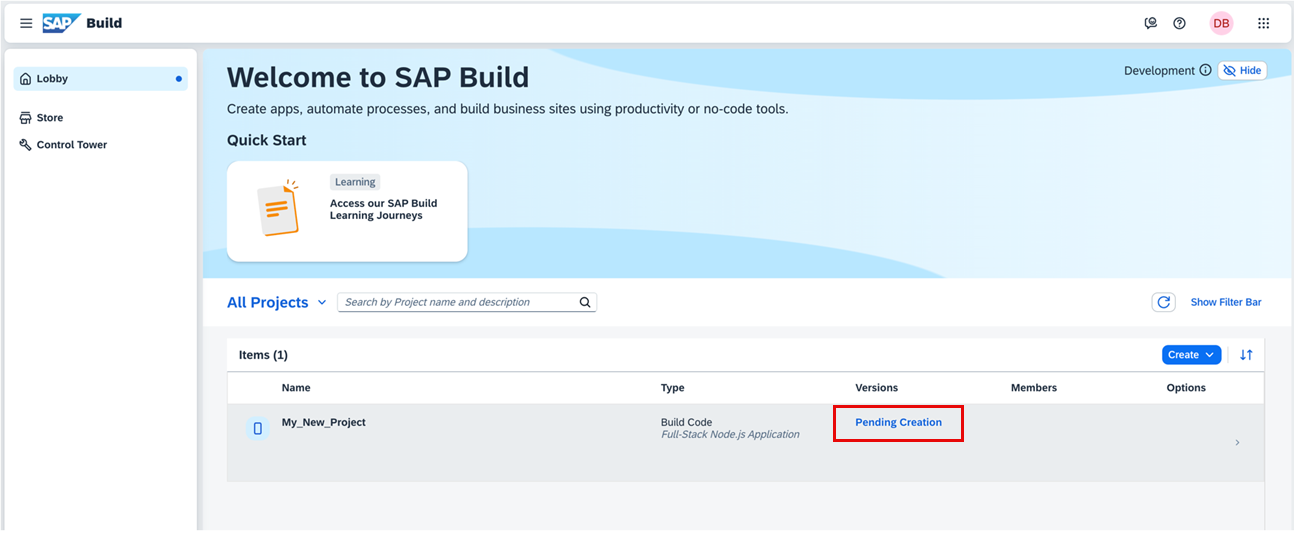
Creating After you see a message stating that the project has been created successfully, click the project to open it.

Open Project The project opens in SAP Business Application Studio, the SAP Build Code development environment.
Resources
Discussion
Share feedback on this tutorial or join the conversation in SAP Community.