
Set Up SAP Build Apps on SAP BTP Trial Account
Set Up SAP Build Apps on an SAP BTP trial account.
Overview
You will learn
- How to set up SAP Build Apps on your trial account


Prerequisites
Prerequisites
- You have created a trial account, as described in Get a Free Account on SAP BTP Trial.
- Your trial account must be in the US East (VA) - AWS or Europe - Frankfurt region.
Steps
Intro
IMPORTANT: This is not official documentation, and SAP Build Apps is not officially supported on the SAP BTP trial landscape.
SAP Build Apps requires that users be part of a custom identity provider. Therefore, you need to install the Cloud Identity Service.
In the cockpit of your subaccount, go to Service Marketplace.
Search for Cloud Identity Service.
Click Cloud Identity Service and click Create.
Select the
defaultservice plan, and click Create.The service will be created in a few seconds.
You will get an email to activate your account on this new identity provide.
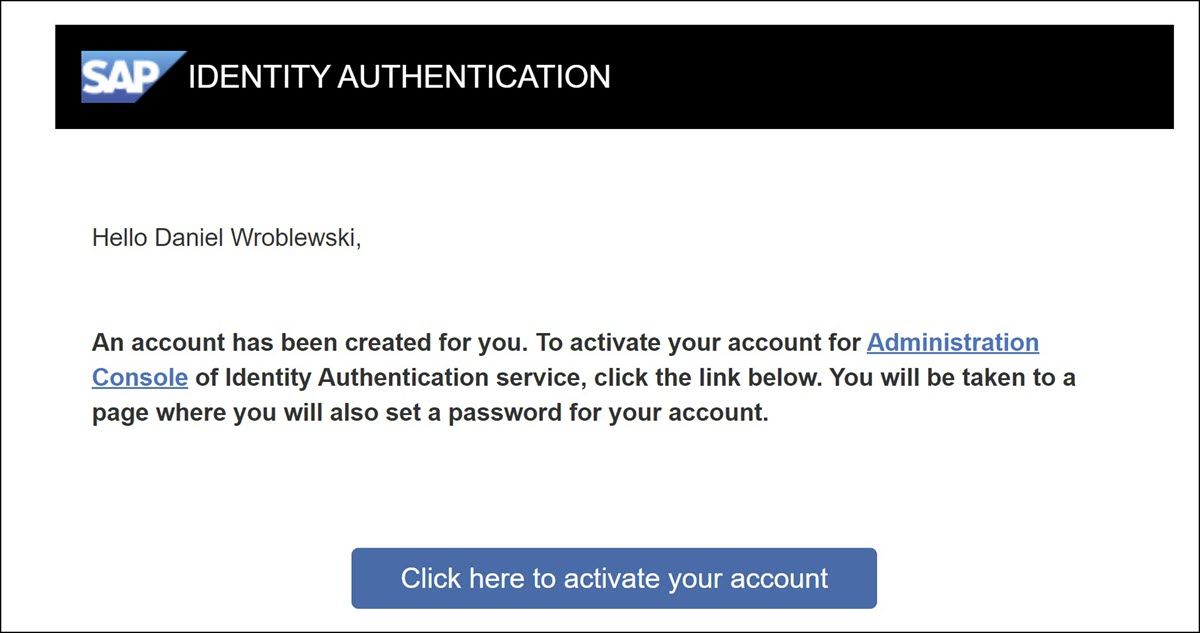
Email Click the button to activate your account, and follow the instructions for creating a password for this new custom identity provider.
When you are done you will see a new browser tab with the administration UI for managing users and authorizations for this identity provider. There is nothing to be done on this screen.
Navigate back to your subaccount.
You can navigate back by doing the following:
Click the global account in the breadcrumb.
Click Account Explorer.
Click your subaccount.
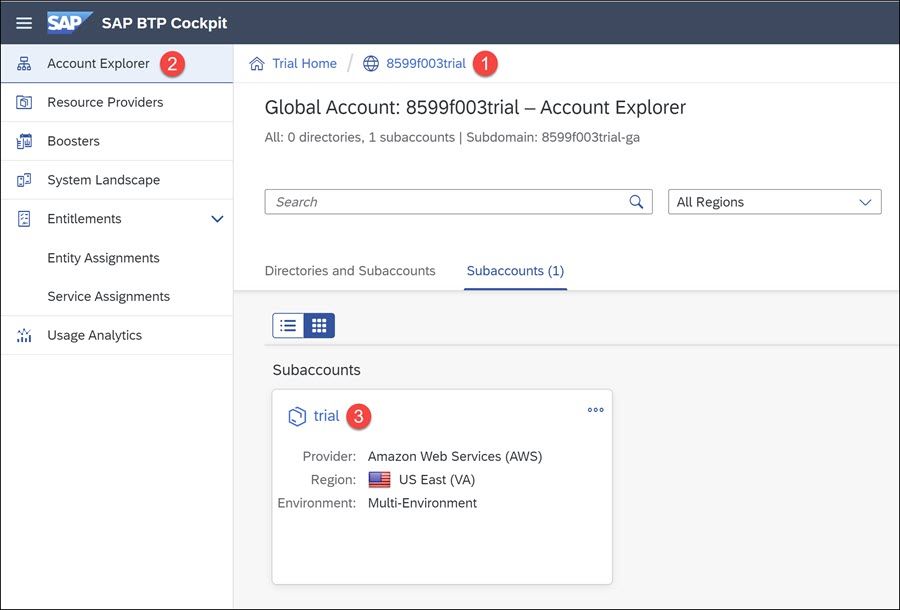
Subaccount In the cockpit of your subaccount, go to Security > Trust Configuration.
Click Establish Trust.
You should see the identity provider you created when you install the Cloud Identity Service.
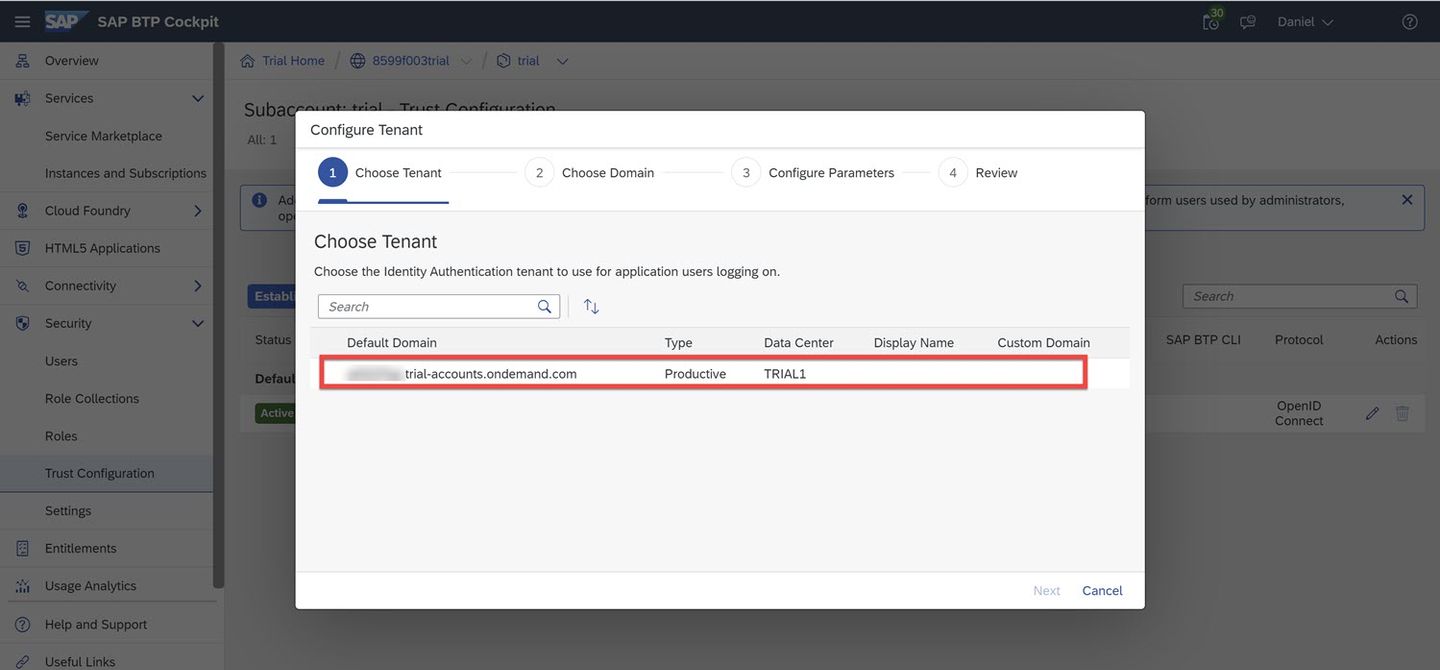
IDP Select it, and click Next.
On the Choose Domain page, keep the settings and click Next.
On the Configure Parameters page, keep the settings and click Next.
Click Finish.
You should now have a custom identity provider in the trust configuration.
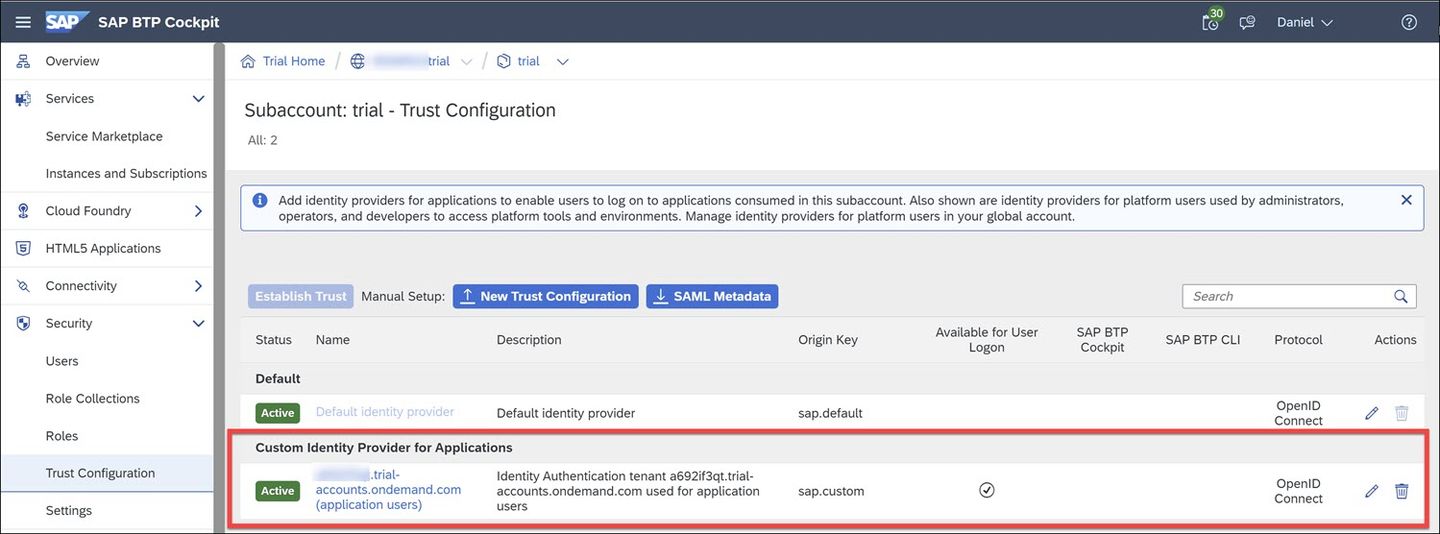
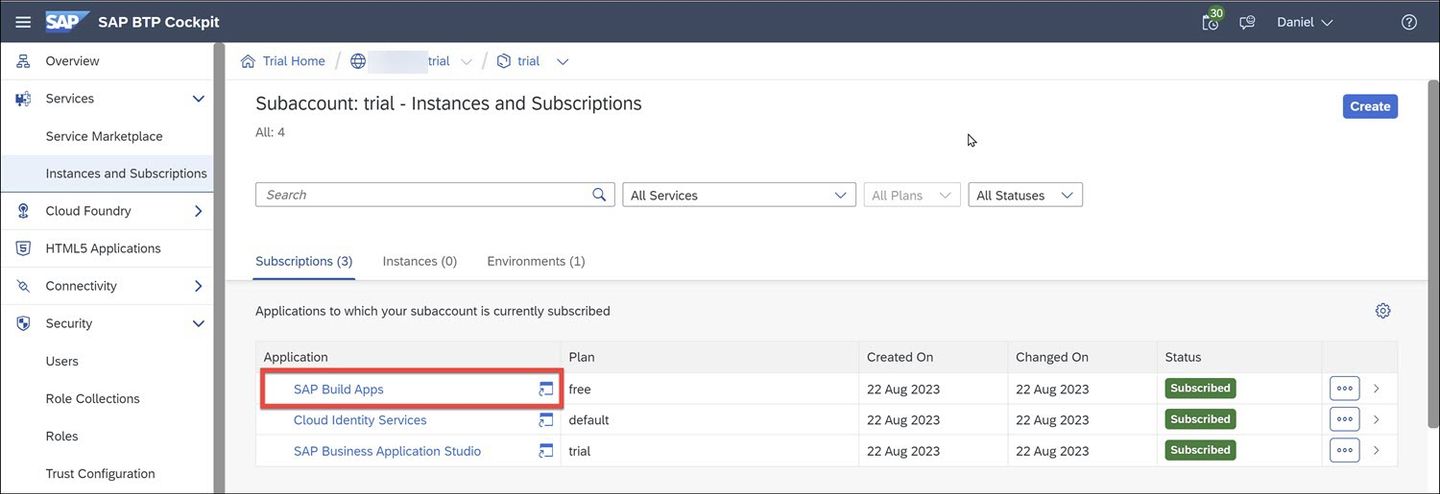
Navigate back to your subaccount, and go to Instances and Subscriptions.
Click Create.
Select:
Field Value Service SAP Build AppsPlan freeClick Create. After a few minutes the SAP Build Apps is added to the subaccount.
Alt text
With SAP Build Apps, you have the following roles:
| Role | Purpose |
|---|---|
| RegistryDeveloper | Provides access to the lobby to manage your own projects. |
| RegistryAdmin | Provides access to the lobby to manage all projects. |
| BuildAppsDeveloper | Provides access to create projects in SAP Build Apps. |
| BuildAppsAdmin | Provides access to create projects in SAP Build Apps and to manage all projects. |
The 2 admin roles are grouped into the BuildApps_Administration role collection, and the 2 developer roles are grouped into the BuildApps_Developer role collection.
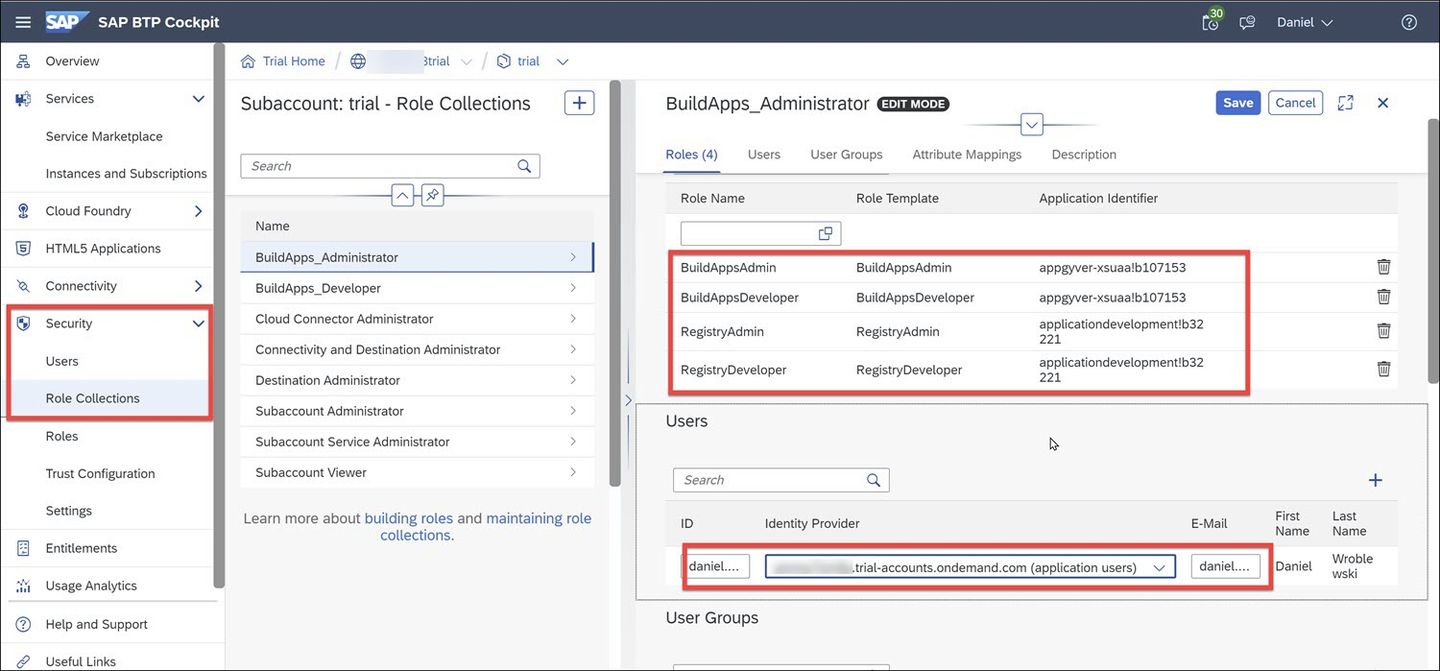
But after installing SAP Build Apps, only the Registry roles are added to the role collections, so you must add the others.
In your subaccount cockpit, go to Security > Role Collections.
Select BuildApps_Administrator role collection.
Click Edit, and add the roles:
- BuildAppsAdmin.
- BuildAppsDeveloper.
- RegistryAdmin.
- RegistryDeveloper.
Add your user but select the new custom identity provider.
Click Save.
Select BuildApps_Developer role collection.
Click Edit, and add the roles:
- BuildAppsDeveloper.
- RegistryDeveloper.
Add your user but select the new custom identity provider.
Click Save.
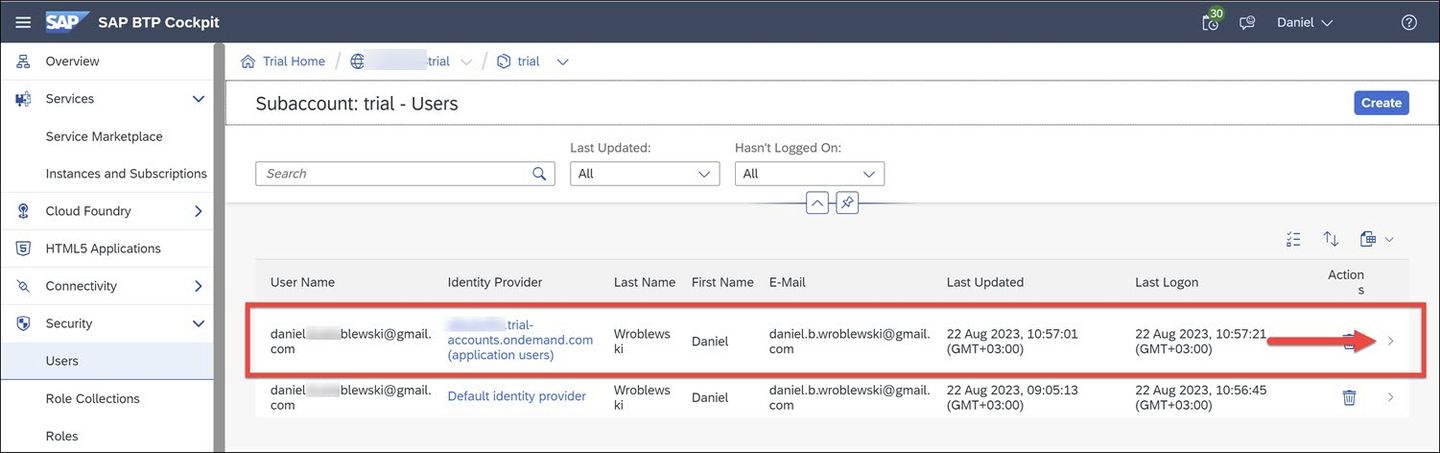
Roles Go to Security > Users, and add the role collections BuildApps_Administrator and BuildApps_Developer to your custom identity provider user (NOT the default provider user).
User and roles
In the cockpit of your subaccount, go to Instances and Subscriptions.
Click on SAP Build Apps (or the little icon) to view the SAP Build lobby.
You will be asked to log in with the user you set up with the custom identity provider.

You should now see SAP Build Apps.

😺
Resources
Discussion
Share feedback on this tutorial or join the conversation in SAP Community.