✔How to maintain restrictions [ACCORDION-BEGIN [Step 1: ](Create business role)] 1. Logon to your SAP S/4HANA Cloud, public edition. Search for Maintain Business Roles app. !Selecting App2. Click on New at the bottom of the screen. !Create New Role3. In the New Business Role window, enter the following details: | Field Name | Value | :————- | :————- | Business Role ID | FOR_TUTORIAL | Business Role Description | For tutorial purposes !Enter_Business_Role_Details4. Choose Create. [DONE] [ACCORDION-END] [ACCORDION-BEGIN [Step 2: ](Add business catalog)] 1. Navigate to Assigned Business Catalogs tab and select Add. !Assigned_Business_Catalog2. Search for file management, select File Management - My Files and click Apply and OK. !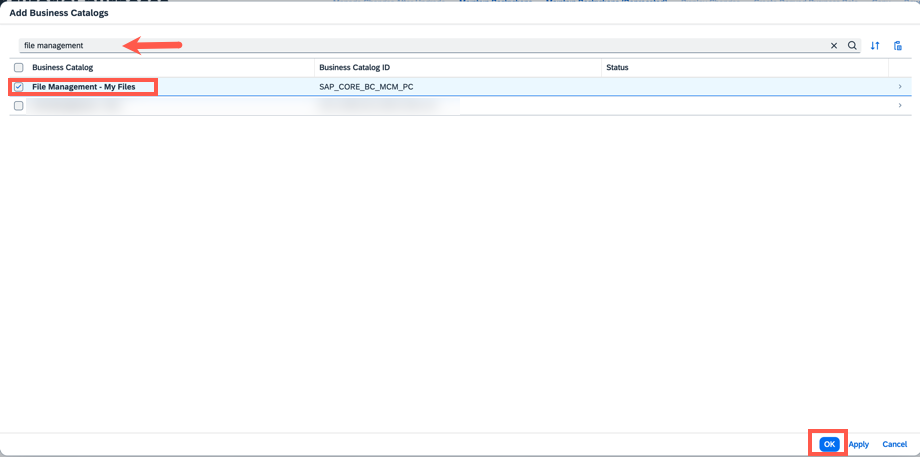 [DONE] [ACCORDION-END] [ACCORDION-BEGIN [Step 3: ](Maintain restrictions)] 1. In the same business role, select Maintain Restrictions. !Maintain_Restrictions2. Select Access Categories from the left-side navigation menu and maintain the following values: | Field Name | Value | :————- | :————- | Write, Read, Value Help | Restricted | Read, Value Help | Restricted !Accessing Categories from left side menu3. Select Assigned Restriction Types and choose File Share Content. !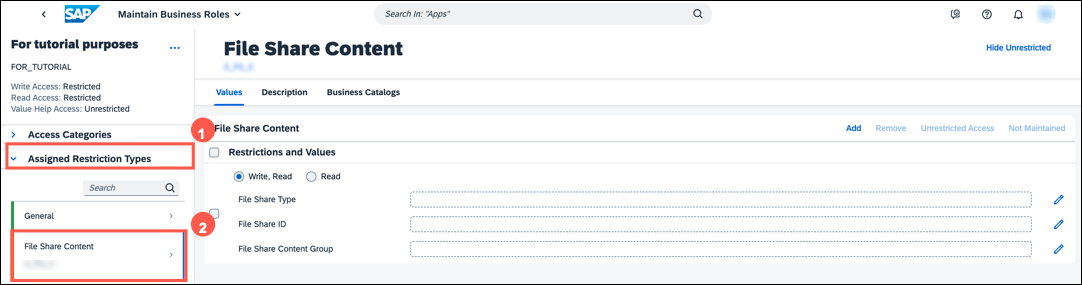 4. In the Restrictions and Values section, enter the following details. | Field Name | Value | :————- | :————- | File Share Type | 2 | File Share ID | ZTEST | File Share Content Group | Unrestricted Access >Remember: During the process of creating a communication system, you maintained File Share ID value. Please make sure the same File Share ID is being used. File Share Type !File_Share_TypeFile Share ID !File_Share_IDFile Share Content Group !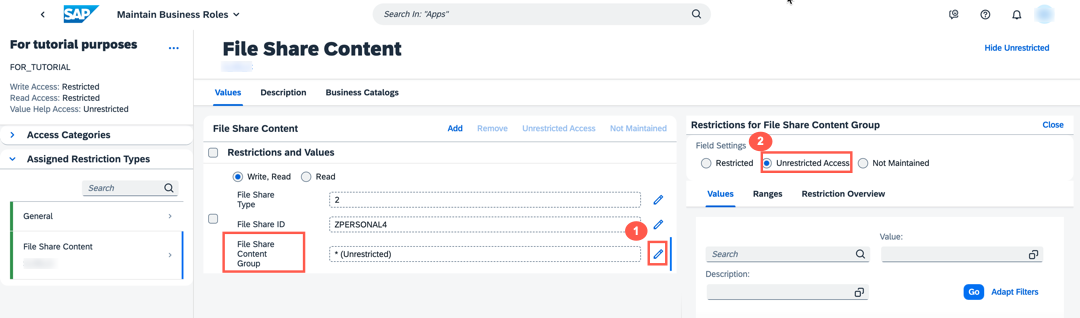 [DONE] [ACCORDION-END] [ACCORDION-BEGIN [Step 4: ](Add business user)] 1. Select Assigned Business Users and click Add. !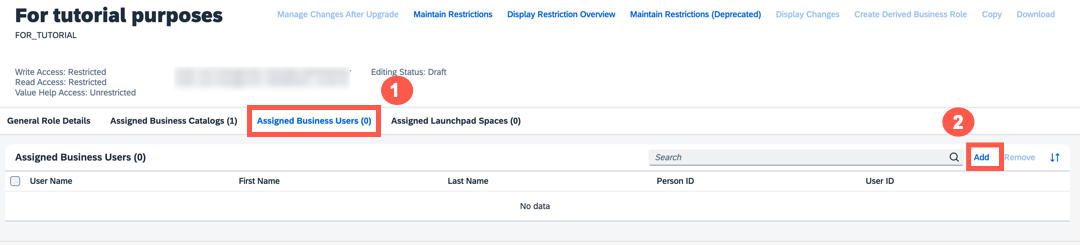 2. Search for your User Name, select it and click Apply and OK. >A username that you have maintained. Please select the valid username you have used in both SAP BTP and S/4HANA Cloud, public edition. !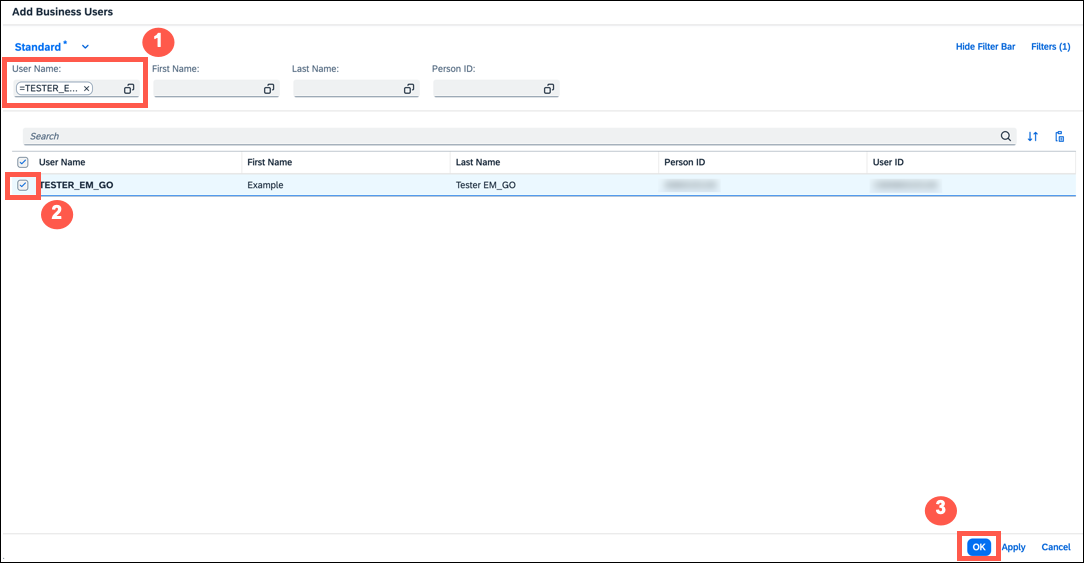 3. Choose Save. !Save[DONE] [ACCORDION-END] [ACCORDION-BEGIN [Step 5: ](Test yourself)] [VALIDATE_6] [DONE] [ACCORDION-END]
In the Restrictions and Values section, enter the following details.
Field Name
Value
File Share Type
2
File Share ID
ZTEST
File Share Content Group
Unrestricted Access
Remember: During the process of creating a communication system, you maintained File Share ID value. Please make sure the same File Share ID is being used.
Joule is an AI assistant. Generative AI may produce inaccurate, incomplete, or biased information. Always verify important details before acting on them.
Conversations are sent to SAP-hosted large language models for processing. Do not include personal data, credentials, or confidential information in your messages.
Joule's responses are based on the SAP tutorial catalog and may not reflect the latest product changes. For authoritative guidance, consult the linked tutorials and official SAP documentation.



