
Create a Service Instance and Service Key for Document Management Service.
Use the free tier or the standard service plan to create a service instance and the associated service key for Document Management Service, Integration Option.
Overview
You will learn
- How to create a service instance of Document Management Service, Integration Option.
- How to create a service key for your service instance.


Prerequisites
Prerequisites
- You have created an account on SAP BTP to try out either free tier or standard service plans: Get an Account on SAP BTP to Try Out Free Tier Service Plans.
- You are entitled to use the Document Management Service, Integration Option: Manage Entitlements Using the Cockpit.
Steps
You will learn
- How to create a service instance of Document Management Service, Integration Option.
- How to create a service key for your service instance.
The Use Case:
You’ll export table data from SAP S/4HANA Cloud, public edition to Google Sheets. You’ll achieve this scenario by integrating SAP S/4HANA with Google Workspace using the SAP Document Management Service.
Here SAP S/4HANA acts as a source system and Google Drive acts as a target system. You’ll also create trust between these systems via SAP BTP cockpit.

Log on to your SAP BTP subaccount. Navigate to Service Marketplace and search for Document Management Service, Integration Option. Click Create to start the service instance creation dialog.
!

Creation Dialog In the dialog, choose the Standard plan and select the Space that you can use. Enter a name for your new instance, for example,
For Demoand click Create.!

NewInstanceCreation In the next Information dialog, click on View Instance to navigate to the list of your service instances.
!

ViewInstance
You are now able to create a service key for your new service instance. Service keys are used to generate credentials to enable apps to access and communicate with the service instance.
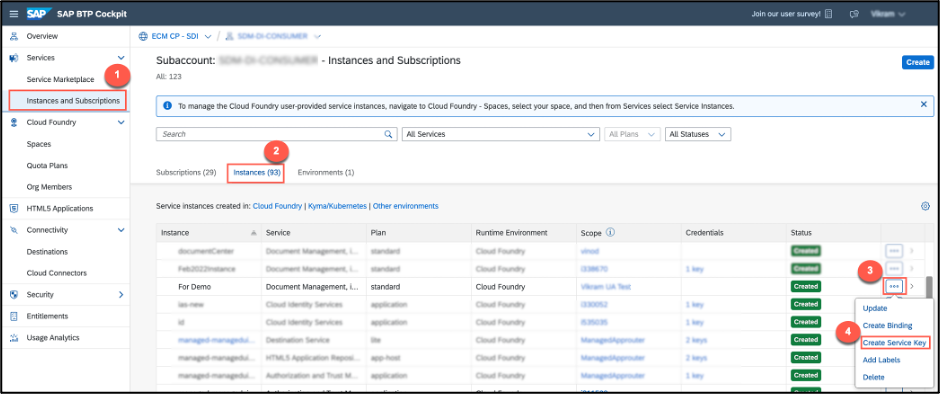
- In the same subaccount, navigate to Instances and Subscriptions and choose the demo instance you created in the previous step, then click the … dots to open the menu and select Create Service Key.
!
In the dialog, enter
My tutorialas the name of your service key. Click Create to create the service key.!

NewServiceKey You can now view the service key in the browser or download it. Click on the Service Key and click View.
!

ViewingKey Image In the credentials view dialog, click on Form.

Credential Form details Scroll down to copy the values from the following fields and paste them into the secure area (for example, notepad or any text editor).
clientid:clientsecret:url:
!
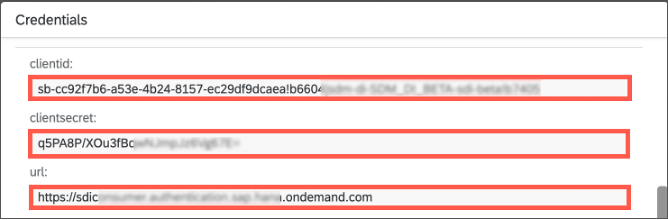
Details of the Credentials
Create a role collection manually. You can skip this step if you already created the role collection and can use it.
Navigate to your Subaccount in the SAP BTP Cockpit.
Choose Security → Role Collections on the left.
Choose the ( + ) icon in the top right corner of the screen to create a new role collection.
Enter Name
SDM_roles.Choose Create.
!

Create_rolecollections
The newly added role collection appears now in the list, but it doesn’t contain any roles. To add a role:
Choose the
SDM_rolesrole collection and then choose Edit.!

Create_rolecollections Open the value help for Role Name.
!
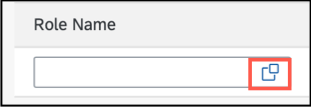
Role Name Select
SDM_Adminin list of roles and then choose relevantApplication Identifierfrom the dropdown.Note: The Application Identifier should match the second part of your
clientid. For example, if yourclientidistt-d12345cb-6d78-901b-2345-6ab78901a2c3!b456789|xyz-id-abc-s4-test-tutorial-account!b012344the your Application Identifier that you need to select isxyz-id-abc-s4-test-tutorial-account!b012344.!

Application Identifier Choose Add.
Choose Save.
!
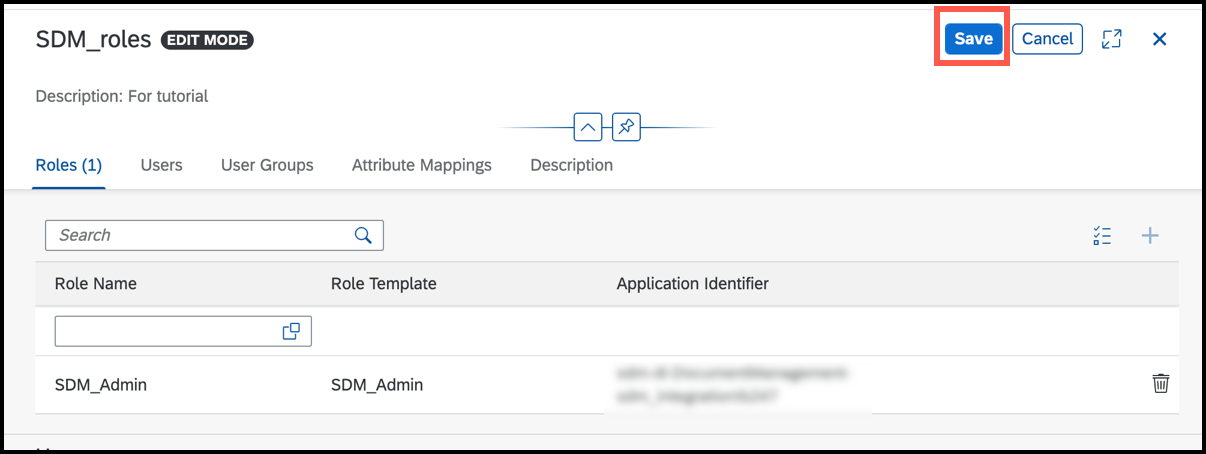
Saving Role
Resources
Discussion
Share feedback on this tutorial or join the conversation in SAP Community.