
Consume API Management Service Instance from Kyma
Use the Kyma environment to search and discover API Management, API Portal and API business hub enterprise applications. Kyma environment provides a fully managed Kubernetes runtime based on the open-source project Kyma.
Overview
You will learn
- How to Provision API Portal and API Business Hub Enterprise cluster services


Prerequisites
Prerequisites
- You already have a subaccount and have the required entitlements for API Management, API Portal and API Business Hub Enterprise. For more information, see Configure Entitlements and Quotas for Subaccounts
Steps
Intro
- You’ve subscribed to Integration Suite, and have enabled API Management, API Portal and API business hub enterprise capability.
If you’re using the API Management stand-alone service, ensure that you’ve already subscribed to API Management, API portal and API business hub enterprise.
- Ensure that the
Kyma environmenthas already been enabled. To enableKyma Runtimein SAP BTP Cockpit:
In SAP BTP cockpit, navigate to your subaccount.
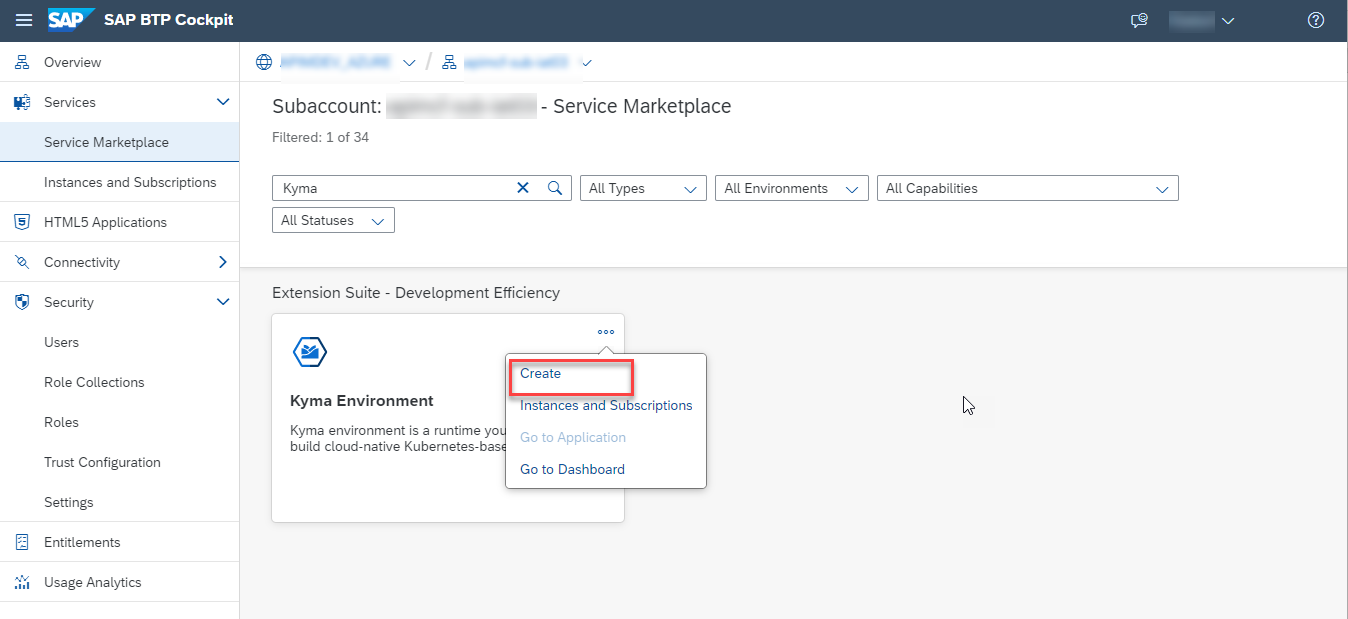
Go to Services > Service Marketplace and select
Kyma Environment.
Kyma Environment Tile Select Create either from actions in the upper-right corner of the tile or from the tile overview page, to which you get by clicking on the tile..
Create Kyma Runtime On the New Instance and Subscription dialog, change the instance name or keep the default name. The default plan assigned to your account is pre-populated.
The default plan and its specification can differ depending on your global account type. Confirm changes by selecting Create. For more information on how to set up a fully operational
Kyma environment, clickKyma Environment.Create Kyma Runtime
Log on to SAP BTP Cockpit and navigate to your subaccount.
Choose
Kyma Environmenttab and choose Console URL: Link to dashboard to navigate to theKyma dashboard.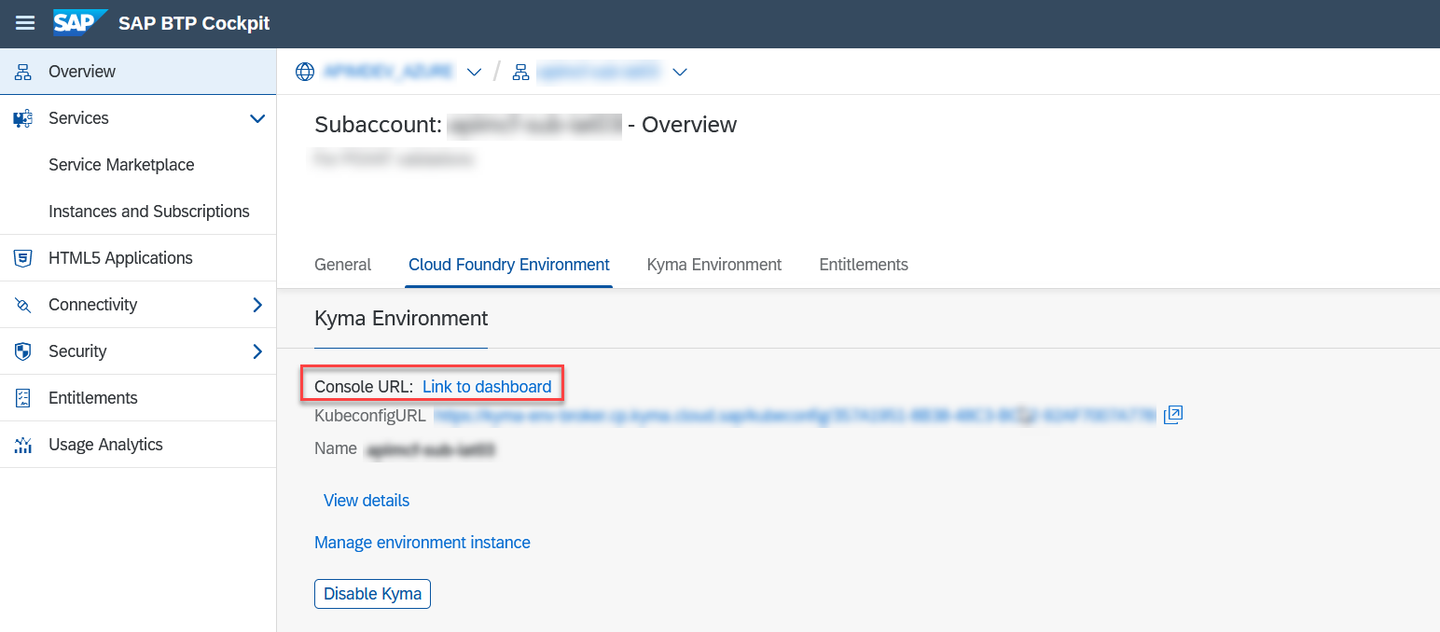
Link to Dashboard Choose Namespaces from the left navigation pane. At this point, only the default namespace appears.

Namespace From the left navigation pane, choose Service Management > BTP Service Instances > Create Service Instance.

Create Service Instance On the Create Service Instance dialog fill in the following details and choose Create:

Create Service Instance dialog
Name: Provide a name or generate it by choosing Generate name
Offering Name: You can find the SAP BTP service offering name in the Service Marketplace of the SAP BTP cockpit. Search for the API Management, API Portal/ API Management, API business hub enterprise service and copy the name of the service instance.
Plan Name: Similarly, you can find the relevant plan for the respective API Management, API Portal/ API Management, API business hub services in the Service Marketplace of the SAP BTP cockpit.
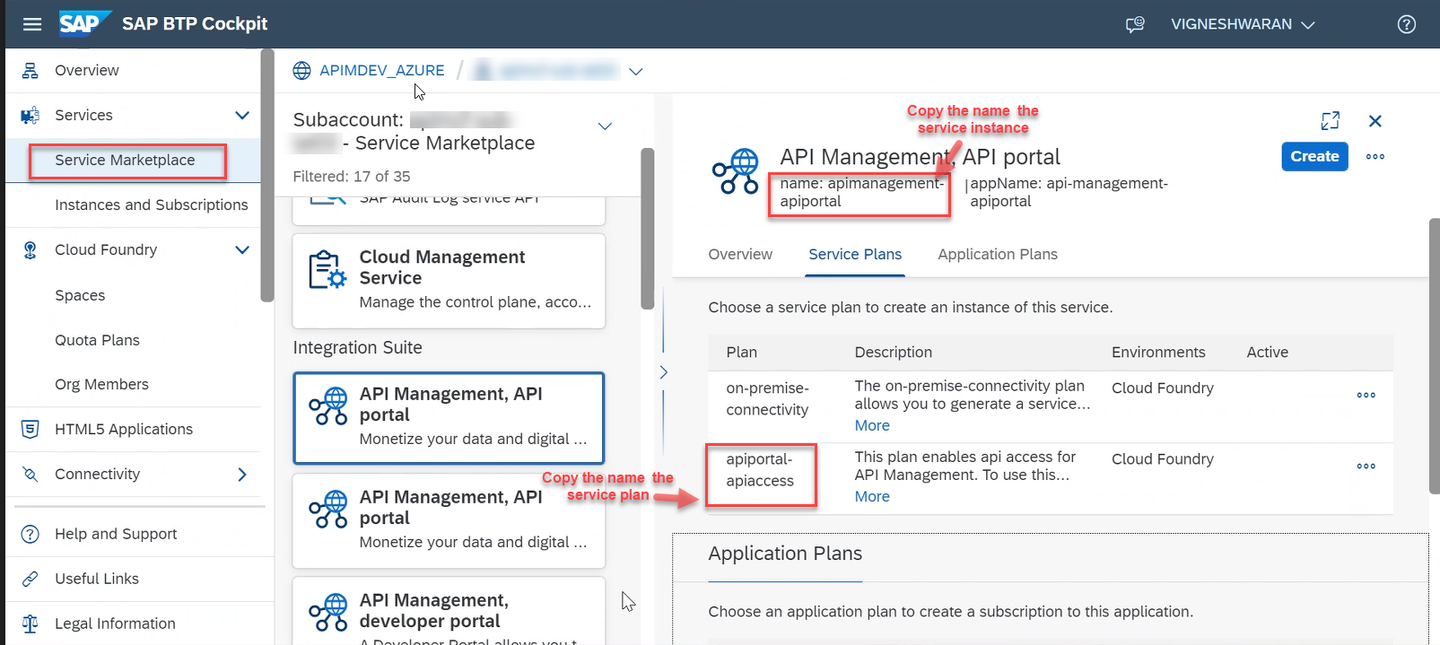
Service Marketplace Choose Advance tab on the Create Service Instance dialog and expand Instance Parameters.
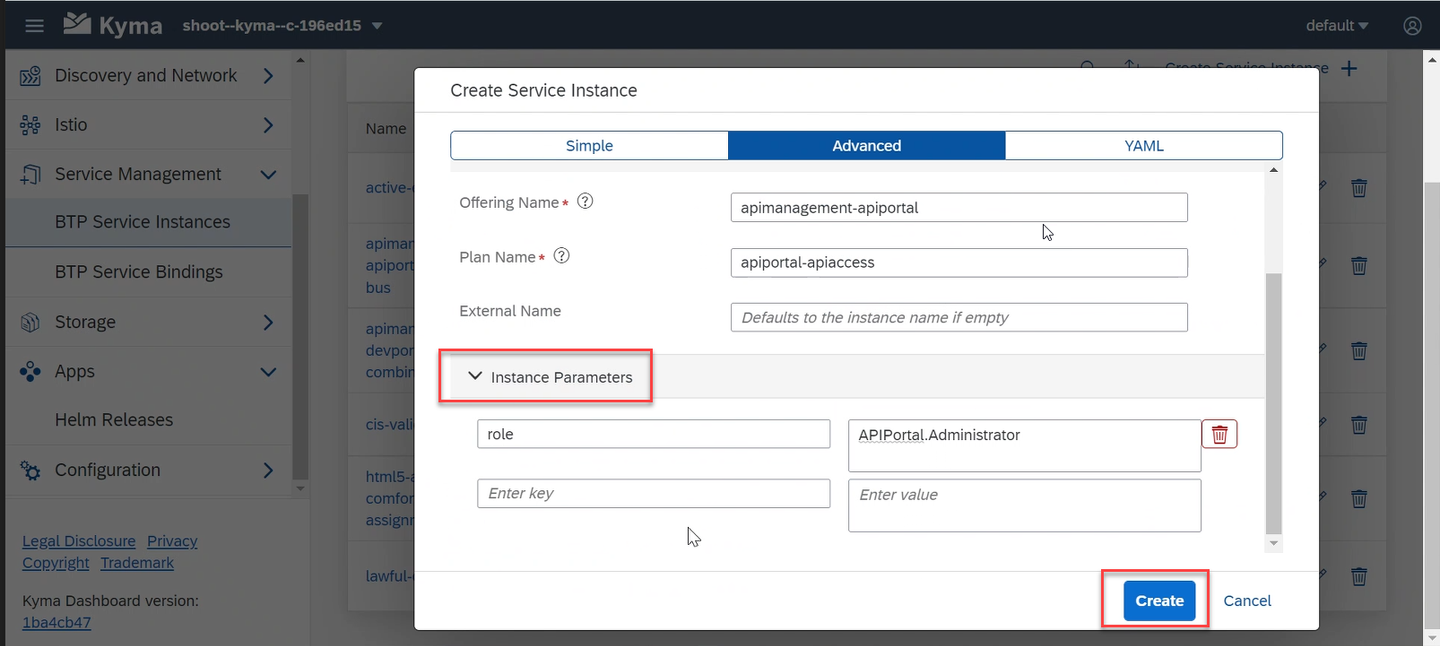
Create Service Instance * To create an instance of **API Management, API Portal**, enter **role** as the key in the first textbox and **APIPortal.Administrator** as the value in the second textbox. * Similarly, to create an instance of **API Management, API Business Hub Enterprise**, enter **role** in the first textbox and **AuthGroup.API.Admin** in the second textbox.
You’re directed to the Service Management > Instances page, where an instance of the newly provisioned API Management, API Portal or API Management, API Business Hub Enterprise service appears.
To create the Service Key:
1. Navigate to the instance that you just created and choose Add Service Binding.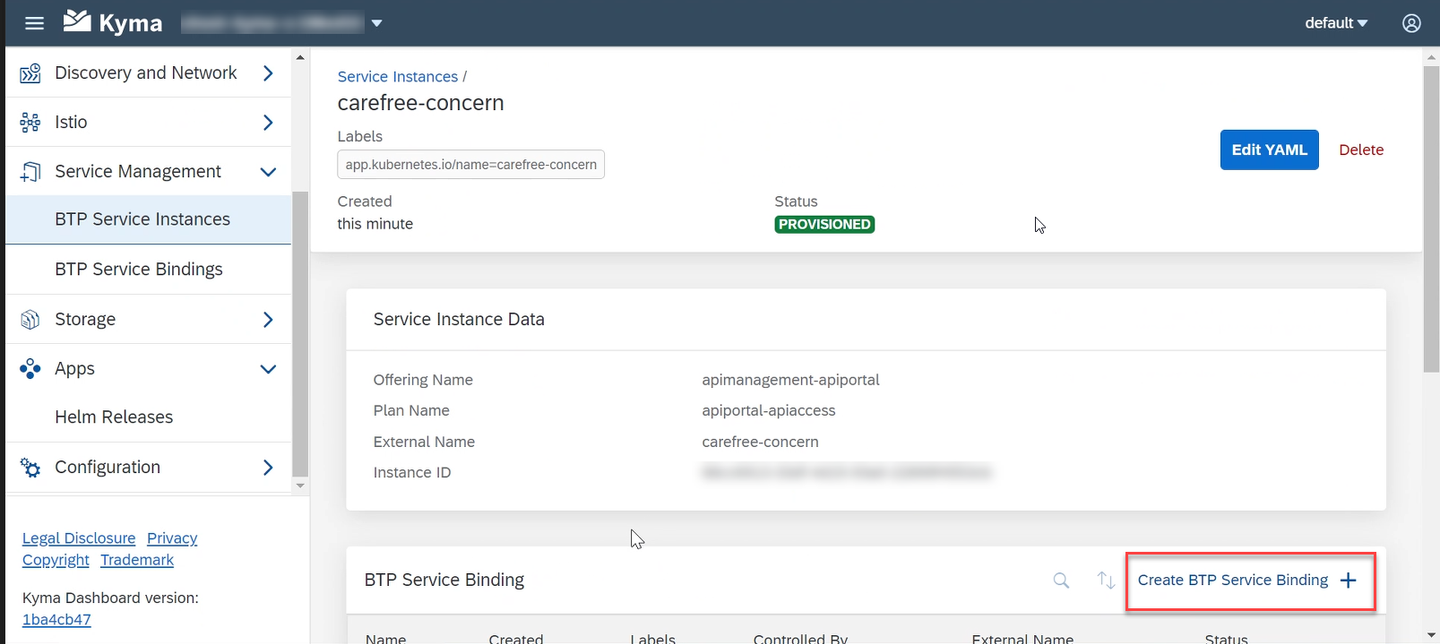
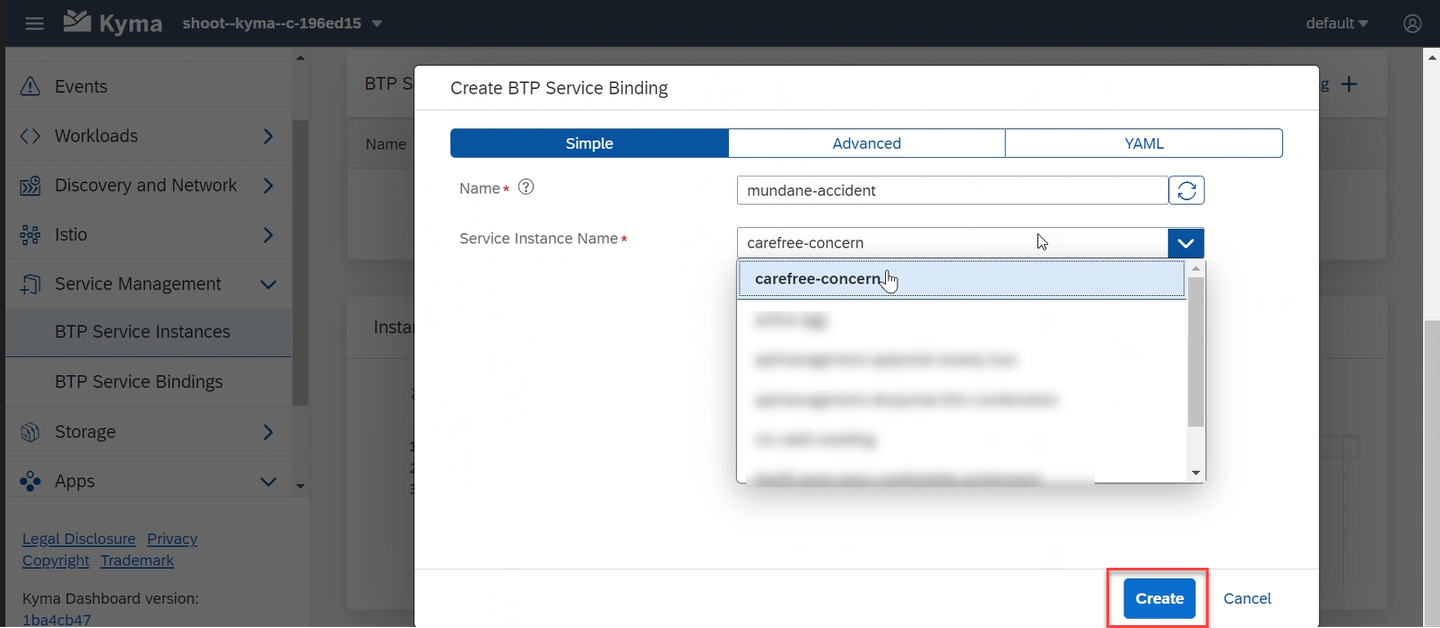

Copy the clientId, clientSecret, orgId, tokenUrl and the url details.
You can now use the clientId, clientSecret, and tokenUrl to fetch the token, and the application URL to perform operation on the APIs.
Resources
Discussion
Share feedback on this tutorial or join the conversation in SAP Community.