
Overview
You will learn
- How to generate the UI with an SAP Fiori elements template.
- How to modify the UI with the SAP Fiori page editor.


Prerequisites
Prerequisites
You’ve built your CAP application. Follow the steps in the Build a CAP application tutorial that is part of the Develop a Full-Stack CAP Application Following SAP BTP Developer’s Guide tutorial group.
OUT OF MAINTENANCE
This tutorial is no longer maintained. For an up-to-date version and support with any issues, refer to the Develop a Full-Stack CAP Application Following the SAP BTP Developer’s Guide mission in the SAP Discovery Center.
Steps
SAP Fiori elements provide designs for UI patterns and predefined floor plans for common application use cases. Application developers can use SAP Fiori elements to create SAP Fiori applications based on OData services and annotations that don’t need JavaScript UI coding. The resulting application uses predefined views and controllers that are provided centrally. This approach means that no application-specific view instances are required. SAPUI5 interprets the metadata and the annotations of the underlying OData service and uses the corresponding views for the SAP Fiori application at startup.
By following one of the SAP Fiori elements floorplans, you:
- Boost your development productivity.
- Get future-proof UX consistency.
- Get enterprise readiness.
To learn more about each of these points, see Developing Apps with Modern Concepts: Guidance for Developers.
In SAP Business Application Studio, go to your IncidentManagement dev space.
Make sure the IncidentManagement dev space is in status RUNNING.
Choose the burger menu and then choose View → Command Palette.
You can also invoke the Command Palette quickly using the following key combination:
- For macOS: Command + Shift + P
- For Windows: Ctrl + Shift + P
Type Fiori: Open Application Generator in the field and select this entry from the list.
In the Template Selection step:
Choose the List Report Page template tile.
Choose Next.
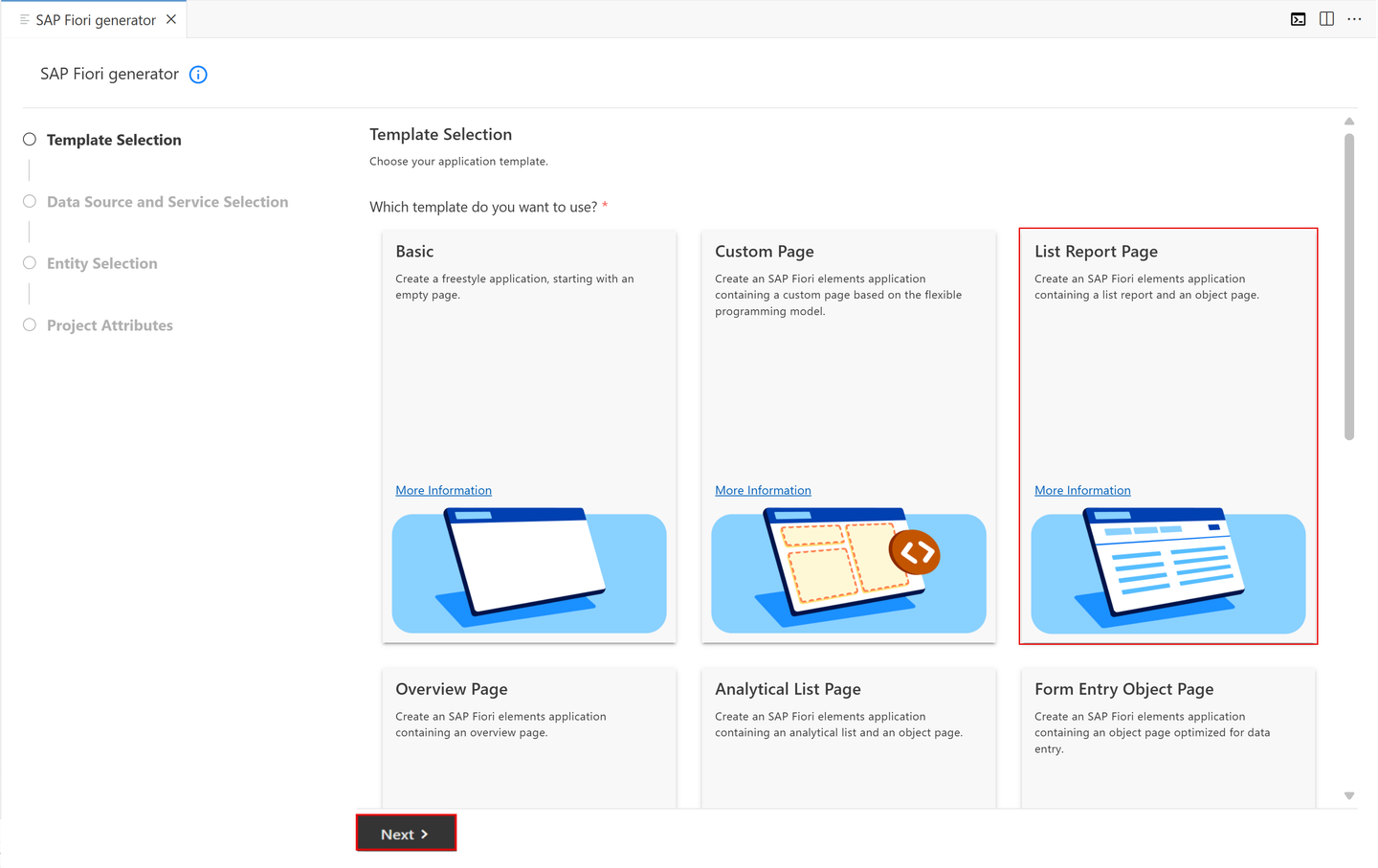
V4 Template
In the Data Source and Service Selection step:
In the Data Source dropdown menu, select Use a Local CAP Project.
In the Choose a CAP project dropdown menu, select the incident-management project.
In the OData Service dropdown menu, select the ProcessorService (Node.js) (or ProcessorService (Java) if you’re developing a CAP Java application).
Choose Next.

CAPpro
In the Entity Selection step:
In the Main Entity dropdown menu, select Incidents.
Leave the Navigation Entity value as None, and then select Yes to add table columns automatically.
In the Table Type dropdown menu, select Responsive.
Choose Next.

Entity selection
In the Project Attributes step:
In the Module Name field, enter incidents.
In the Application Title field, enter Incident-Management.
In the Application Namespace field, enter ns.
Leave the default values for all the other settings and choose Finish.

Project names
The application is now generated and in a few seconds you can see the application’s incidents folder in the app folder of your incident-management project. It contains a webapp folder with a Component.js file that’s typical for an SAPUI5 application. However, the source code of this application is minimal. It inherits its logic from the sap/fe/core/AppComponent class. This class is managed centrally by SAP Fiori elements and provides all the services that are required (routing, edit flow) so that the building blocks and the templates work properly.
You can create a CAP project in either Node.js or Java. You have to choose one way or the other and follow through. The tabs Node.js and Java provide detailed steps for each alternative way.
Instead of using cds watch command in the terminal to start the service, you use the watch-incidents script that has been added to the package.json file by the application generator. The script contains an additional sap-ui-xx-viewCache=false parameter added to the application’s start URL. This parameter ensures that if custom extensions are implemented, changes to the extension artifacts get properly updated when refreshing the UI.
If the
cds watchcommand is already running in a terminal, end it with the Ctrl + C key combination. Otherwise, the default port 4004 is already in use by the running CAP server’s process.
In the Application Info - incidents tab, choose the Preview Application option.

Application Info If you get an error SyntaxError: Unexpected token / in JSON at position 4, open the file .vscode/launch.json, delete any comments that you have there, and try again.
This option opens a dropdown menu at the top offering all scripts maintained in the scripts section of the
package.jsonfile that is based on thecds runandcds watchcommands.In case the Application Info - incidents tab is closed:
- Invoke the Command Palette - View → Command Palette or Command + Shift + P for macOS / Ctrl + Shift + P for Windows.
- Choose Fiori: Open Application Info.
Select the watch-incidents npm script.

Watch script This script runs the service in a terminal session of the application modeler and automatically starts the SAP Fiori application in a new browser session.
You can now see the application with the generated columns. Choose Go.

Application with the generated columns
While you’re in the incident-management folder, choose the burger menu and then choose Terminal → New Terminal.
Navigate to the srv folder.
Shellcd srvRun the following command to start a CAP Java server:
Shellmvn cds:watchIn the bottom right of your SAP Business Application Studio window, look for the popup A service is listening to port 8080.
Choose Open in a New Tab.

Open in a new tab You see the generic
index.htmlpage:
index.html
Stop the CAP server with Ctrl + C and start it again with the
mvn cds:watchcommand.
In this section, you modify the List View Page of the UI with the SAP Fiori page editor.
Add filter fields
In the Application Info - incidents tab, choose the Open Page Map option.

Page Map The page map of the incidents application opens in a new tab within SAP Business Application Studio. You see the properties on the right side of the page map. You can edit these properties to update the UI of the application.

Page Map properties In case the Application Info - incidents tab is closed:
- Invoke the Command Palette - View → Command Palette or Command + Shift + P for macOS / Ctrl + Shift + P for Windows.
- Choose Fiori: Open Application Info.
In the List Report tile, choose the Pencil icon next to the title. The page editor is opened.

List Report Page Config In the Filter Bar section of the page editor, choose Filter Fields and then choose the Plus icon to add filter fields. Then, select Add Filter Fields in the dropdown menu.

Add Filter Fields In the Add Filter Fields popup:
- Select the status_code and urgency_code checkboxes in the Filter Field dropdown menu.
- Choose Add. Your application is updated to show the new filters.

New Filters Added This way you define which properties are exposed as search fields in the header bar above the list.
Edit filter fields
The filter labels are text strings. It’s a good idea to update them so they’re compliant with internationalization standards (i18n).
Change the urgency_code filter label. In the Label field, change the value to Urgency. Press Enter to confirm the change.
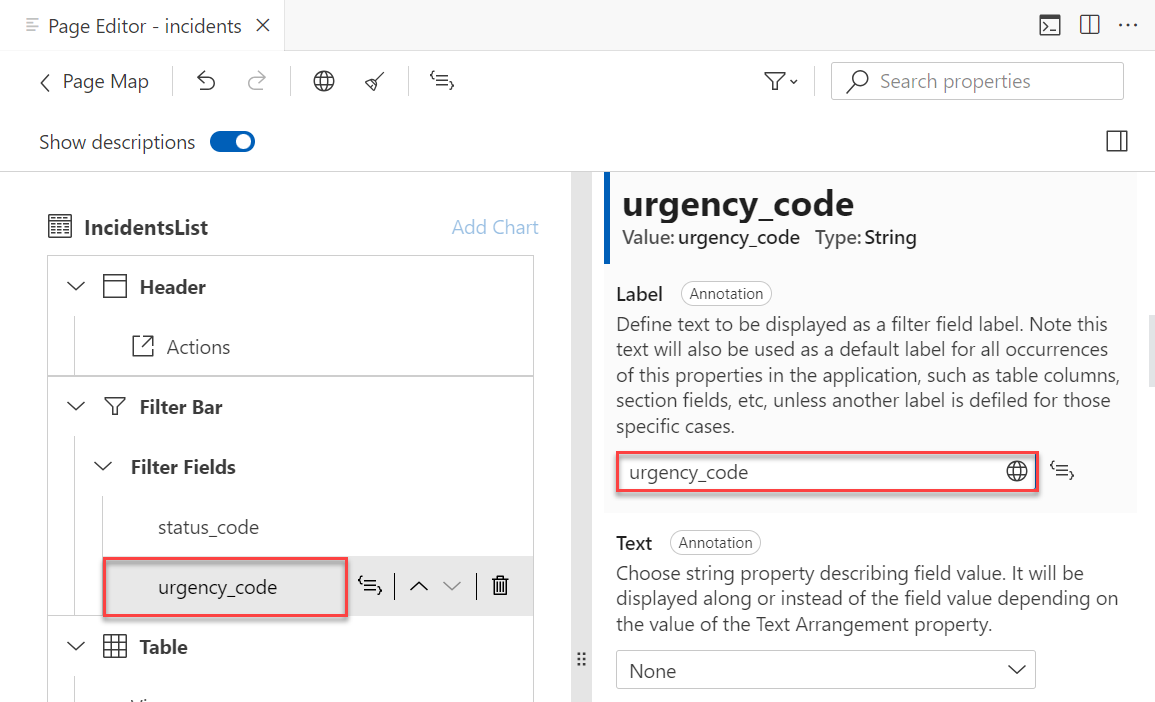
Update filter label Choose the Globe icon to generate a translatable text key and choose Substitute.
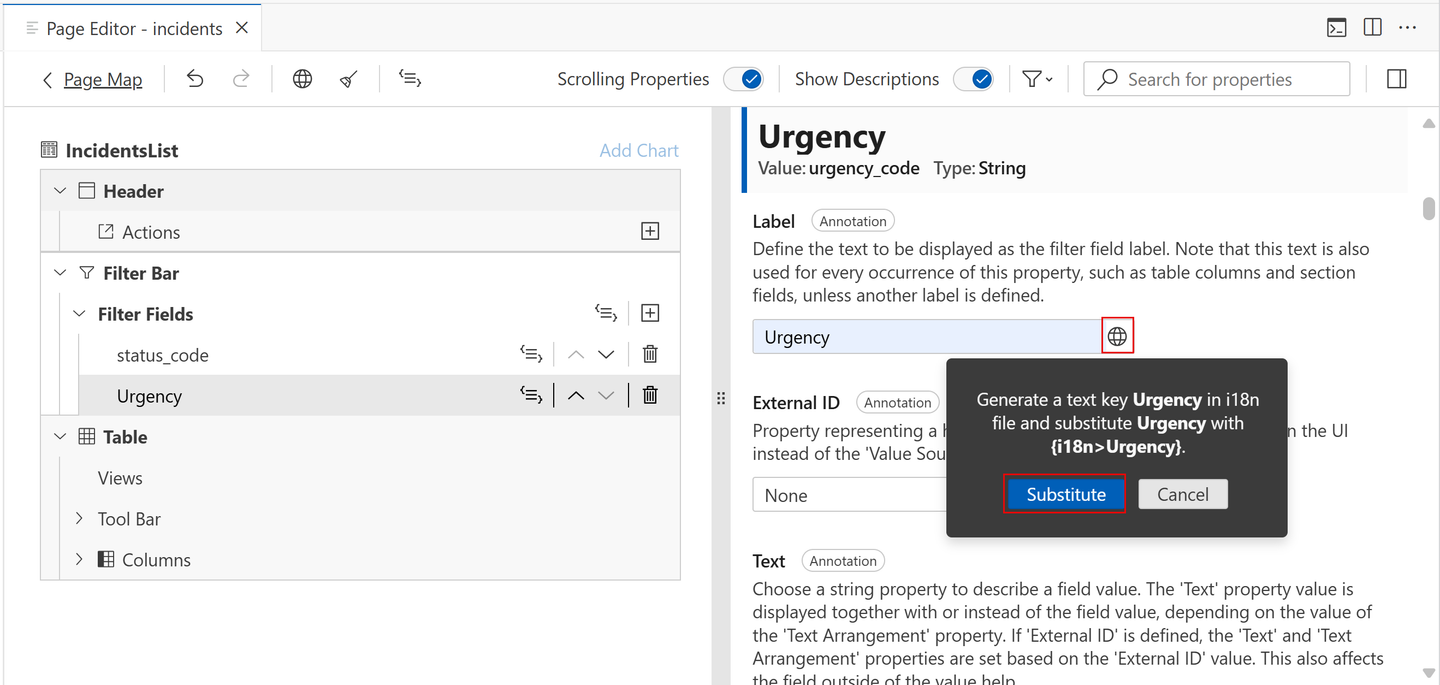
Generate Translatable Text Key Choose the status_code filter. In the Label field, change the value to Status. Press Enter to confirm the change.
Choose the Globe icon to generate a translatable text key and choose Substitute.
For both the Urgency and Status filters, in the Display Type dropdown menu, select Value Help. A popup shows up.

Value help display type In the Define Value Help Properties for Urgency/Status popup:
- Choose the dropdown menu in the Value Description Property field.
- Select descr.
- Choose Apply.

Value desc property
Edit columns
Expand the Columns section under Table and delete the columns customer_ID, urgency_code and status_code.

Delete Columns In Table → Columns, choose the Plus icon to add columns. Choose Add Basic Columns.
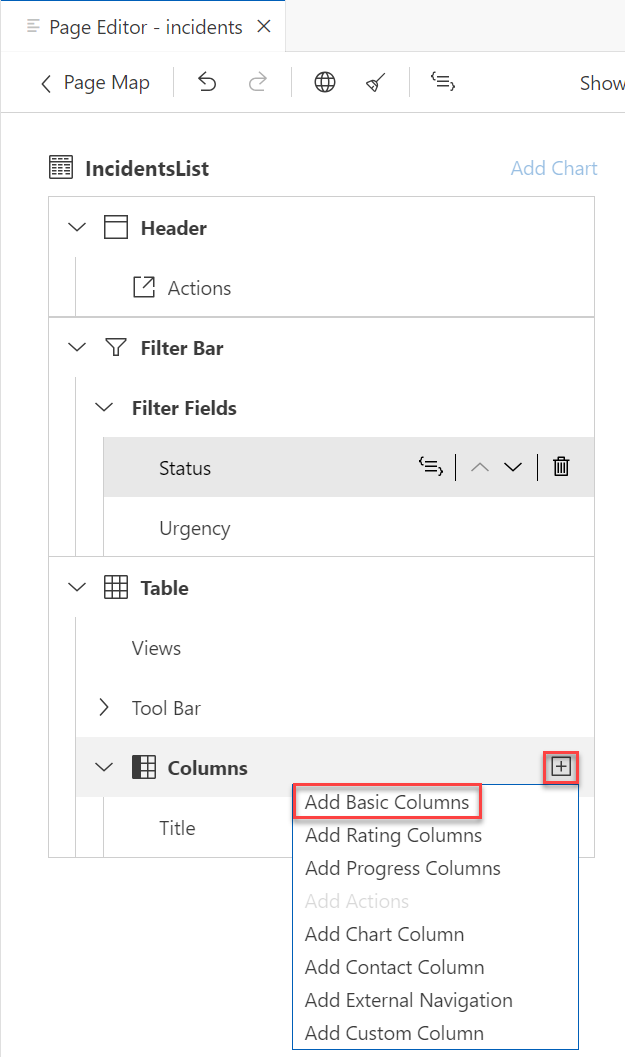
Add Basic Columns In the Add Basic Columns popup, choose the dropdown menu in the Columns field and:
- Select the status → descr checkbox.
- Select the urgency → descr checkbox.
- Select the customer → name checkbox and add the columns.

Add Basic Columns popup Move the name column just under the Title column.
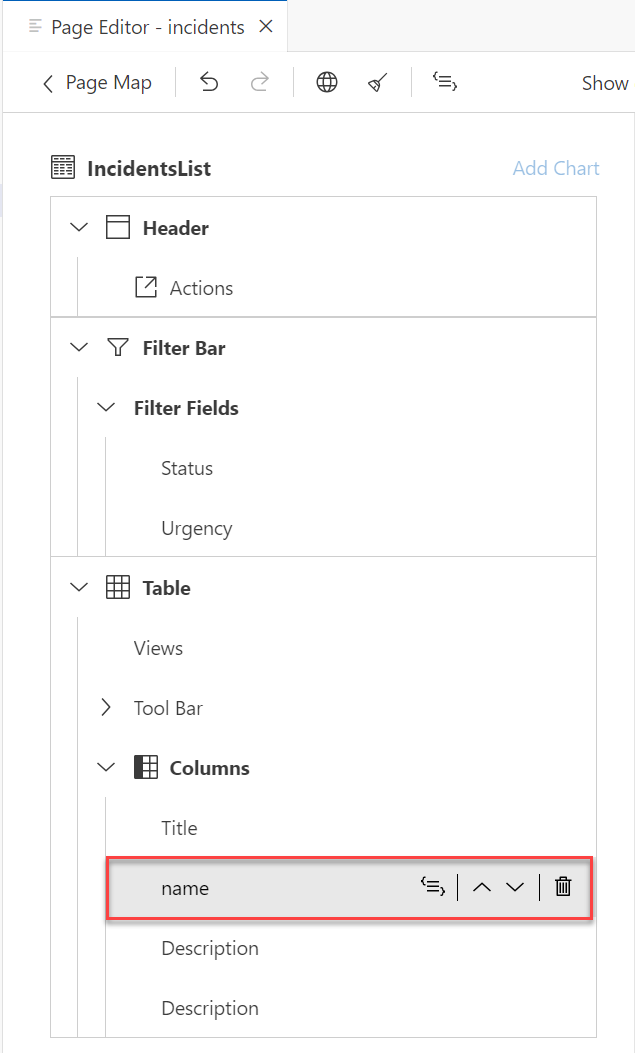
Reorder Columns Choose the Title column, choose the Globe icon in the Label field to generate a translatable text key.
The filter labels are text strings. It’s a good idea to update them so they’re compliant with internationalization standards (i18n).
Learn more about how internationalization works for the back end part in Where to Place Text Bundles? in the CAP documentation.
For each of the name, Description (status/descr), and Description (urgency/descr) columns:
- In the Label field, change the value to Customer, Status, and Urgency, respectively.
- Press Enter to confirm the change.
- Choose the Globe icon in the Label field to generate a translatable text key.

Update Columns
Configure tables
Choose Table and, in the Initial Load dropdown menu, select Enabled to load the data automatically.
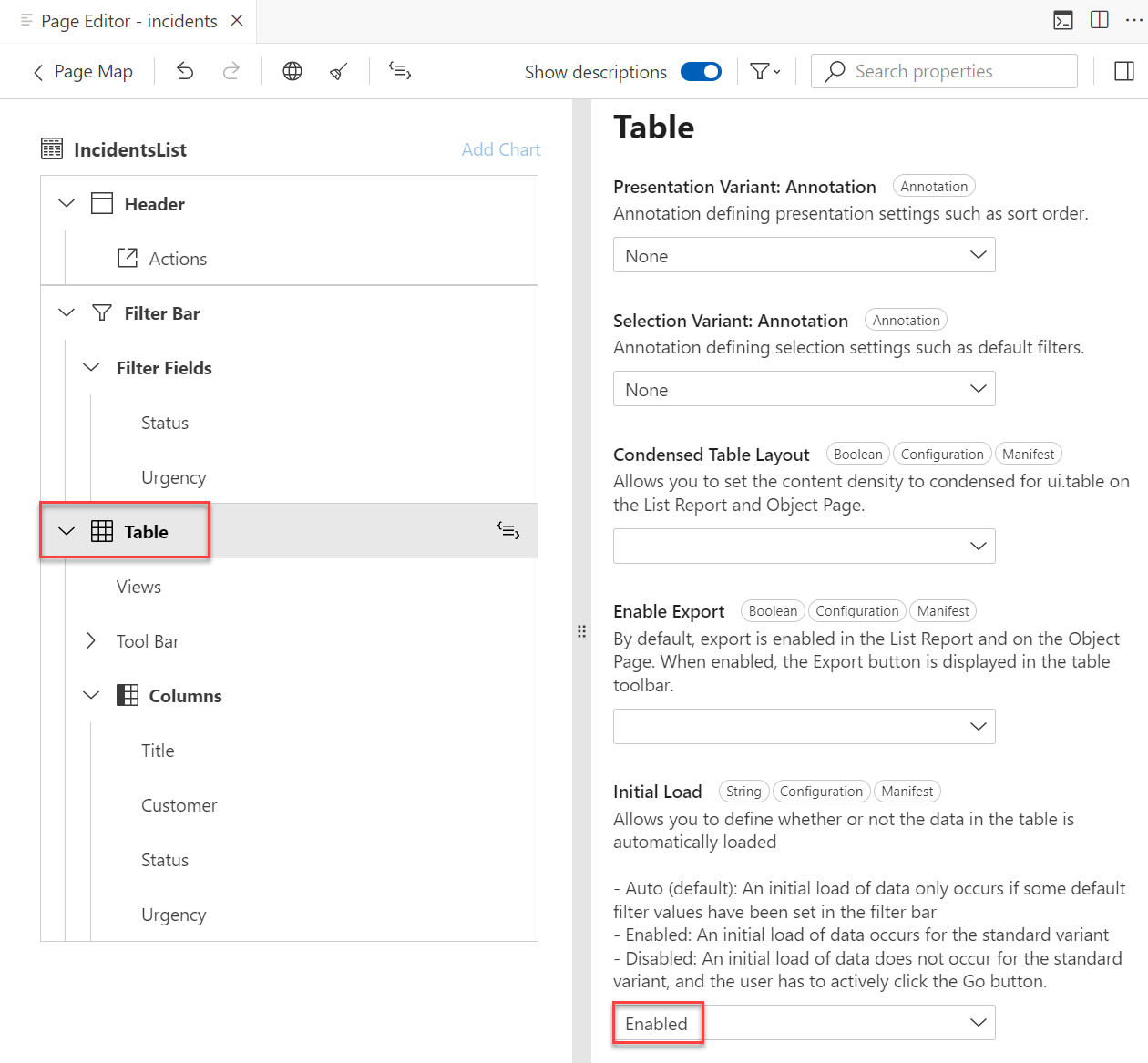
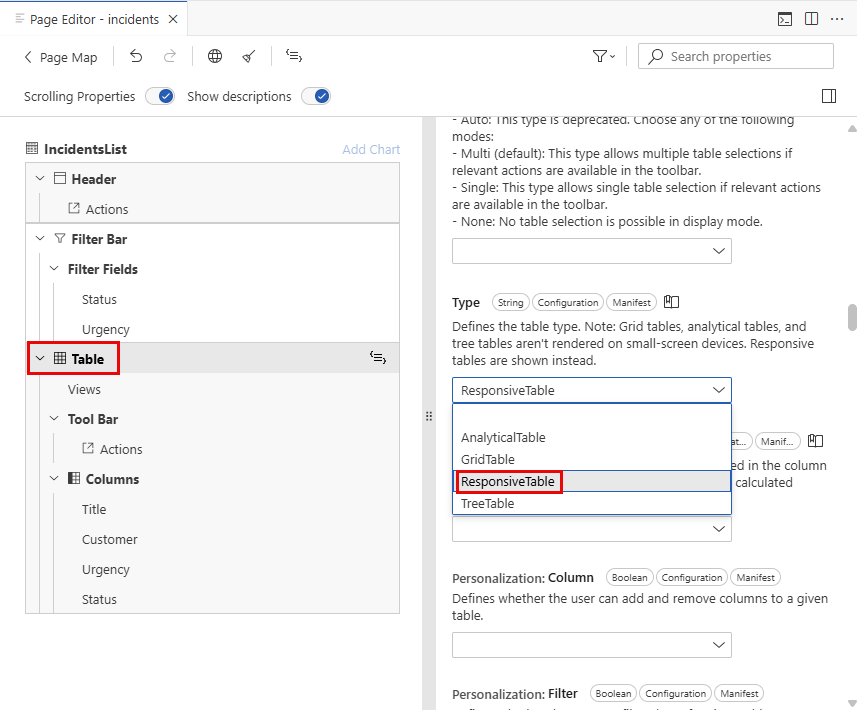
Enable Data Auto Load In the Type dropdown menu, select ResponsiveTable to make the table responsive.
Responsive table Navigate to Table → Columns → Status and in the Criticality dropdown menu, select status/criticality.

Add Status Criticality
Check the result
The list page of the Incident Management application looks like this:
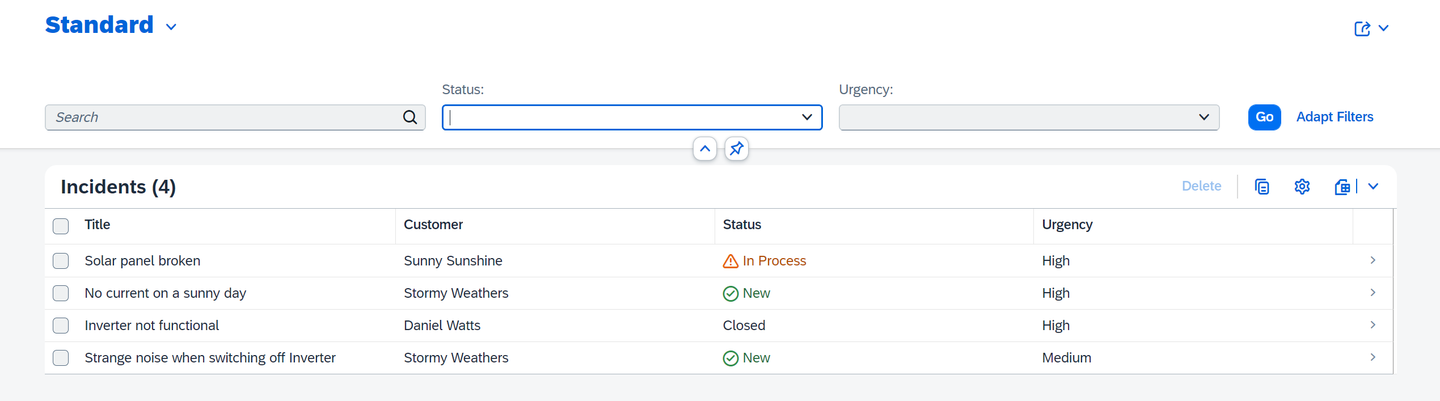
Incident Management App’s List Page Navigate back to the page editor and choose Page Map in the top left. This action takes you back to the overview of the incidents application.
In this section, you modify the Incident Object Page of the UI with the SAP Fiori page editor.
Edit header
Make sure that the SAP Fiori page editor is open. If you closed it, choose the Open Page Map option in the Application Info - incidents tab.
To open the Application Info - incidents tab:
- Invoke the Command Palette - View → Command Palette or Command + Shift + P for macOS / Ctrl + Shift + P for Windows.
- Choose Fiori: Open Application Info.
In the Incident Object Page tile, choose the Pencil icon next to the title.
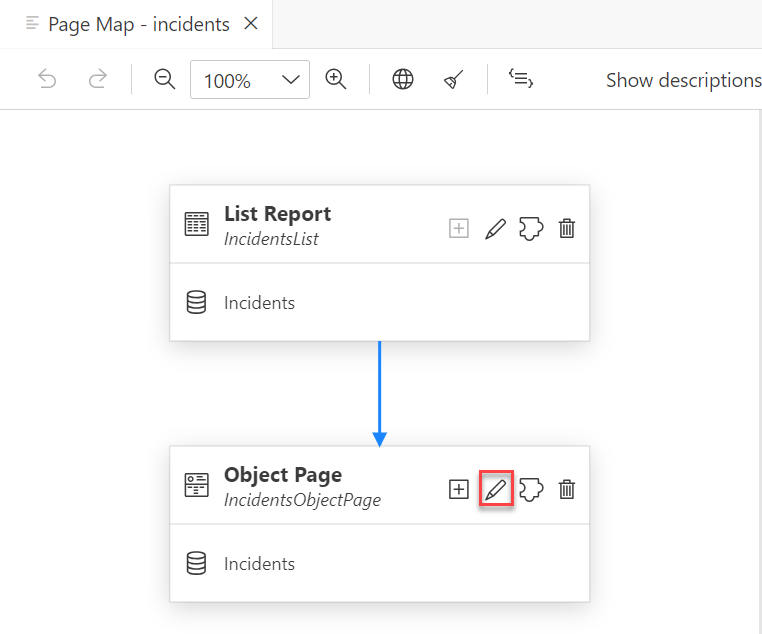
Edit object page Choose Header and in the Title dropdown menu, select title.

Select Title In the Description Type dropdown menu, select Property. A popup opens.

Select property In the Define Property popup, choose the dropdown menu in the Description field and:
- Select customer → name.
- Choose Apply.

Apply Name In the Icon URL field, enter
sap-icon://alert.
Icon URL
Add Overview section
Choose Sections and then choose the Plus icon to add more sections. Choose Add Group Section.

Add Group Section In the Add Group Section popup:
- Enter Overview in the Label field.
- Choose the Globe icon to generate a translatable text key and choose Substitute.
- Choose Add.
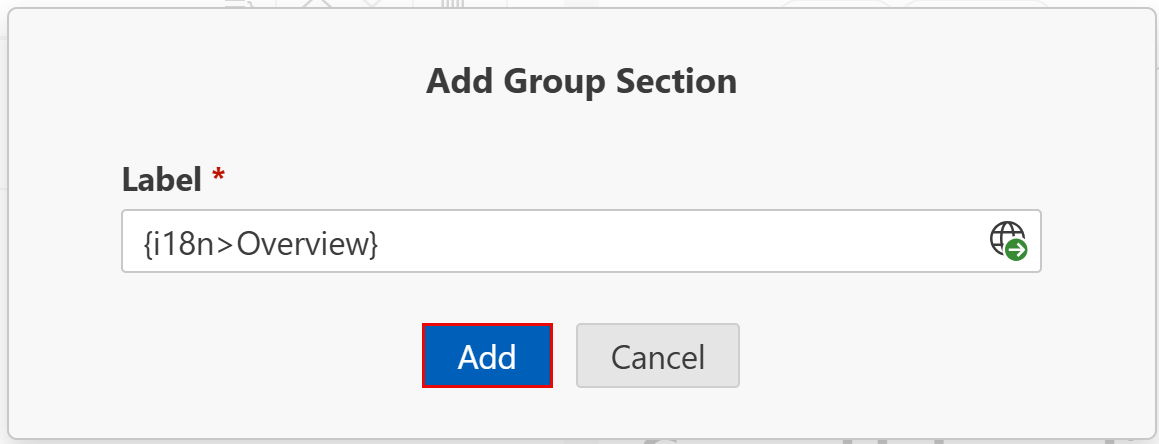
Add Overview Section
Add Details subsection
Navigate to Sections → Overview → Subsections.
Choose the Plus icon to add more sections and choose Add Form Section.

Add Subsection In the Add Form Section popup:
- Enter Details in the Label field.
- Choose the Globe icon to generate a translatable text key and choose Substitute.
- Choose Add.

Add Details Subsection
Configure fields
Choose Sections → General Information and choose the Globe icon in the Label field for General Information to generate a translatable text key.

General information label Navigate to Sections → General Information → Form → Fields and delete the urgency_code and status_code fields.

Delete Fields For the customer_ID field:
- Move the field down just under the Title field.
- In the Label field, change the value to Customer.
- Press Enter to confirm the change.
- Choose the Globe icon in the Label field to generate a translatable text key.
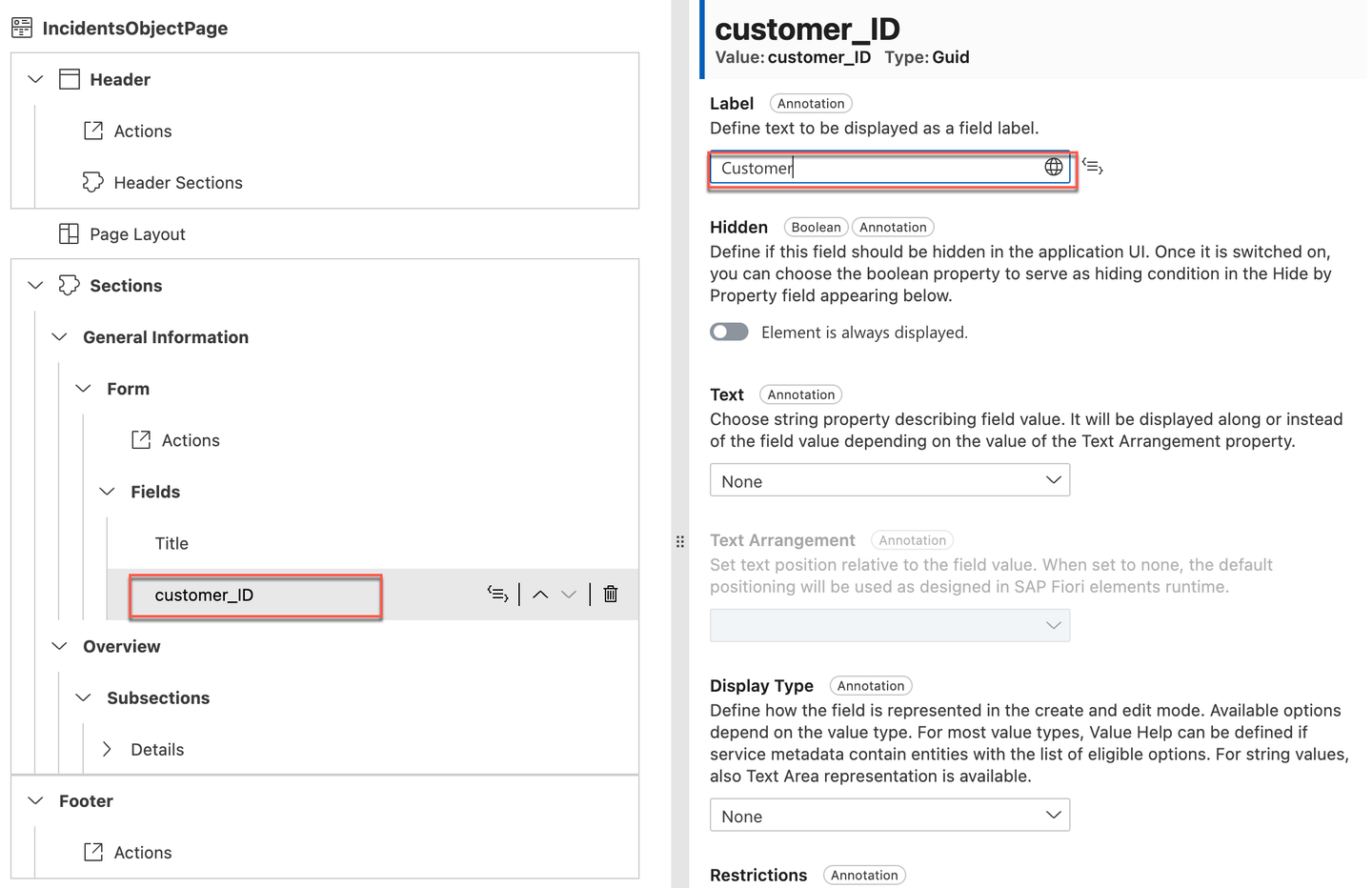
Customer field update label For the Customer field, select customer/name in the Text dropdown menu, select Text Only in the Text Arrangement dropdown menu, and then select the hyperlink Edit properties for Value Help under Display Type. A popup opens.

Customer properties update In the Define Value Help Properties for Customer popup:
- Select None in the Value Description Property dropdown.
- Switch off Display as Dropdown.
- Under Result List, choose Add Column and add columns name and email.
- Choose Apply.

Define Value Help Properties for Customer If there are already some columns in the result list, then delete them and keep only the columns name and email.
Navigate to Sections, drag the General Information, and drop it in the Overview → Subsections node.

Customer properties update Navigate to Sections → Overview → Subsections → Details → Form → Fields, choose the Plus icon to add more fields, and then choose Add Basic Fields.
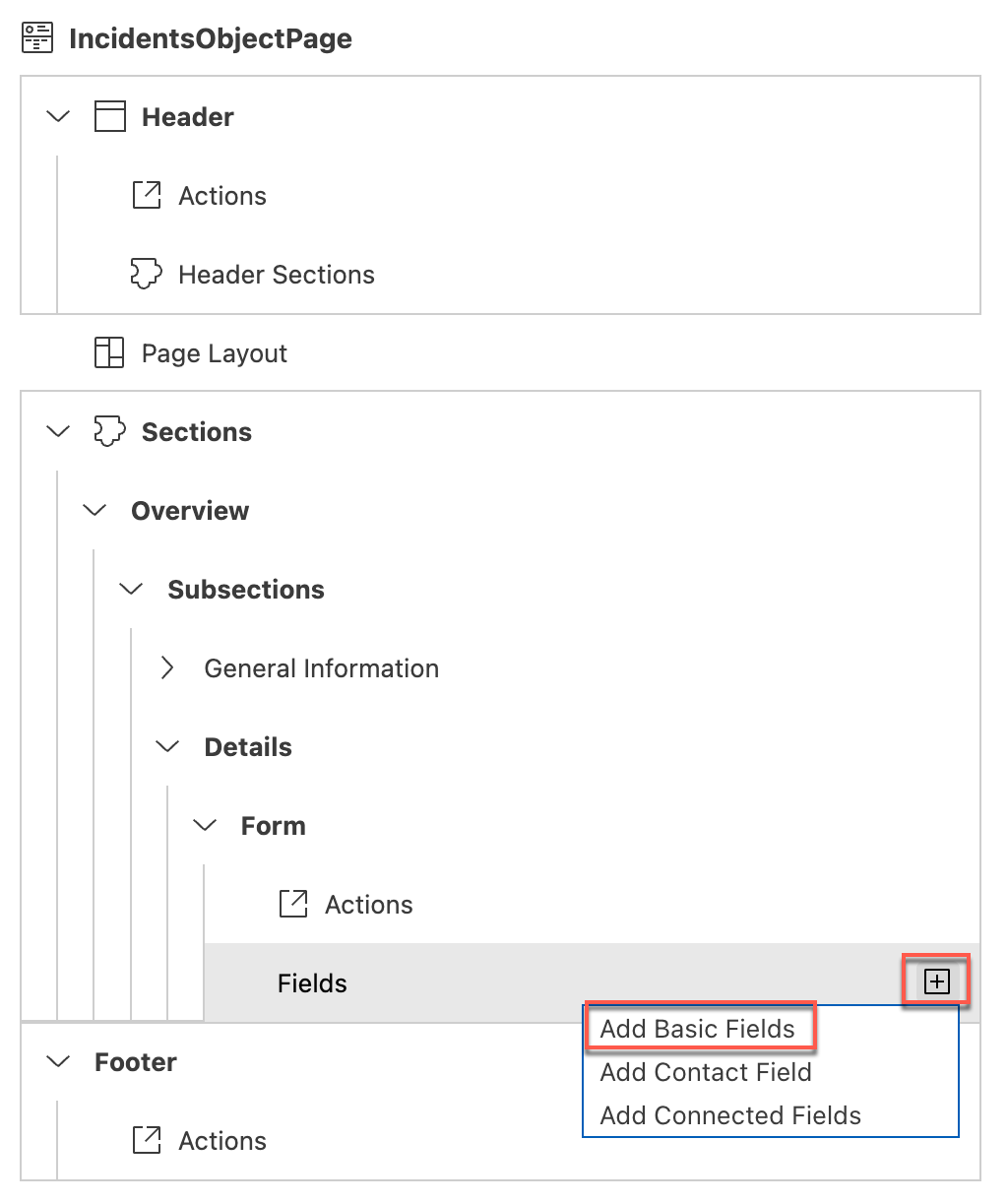
Add Basic Fields In the Add Basic Fields popup
- From the dropdown menu in the Fields field, select status_code and urgency_code.
- Choose Add.
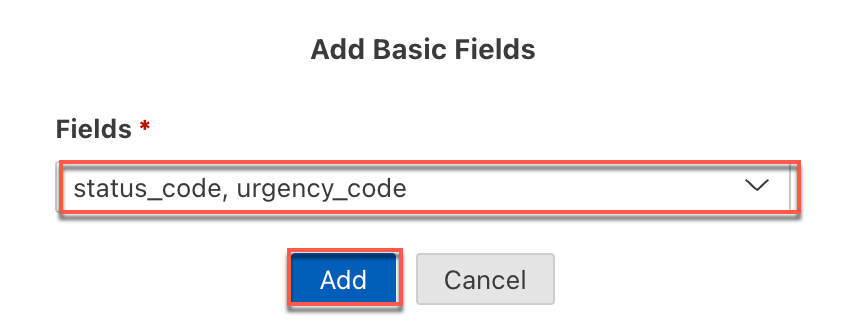
Add Basic Fields popup For the Status field, select status/descr in the Text dropdown menu and then select Value Help in the Display Type dropdown menu. A popup opens.
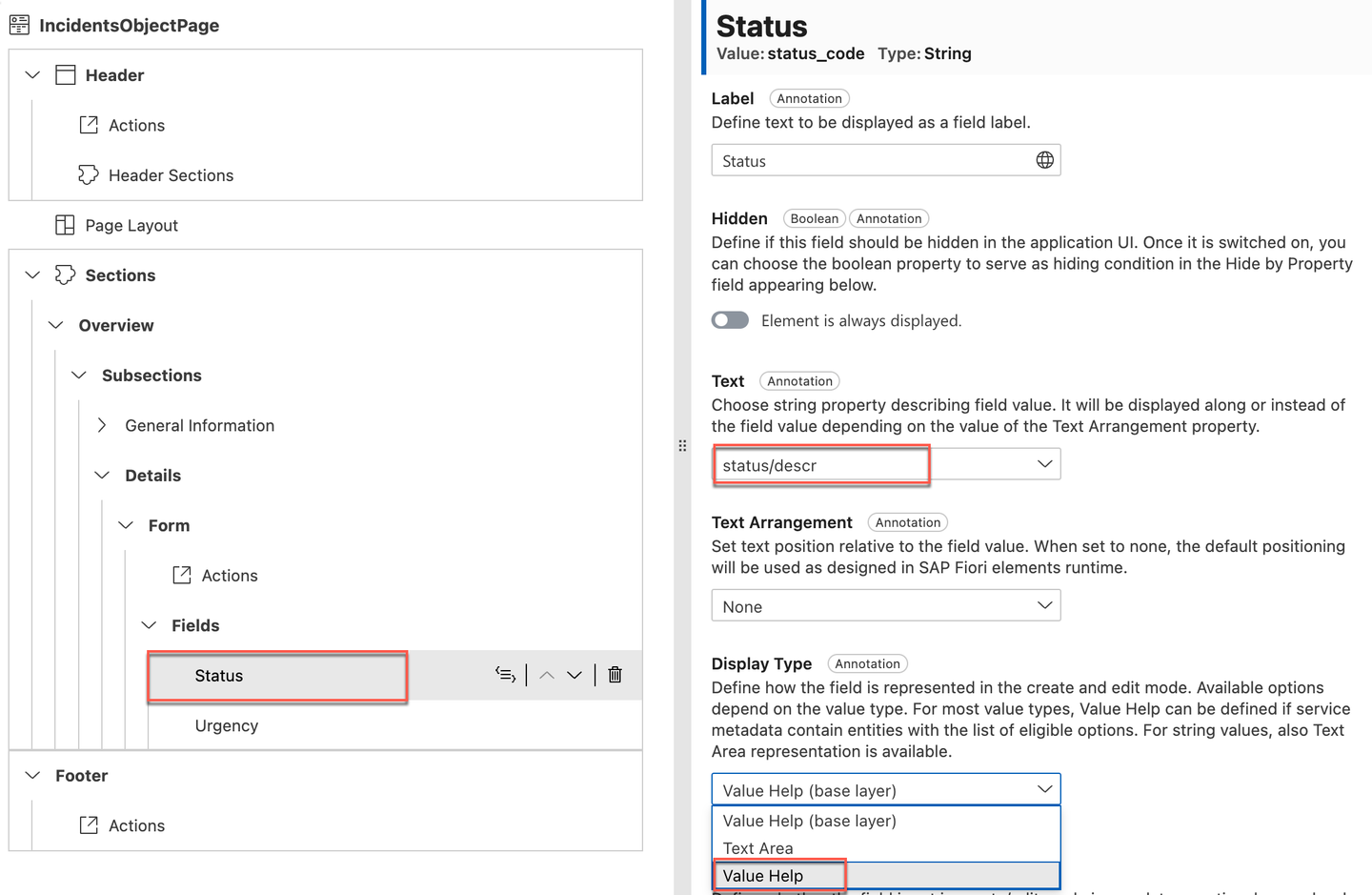
Status properties update In the Define Value Help Properties for Status popup:
- Select Status in the Value Source Entity dropdown menu.
- Select code in the Value Source Property dropdown menu.
- Select descr in the Value Description Property dropdown menu.
- Leave the default values for the rest of the properties and choose Apply.

Status value help For the Urgency field, select urgency/descr in the Text dropdown menu and then select Value Help in the Display Type dropdown menu. A popup opens.

Urgency properties update In the Define Value Help Properties for Urgency popup:
- Select Urgency in the Value Source Entity dropdown menu.
- Select code in the Value Source Property dropdown menu.
- Select descr in the Value Description Property dropdown menu.
- Leave the rest of the properties with the default values and choose Apply.

Urgency value help
Add Conversation section
Navigate to Sections and then choose the Plus icon to add more sections. Select Add Table Section in the dropdown menu.
Choose Add Table Section. A popup appears.

Add Table section In the Add Table Section popup:
- Enter Conversation in the Label field.
- Choose the Globe icon to generate a translatable text key.
- Select conversation in the Value Source dropdown menu and choose Add.
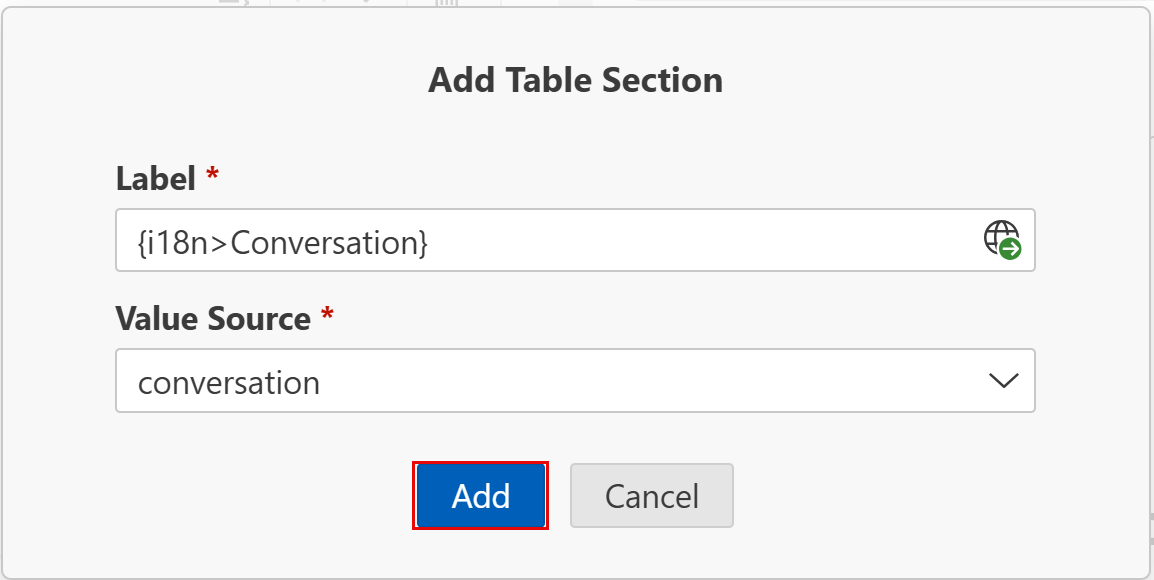
Add Conversation Label
Configure columns
Navigate to Conversation → Table → Columns and choose the Plus icon to add columns.
Choose Add Basic Columns. A popup appears.

Add Conversation columns In the Add Basic Columns popup:
- In the Columns dropdown menu, select author, message, and timestamp.
- Choose Add.

Add Basic Columns popup For each of the CreatedBy, message, and CreatedOn columns:
- In the Label field, change the value to Author, Message, and Date, respectively.
- Press Enter to confirm the change.
- Choose the Globe icon in the Label field to generate a translatable text key.

Update column labels
Configure the table and check the result
For Table, in the Type dropdown menu, select ResponsiveTable to make the table responsive.

Responsive table In the Creation Mode: Name dropdown menu, select Inline.

Table creation mode The complete list object page looks like this:

Complete List Object Page
SAP Fiori supports editing business entities with draft states stored on the server, so users can interrupt editing and continue later on, possibly from different places and devices. CAP, as well as SAP Fiori elements, provides out-of-the-box support for drafts. We recommend that you always use draft when your SAP Fiori application needs data input by users.
- For more details, see the SAP Fiori Design Guidelines for Draft Handling.
- Read more about Draft Support in the CAP documentation.
Enabling a draft for an entity allows the users to edit the entities. To enable a draft for an entity exposed by a service, follow these steps:
Open the srv/services.cds file.
Annotate the file with
@odata.draft.enabledlike this:CDS[5]service ProcessorService { ... } ... annotate ProcessorService.Incidents with @odata.draft.enabled;Start creating a new incident but leave the Customer, Status, and Urgency fields empty.

Draft incident with empty fields Go back to the list view page without creating the incident. You see the incident draft there with the empty fields.
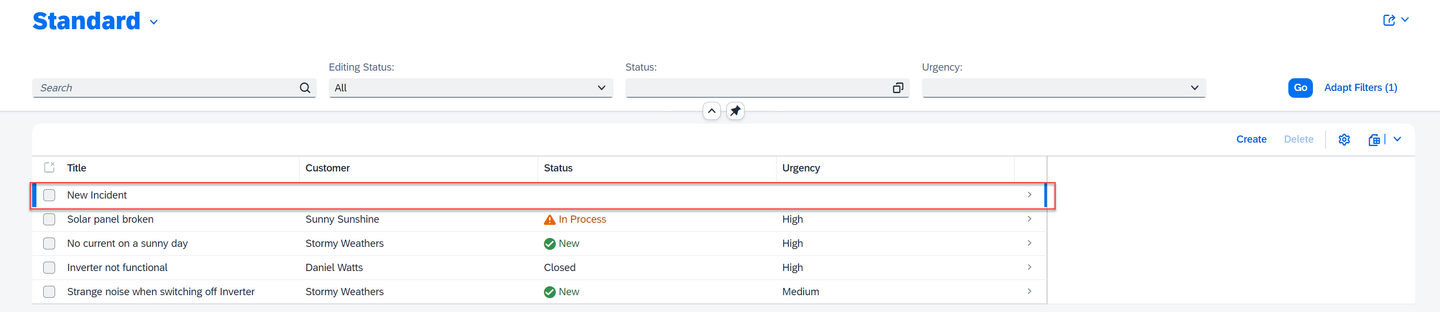
List view page with draft incident Try to access it again to continue the creation from where you stopped.

Draft incident, continue editing
Resources
Discussion
Share feedback on this tutorial or join the conversation in SAP Community.