
Overview
You will learn
- How to create custom logic for an existing custom field in the app Custom Fields
- How to run a trace for the Fiori app Create Purchase Order in the app Custom Logic Tracing
- How to check the output value of this custom field using Custom Logic Tracing
- How to check the custom logic of this custom field, in Custom Fields


Prerequisites
Prerequisites
- You have a license for SAP S/4HANA Cloud
- You are familiar with Key User extensibility in SAP S/4HANA Cloud. If not, see the More Information section
- You are familiar with the app Custom Logic Tracing. If not, see the More Information section
- In SAP Fiori launchpad, you have the following authorizations:
SAP_BR_PURCHASERfor the app Create Purchase Order - AdvancedSAP_BR_ADMINISTRATORfor Custom Logic Tracing and Custom Logic
- You have created a custom field using Key User extensibility
yy1_zhdrprnt2_pdh_000 - In Custom Logic, you have created a
BAdIimplementationYY1_FILLHEADERCUSTOMFIELDS_000in the business context andBAdIdefinition Modify Purchase Order Header (MM_PUR_S4_PR_CHECK)
Steps
Intro
The administrator receives an welcome e-mail after provisioning. This e-mail includes the system URL. By removing
/uiyou can log into the SAP S/4HANA Cloud ABAP Environment system. Further information can be found Developer Extensibility: Connect to the ABAP System.
Throughout this tutorial, the placeholder ### or 000 is used. Always replace this with your initials or group number.
Open the app Custom Fields.
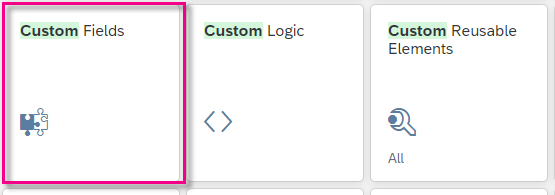
step1a-open-custom-fields Change to the Custom Logic tab, search for the
BAdIimplementationYY1_FILLHEADERCUSTOMFIELD_000.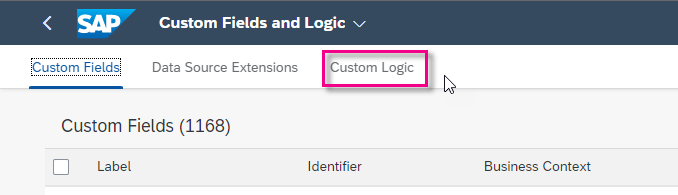
Link text e.g., Destination screen Open the Details screen (by choosing the arrow on the right).
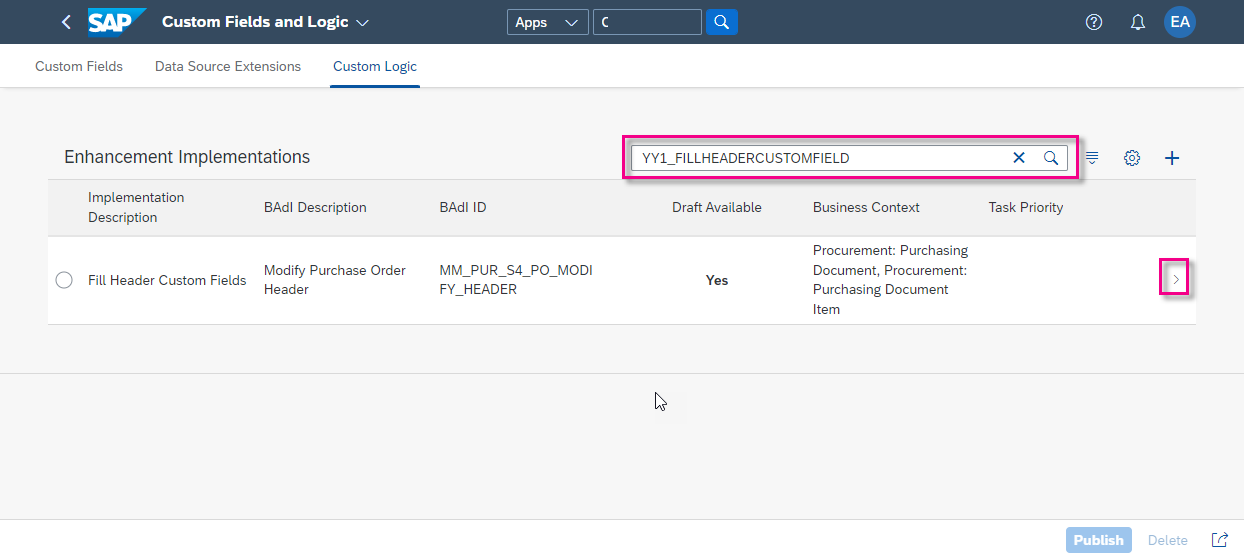
step6b-badi-implementation-overview
You can now see the Published Logic and Draft Logic, if they exist, relevant to the custom field.

Comment out any existing code.
In the custom logic for the field
yy1_zhdrprnt2_pdh_000, copy the following code. This code will copy the content from a standard field,purchaseorder-supplyingplantinto the custom field,yy1_zhdrprnt2_pdh_000, wheresupplyingplantis filled.ABAPIF purchaseorder-supplyingplant is not initial. purchaseorderchange-yy1_zhdrprnt2_pdh_000 = purchaseorder-supplyingplant. endif.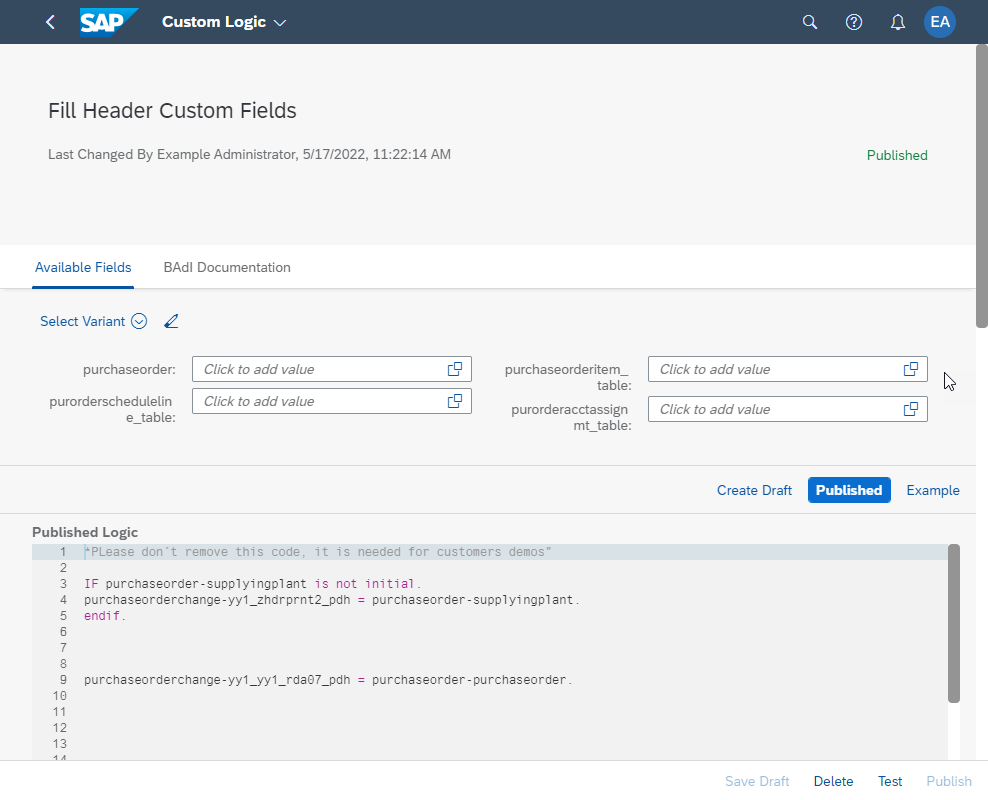
step2a-add-custom-logic Save and publish your custom code.
You are now ready to trace the effects of your custom code when a purchase order is created.
Open the app Custom Logic Tracing and choose Start Trace.
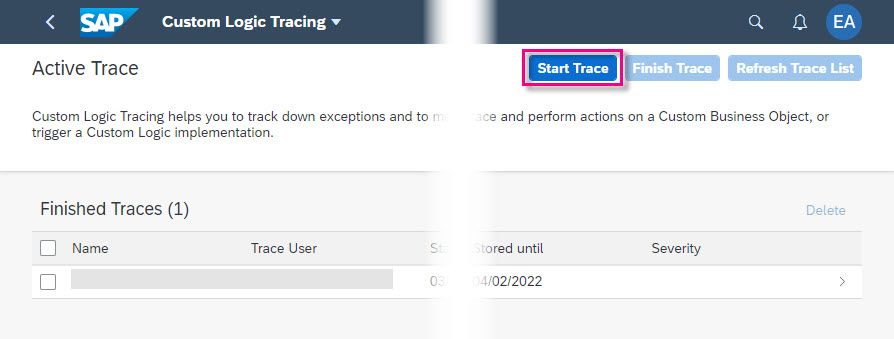
step1a-start-trace Enter the following information, remembering to change the placeholder to your group number or initials:
Field Name Value Name Test Create PO Custom Fields 000Trace User Your user Stored until future date in the format dd.mm.yyyyLifetime 15 
step1b-start-trace-details
IMPORTANT: While Trace is running, create a purchase order as follows.
Open Create Purchase Order - Advanced.
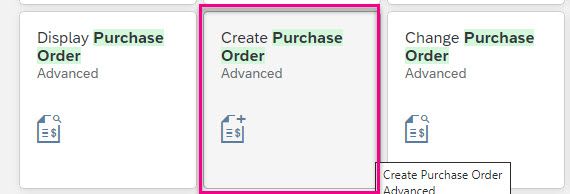
step4a-create-po In the top header, change the Order Type to Stock Transport Order and the Supplying Plant to 1010.

step4b-change-to-stock-transport-order Enter the Supplying Plant, 1010

step4c-supplying-plant In the header section, go to the Custom Fields tab, check that the custom field ZPOHDRPRINT2 now contains the value 1010.

step4a-create-po-custom-field On the Org Data tab, enter the following:
Field Name Value Purchase Organization 1010 Group 001 Company code 1010 If you check the custom field
YY1_ZHDRPRNT2_PDH_000, it is now filled with the same value as Supplying Plant, 1010.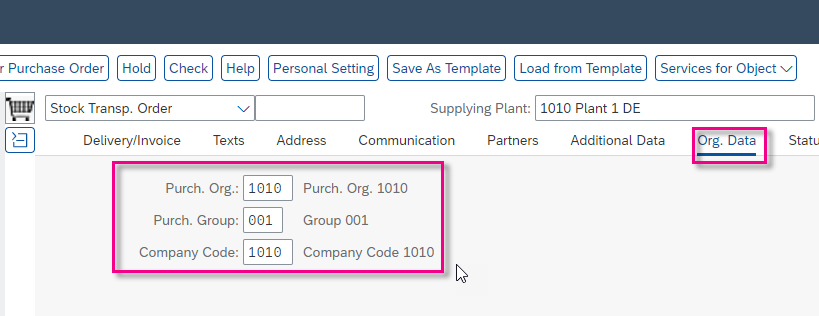
step2c-fill-org-data In the Item Overview section, enter the following. Ignore any warnings.
Field Name Value Material Tg0501PO Quantity 1 Delivery Date future date in the format dd.mm.yyyyPlant 1010 
step4d-fill-item-overview-material The other fields - Material Group, Plant Storage Location - should be filled automatically.

step2d-fill-item-overview Choose Save.

step4e-note-stock-transport-number
Choose Finish trace.
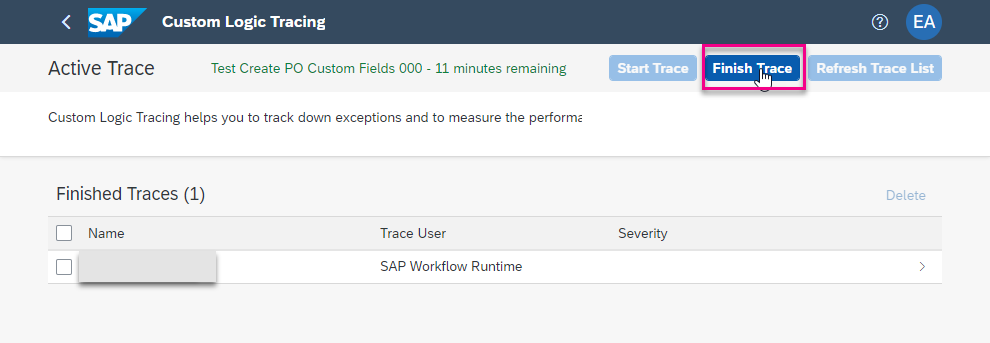
step5a-finish-trace Open the trace. In Trace Hierarchy, choose the last call of
BAdIimplementationYY1_FILLHEADERCUSTOMFIELD_000. (This is necessary because theBAdIimplementation is called several times.) Then choose the parameter Purchase Order.
step5b-choose-purchase-order Scroll right down to the field
YY1_ZHDRPRNT2_PDH_000. Check that its value = 1010.
step5c-choose-custom-field
- SAP Help Portal: Business Add-Ins (
BAdIs) - SAP Help Portal: ABAP Platform App Implementation: Custom Logic Tracing
- SAP Help Portal: Sourcing and Procurement: Adaptation of App Behavior (Overview and List of Available
BAdIs) - Blog post: Key User Extensibility…: Custom Field with ABAP implemented Value Help
- Video of this tutorial: Running a Trace in SAP Key User Extensibility
Resources
Discussion
Share feedback on this tutorial or join the conversation in SAP Community.