
Overview
You will learn
- How to create an Intelligent Scenario in the Intelligent Scenarios Application, including an Execution Flow Template, and upload grounding documents
- How to deploy and activate the Intelligent Scenario in the Intelligent Scenario Management Application
- How to use the Intelligent Scenario in a simple ABAP class


Prerequisites
Prerequisites
Steps
Pre-Read
SAP AI Core’s orchestration service including its consumption in ABAP has already been introduced in the previous tutorial, i.e. Implement a Custom ABAP AI Scenario Consuming SAP AI Core Orchestration Service in Your SAP S/4HANA System. To further improve results in large language model (LLM) interactions, the LLM can be grounded using additional information. Such additional information could be e.g. company-specific or organisation-specific policies, custom- or user-defined rules, etc. In the orchestration service pipeline, the query on existing grounding documents is executed before the actual prompt is handed over to the large language model.
Want to learn more? Please see the Orchestration documentation for more information.
Usage of SAP AI Core orchestration service requires the configuration of the orchestration service pipeline. In order to create a custom configuration, you may e.g. use the SAP AI Launchpad as explained in tutorial Implement a Custom ABAP AI Scenario Consuming SAP AI Core Orchestration Service in Your SAP S/4HANA System. The consumption of the orchestration service pipeline in ABAP requires an intelligent scenario (INTS) including an execution flow template in the enclosed intelligent model (INTM).
You may use the above mentioned tutorial for obtaining your own JSON file, which can subsequently be uploaded later in this tutorial. Alternatively, you may use the JSON provided in a later step in this tutorial. The file provided in this tutorial slightly differs from the one created in the above mentioned tutorial, i.e. it omits the usage of the output translation module.
NOTE: In case you use the
JSONfile copied from your SAP AI Core Launchpad Orchestration configuration, make sure you adapt to remove the outermost layer, hence the file should start with{ "modules"and adapt to"masking_providers"(instead of"providers").
NOTE: If you would like to dive deeper into SAP AI Core’s orchestration service grounding module, please also check tutorial Orchestration(V2) with Grounding Capabilities in SAP AI Core.
Goal: Create and publish the intelligent scenario, including the consumption of SAP AI Core’s Orchestration Service modules.
In the SAP Fiori launchpad of your SAP S/4HANA system, choose the Intelligent Scenarios Fiori Application tile as shown below. Alternatively, you can start from SAP GUI using transaction
F4469.
Open the Intelligent Scenarios Fiori App Create a
Side-by-Sideintelligent scenario
Create side-by-side Intelligent Scenario On the creation screen, first set the intelligent scenario type to
Generative AI, which updates the SAP Fiori creation screen accordingly. You can now fill in the mandatory fields for the Intelligent scenario, e.g. INTS nameZDEMO_INTS_GROUNDING. Make sure to also provide theUsage Type.
Configure the Intelligent Scenario Click
Add Model(see screenshot above) to open the configuration of the Intelligent Scenario Model (INTM), which will be namedZDEMO_INTM_GROUNDINGin this tutorial. This model holds the details of the large language model. Choose from the list of supported providers and available models. Ensure you select the same model configured in the orchestration service, i.e.antropic--claude-4-sonnetwhen using the providedJSONfile.
Configure the intelligent scenario model Navigate to the
Execution Flow Templatetab and click onUpload.
Upload the Execution Flow Template Use the
JSONfile from this repository and upload it into the intelligent scenario model
Upload execution flow template In order to use grounding, add a data repository of type
Vector, which enables the option to add grounding templates to the INTM.
Add Grounding Items Configure the grounding item, i.e. set the search configuration to
1and useMax Document Count.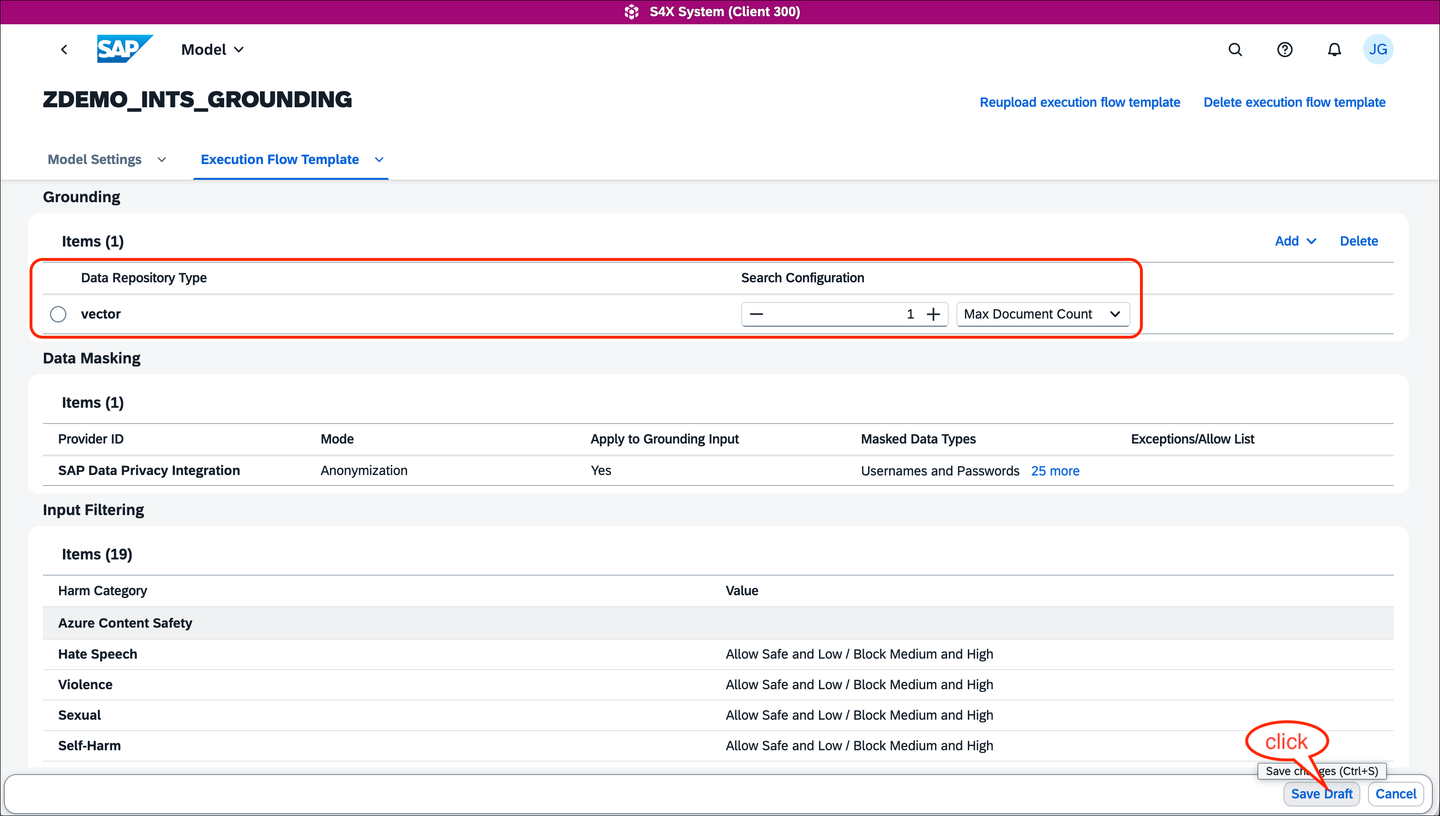
Configure vector grounding details Navigate to the
Model Settingstab and add two prompt templates
Add prompt template a. Add a prompt template for the user prompt
USERPROMPT, chooseDisplay Template InformationtoYes, and add the prompt specification as:Based on {ISLM_UserInput}, briefly summarize, i.e. give a personal description, summarize and rate if this person fits into our team of AI enthusiats.The default value will remain empty.
Configure a template for the user prompt b. Add a prompt template for the system prompt
SYSTEMPROMPT, chooseDisplay Template InformationtoYes, and add the prompt specification asRespect the guidelines given from {ISLM_GROUNDING_OUTPUT}.
Configure a template for the system prompt Add a grounding template, which is used as input for the grounding module, i.e. adds a query for the grounding documents

Configure a grounding template Configure the
GROUNDING_QUERY, chooseDisplay Template InformationtoYes, and specify the prompt asSelect the right grounding document for application evaluation based on the organization type {ISLM_OrgType}.. You may leave the default value forISLM_OrgTypeempty
Configure the grounding query template
NOTE: There are pre-defined variables like
ISLM_GROUNDING_OUTPUTand pre-defined dynamic parameters formatted likeISLM_abc, whereabccan be chosen (case-sensitive) according to custom needs. The usage ofISLM_GROUNDING_OUTPUTin one of the prompts is mandatory, leading to orchestration execution errors if omitted.
Safe the intelligent scenario model draft and navigate back to the intelligent scenario
ZDEMO_INTS_GROUNDING. In the scenario covered in this tutorial, the application will be used to rate a job application given to organisation-specific ratings. The guidelines for these ratings are given by documents (txtfiles in our example), which are used to ground the large language model response. The files can be obtained from this repository. Navigate to the document tab, upload the grounding documents, and publish the INTS:a.
SW_DEV_CONSULTING:Gudilelines for Software Development Consultingb.
CONTROLLING:Guidelines for Controllingc.
HR:Guidelines for Human Ressourcesd.
SW_DEV_AI:Guidelines for Software Development focus on Artificial Intelligencee.
SW_DEV:Guidelines for Software Development (general)
Upload the Grounding documents Choose an ABAP development package, e.g.
$TMP, for the intelligent scenario and intelligent model
Select the package for the intelligent scenario Confirm the intelligent scenario to be published

Confirm to publish the intelligent scenario
Goal: Continue with the deployment and activation of the newly created intelligent scenario to enable interactions with the SAP AI Core orchestration service pipeline comprising the grounding capabilities as well as the LLM deployment.
Open the Intelligent Scenario Management tile in your SAP Fiori launchpad as shown below. Alternatively, you can start from SAP GUI using transaction
F4470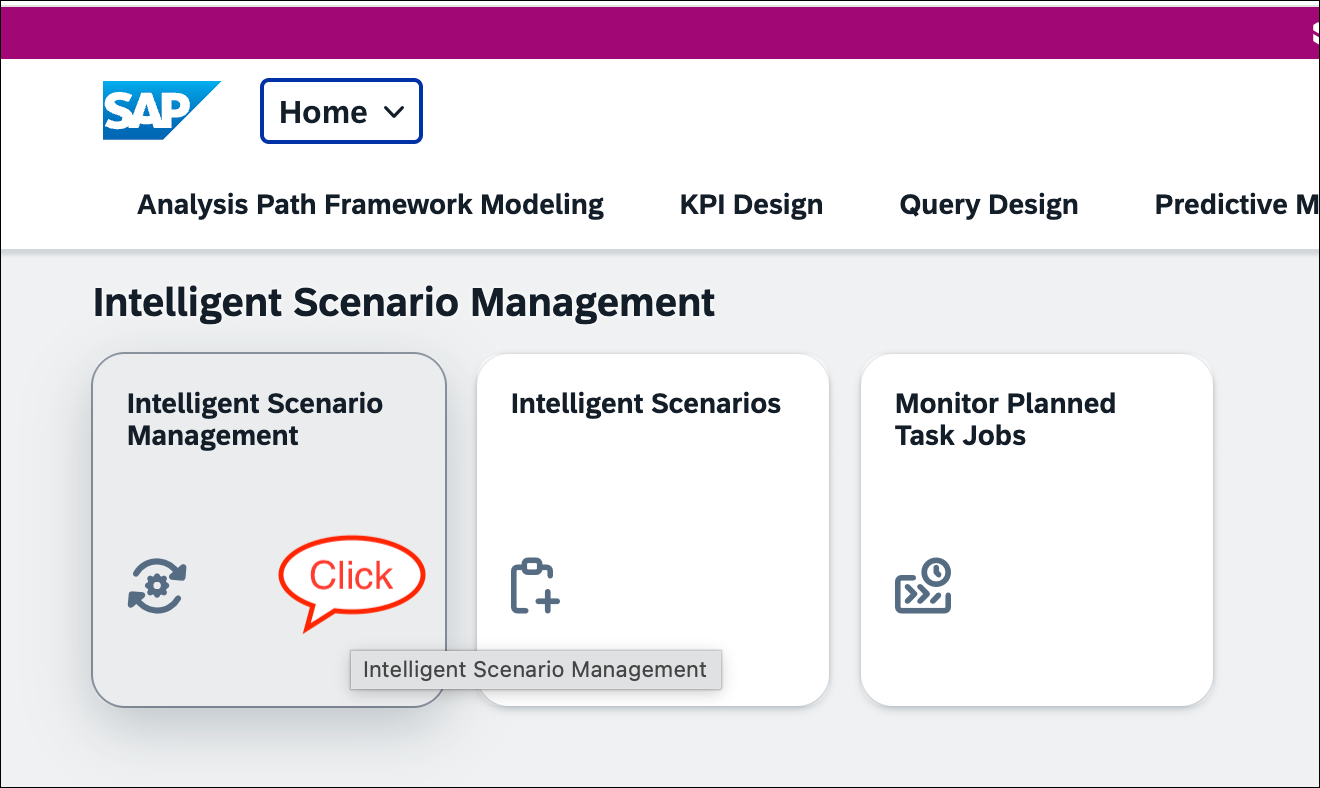
Open ISLM Manage App Choose the previously created and published intelligent scenario
ZDEMO_INTS_GROUNDING. Open its detail screen by clicking the>icon.
Select the demo scenario
NOTE: If you see a message about missing synchronization, this is expected and depends on your system configuration. There may be a delay before the required information is synced with your BTP AI Core instance (default: 5 minutes). You may need to wait up to 5 minutes for synchronization to complete.
Choose the model entry and navigate to its detail screen by clicking the
>icon.
Select the demo scenario model Deploy the intelligent scenario via the
Deployoption.
Deploy the INTS Check the deployment details displayed, you may change the deployment description or just accept the proposed text

Check the deployment details The deployment status will first change to a pending state, then to
Deployed. You can then activate the deployment for all users via theFor Alloption
Confirm Activation the deployed INTS You’ll be asked to confirm the activation method

Confirm Activation the deployed INTS Finally, the deployment is activated

Final deployment status
Conclusion: Well done! You are now ready to consume the intelligent scenario and interact with an LLM via SAP AI Core’s Orchestration Service — let’s do that in the next step!
Goal: Now that you have successfully published and activated the intelligent scenario, it is time to consume it in your ABAP code. For clarity, this tutorial uses a simple ABAP class with console output, but you can of course apply more complex ABAP logic.
- Use ABAP Development Tools in Eclipse to create an ABAP class with the following code. Please ensure to adapt the INTS name
ZDEMO_INTS_GROUNDINGin case you’ve chose a different one. Same holds for the prompt templates namesSYSTEMPROMPTandUSERPROMPTin case you have chosen a different naming. In case you would like to see how a different grounding influences the result, please modify the value for constantgrounding_hint.
CLASS zdemo_islm_grounding DEFINITION
  PUBLIC
  FINAL
  CREATE PUBLIC .

  PUBLIC SECTION.
  INTERFACES if_oo_adt_classrun.
  PROTECTED SECTION.
  PRIVATE SECTION.
    DATA: user_message TYPE string,
          system_role  TYPE string.

    CONSTANTS:
      ints           TYPE islm_de_sbs_is_name VALUE 'ZDEMO_INTS_GROUNDING',
      grounding_hint TYPE string VALUE 'Software Development (AI Focus)'.
ENDCLASS.


CLASS zdemo_islm_grounding IMPLEMENTATION.
  METHOD if_oo_adt_classrun~main.
    user_message = |Dear Joe, I'm Jane Doe, and I'm interested in joining your AI team. I have a basic understanding of computers | &&
                   |and I'm excited about AI.| &&
                   |Key highlights of my profile:| &&
                   |Completed an online course on basic computer skills (2015)| &&
                   |Familiar with Microsoft Office and Google Suite | &&
                   |Enjoy working with people and have experience in customer service | &&
                   |Willing to learn and take on new challenges | &&
                   |I'm looking for a new opportunity and think your team might be a good fit. Please find my resume attached. | &&
                   |Best regards,| &&
                   |Jane Doe | &&
                   |(jane.doe@email.com, 555-901-2345)|.

    TRY.

        DATA(api) = cl_aic_islm_orch_api_factory=>get( )->create_instance( islm_scenario = ints ).

        " Use the 'SYSTEMPROMPT' template as system prompt
        api->configure_templating( )->add_prompt_template( template_id  = 'SYSTEMPROMPT'
                                                           message_type = aic_prompt_message_type=>system_role ).

        " Use the 'USERPROMPT' template as user prompt and add the user_massage as input parameter
        api->configure_templating( )->add_prompt_template( template_id  = 'USERPROMPT'
                                                           message_type = aic_prompt_message_type=>user_message ).
        api->set_input_parameter( name  = 'ISLM_UserInput'
                                  value = user_message ).

        " configure the grounding, i.e. enable it and provide the input for the grounding query
        api->configure_grounding( )->add_grounding_template(
            template_id         = 'GROUNDING_QUERY'
            template_parameters = VALUE #( ( name  = 'ISLM_OrgType'
                                             value = grounding_hint ) ) ).

        FINAL(execute) = api->execute( ).
        " For demo purpose only: check the grounding module's output, i.e. check
        " which document has been retrieved by the grounding query
        FINAL(grounding_output) = execute->grounding_result( )->output( ).

        " run the LLM request using the full orchestration service pipeline
        FINAL(response) = execute->orchestration_result( )->completion( ).

        " provide results as console output
        out->write( '***Grounding result:***' ).
        out->write( grounding_output ).

        out->write( '***AI Response:***' ).
        out->write( response ).

      CATCH cx_aic_api_factory INTO DATA(cx_factory).
        out->write( cx_factory->get_longtext( ) ).
      CATCH cx_aic_orchestration_api INTO DATA(cx_orch).
        out->write( cx_orch->get_longtext( ) ).
    ENDTRY.
  ENDMETHOD.

ENDCLASS.- Activate and run the ABAP class using
Run as > ABAP Application (Console). The ABAP console output will look similar to the following
***Grounding result:***
{
  "organization_type": "Software Development (AI Focus)",
  "rating_scale": {
    "min": 1,
    "max": 5,
    "definitions": {
      "1": "Very weak / insufficient evidence",
      "2": "Below average",
      "3": "Meets expectations",
      "4": "Above average",
      "5": "Exceptional"
    }
  },
  "overall_rating_calculation": "Weighted average of all aspect scores",
  "aspects": [
    {
      "name": "AI & Machine Learning Expertise",
      "description": "Knowledge of ML algorithms, deep learning, data modeling, and AI theory.",
      "weight": 0.40
    },
    {
      "name": "Applied Research & Experimentation",
      "description": "Ability to design experiments, evaluate models, and iterate based on results.",
      "weight": 0.25
    },
    {
      "name": "Engineering AI Systems",
      "description": "Skills in deploying, scaling, and maintaining AI models in production systems.",
      "weight": 0.20
    },
    {
      "name": "Ethical & Critical Awareness",
      "description": "Understanding of AI risks, bias, limitations, and responsible usage.",
      "weight": 0.15
    }
  ]
}

***AI Response:***
## Candidate Summary: MASKED_PERSON

**Personal Description:**
MASKED_PERSON is a career changer with basic computer literacy and customer service background, seeking to transition into AI. Shows enthusiasm and willingness to learn but lacks technical foundation in AI/ML.

**Key Strengths:**
- Strong interpersonal skills from customer service experience
- Demonstrated willingness to learn new technologies
- Collaborative mindset ("enjoy working with people")

**Key Gaps:**
- No AI/ML technical knowledge or experience
- Limited programming background
- 9-year gap since last technical training (2015)

## Ratings Assessment:

**AI & Machine Learning Expertise:** 1/5 (Weight: 40%)
- No evidence of ML algorithms, data modeling, or AI theory knowledge

**Technical Implementation & Experimentation:** 1/5 (Weight: 25%)
- No experience with model development, testing, or experimentation

**Production & Deployment Skills:** 1/5 (Weight: 20%)
- No systems experience or technical deployment capabilities

**Ethical & Critical Awareness:** 2/5 (Weight: 15%)
- Shows basic awareness through interest in joining AI team, but no demonstrated understanding

**Overall Rating: 1.2/5**

**Recommendation:** Not suitable for current AI team roles. Would require extensive training/education before contributing meaningfully. Consider for non-technical AI-adjacent positions or suggest pursuing formal AI education first.Conclusion: Congratulations! You implemented an intelligent scenario using the SAP AI Core orchestration service including the grounding capabilities. You’re now well equipped to build you own Custom ABAP GenAI scenario!
Resources
Discussion
Share feedback on this tutorial or join the conversation in SAP Community.