
Overview
You will learn
- How to create
rule servicewhich is the deployable entity of business rules - How to create
rulesetto bundle rules with same output


Prerequisites
Steps
Intro
Rule Service is an interface or an end point that enables an application to invoke a decision logic. In an online transaction or workflow, rule service is invoked by passing any relevant input from an application to the rule service in a stateless manner.
Ruleset is a logical collection of rules that helps you group business rules that govern a specific function. A ruleset links a rule or group of rules to a rule service.
For more information, you can read the help documentation:
Switch to Rule Services tab in Manage Rules Application.
Click + to create the rule service.

add rule service In the Details tab, enter the following rule service details:
Name as
BONUS_PERCENTAGE_S4Hor any name of your choice.Label:
Bonus Percentage Rule Serviceor any label of your choice.Description:
Calculates minimum bonus percentage for Custom Business Object of S/4HANAor any description of you choice.
Label and Description are optional fields.

define rule service props Switch to Vocabulary tab.
Click + and add the following rows one after the other.
Select the following values from the drop down:
Name Usage BONUS_PLAN_TTInput PERCENTAGEResult 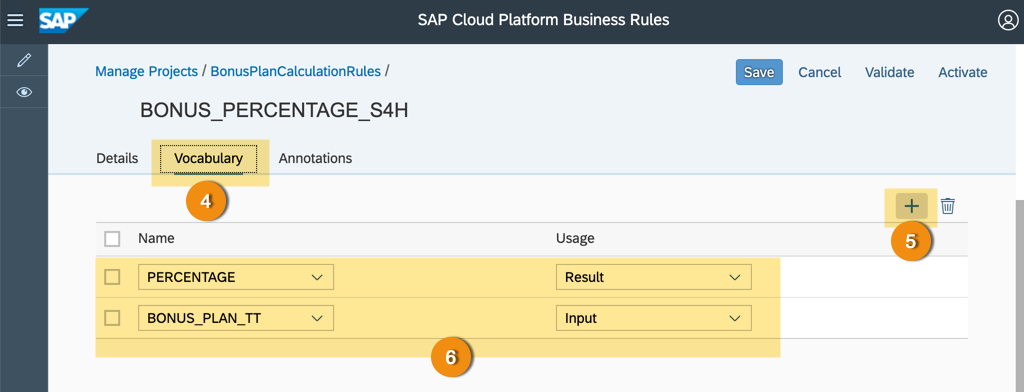
define vocabulary Switch to Annotations tab.
Click + to add annotation to rule service.
From the options, choose ABAP on HANA.

define annotation Click Activate button to save and activate the changes.
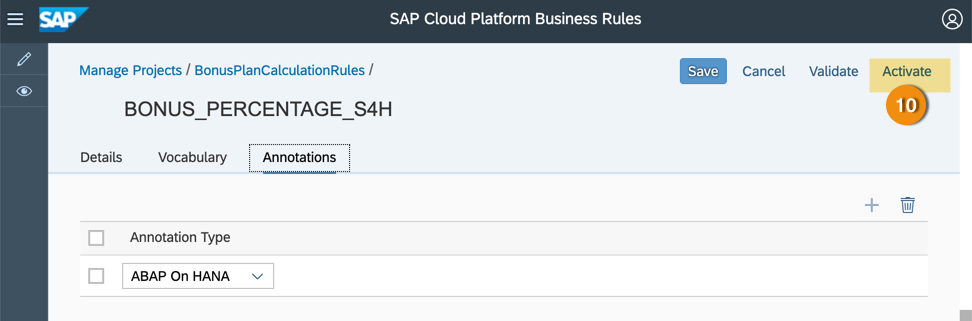
activate rule service If activation is successful, then you will see the status of the rule service as Active.

activated rule service Click the rules project breadcrumb link to return to the project page.

switch to project
Switch to
Rulesetstab.Click + to add
ruleset.
add ruleset In the Details tab, enter the following values for the
rulesetproperties:Name:
BONUS_PERCENTAGE_COLLECTIONor any name of your choice.Label:
Bonus Percentage Collection Rulesetor any label of your choice.Description:
Executes all business rules to compute the Maximum Bonus Percentage allowed based on Custom Business Object of S/4HANAor any description of your choice.
In Rule Service field, choose a rule service from already defined rule services.

add ruleset props Switch to Rules tab.
Click + to add the rule to
ruleset.Select the rule from the list.

add rules Once you complete editing, click Activate to save and activate
ruleset.
define vocabulary If activation is successful, then you will see the status of the rule service as
Active.
activated rule service
Resources
Discussion
Share feedback on this tutorial or join the conversation in SAP Community.