
Create a Process Trigger
Create an API trigger for the business process to be called from external system.
Overview
You will learn
- How to create an API trigger to start an instance of a business process from any service, like SAP Build Apps A business process is started by defining a trigger, an event that indicates to your SAP Build Process Automation tenant to start a process instance. Process triggers can be a form, such as a request form, an API call, where an external system starts the process or an Event. You may also start the instance with an event trigger which on-boards and listens to back-end events emitted from an external source system and reacts to such events by triggering artifacts such as processes and automations. As part of this tutorial, we will start an instance of the process using an API call, with the inputs for the call configured from the process builder. These inputs will then be used as input fields in your process.


Prerequisites
Prerequisites
- You have created a Business Project and Process in SBPA as described here
Steps
A data type is an artifact describing a data structure that can be used as an input and/or an output parameter in automations or processes. You have two options to create the fields in data type. You can either import an excel file or define the fields manually.
As part of this tutorial, we would be creating data type defining each field with field name and type of field manually.
Go to your project and click on Create > Data Type.
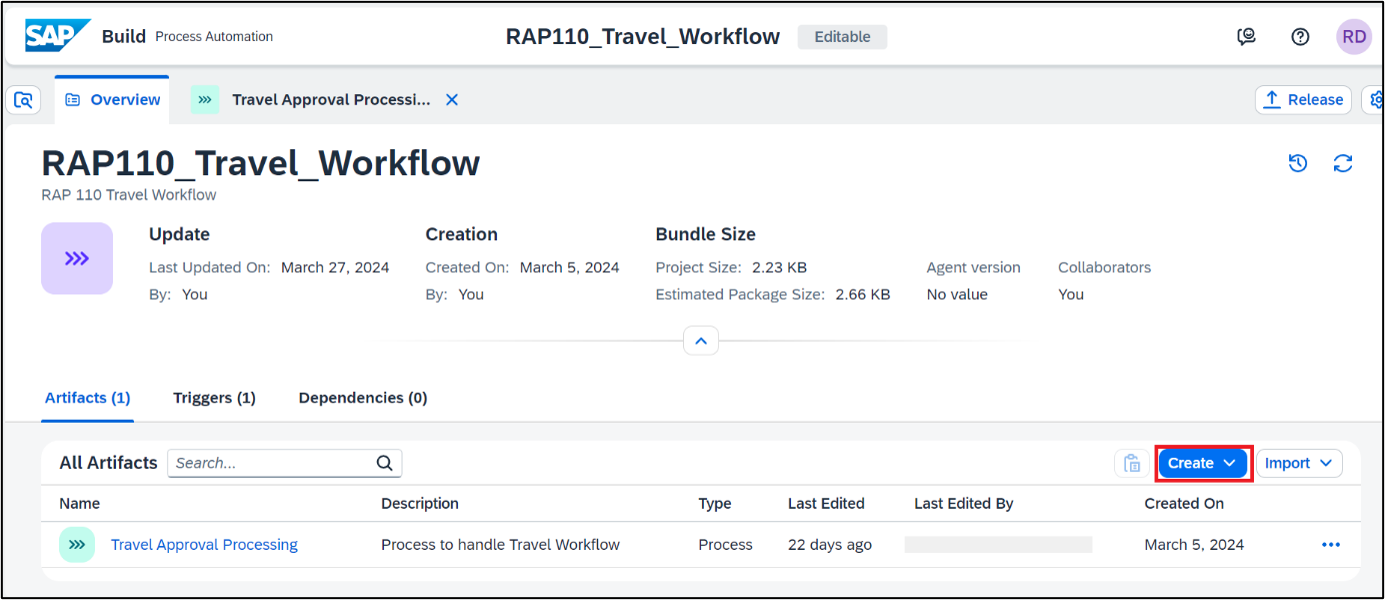
Create Data Type 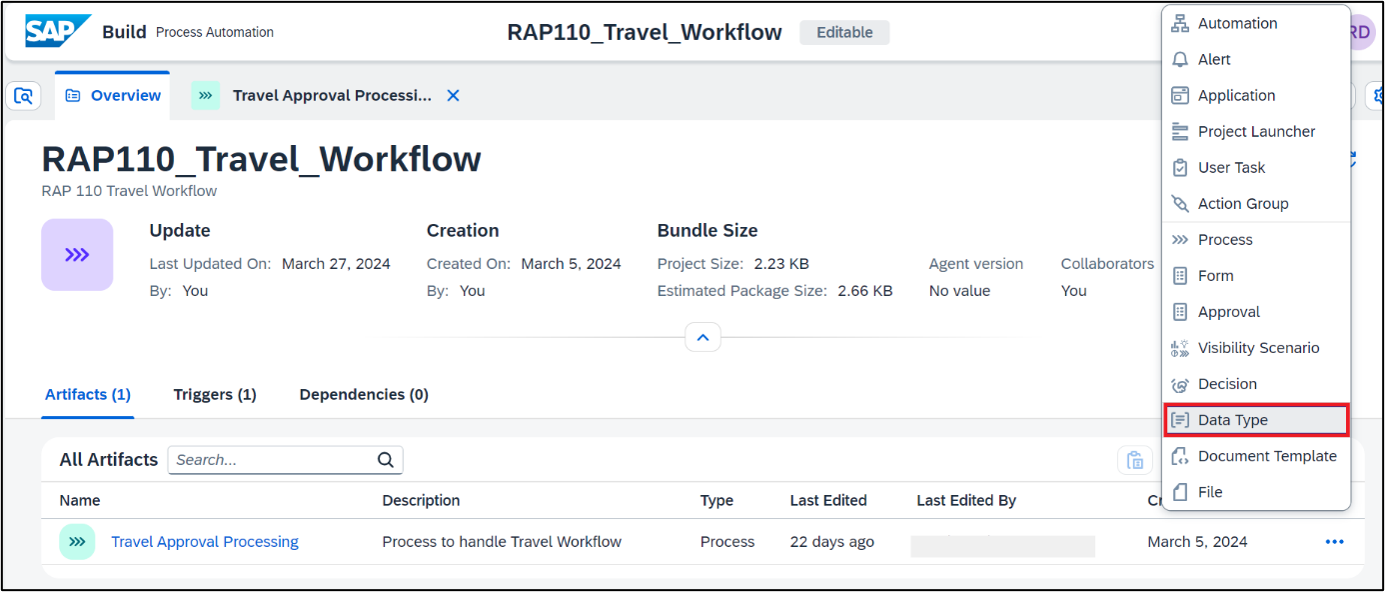
Create Data Type 2 Name the data type Travel Context and click on Create.

TravelContext Click on New Field to add new fields to the data type Travel Context.
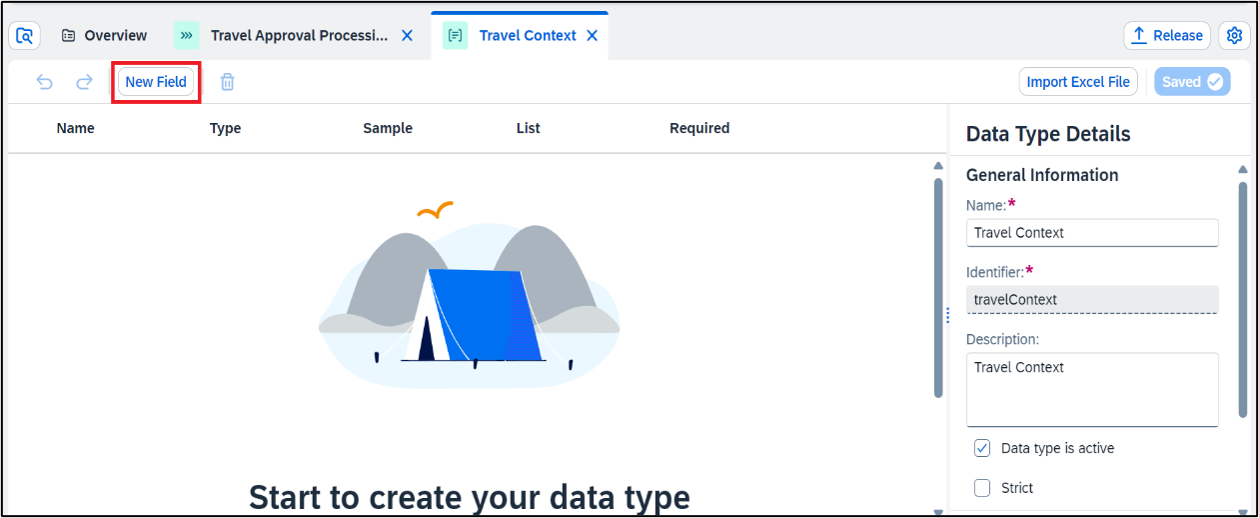
New Field 
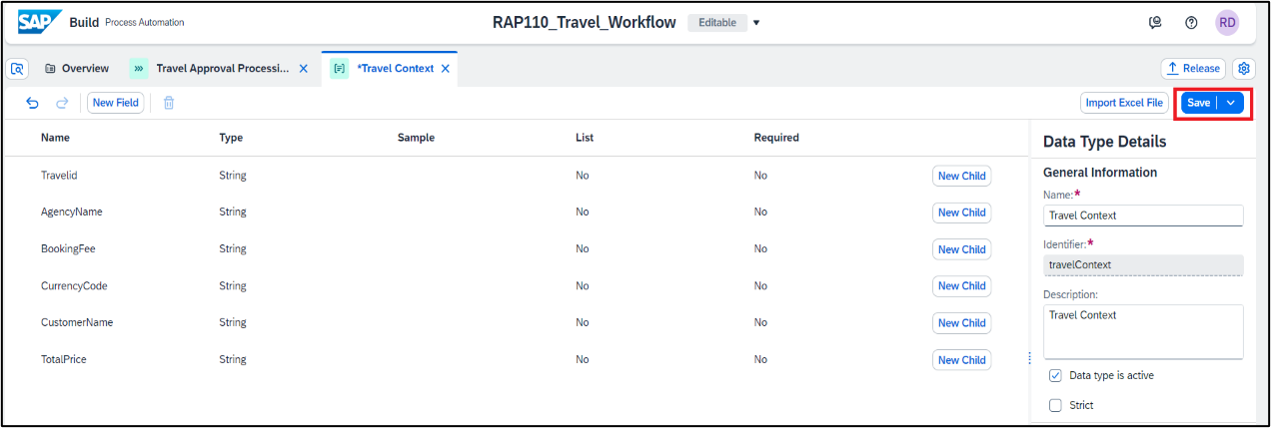
Start Data Type Repeat the process to add all the fields of the type as shown below
Field Name Type Travel id StringAgency Name StringBooking fee StringCurrency Code StringCustomer Name StringTotal price String
The spelling and casing of the fields, as well as any extra spaces, is crucial because the API to trigger the process will require the fields exactly as written.
For the tutorial we are keeping a format as first letter of all words in the field name capital and without underscore.
The final data type looks as below. Click Save to save the data type
Open process Travel Approval Processing.

Travel Workflow To add an API trigger for the process, click on the Add API trigger.

AddAPItrigger Choose Call an API as we are creating an API based trigger so that we can trigger the process from external system like S/4 HANA or BTP ABAP Environment

CallAPI Enter the below details for the trigger. Choose Create.
Name:Travel Approval Trigger
Description:Travel Approval TriggerPlease note that the identifier will be filled by itself

CreateAPITrigger
Open the Process Details by cliking on the Canvas

Open Process Choose Variables. Then choose Configure to configure process inputs.

Choose Variable In the Configure Process Inputs window, choose Add Input to add parameters.
Add the following parameter and click on Apply.Field Identifier Type Travel Context Travel Context Select the data type you created in Step 1 Travel Context 
Configure Process Inputs Process Input fields are now visible in the Process Details.

Process Details Save the Project.
Once the trigger is created successfully, you can view the trigger under the Triggers Section in the Overview page.

Overview.png
You can edit, deactivate, or delete the API trigger properties from Triggers tab in the respective process builder overview.
Deactivate means that while the trigger exists in design-time, you cannot consume it in runtime.
Delete will permanently delete the trigger from design-time, but for already deployed processes the trigger will still exist at runtime.
In general, any changes in the trigger will be effective only when the process is released and deployed.
All the API triggers that are created in that project will be shown.
Resources
Discussion
Share feedback on this tutorial or join the conversation in SAP Community.