
Overview
You will learn
- How to create an MTA project in the Business Application Studio


Prerequisites
Prerequisites
- A user with Subaccount Administrator access to the 05 Provide sub-account
Steps
As subaccount administrator of the 05 Provide subaccount, go to Security→Role Collections
- Select the
Business_Application_Studio_DeveloperRole Collection. - Click Edit.
- Add the relevant users for development and MTA deployment.
- Save the changes.
Open the Business Application Studio (BAS) instance using the relevant user.
Create a new Dev Space by clicking on “New”.

New Dev Space Give a suitable name and add the MTA tools plugin (You may see a slightly different name depending on when you refer this tutorial).
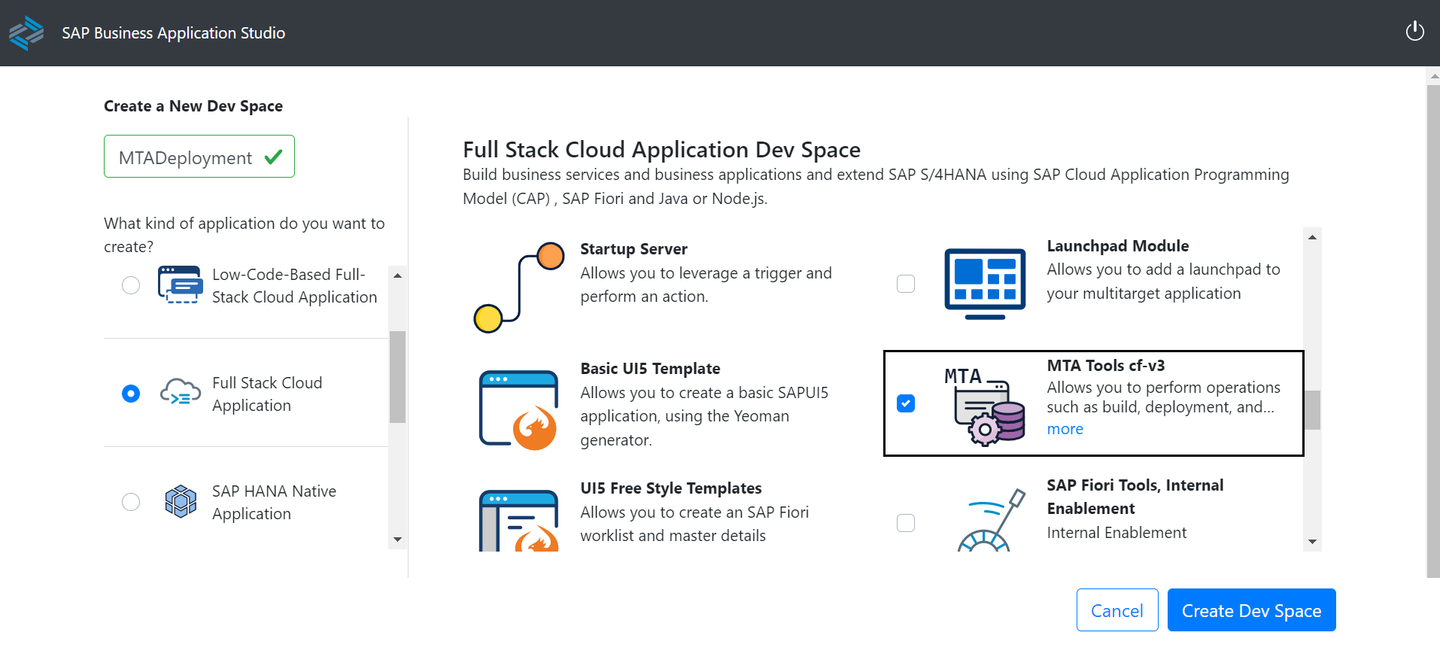
MTA Tools Once the space is shown as “Running”, open it. You should see a welcome page.
If the welcome page does not appear, you can always start a project from template by clicking on ‘File’–>New Project from Template.

Create a new Basic Multitarget Application Project from Template

BAS MTA Template Provide a unique project name to identify the application in your workspace

MTA Project Name Click Finish. You should see a project created with a generated “mta.yaml” file.

MTA Content
Resources
Discussion
Share feedback on this tutorial or join the conversation in SAP Community.