
Overview
You will learn
- How to set up a communication arrangement for communication scenario
SAP_COM_0647 - How to expose the launchpad content of a business role to the SAP Build Work Zone, standard edition
- How to create the necessary destinations in the SAP BTP subaccount
- How to create a content provider
- How to create a launchpad site and add the exposed content


Prerequisites
Prerequisites
- You have subscribed to the SAP Build Work Zone, standard edition in the subaccount where the content shall be consumed and your user is assigned to the
Launchpad_Adminrole collection. To subscribe to the SAP Build Work Zone, standard edition and assign the role collection, see “Set Up the SAP Launchpad Service”. - Your user in the SAP BTP, ABAP environment system is assigned to the
SAP_BR_ADMINISTRATORrole. See Assigning the ABAP Environment Administrator Role to the New Administrator User.
Steps
Open the
Communication Systemsapp from the SAP Fiori Launchpad in your SAP BTP, ABAP environment system.Create a new communication system.
System ID and System name:
COMMSYS_CONTENTFEDERATION_DEMOHost Name: Callback URL, which is needed for setting up content change notifications. For example, for region EU10, the URL is
portal-service.cfapps.eu10.hana.ondemand.com.Port:
443

Communication system overview Add a technical user for inbound communication:

New Inbound User - Choose authentication method
User Name and Password.
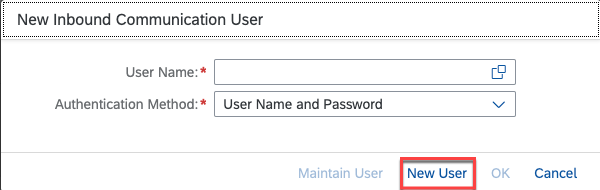
New Inbound User User Name:
COMMUNICATIONSYSTEM_INBOUND_USERDescription:
Inbound user for communication systemLet the system generate a password. Do not forget to note the password for later use in
Step 6(Create Design-Time destination).

Inbound User settings - Choose authentication method
Similarly add a technical user for outbound communication with
Authentication MethodNone.
Outbound User settings To save the communication system, select
Save.
Open the
Communication Arrangementsapp from the SAP Fiori Launchpad and selectNew.In the
New Communication Arrangementdialog choose communication scenarioSAP_COM_0647.Select
Create.In the
Common Datasection, set the following valuesArrangement Name:
SAP_COM_0647Communication System:
COMMSYS_CONTENTFEDERATION_DEMOLogical Target Identifier:
LNCHPD_INTG_TGT

Communication arrangement Enter the job execution details for scheduling the SAP Fiori Launchpad content exposure job every 10 minutes.
Select
Save.
In the
Maintain Business Rolesapp, search for business role IDSAP_BR_ADMINISTRATOR.Copy business role
SAP_BR_ADMINISTRATORtoNew Business Role ID:
ZSAP_BR_ADMINISTRATOR.Description:
Tutorial: Federated Administrator.Choose: Copy from Source
Assigned Launchpad Spaces.

Copy Business Role - Choose button
OK.
Mark
Exposed to SAP BTP.Choose
Save.
The content related to the exposed business role, such as groups, catalogs, pages, or spaces, can be consumed by the SAP Build Work Zone, standard edition as soon as the job, which you have configured in the previous step, has run successfully.
In the SAP BTP cockpit, download the trust certificate of the subaccount runtime destinations by navigating to
Connectivity>Destination Trust.Select
Exportof the Active Trust Certificate.
Download trust Open the
Communication Systemsapp from the SAP Fiori launchpad in your SAP BTP, ABAP environment system.Create a new communication system by setting the following values.
System ID:
SUBACCOUNT_SYSTEM_COMMUNICATIONSystem Name:
SUBACCOUNT_SYSTEM_COMMUNICATIONSelect
Inbound onlySet
SAML Bearer Assertion ProvidertoONUpload the certificate file you downloaded from your subaccount as the Signing Certificate.
Enter the value of the certificate’s CN attribute as
SAML Bearer Issuer.

Comunication subaccount / Abap environment system To save the communication system, select
Save.
Open the
Maintain Protection Allowlistsapp from the SAP Fiori launchpad in your SAP BTP, ABAP environment system.On the Clickjacking Protection tab page, choose
Createto add a new host. On theAdd Trusted Hostscreen, enter the following data:Trusted Host Name:
<subdomain>.launchpad.cfapps.<region>.hana.ondemand.comSchema:
HTTPSPort:
443
Select
Save.
You create a design-time destination to define the location from which the SAP Build Work Zone, standard edition should fetch the exposed content.
Navigate to the subaccount in which you have subscribed to the SAP Build Work Zone, standard edition.
In the
Connectivitymenu, chooseDestinations.Create a new destination and fill in the following fields:
Name:
Tutorial_dtType:
HTTPDescription:
Design-time destination for tutorialURL: Use the service URL of Service Inbound Service (
SAP_COM_0647) provided in sectionInbound Servicesof the communication arrangement created inStep 2(Create the Communication Arrangement). Add suffixentities.
CAUTION: Do not use the the service URL of the Inbound Service for Version 2.

Service URL Proxy Type:
InternetAuthentication:
BasicAuthenticationUser:
COMMUNICATIONSYSTEM_INBOUND_USER(Created inStep 1(Create a Communication System))Password: Maintain password created in
Step 1(Create the Communication System).
The destination should look like this:

Settings for new Destination Select
Save.
Create a new destination and fill in the following fields:
Name:
Tutorial_Ressources_rtType:
HTTPDescription:
Tutorial: Runtime destination for ressourcesURL: Fiori Launchpad URL of the SAP BTP, ABAP environment system without the
/uipath.Format: https://<
tenant>.abap-web.<region>.hana.ondemand.comProxy Type:
InternetAuthentication:
NoAuthenticationAdditional Properties: (Select
New Propertyto add new items)HTML5.DynamicDestination:
truesap-platform:
ABAP
Select
Save.
Finally the destination should look like this:

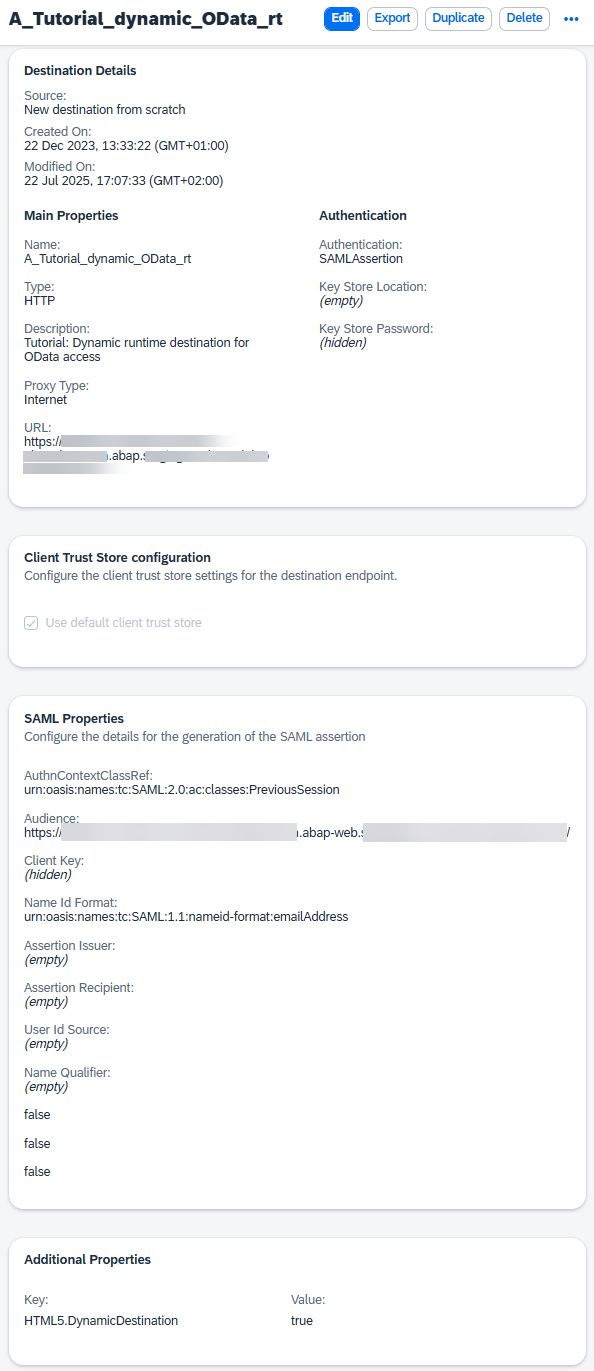
Create a new destination with the following data
Main Properties
Name:
Tutorial_dynamic_OData_rtType:
HTTPDescription:
Tutorial: Dynamic runtime destination for OData accessProxy Type:
InternetURL: SAP Fiori Launchpad URL of the SAP BTP, ABAP environment system. Replace
abap-webwithabapand remove the/uipath.
Format: https://<
tenant>.abap.<region>.hana.ondemand.comAuthentication:
SAMLAssertionSAML Properties
AuthnContextClassRef:urn:oasis:names:tc:SAML:2.0:ac:classes:PreviousSessionAudience: SAP Fiori Launchpad URL of the SAP BTP, ABAP environment system
nameIdFormat:urn:oasis:names:tc:SAML:1.1:nameid-format:emailAddress
Additional Properties: (Select
Add Propertyto add new items)- HTML5.DynamicDestination:
true
- HTML5.DynamicDestination:
Select
Save.
The destination should look like this:
Before you create the content provider, make sure the content is available. The content is synchronized every 10 minutes, as configured in step 2. It can take up to one hour until the first synchronization run is scheduled. To check the availability of the content, open the Display Launchpad Content Exposure Logs app from the SAP Fiori launchpad in your SAP BTP, ABAP environment system. Once everything has been synchronized successfully, the content is available for consumption.
From the subaccount, navigate to
Services>Instances and Subscriptionsand search for theSAP Build Work Zone, standard editionin the search boxAccess SAP Build Work Zone, standard edition.
Select Channel Manager.
Create a new content provider.

Workflow Add title, description, ID, and the destinations created in
Step 6-8(Create Design-Time / Runtime destination) accordingly:Title:
TutorialDescription:
Content Provider tutorialID:
TutorialDesign-Time Destinations:
Tutorial_dtRuntime Destination:
Tutorial_Ressources_rtRuntime Destination for OData:
Tutorial_dynamic_OData_rtAutomatically add all content items to subaccount:
OffUse the Identity Provisioning service to provision user authorizations:
OffInclude group and catalog assignments to roles:
Off
Select
Save.The content provider should look like this:

Create Content Provider
In the
Statuscolumn of the table the status changes toCreatedas soon as the creation is finished.
Navigate to the Content Manager.
Choose the
Content Explorerbutton, where all the already created content providers are listed.Choose the content provider you have created in the previous step.
Select the
Administratorcontent item and chooseAdd.
Add roles to own content
Navigate to the Site Directory.
Select
Create Site.Choose a site name and select
Create.In section
Role AssignmentsselectEditand move your cursor to the search box on the upper right part of the screen.
Create Launchpad Site Choose the
Administratorrole (select-).Select
Save.Navigate to
Site Settingssection. Copy and store the URL of the launchpad for later use.
Launchpad URL
Now you have assigned the business role, that is exposed to the SAP Build Work Zone, standard edition, to your launchpad site. With the business role all apps that are related to this business role will be available on the launchpad site. Also, a role collection is created, which is labeled according to this format:
<Content Provider name>_<Business Role name>
To access the launchpad site you have to assign the role collection created in the previous step, to your SAP BTP, ABAP environment user in the SAP BTP cockpit.
Open the SAP BTP Cockpit and navigate to the subaccount of the SAP Build Work Zone, standard edition.
In the
Securitysection, navigate to theUsersmenu.Search for your user and select it.
Choose
Assign Role Collectionin theRole Collectionsection (depending on your window size, you might have to select...first).Assign the created role collection
~tutorial_ZSAP_BR_ADMINISTRATORto the user.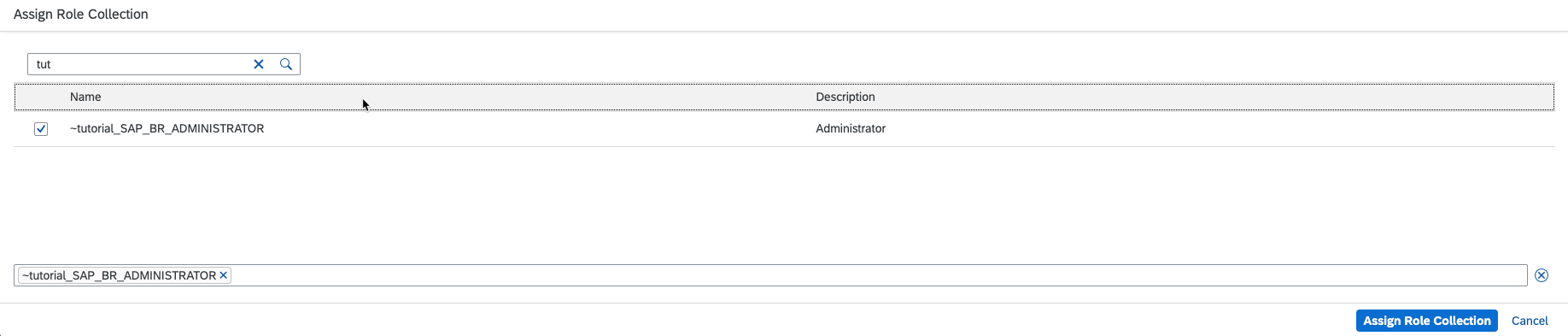
With your user, access the launchpad site via the URL stored in
Step 11.Log off and log on again. This makes sure the newly assigned role collection is taken into account.
The launchpad site should look like this. The groups might be in different order:
Resources
Discussion
Share feedback on this tutorial or join the conversation in SAP Community.