
Transport a Software Component Between two Systems
Create and import a new software component into an SAP Business Technology Platform ABAP Environment instance, add ABAP sources and export it to a new SAP BTP ABAP Environment instance.
Overview
You will learn
- How to create and import a new software component into a SAP BTP ABAP Environment instance
- How to add ABAP sources and export software component
- How to import software component into a new SAP BTP ABAP Environment instance


Prerequisites
Prerequisites
- You need developer user in two SAP BTP ABAP Environment systems under one global account.
- Add the lifecycle management - Software Components business catalog (ID:
SAP_A4C_BC_MSCL_PC) to your business role - Download Eclipse Photon or Oxygen and install ABAP Development Tools (ADT). See https://tools.hana.ondemand.com/#abap.
- Read following blog post about Software Lifecycle Management for SAP BTP ABAP Environment.
Steps
Intro
Always replace
####with your initials or group number.
Login to your first system Fiori launchpad as administrator and open Manage Software Components application.

manage SC Press GO to see the list of all already available software components.

all SC Click Create to create a new software component.

add a new SC Enter a Software Component Name and a Description and press Create.
- Name: `Z_MY_APP_####`
- Description: `my software component`
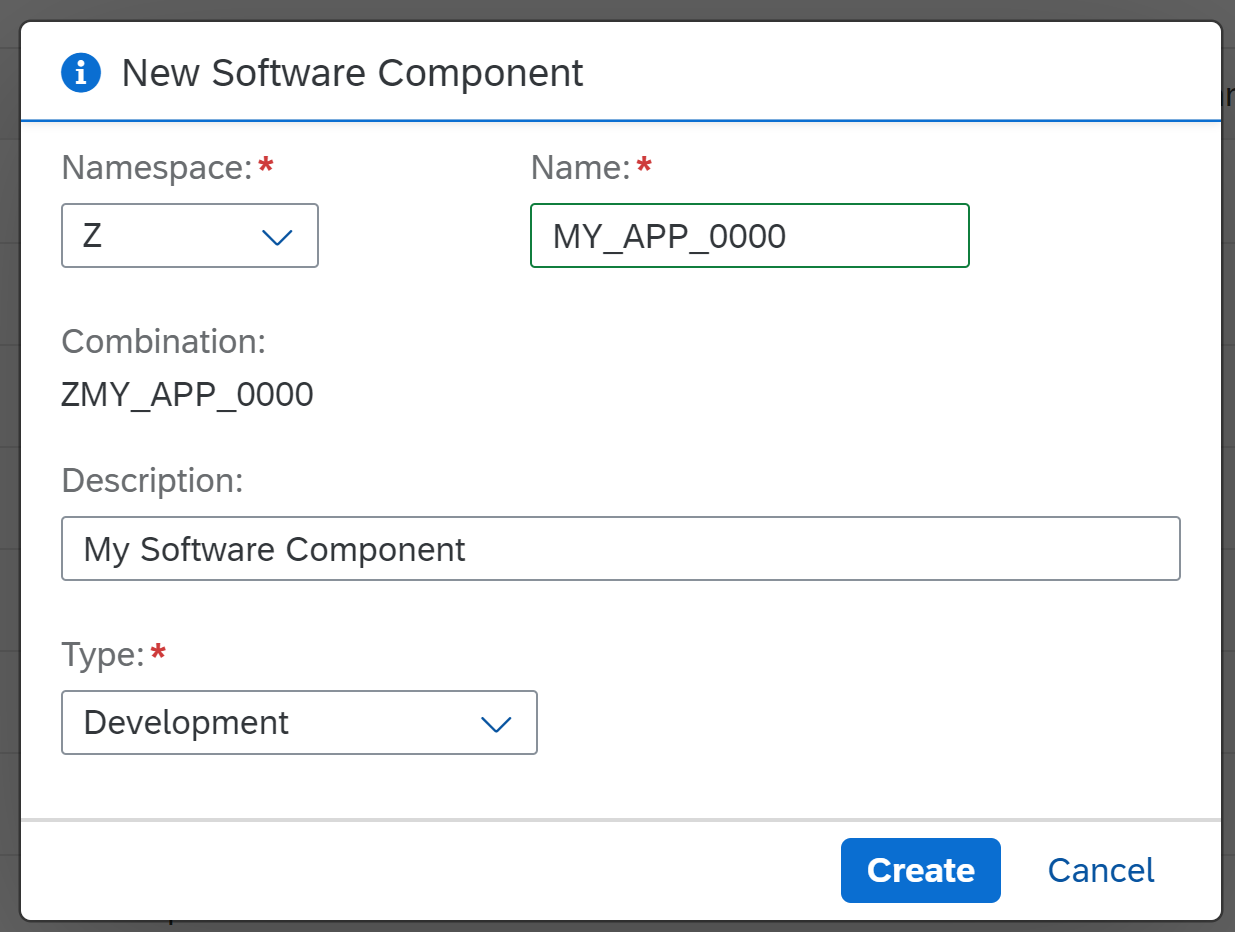
In your created software component press Clone.

clone In the clone dialog select Main branch and click Clone.

confirm clone You can check under Recent Actions if your clone is done.

recent actions
Open Eclipse and connect with your developer user to your first ABAP system. Right-click Favorite Packages and select Add Package.

add to favorites Enter
Z_MY_APP_####, select it and click OK.
add to favorites Check your result.

add to favorites Right-click your package
Z_MY_APP_####and select New > ABAP Package.
new package Create a package
- Name: **`Z_PACKAGE_SC_####`**
- Description: **`Package ####`**
Click **Next**.
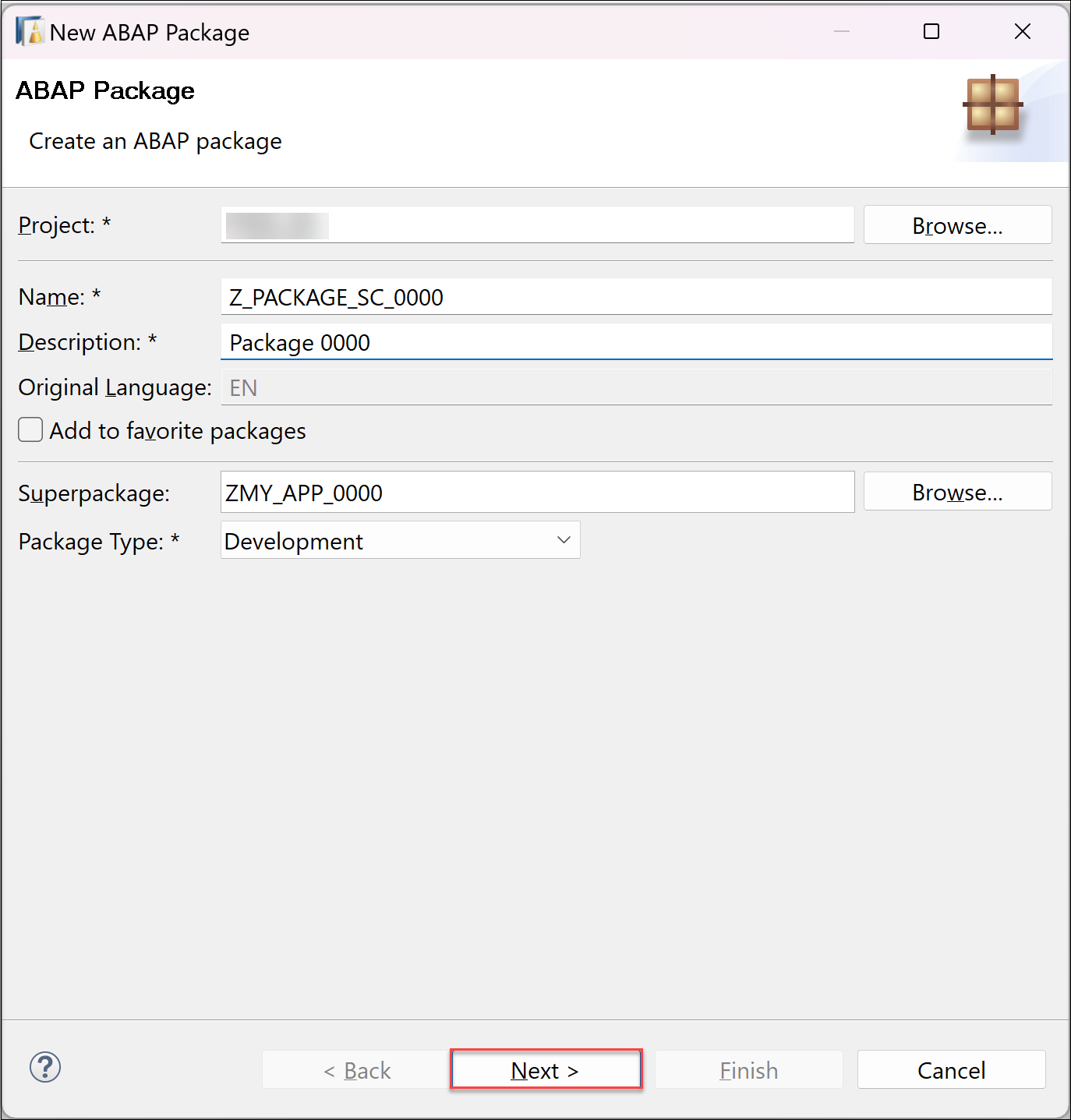
>Your software component root package is a structure package, hence it's not allowed to create objects directly in this package. You need to add an additional development package and then you are able to add your objects.
- Select Create a new request
- Request Description: **`TR####`**
click **Finish**.
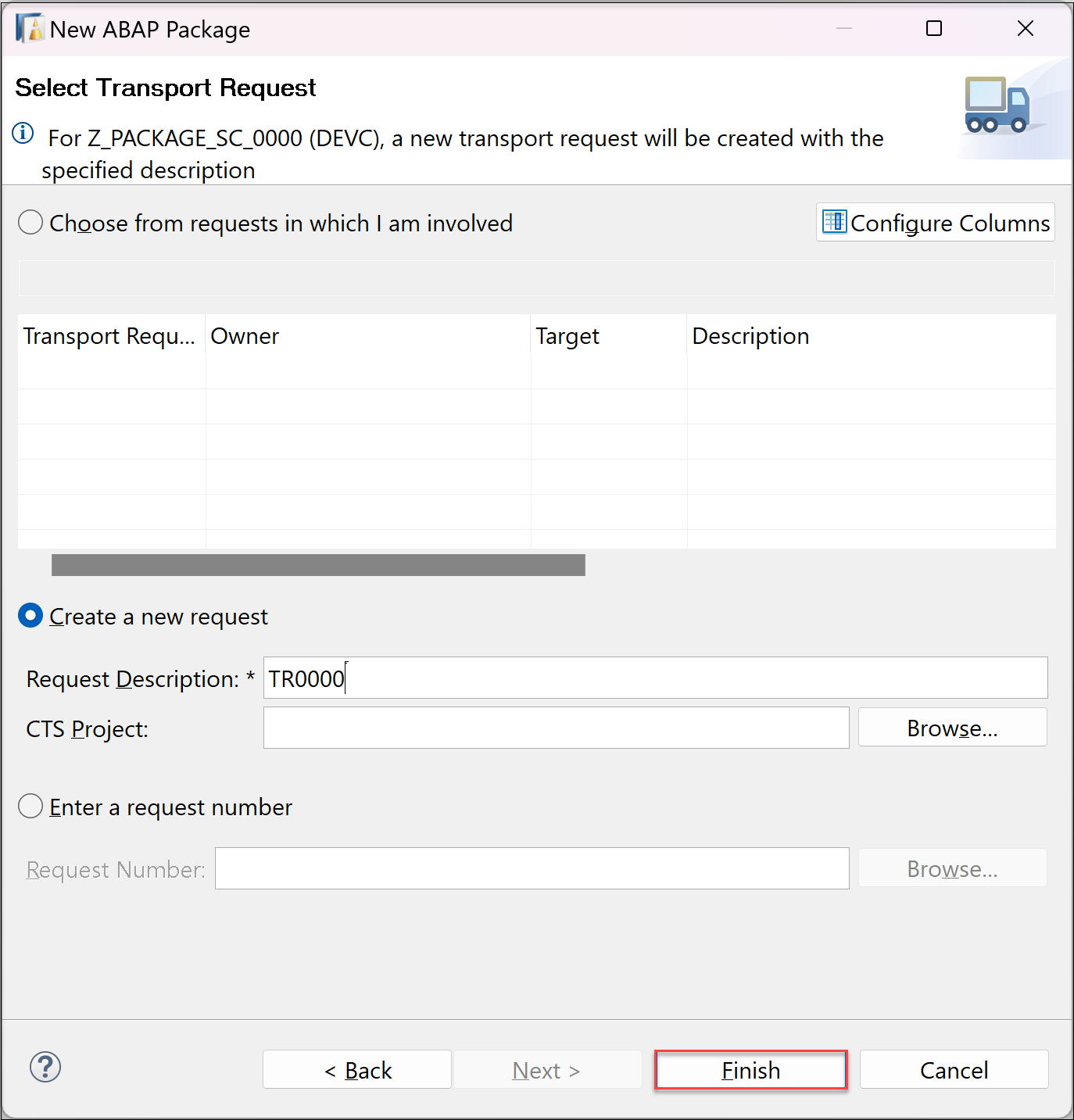
Right-click your package
Z_PACKAGE_SC_####and select New > ABAP Class.
release tasks Create class in package
Z_PACKAGE_SC_####:- Name:
Z_CLASS_#### - Description:
Class ####
Click Next.

release tasks - Name:
Select your transport request
TR####. Click Finish. Save and activate your new class.To release your transport request and its subtasks open view Transport Organizer.

release Right-click your subtasks and select Release to release all your subtasks.

release tasks Afterwards right-click your transport request and select Release to release your transport request.

release tasks You will get a message, that your release was successful. Click OK to close it.

release tasks
Open Manage Software Components app on your second systems Fiori launchpad.
manage SC Press GO to load all available software components.
all SC Select your software component and press Clone. This will either update the software component if it is already imported into the second system or import the software component if it is not present in the second system.
import SC In the clone dialog select Main branch and click Clone.
confirm clone You can check under Recent Actions if your clone is done.
recent actions
Open Eclipse and connect with your developer user to your second ABAP system and add your imported software component to your Favorite Packages. Check if all objects are imported.

add to favorites
Resources
Discussion
Share feedback on this tutorial or join the conversation in SAP Community.