
Overview
You will learn
- How to create an IAM app
- How to create Business Catalog
- How to create and assign an IAM Business Catalog to a Business Role


Prerequisites
Prerequisites
- You need an SAP BTP, ABAP environment license. If you have only a trial account, you can skip this tutorial.
- This tutorial also works in an SAP S/4HANA Cloud, public edition system.
- This is the second tutorial of group Create a SAP Fiori based Table Maintenance app. You must complete the tutorials in the specified order.
Steps
Intro
Authorization control in RAP protects your business object from unauthorized access to data:
- To protect data from unauthorized read access, ABAP CDS provides its own authorization concept based on a data control language (DCL).
- Modify operations such as standard operations and actions can be checked against unauthorized access during RAP runtime.
For this purposes, the generated business object checks the authorization object S_TABU_NAM with the CDS entity ZI_ERRORCODE### and the activity 03 (read) / 02 (modify).
To consume the service of the generated business object in the CUBCO app, you must define an IAM app and assign the service to the app. This ensures that you can define the required authorizations.
First, you create the IAM app yourself. As a next step, you create a business catalog and a business role that you can assign to your business user.
Right-click the package
Z_ERROR_CODES_###and choose New > Other ABAP Repository Object.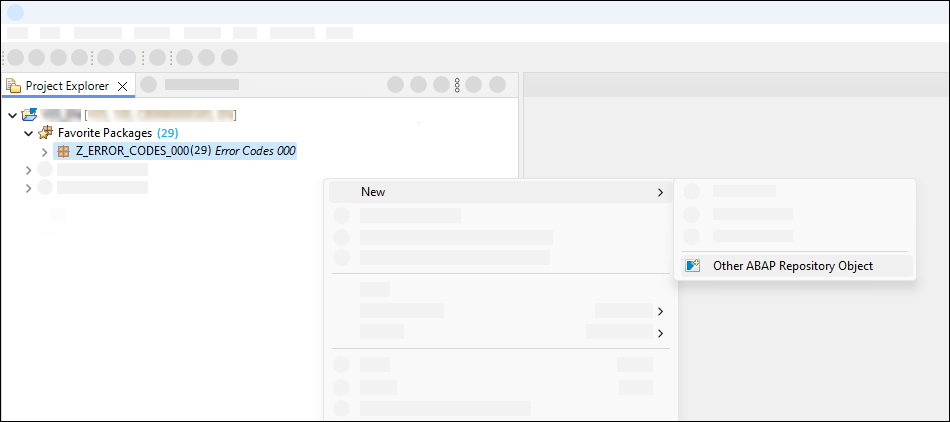
New repository object Search for IAM App, select it and click Next >.

New IAM app Create new IAM app:
- Name:
Z_ERROR_CODES_### - Description:
Error Codes - Maintenance - Application Type:
Business Configuration App

Enter IAM app definition Click Next >.
- Name:
Click Finish.
Choose Services and add a new service.

Add service to IAM app Select your service:
- Service Type:
OData V4 - Service Name:
ZUI_ERRORCODE###_O4

Select service Click OK.
- Service Type:
Choose Authorizations and add a new authorization object.

Add authorization object Search for
S_TABU_NAMand click OK.
Search for authorization object S_TABU_NAM Select
S_TABU_NAM, select ACTVT under Authorization 0001 to checkChangeandDisplay.
Select Change and Display Click TABLE and add entity
ZI_ERRORCODE###. A CDS entity can be specified for the field TABLE.
Add entity - (Optional) To display the change logs for tables, users must have the authorization for the object
S_TABU_NAMwithDisplay change documentsfor ACTVT and the name of the table for TABLE - (Optional) To upload content for tables, users must have the authorization for the object
S_TABU_NAMwithChangefor ACTVT and the name of the table for TABLE
- (Optional) To display the change logs for tables, users must have the authorization for the object
Save the IAM app. For more information about IAM apps, see here.
In the overview section of the IAM app, click on Create a new Business Catalog and assign the App to it

Create a new Business Catalog Enter the following and click Next >.
- Name:
Z_ERROR_CODES_### - Description:
Error Codes - Maintenance
- Name:
Click Finish.
The wizard for creating a Business Catalog App Assignment opens automatically. Click Next >. Click Finish.
In the Business Catalog, click Publish Locally to be able to test your app in the development system.
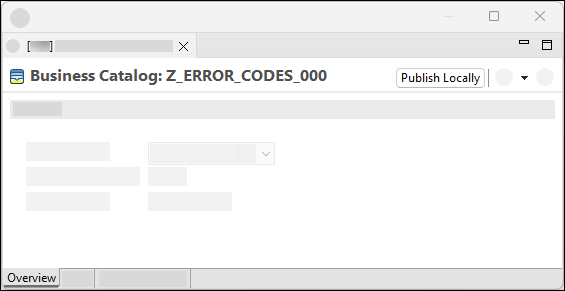
Publish locally
To create a Business Role and assign it to your user, launch the SAP Fiori Launchpad. Log on with a user with the role
SAP_BR_ADMINISTRATOR - AdministratorOpen the Maintain Business Roles app.

Start Maintain Business Roles app Click New to create a new Business Role.

Create new Business Role Create a new Business Role:
- Business Role ID:
ZBR_ERROR_CODES_EXPERT_### - Business Role Description:
Error Codes Expert
Click Create.
- Business Role ID:
Select Business Catalogs and click Add.

Add Business Catalog Search for
Z_ERROR_CODES_###, select it and click OK.
Select Business Catalog Select General Role Details and set Access Category Write, Read, Value Help to
Unrestricted. If you set Access Category Write, Read, Value Help toNo Access, the user can only read the content, but not change it.
Set Access Category to unrestricted Select Business Users and click Add.

Add Business User Select the user responsible for maintaining the error codes and click OK
Click Save to save the Business Role
Resources
Discussion
Share feedback on this tutorial or join the conversation in SAP Community.