
Overview
You will learn
- How to make the custom UI visible as an application tile in SAP Fiori launchpad


Prerequisites
Prerequisites
- Authorizations: Your user needs a business role with business catalogs Extensibility - Custom Business Objects (ID:
SAP_CORE_BC_EXT_CBO) and Extensibility - Custom Catalog Extensions (ID:SAP_CORE_BC_EXT_CCE) in your SAP S/4HANA Cloud system
Steps
Additional Info
- Since application availability in the Fiori Launchpad and its authorization are controlled through Business Catalogs, you’ll learn how to extend an existing catalog to include your newly created app.
- Tutorial last checked for feasibility with SAP S/4HANA Cloud Release 2608
Start typing Custom Catalog Extensions in the Launchpad search and open the App from the results.

Search your application and open it.
The ID of your application is the combination of the name that you gave when deploying it from SAP Business Application Studio to SAP S/4HANA Cloud including the prefix YY1_ plus the suffix _UI5R. It is of type Custom UI5 App.

Press Add to start extending the business catalog that the new app shall be part of.

In the opening value help narrow down the result list by searching for Custom Business, select the Catalog with role ID SAP_CORE_BC_EXT_CBO and press OK.

You could also choose another Catalog, but be aware that your user must have a Business Role containing that catalog to be able to access the created application.
Select the just added Catalog and Publish it.
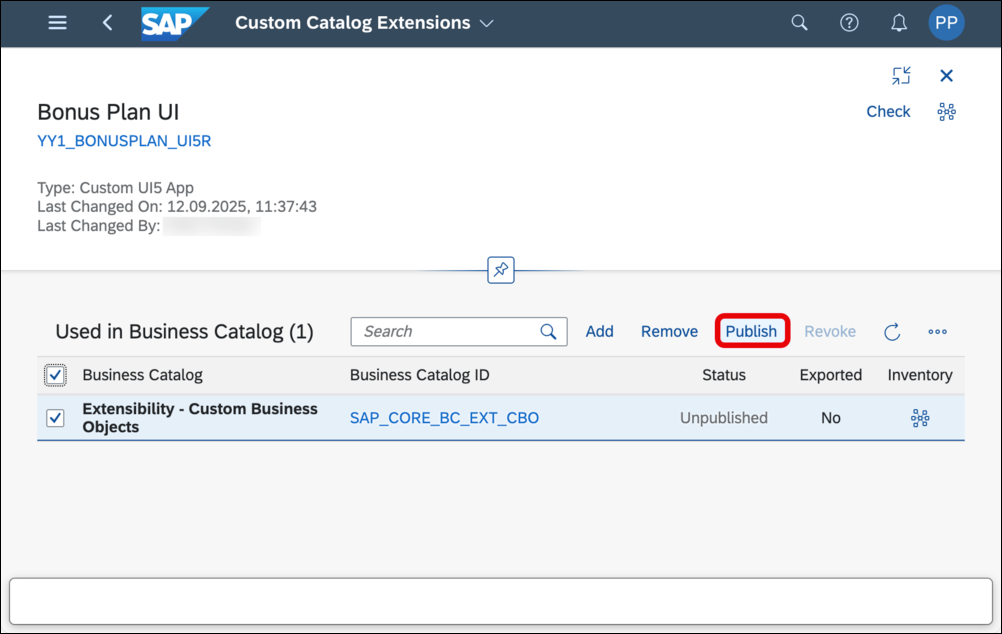
This step takes some minutes, the screen refreshes automatically and once the status switches from unpublished to published, you can close this application’s window and proceed.
Start typing Manage Bonus Plans in the Launchpad search and open the App from the results.

The List Screen will open. As by default a list screen does not show the existing list entries you have to press the Go button to get these.

To get into the details screen of a Bonus Plan you can click its entry in the list.

Resources
Discussion
Share feedback on this tutorial or join the conversation in SAP Community.