
Overview
You will learn
- How to create a communication arrangement for SAP Web IDE scenario
SAP_COM_0013in S/4HANA Cloud - How to create a HTTP destination to S/4HANA Cloud in SAP Business Technology Platform
- How to create a UI project in SAP Web IDE


Prerequisites
Prerequisites
Authorizations: Your user needs
- a business role with business catalog Communication Management (ID:
SAP_CORE_BC_COM) in your S/4HANA Cloud system - Administrator access to your SAP Business Technology Platform subaccount
- Developer access to your SAP Business Technology Platform subaccount’s SAP Web IDE
Steps
Intro
You will learn how to enable SAP Business Technology Platform development with SAP Web IDE against a S/4HANA Cloud system via OAuth authentication. You will see that the communication arrangement for SAP Web IDE scenario SAP_COM_0013 in S/4HANA Cloud will expose essential services, that SAP Web IDE needs. SAP Business Technology Platform subaccount will get a destination which holds data for the connection and OAuth communication with the S/4HANA Cloud system. At the end you will see in SAP Web IDE a list of services that you can theoretically build extensions on.
Regarding the overall trust settings, you will now make your S/4HANA Cloud system trust your SAP Business Technology Platform subaccount.
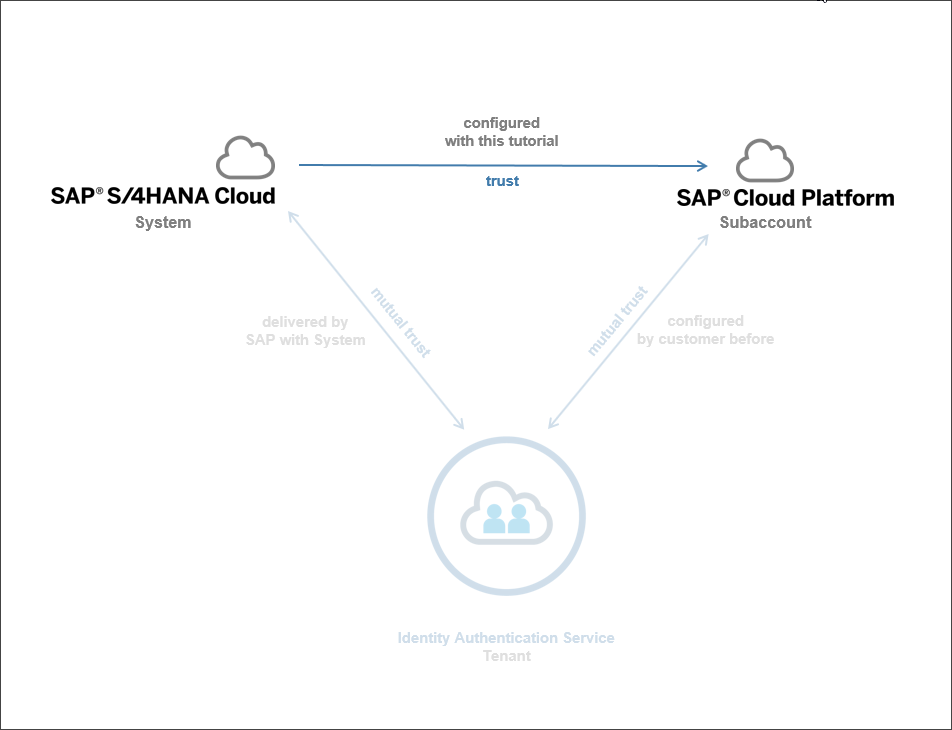
That enables its Web IDE to request data from the S/4HANA system during Custom UI development and finally to deploy that UI to the S/4HANA Cloud system. Both processes are so called inbound requests to the S/4HANA Cloud system.

Additional Information
- SAP S/4HANA Cloud Release (tutorial’s last update): 1902
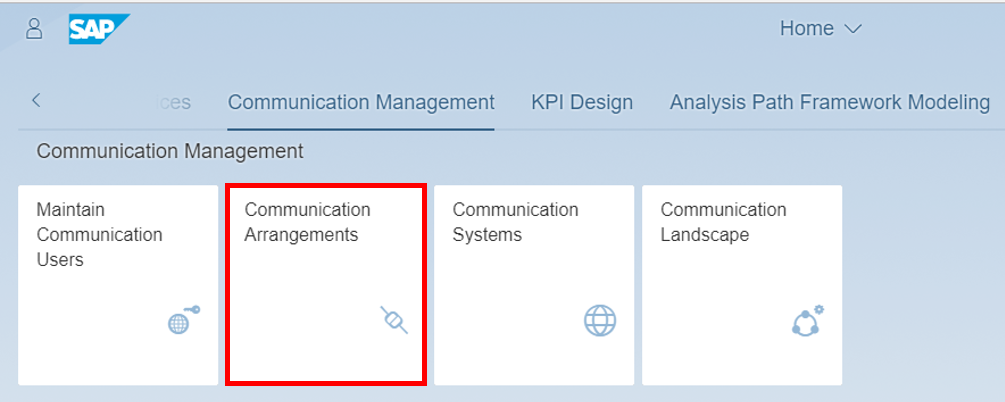
Enter your S/4HANA Cloud system’s Fiori Launchpad and open the Communication Arrangements application from Communication Management.
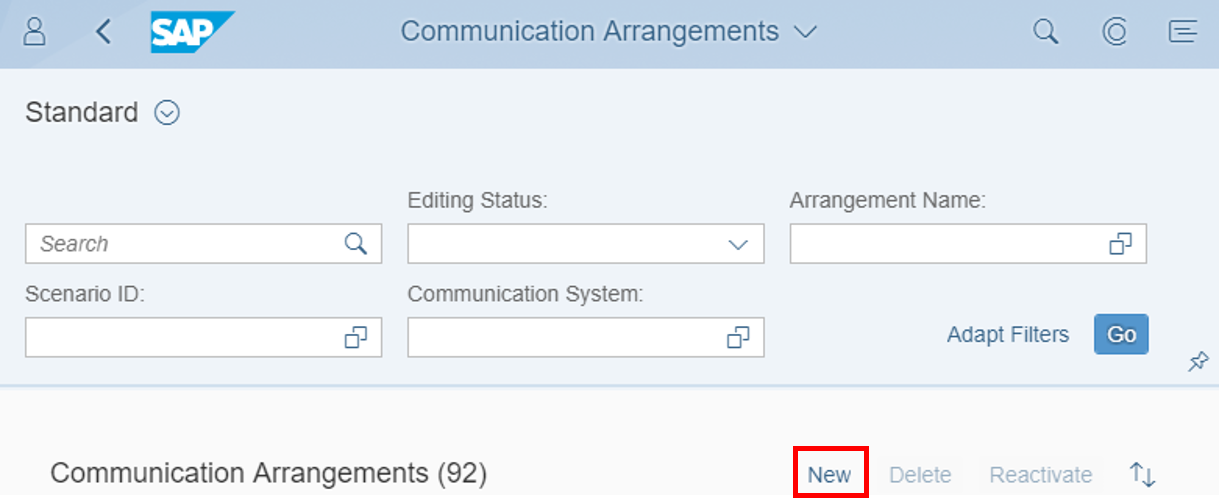
Click New to create a communication arrangement.
Select SAP_COM_0013 as scenario, give a name and click Create.

Add your communication system to your communication arrangement. Select SCP_DEV with OAuth2.0 as communication system. Be sure that your service status of your launch SAP Web IDE is activated and click Save.

For the OAuth destination on SAP Business Technology Platform being created in next steps you will need some OAuth details that you can get from the Communication Arrangement. Open the OAuth 2.0 Details from Inbound Communication section of the communication arrangement. Copy the data or simply leave the pop up open while maintaining the SAP Business Technology Platform destination.
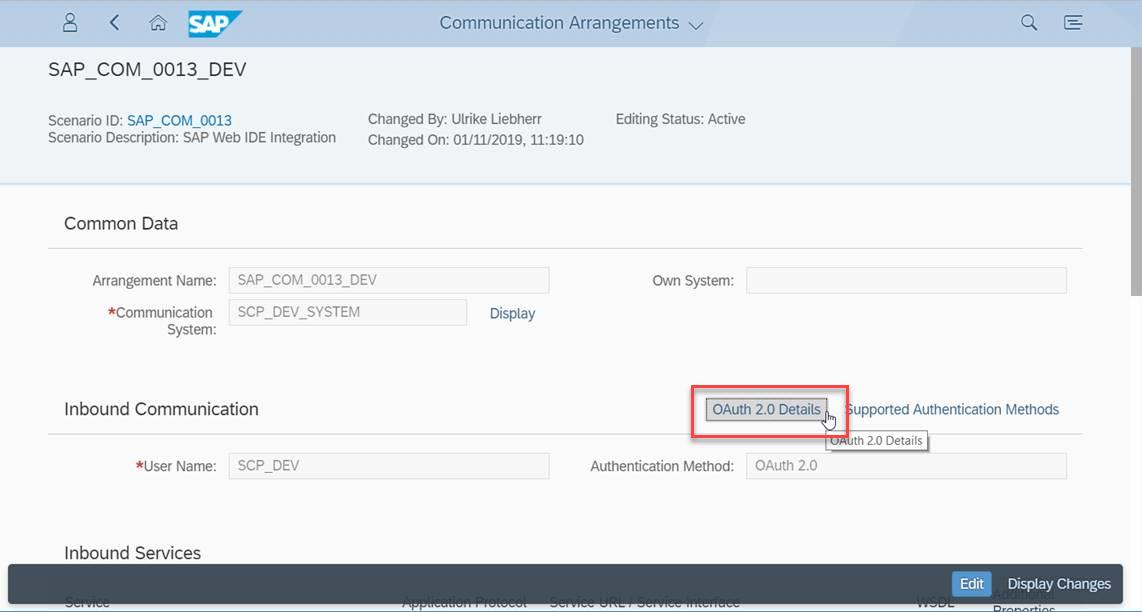
A pop up opens

You will need following data
| Label in S/4HANA OAuth Details | Label in SAP Business Technology Platform destination | equals to |
|---|---|---|
| Client ID | Client Key | Communications System’s Inbound User |
| User Name | Token Service User | Communications System’s Inbound User |
| Token Service URL | Token Service URL | |
Token Service URL: first parts (protocol + domain, for example: https://myXXXXXX-api.s4hana.ondemand.com) | URL | |
| SAML2 Audience | Audience |
Enter the SAP Business Technology Platform subaccount as an administrator. Switch to Destinations and click New Destination.

Enter following data to your destination:
| —————————- | ————————————————- |
| Name | Name of your destination |
| Type | HTTP |
| Description | Description of your destination |
| URL | first parts (protocol + domain, for example: https://myXXXXXX-api.s4hana.ondemand.com) of Token Service URL in S/4HANA Web IDE communication arrangement OAuth details for inbound communication: |
| Proxy Type | Internet |
| Authentication | OAuth2SAMLBearerAssertion |
| Audience | SAML2 Audience in S/4HANA Web IDE communication arrangement OAuth details for inbound communication |
| Client Key | Equals your S/4HANA Web IDE communication system’s inbound user |
| Token Service URL | URL + /sap/bc/sec/oauth2/token|
| Token Service User | Equals your S/4HANA Web IDE communication system’s inbound user |
| Token Service Password | Password of your S/4HANA Web IDE communication system’s inbound user |

Add additional properties:
| —————————– | ——————————————————– |
| authnContextClassRef | urn:oasis:names:tc:SAML:2.0:ac:classes:X509 |
| TrustAll | true |
| WEBIDEEnabled | true |
| WebIDEUsage | odata_abap,ui5_execute_abap,dev_abap |
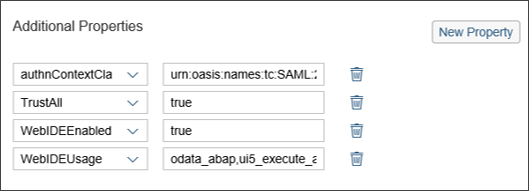
Save your changes.
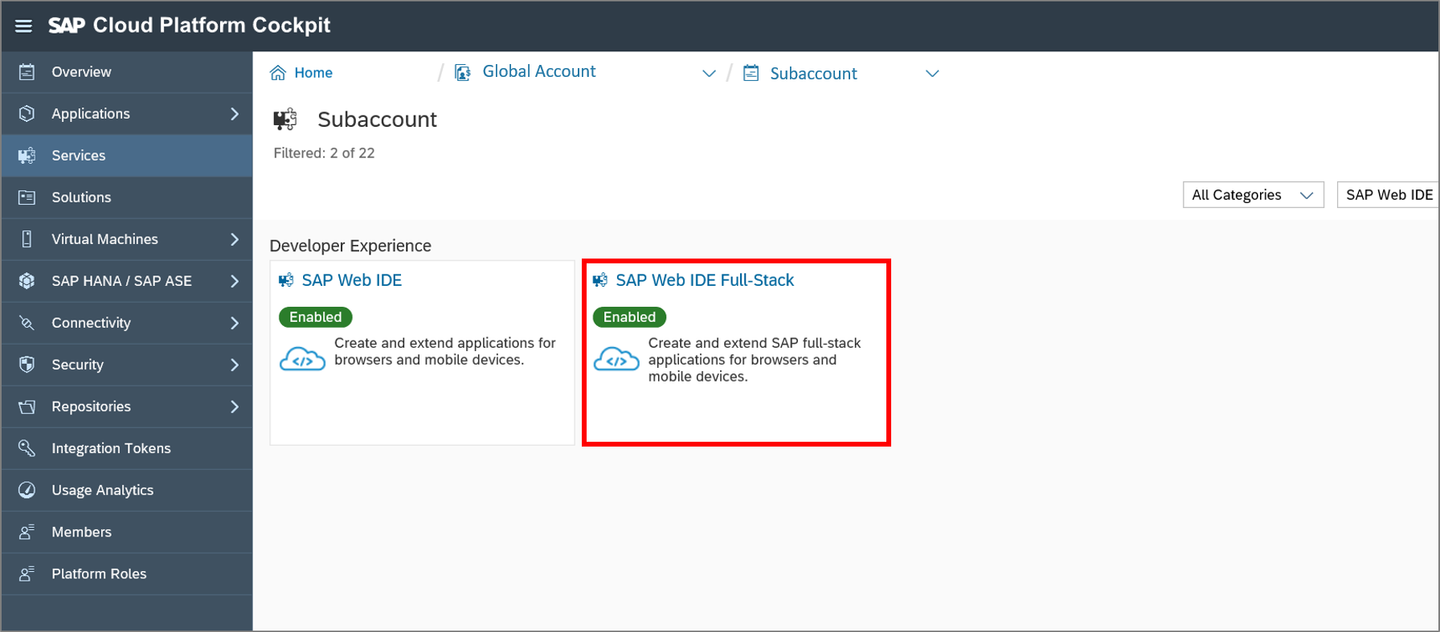
In your SAP Business Technology Platform Subaccount go to Services, search for SAP Web IDE and select it.
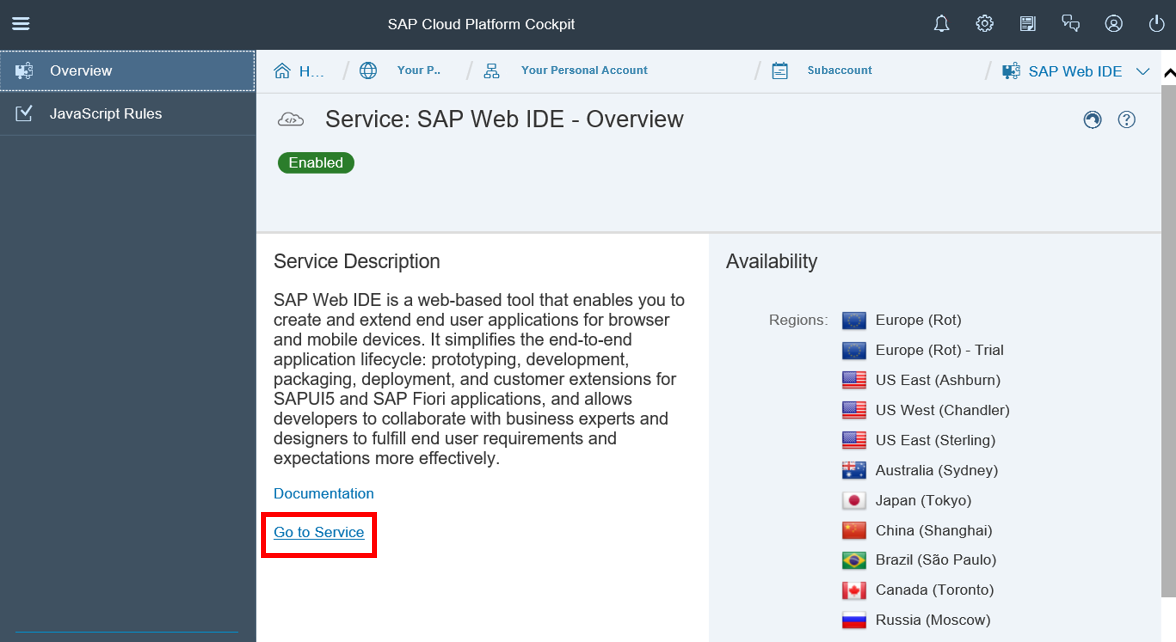
Click Go to Service to open SAP Web IDE.
Select New Project from Template to start wizard for UI project creation.

If you don’t see this welcome page then follow the alternative way:
File > New > Project from Template
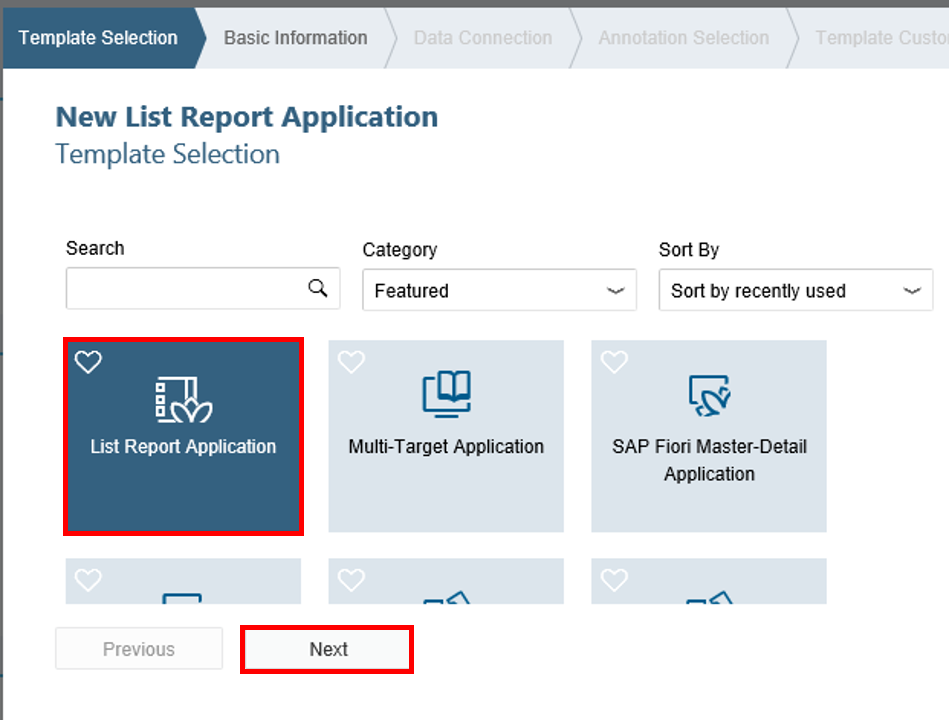
Select the List Report Application template and click Next to create a new UI of this type.
Enter basic information for the project, like Bonusplan as name and title.

Click Next.
To add a data connection click Service Catalog and set the destination SAP_DEV_SYSTEM which you have previously created on your SAP Business Technology Platform subaccount.
Now you can see a list of all custom services in the S/4HANA Cloud system. But if you try to select the Bonusplan service, you’ll get an error message as it is not exposed yet. To finish creating your project, you have to expose that service before.

Resources
Discussion
Share feedback on this tutorial or join the conversation in SAP Community.