
Overview


Prerequisites
Prerequisites
SAP_CA_BC_ANA_REP_PC to your user. Furthermore represents Abap Custom Reporting as tutorial the prerequisites for the usage of Custom Reporting.Steps
Intro
Custom Report are utilised to create and manage reports. With the Application Create Report Evaluation you are able to create and activate evaluations based on reports you have created by using the Create Reports Application. An evaluation combines parameters, filter settings and input parameters that you apply to a report. By using evaluations you can define, which information about your report is going to be displayed at runtime. The configuration of generic drill-down Application is enabled in the configure Report Drill-Down Application. By using the Application Publish Report you can create tiles for an active report.
Time to Complete
15 Min.
Open App Create Reports in group Report Design.
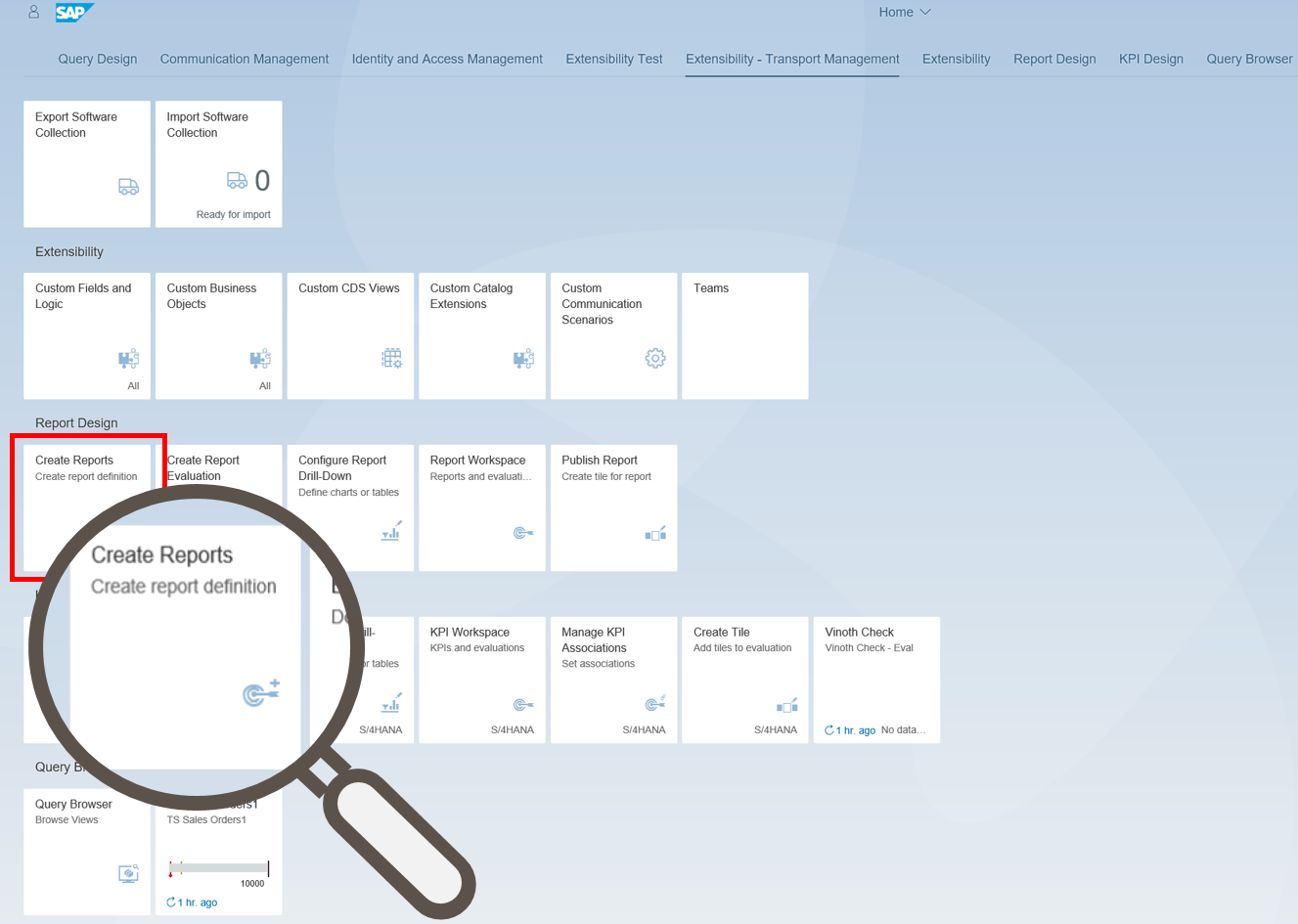
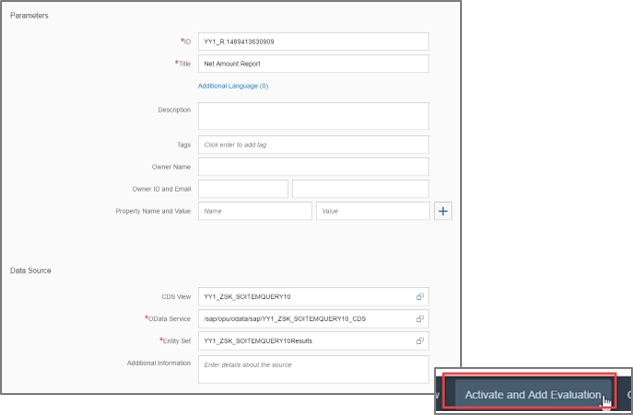
Create a report with the following data:
Title: Sales Quantity Report
CDS view: YY1_MY_SALESORDER_QUERY
Select the only available OData service and the only available Entity Set.
Click Activate and Add Evaluation.
Open App Create Report Evaluation in group Report Design.

Add an Evaluation: Evaluation: Sales Quantity
Click Activate.

Open App Configure Report Drill-Down in group Report Design.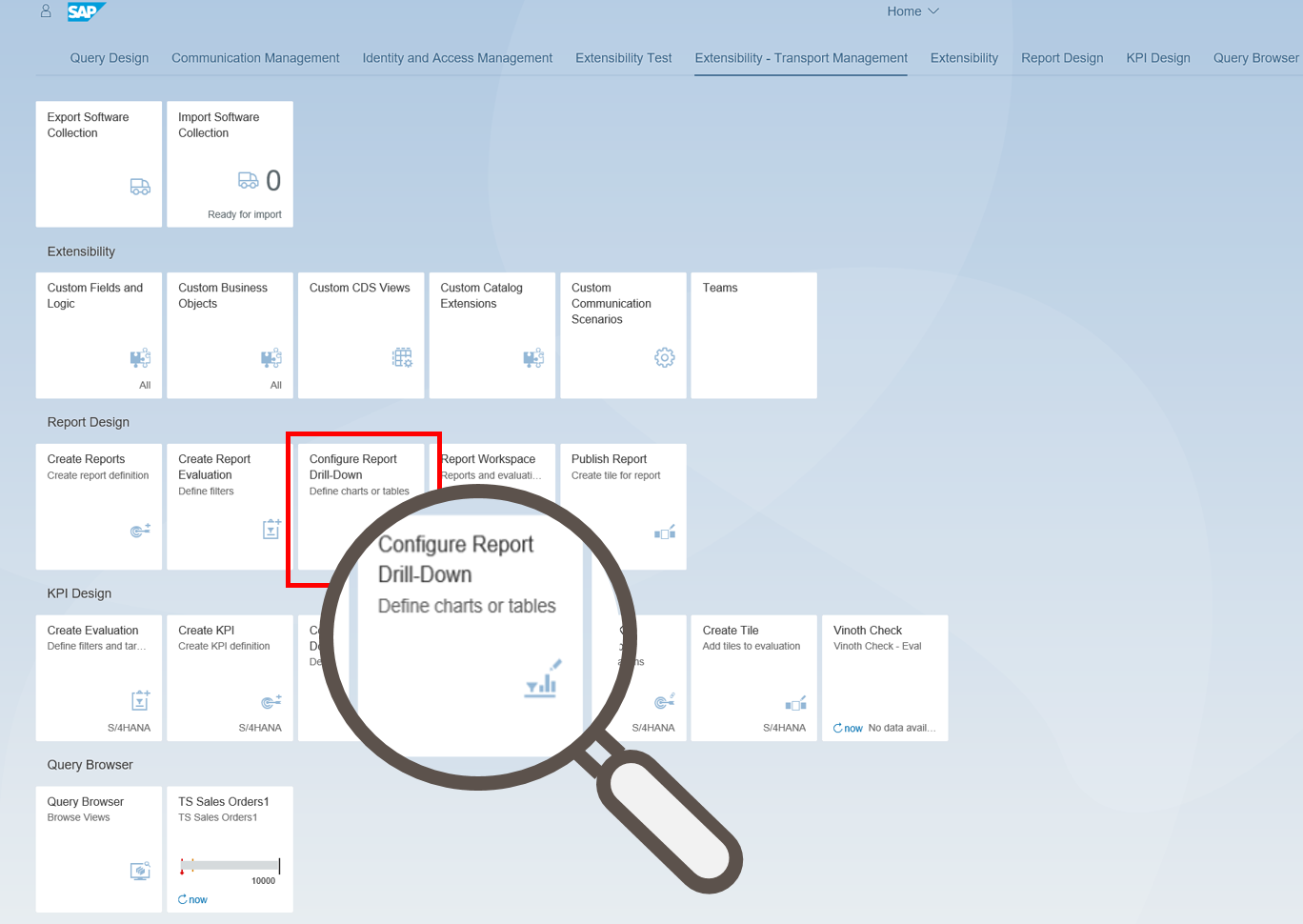
Select the created Evaluation and click on Configure.
Select dimensions and measures.
Click on OK.

Title: By Customer Group Chart Type: Bar
Click OK.
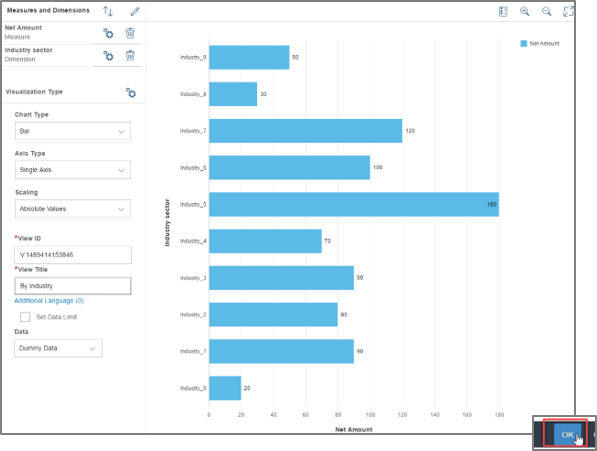
Click on Save Configuration.

Skip this step, if you are directly forwarded from [5.2.3]: Open App Publish Report in group Report Design.

Selected the created report and click on Publish.
Enter Semantic Object and Action.
Click on Save and Publish.

Resources
Discussion
Share feedback on this tutorial or join the conversation in SAP Community.